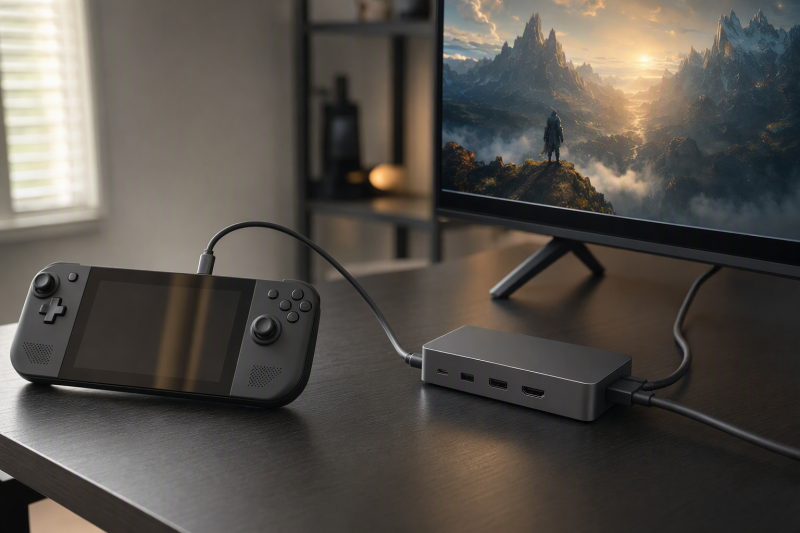
Steam Deck OLED can expose a 4K 120Hz display mode from its USB-C port, so the answer turns on what comes after the Deck. Valve lists DisplayPort 1.4 Alt Mode and external connectivity up to 4K at 120Hz for the Deck. A docked chain reaches that exact mode only when the dock output, cable, and selected display input support it too.
Valve’s Docking Station does not complete that chain. Its listed external-display combinations stop at 4K at 60Hz or 1440p at 120Hz. Valve’s current record does not include 3840×2160 at 120Hz, so a cable change or TV setting cannot turn the Valve Dock into a documented 4K120 output.
A different dock changes only the dock link. Keep the answer conditional until its exact output record states 3840×2160 at 120Hz and the same mode appears under Steam > Display. A DisplayPort, HDMI, or USB-C label by itself is not enough.
Check the four parts of the mode chain
Use one exact target, 3840x2160 at 120Hz. Record the full product model and physical output or input for every row.
| Chain part | Exact record to find | What passes 4K120 | What does not pass |
|---|---|---|---|
| Steam Deck OLED | Valve’s Steam Deck OLED USB-C display specification | The host record states 4K at 120Hz | USB-C shape or the OLED panel refresh rate |
| Dock output | Exact dock model and exact HDMI or DisplayPort output | The output record states 3840×2160 at 120Hz | A generic DisplayPort or HDMI version label |
| Cable | Exact cable class required for the chosen output | The relevant interface or product maker states support for the target format | A cable that only works at a lower mode |
| Display input | Exact display model and the physical input in use | That input record states 3840×2160 at 120Hz | A panel headline that does not identify the input |
The USB-C docks guide covers the broader dock signal path. Keep the four rows specific to your own hardware rather than generic component types. One unsupported row is enough to stop the 4K120 claim.
Steam Deck OLED host record
Valve lists the Steam Deck OLED USB-C connection with DisplayPort 1.4 Alt Mode and USB 3.2 Gen 2. The same record states external connectivity up to 8K at 60Hz or 4K at 120Hz.
The host row passes the target ceiling, but only for the Deck output. Nothing in that record carries the same mode to a dock connected after it.
Keep the model name exact, and keep the two displays apart. The Deck’s built-in OLED display has its own resolution and refresh range, while the USB-C output record controls the external path.
Exact dock output record
Valve lists one DisplayPort 1.4 output and one HDMI 2.0 output on the Valve Docking Station. Its external-display line states support up to 4K at 60Hz or 1440p at 120Hz.
Neither listed combination is 4K at 120Hz. The DisplayPort 1.4 label does not override the product-level limit Valve publishes for the Docking Station. For a Valve Dock chain, mark the dock row not documented for 4K120 and stop there.
For another dock, read the exact model page or manual. A statement such as “8K output,” “HDMI 2.1,” or “DisplayPort 1.4” does not settle the row unless the same record gives 3840×2160 at 120Hz for the physical output you will use. If the record ties that mode to one output, a host mode, an adapter, or a particular multi-display setup, those conditions travel with the claim.
Cable record for an HDMI route
HDMI Licensing Administrator lists Ultra High Speed HDMI Cable for system configurations up to 48Gbps and formats including 4K at 120Hz. For a 4K120 HDMI worksheet, record the exact cable as an Ultra High Speed HDMI Cable rather than relying on an unverified “8K cable” phrase.
Valve separately recommends DP 1.4 and HDMI 2.0+ compliant cables for the highest compatibility with Steam Deck, and warns that resolution, refresh rate, color depth, HDR, and compression can change the required data rate.
A correct cable cannot create a mode that the dock output does not document. Cable evidence becomes decisive only after the host and exact dock output rows pass.
Exact display input record
Read the input row, not the display’s panel headline. The official LG OLED42C4PUA page gives a bounded example. LG lists four HDMI inputs and states that all four support 4K at 120Hz.
LG’s input record can pass the display-input row for the exact OLED42C4PUA and one of those four HDMI inputs. The record does not apply to another model, year, size, or input without its own evidence. It also does not prove that the dock sent the mode.
If the display manual assigns different limits to different inputs, write the physical input number in the worksheet. Moving the cable to another socket changes the chain and requires a new input row.
Mark the mode state before changing anything
The records and the SteamOS selection describe different failure states. Keep them separate.
| What the records and screen show | State | Next bounded action |
|---|---|---|
| One chain part does not state 3840×2160 at 120Hz | not documented |
Stop at that component and keep a documented lower mode |
| All four parts state the target, but SteamOS is set to another resolution or refresh rate | documented but not selected |
Open Steam > Display and select the exact resolution and refresh rate |
| SteamOS offers and selects 3840×2160 at 120Hz, but the image drops, flickers, or returns to a lower mode | selected but unstable |
Return to the stable mode, then verify the exact cable and input conditions |
Do not rename not documented as a defective dock or cable. The record proves only that the target mode is missing from the retained specification. A documented but not selected row is not a hardware limit either, because SteamOS has not requested the target yet.
An unstable selected mode is narrower than complete display failure. Preserve the last stable mode while checking the exact conditions stated by the dock, cable, and display makers.
Locate the first failed part in a fixed order
Check the chain from the Steam Deck outward.
- Confirm the exact handheld is Steam Deck OLED and record Valve’s USB-C external-mode ceiling.
- Record the dock model, the physical output, and the exact resolution and refresh combination stated for that output.
- Record the cable class required by the chosen output. For the bounded HDMI 4K120 route, use an identified Ultra High Speed HDMI Cable.
- Record the display model and physical input. Require 3840×2160 at 120Hz on that input, not only in a panel or gaming headline.
- Only after all four rows pass, open
Steam > Displayand check whether 3840×2160 and 120Hz are both available and selected.
Stop when a row fails. Skipping ahead makes later evidence look stronger than it is. For example, an LG OLED42C4PUA input can document 4K120 and an Ultra High Speed HDMI Cable can document the format, but neither record raises the Valve Dock above its stated 4K60 ceiling.
If all four records pass but 4K120 is absent from SteamOS, record the mode as not exposed on that complete route. Do not force the setting with an unsupported override. Recheck the exact dock output and display input because a different socket can present a different capability.
If SteamOS selects 4K120 but the image is unstable, return to a documented working mode first. Then change one part at a time. Keep the Deck, dock output, and display input fixed when checking the cable. Keep the Deck, dock output, and cable fixed when checking another input that the display manual also documents for 4K120.
Use the SteamOS mode path only after the records pass
Valve documents resolution and refresh overrides under Steam > Display. Use the menu to confirm both values. A 3840×2160 resolution with a 60Hz refresh rate is 4K60, not 4K120. A 2560×1440 resolution at 120Hz is 1440p120, which is the higher-refresh combination Valve lists for its Docking Station.
Valve says a lower resolution or refresh rate that displays correctly may mean that the dock, cable, or display does not support the requested mode. The lower mode proves that an external display path exists, but it does not identify the limiting part. The four records still decide which component lacks the target claim.
Keep complete no-picture troubleshooting separate. If the external display never lights at any lower mode, use the Steam Deck dock external-monitor procedure. Return to the 4K120 worksheet only after a usable picture exists.
End at the first component that fails
| First failed part | Exact evidence | 4K120 decision |
|---|---|---|
| Steam Deck host | Exact host record does not state the target | Stop at the host |
| Dock output | Exact output record stops below 3840×2160 at 120Hz | Stop at the dock |
| Cable | Required cable class or exact cable identity remains unproved | Stop at the cable |
| Display input | The physical input does not state the target | Stop at the input |
| SteamOS selection | All records pass, but the mode is absent or not selected | Keep the documented working mode and record the selection state |
| Selected mode stability | The target is selected but does not remain stable | Keep the stable lower mode and leave the 4K120 route unverified |
For the Valve Docking Station, the first failed part is the dock output. Steam Deck OLED passes the host ceiling, but Valve documents the Docking Station only up to 4K60 or 1440p120.