The StarTech 208N-USB4-DOCK is our first choice for an AMD laptop, and the reason is documentation: StarTech publishes a detailed USB4 display matrix rather than leaving you to infer performance from the connector labels. A desk that needs both HDMI and DisplayPort is better served by the Razer USB 4 Dock, while the D-Link DUF-901 adds a downstream USB4 branch and 2.5GbE. None of them is automatically a perfect match for every Ryzen system. Before buying, confirm that your exact laptop documents USB4, the required DisplayPort tunneling and charging input. An AMD badge or a USB-C-shaped socket establishes none of those capabilities. Our broader USB4 hubs and docks guide covers the category beyond this host-specific shortlist.
Quick picks
- StarTech 208N-USB4-DOCK: the clearest documented route for a capable AMD Windows laptop.
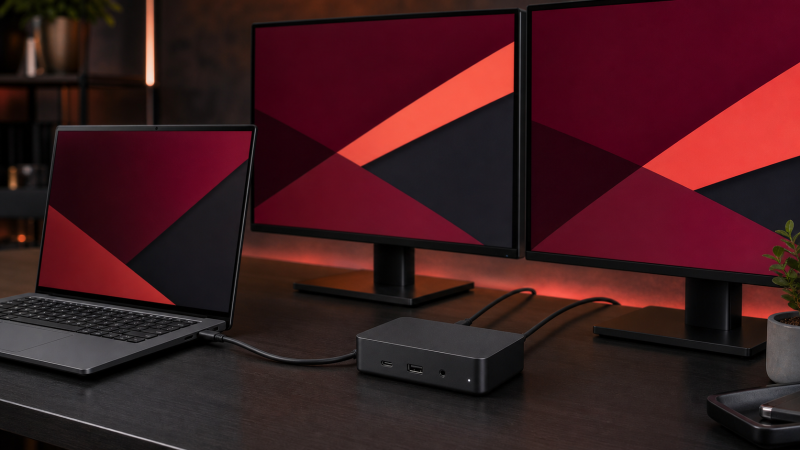
- Razer USB 4 Dock Mercury: the practical pick for a desk using both HDMI and DisplayPort.
- D-Link DUF-901: the strongest fit when downstream USB4 and 2.5GbE matter together.
- Lenovo ThinkPad USB4 Dock 5000: the ambitious choice for a qualified multi-display host.
- Targus DOCK425GLZ: the portable option when you already own a suitable USB-C charger.
| Image | Product | Details | Check Price |
|---|---|---|---|
 | StarTech 208N-USB4-DOCK | USB4 host link: StarTech specifies 40Gbps USB4 Display path: Two DP plus video-capable 10Gbps USB-C AMD-laptop boundary: Host GPU, DP path and DSC control modes Charging: StarTech rates up to 100W to host Best for: Documented qualified display routes | Check Price on Amazon |
 | Razer USB 4 Dock Mercury | USB4 host link: Razer specifies 40Gbps USB4 Display path: HDMI 2.1 plus DP 1.4 AMD-laptop boundary: Secondary display depends on exact host Charging: Up to 100W peak, 96W sustained Best for: Mixed HDMI and DisplayPort desks | Check Price on Amazon |
 | D-Link DUF-901 | USB4 host link: D-Link specifies Gen 3x2 40Gbps Display path: Two DP plus downstream USB4/DP 1.4 AMD-laptop boundary: Host DP and DSC path controls ceilings Charging: D-Link rates up to 100W to host Best for: Downstream USB4 and 2.5GbE | Check Price on Amazon |
 | Lenovo ThinkPad USB4 Dock 5000 | USB4 host link: Lenovo specifies up to 40Gbps Display path: Two DP, HDMI and full-function USB-C AMD-laptop boundary: Display count is host-qualified Charging: 65W bundled; up to 100W with optional supply Best for: Connector-rich AMD workstations | Check Price on Amazon |
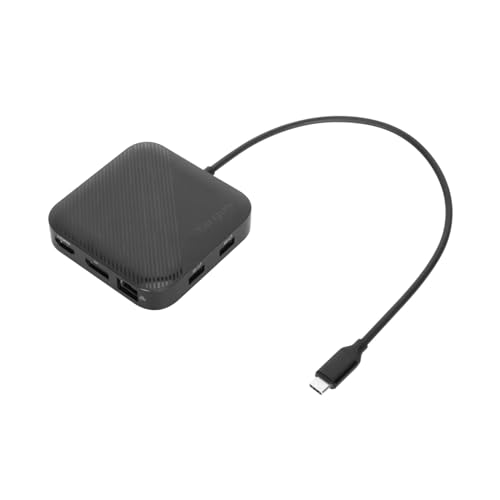 | Targus DOCK425GLZ | USB4 host link: Targus specifies 40Gbps USB4 Display path: DP 1.4 plus HDMI 2.1 AMD-laptop boundary: Dual result depends on host and OS Charging: Up to 85W pass-through; charger excluded Best for: Portable mixed-output setups | Check Price on Amazon |
 | j5create JCD403 | USB4 host link: j5create specifies 40Gbps USB4 Display path: One HDMI; cited mode depends on DP/DSC AMD-laptop boundary: Supported Windows host path required Charging: Up to 95W pass-through; charger excluded Best for: Compact single high-refresh output | Check Price on Amazon |
 | Microsoft Surface USB4 Dock | USB4 host link: Microsoft specifies 40Gbps USB4 Display path: Two USB4 USB-C outputs plus HDMI 2.1 AMD-laptop boundary: Dual 4K60 needs capable USB4/TB4 host Charging: Microsoft rates up to 65W to host Best for: Simple USB-C display expansion | Check Price on Amazon |
1. StarTech 208N-USB4-DOCK — Best overall for documented AMD routes
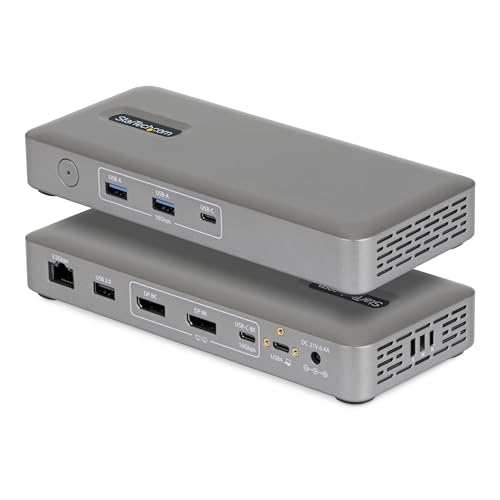
StarTech’s data sheet is why this dock leads. It specifies a 40Gbps USB4 host interface, two DisplayPort outputs and a 10Gbps USB-C port that can also carry DisplayPort Alt Mode, with a published ceiling of dual 4K at 144Hz or one 8K at 60Hz on a qualified host. Those figures are not promises for every AMD laptop. The laptop still needs the display bandwidth, GPU capability, DSC path where the selected mode requires it, suitable cables and compatible monitor inputs.
No other dock here is this easy to assess before purchase, because the maker exposes more of the topology. It also suits a wired workstation: StarTech documents 2.5GbE and up to 100W host charging from the included adapter. Check the laptop’s accepted USB-C charging rate, since no dock can make a barrel-charging-only system accept USB-C power. StarTech claims no downstream USB4 or Thunderbolt, and its video-capable downstream USB-C connection is a 10Gbps port.
Our Take When documentation and two dedicated DisplayPort connections matter more than a downstream 40Gbps branch, the 208N is the buy. Treat its top display modes as qualified ceilings, not the default result of connecting any Ryzen notebook.
- StarTech documents the USB4 host and display matrix clearly
- Maker specifies 2.5GbE and up to 100W host charging
- No manufacturer claim for downstream USB4 or Thunderbolt
- Highest display modes depend on the exact host path
2. Razer USB 4 Dock Mercury — Best mixed HDMI and DisplayPort desk

Two monitors that do not share an input type is the case the Mercury answers. Razer specifies a 40Gbps USB4 upstream link, HDMI 2.1 and DisplayPort 1.4, gives the primary display a ceiling of 4K at 120Hz, and makes the secondary-display result host-dependent. Physical HDMI and DisplayPort sockets do not by themselves guarantee two extended desktops from an AMD laptop.
Razer also rates host delivery at up to 100W peak and 96W sustained from the included 180W adapter. The downstream USB-C data and charging port is rated at 10Gbps and up to 20W, not USB4. That distinction matters the moment you attach a fast USB4 storage device or want another high-bandwidth branch downstream.
Our Take Where a conventional HDMI-plus-DisplayPort desk and broad peripheral selection outweigh the need for downstream USB4, the Razer fits. Verify the laptop’s secondary-display support before buying it for a two-monitor layout.
- Razer documents HDMI 2.1 and DisplayPort 1.4 outputs
- Included power system supports substantial host charging
- Secondary-display mode remains host-dependent
- Downstream USB-C is 10Gbps rather than USB4
3. D-Link DUF-901 — Best for downstream USB4 and 2.5GbE
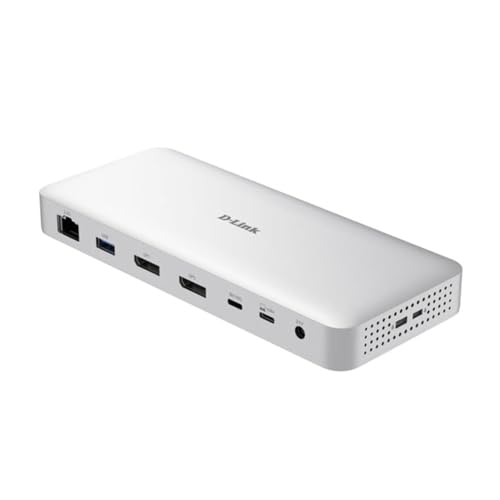
A documented high-bandwidth branch for a compatible device is what separates the DUF-901 from a fixed-output dock. D-Link specifies a USB4 Gen 3×2 40Gbps host connection plus a downstream 40Gbps USB4 port with DisplayPort 1.4 capability, and the maker also lists two DisplayPort 1.4 outputs and 2.5GbE.
D-Link publishes display ceilings up to 8K at 30Hz or 4K at 144Hz under stated host conditions. Which modes you get comes down to your AMD laptop’s USB4 router, GPU, DP path and DSC capability, because no dock can supply a display tunnel the host never exposes. D-Link rates the charging path at up to 100W, subject to what the laptop accepts. Our sources do not establish a bundled power adapter, so confirm current box contents and plan for a suitable USB-C PD supply if needed.
Our Take Make a real downstream USB4 branch and faster wired networking central to the setup, and the DUF-901 is the better buy. For display-first shopping, compare its documented mode conditions with the exact laptop manual before counting its three video-capable routes.
- D-Link specifies a downstream 40Gbps USB4 branch
- Maker documents dual DisplayPort and 2.5GbE
- Top display modes require a qualified host path
- macOS limits in the documentation do not answer AMD laptop behavior
4. Lenovo ThinkPad USB4 Dock 5000 — Best qualified high-display-count route
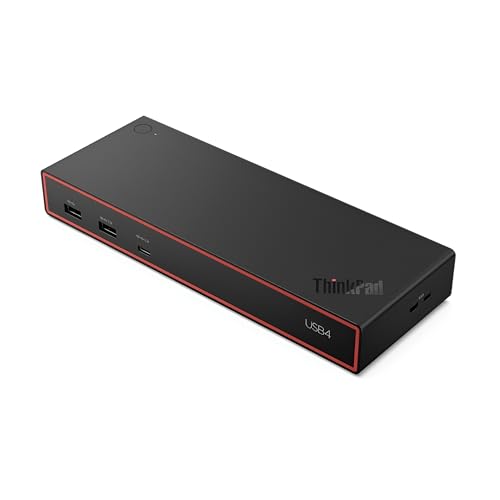
Four video-capable routes are what this dock offers. Lenovo specifies a 40Gbps USB4 connection, two DisplayPort 1.4 outputs, HDMI 2.1 and a full-function 10Gbps USB-C port with DisplayPort 1.4. The maker lists ceilings that include two 4K144 displays or four 4K60 displays, but explicitly makes them subject to host display capability. Do not read four physical video routes as four guaranteed independent screens.
The US 40BF0100US configuration includes a 100W supply, and Lenovo rates laptop delivery at up to 65W. An optional 135W supply, Lenovo says, can raise delivery to 100W. That upgrade only matters when the AMD laptop accepts the higher rate through its USB-C port. Lenovo does not document the downstream ports as USB4 or Thunderbolt.
Our Take For a capable AMD workstation with several monitor inputs and many peripherals, this is the full-size choice. Buy it only after matching the desired display layout to the host, not because the port count resembles the number of screens you want.
- Lenovo documents four video-capable output routes
- Optional power supply supports a higher cited host-delivery ceiling
- Bundled configuration is rated for up to 65W to the laptop
- Display count and refresh depend on host capability
5. Targus DOCK425GLZ — Best portable dual-output choice
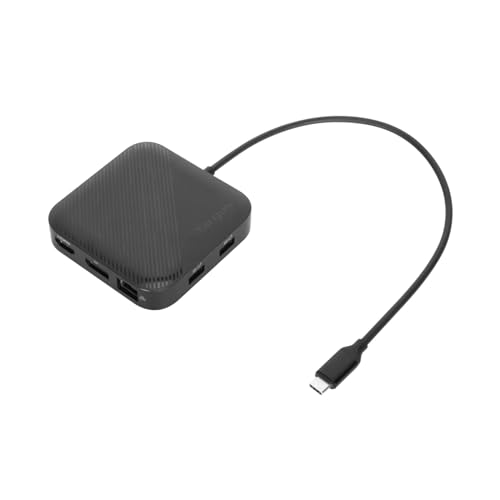
This dock is the one built to travel. Targus specifies USB4 at 40Gbps, one DisplayPort 1.4 output and one HDMI 2.1 output, and cites up to one 8K30 display or two 4K60 displays, subject to the host and operating system. On an AMD laptop that means checking its USB4 display support before assuming the two sockets will operate as two extended monitors.
Targus says the compact dock can run from bus power or accept a separate USB-C supply for up to a rated 85W pass-through. Targus does not include that charger, and after dock overhead the laptop receives less than the supply label. Targus rates the downstream USB-C data port at 10Gbps rather than USB4.
Our Take Travel, or a desk where you already have the right USB-C charger, is where the Targus belongs. A powered desktop dock is a cleaner purchase when you need guaranteed accessories in the box or a downstream USB4 branch.
- Targus documents both DP 1.4 and HDMI 2.1
- Can operate from bus power for lighter setups
- Required USB-C charger is sold separately
- Dual-display result remains host and OS dependent
6. j5create JCD403 — Best compact single high-refresh output

One display, pushed hard: that is the JCD403. j5create specifies a 40Gbps USB4 host connection and one HDMI output. On a supported Windows host the maker cites up to 8K60 or 4K144 when the host’s DisplayPort 1.4 path supports DSC, and up to 8K30 or 4K120 without DSC. Those are single-output ceilings, not proof of VRR, HDR, a particular color format or gaming performance.
It also includes 2.5GbE and accepts up to 100W at its USB-C PD input, with j5create rating delivery to the laptop at up to 95W after the hub’s needs. The charger is not included, so plan for an appropriate supply and verify the AMD laptop’s accepted charging input.
Our Take One demanding HDMI monitor and a compact bag is the JCD403’s brief. It is not the choice for two native display outputs, and its top modes depend on the exact DP and DSC path from the laptop.
- j5create documents a 40Gbps USB4 host link
- Maker specifies 2.5GbE in a compact hub
- Only one manufacturer-documented display output
- USB-C power supply is not included
7. Microsoft Surface USB4 Dock — Best simple USB-C display expansion
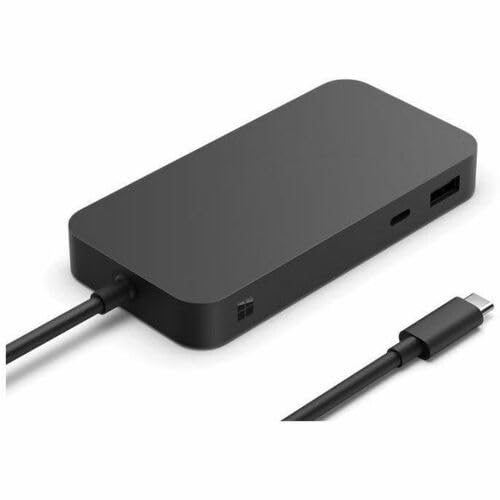
Microsoft is explicit about the weaker-host case. It specifies a 40Gbps USB4 connection, HDMI 2.1 and two downstream USB4 Gen 3 ports that are Thunderbolt 4 compatible and video-capable. On a capable USB4 or Thunderbolt 4 host, Microsoft documents dual 4K60 through USB-C and HDMI. A plain USB-C host is limited to one 4K60 display.
That stated fallback makes the dock useful once you can verify the AMD laptop’s port type, and it shows why the label matters: connecting through an ordinary USB-C data port changes the supported display topology. Microsoft rates host charging at up to 65W from the included 100W power supply, which may be modest for higher-power AMD mobile workstations.
Our Take On a verified USB4 host, the Surface dock gives a clean USB-C display branch plus HDMI. Skip it when your laptop needs more than 65W, or when you have not confirmed that the port exposes the required USB4 display path.
- Microsoft documents two downstream USB4 video-capable ports
- Plain USB-C fallback is stated explicitly
- Microsoft caps host charging at 65W
- Dual 4K60 needs a capable USB4 or Thunderbolt 4 host
What to verify on an AMD laptop before buying
Start with the laptop manual or its manufacturer support page, not the processor badge, and look for an explicit USB4 statement for the exact port. Then check whether the documented display path supports the number, resolution and refresh rate you want. A system can expose USB4 data without satisfying every display ceiling a dock advertises.
Windows offers a second check: its USB4 device interface can confirm that the operating system sees a USB4 router and attached USB4 devices. That is evidence about the connected path, and it still does not replace the GPU and display specifications. If the laptop manual is silent about DSC, do not plan around a dock mode that requires DSC.
Next, map each monitor to a documented route. Two DisplayPort sockets may be simpler for two DP monitors, HDMI plus DP can avoid adapters on a mixed desk, and a downstream USB4 or video-capable USB-C route needs a suitable USB-C-to-display cable or adapter. The USB4 versus Thunderbolt 4 guide explains why those labels overlap without being interchangeable.
Finally, check power separately from data and video. Compare the dock’s host-delivery figure against the laptop’s USB-C input requirement. Pass-through models need a suitable charger, and some gaming or workstation laptops may continue to require their original power adapter under heavy load. Use a cable rated for the path you intend, and our USB4 cable guide covers that purchase separately.
Frequently asked questions
Does every AMD Ryzen laptop support USB4 docks?
No. The processor brand certifies nothing about the laptop’s external port implementation. Confirm USB4, display tunneling and USB-C charging support for the exact model and port.
Will a USB4 dock guarantee two monitors on an AMD laptop?
No. The host GPU, the USB4 and DisplayPort path, DSC support where required, the operating system, output grouping, cables and monitor inputs all affect the result. Read the dock maker’s matrix together with the laptop documentation.