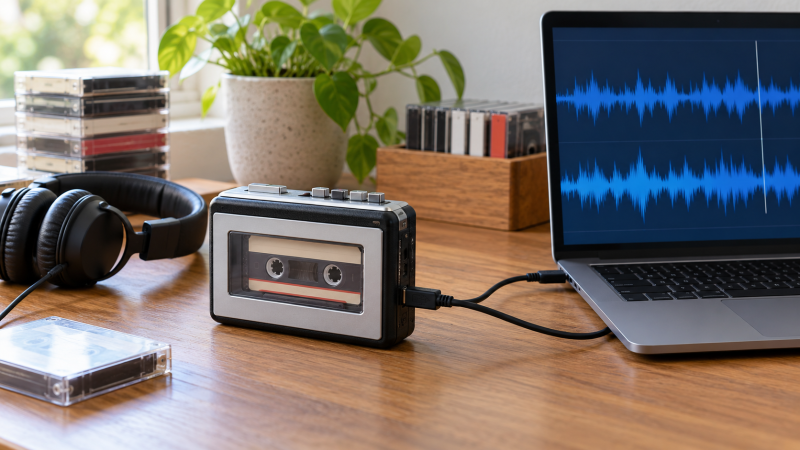
Saving a cassette to a laptop takes as long as the tape plays, because the computer records the audio as the tape runs. A USB cassette converter combines a portable tape transport with a way to send audio to recording software. It differs from a cassette deck that only makes MP3 files on an SD card, and from a bare USB audio grabber that still needs a separate working cassette player.
These five New-offer choices all advertise some computer-capture route, though their secondary features vary. Two can also save files to removable media. One is a compact basic transfer kit, and one ships with old software claims that need checking before purchase. None can repair a stretched tape, fix a poorly aligned playback head, or guarantee that a decades-old recording will be noise-free.
Before you archive a unique tape, play a short non-critical section, confirm the laptop sees an audio input, and save a test file. Listen to that file, not just the live headphones, before recording a full side.USB Cassette Converters Compared
| Image | Product | Details | Check Price |
|---|---|---|---|
 | SEMIER USB-C | Computer capture: Audacity via USB listed Other recording: SD card, 16 GB included Power: USB-C or 4 AA Best fit: Laptop or SD workflow | Check Price on Amazon |
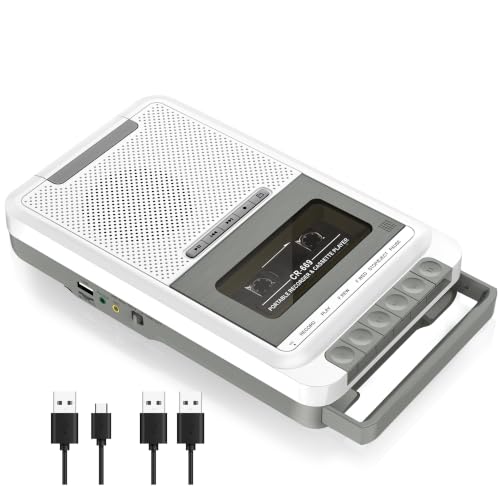 | Gracioso Cassette Converter | Computer capture: Audacity route listed Other recording: USB drive / TF card Power: USB-C or 4 C Best fit: Tabletop multi-format use | Check Price on Amazon |
 | Reshow Silver | Computer capture: USB to MP3 listed Other recording: Not stated Power: 5 V USB cord included Best fit: Compact supervised transfers | Check Price on Amazon |
 | DIGITNOW USB Capture | Computer capture: USB to software listed Other recording: Not stated Power: Battery or USB listed Best fit: Known legacy computer | Check Price on Amazon |
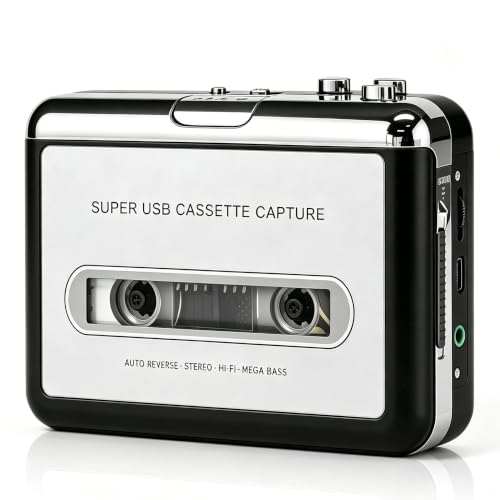 | Tinxumb USB Cassette Player | Computer capture: USB laptop path listed Other recording: Not stated Power: USB or 2 AA Best fit: Conditional backup | Check Price on Amazon |
1. SEMIER USB-C — Best Computer-or-SD Capture Choice
SEMIER fits a collection where some tapes can be transferred directly to removable storage while others need closer attention on the laptop. Its listing gives two ways to digitize a tape. One is to record to an included SD card. The other is to connect by USB cable to a computer using Audacity. The seller includes a 16 GB SD card and reader. The card and reader help transfer files, but do not prove that every laptop will recognize the unit as a USB audio input without setup.
SEMIER says it handles Type I tapes and specifically does not support Type IV metal tapes. Check the labels on your archive before choosing it for mixed tape formulations. It also lists a USB-C power cable or four AA batteries, a small LCD, a built-in speaker and a 3.5 mm headphone jack. The listing’s quality language is promotional, and preservation depends on tape condition, stable playback and a correctly monitored recording level.
Our Take Buy SEMIER as the flexible pick when both laptop and SD-card capture are useful and the collection is compatible with its stated Type I boundary. Confirm the computer-capture path with a test file first.
- Seller lists computer and SD capture.
- 16 GB card and reader included.
- USB-C or AA-battery power listed.
- Type IV metal tapes expressly excluded.
- Computer input behavior needs a local test.
- Removable-card files and live USB capture are different paths.
2. Gracioso Cassette Converter — Best Tabletop Multi-Format Unit
Gracioso offers a larger player with a retractable handle rather than a pocket-size Walkman shape. Its listing says it can save cassette content to a USB flash drive or TF card and can use Audacity to transfer tape audio to a computer. It can play tape, USB-drive and card content, and it advertises recording onto cassette from removable media. For a home archive, the extra modes are options, not reasons to assume the computer-transfer path is automatically better than direct card recording.
Card and USB-drive recording use FAT32 according to the listing. If you plan to make many transfers without a laptop beside the deck, check that removable-storage format and how files are named before committing to a long session. The seller lists a USB-C power cable or four C batteries, a 3.5 mm headphone jack and a built-in speaker. The seller’s mention of an external microphone is unrelated to clean playback of an existing cassette into a laptop.
Our Take Buy Gracioso when a handled tabletop player and several storage modes fit the archive space. Treat its PC route as something to test, not as a guarantee inferred from the presence of a USB-C power cable.
- PC, USB-drive and TF-card paths listed.
- Large handled layout.
- Headphone monitoring and speaker listed.
- Removable recording expects FAT32.
- Larger unit takes more desk space.
- USB-C power alone does not prove a capture route.
3. Reshow Silver — Best Compact Laptop Transfer Kit
Reshow sells a compact silver cassette player, and it is the basic route when the laptop will be present for every transfer and a removable-media recorder is unnecessary. Its listing says tape audio can be converted to MP3 through a USB cable and computer. It includes conversion software, a guide and a 5 V USB power cord. Its 3.5 mm jack permits headphone listening, but the live headphone sound is not proof that the computer recorded the correct source.
The seller calls it compatible with laptops and personal computers without giving a current, specific operating-system matrix in the returned bullets. Before transferring an irreplaceable tape, confirm the capture software opens and that your computer sees the converter as an audio device. If the included software is inconvenient, use recording software that recognizes the device, but do not assume compatibility without checking the actual laptop.
Our Take Buy Reshow when every transfer is supervised on a laptop and you want a straightforward portable player. Verify input selection and record a short test before making the long MP3 file.
- Direct USB-to-computer conversion stated.
- Software, guide and power lead listed.
- Compact headphone-capable player.
- Current OS compatibility is not specified in returned bullets.
- No standalone SD recording listed.
4. DIGITNOW USB Capture — Best Legacy-Computer Route
DIGITNOW’s listing describes a portable cassette player that sends audio via USB cable to recording software, with MP3 conversion and a 3.5 mm headphone output. It includes a USB cable, software CD, earphone and manual. The included disc is a practical concern because many current laptops have no optical drive, and the supplied software may be unnecessary if a compatible audio input shows up in other recording software.
DIGITNOW is a conditional pick for a known legacy computer or a buyer willing to verify modern operation before relying on it. The returned bullets explicitly name Windows XP, Vista and Windows 7, plus an awkwardly worded older Mac version claim. They do not establish support for a current Windows or macOS release. The listing says battery or USB-powered operation but does not provide a modern system compatibility test.
Our Take Buy DIGITNOW only when its old software and computer claims are acceptable for your setup. On a current laptop, verify that the laptop sees a USB audio device, and check the software options, before ordering an entire archive workflow around it.
- USB tape-to-computer capture stated.
- USB cable and headphone included.
- Portable battery/USB power described.
- Listed OS claims are old.
- Software arrives on CD.
- Modern-laptop compatibility is unproven.
5. Tinxumb USB Cassette Player — Best Conditional Fifth Pick
The Tinxumb listing identifies model Cass-mp3-usb-01 and states that a USB cable connects the cassette player directly to a laptop for audio capture. It describes software for MP3 conversion, trimming and editing, plus USB or two-AA-battery power. The computer route matches the buyer job, but the returned bullets leave several capture details unclear.
If you need a dependable laptop capture tool, choose a better documented option above unless the seller can clarify the exact hardware and software route. The seller’s audio-quality promises are broad and unmeasured, and the returned bullets do not give a clear sample-rate, bit-depth or current OS compatibility specification. One bullet describes a 3.5 mm connection as an “AUX input” while mentioning earbuds and car-stereo use, which does not clearly say whether the port takes audio in or sends it out.
Our Take Buy the Tinxumb player only as a fallback. It advertises the required USB-to-laptop path, but sparse capture specifications and inconsistent 3.5 mm wording make it harder to recommend confidently.
- Direct laptop capture stated.
- USB or AA-battery power listed.
- 3.5 mm port direction is unclear.
- Current OS and capture specifications are not stated.
Buying Guide: Capture a Tape Once, Then Verify the File
Separate computer capture from removable-media recording
A USB power socket is not proof of USB audio input. The cassette unit must either send audio over USB to the laptop or make a file on removable storage that you can copy later. SEMIER and Gracioso list both computer and card/drive routes. Reshow and DIGITNOW emphasize the direct laptop path. The generic fifth listing also claims direct USB audio transfer, but describes its hardware less precisely. Check the computer’s audio-input menu before starting a long recording.
A file copied from an SD card is a different workflow. It can avoid keeping the laptop awake through an entire tape, but file naming, format and storage limits then need attention. SEMIER includes an SD card and reader. Gracioso requires FAT32 for its removable recording. On the laptop route, capture software can show live meters and let you name the recording as it is made. Decide which workflow you will use most before paying for secondary features.
Protect the tape and monitor the transfer
Tape condition limits the result. A stretched, sticky or damaged cassette may not play safely in a bargain portable transport. Before inserting a unique recording, inspect the shell and gently try a less valuable tape. If it drags or makes unusual mechanical noise, stop rather than forcing playback. SEMIER expressly excludes Type IV metal tape. Check the tape formulation if the collection includes several types.
Record a short test and listen back to the saved file. Set the computer’s input source, watch the meters for clipping and confirm both left and right channels appear if the tape is stereo. Headphones at the player let you hear the tape playing but not the USB file. Save a brief test, play it through another output, then record the full side. Our phono-preamp guide covers vinyl’s separate phono-to-line chain, not cassette capture.
Treat bundled software as optional until checked
Old software claims need an operating-system match. DIGITNOW explicitly lists Windows XP, Vista and 7 and ships a software CD. Reshow provides software and a guide, but its returned bullets do not identify current OS releases. A USB audio device may appear to generic recording software even when the bundled application is obsolete, but that possibility is not a guarantee. Check the seller documentation for the exact laptop you will use.
Keep an unprocessed archive copy before making MP3 edits. The listings emphasize MP3 convenience, while some recording applications can capture an uncompressed file first. If your software and storage allow it, save the original transfer before noise reduction, trimming or format conversion. An unedited original leaves room to revisit a correction without replaying a fragile tape. If you also archive other analog sources, our vinyl capture guide explains why a turntable requires a different first stage.
Frequently Asked Questions
Can I simply copy music from the cassette over USB?
Not like copying files from a USB stick. A cassette is analog media, so the tape must play while the converter or computer records its signal. A 30-minute side normally takes about 30 minutes to capture at normal playback speed. The USB cable is a route for audio and possibly power, not a shortcut that reads the tape instantly.
After the pass, check the resulting file’s duration and listen at the start, middle and end. A silent, clipped or one-channel file is easier to correct while the tape and settings are still on the desk.
Do I need the software that comes in the box?
Maybe not, but verify the device appears as an audio input on your computer first. SEMIER names Audacity and Gracioso also describes an Audacity route, while Reshow and DIGITNOW mention bundled conversion software. None of those listing statements independently proves that a current operating system will recognize every unit.
If the supplied application is too old, compatible recording software may still work when the converter presents a usable USB audio device. Test a short capture before planning many transfers, and avoid relying on a software CD if the laptop has no disc drive.
Is an SD-card converter better for fragile tapes?
Not automatically. The cassette still has to play at its normal speed in either route. An SD workflow may remove the need to keep a laptop awake, but it does not make the transport gentler or correct tape damage. The condition of the cassette and the player mechanism affect the result more than whether the file lands on a card or directly on the computer.
For a unique or visibly damaged tape, start by testing with a less valuable tape and consider a specialist transfer service if the mechanism drags or the tape is deteriorating. Do not continue a capture solely because the converter says it can save to removable storage.
Bottom Line
SEMIER USB-C offers the clearest choice for laptop and SD capture if the tapes fit its stated Type I limit. Gracioso fits a larger tabletop archive setup, while Reshow Silver is a simpler supervised USB path. Treat the old-software DIGITNOW and the thinly specified Tinxumb as conditional purchases. Test and listen to a saved file before any full-side transfer.