The BenQ RD280U is the best coding-specific monitor in this guide because its 28.2-inch 3840 x 2560 panel gives you a tall 3:2 workspace, while BenQ documents USB-C video and data, up to 90W Power Delivery, and a KVM. That combination is unusually focused on code, terminals, and reference material. Its supplied stand adjusts for height, tilt, and swivel but does not pivot, so portrait use requires a suitable arm or mount through the documented 100 x 100mm VESA pattern.
That recommendation is about layout and documented desk connections, not measured evidence of sharper text or greater productivity. The RD280U calculates to about 163.5 pixels per inch from its manufacturer-stated diagonal and native resolution. Your operating-system scale, IDE zoom, font, viewing distance, compositor, and application behavior still decide how large and comfortable the interface looks.
The rest of the list covers a larger 32-inch-class 4K workspace, a deliberately evidence-limited Dell USB-C hub monitor, a QHD model whose supplied stand pivots, a straightforward 27-inch 4K USB-C option, a 34-inch ultrawide, and a Thunderbolt 4 enterprise desk. Every pick had an exact US Amazon New offer on July 16, 2026 and a matching manufacturer identity page.
This post includes affiliate links, for which we may earn a commission at no extra cost to you should you make a purchase using our links. As an Amazon Associate, we can earn from qualifying purchases. Learn more.Updated July 16, 2026
We checked exact product identity, manufacturer documentation, and dated Amazon offer records on July 16, 2026. Three exact ASINs had New offers marked in stock. Four showed limited availability: BenQ RD320U, ASUS PA278CFRV, Samsung S65TC, and HP 727pu. Offer state, seller, and condition can change after that date.
This update also notes two documentation limits. Dell’s exact support page confirms the P2725QE identity and 4K USB-C hub-monitor class, but no exact US specification page or manual was available for detailed claims. Its section therefore omits refresh, charging, port counts, stand axes, KVM, operating-system behavior, exact diagonal, and calculated PPI. Samsung’s exact manufacturer part is LS34C650TANXGO, while Amazon uses a different model-field string; the part and Samsung SKU control the identity here.
Quick Picks
- Best coding-specific overall: BenQ RD280U for a tall 3:2 canvas, USB-C, KVM, and a VESA route for portrait mounting.
- Best large 32-inch coding monitor: BenQ RD320U for a 31.5-inch 4K canvas, KVM, USB-C charging, and supplied-stand pivot.
- Best 27-inch 4K USB-C developer workspace: Dell Pro P2725QE for its exact 4K USB-C hub-monitor identity, with detailed specifications intentionally omitted.
- Best supplied-stand portrait workflow: ASUS ProArt PA278CFRV for documented pivot, QHD resolution, USB-C up to 96W, and DisplayPort output.
- Best straightforward 27-inch 4K USB-C choice: Philips 27E1N5900R/27 for its exact 27-inch 4K UHD USB-C identity.
- Best ultrawide developer layout: Samsung ViewFinity S65TC for a documented 34-inch 3440 x 1440 curved canvas and Thunderbolt 4 connection.
- Best Thunderbolt 4 developer desk: HP Series 7 Pro 727pu for its exact 27-inch QHD Thunderbolt 4 monitor role.
Coding Monitor Comparison
| Image | Product | Details | Check Price |
|---|---|---|---|
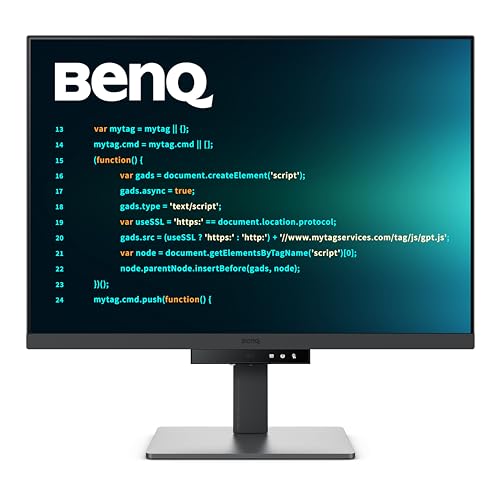 | BenQ RD280U | Native size and resolution: BenQ states 28.2 inches, 3840 x 2560, 3:2 Calculated pixel density: About 163.5 PPI from manufacturer geometry; not measured text clarity Aspect/layout role: Tall 3:2 coding workspace USB-C or Thunderbolt path: USB-C video and data Host charging: BenQ states up to 90W Power Delivery KVM/hub path: Manufacturer-documented KVM Supplied-stand portrait support: No pivot; height, tilt, and swivel only VESA support: 100 x 100mm; portrait needs a suitable rotating mount Best for: Coding-specific overall Key caveat: Programming and eye-care modes are not independent text-quality or health proof | Check Price on Amazon |
 | BenQ RD320U | Native size and resolution: BenQ states 31.5 inches, 3840 x 2160, 16:9 Calculated pixel density: About 139.9 PPI from manufacturer geometry; not measured text clarity Aspect/layout role: Large 32-inch-class 4K coding workspace USB-C or Thunderbolt path: USB-C host path Host charging: BenQ states up to 90W KVM/hub path: Manufacturer-documented KVM Supplied-stand portrait support: BenQ documents pivot VESA support: Not used as a frozen selection claim Best for: Large coding monitor Key caveat: Do not infer Linux support for BenQ host software | Check Price on Amazon |
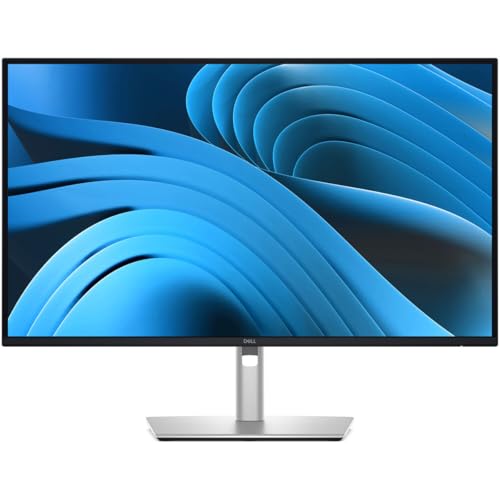 | Dell Pro P2725QE | Native size and resolution: Dell identity proves 4K class; exact diagonal and native-mode details omitted Calculated pixel density: Not calculated because exact Dell manufacturer inputs were not frozen Aspect/layout role: 4K USB-C developer workspace USB-C or Thunderbolt path: Dell identifies a USB-C hub-monitor class Host charging: Not frozen from an exact Dell US specification source KVM/hub path: Hub-monitor class only; detailed ports and switching are omitted Supplied-stand portrait support: Not frozen VESA support: Not frozen Best for: 27-inch-class 4K USB-C developer workspace Key caveat: Detailed Dell specifications require a later exact official US source | Check Price on Amazon |
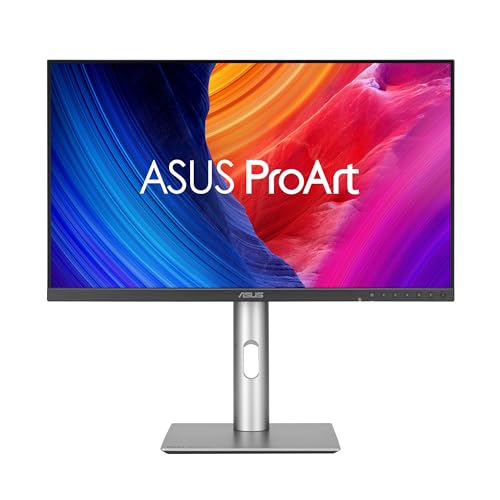 | ASUS ProArt Display PA278CFRV | Native size and resolution: ASUS states 27 inches, 2560 x 1440, 16:9 Calculated pixel density: About 108.8 PPI from manufacturer geometry; not measured text clarity Aspect/layout role: QHD portrait workflow USB-C or Thunderbolt path: USB-C plus DisplayPort output Host charging: ASUS states up to 96W KVM/hub path: DisplayPort output remains host and OS dependent Supplied-stand portrait support: Yes, ASUS documents pivot VESA support: 100 x 100mm Best for: Supplied-stand portrait workflow Key caveat: Calibration and gamut claims do not prove coding text quality | Check Price on Amazon |
 | Philips 27E1N5900R/27 | Native size and resolution: Philips states 27 inches and 4K UHD Calculated pixel density: About 163.2 PPI from 27-inch 3840 x 2160 geometry Aspect/layout role: Straightforward 27-inch 4K workspace USB-C or Thunderbolt path: USB-C monitor class Host charging: Charging ceiling omitted from the frozen evidence KVM/hub path: Detailed hub and switching claims omitted Supplied-stand portrait support: Not claimed VESA support: Not used as a frozen selection claim Best for: Straightforward 27-inch 4K USB-C choice Key caveat: Low-blue-light and flicker language remains manufacturer feature wording | Check Price on Amazon |
 | Samsung ViewFinity S65TC, LS34C650TANXGO | Native size and resolution: Samsung states 34 inches, 3440 x 1440, Ultra-WQHD Calculated pixel density: About 109.7 PPI from manufacturer geometry; not measured text clarity Aspect/layout role: Curved 21:9 code, terminal, and documentation layout USB-C or Thunderbolt path: Thunderbolt 4 Host charging: Exact negotiated charging behavior remains host dependent KVM/hub path: No KVM claim used Supplied-stand portrait support: No portrait claim; Samsung documents an adjustable stand VESA support: Not used as a frozen selection claim Best for: Ultrawide developer layout Key caveat: Amazon model field differs; exact Samsung part LS34C650TANXGO controls identity | Check Price on Amazon |
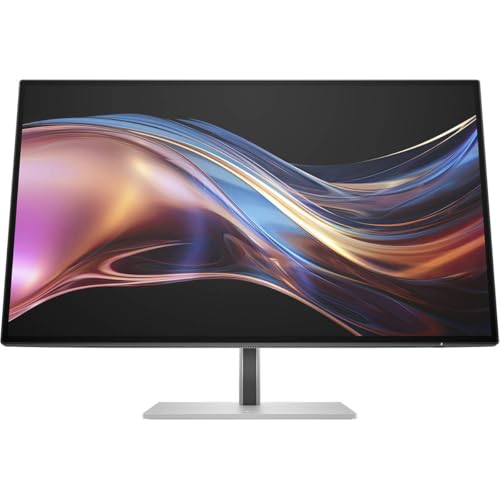 | HP Series 7 Pro 727pu, 8J9E6UT#ABA | Native size and resolution: HP identifies a 27-inch QHD monitor Calculated pixel density: About 108.8 PPI from 27-inch 2560 x 1440 geometry Aspect/layout role: QHD enterprise developer desk USB-C or Thunderbolt path: Thunderbolt 4 monitor class Host charging: Exact ceiling omitted from the frozen evidence KVM/hub path: Detailed hub and switching claims omitted Supplied-stand portrait support: Not used as a frozen selection claim VESA support: Not used as a frozen selection claim Best for: Thunderbolt 4 developer desk Key caveat: HP utility documentation for other operating systems is not Linux software support | Check Price on Amazon |
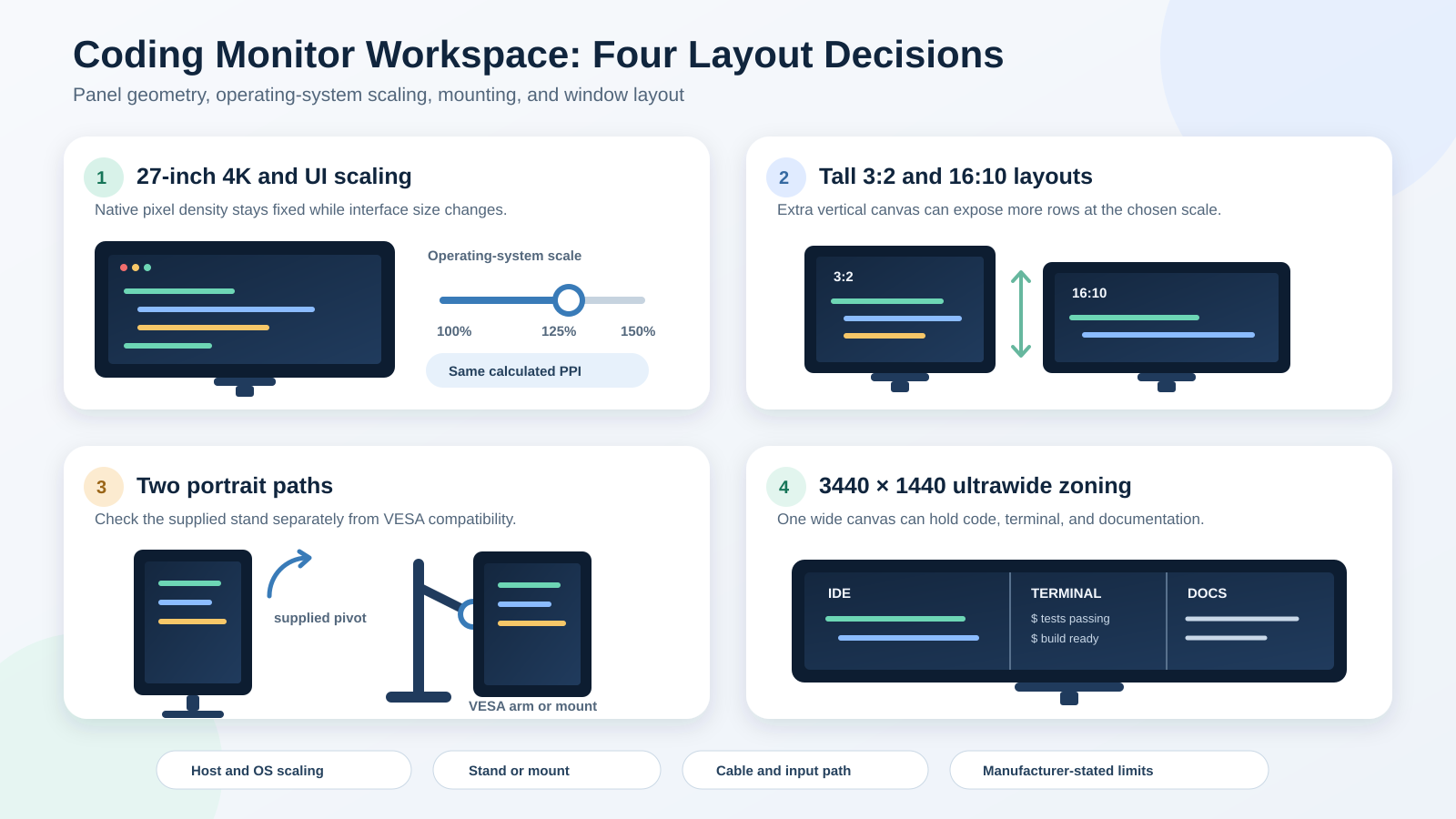
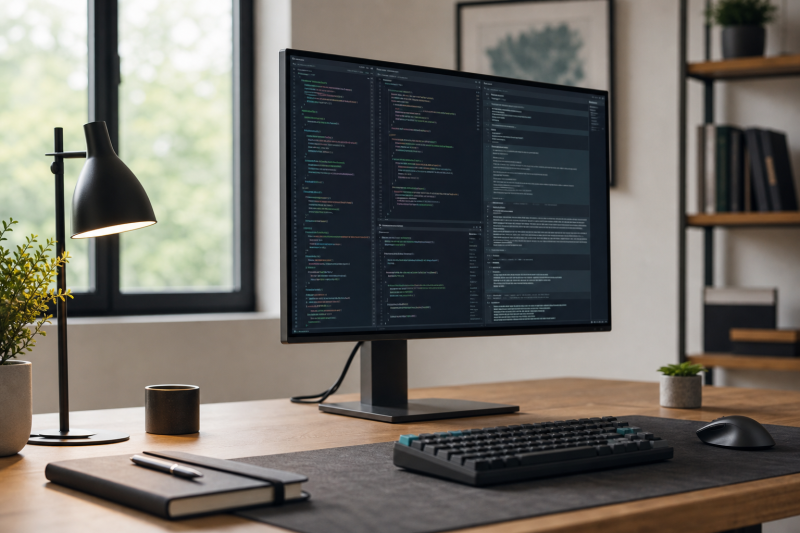
The comparison table lists product facts, while the diagram explains how those facts change a workspace. It separates four layouts: 27-inch 4K with operating-system scaling outside the display boundary, tall 3:2 and 16:10 canvases without treating them as identical, supplied-stand pivot versus a VESA-mounted portrait route, and an ultrawide split among code, a terminal, and documentation. The diagram labels PPI as calculated geometry rather than measured readability.
Table of Contents
- What makes a monitor useful for coding
- Pixel density and scaling
- Tall, portrait, and ultrawide layouts
- BenQ RD280U
- BenQ RD320U
- Dell Pro P2725QE
- ASUS ProArt PA278CFRV
- Philips 27E1N5900R/27
- Samsung ViewFinity S65TC
- HP Series 7 Pro 727pu
- How to choose a coding monitor
- Windows and Linux host limits
- Frequently asked questions
- Methodology
- Exclusions
What Makes a Monitor Useful for Coding
A coding monitor is not a separate panel technology. The category is a set of workspace decisions. You need enough native pixels for the interface scale you prefer, a physical size that keeps text readable at your viewing distance, an aspect ratio that fits your editor and reference windows, and a stand or mount path that puts the panel where you need it. Connections matter when a notebook, desktop, or second computer shares the display and peripherals.
The first check is the relationship among native resolution, diagonal size, and scaling. A 27-inch 4K monitor and a 31.5-inch 4K monitor use the same pixel count across different physical areas. The smaller panel has higher calculated PPI. That does not make it universally better. Some developers prefer the larger physical canvas at the same scale, while others prefer the denser geometry and adjust the interface.
Aspect ratio is the second check. A 3:2 display has more vertical room relative to its width than a 16:9 display. That can expose more code rows at a given scale and zoom, but toolbars, terminal panes, sidebars, and font settings change the result. A portrait display trades line width for vertical reach. An ultrawide favors several side-by-side windows but does not add the vertical pixels of a taller-resolution panel.
The third check is the complete desk path. USB-C can carry video, data, and negotiated charging only when the monitor and host document those functions. A KVM also needs the correct video input and USB upstream route for each computer. Thunderbolt can consolidate compatible paths, but the host, cable, monitor, and operating system still determine what works. Our general monitor selection guide covers the broader panel and connection questions before you narrow the choice to developer work.
Pixel Density and Scaling
Pixel density is calculated as the diagonal pixel count divided by the physical diagonal in inches. For the RD280U, that is sqrt(3840^2 + 2560^2) / 28.2, or about 163.5 PPI. A 27-inch 3840 x 2160 panel calculates to about 163.2 PPI. A 31.5-inch 3840 x 2160 panel calculates to about 139.9 PPI. A 27-inch 2560 x 1440 panel calculates to about 108.8 PPI, and a 34-inch 3440 x 1440 panel calculates to about 109.7 PPI.
Those values make the geometry comparable, but they do not dictate the user interface. Scaling changes interface size, not the panel’s native pixel density. Windows can enlarge text and controls while continuing to render to the native panel. Linux behavior varies with the desktop environment, display server, compositor, application toolkit, and fractional-scaling implementation. Some application combinations handle a chosen scale more consistently than others.
Do not equate a higher number with more usable code by default. A dense 27-inch 4K display often needs interface scaling at a normal desk distance. A QHD display may run at a lower scale and show a similar logical workspace with larger physical pixels. The resulting text appearance also depends on subpixel structure, font rendering, coating, application behavior, and viewing distance. None of those measured characteristics is available in this evidence set.
Standard 5K increases the native pixel grid further, but it belongs to a separate resolution category. Our 5K monitor guide covers those products. For this ranking, the useful question is whether the monitor’s documented geometry and connection path fit your Windows or Linux environment, not whether one resolution label wins in isolation.
Tall, Portrait, and Ultrawide Layouts
The RD280U’s 3:2 ratio is the clearest tall-layout option in the selected slate. Its 3840 x 2560 native grid has more vertical pixels than a 3840 x 2160 16:9 panel. That is useful for an editor above a terminal, a notebook beside documentation, or a long diff, but the visible row count still depends on scaling and interface choices. Do not call 3:2 and 16:10 the same format. Both are taller than 16:9 relative to width, but their proportions differ.
Portrait use needs a mechanical route. A supplied stand that pivots is ready for rotation without another purchase. ASUS documents pivot for the PA278CFRV, and BenQ documents pivot for the RD320U. The RD280U’s supplied stand does not pivot, although its 100 x 100mm VESA pattern can accept a suitable rotating mount. Portrait-ready must identify the supplied stand or the VESA route. A VESA pattern alone does not mean an arm, mounting plate, or rotation mechanism is included.
Ultrawide use solves a different problem. The Samsung S65TC’s 3440 x 1440 canvas can keep an IDE, terminal, and documentation visible without a bezel between them. Its 1440 vertical pixels and calculated 109.7 PPI are still below a 27-inch 4K panel’s geometry. The wider canvas is a layout choice, not evidence that every developer will work faster. Very large alternatives are covered in the 49-inch and 43-inch ultrawide guide.
1. BenQ RD280U: Best Coding-Specific Overall
The RD280U earns the first position because BenQ designed and documents the model around programming rather than adding a coding label to a general office display. BenQ specifies a 28.2-inch 3840 x 2560 panel in a 3:2 shape. The geometry calculates to about 163.5 PPI, which places it close to 27-inch 4K density while adding 400 native vertical pixels over a 3840 x 2160 panel.
That extra height is the decisive workspace feature. It can hold more of a file, terminal history, or documentation at a given interface scale and zoom. It does not guarantee a fixed number of code rows, because fonts, editor chrome, window arrangement, and operating-system scaling remain variables. BenQ’s programming modes are manufacturer features, not independent proof of text clarity, comfort, or productivity.
The desk path is unusually complete for this intent. BenQ documents USB-C video and data with up to 90W Power Delivery, plus a KVM. A compatible host must support the required USB-C video path and negotiate the charging level it accepts. KVM use still requires the correct video and USB upstream arrangement for both computers. Vendor utilities should not be assumed to support Linux unless BenQ names that support.
The stand boundary matters. BenQ states that the supplied stand adjusts for height, tilt, and swivel but does not pivot. The monitor has a 100 x 100mm VESA pattern, so a suitable rotating arm or mount can create a portrait route. For most buyers, the native 3:2 orientation is the reason to choose it, while the VESA option provides flexibility later.
Our Take
Choose the RD280U when vertical workspace, a high calculated density, USB-C, and a two-computer KVM matter more than a high refresh ceiling or supplied portrait rotation. It is the best coding-specific package in the slate, but its manufacturer modes should never be presented as measured text-quality evidence.
- Tall 28.2-inch 3840 x 2560 3:2 geometry
- Calculated density of about 163.5 PPI
- USB-C video, data, and up to 90W Power Delivery
- Manufacturer-documented KVM and 100 x 100mm VESA
- Supplied stand does not pivot
- Portrait use needs a suitable VESA mount
- Programming modes are not independent clarity or health proof
2. BenQ RD320U: Best Large 32-Inch Coding Monitor
The RD320U is the large-screen alternative to the RD280U. BenQ documents a 31.5-inch 3840 x 2160 panel, programming positioning and presets, USB-C up to 90W, a KVM, and supplied-stand pivot. Its native 16:9 geometry calculates to about 139.9 PPI.
The physical size changes the decision. At the same operating-system scale, interface elements appear physically larger on 31.5-inch 4K than on 27-inch 4K. That can suit a deeper desk or a developer who prefers larger physical text without moving to QHD. It does not create more native pixels than another 4K display, and the lower calculated PPI means it is not the high-density leader.
BenQ’s programming presets remain attributed features. No independent review measurement was available for text clarity, coating, uniformity, response behavior, or viewing performance. The article therefore ranks the RD320U for documented geometry, connection features, and stand path rather than an unobserved image-quality result.
The supplied stand’s pivot support gives it a straightforward portrait route. A 31.5-inch panel is physically tall when rotated, so desk depth, eye line, and cable reach deserve attention. Rotation also narrows horizontal line width, which may suit logs and documentation better than long code lines. Portrait is an option rather than the reason every buyer should choose it.
USB-C and KVM operation still depend on a compatible host and correct upstream route. BenQ’s documented host-software scope must not be extended to Linux by assumption. Hardware on-screen controls can remain usable even when a vendor utility is unavailable, but the exact feature path should be checked before relying on software switching.
Our Take
Choose the RD320U when you want a physically larger 4K coding canvas with supplied-stand pivot and a documented KVM. The RD280U is denser and taller in aspect ratio. The RD320U is easier to justify when physical scale, portrait flexibility, and a large 16:9 workspace take priority.
- 31.5-inch 3840 x 2160 manufacturer geometry
- Supplied stand supports pivot
- BenQ documents USB-C up to 90W
- Manufacturer-documented KVM
- Lower calculated PPI than 27-inch 4K
- Large physical portrait footprint
- Linux support for BenQ host software is not established
3. Dell Pro P2725QE: Best 27-Inch 4K USB-C Developer Workspace
The Dell Pro P2725QE holds a narrow role in this ranking. Our July 16 check of Amazon’s listing and offer records confirms the exact standalone P2725QE product, ASIN, New offer, and seller. Dell’s exact support page identifies the product as the Dell Pro 27 Plus 4K USB-C Hub Monitor P2725QE. That is the full safe specification boundary available for this guide.
No exact Dell US commerce page, specification PDF, or manual was available during our July 16 check. The article therefore does not publish a refresh ceiling, charging wattage, detailed port list, stand axes, KVM behavior, operating-system compatibility, exact physical diagonal, or calculated PPI for this product. Numbers from Amazon’s catalog are not rewritten as Dell specifications.
The role is still distinct. A 4K USB-C hub-monitor class can be relevant to a developer who wants a display and desk connection point in one device. The exact host must support the monitor’s required video path, and any data or charging function must be confirmed against a Dell source before purchase. The class label alone does not prove every laptop can use every hub function.
This restraint prevents a common catalog error. A monitor can have the correct model name while a retailer field, bundle description, or regional page supplies numbers that do not match the selected configuration. The exact standalone ASIN passed, but Dell must control the technical details. Buyers who need a particular charging ceiling, stand movement, port count, or KVM path should wait for or locate the exact US manual before ordering.
Our Take
Choose the P2725QE only when its exact 4K USB-C hub-monitor identity matches the intended category and you are willing to confirm the detailed Dell documentation separately. It remains selected because the identity and role are valid, not because unsupported catalog specifications were allowed to fill the gap.
- Exact standalone P2725QE Amazon identity
- Dell support confirms 4K USB-C hub-monitor class
- Distinct integrated-desk role
- Detailed Dell US specifications were unavailable for this guide
- Charging, stand, port, and KVM figures are omitted
- No PPI is calculated without exact Dell geometry inputs
Monitors that replace more separate desk hardware form their own category. The guide to monitors with built-in docking stations explains that wider intent without turning the P2725QE evidence gap into a specification claim.
4. ASUS ProArt Display PA278CFRV: Best Supplied-Stand Portrait Workflow
The PA278CFRV is the clearest portrait pick because ASUS documents pivot on the supplied stand. It does not require a separate arm to rotate the 27-inch 2560 x 1440 panel. ASUS also documents a 100 x 100mm VESA pattern, so the monitor can move to a compatible mount if the supplied stand no longer fits the desk.
Its QHD geometry calculates to about 108.8 PPI. That is much lower than the roughly 163 PPI of a 27-inch 4K panel, but it may require less interface scaling for many Windows and Linux setups. This is a tradeoff, not a universal quality ranking. The evidence does not measure text clarity, coating, subpixel layout, or font rendering.
ASUS states a refresh ceiling up to 100Hz, USB-C Power Delivery up to 96W, and a DisplayPort output. A supported refresh and resolution combination still depends on the source, cable, input, and operating-system path. DisplayPort output does not guarantee that every host can daisy-chain independent displays. The host GPU and operating system decide the topology.
Portrait orientation works well for a long terminal, logs, documentation, and narrow code panes. It can be less comfortable for long lines or wide debugging views. The supplied pivot makes experimentation easy, while the VESA pattern leaves a route for a multi-monitor arm. The stand feature is the evidence-backed reason for the verdict.
ASUS also publishes calibration and gamut language for this ProArt model. Those are manufacturer color features, not proof of coding text quality. They do not change the calculated PPI or establish measured accuracy for the exact Amazon unit.
Our Take
Choose the PA278CFRV when supplied-stand portrait rotation matters more than 4K density. It combines documented pivot, a VESA route, USB-C charging, and DisplayPort output in a QHD workspace. Check the host and operating system before relying on daisy chaining or the headline refresh ceiling.
- Supplied stand supports pivot
- 100 x 100mm VESA documented
- ASUS states USB-C Power Delivery up to 96W
- Up to 100Hz and DisplayPort output documented
- Lower calculated PPI than the 4K picks
- Daisy chaining remains host and OS dependent
- Color claims do not prove coding text clarity
5. Philips 27E1N5900R/27: Best Straightforward 27-Inch 4K USB-C Choice
The Philips 27E1N5900R/27 is the simple 27-inch 4K USB-C choice. Philips’ exact US product page identifies that size, 4K UHD class, and USB-C connection. Those inputs support a calculated density of about 163.2 PPI from a 3840 x 2160 native grid across 27 inches.
That density makes it a useful alternative for developers who want 4K geometry without the RD280U’s 3:2 shape or the RD320U’s larger physical panel. The same scaling warning applies. A 27-inch 4K panel may need interface scaling, and Linux fractional-scaling behavior varies by desktop environment, compositor, and application toolkit. PPI does not describe the coating, subpixel arrangement, or measured text quality.
The evidence we gathered does not support a numeric charging ceiling, a KVM claim, or a supplied-stand portrait claim for this product. Those details are omitted from both the article and comparison table. A USB-C connector should be checked for the exact source’s video, data, and charging support rather than treated as a promise of every one-cable function.
Philips publishes low-blue-light and flicker feature language. Those remain attributed manufacturer features. The guide does not claim reduced eye strain, better sleep, medical benefit, or measured flicker performance. Comfort depends on brightness, ambient light, viewing distance, interface scale, breaks, and individual needs, none of which the model name settles.
Our Take
Choose the 27E1N5900R/27 when a straightforward 27-inch 4K USB-C identity is enough and you do not need a documented KVM or portrait-stand claim. It earns its place through exact current identity and useful pixel geometry, while the omitted fields should be confirmed on the exact Philips page for your region before purchase.
- Exact 27-inch 4K UHD manufacturer identity
- USB-C monitor class
- Calculated density of about 163.2 PPI
- No manufacturer-backed charging ceiling used
- No supplied-stand portrait claim
- Eye-care language is not independent health evidence
Developers comparing one-cable displays can use the USB-C monitor guide for broader interface-first choices.
6. Samsung ViewFinity S65TC, LS34C650TANXGO: Best Ultrawide Developer Layout
The Samsung S65TC is the selected ultrawide because Samsung documents the exact LS34C650TANXGO part as a 34-inch Ultra-WQHD 3440 x 1440 display with a 1000R curve, Thunderbolt 4, 100Hz, an adjustable stand, and built-in speakers. The geometry calculates to about 109.7 PPI.
The 21:9 canvas is useful for a code editor, terminal, and documentation side by side. It can also keep a browser preview beside development tools. That is a layout rationale, not a measured productivity claim. Compared with 27-inch 4K, the S65TC has fewer vertical pixels and lower calculated density. Buyers who prioritize dense text geometry over horizontal reach should choose differently.
The curve is part of Samsung’s exact product description. Whether a 1000R curve feels natural depends on viewing distance, window placement, and preference. No independent evidence was available for viewing comfort, text behavior near the edges, uniformity, or measured response. The 100Hz ceiling may make supported scrolling motion look different from 60Hz, but it does not prove faster coding.
Thunderbolt 4 is the desk-connection distinction. The exact host, cable, operating system, and monitor path determine available video, data, charging, and peripheral behavior. A Thunderbolt label does not guarantee the same layout on every computer. The guide does not infer KVM support or portrait use for this curved ultrawide.
Amazon’s model field differs from Samsung’s exact product string. The Amazon title and part match the selected display, while the manufacturer SKU LS34C650TANXGO controls the identity. Buyers should match that part rather than relying on a shortened retailer model field.
Our Take
Choose the S65TC when a single wide canvas and Thunderbolt 4 are more useful than 4K density or portrait rotation. Its best use is a deliberate multi-pane layout. It is not the sharpest-by-geometry pick, and every Thunderbolt desk function remains conditional on the complete host path.
- 34-inch 3440 x 1440 ultrawide canvas
- Samsung documents Thunderbolt 4 and 100Hz
- Adjustable stand and built-in speakers
- Useful side-by-side application layout
- Lower calculated PPI than 27-inch 4K
- No portrait or KVM claim
- Amazon model field differs from the exact Samsung part
7. HP Series 7 Pro 727pu, 8J9E6UT#ABA: Best Thunderbolt 4 Developer Desk
The HP 727pu is the enterprise-connectivity selection. HP’s exact US page identifies part 8J9E6UT#ABA as a 27-inch QHD Series 7 Pro Thunderbolt 4 monitor, and Amazon listed the same exact US part with a New offer on July 16, 2026. The 2560 x 1440 geometry across 27 inches calculates to about 108.8 PPI.
That places it in the same density range as the ASUS QHD pick and Samsung ultrawide, not the high-density 4K group. QHD can reduce the need for interface scaling, but that is not a guarantee of ideal text size. Viewing distance, font, desktop scale, and application behavior remain part of the setup.
Thunderbolt 4 is the reason to consider it over a basic QHD monitor. The label identifies its desk role, while this guide intentionally omits a charging ceiling, detailed hub ports, stand axes, VESA pattern, refresh ceiling, or display-chain claim. Those features may be discussed only when the exact HP page supports them in the final purchase check.
HP utility documentation for Windows or another named system cannot be converted into Linux software support. The monitor can still work as a display through a compatible hardware path while vendor management or switching software remains unavailable or undocumented. On-screen controls and host utilities are separate feature routes.
Our Take
Choose the 727pu when an exact US enterprise monitor with a documented Thunderbolt 4 identity fits the desk. It is the connectivity-role pick, not the high-density or supplied-portrait winner. Confirm every required hub, charging, stand, and software function against HP’s exact documentation before purchase.
- Exact US 8J9E6UT#ABA identity
- HP documents 27-inch QHD and Thunderbolt 4 class
- Distinct enterprise developer-desk role
- Not the high-density pick
- Detailed charging, hub, and stand facts are omitted
- Linux utility support is not established
How to Choose a Coding Monitor
Start With Interface Scale, Not a Resolution Label
List the applications you keep open and the physical text size you prefer. Then compare native geometry and likely operating-system scaling. A 27-inch 4K monitor gives dense geometry but often needs scaling. A 27-inch QHD monitor has lower density and may use a lower scale. A 31.5-inch 4K monitor spreads the same 3840 x 2160 pixels across a larger surface.
Do not assume a particular scale works identically across Windows and Linux. Check the desktop environment, compositor, remote-desktop software, IDE, browser, terminal, and any legacy toolkit you use. Mixed-density multi-monitor setups can add another layer because windows may move between displays with different scales.
Choose the Shape Around Your Window Layout
Pick 3:2 when vertical code and reference space matter. Pick 16:9 when broad compatibility and familiar window proportions matter. Use portrait when long logs, documentation, or narrow panes dominate, but verify whether the supplied stand pivots or a separate VESA mount is required. Choose ultrawide when keeping several windows side by side matters more than high vertical pixel count.
No shape is universally best. A long code line can be awkward in portrait. A wide monitor can encourage too many narrow panes. A tall monitor can reduce scrolling without replacing good editor navigation. Use the geometry to fit a real workflow rather than a generic productivity promise.
Verify the Stand and VESA Route
Height adjustment helps place the top of the active workspace near a comfortable eye line. Tilt and swivel help align the panel with the seat and light sources. Pivot is a distinct axis and must be documented. The RD280U does not pivot on its supplied stand; the ASUS and RD320U do. A VESA pattern provides a mounting interface, not an included arm.
Desk depth matters for the RD320U and S65TC. Large and curved panels can need more distance, while a monitor arm can recover desk surface. This guide has no measured ergonomics or comfort evidence, so it does not rank one stand by subjective feel.
Treat USB-C, Thunderbolt, and Charging as a Path
One cable works only when every required function is documented. The monitor must accept video on the chosen port, the host must output the required display signal, the cable must carry it, and charging must be negotiated within both devices’ limits. A high monitor Power Delivery ceiling does not force a computer to accept that amount.
USB-C data and video can share link resources. A hub, storage device, webcam, Ethernet adapter, and display signal may use the same upstream path. Manufacturer headline rates are not measurements of simultaneous desk behavior. Thunderbolt also remains bounded by the exact host, cable, display, and operating system.
The DisplayPort 2.1 explainer provides link context, but a standards label still does not prove that a particular host exposes every mode through every connector.
Plan a KVM Around Video and USB Upstream Paths
A monitor KVM switches more than a picture. Each computer needs a valid video route and a USB upstream path for the keyboard, mouse, and other shared peripherals. The monitor’s physical input selection and KVM mode must match that wiring. Software-assisted switching may have a narrower operating-system scope than hardware controls.
BenQ documents KVM features for the RD280U and RD320U. That does not establish Linux support for every BenQ utility. If two monitors or a larger peripheral set must switch together, the dual-monitor KVM guide covers the separate hardware category.
Separate Refresh From Coding Performance
A higher supported refresh can change cursor and scrolling motion, but it does not measure application latency or productivity. ASUS states up to 100Hz for the PA278CFRV, and Samsung states 100Hz for the S65TC. The exact source, cable, resolution, color mode, and input must support the target. Do not choose on a refresh number without checking the complete path.
Windows and Linux Host Limits
Windows and Linux can both drive these monitors through compatible hardware paths, but interface scale and vendor software require separate checks. Windows display scaling is not evidence that every legacy application renders identically. Linux behavior varies by distribution, desktop, display server, compositor, application toolkit, and graphics driver.
DisplayPort output is also conditional. A monitor may expose a downstream connector without every host or operating system supporting the intended daisy chain. The source GPU must provide the display streams, and the operating system must support the topology. The monitor does not create extra native GPU outputs.
Charging is negotiated independently from video. A desktop may not use monitor charging at all. A notebook may accept less than the monitor’s ceiling or require its own adapter under load. USB-C hubs and Thunderbolt devices share upstream resources, so display traffic and peripherals should be planned together.
For a desk centered on one-cable display connectivity rather than coding layout, compare the dedicated USB-C and Thunderbolt categories. The coding verdicts here remain about geometry, scaling, stand route, and developer window layout rather than the connector alone.
Frequently Asked Questions
What Is the Best Monitor for Coding?
The BenQ RD280U is the best coding-specific overall choice in this evidence set. BenQ documents a 28.2-inch 3840 x 2560 3:2 panel, USB-C video and data with up to 90W Power Delivery, KVM, and 100 x 100mm VESA. Its stand does not pivot, so portrait use needs a suitable mount.
Is 4K Worth It for Programming?
It can be when you want dense pixel geometry and your operating system and applications handle the chosen scale well. A 27-inch 4K panel calculates to about 163.2 PPI. That number does not prove measured text clarity, and it does not determine logical workspace without the scale setting.
What Scaling Should I Use on a 27-Inch 4K Monitor?
There is no universal percentage. Choose a scale that produces a comfortable physical interface size at your viewing distance, then check the IDE, terminal, browser, remote desktop, and legacy applications you use. Linux fractional-scaling behavior can vary across desktop and application stacks.
Is 3:2, Portrait, or Ultrawide Better for Code?
Use 3:2 for more vertical space relative to width, portrait for long narrow content, and ultrawide for several side-by-side windows. The best choice depends on line length, editor layout, terminal use, documentation, and scaling. A supplied pivot and a VESA portrait route are not the same thing.
Can Resolution Alone Predict Text Clarity?
No. Resolution, diagonal, and calculated PPI describe geometry. Text behavior also depends on subpixel layout, coating, font rendering, scale, application, viewing distance, and other factors. This guide has no independent measured evidence for those characteristics.
Is 60Hz Enough for Coding?
It can be, because coding does not require a high refresh mode. A higher supported refresh can change motion while scrolling or moving windows. It does not prove faster work, lower measured latency, or better text. The host, cable, input, resolution, and monitor mode must all support the target.
Can a USB-C Monitor Charge Every Laptop?
No. The monitor states a maximum delivery ceiling, and the computer negotiates what it accepts. The cable and powered state also matter. Some computers require more power under load or keep their own adapter connected. USB-C presence alone does not prove video, charging, data, and hub support together.
Does a Monitor KVM Work on Linux?
The hardware path may work when the video inputs and USB upstream connections are correct. Vendor switching software may not. BenQ’s KVM documentation establishes the hardware feature for the selected RD models, but it does not establish Linux support for every utility.
Should Developers Choose OLED for Static IDE Windows?
OLED can offer different contrast and motion characteristics, but static interface elements make usage pattern and panel-care guidance important. This guide does not add an OLED pick or invent a burn-in timeline. Compare exact manufacturer guidance and the separate OLED monitor category before choosing it for a mostly static workspace.
How We Research and Select Coding Monitors
We applied seven checks: exact product identity, exact US Amazon ASIN, an active New offer on July 16, 2026, a current exact manufacturer identity page, enough official evidence for the developer role, a distinct configuration, and a clear intent boundary from adjacent monitor guides.
Amazon’s listing and offer records control the product identity, selected configuration, ASIN, seller, condition, and dated offer state. Manufacturer pages control technical specifications and compatibility claims. We did not use Amazon catalog copy as a substitute for missing Dell specification evidence. We found no independent measured-review claims, so the article does not claim measured text clarity, brightness, contrast, uniformity, latency, response behavior, or comfort.
PPI is the only editorial calculation. We use sqrt(horizontal_pixels^2 + vertical_pixels^2) / diagonal_inches and show the manufacturer inputs. PPI is labeled calculated geometry. The Dell P2725QE receives no PPI because exact manufacturer geometry inputs were not available within the strict Dell source limit.
The order reflects distinct jobs: coding-specific 3:2 overall, large 4K, a 4K USB-C hub-monitor class with a strict evidence limit, supplied-stand portrait, straightforward 27-inch 4K USB-C, ultrawide multi-pane work, and a Thunderbolt 4 enterprise desk. Product overlap with general guides is disclosed rather than hidden.
Exclusions and Overlap Boundaries
The LG DualUp 28MQ780-B did not clear the exact Amazon identity check because a search returned unrelated monitors and power accessories instead of an exact active New monitor listing. It was not replaced with a guessed ASIN. BenQ RD280UA and RD320UA are arm configurations of the selected model families, not extra products. Renewed or used variants, Dell bundles, HP two-packs, desk bundles, and dock bundles were excluded.
Displays built around a single vendor’s platform ecosystem are excluded because this guide is organized for general Windows and Linux developer workspaces. Gaming displays, TVs, portable monitors, arms, docks, KVM boxes, and accessories are also outside the ranked product set.
The RD280U and PA278CFRV also suit broader home-office setups, while the Samsung S65TC and HP 727pu also appear in the separate Thunderbolt-monitor category. This guide owns the developer-specific decisions: coding layout, calculated density and scaling, portrait paths, ultrawide workspace choices, and the developer verdicts. The broader office, resolution, USB-C, and Thunderbolt-interface guides keep their own scope.
The final internal-link set contains ten unique article URLs that returned HTTP 200 on July 16, 2026. Future or private article URLs that returned 404 were excluded rather than inserted speculatively.
About the Author
The ThunderboltLaptop editorial team covers monitors, display connections, hubs, docks, storage, and cables. Our buying guides separate manufacturer specifications, dated Amazon identity records, editorial geometry calculations, and independent measurements so readers can see what the evidence actually supports.