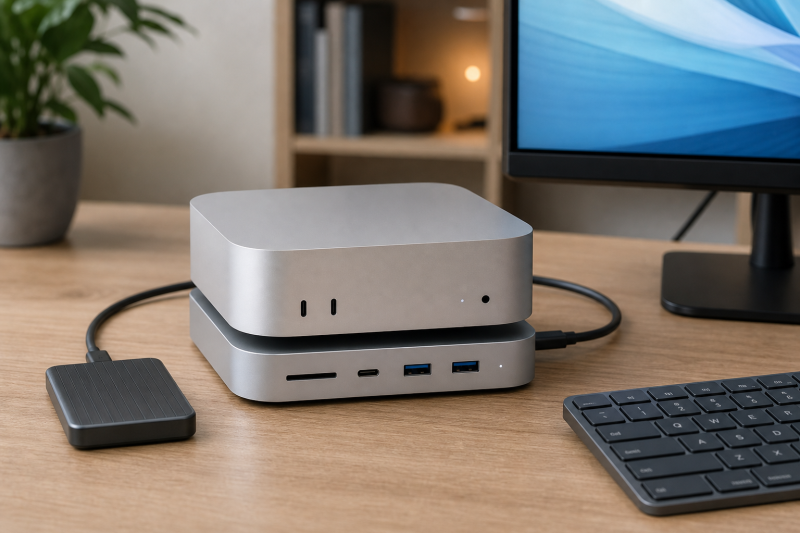
The Satechi Mac Mini M4 Stand & Hub with SSD Enclosure is the best Mac mini docking station for most 2024 M4 buyers. It fits the new 5 by 5 inch body, puts useful USB and SD connections at the front, leaves a path to the power button, and adds one empty NVMe bay without making an unsupported display claim. That focused design makes it the easiest recommendation in this six-product market.
Exact Mac mini generation and physical fit must be the first buying condition. A stand shaped for the 2024 M4 and M4 Pro body may not fit an older Mac mini, while an older stackable hub may connect but fail to align with the new enclosure. After fit, check the host link, empty SSD bay, shared bandwidth, display route, button and vent access, and dock-power needs.
The other picks solve narrower problems. UGREEN SKU 65488 adds a manufacturer-documented DisplayPort path. iVANKY offers the broadest port mix, although its display documentation is internally inconsistent. Wokyis builds a small auxiliary screen into a retro enclosure. RayCue accepts either NVMe or SATA M.2 storage, and ACASIS provides two empty NVMe bays.
This post includes affiliate links, for which we may earn a commission at no extra cost to you should you make a purchase using our links. As an Amazon Associate, we can earn from qualifying purchases. Learn more.Updated July 16, 2026
We checked exact manufacturer documentation and US Amazon Creators identity and New-offer data for all six selections on July 16, 2026. Each chosen ASIN had an active New offer at that cutoff. Offer state can change, and the exact product name, configuration, condition, and seller should be confirmed before purchase.
Quick Picks
- Best overall: Satechi ST-GNMMES for fitted M4 front I/O, a UHS-II SD reader, and one empty NVMe bay without an unresolved video path.
- Best for DisplayPort expansion: UGREEN SKU 65488 for its documented DisplayPort configuration, power-button lever, and M4-specific versus M4 Pro-specific mode ceilings.
- Best 13-in-1 port mix: iVANKY FusionDock 3 for broad USB, card, audio, HDMI, and NVMe expansion, with an important display-documentation conflict.
- Best integrated auxiliary screen: Wokyis M5 10Gbps for a retro enclosure with a built-in 5-inch screen and explicit M4/M4 Pro size compatibility.
- Best for NVMe or SATA flexibility: RayCue’s selected 10Gbps 10-in-1 configuration for an empty M.2 bay that accepts either documented storage protocol.
- Best dual-SSD expansion: ACASIS M001Pro for two empty NVMe bays, an externally powered dock design, and a manufacturer-labeled 40Gbps host link.
Mac mini Dock Comparison
| Image | Product | Details | Check Price |
|---|---|---|---|
 | Satechi Mac Mini M4 Stand & Hub with SSD Enclosure, ST-GNMMES | Exact Mac mini fit: 2024 Mac mini M4 chassis Host link: USB-C 3.2 Gen 2; Satechi-rated up to 10Gbps Storage support: One empty M.2 NVMe bay; 2230, 2242, 2260, 2280 Data/card ports: 2 x USB-A up to 10Gbps, 1 x USB-A 480Mbps, UHS-II SD Display path: No dock display output documented External power: Bus powered Physical design/access: 5 x 5-inch vented stand; power-button access Best for: Overall M4 stand-hub expansion Key caveat: No Ethernet or dock video output; SSD not included | Check Price on Amazon |
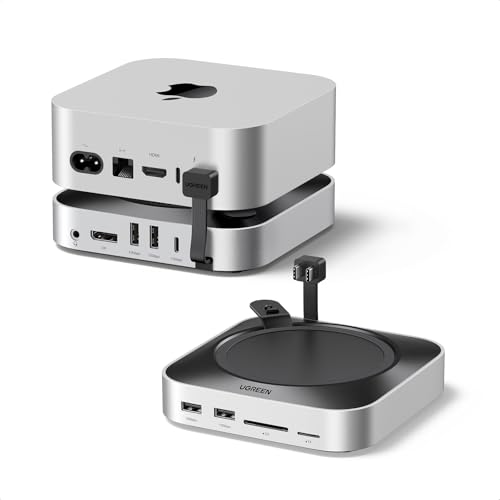 | UGREEN Mac mini M4 Dock with DisplayPort and SSD Enclosure, SKU 65488 | Exact Mac mini fit: Mac mini M4 and M4 Pro Host link: Official configuration distinguishes M4 and M4 Pro host paths Storage support: One empty M.2 NVMe bay; up to 8TB; 2230, 2242, 2260, 2280 Data/card ports: 4 x USB-A and 1 x USB-C up to 10Gbps; SD, TF, 3.5mm audio Display path: DisplayPort; UGREEN states host-specific conditional ceilings External power: No Mac mini power claim Physical design/access: Stackable stand with power-button lever Best for: Documented DisplayPort expansion Key caveat: Exact SKU 65488 only; display mode depends on host, cable, display, and Apple limits | Check Price on Amazon |
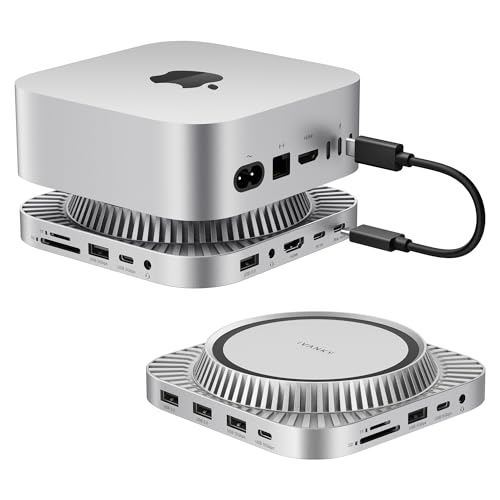 | iVANKY FusionDock 3, VCD21 | Exact Mac mini fit: 2024 Mac mini M4 and M4 Pro Host link: USB-C host; downstream ports from 480Mbps to 10Gbps Storage support: One empty M.2 NVMe bay; iVANKY states up to 8TB Data/card ports: 7 USB data ports, SD, TF, 3.5mm audio Display path: HDMI documented; maximum mode and macOS topology unresolved External power: Included 20W dock adapter Physical design/access: Purpose-built 2024 Mac mini stack Best for: 13-in-1 port mix Key caveat: Official 4K120 and 4K144 claims conflict; do not assume independent MST extension | Check Price on Amazon |
| Wokyis M5 10Gbps Retro Dock, M5-10Gbps | Exact Mac mini fit: Size and function fit M4/M4 Pro; older M1/M2 are functional-only fits Host link: USB-C; Wokyis-rated 10Gbps data path Storage support: One empty M.2 NVMe bay; up to 8TB; 2230, 2242, 2260, 2280 Data/card ports: 4 x USB-A and 1 x USB-C up to 10Gbps; UHS-II SD/microSD; audio Display path: Built-in 5-inch 1280 x 720 auxiliary screen External power: 15W dock power input documented Physical design/access: Retro enclosure sized for M4/M4 Pro Best for: Integrated auxiliary-display design Key caveat: Built-in screen is not a conventional monitor output; SSD not included | Check Price on Amazon | |
 | RayCue 10Gbps 10-in-1 M4 Hub and Stand | Exact Mac mini fit: Mac mini M4 and M4 Pro Host link: USB-C host; selected 10Gbps 10-in-1 configuration Storage support: One empty M.2 NVMe or SATA bay; up to 8TB; 2230, 2242, 2260, 2280 Data/card ports: USB-A and USB-C up to 10Gbps, 2 x USB-A up to 5Gbps, SD, TF, audio Display path: One HDMI; RayCue-rated up to 4K at 60Hz External power: Extra USB-C input recommended for storage or higher-power devices Physical design/access: Aluminum stand-hub for M4/M4 Pro Best for: NVMe or SATA storage flexibility Key caveat: Do not inherit 40Gbps or 80Gbps claims from other page configurations | Check Price on Amazon |
| ACASIS M001Pro 40Gbps Mac mini M4 Dock | Exact Mac mini fit: Mac mini M4 and M4 Pro Host link: Manufacturer-labeled 40Gbps host connection Storage support: Two empty NVMe bays; ACASIS states up to 2 x 8TB Data/card ports: 3 x USB-A up to 10Gbps; SD/TF 4.0 up to 312MB/s Display path: 2 x DisplayPort; ACASIS conditional single/dual mode ceilings External power: Included 30W dock adapter Physical design/access: Power-button mechanism, side vents, dual fans Best for: Dual-NVMe expansion Key caveat: macOS multi-display topology is unresolved; 40Gbps is not measured SSD speed | Check Price on Amazon |
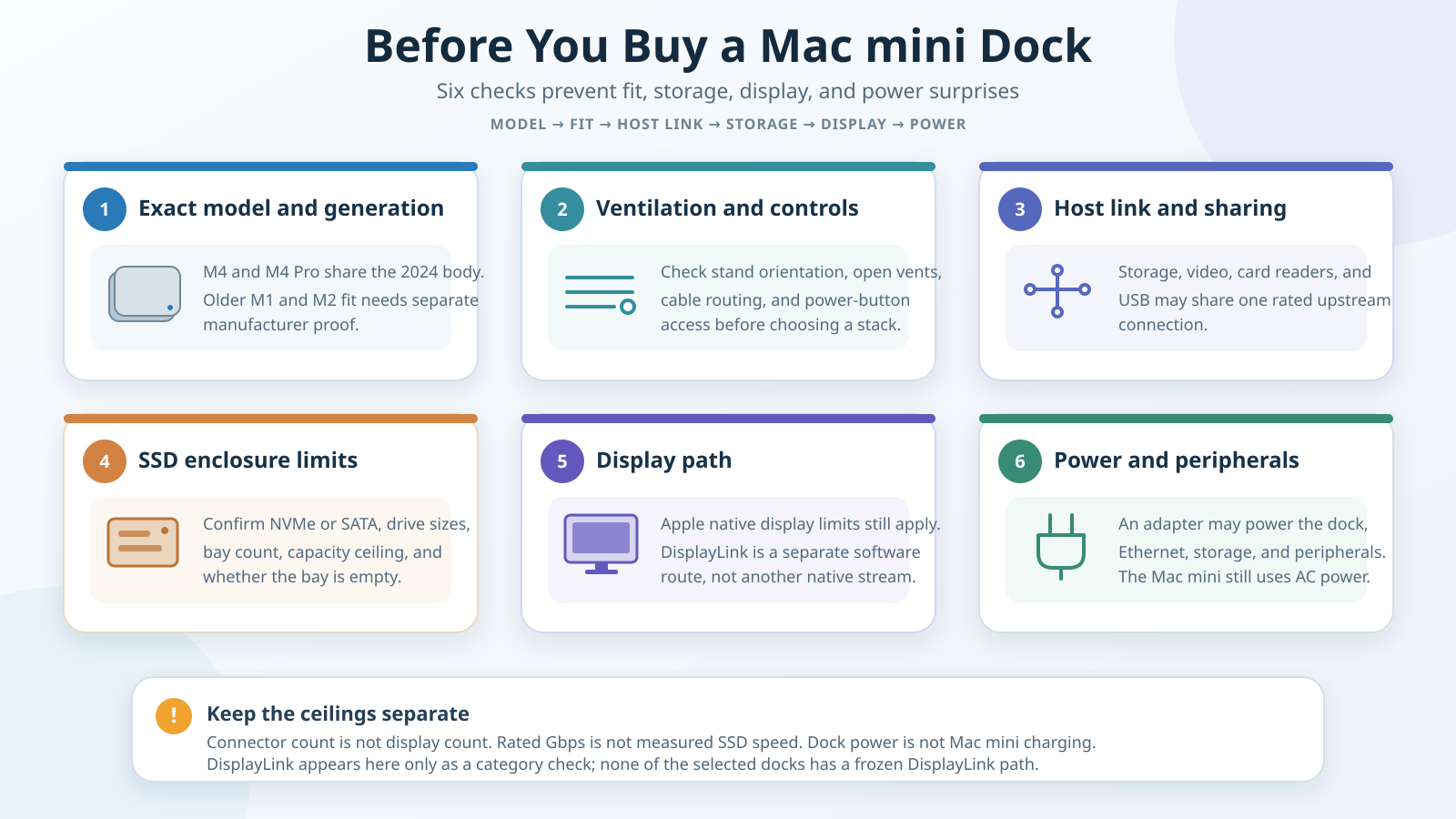
The checklist belongs here because a table cell cannot show the order in which compatibility decisions should be made. Begin with the exact Mac mini body and dock orientation. Then check button and airflow clearance, the single upstream link, the empty storage enclosure, the display path, and any external power input. The dock and the Mac mini each impose separate limits.
The visual also separates native video from DisplayLink. Native output uses the Mac mini GPU’s supported display path. DisplayLink instead creates a USB virtual display through compatible software. None of the six ranked products has a frozen DisplayLink path, so the diagram must not suggest that they do. It is a compatibility check, not a feature shared by every pick.
Table of Contents
- Satechi ST-GNMMES, best overall
- UGREEN 65488, best DisplayPort expansion
- iVANKY FusionDock 3, best port mix
- Wokyis M5 10Gbps, best auxiliary screen
- RayCue 10Gbps 10-in-1, best storage flexibility
- ACASIS M001Pro, best dual-SSD expansion
- Buying guide
- M4 versus M4 Pro
- Frequently asked questions
- Methodology
- Exclusions
How Mac mini Docks Differ From Laptop Docks
A Mac mini dock often combines two jobs. It acts as a stand or chassis companion, and it expands one host connection into storage and front-facing ports. Physical alignment therefore matters in a way it does not for a generic cable-connected laptop dock. The Mac mini’s vents, power button, AC cable, built-in ports, and footprint all have to remain usable.
Power is another fundamental difference. The Mac mini uses AC power. A dock’s included adapter or auxiliary power input normally supports the dock and attached peripherals in this slate. It is not a laptop-style charging promise for the computer. None of these six products should be sold as powering the Mac mini.
Storage is also central. Every selected enclosure is empty. The buyer supplies a supported SSD, checks its M.2 length and NVMe or SATA protocol, installs it, and formats it for the intended workflow. The manufacturer’s 10Gbps or 40Gbps label describes a link ceiling, not measured file-transfer speed.
Finally, connector count is not display count. The Mac mini GPU, Apple-supported display combination, dock’s internal routing, cable, monitor, and operating system all participate. Buyers who need a conventional laptop-first product should compare the site’s general Thunderbolt docking stations and broader USB-C dock rankings instead.
1. Satechi Mac Mini M4 Stand & Hub with SSD Enclosure, ST-GNMMES — Best Overall
The Satechi ST-GNMMES is our first choice because its official feature set matches the common reasons to add a dock without depending on a complicated display route. Satechi designed it for the 2024 Mac mini M4 chassis and gives the stand a 5 by 5 inch footprint. The company documents a recessed, vented structure and dedicated power-button access, so the physical design addresses the new body’s shape instead of merely placing a generic hub beside it.
Satechi specifies a USB-C 3.2 Gen 2 host connection. At the front, it provides two USB-A data ports rated up to 10Gbps, one USB-A port rated at 480Mbps, and a UHS-II SD reader rated up to 312MB/s. These are manufacturer ceilings. Actual device and card performance depends on the media, controller, host activity, file workload, and shared upstream path.
The underside contains one empty M.2 NVMe enclosure. Satechi lists support for 2230, 2242, 2260, and 2280 drive lengths and rates the path up to 10Gbps. The dated Amazon catalog adds a capacity ceiling of up to 4TB and excludes drives with heatsinks or double-sided construction. Those capacity and fit details are Amazon catalog scope rather than independent storage validation. An SSD is not included.
This is a bus-powered dock. Amazon’s listing also places limits on certain bus-powered peripheral combinations, which is a reason to plan high-draw accessories carefully. Satechi does not document Ethernet or a dock video output, and that omission is part of the verdict. The ST-GNMMES is a clean fit for front I/O, cards, and one SSD, not a universal display or networking station.
Our Take
Choose the Satechi when a low-complexity M4 stand-hub is the goal. It covers the most common front-access and storage needs, preserves access to the computer, and avoids selling a display topology that the evidence cannot prove. Pick UGREEN when DisplayPort is essential, RayCue when SATA support matters, or ACASIS when two SSD bays are the priority.
- Exact 2024 Mac mini M4 fit documented by Satechi
- Two USB-A ports rated up to 10Gbps and one USB-A 480Mbps port
- UHS-II SD reader and one empty NVMe enclosure
- Documented vented design and power-button access
- No Ethernet or dock video output documented
- Bus-powered combinations have catalog-stated limits
- Exact chassis-fit claim should not be extended to older Mac mini bodies
2. UGREEN Mac mini M4 Dock with DisplayPort and SSD Enclosure, SKU 65488 — Best for DisplayPort Expansion
UGREEN SKU 65488 is the display-focused choice in this slate. The exact official page positions it as a stackable Mac mini M4 and M4 Pro dock with a power-button lever. The selected Amazon listing does not fill its structured model or part-number fields, so identity rests on the complete listing configuration matching the manufacturer’s exact DisplayPort-equipped 65488 surface. It must not be confused with UGREEN 65487, which is a separate non-DisplayPort family configuration.
UGREEN documents one empty M.2 NVMe bay for 2230, 2242, 2260, and 2280 drives. It states up to 8TB capacity and a storage-path ceiling up to 10Gbps. The dock also has four USB-A ports rated up to 10Gbps, one USB-C data port rated up to 10Gbps, SD and TF readers, and a 3.5mm audio connection. Captured official card-reader figures differed between regional UGREEN surfaces, so this guide intentionally omits a numeric card speed.
DisplayPort is the reason to rank this exact SKU. UGREEN states a ceiling up to 4K at 144Hz with Mac mini M4 and up to 4K at 240Hz with Mac mini M4 Pro. Those figures are not universal monitor promises. The exact Mac mini, Apple-supported display combination, cable, monitor input, selected timing, and dock path still decide what works. The extra socket does not create another native GPU stream beyond Apple’s limits.
The SSD is not included, and neither the 10Gbps rating nor the capacity ceiling describes measured performance. The page does not support a claim that this dock powers the Mac mini. Treat its power arrangements as dock and peripheral support only where the exact official instructions require them.
Our Take
Buy SKU 65488 when a purpose-built M4 stand with a documented DisplayPort route is the deciding feature. It also offers broad front I/O and one NVMe bay. The requirement to preserve exact SKU identity, plus the host-specific display conditions, makes it less straightforward than Satechi for buyers who do not need dock video.
- Exact M4 and M4 Pro stand-dock role
- DisplayPort with manufacturer-stated host-specific ceilings
- One empty NVMe bay with up to 8TB official capacity scope
- Five data ports, card readers, audio, and a power-button lever
- Amazon structured model fields are blank, so exact configuration matching matters
- Display ceiling depends on host, cable, monitor, mode, and Apple limits
- Regional official card-reader rates conflict
For multi-monitor intent that is not tied to a fitted Mac mini stand, use a general dual-monitor dock guide. Its products and compatibility questions are different from this Mac mini-specific selection.
3. iVANKY FusionDock 3, VCD21 — Best 13-in-1 Port Mix
The iVANKY FusionDock 3 earns its place through peripheral variety, not through a definitive display promise. iVANKY describes it as purpose-built for the 2024 Mac mini M4 family, while Amazon identifies the selected listing with model VCD21. The official page states macOS 11.5 or later and calls the product a 13-in-1 design.
Its documented USB mix is broad. iVANKY lists one USB-C port rated up to 10Gbps, one USB-C port rated up to 5Gbps, one USB-A port rated up to 10Gbps, one USB-A port rated up to 5Gbps, and three USB-A ports rated at 480Mbps. HDMI, SD and TF readers, and 3.5mm audio are also documented. This spread suits a desk with fast storage or peripherals plus slower keyboards, receivers, and other accessories, though every path still feeds through the shared host connection.
The FusionDock 3 includes one empty M.2 NVMe enclosure. iVANKY states support up to 8TB and documents compatible M.2 sizes and key types on the product surface. An included 20W adapter supports the dock and attached devices. It does not power the AC-connected Mac mini.
The display evidence needs unusual care. Captured iVANKY copy conflicts between 4K at 120Hz and 4K at 144Hz, and the page references MST. No frozen Apple evidence proves that the FusionDock 3 provides independent MST extension on macOS. This article therefore does not publish a maximum refresh verdict or promise two independent extended displays.
Our Take
Choose the FusionDock 3 when peripheral count is more important than a simple display story. Its USB tiers, card readers, audio, HDMI, NVMe bay, and dock adapter cover many desk functions. Buyers making a display mode the primary requirement should choose a product with a cleaner documented path or wait for iVANKY to reconcile its official copy.
- Manufacturer-documented 13-in-1 expansion
- Seven USB data ports across 10Gbps, 5Gbps, and 480Mbps tiers
- Empty NVMe bay, card readers, HDMI, and audio
- Included 20W adapter for the dock and peripherals
- Official display-mode claims conflict
- No frozen proof of independent MST extension on macOS
- Shared host bandwidth must serve the broad port mix
4. Wokyis M5 10Gbps Retro Dock, M5-10Gbps — Best Integrated Auxiliary Screen
The Wokyis M5 is the most visually specialized pick. Wokyis states that the M5-10Gbps model is both functionally and physically compatible with Mac mini M4 and M4 Pro. The company separately says M1 and M2 models can be functionally compatible but are not size compatible. That distinction matters: connection capability does not make an older body align with the retro enclosure.
The built-in 5-inch IPS screen has a manufacturer-stated 1280 by 720 resolution. It is an auxiliary dock display, not evidence of a conventional external-monitor output. Wokyis does not position the selected 10Gbps model’s screen as a color-critical reference display, and this guide has no independent brightness, color, response, or viewing-angle measurements.
Wokyis documents four USB-A ports and one USB-C data port rated up to 10Gbps. It also lists SD and microSD UHS-II readers rated up to 312MB/s with simultaneous-card support, plus a 3.5mm audio connection. These rates are official ceilings rather than measured transfer results.
The empty M.2 NVMe enclosure accepts 2230, 2242, 2260, and 2280 drives. Wokyis states PCIe 4 and PCIe 5 drive support, up to 8TB capacity, and an enclosure path up to 10Gbps. A faster SSD cannot exceed the slowest part of the complete route, and the listed ceiling is not a benchmark. The dock has a documented 15W external power input.
Wokyis lists dimensions of 145 by 131 by 154mm and a weight of 510g. That makes it a more substantial desk object than Satechi’s low-profile stand. The trade makes sense only if the retro shape and integrated status or auxiliary display are wanted.
Our Take
Pick the M5 for its exact M4-family physical fit and integrated 5-inch screen. It also brings a strong card-reader and USB set plus one empty NVMe bay. Do not buy it as proof of an extra native Mac monitor path, and do not assume the older M1 or M2 chassis will fit simply because the device can function with them.
- Exact size and functional compatibility stated for M4 and M4 Pro
- Built-in 5-inch 1280 by 720 auxiliary screen
- Five manufacturer-rated 10Gbps data ports
- UHS-II card readers and one empty NVMe enclosure
- Older M1 and M2 models are not size compatible
- Integrated screen is not a conventional external-monitor connector
- Larger and more specialized than a low-profile stand-hub
If the display is the primary purchase rather than the dock, start with the site’s guide to choosing a computer monitor instead of treating the Wokyis auxiliary screen as a monitor replacement.
5. RayCue 10Gbps 10-in-1 M4 Hub and Stand — Best for NVMe or SATA Flexibility
The selected RayCue is the 10Gbps 10-in-1 configuration. That full label matters because its official page also contains 40Gbps and 80Gbps configurations. Amazon’s structured model fields are blank, but the exact listing title and feature set match the manufacturer page’s 10Gbps 10-in-1 option. No faster-variant claim is inherited here.
RayCue’s distinguishing storage feature is support for both NVMe and SATA M.2 drives. The company lists 2230, 2242, 2260, and 2280 lengths and a capacity ceiling up to 8TB. The enclosure is empty. Before reusing an existing drive, confirm its protocol as well as its physical length, since M.2 describes a form factor rather than one universal storage interface.
For peripherals, RayCue documents one USB-A and one USB-C data port rated up to 10Gbps, plus two USB-A ports rated up to 5Gbps. It also lists SD and TF card readers and a 3.5mm audio connection. The selected dock has one HDMI output rated by RayCue up to 4K at 60Hz. That ceiling still depends on Apple host support, cable, display input, and selected mode.
The official page recommends using the extra USB-C power input when attaching storage or higher-power devices. That input supports the dock and its peripherals. It does not power the Mac mini. RayCue describes an aluminum stand with ventilation and an interference-conscious design, but those are design statements, not measured cooling or wireless results.
Our Take
Choose this RayCue when storage flexibility matters more than the fastest labeled link. Supporting either a compatible NVMe or SATA M.2 drive can simplify reuse, while the USB, card, audio, and HDMI ports cover ordinary desk expansion. Verify the exact 10Gbps 10-in-1 listing and do not substitute specifications from another configuration on the same product page.
- Empty M.2 bay supports documented NVMe or SATA drives
- 10Gbps USB-A and USB-C plus two 5Gbps USB-A ports
- SD, TF, audio, and one manufacturer-rated 4K60 HDMI output
- Extra USB-C power input for supported dock and peripheral loads
- Amazon structured model fields are blank
- Official page mixes several speed configurations
- Manufacturer design language is not measured thermal or wireless evidence
6. ACASIS M001Pro 40Gbps Mac mini M4 Dock — Best Dual-SSD Expansion
The ACASIS M001Pro is the storage-heavy option. The exact manufacturer surface positions M001Pro for Mac mini M4 and M4 Pro and labels the host connection at 40Gbps. That product identity must remain separate from the M001. The 40Gbps label describes the host-link ceiling and is not a claim that either SSD, a transfer, or two drives together will sustain that rate.
ACASIS documents two empty NVMe bays and states support for two drives up to 8TB each, or 16TB total. It also lists three USB-A data ports rated up to 10Gbps and SD/TF 4.0 readers rated up to 312MB/s. With two storage devices, cards, USB peripherals, and video sharing dock resources, workload planning matters. No independent measured contention or sustained storage results are available in the frozen evidence.
The dock includes two DisplayPort connectors. ACASIS states a single-display ceiling up to 4K at 144Hz or a dual-display ceiling up to 4K at 60Hz. These are conditional manufacturer figures, not a promise of independent dual extended displays on macOS. Apple host support, the dock’s exact internal route, macOS behavior, cables, monitor inputs, and selected modes all remain requirements.
An included 30W adapter supports the dock. It does not power the AC-connected Mac mini. ACASIS documents an external power-button mechanism, an aluminum body, side vents, and dual fans. The evidence does not include independent temperature or noise measurements, so the design can be described but not ranked by cooling or acoustics.
Our Take
Select M001Pro when two empty NVMe bays are worth a larger, externally powered, actively cooled dock. It combines the strongest storage expansion in this slate with USB and card access. Buyers focused on multi-monitor output should obtain exact ACASIS and Apple confirmation for the desired macOS topology rather than reading two DisplayPort sockets as proof.
- Two empty NVMe bays with an ACASIS-stated 16TB total ceiling
- Manufacturer-labeled 40Gbps host link
- Three 10Gbps USB-A ports and SD/TF 4.0 readers
- Included 30W dock adapter and external button mechanism
- macOS multi-display topology is unresolved in the frozen evidence
- 40Gbps label is not measured SSD throughput
- External power and active cooling add desk complexity
How to Choose a Mac mini Docking Station
Start With the Exact Mac mini Body
The 2024 Mac mini M4 and M4 Pro use a 5 by 5 by 2 inch enclosure according to Apple. That footprint is much smaller than earlier bodies, so stack alignment is generation-specific. Satechi limits its exact fit to the new M4 chassis. Wokyis explicitly separates M4/M4 Pro size compatibility from older M1/M2 functional compatibility. A product photo that looks close is not evidence.
Check whether the dock sits below, above, or beside the Mac mini. Confirm that the host cable reaches without strain, the power button remains accessible, and the stand does not obstruct the computer’s own ports or intended airflow. Manufacturer vent language proves design intent, not a temperature improvement.
Treat One Upstream Link as a Shared Resource
A stand-hub may expose many ports, but they do not each receive the full host-link rate at the same time. SSD traffic, card transfers, USB devices, and video where present can share the upstream route and internal controllers. A 10Gbps or 40Gbps label is therefore a ceiling for a defined link, not a sum of guaranteed per-port speeds.
Protocol labels also matter. USB4 and Thunderbolt can carry several types of traffic, but the exact host, cable, dock controller, and endpoint decide the negotiated path. The site’s USB4 explainer and Thunderbolt 3, 4, and 5 comparison cover those broader connection families.
Choose the SSD Protocol, Bay Count, and Length
Every selected dock has an empty enclosure. None includes an SSD. Most support NVMe only, while the selected RayCue supports either a compatible NVMe or SATA M.2 drive. Those protocols are not interchangeable just because both drives fit an M.2 description.
Check the supported lengths, usually 2230, 2242, 2260, or 2280 in this slate. Then check the manufacturer’s capacity ceiling and any construction restrictions. Satechi’s Amazon catalog, for example, excludes heatsink and double-sided drives. ACASIS is the only selected dual-bay design. RayCue is the protocol-flexible option. The other four selected storage docks use one NVMe bay.
The enclosure’s rated link can be slower than the SSD’s internal interface. File size, filesystem, cache, drive temperature, controller, other dock traffic, and host conditions can all affect real transfers, but no such measurements were frozen for these models. Use manufacturer rates only to compare documented ceilings.
Separate Native Video From DisplayLink
Native video uses display streams supported by the Mac mini GPU and the specific Apple connection path. UGREEN, RayCue, iVANKY, and ACASIS document physical video outputs, but those ports do not override Apple’s host limits. UGREEN has the cleanest host-separated DisplayPort ceiling in the frozen evidence. iVANKY contains contradictory refresh claims, and ACASIS lacks proof of the exact independent dual-display topology on macOS.
DisplayLink is different. It creates a USB virtual display through compatible software rather than adding a native GPU output. None of these selected products has a frozen DisplayLink software path. Buyers who specifically need that route should use a dedicated DisplayLink guide or product with exact driver, OS, and dock evidence rather than infer it from a USB connector.
A video socket is an available route, not a guaranteed independent display. Check Apple support, the exact dock model, macOS behavior, cable, monitor input, resolution, refresh, and topology together. The dual-monitor dock guide can help with broader multi-monitor shopping, but Mac mini limits still need model-specific review.
Decide Whether External Dock Power Is Needed
The Mac mini powers itself from AC. Satechi is bus powered. iVANKY includes a 20W adapter, Wokyis documents a 15W input, and ACASIS includes a 30W adapter. RayCue recommends extra USB-C power for storage or higher-power devices. These arrangements support the dock and peripherals. They are not evidence that the dock powers the computer.
External dock power can be useful when several attached devices draw from the hub, but it does not guarantee every combination. Follow the exact maker’s installation and power guidance. Avoid interpreting an adapter wattage as available USB output unless the official page states that relationship.
Plan the Cables as Part of the System
The short built-in host cable or included lead must support the documented route and physically reach without pulling the stack. Display cables must support the desired mode, and a replacement USB-C cable must carry the required data or video features. Connector shape alone proves none of those details.
For cable-level context, compare the site’s Thunderbolt 4 cable guide and USB-C cable guide. Select by the required protocol, bandwidth, video support, length, and power role rather than by appearance.
Mac mini M4 Versus M4 Pro Host Boundaries
Apple documents the host, and each dock manufacturer documents the dock. Neither source can be substituted for the other. Both 2024 Mac mini versions use the same 5 by 5 by 2 inch chassis, but the rear connection capabilities differ.
Apple lists three rear Thunderbolt 4 ports on Mac mini M4, rated up to 40Gb/s with USB4 and DisplayPort support. Mac mini M4 Pro instead has three rear Thunderbolt 5 ports, for which Apple’s July 16 specification page states up to 120Gb/s. Both models have two front USB-C USB 3 ports rated up to 10Gb/s, HDMI, Ethernet, a headphone jack, and AC power, but the exact rear link and display combinations remain model-specific.
Apple documents up to three displays for both models through separate combinations. For M4, the captured support page includes combinations with two 6K60 Thunderbolt displays and a third display under Apple’s stated conditions, plus two-display alternatives that can include 8K60 or 4K240. M4 Pro has its own up-to-three-display combinations and its own high-resolution or high-refresh alternatives. Consult the exact Apple matrix for the intended ports and modes rather than compressing them into one rule.
UGREEN reflects this distinction by stating different DisplayPort ceilings for M4 and M4 Pro. That is an upper bound from UGREEN, not a new Apple display allowance. Similar care applies to ACASIS and iVANKY: physical M4/M4 Pro fit does not prove every advertised monitor topology on macOS.
Frequently Asked Questions
What Is the Best Docking Station for Mac mini M4?
The Satechi ST-GNMMES is the best overall choice in this guide because it has exact 2024 M4 fit, useful front-facing USB and UHS-II SD access, one empty NVMe bay, a vented stand design, and power-button access. It has no documented dock video output or Ethernet, so UGREEN 65488 is better when DisplayPort expansion is a requirement.
Can a Dock Power a Mac mini?
Not among the six selected products. The Mac mini uses AC power. An included dock adapter or auxiliary USB-C power input supports the dock and attached peripherals according to the manufacturer. iVANKY’s 20W adapter, Wokyis’s 15W input, RayCue’s optional extra input, and ACASIS’s included 30W adapter must not be described as Mac mini charging.
Does a Dock Add More Displays Than Apple Supports?
Not through additional native GPU streams merely because it has more sockets. Apple defines the Mac mini’s native display combinations, while the dock, cable, monitor, and operating system constrain the route. DisplayLink can create a separate USB virtual-display path with compatible software, but none of the selected products has a frozen DisplayLink path.
Can MST Provide Two Independent Extended Displays on macOS?
Do not assume it here. iVANKY mentions MST, but the frozen Apple evidence does not prove independent MST extension for this product’s exact macOS path. The same caution applies whenever a page lists multiple connectors without a precise Apple topology. Confirm the exact Mac mini model, macOS version, dock, and display combination with primary support documentation.
Will an M4 Dock Fit an M1 or M2 Mac mini?
Not necessarily. The 2024 enclosure changed size. Wokyis explicitly states that its M5 can be functionally compatible with M1 and M2 systems while not being size compatible. Satechi’s exact stand is documented for the 2024 M4 chassis. Do not generalize a data connection into physical fit.
Is an SSD Included With These Mac mini Docks?
No. Every selected enclosure is empty. You must supply a compatible SSD. Check whether the dock accepts NVMe only or also SATA, the supported M.2 lengths, capacity ceiling, and any restrictions on heatsinks or double-sided construction. Then format the drive for the intended platform and backup plan.
Does a 40Gbps Dock Deliver 40Gbps SSD Transfers?
The label is not a measured file-transfer promise. ACASIS calls the M001Pro host link 40Gbps, while several other picks state 10Gbps paths. Protocol overhead, controller design, SSD behavior, filesystem, thermal state, file workload, and simultaneous dock traffic can lower observed transfers. No independent speed tests are part of this evidence set.
When Is a Powered Dock the Better Choice?
It can be useful when the design includes multiple storage devices or several bus-powered peripherals. ACASIS includes a 30W adapter for its dual-bay design, iVANKY includes 20W, and RayCue recommends extra input for storage or higher-power devices. Follow the exact product guidance rather than assuming more adapter wattage guarantees more performance.
Should I Choose a Dock or a Monitor With a Built-In Hub?
A fitted dock is useful when storage, card access, front USB, and Mac mini physical integration matter. A monitor hub can consolidate display, peripherals, networking, and sometimes laptop charging in the display itself. Compare those roles before buying either kind of desk expansion.
Which Pick Supports Both NVMe and SATA M.2 Drives?
The selected RayCue 10Gbps 10-in-1 configuration documents support for either compatible NVMe or SATA M.2 storage. The other selected enclosures are documented for NVMe. Keep RayCue’s selected configuration separate from the 40Gbps and 80Gbps options shown on the same official page.
How We Research and Select Mac mini Docks
We required five gates: an exact product identity, an exact US Amazon Creators ASIN, an active New offer on July 16, 2026, a current exact manufacturer surface, and an explicit documented Mac mini role. Six distinct products passed. The narrow market does not justify padding the list with another configuration of the same chassis or a generic laptop dock.
Amazon Creators controls listing identity, selected configuration, ASIN, seller, and dated New-offer status. Manufacturer pages control specifications, physical fit, port counts, storage support, rated ceilings, power arrangements, and compatibility positioning. Apple controls Mac mini dimensions, ports, and native display combinations.
No independent measured reviews were frozen. We therefore do not claim real SSD transfer rates, card speeds, display behavior, thermal improvements, wireless effects, fan noise, reliability, or simultaneous-load performance. A manufacturer number remains attributed and is treated as a ceiling or design statement, not a result measured by this guide.
Our order reflects six distinct jobs: a low-complexity overall stand-hub, a documented DisplayPort variant, the broadest port mix, an integrated auxiliary screen, NVMe-or-SATA flexibility, and dual-NVMe expansion. Each verdict also includes the limitation that prevents the product from being universal.
We also separate visual and functional similarity from evidence. A fitted enclosure must name the supported Mac mini body. A product with several video sockets must document the route and still operate within Apple limits. A dock that accepts an SSD does not include one. A link rate does not prove real throughput.
Exclusions and Alternatives
UGREEN SKU 65487, ASIN B0GQ4DN6MH, cleared identity, active New-offer, manufacturer-page, and Mac mini-role gates. It is excluded from the ranked six because it is a close same-family configuration of selected SKU 65488. Buyers who do not need DisplayPort may examine 65487 as a separate non-DP family alternative, but its specifications and ASIN must not be mixed with 65488. Captured regional UGREEN card-reader figures also conflict, so a numeric reader rate should not be carried across the family.
Acer Gadget ODK5R3, ASIN B0H1NF4PBR, had an exact active New Amazon listing at the evidence cutoff. It failed because no exact current Acer manufacturer product or specification page was captured. Amazon-only claims about its SSD enclosure, display output, ports, or cooling do not satisfy this guide’s evidence standard, so it is not a recommendation.
Generic laptop docks, trays, stands without I/O, bare SSD enclosures, marketplace-only clones, discontinued products, wrong-model listings, bundles, color variants, old-generation ASINs, and duplicate storage configurations were also excluded. Buyers whose main need is a portable dock rather than a fitted Mac mini stack should use the site’s broader dock guides.
Choose the dock by the exact Mac mini and the exact job. For most M4 owners, Satechi offers the cleanest front-I/O and single-SSD package. UGREEN is the stronger DisplayPort-specific choice, while RayCue and ACASIS serve the clearest storage exceptions. The host, dock, cable, storage device, display, and power arrangement still need to be checked as one system.
About the Author
The ThunderboltLaptop editorial team covers docks, hubs, monitors, storage, cables, USB-C, USB4, and Thunderbolt hardware. Our guides separate manufacturer-rated capabilities from the host, cable, operating-system, and workload conditions that determine whether a complete desk setup works.