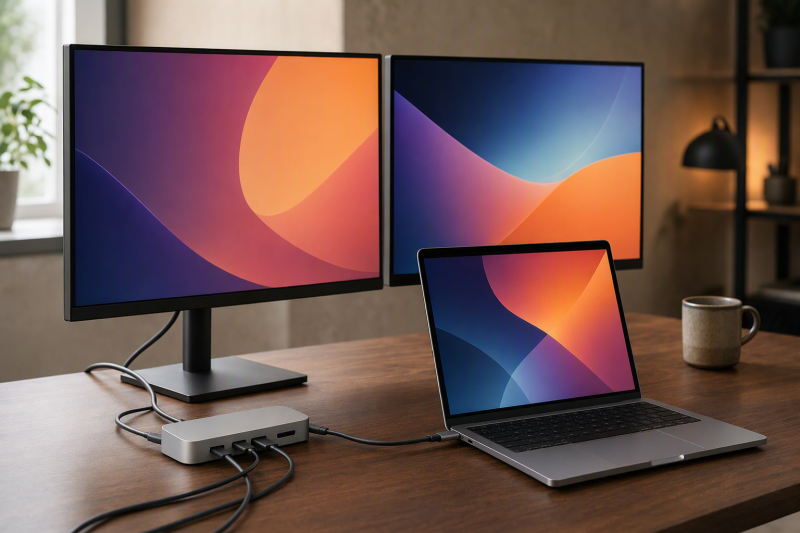
Our first choice for a MacBook Pro dual-monitor setup is the Plugable TBT-UDM, because its first-party record explicitly targets native dual-display configurations on M4 and M5 MacBook families. That wording beats a generic two-output claim, though it still does not qualify every M4 or M5 MacBook Pro. Before buying, match your exact chip, macOS version, display count, output route, cables, adapters, and monitors to Plugable’s published matrix. Where two native external screens are not the deciding feature, our broader MacBook Pro dock guide covers those desks.
Start from the limit that no purchase can move: a dock cannot add a second native display stream to a Mac that exposes only one. Base M1 and M2 paths, plus any other Mac configuration limited to one native external display, stay single-native through these docks. DisplayLink is a different software graphics route and is not being treated as native video here. Resolution and refresh figures are manufacturer ceilings, not universal results.
Quick picks
- Plugable TBT-UDM: Best overall because the retained manufacturer record explicitly addresses M4/M5 native dual-display configurations.
- Plugable TBT-UDT3: Best when downstream Thunderbolt 5 connections are the intended display route.
- CalDigit TS4: Best for a peripheral-heavy Thunderbolt 4 desk with qualified native Mac display support.
- OWC Thunderbolt Go Dock: Best full dock when a built-in power supply matters.
- UGREEN Revodok Max 213: Best balanced Thunderbolt 4 alternative after an exact Mac matrix check.
Compare MacBook Pro docks for two external monitors
| Image | Product | Details | Check Price |
|---|---|---|---|
 | Plugable TBT-UDM | Mac qualification: Named current M4/M5 MacBook Air/Pro configurations Native display path: Manufacturer targets native dual displays Physical route: Match exact Plugable chip/output matrix Laptop charging: Unknown in frozen gate Hard stop: Single-native Mac paths stay single-native | Check Price on Amazon |
 | Plugable TBT-UDT3 | Mac qualification: Only Apple-silicon groups named by Plugable Native display path: Downstream Thunderbolt 5 display branching Physical route: No native HDMI or DisplayPort Laptop charging: Up to 140W Hard stop: Exact chip/OS/cable route required | Check Price on Amazon |
 | CalDigit TS4 | Mac qualification: Qualified Mac native-display branch Native display path: Retained dual 6K60 ceiling on qualified Macs Physical route: DisplayPort 1.4 plus downstream Thunderbolt Laptop charging: 98W Hard stop: No HDMI; Apple chip limit controls | Check Price on Amazon |
 | OWC Thunderbolt Go Dock | Mac qualification: Mac with two supported native streams Native display path: Retained dual 4K60 ceiling subject to host Physical route: HDMI 2.1 plus downstream Thunderbolt Laptop charging: 90W; built-in supply Hard stop: Dock cannot add a native stream | Check Price on Amazon |
 | UGREEN Revodok Max 213 | Mac qualification: Exact Mac dual-display branch not retained Native display path: Confirm UGREEN Mac matrix before purchase Physical route: Thunderbolt 4 with two downstream TB4 ports Laptop charging: Up to 90W; supply included Hard stop: Connector count is not display count | Check Price on Amazon |
1. Plugable TBT-UDM — best overall for named Mac configurations

The TBT-UDM leads for one reason: Plugable’s retained first-party record explicitly targets M4 and M5 MacBook Air and MacBook Pro native dual-display configurations. The Mac decision is part of the product’s published purpose, so nobody has to translate a Windows output count on the buyer’s behalf. When two extended native desktops are mandatory, that is the strongest place to start.
Plenty still has to be checked on your side. The frozen gate does not preserve the complete chip-by-chip table, physical output map, charging figure, required macOS version, cable type, adapter path, DSC condition, or lid-state condition, and none of those details are filled from assumption here. Confirm the exact MacBook Pro identifier and chip against Plugable’s live compatibility table, then follow the specific connector route it assigns. A base M1/M2 single-native path does not qualify, and an M4/M5 family name alone is not enough if the exact configuration has a different display count.
Our Take
Own one of Plugable’s named native-dual Mac configurations? Start with the TBT-UDM. Find your exact chip or route missing from the table, and the dock’s two-display positioning is not proof of anything.
- First-party focus on M4/M5 native dual displays
- Mac-specific qualification leads the decision
- Avoids relying on socket count alone
- Complete route and power details are not retained
- Exact chip configuration still has to qualify
2. Plugable TBT-UDT3 — best downstream Thunderbolt 5 display branching

Plugable documents three downstream Thunderbolt 5 ports on the TBT-UDT3. The manager gate retains dual or higher 4K144 branches for named Apple-silicon groups, which clears this page’s ordinary two-display requirement with room to spare when the exact Mac and route match. Plugable also documents 2.5GbE, SD and microSD UHS-II readers, and up to 140W host charging.
Everything here hinges on the cable plan. There is no native HDMI or DisplayPort connector, so each conventional monitor needs the precise USB-C or Thunderbolt cable or active adapter that Plugable allows for that Mac branch. The frozen evidence excludes Thunderbolt 3 hosts. Three downstream sockets tell you nothing about cable capability, DSC, color format, or active display count. Only the named Apple-silicon, macOS, output, cable or adapter, and monitor combination qualifies.
Our Take
Choose the TBT-UDT3 when downstream Thunderbolt 5 is already the display plan. Running HDMI-only monitors and hoping to avoid adapters? A dock with a retained native output route serves you better.
- Three downstream Thunderbolt 5 ports
- Retained high-refresh branches for named Apple-silicon groups
- 2.5GbE and up to 140W charging
- No native HDMI or DisplayPort
- Exact Apple-silicon route is mandatory
3. CalDigit TS4 — best peripheral-heavy Thunderbolt 4 desk
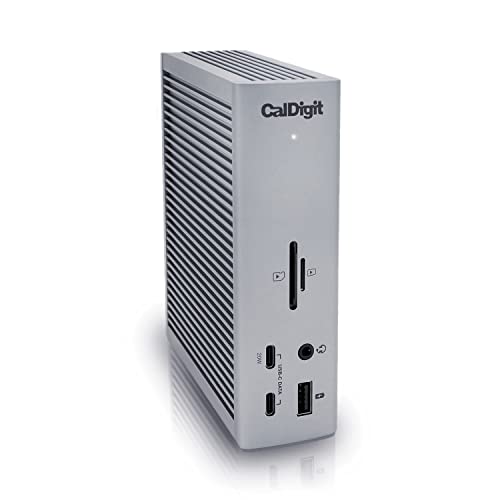
CalDigit documents a retained dual 6K60 ceiling on qualified Mac paths, using DisplayPort 1.4 and downstream Thunderbolt display routes. The TS4 surrounds that with numerous 10Gbps USB ports, 2.5GbE, UHS-II readers, audio connections, and 98W host charging. When two native screens have to share a desk with a large permanent peripheral setup, nothing else here fits as well.
The word qualified does the work in that sentence. The exact Mac chip must expose two native external display streams, and CalDigit’s macOS branch must cover the selected output combination. There is no native HDMI, so an HDMI monitor needs an appropriate adapter. Resolution depends on the Mac, OS, output group, DSC support, cable or adapter, and monitor. A retained dual 6K60 ceiling claims nothing about every Mac or every pair of connectors.
Our Take
Buy the TS4 for a qualifying Thunderbolt 4 MacBook Pro and a dense peripheral desk. A headline display ceiling that comfortably exceeds the two-monitor requirement is not by itself a reason to buy.
- Qualified native Mac dual-display branch
- Extensive USB and 2.5GbE
- 98W host charging
- No native HDMI
- Exact Mac and adapter route controls the result
4. OWC Thunderbolt Go Dock — best built-in-power dual-display desk
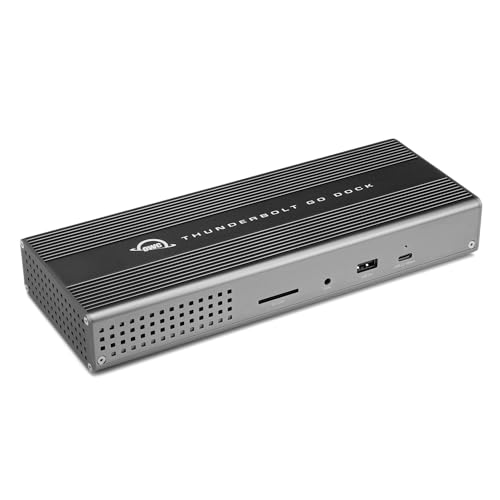
The power supply lives inside the Thunderbolt Go Dock, and OWC documents HDMI 2.1 plus a downstream Thunderbolt display route. Its retained ceiling is dual 4K60 subject to the host, with 2.5GbE, USB, analog audio, and 90W host charging alongside. One enclosure covering power and connections is easier to set up on a fixed desk and easier to pack for travel.
None of that changes the requirement that the MacBook Pro expose two native streams. HDMI plus downstream Thunderbolt describes the physical route, and a physical route cannot override the Apple chip’s display count. Check OWC’s exact macOS matrix, the Mac chip, cable or adapter, and both monitor inputs. The 90W charging path may also fall below the needs of a larger MacBook Pro under load, so MagSafe or the supplied Apple adapter can remain part of the desk.
Our Take
Choose the Go Dock when its HDMI and Thunderbolt route matches a dual-native Mac and built-in power is worth something to you. On a single-native model, it is no display-count workaround.
- Built-in power supply
- HDMI 2.1 plus downstream Thunderbolt route
- 2.5GbE and 90W charging
- Dual 4K60 ceiling remains host dependent
- 90W may not replace MacBook Pro power
5. UGREEN Revodok Max 213 — best balanced Thunderbolt 4 alternative

UGREEN documents a Thunderbolt 4 host connection, two downstream Thunderbolt 4 ports, USB-A, USB-C, 2.5GbE, audio, SD and TF readers, an included supply, and up to 90W host charging. For a MacBook Pro that already qualifies for two native external displays, that adds up to a balanced desk configuration.
The evidence gap is the catch. The frozen gate does not retain a Mac chip-specific dual-display matrix or exact output route for this model, and two downstream Thunderbolt ports are not an inference that two displays will run. Confirm the exact MacBook Pro chip, macOS version, UGREEN output path, cables or adapters, DSC condition, and monitors before ordering. The accepted family is Revodok Max 213 with official SKU 25054; a marketplace suffix does not create another model.
Our Take
Pick the Revodok Max 213 only once the UGREEN matrix confirms your exact two-display Mac path. The included supply and balanced I/O genuinely help, but on Mac display topology the frozen evidence is weaker here than elsewhere in this list.
- Two downstream Thunderbolt 4 ports
- 2.5GbE, USB, audio, and card readers
- Included supply and up to 90W charging
- Exact Mac dual-display matrix is not retained
- 90W may not cover a larger MacBook Pro
Confirm the Mac before choosing outputs
Identify the exact chip and native display count
Open About This Mac, read the model information, and identify the chip, then match that exact configuration to Apple’s and the dock maker’s display table. Base M1/M2 and every other one-native-display branch stay at one native external screen. Family words such as Pro, M4, or M5 settle nothing when variants inside them have different display limits.
Follow one documented physical route
Write down each monitor input beside the dock output or downstream port it will use. A downstream Thunderbolt connection may need a USB-C video cable or an active adapter. TS4 has no native HDMI. TBT-UDT3 has neither HDMI nor DisplayPort. OWC retains HDMI plus downstream Thunderbolt. Any unknown adapter, cable, DSC, output-group, or macOS requirement has to be closed from the exact manufacturer matrix.
Keep native video separate from DisplayLink
Every recommendation on this page uses native GPU display streams. Where a Mac exposes only one native stream and two office desktops are still essential, a software-display dock becomes a separate decision carrying drivers, permissions, and workload limits. Our DisplayLink dock guide covers that path without relabeling it native.
Check charging after displays
Charging ranges from unknown in the TBT-UDM frozen record to 90W, 98W, or an up-to-140W ceiling on the other retained products. Not one of those figures guarantees that a high-power MacBook Pro can abandon MagSafe. Compare the exact Mac requirement and negotiation path, and keep direct Apple power where it is needed.
For a broader explanation of host and output branches, work through our dual-monitor dock guide. Where wired networking is the deciding feature instead, the 2.5GbE dock roundup owns that purchase.
Final recommendation
The Plugable TBT-UDM is the best starting point because its retained record explicitly addresses M4/M5 Mac native dual-display configurations. From there, each pick answers a different desk: TBT-UDT3 for downstream TB5, TS4 for a peripheral-heavy TB4 setup, OWC for built-in power, UGREEN as the balanced alternative carrying the largest retained Mac-evidence gap. Whichever you choose, the order of operations does not change. The Mac chip’s native display count comes first, and the exact output, cable, adapter, DSC, OS, and monitor route comes next.