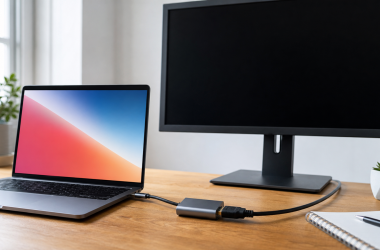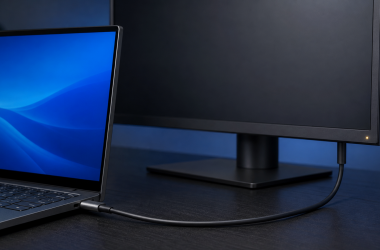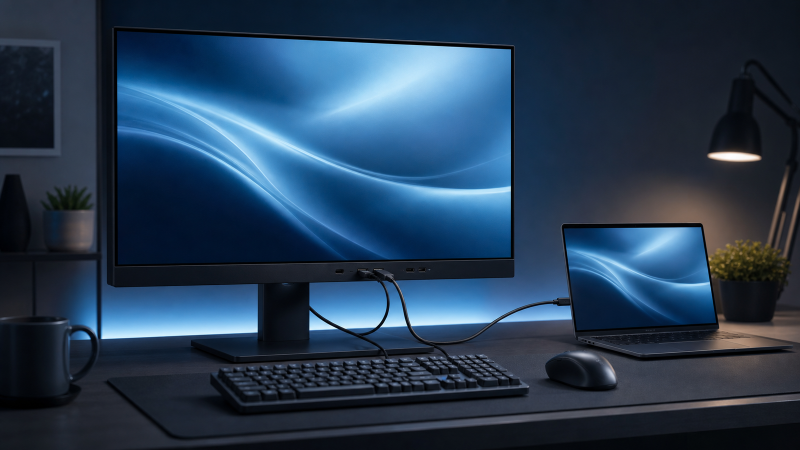
Here is the part that catches people out. Your monitor can show a flawless, rock-steady picture while the USB ports built into it are completely dead to Windows. The two things run in opposite directions through the same chassis. Video comes into the monitor, and the built-in hub’s USB data has to go back out to the computer, and one of those paths can be perfect while the other was never connected. So a sharp image proves the video path and nothing else. It says nothing about whether the hub has any way to reach the computer. If the monitor shows no picture at all, or is missing from Windows entirely, that is the other fault, and the USB-C monitor no-signal guide covers it. USB ports on a separate dock hang off a different device and are not what this page is about.
The two ways a monitor’s hub reaches the computer
Once you see that video and USB data are separate journeys, the whole problem comes down to one question: how is the hub supposed to get its data back to the computer? A monitor can hold a display input and a USB hub without wiring them into a single upstream connection, which leaves two common arrangements. Which one you have decides the fix, so settle it before anything else:
- One USB-C cable carries both. When the computer port, monitor input, and cable all allow it, a single USB-C cable moves video into the monitor and USB data back out.
- HDMI or DisplayPort for video, plus a separate USB cable for the hub. HDMI and DisplayPort carry the picture into the monitor. They do not return the hub’s USB data, so the monitor needs its own upstream USB cable to the computer.
BenQ’s current monitor documentation is a model-scoped example: BenQ tells owners to use either USB-C from computer to monitor, or a separate USB-A to USB-B upstream cable when video uses HDMI or DisplayPort. A single USB-C cable can combine several functions, but the connector shape alone does not list them. USB-IF separates the USB Type-C connector from data performance, power, USB4, and other functions, so a cable that shows video may be wrong for the monitor’s requested USB data mode, and a cable that charges may not carry the needed data at all. If you are unsure whether the computer port carries native video, the USB-C DisplayPort Alt Mode guide covers the display side, though it does not stand in for the upstream USB check here.
Map the monitor ports first
Open the monitor’s manual and read its port map before moving cables, noting the monitor model as you go. Find the video input currently selected, the USB upstream port that connects the hub to the computer, the downstream ports intended for keyboards, mice, or storage, any USB switch or KVM upstream selection, and any downstream port with a charging-only or special power role. Do not decide a port’s role from its shape: a USB-C port on the monitor might accept video and data, act as a downstream peripheral port, or do something model-specific, and a square USB-B port is often a hub upstream connection but the manual still controls the answer. If the manual shows two upstream inputs for a built-in KVM, record which computer each input is assigned to, and do not copy a menu path from another monitor. The monitor with a built-in dock guide helps later if the monitor you own lacks the hub or switching you need, but it is not a substitute for the port map. A monitor’s USB is a data path back to the computer, not a row of sockets, so the USB-C monitor guide compares panels by their upstream data, KVM, power, and display design when the panel is the part you are weighing.
Then pick one simple wired keyboard or mouse that already works when plugged straight into the computer, and use it as your only test device. Connect it directly first and confirm input reaches Windows, because a light on the device is not enough. Then move that same device to one monitor downstream port and record four things separately:
- Does it receive power?
- Does Windows play a connection sound?
- Does Device Manager add an entry?
- Does the keyboard or mouse actually work?
A keyboard or mouse gives a clean enumeration check without putting any files at risk, and each of those four answers isolates a different layer. Power with no sound and no Device Manager entry points at a data problem, not a dead port. If it fails directly on the computer, stop blaming the monitor. If it works directly but not through any monitor port, keep it fixed while you sort out the upstream route.
Give the hub its upstream connection
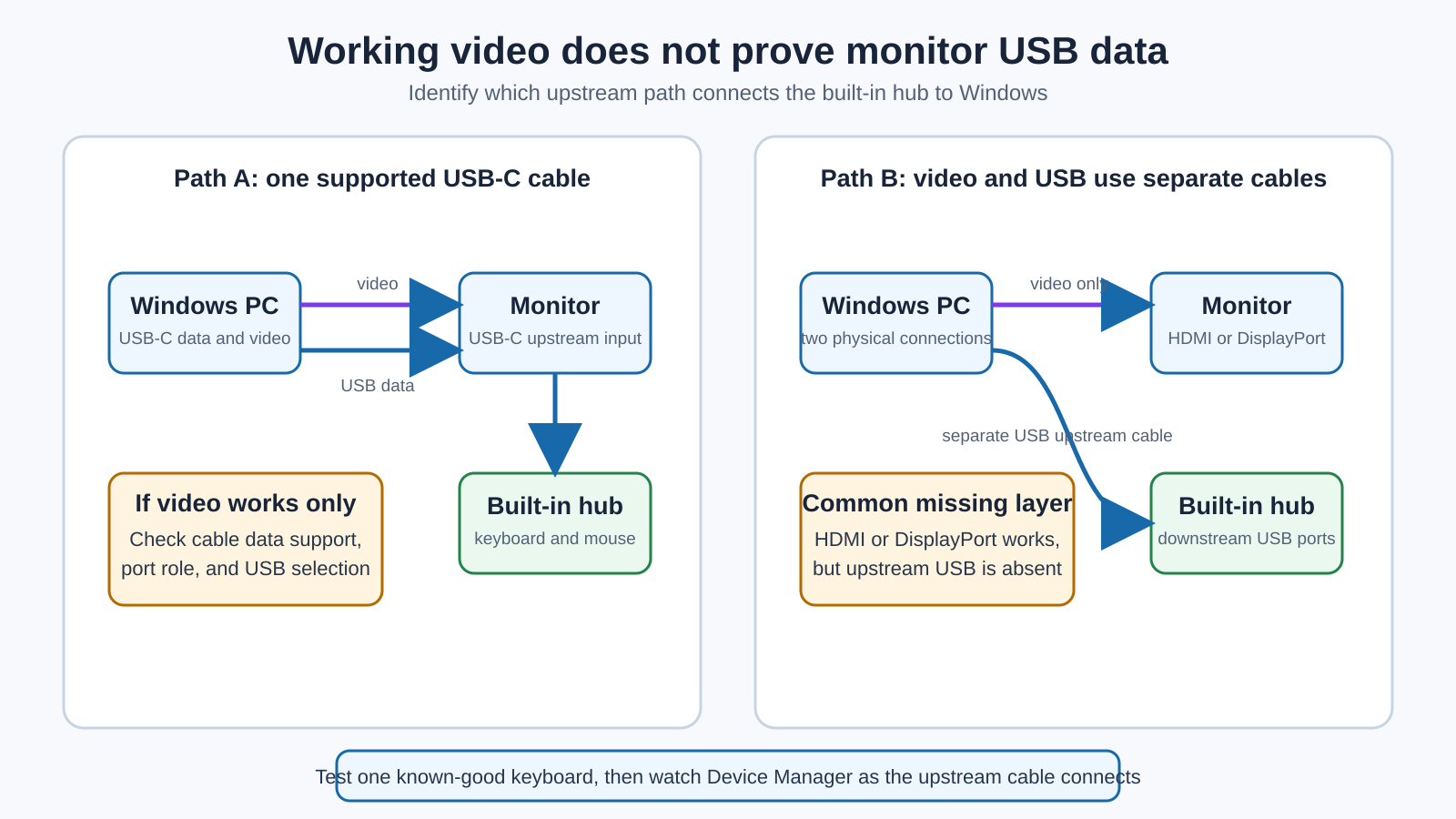
If video arrives over HDMI or DisplayPort, the hub almost always needs its own upstream USB cable. Look for that connection in the manual; common forms are USB-B on the monitor to USB-A on the computer, or USB-C upstream on the monitor to USB-C or USB-A on the computer. Connect that cable directly between the documented upstream port and the computer, with no hub, dock, extension, KVM, or second monitor in the middle, and hold the HDMI or DisplayPort video cable unchanged. You are testing only whether the upstream USB cable makes the hub appear. The square USB-B upstream port is easy to overlook, because it looks like an old printer connector rather than a modern data port, so match it in the manual rather than guessing by shape. If the keyboard starts working, the hub needed that data connection in this setup, though that does not mean every monitor uses the same cable.
If the monitor has more than one upstream input, confirm the selected input in the monitor menu, because a KVM monitor can send its downstream USB ports to a different computer than the one supplying the picture. Change only the upstream assignment, then repeat the keyboard test. Inspect the upstream cable itself: if it is removable, reseat both ends and use the maker-supplied cable when the manual names one, and substitute a known-good compatible data cable only after you know the required connector and USB function. The USB-C cable guide helps once that requirement is known, and the USB-C cable speed test guide explains why charging alone is not a data test.
When one USB-C cable is meant to carry everything
If one USB-C cable carries the picture, leave the monitor on that input and remove every intermediate device. Connect the monitor straight to the computer with the supplied cable or another cable both makers document for video and USB data. Working video narrows the display branch, but it does not confirm the data lanes, the cable’s data capability, or the monitor’s USB selection. Try the exact computer port the maker documents for the required USB-C or Thunderbolt functions, and test a second documented port only after recording the first result, keeping the monitor, cable, and keyboard unchanged. Then check the monitor manual for a setting that trades USB data mode against display bandwidth or assigns the hub to an upstream input. Many single-cable monitors expose exactly this choice: a high-refresh or high-resolution display mode can force the hub down to a slower USB mode, or disable it, so the picture you want and the USB speed you want may not both be available on one cable at once. Use only the setting named for your model rather than inferring a universal “USB 2.0” or “USB 3” choice from a different monitor. If video and USB data both work when the monitor connects directly but the hub fails once a separate dock is restored, the intermediate route is isolated; compare exact host protocol, display path, and upstream data before choosing between USB-C docking stations or Thunderbolt docking stations. Swap the upstream cable only when the same monitor, computer port, and control device work with a known-good cable and fail again with the original, and treat the monitor as the fault only after the hub fails through the upstream route on a second computer or the maker confirms a port or hub fault. None of that is about a missing second monitor, which the dual-monitor docking station guide treats as a separate question.
Does Windows see the hub at all?
With the upstream connection in place, let Windows tell you whether the hub enumerated. Open Device Manager, choose View > Devices by connection, and keep it open while you disconnect and reconnect the monitor upstream cable with the control keyboard attached. Watching the tree change as the cable goes in tells you more than any single snapshot. Look for:
- a named monitor USB hub;
- a generic USB hub that appears with the upstream cable;
- the control keyboard sitting below that hub;
- an
Unknown USB Device; - a yellow warning icon;
- an entry that appears and disappears as you connect and disconnect.
Open the affected entry’s Properties and copy the full Device status text and exact code, because Microsoft publishes different resolutions for different codes and “bad driver” is not one of them.
That reading splits the work. If neither the hub nor the keyboard appears, stay on the upstream cable, monitor port, computer port, monitor selection, and exact support page. Run Windows Update after you have recorded the path and device state, then use the current support pages for the exact computer and monitor, and apply only a driver or firmware package that names the model, operating system, prerequisites, and installation order.
If the hub appears but a port fails
If the hub shows up but one downstream port does not, move the control keyboard between the documented downstream ports and record which provide power, enumerate in Windows, and accept input. If one port fails, repeat it with a second simple known-good device; when both fail only on one documented data port, that supports a port-specific case for the monitor maker. If every port fails, test the same upstream route from a second compatible computer, keeping the monitor, upstream cable, and control device unchanged. A working result on the second computer points back at the original computer port, its USB state, or its support package, while failure on both supported hosts keeps the monitor hub, upstream cable, and configuration in question. None of this is a refresh-rate question either; the 4K at 144Hz path guide covers high-refresh capability, and it does not change whether the hub has USB upstream data.
The one thing to settle is whether the hub ever got a working data path back to the computer. A control device that fails even plugged straight into the computer means the hub was never the problem, so the device or that computer port is. A hub that shows up while one port stays dead with two known-good devices, or a hub that never shows up on two computers with the upstream cable connected and the right input selected, puts the fault in the monitor. A hub that works on a direct route and only fails once a dock or KVM sits in the middle puts it in that middle device. Windows either reaches the monitor hub through its required upstream path or it does not, and that reading points at the cable, the port, the monitor, or the middle device.
Frequently asked questions
Why do the monitor USB ports need another cable when HDMI works?
HDMI carries the picture into the monitor. It does not return USB data from the monitor hub to the computer. Connect the monitor’s documented USB upstream cable, which may be USB-B or USB-C depending on the model.
Why does my keyboard light up but not type?
The monitor port is supplying some power, but Windows data enumeration is unconfirmed. Watch Device Manager while reconnecting the monitor upstream cable and keyboard. Then test the same keyboard directly.
Can one USB-C cable run the display and monitor hub?
Yes, when the computer port, monitor input, and cable support both video and USB data. USB-C shape alone does not confirm those functions. Use both makers’ documentation and the supplied cable where required.
Why does the monitor hub connect to the wrong computer?
A monitor with a KVM or more than one upstream input can assign its downstream ports separately from the visible video input. Use the exact monitor manual to select the intended upstream source.
Should I reinstall every USB controller?
No. Record the monitor hub, connected peripheral, Device status, and exact error code first. Follow the code-specific Microsoft guidance and the exact monitor support page.
Does a working monitor prove my dock is compatible?
It shows that a display route works. It does not show that the intermediate device carries the monitor’s USB upstream data or supports the full display and USB combination.
Sources
BenQ’s monitor documentation shows the split in the concrete: when video arrives over HDMI or DisplayPort, the built-in hub still needs its own USB-B or USB-C upstream cable, and the exact pairing is per model. The Windows side is Microsoft’s, in its USB-C troubleshooting, Device Manager error-code, and supported driver-update pages. USB-IF documentation draws the line between the connector and its functions. Your own monitor manual names its upstream port, included cable, and supported USB data modes.