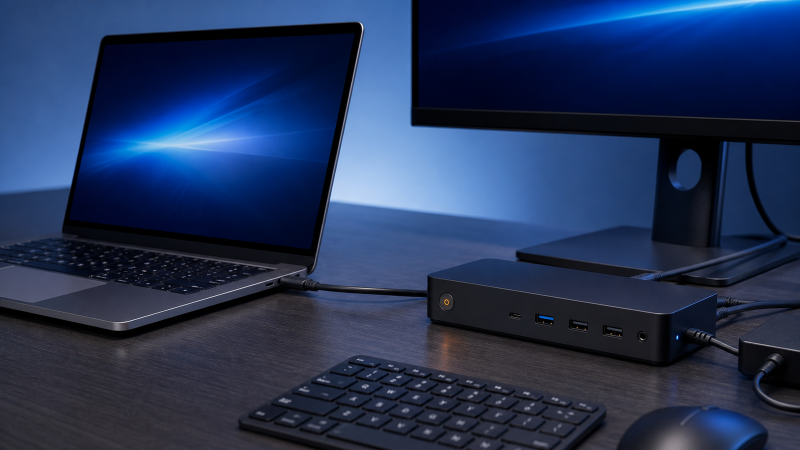
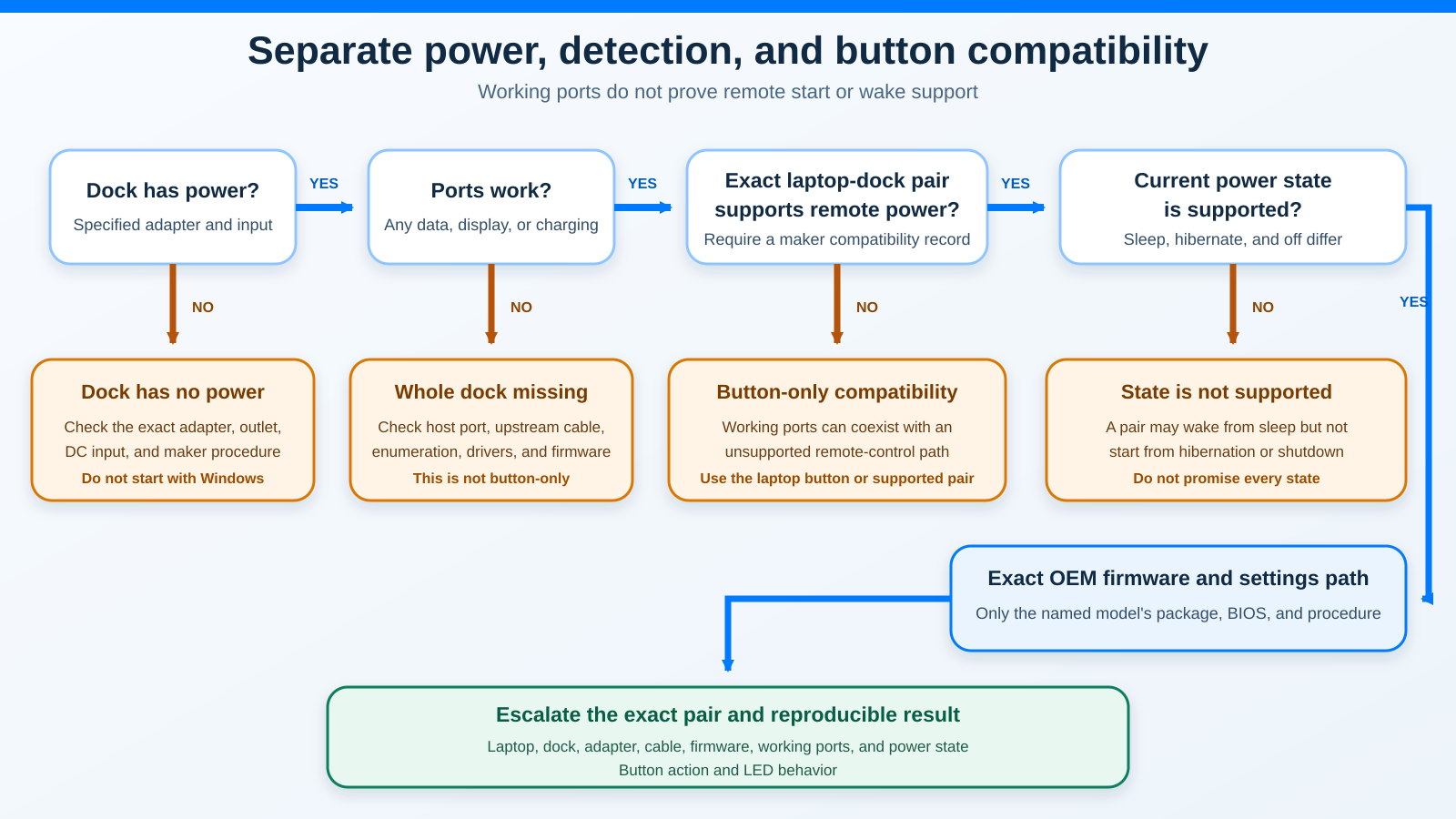
A dock can pass USB-C or Thunderbolt data, displays, Ethernet, and charging while its power button cannot start or wake an unsupported laptop. That does not automatically mean the dock is broken. Remote power control is not a universal USB-C or Thunderbolt function.
Start by separating three different symptoms:
- The dock itself has no power.
- The whole dock is missing from the laptop.
- The dock’s ports work, but its power button cannot start, sleep, wake, or shut down the laptop as expected.
Only the third symptom is a button-only compatibility problem. The exact laptop, dock, adapter, upstream cable, host port, firmware, and current power state decide what the button can do.
Match the Symptom Before You Reset Anything
| What you see | What it means so far | Correct owner |
|---|---|---|
| No dock light, no downstream power, and no response before the host is considered | The dock, its specified adapter, outlet, or DC connection may lack power | Exact dock maker’s no-power procedure |
| Dock has power, but no dock function appears on the laptop | This is a whole-device host, cable, port, firmware, or enumeration problem | Whole-device detection path |
| Displays, USB, Ethernet, or charging work, but the button does not control the laptop | The transport path works; remote power or wake may be unsupported for the exact pair or state | This guide |
| Button works from sleep but not from shutdown | Different power states have different platform support | Exact laptop-dock state matrix |
| Button works, but its LED color or timing differs from expectation | LED behavior may be firmware, state, or model specific | Exact dock manual |
A lit LED does not prove the laptop detected the dock. Working ports do not prove remote-start support. A failed button does not prove the dock lacks power.
Record the Exact Hardware Pair
Do not begin with “Dell laptop” or “USB-C dock.” Those labels are too broad.
Write down:
- Full laptop model, generation, processor variant, and product or machine type
- Full dock name, model code, regulatory model if present, and hardware revision
- Dock power-adapter part number and output
- Host cable part number or the exact included cable
- Laptop port used and whether the manual calls it USB-C, USB4, Thunderbolt 4, or Thunderbolt 5
- Windows edition and build
- BIOS, dock firmware, and relevant driver versions
- Starting state: running, sleep or Modern Standby, hibernation, or shut down
- Which dock functions work
- Exact button action and LED behavior
The processor variant matters. Lenovo’s published limitation discussed below is for an AMD ThinkPad configuration, not every laptop with the same family name. The dock revision matters because a newer model can add a host-control feature that an older dock lacks.
Use This Safe Decision Sequence
Follow the common sequence until the evidence sends you to an exact manufacturer path.
1. Check for physical danger
Disconnect the dock for scorching, melted plastic, liquid, sparking, exposed conductors, swelling, an unusual smell, or abnormal heat. Do not open the dock or power adapter. Do not keep replugging a damaged connector to watch the LED.
2. Confirm dock power separately
Use the power adapter specified for the exact dock. Check that the AC cord, adapter, and dock DC connector are fully seated and undamaged. Test the outlet with a known-working safe device if necessary.
Read the exact dock manual before interpreting an LED. A power-button LED, cable LED, and Ethernet LED can have different meanings. Color and blink counts are not universal.
If the dock has no power, stay on the no-power branch. Do not update the laptop’s graphics driver to fix a dock that is not receiving DC input.
3. Use the documented host connection
Connect the host cable to the dock’s upstream or host port, not a downstream USB-C port. Use the supplied cable or one the dock maker explicitly supports. Connect directly to the laptop while you isolate the problem. Remove an intermediate hub, extension, KVM, monitor passthrough, or adapter.
Confirm that the laptop port supports the dock’s required host mode. USB-C connector shape does not prove DisplayPort Alt Mode, USB4, Thunderbolt, charging, or remote platform control.
4. Record which ordinary functions work
Check one function at a time:
- Does Windows detect USB devices connected to the dock?
- Does a display appear?
- Does Ethernet enumerate?
- Does audio appear?
- Does the laptop receive charging power?
- Does the dock remain stable?
If every dock function is missing, leave the button-only branch. Diagnose the full host path, cable, port, dock power, and whole-device enumeration first.
If one or more ordinary functions work, the host link exists. The button may still need a separate supported control path.
5. Check the exact compatibility record
Use the laptop maker’s dock matrix, the dock maker’s host matrix, and the exact manuals. Search for the specific feature, not only a general compatible checkmark.
Look for:
- Power on from shutdown
- Wake from sleep
- Wake from hibernation
- Sleep action
- Forced shutdown
- Power-button LED synchronization
- Wake-on-LAN
- Firmware and operating-system requirements
A matrix that confirms displays and charging does not automatically confirm every item in that list.
6. Test one power state at a time
Begin with the laptop running. Then test only the states that both manufacturers document for the exact pair.
Record:
- Starting state
- Whether the dock is already attached
- Lid open or closed
- External display attached or absent
- Button press type, using only the documented action
- Laptop response
- Dock and laptop LED response
Do not invent a long press. On supported hardware, a long press can mean forced shutdown rather than wake. Use only the maker’s instruction.
7. Update through the exact maker
Use the current support page for the exact laptop and dock. Apply only packages the maker lists for that model, operating system, and connection.
Do not:
- Install a Dell dock firmware package on another Dell model
- Use an HP power-button setting on a Lenovo laptop
- Flash a generic Thunderbolt package because the plug fits
- Uninstall every USB controller
- Clear the BIOS or disconnect an internal battery unless the exact service documentation requires qualified service
- Run a power-drain ritual copied from a forum
Keep the laptop on reliable power during any maker-approved BIOS or firmware update.
8. Escalate with evidence
Give support the full laptop and dock identities, adapter, host port, cable, power state, firmware versions, working functions, exact button result, and LED behavior. A reproducible “works from sleep, fails from shutdown” report is much more useful than “dock button broken.”
Why the Power State Changes the Answer
Windows and the computer firmware do not treat every low-power state as the same state.
Running
The laptop and operating system are active. On a supported pair, a dock button may map to sleep, wake, shutdown, or another maker-defined action. The action can depend on Windows power-button settings and OEM integration.
Working in this state does not prove the button can start a fully shut-down machine.
Sleep and Modern Standby
Modern Standby is Microsoft’s low-power idle model on supported systems. Microsoft documents many possible wake sources, but each depends on platform hardware, drivers, policy, device state, and whether the system is on AC or battery power.
Microsoft’s design guidance says dock attachment should be treated as individual device attachment. Detection of a device in the dock can be a wake event in that platform context. That is not a promise that pressing any dock button wakes any laptop.
USB input, Ethernet wake, lid state, an external display, and firmware settings can all change the result. The laptop maker’s exact support statement controls.
Hibernation
Hibernation saves system context to storage and enters a deeper state than sleep. Waking or starting from hibernation requires a supported hardware and firmware path. Some OEM dock manuals name hibernation explicitly. If your exact pair does not, do not infer it from sleep support.
Shut down
A shut-down laptop needs a platform-level start path. USB-C data and charging can remain available without the firmware accepting a remote button command. A generic dock cannot create that integration merely by supporting USB PD or Thunderbolt.
The practical rule is simple: test and document each state separately. Never turn “wake supported” into “power on from every state.”
Exact OEM Boundaries
The four examples below deliberately disagree in places. That is the point. Button behavior belongs to the exact pair.
Dell Pro Thunderbolt 4 Smart Dock SD25TB4
Dell’s September 2025 SD25TB4 manual labels the top control as a Sleep, Wake up, and Power button. Dell says it can turn on a connected computer from off, sleep, or hibernate. The same section immediately gives the compatibility condition: when connected to supported Dell computers or non-Dell computers with Power Delivery 3.1 capability, the dock button functions like the computer’s power button.
That is an exact SD25TB4 claim. It is not a promise for WD19, WD22TB4, every Dell laptop, or every non-Dell PD 3.1 implementation.
Dell also publishes an exact no-power procedure for SD25TB4. For The docking station is not receiving power, Dell instructs the owner to disconnect the USB-C host cable, replug the dock AC adapter, and check for three button-LED blinks as the dock turns on. Do not copy that blink count or sequence to another dock.
If the exact Dell pair is unsupported or the existing dock does not meet the required button behavior, compare only after checking the Dell docking-station owner.
Lenovo AMD ThinkPad with USB-C Dock
Lenovo support article HT513923 is narrower. It covers a ThinkPad with an AMD CPU configured with a USB-C Dock. Lenovo says the system does not wake through the dock power button in the documented condition and publishes the limitation that AMD does not support wake from sleep using the dock power button in that scope.
Lenovo’s workarounds are to use the system power button or disconnect and reconnect the dock. That does not prove every AMD ThinkPad, every Lenovo dock, or every current generation has the same behavior. Match the exact machine type and current dock matrix.
If the exact pair cannot provide the required supported behavior, use the ThinkPad docking-station owner after the compatibility check.
HP Thunderbolt G4 Dock
HP’s G4 data sheet describes a mechanical power button with an LED to power or wake a host. HP also states the boundary plainly: the dock power button is not functional when connected to unsupported HP notebooks or non-HP notebooks.
HP separately limits several wake, network, and management functions to HP or HP-supported systems. A mixed-brand laptop may still get data, displays, or charging while the G4 button does nothing. In that case, the working ordinary functions and the failed button are consistent with HP’s documentation.
Check the exact HP product number in HP’s compatibility resources. If a replacement is justified, use the HP laptop docking-station owner after confirming the host port and power need.
Microsoft Surface
Microsoft documents two different first-party host routes. Surface Dock 2 uses Surface Connect and an exact Microsoft compatibility table. Surface Thunderbolt 4 Dock uses USB4 or Thunderbolt 4 on named Surface models and compatible hosts. Microsoft documents their ports, power, display support, update routes, and scoped management features.
Those pages do not establish a universal physical dock button that starts every Surface or make a third-party dock button compatible. For a Surface and third-party dock, require the dock maker to name the exact button or wake behavior for the Surface model and state. Ordinary USB4 or Thunderbolt compatibility is not enough.
Use Microsoft’s own update path only for the Microsoft dock it names. If the exact Surface needs a different supported dock, check the Microsoft Surface docking-station owner after matching the generation and processor.
OEM Escalation Matrix
| Hardware path | Evidence to collect | Safe manufacturer path | Do not transfer |
|---|---|---|---|
| Dell SD25TB4 | Dell computer model or non-Dell host capability, dock Service Tag, adapter, cable, state, LED result | SD25TB4 manual, exact Dell laptop support page, current SD25TB4 package | Three-blink no-power sequence, long-press meaning, or firmware to another dock |
| Lenovo HT513923 scope | Exact AMD ThinkPad machine type, exact USB-C Dock, Type-C port, sleep result | Lenovo matrix and HT513923 workaround | Limitation to Intel ThinkPads or unrelated Lenovo docks |
| HP Thunderbolt G4 Dock | Exact HP product number, G4 dock kit, adapter, state, supported-notebook record | HP compatibility resource and exact G4 support path | HP button, Wake-on-LAN, or LED behavior to a non-HP dock |
| Microsoft Surface | Exact Surface generation and processor, Surface Dock 2 or Surface TB4 Dock, host route, update status | Microsoft compatibility table and the named dock update route | Surface firmware to third-party hardware or generic remote-start support |
| Generic or mixed-brand dock | Exact host requirement, maker’s compatibility list, feature statement, state | Dock maker plus laptop maker, both for the exact pair | Assume transport compatibility includes remote control |
If either maker is silent about remote power or wake for the exact pair, treat the feature as unconfirmed. Do not use customer reviews or a retailer compatibility badge to fill the gap.
Why Mixed-Brand and Generic Docks Often Lose the Button
USB-C and Thunderbolt standardize transport capabilities, not every vendor’s platform-management behavior. A generic dock can negotiate power, expose USB devices, carry display streams, and provide Ethernet without a supported path into the laptop’s embedded controller or firmware power logic.
That separation explains these apparently contradictory results:
- Laptop charges, button does nothing
- Displays work, shutdown start does not
- USB keyboard wakes the laptop, dock button does not
- Button wakes one laptop but not another on the same desk
- Button works from sleep but not hibernation
- Button LED remains independent of laptop LED state
None of those results proves fraud or hardware failure by itself. Compare them with the exact documented feature set.
If a generic dock meets all ordinary requirements and you can use the laptop’s own button, replacement may not be necessary. If remote start is essential for a closed-lid desk, then explicit exact-pair support becomes a purchase requirement.
For standards-based replacements without a brand-specific button need, compare the USB-C docking-station owner or the broader Thunderbolt docking-station owner. Do not treat either roundup as proof of remote start. Recheck the exact matrix.
Frequently Asked Questions
Why does everything on my dock work except the power button?
Data, displays, charging, and remote laptop control are separate capabilities. The ordinary USB-C or Thunderbolt path can work while the exact laptop-dock pair lacks supported button integration.
Does Thunderbolt guarantee a dock power button will wake my laptop?
No. The OEM examples show different conditions and limitations. Require an explicit statement for the exact laptop, dock, firmware, operating system, and power state.
Does USB Power Delivery 3.1 guarantee remote start?
No. Dell names PD 3.1 in the SD25TB4 manual’s supported non-Dell condition, but that is a Dell product condition, not a universal claim that every PD 3.1 laptop accepts every remote button action.
Why does the button wake from sleep but not from shutdown?
Sleep and shutdown use different hardware and firmware paths. A wake source available in a low-power idle state may not be able to start a shut-down platform.
Is Modern Standby the same as normal sleep?
Modern Standby is Microsoft’s low-power idle model on supported systems. The user-facing sleep action can enter that model, but wake behavior still depends on exact platform support, devices, drivers, policy, power source, and state.
Should I hold the dock button for 10, 20, or 30 seconds?
Only if the exact dock manual tells you to, for the exact symptom. A long press can force shutdown on one supported dock and do nothing useful on another. There is no safe universal duration.
Can I use another dock’s firmware to add button support?
No. Dock firmware is model specific. Install only the current package from the exact dock maker’s support page for that model and operating system.
Should the dock button LED match the laptop LED?
Only when the exact manual documents synchronization. LED color, blink count, and state meaning vary. Record both indicators and use the exact manuals.
Is a dock with no power the same problem?
No. First confirm the specified adapter, outlet, DC connection, and exact maker’s no-power procedure. Host wake settings cannot fix a dock that is not powered.
What if the entire dock is missing from Windows?
That is a whole-device detection problem, not a button-only problem. Verify dock power, the upstream cable and port, exact host capability, Windows device state, and the maker’s current driver and firmware path before returning to button behavior.
When should I replace the dock?
Replace it only after the exact matrix shows the required feature is unsupported, or the maker confirms a hardware fault after the correct model-specific procedure. If remote start is not essential and ordinary functions are stable, using the laptop’s own button may be the best answer.
Sources and Methodology
This guide uses current first-party sources retrieved directly on July 23, 2026. Dell controls the exact SD25TB4 button condition and no-power procedure. Lenovo controls the AMD ThinkPad and USB-C Dock limitation in HT513923. HP controls the Thunderbolt G4 Dock supported-notebook boundary. Microsoft controls Surface dock compatibility, update paths, system power-state definitions, and Modern Standby wake-source guidance.
The common sequence stops before model-specific steps. No personal test, universal remote-button standard, cross-brand reset, generic firmware flash, fixed button-hold duration, borrowed LED code, price, ASIN, or affiliate link was used.