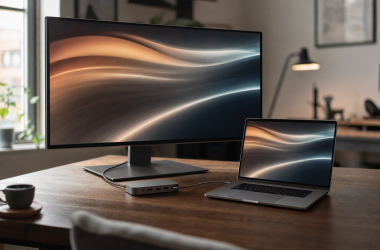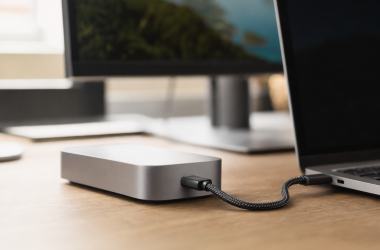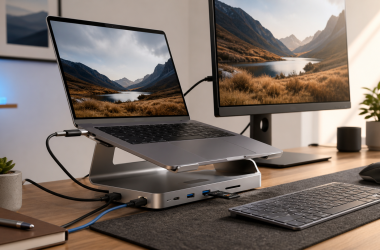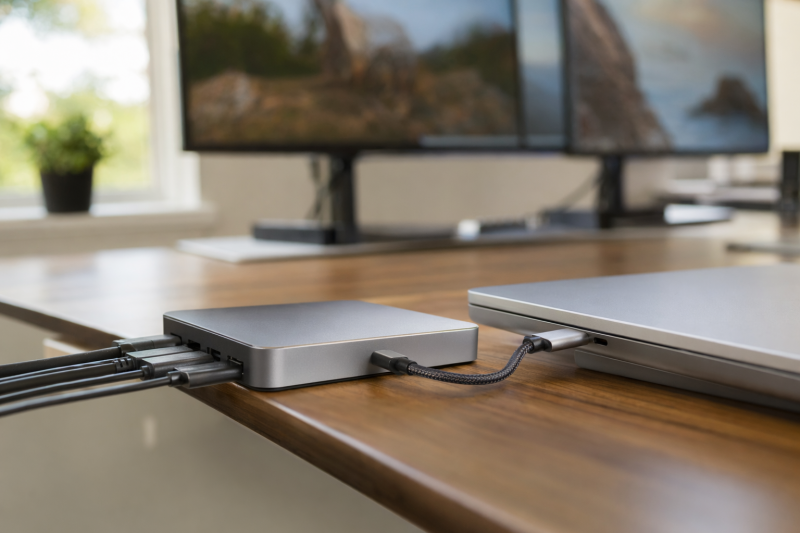
The Plugable UD-6950PDZ is the best DisplayLink docking station for most three-monitor office setups. Its hybrid design gives a compatible host one native DisplayPort Alt Mode display group and two DisplayLink groups, with HDMI or DisplayPort available in each group. If you need a simpler two-screen dock, start with the VisionTek VT4600DL, while the Targus DOCK570USZ is the specialist choice for four-display desks.
DisplayLink is useful when a laptop’s native display path cannot provide the number of independent office screens you need. It is not native Thunderbolt video, native DisplayPort output, or a GPU upgrade. The dock sends USB virtual graphics to its DisplayLink chipset, which means software, operating-system support, permissions, and the manufacturer’s exact display matrix matter as much as the sockets on the back.
This post includes affiliate links, for which we may earn a commission at no extra cost to you should you make a purchase using our links. As an Amazon Associate, we can earn from qualifying purchases. Learn more.Recent Updates
July 16, 2026: We checked the Synaptics documentation, exact manufacturer specifications, and US Amazon Creators data used for this guide. We removed Kensington SD5900T after Kensington marked it discontinued despite an active Amazon offer. VisionTek VT4600DL now fills the mainstream dual-display position. We also preserve Targus’s conservative HDMI limit of 4K at 50Hz and treat Anker’s triple 4K at 60Hz wording as Amazon catalog scope because the captured Anker page did not provide the complete simultaneous mode matrix.
Quick Picks
- Best overall for triple-display office work: Plugable UD-6950PDZ, with one native group and two DisplayLink groups.
- Best mainstream dual-4K dock: VisionTek VT4600DL, with USB-C and USB-A host options and two supported displays.
- Best high-power desk dock: Anker Prime DL7400, with a 140W conditional host path, 2.5GbE, and three display connectors.
- Best high-display-count enterprise dock: Targus DOCK570USZ, with four active outputs through two DisplayLink chipsets.
- Best for mixed-device IT fleets: StarTech.com 116N-USBC-DOCK, a documented two-DisplayLink-plus-one-native hybrid.
- Best value triple-display dock: Plugable UD-3900PDZ, pairing one native 4K output with two 1920 x 1200 DisplayLink outputs.
- Best compact option: Plugable USBC-6950PDZ, with two 4K DisplayLink outputs, fast USB data, UHS-II SD, and a captive host cable.
DisplayLink Dock Comparison
| Image | Product | Details | Check Price |
|---|---|---|---|
 | Plugable UD-6950PDZ | Display path: Hybrid: 1 native DP Alt Mode group, 2 DisplayLink DL-6950 groups Maximum layout: Up to 3 x 4K 60Hz; native group falls to 4K 30Hz on DP 1.2 Host: USB-C with DP Alt Mode, USB4, or Thunderbolt Charging: Up to 100W negotiated USB PD OS/driver: Windows 10/11, macOS 11+, ChromeOS 100+; DisplayLink required for 2 groups Best for: Triple-display office work | Check Price on Amazon |
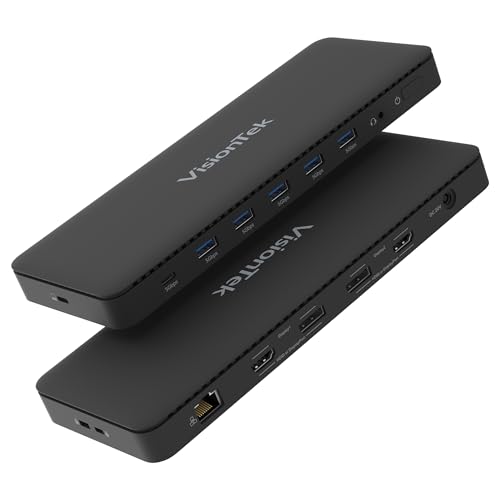 | VisionTek VT4600DL, part 901799 | Display path: DisplayLink USB graphics; 2 displays across 2 DP and 2 HDMI sockets Maximum layout: Up to 2 x 4K 60Hz Host: USB-C or USB-A; listed Thunderbolt 3/4/5 hosts Charging: Up to 100W through USB-C only; no USB-A host charging OS/driver: Windows 7-11, macOS 10.12+, ChromeOS R51+; DisplayLink required Best for: Mainstream dual-4K desks | Check Price on Amazon |
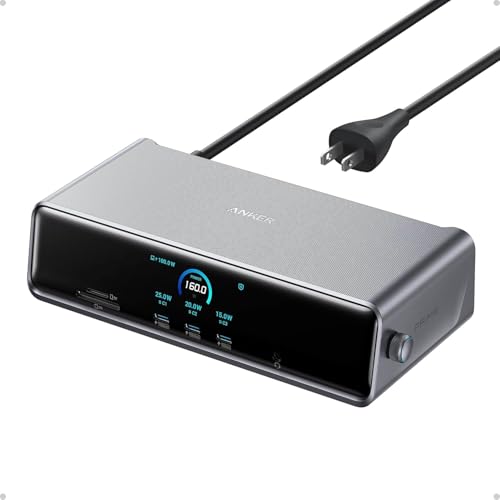 | Anker Prime DL7400, A83B3 | Display path: DisplayLink DL7400; 1 DP 1.4 and 2 HDMI 2.1 outputs Maximum layout: Triple-display design; triple 4K 60Hz is Amazon catalog scope only Host: USB-C 10Gbps Charging: Up to 140W with PD 3.1 host and stated front-port condition OS/driver: Windows 10/11 and macOS 13.5+; DisplayLink required Best for: High-power fixed desks | Check Price on Amazon |
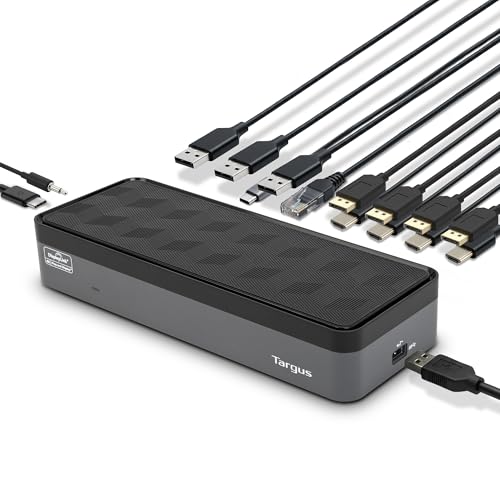 | Targus DOCK570USZ | Display path: Dual DisplayLink DL-6910; 4 active outputs across DP and HDMI sockets Maximum layout: 4 x DP 4K 60Hz or 4 x HDMI 4K 50Hz; single 5K supported Host: USB 3.2 Gen 1 through USB-C or included USB-A adapter Charging: Up to 100W PD 2.0 on compatible USB-C hosts OS/driver: Windows, Mac, Android, Chrome, Ubuntu; DisplayLink path Best for: Four-display enterprise desks | Check Price on Amazon |
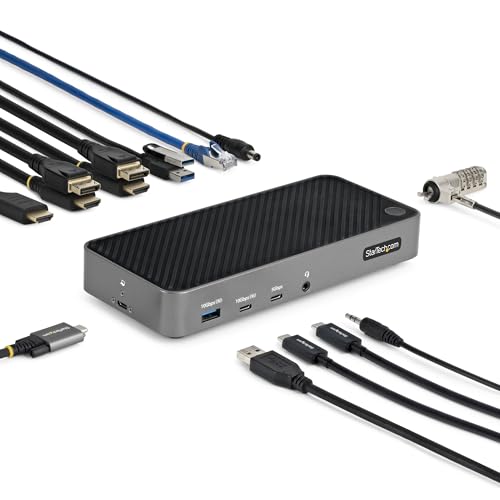 | StarTech.com 116N-USBC-DOCK | Display path: Hybrid: 2 DisplayLink outputs plus 1 native DP Alt Mode HDMI Maximum layout: 2 x DisplayLink 4096 x 2160 60Hz plus 1 native 4096 x 2160 30Hz Host: USB-C 10Gbps with DP Alt Mode and USB PD for full function Charging: Up to 100W negotiated USB PD OS/driver: Windows, Windows ARM, macOS, ChromeOS, Ubuntu, Android Best for: Mixed-device IT standardization | Check Price on Amazon |
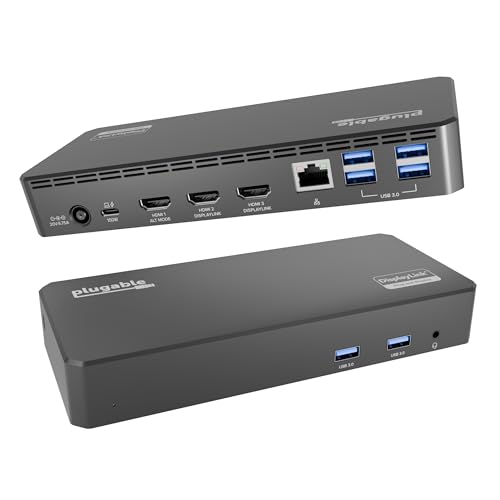 | Plugable UD-3900PDZ | Display path: Hybrid: 1 native DP Alt Mode HDMI plus 2 DisplayLink DL-3900 HDMI Maximum layout: 1 x 4K 30Hz native plus 2 x 1920 x 1200 60Hz DisplayLink Host: USB-C, USB4, or Thunderbolt with Alt Mode and PD for full function Charging: Up to 100W negotiated USB PD OS/driver: Windows, macOS, ChromeOS 100+; DisplayLink required for 2 HDMI outputs Best for: Value triple-display office setups | Check Price on Amazon |
 | Plugable USBC-6950PDZ | Display path: DisplayLink DL-6950 USB graphics through 2 HDMI outputs Maximum layout: Up to 2 x 4K 60Hz Host: Captive 0.5 m USB-C cable; listed USB-C, USB4, and Thunderbolt hosts Charging: Accepts 45W-100W input; up to 82W to host; charger not included OS/driver: Windows 10+ and macOS 11+; DisplayLink required Best for: Compact and travel-ready dual displays | Check Price on Amazon |
How Native Video and DisplayLink Take Different Paths
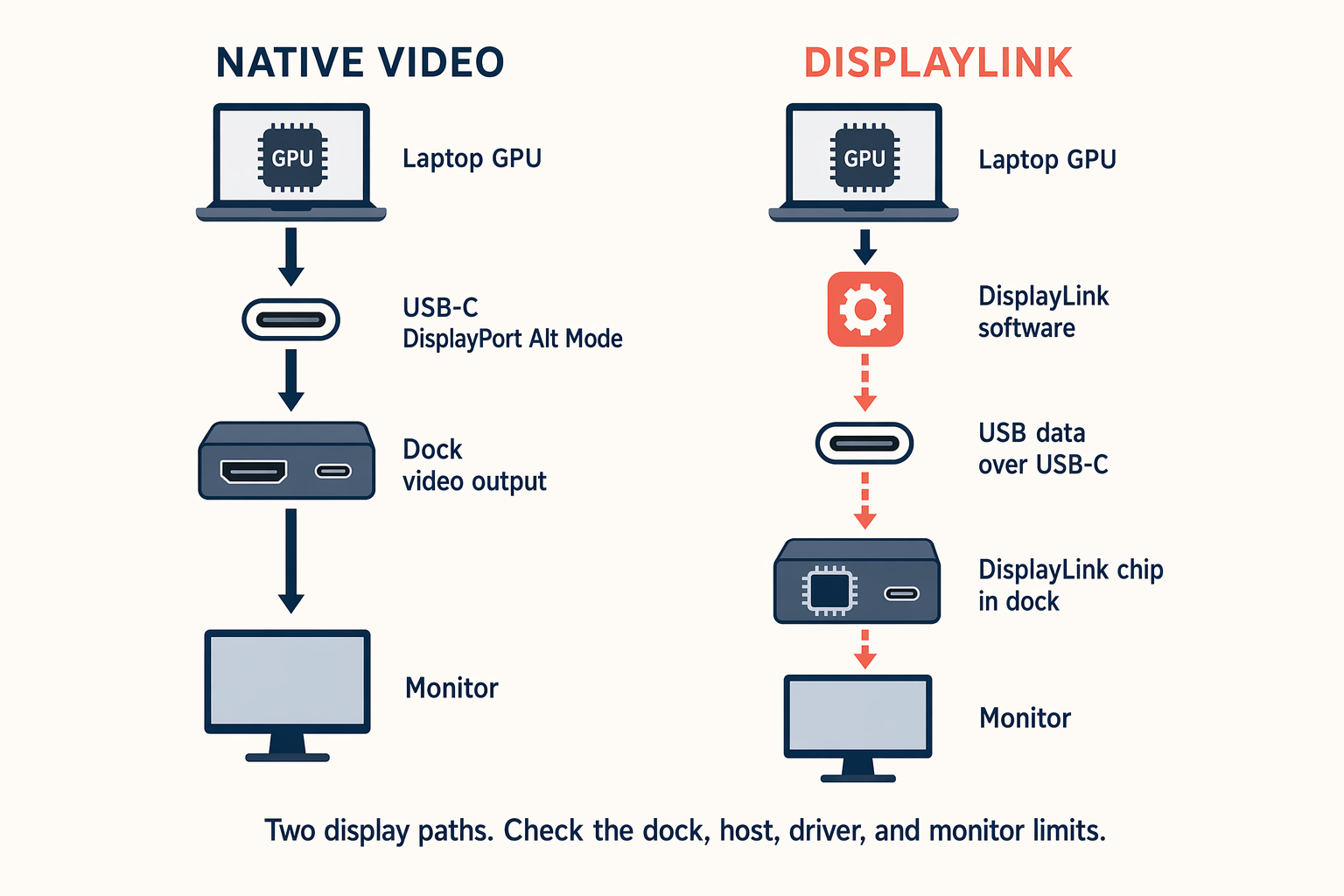
The planned diagram should show two separate routes, not one vague cable path. On the native side, the laptop GPU creates a display stream and sends it through Thunderbolt, USB4 with supported tunneling, or USB-C DisplayPort Alt Mode. On the DisplayLink side, DisplayLink software obtains the desktop pixels allowed by the operating system, sends virtual-display data over USB, and a DisplayLink chip in the dock produces the monitor outputs. A hybrid dock uses both routes at once.
DisplayLink adds USB virtual displays; it does not raise the host GPU’s native-output count. That distinction explains why a DisplayLink dock can add office desktops beyond some host-native limits while still depending on a driver, USB resources, and product-specific support. It also explains why one output on a hybrid dock can fail when DP Alt Mode is missing even though the other DisplayLink outputs remain available.
DisplayLink vs Native DP Alt Mode, MST, USB4, and Thunderbolt
Native video comes from the host’s GPU display engines. A USB-C port with DisplayPort Alt Mode can assign high-speed lanes to a DisplayPort signal. Thunderbolt can carry native display traffic alongside data, and a supported USB4 implementation can carry its documented display path. None of those labels alone tells you the final number of screens. The laptop GPU, port implementation, operating system, dock topology, and monitor modes all remain part of the answer.
DisplayPort Multi-Stream Transport, or MST, can split a compatible DisplayPort stream into multiple displays on supported Windows hardware. macOS does not turn a typical MST split into multiple independent extended desktops. A dock that depends only on MST is therefore not a DisplayLink alternative for a Mac that needs extra independent screens. Every main pick here contains genuine DisplayLink technology, although three picks also include a native DP Alt Mode output.
DisplayLink follows the USB graphics route described by Synaptics. It needs a supported software stack and a dock chipset that converts the USB virtual-display data into HDMI or DisplayPort outputs. This can solve a screen-count problem for documents, browser windows, messaging, dashboards, and other desktop work. It does not make the DisplayLink connector native, even when the upstream plug fits a Thunderbolt port.
Hybrid docks deserve special attention. The Plugable UD-6950PDZ, StarTech.com 116N-USBC-DOCK, and Plugable UD-3900PDZ each combine native and DisplayLink output. Their native connector still depends on DP Alt Mode and the host’s own display path. Their DisplayLink connectors still depend on software. A buyer who skips that topology can mistake a partially working dock for a defective one.
Compatibility Checks for macOS, Windows, and ChromeOS
On macOS, use the release listed for your system. Synaptics listed DisplayLink Manager 16.1 on May 22, 2026 for macOS Tahoe 26, Sequoia 15, and Sonoma 14; older systems use earlier releases. Starting with macOS Catalina 10.15, the official instructions require Screen Recording permission. Synaptics says this lets the app obtain pixels for the USB display, does not store or record the content, and takes effect after the app quits and reopens. Managed Macs may need administrator approval.
Apple’s native display count remains separate. For MacBook Air only, M1 and M2 support the built-in display plus one native external display. M3 supports the built-in display plus one external with the lid open; two native externals require Apple’s closed-lid setup with macOS Sonoma 14.3 or later, power, and external input devices. M4 and M5 support the built-in display plus up to two native externals. Never transfer this Air matrix to MacBook Pro, Mac mini, Mac Studio, or every machine sharing an M-series generation. Those products need their own Apple specifications.
Windows and ChromeOS scope also follows the exact dock. Plugable says Windows drivers commonly install automatically, though managed PCs may need approval, and lists ChromeOS 100+ without a separate download for two selected models. VisionTek lists Windows 7 through 11 and ChromeOS R51+ for the VT4600DL. Anker’s captured scope is Windows 10/11 and macOS 13.5+. Do not move one model’s support range to another.
Table of Contents
- Plugable UD-6950PDZ, best overall
- VisionTek VT4600DL, best mainstream dual-4K dock
- Anker Prime DL7400, best high-power desk dock
- Targus DOCK570USZ, best high-display-count enterprise dock
- StarTech.com 116N-USBC-DOCK, best mixed-device IT dock
- Plugable UD-3900PDZ, best value triple-display dock
- Plugable USBC-6950PDZ, best compact dock
- When DisplayLink is the wrong tool
- DisplayLink dock buying guide
- Frequently asked questions
- Research methodology
1. Plugable UD-6950PDZ — Best Overall for Triple-Display Office Work
The Plugable UD-6950PDZ is our first choice for a compatible laptop that needs three external office displays and a clear connector layout. It has three output groups, and each lets you use either HDMI or DisplayPort, so you can match three monitors without forcing all three onto the same connector type. That flexibility does not mean all six sockets work at once: you select one connector from each group.
The first group follows the host’s native DP Alt Mode path. Plugable says a DP 1.4 path is needed for 4K at 60Hz on that group, while DP 1.2 reduces it to 4K at 30Hz. Groups two and three use the DisplayLink DL-6950 chipset and require DisplayLink software. Plugable advertises up to three 4K displays at 60Hz when the host, software, cables, and monitors meet its conditions. This topology is why a simple “three HDMI” label misrepresents the UD-6950PDZ: one screen is native and two are virtual.
Plugable lists six USB-A 5Gbps ports, Gigabit Ethernet, TRRS audio, and up to 100W negotiated charging. Supported hosts include USB-C with DP Alt Mode, USB4, and Thunderbolt on Windows 10/11, macOS 11+, and ChromeOS 100+. There is no card reader or downstream USB-C data port in the captured specification.
Plugable recommends office and web work and warns that graphics applications, full-screen video, video editing, and games may not behave as expected. Its chipset table marks HDCP unsupported on the two DisplayLink groups; the native group’s result remains host-dependent.
Our Take
Choose the UD-6950PDZ when three productivity monitors matter more than graphics-heavy work or a card reader. Its mixed HDMI and DisplayPort groups make monitor matching easy, but the native first group means DP Alt Mode is mandatory for the full three-screen layout.
- Three clearly documented output groups
- HDMI or DisplayPort choice for every display
- Six USB-A ports plus Ethernet and audio
- Windows, macOS, and ChromeOS support listed
- Full layout needs native DP Alt Mode plus DisplayLink software
- No card reader or downstream USB-C data port listed
- Plugable warns against graphics-heavy and full-screen video workloads
2. VisionTek VT4600DL — Best Mainstream Dual-4K DisplayLink Dock
The VisionTek VT4600DL, part 901799, is the straightforward two-display choice in this guide. VisionTek supports up to two external displays at 4K and 60Hz through DisplayLink USB graphics. The dock provides two DisplayPort 1.2 sockets and two HDMI 2.0 sockets, but the maximum supported display count is two. You can choose the connector pair that fits the monitors; you cannot turn four physical sockets into four independent desktops.
VisionTek documents USB-C and USB-A hosts, including listed Thunderbolt 3, 4, and 5 systems. USB-C can negotiate up to 100W, while USB-A cannot charge the laptop. The included 134W adapter powers the dock but does not raise the supported host path above 100W.
Ports include five USB-A 5Gbps, one USB-C 5Gbps, Gigabit Ethernet, and a 3.5mm headset connection. VisionTek lists Windows 7 through 11, macOS 10.12+, and ChromeOS R51+. A compatible DisplayLink driver is required, and host policy, cables, monitors, and USB power still affect the setup.
Four video sockets on the VT4600DL provide connector choice for two supported displays, not a four-monitor layout. That boundary is the main reason we prefer it to products that advertise a socket count without publishing the real simultaneous display count.
Our Take
Pick the VT4600DL for a conventional dual-4K productivity desk, especially when USB-A host compatibility matters. It is easier to explain and deploy than a hybrid triple-display model, and its limits are clear: two displays, DisplayLink software, and charging only through USB-C.
- Two 4K 60Hz displays documented by VisionTek
- USB-C and USB-A host options
- HDMI and DisplayPort connector choices
- Six downstream USB data ports
- Only two displays despite four video sockets
- USB-A hosts receive no laptop charging
- Gigabit rather than 2.5Gb Ethernet
3. Anker Prime DL7400 — Best High-Power DisplayLink Desk Dock
The Anker Prime DL7400, model A83B3, is a 14-in-1 triple-display DisplayLink dock with one DisplayPort 1.4 and two HDMI 2.1 outputs. Its front USB-C ports handle data and charging, not monitor output.
The evidence requires restraint around resolution. Anker’s captured manufacturer page confirms the triple-display design and the output connectors, but it did not expose the full simultaneous three-display mode matrix. The Amazon catalog title checked July 16, 2026 states triple 4K at 60Hz. We preserve that as Amazon catalog scope only, not a manufacturer-verified promise for every three-screen combination or every supported operating system. If triple 4K at 60Hz is the deciding feature, get Anker’s exact host-and-monitor matrix before ordering.
Anker’s exact manufacturer page lists Windows 10/11 and macOS 13.5+ for its USB-C 10Gbps host link. It also states that the up-to-140W host path requires a USB PD 3.1 laptop and no more than one device on the front USB-C ports. Amazon does not include either condition. Amazon’s structured catalog data describes the three USB-A ports as two 5Gbps ports and one 480Mbps port; that speed breakdown is catalog scope. The remaining ports include three downstream USB-C, 2.5Gb Ethernet, audio, SD, and TF. The Amazon title focuses on Windows, while the manufacturer also lists macOS; neither source proves identical simultaneous modes on both systems.
Our Take
The DL7400 is the strongest pick here for a fixed desk that values 2.5GbE, card readers, three downstream USB-C ports, and conditional 140W charging. Its three-display resolution matrix is the unresolved buying check, so the Amazon triple-4K line should not be treated as a universal Anker specification.
- Three documented display connectors
- 2.5Gb Ethernet and SD plus TF slots
- Three downstream USB-C and three USB-A ports
- High host-power ceiling under explicit conditions
- Complete simultaneous display matrix was not captured
- Triple 4K 60Hz remains Amazon catalog scope
- 140W path depends on PD 3.1 and front-port use
4. Targus DOCK570USZ — Best High-Display-Count Enterprise Dock
The Targus USB-C Universal Quad 4K QV4K, model DOCK570USZ, is the specialist option for four-monitor business desks. Targus builds it around two DisplayLink DL-6910 chips and supplies four DisplayPort plus four HDMI sockets. Up to four outputs are active, so the eight sockets exist to provide connector choice, not eight displays.
Targus’s own page contains a display-mode conflict, and this guide uses the conservative value. The feature list states four DisplayPort monitors at 3840 x 2160 and 60Hz, or four HDMI monitors at 3840 x 2160 and 50Hz. It also permits mixed connector combinations and lists single 5K support. Later marketing text says all four HDMI or DisplayPort screens can reach 4K at 60Hz. Until Targus clarifies that disagreement, plan HDMI quad-display use around 4K at 50Hz.
The USB 3.2 Gen 1 host link uses USB-C or the included USB-A adapter. USB-A carries data and DisplayLink but not laptop charging; compatible USB-C hosts can negotiate up to 100W PD 2.0. Targus also lists four USB-A, one USB-C, Gigabit Ethernet, audio, a 180W adapter, and legacy power tips. Its Works With scope names Windows, Mac, Android, Chrome, and Ubuntu. A deployment team should still validate software, permissions, and the exact four-screen timing.
Our Take
Choose the DOCK570USZ for a managed four-screen office where connector flexibility and USB-A fallback matter. Use Targus’s 4K 50Hz HDMI figure in procurement plans, and confirm the exact mixed-output layout before a large deployment.
- Four active outputs through dual DisplayLink chips
- Four HDMI and four DisplayPort sockets
- USB-C and included USB-A host support
- Broad published operating-system scope
- Targus page conflicts on HDMI 4K refresh rate
- USB-A hosts cannot receive USB-C charging
- More hardware than a two-monitor desk needs
5. StarTech.com 116N-USBC-DOCK — Best Mixed-Device IT Standardization Dock
The StarTech.com 116N-USBC-DOCK is the most clearly documented hybrid for an IT team supporting several operating systems. Two outputs use DisplayLink DL-6950. Each lets you choose HDMI 2.0 or DisplayPort 1.2, and StarTech lists up to 4096 x 2160 at 60Hz for those virtual displays. A third HDMI output uses the host’s native DP Alt Mode path and reaches up to 4096 x 2160 at 30Hz.
That split has a practical consequence. The full three-display layout requires a USB-C host that supports DP Alt Mode as well as USB Power Delivery. If DP Alt Mode is absent, the native HDMI path has no video stream to carry even though the DisplayLink side may remain available with supported software. Calling all three outputs DisplayLink would be wrong, and calling all three native would be equally wrong.
The host data interface is USB 3.2 Gen 2 at 10Gbps. StarTech lists two USB-A ports and one USB-C port at 5Gbps, plus one USB-A and one USB-C at 10Gbps with charging support. Gigabit Ethernet and a TRRS audio connection finish the office set. The 100W host charging figure comes through the included power adapter and USB PD negotiation, so the connected laptop still decides the accepted level.
StarTech’s datasheet names Windows 7 through 11, Windows 11 ARM, macOS, ChromeOS, Ubuntu, and Android. Its “GPU agnostic” wording does not erase the third output’s DP Alt Mode requirement or guarantee identical behavior on every OS. An IT pilot should validate software deployment, permissions, wake behavior, and the exact monitors.
Our Take
The 116N-USBC-DOCK is our IT pick because its hybrid paths, port speeds, and operating-system scope are explicit. It fits mixed fleets best when every target USB-C machine has DP Alt Mode and USB PD for the complete three-screen, one-cable setup.
- Two documented DisplayLink outputs plus one native output
- HDMI or DisplayPort choice on both DisplayLink groups
- Five downstream USB data ports at listed 5Gbps or 10Gbps speeds
- Wide official operating-system list
- Full layout requires host DP Alt Mode and USB PD
- Native HDMI output is limited to 4K 30Hz
- Gigabit rather than 2.5Gb Ethernet
6. Plugable UD-3900PDZ — Best Value Triple-Display Office Dock
The Plugable UD-3900PDZ is the practical value pick when screen count matters more than matching 4K resolution across all three monitors. HDMI 1 uses the host’s native DP Alt Mode and supports up to 3840 x 2160 at 30Hz. HDMI 2 and HDMI 3 use a DisplayLink DL-3900 path and support up to 1920 x 1200 at 60Hz. That makes it a sensible layout for one sharper main screen and two productivity side displays.
Only the native HDMI works without DisplayLink software. Full operation needs host video output, the supplied cable, and DisplayLink. Plugable says Windows setup is usually automatic, macOS setup is manual, and ChromeOS 100+ needs no separate download; Linux is not recommended by this page.
Ports include six USB-A 5Gbps, Gigabit Ethernet, TRRS audio, and up to 100W negotiated charging. Plugable marks HDCP unsupported on the two DisplayLink outputs and cautions that full-screen video, editing, games, and graphics applications may not work as expected. The detailed chipset table, not a conflicting marketing phrase, establishes that only HDMI 1 is native.
Our Take
The UD-3900PDZ is a good fit for three-screen document work when two side monitors are 1920 x 1200 or lower. It is not a triple-4K dock, and its main advantage is a clear, useful mix of one native display and two lower-resolution virtual displays.
- Three-output layout for office monitors
- Six USB-A ports plus Ethernet and audio
- Only the two virtual outputs need DisplayLink software
- ChromeOS 100+ support listed without a separate download
- Two DisplayLink outputs top out at 1920 x 1200 60Hz
- Full layout still needs host DP Alt Mode
- No USB-C data port or card reader listed
7. Plugable USBC-6950PDZ — Best Compact and Travel-Ready DisplayLink Dock
Plugable positions the USBC-6950PDZ as a compact dock for hybrid and mobile work, with a captive 0.5-meter USB-C host cable. Its two HDMI 2.0 outputs use DisplayLink DL-6950 and support up to two 3840 x 2160 displays at 60Hz. Both are USB graphics outputs, and neither should be described as native HDMI over Thunderbolt or DP Alt Mode.
Its focused port design includes one USB-A and one USB-C 10Gbps data port, a UHS-II SD reader, and Gigabit Ethernet. No analog audio port appears in the captured specification. The compact and travel-ready verdict follows Plugable’s product positioning, the captive host cable, and that port design. It does not depend on a numeric dimension claim.
The charger is not included. Plugable says the dock accepts a 45W to 100W USB-C adapter and passes up to 82W to the host, so Amazon’s 100W wording describes input rather than laptop output. Official scope includes Windows 10+, macOS 11+, and listed USB-C, USB4, and Thunderbolt 3 through 5 hosts. DisplayLink is required, with manual macOS installation and Screen Recording permission.
Plugable says this exact model is not compatible with HDCP-protected playback, gaming, or 3D rendering. Its strength is portable dual-4K desktop work, not streaming or graphics workloads.
Our Take
Choose the USBC-6950PDZ when you want two 4K office displays, UHS-II SD, fast USB data, and a captive host cable in a travel-oriented kit. Budget separately for a suitable USB-C charger and keep protected video, gaming, and 3D workloads on a native connection.
- Two DisplayLink 4K 60Hz HDMI outputs
- Compact positioning and captive host cable
- 10Gbps USB-A and USB-C data ports
- UHS-II SD reader and Gigabit Ethernet
- USB-C charger is not included
- Host charging tops out at 82W
- Plugable excludes protected playback, gaming, and 3D rendering
When DisplayLink Is the Wrong Tool
Choose a native Thunderbolt or DP Alt Mode dock when the host already supports the number of displays you need. The native route avoids the virtual graphics service and Screen Recording permission, and it keeps the monitor on the GPU path the operating system and media software expect. Our Thunderbolt 3 vs 4 vs 5 guide explains the host interfaces, while the USB4 guide covers the related USB transport. Neither interface label raises a laptop’s display count by itself.
Protected playback carries a clear product-level warning for the three selected Plugable models. Plugable marks HDCP unsupported on the DisplayLink outputs of the UD-6950PDZ and UD-3900PDZ, and says the USBC-6950PDZ is not compatible with HDCP-protected playback. A hybrid dock’s native output can have a different host-dependent result, so do not transfer the DisplayLink warning to every connector without checking the topology.
Color-managed work calls for the same restraint. Plugable’s product-page support material says DisplayLink does not support software color calibration and recommends dedicated graphics when near-perfect calibrated reproduction is required. That is a manufacturer boundary, not a measured color-error result. A photographer or editor whose delivery depends on a calibrated monitor should keep that monitor on a validated native GPU path.
For games, 3D rendering, full-screen video, and video editing, the captured Plugable pages use warnings such as not recommended or may not work as expected. We do not turn those statements into a latency figure or claim that every DisplayLink dock behaves identically. No first-party source in the frozen evidence provides a universal compression ratio, measured latency, high-refresh benchmark, or capture-card rule for all seven docks.
Capture workflows are especially dependent on the whole chain: host, capture hardware, protected-content rules, display mode, driver, and application. The evidence freeze contains no categorical vendor statement covering capture cards across these seven docks. That gap should stay visible rather than becoming a made-up yes or no.
If your needs are native-first, compare our best USB-C docking stations rather than buying DisplayLink by default. A monitor with an integrated dock can also reduce cable and power complexity; our guide to docking stations vs monitors with built-in docks explains that alternative.
How to Choose a DisplayLink Docking Station
Start with the Exact Display Path
Write down each intended screen and map it to a documented output group. On a pure DisplayLink dock, every monitor in the selected layout uses USB virtual graphics. On a hybrid model, one screen may be native while the others use DisplayLink. The difference affects software, DP Alt Mode requirements, protected-content behavior, and what remains active if the driver is missing.
Do not count sockets. The VisionTek has four sockets for two displays, the Targus has eight sockets for four displays, and the Plugable UD-6950PDZ has six sockets arranged as three selectable groups. The manufacturer’s simultaneous layout is the useful number.
Resolution and refresh belong to the whole layout, not the most capable individual connector. Targus is the best example: its conservative official HDMI quad mode is 4K at 50Hz even though later copy says 60Hz. Anker confirms the three-output design but did not provide the complete simultaneous matrix in the captured page. A procurement sheet should record these conditions instead of shortening every row to “4K dock.”
Check the Host Port and Operating System
A USB-C connector can hide very different capabilities. Pure DisplayLink video can cross supported USB data connections without a native DP Alt Mode stream. A hybrid dock still needs DP Alt Mode for its native output. USB-A can carry DisplayLink data on the VisionTek and Targus, but it cannot provide USB-C Power Delivery to the laptop.
Match the dock’s official OS list to the exact device. Windows 7 support on VisionTek does not prove it for Anker. ChromeOS 100+ guidance on Plugable does not prove it for every dock. A listing that says Mac compatible does not establish the number and resolution of displays on every Mac family or Apple chip.
For a managed system, ask whether users may install DisplayLink software, grant permissions, and maintain a compatible driver. A dock can be electrically compatible and still fail an organization’s software policy. macOS Screen Recording permission is part of the documented setup, not an optional privacy toggle that can stay off while the virtual screens run.
Treat Mac Native Limits and DisplayLink Limits Separately
On a MacBook Air, use the M1 through M5 matrix earlier in this guide only for the exact Air models it names. It describes native GPU output. A DisplayLink virtual display can sit alongside that native path when the dock and software support it, but it does not alter Apple’s native count.
Other Macs need their own Apple documents. A MacBook Pro with the same generation label may have different display engines. A Mac mini or Mac Studio has a different port and display design. Buying from a generic “M-series compatible” sentence can therefore produce the wrong screen count even when the dock software installs.
The DisplayLink support page checked July 16, 2026 states a macOS maximum of four virtual displays regardless of the virtual-display technology. That is a virtual-display ceiling, not a promise that a given dock has four outputs, that a Mac can run every native screen in addition, or that all four reach the same mode.
Read Charging as a Negotiated Maximum
A larger dock power supply does not force the advertised wattage into a laptop. USB Power Delivery negotiation, the host’s accepted profiles, the cable, and the dock’s own power budget decide what reaches the battery. A USB-A host connection carries no USB-C PD charging.
The product differences are material. VisionTek includes a 134W supply but offers up to 100W to a supported USB-C host. Targus includes a 180W supply and lists up to 100W PD 2.0. Anker’s maximum 140W path requires a PD 3.1 laptop and its stated front-port condition. The compact Plugable accepts up to 100W input yet passes no more than 82W to the host.
Choose Ports for Real Devices
Count the data ports you will occupy every day, and note their speeds. Keyboard and mouse receivers do not need a 10Gbps port. A fast external SSD may. The Anker and compact Plugable supply downstream USB-C data connections, while the two larger Plugable office docks focus on numerous USB-A 5Gbps ports.
Network speed matters only when the rest of the network supports it. Anker provides 2.5GbE; the other six selected docks list Gigabit Ethernet. For a normal internet connection and office file access, Gigabit may be enough. For local storage or a fast managed network, 2.5GbE can be the deciding feature.
Card readers and audio differ just as much. Anker supplies SD and TF slots, while the compact Plugable supplies UHS-II SD. VisionTek, Targus, StarTech, and the two larger Plugable models provide analog audio. The compact Plugable lists no analog audio. Choose from what you will connect, not from the largest total port number.
For cable choices, use the cable supplied or specified for the host link. A replacement has to carry the required data and power profile. Our best USB-C cables and best Thunderbolt 4 cables guides explain why connector shape alone is not enough.
Match the Dock to the Desk
A dock positioned for travel may omit a charger, audio, or spare ports. The USBC-6950PDZ is the travel pick because Plugable positions it for hybrid and mobile work, its host cable is captive, and its focused port design covers dual displays, USB data, SD cards, and Ethernet. The required power adapter remains a separate item. The Targus is the opposite: a large powered enterprise device built around four monitors and legacy-host support.
Monitor choice matters too. Four high-resolution displays can differ in input support, scaling, refresh, and cable needs. Use our guide on how to choose a computer monitor to define the panel requirements before choosing a dock around them.
Frequently Asked Questions
Does DisplayLink bypass a Mac’s native display count?
DisplayLink can add USB virtual displays beyond some Mac native-display configurations, but it does not change the GPU’s native output count. The native and virtual paths remain separate. On MacBook Air, apply Apple’s model-specific M1 through M5 rules only to the exact Air models listed earlier. MacBook Pro, Mac mini, and Mac Studio need their own Apple specifications.
Why does DisplayLink Manager need Screen Recording permission on macOS?
Synaptics says the permission lets DisplayLink Manager obtain the screen pixels it needs to render a mirrored or extended display and send them over USB to the DisplayLink peripheral. Synaptics states that the application does not store or record the screen content. The permission must be enabled, and the app needs to quit and reopen before it takes effect.
Can a DisplayLink dock work without its driver?
A pure DisplayLink output needs the supported software path. A hybrid dock may still provide its native DP Alt Mode output without DisplayLink software. Plugable explicitly says only the native HDMI output works without the DisplayLink software on the UD-3900PDZ. The exact result depends on which connector group you use.
Does every DisplayLink dock support HDCP streaming?
No universal answer is supported by the frozen evidence. Plugable marks HDCP unsupported on the DisplayLink outputs of the UD-6950PDZ and UD-3900PDZ and excludes protected playback on the USBC-6950PDZ. A hybrid native output may be host-dependent. Check the exact dock and output rather than extending those Plugable statements to every DisplayLink product.
Is DisplayLink good for gaming or high refresh rates?
The captured first-party sources do not provide a universal high-refresh benchmark or measured latency across these seven docks. Plugable warns against gaming on the selected models in product-specific language. Use native GPU output for a latency-sensitive or high-motion game unless the full DisplayLink product and game path has been validated for your requirements.
Can USB-A run monitors and charge the laptop?
USB-A can carry DisplayLink USB data on docks that explicitly support it, including the VisionTek VT4600DL and Targus DOCK570USZ with their documented host options. It cannot provide USB-C Power Delivery to charge the laptop. Use a separate laptop charger or a supported USB-C host connection when one-cable charging matters.
How many DisplayLink virtual displays can macOS use?
The DisplayLink Manager support article checked July 16, 2026 says macOS supports a maximum of four virtual displays, regardless of the virtual-display technology. That is not a per-dock promise. The dock still needs enough supported outputs, and the product’s own layout, software, Mac, and monitor limits still apply.
Can I use DisplayLink in a capture or color-managed workflow?
Validate the complete chain before relying on it. The frozen sources contain no general capture-card rule. Plugable says software color calibration is unsupported on its DisplayLink path and recommends dedicated graphics for environments that require near-perfect calibration. A native GPU connection is the safer default for a calibrated reference display or an unverified capture chain.
Should I buy a DisplayLink dock or a native Thunderbolt dock?
Buy DisplayLink when you need more office desktops than the supported native path provides and can install the required software. Buy native Thunderbolt or DP Alt Mode when the host already supports your monitor count, or when protected video, calibrated color, motion-sensitive work, or fewer software dependencies matters more. The right choice follows the workload and host, not the newer-sounding connector label. For native Thunderbolt 4 choices, use our Thunderbolt 4 dock guide.
How We Research and Select DisplayLink Docks
We started with a frozen candidate pass and required every selected product to have an exact US Amazon Creators identity checked July 16, 2026, an active new offer at that cutoff, and a matching official manufacturer surface. Products with ambiguous variants, used-only offers, missing official specifications, or native-only video were excluded. We did not infer a model from a similar listing or transfer an ASIN from an older guide.
The seven products were then separated by role and topology. We retained pure DisplayLink dual-display docks, hybrid triple-display docks, a four-display enterprise dock, a high-power desk model, and a compact model. Near-duplicates were removed even when their evidence passed, because another almost identical dual-display dock would not improve the buying decision.
For every selected product, the manufacturer page controls display path, simultaneous count, host interface, charging ceiling, ports, and supported operating systems. Amazon evidence controls listing identity, ASIN, offer state at the cutoff, and catalog-scope wording. When sources disagree, the article keeps the narrower claim. That is why Targus HDMI quad mode appears as 4K at 50Hz and Anker triple 4K at 60Hz remains labeled Amazon catalog scope.
General compatibility comes from Synaptics and DisplayLink documentation. MacBook Air native limits come from 11 official Apple pages preserved in the local evidence package. Those Air rules are not applied to other Mac families. Plugable’s HDCP, color, gaming, graphics, full-screen video, and editing cautions are attributed only to the exact selected Plugable products or support material that states them.
This research is specification-led and reports no lab measurements. We use no hardcoded prices because they change, and we omit universal compression, latency, high-refresh, and capture claims because the evidence freeze did not provide defensible measurements or rules.
Honorable Mentions and Exclusions
The VisionTek VT1200DL passed the identity, active-offer, official-page, DisplayLink, dual-4K, host, charging, port, operating-system, and clean-status gates checked July 16, 2026. It is not a main pick because its USB-C and USB-A dual-display role closely overlaps the selected VT4600DL. Adding both would make the list longer without giving the buyer a materially different setup.
Several tempting names did not pass. Dell D6000S had an exact active Amazon identity, but the exact Dell product and support pages returned access errors during the controlled research pass, leaving no official specification surface at the July 16, 2026 cutoff. UGREEN Revodok Pro 209 had an exact Amazon listing, but the retrieved manufacturer page did not prove DisplayLink or the needed display path. Neither is promoted from marketplace copy alone.
Kensington SD5900T, SD5910T, and SD4781P were excluded because their exact manufacturer pages showed discontinued or out-of-stock conflicts; SD4781P also had an Amazon part-number conflict. Belkin INC025ttBK had exact evidence for dual 4K DisplayLink but failed the clean-status gate because its page also said to request an in-stock notification. These are evidence conflicts, not honorable recommendations.
Native-only MST, DP Alt Mode, USB4, and Thunderbolt docks are intentionally absent from the ranked list. They can be better products for a supported native display setup, but they do not answer the dedicated DisplayLink buying intent. The wider native USB-C dock category is covered separately.
About the Author
The ThunderboltLaptop editorial team covers docks, displays, cables, USB-C, USB4, and Thunderbolt hardware. Our buying guides begin with host compatibility and exact display paths so that a connector count never replaces the real operating-system, software, and monitor conditions.