The Dell Pro Thunderbolt 4 Smart Dock SD25TB4 is the best starting point for three monitors on a compatible Windows business laptop. It is built around native Thunderbolt display transport, carries a current Dell commercial-dock identity, and mixes dedicated video with downstream Thunderbolt connections. It is not a universal answer: the laptop still has to supply enough native display streams, GPU support, bandwidth, and operating-system support for the three-screen layout.
The Plugable UD-6950PDZ is the better choice when a supported Windows, macOS, or ChromeOS computer cannot provide three native external displays. It combines one DisplayPort Alt Mode output path with two DisplayLink-controlled paths. That software route can add screens beyond some native-display limits, but it needs the right USB-C video path for the first display, DisplayLink software for full operation, administrator access in some environments, and acceptance of protected-content and workload limits.
Three video sockets on a dock do not guarantee three independent extended displays. A dock cannot raise the host GPU’s native-display count, add MST support to an operating system that does not use it for independent displays, create missing DisplayPort Alt Mode, or make an unsuitable cable carry more bandwidth. Start with the laptop model and operating system, then choose the dock. Readers comparing broader categories can also see our guides to the best Thunderbolt docking stations and best USB-C docking stations.
This post includes affiliate links, for which we may earn a commission at no extra cost to you should you make a purchase using our links. As an Amazon Associate, we can earn from qualifying purchases. Learn more.Recent Updates
July 15, 2026: This guide was created around eight exact, active US Amazon Creators listings, with the product order frozen before model research. It separates native Thunderbolt, USB4, DisplayPort Alt Mode, MST, and DisplayLink paths; adds Windows, ChromeOS, and macOS checks; documents negotiated charging limits; and excludes unresolved or duplicate candidates. Dell and StarTech blocked direct Mac-side retrieval of their official product pages, and the selected Kensington URL returned 404, so catalog-only details for those models are labeled instead of presented as confirmed manufacturer specifications.
Quick Picks
- Best overall native dock for compatible Windows hosts: Dell Pro Thunderbolt 4 Smart Dock SD25TB4, for a current commercial Thunderbolt design with several display connection choices.
- Best for supported high-power HP workstations: HP Thunderbolt Dock 280W G4 with Combo Cable, for its documented up to 230W HP-specific combo-cable path and native multi-display tables.
- Best driver-free value choice for compatible Windows or ChromeOS hosts: StarTech.com DK31C2DHSPD, when the host explicitly supports the required DisplayPort Alt Mode, HBR, MST, and DSC conditions.
- Best DisplayLink triple-4K office dock: Plugable UD-6950PDZ, for three HDMI or DisplayPort connection pairs and clearly documented driver and workload conditions.
- Best premium hybrid dock: Kensington SD5900T EQ Pro, for a catalog-listed mix of Thunderbolt 4 and DisplayLink intended for mixed Windows and Mac desks.
- Best high-power DisplayLink desk dock: Anker Prime DL7400, for three DisplayLink outputs, a documented 140W maximum host path under strict PD 3.1 conditions, and broad data expansion.
- Best value mixed-device office dock: Plugable UD-3900PDZ, for one native 4K 30Hz HDMI output and two DisplayLink 1080p 60Hz outputs.
- Best compact cable-managed option: j5create JCD543, for four physical video connectors, two documented three-output combinations, and built-in host-cable storage.
Three-Monitor Dock Comparison
| Image | Product | Details | Check Price |
|---|---|---|---|
 | Dell Pro Thunderbolt 4 Smart Dock SD25TB4 | Display path: Native Thunderbolt 4; exact host matrix required Video connections: 2x DisplayPort 1.4, HDMI 2.1, 2x Thunderbolt 4 per Amazon catalog Host charging: Up to 130W supported Dell; up to 96W other compatible hosts per catalog Compatibility check: Windows host GPU, native display count, firmware, bandwidth, ports, and cables Best for: Best overall native dock for compatible Windows hosts | Check Price on Amazon |
 | HP Thunderbolt Dock 280W G4 with Combo Cable | Display path: Native Thunderbolt 4 or USB-C DP Alt Mode Video connections: 2x DisplayPort 1.4, HDMI 2.0, USB-C DisplayPort, Thunderbolt 4; two outputs are mutually exclusive Host charging: Up to 230W supported HP combo-cable hosts; up to 100W over USB-C Compatibility check: Exact HP platform, DP generation, DSC, OS, combo-power support, and port combination Best for: Best for supported high-power HP workstations | Check Price on Amazon |
 | StarTech.com DK31C2DHSPD USB-C Triple 4K Dock | Display path: Native USB-C DP Alt Mode with MST and DSC conditions Video connections: 2x DisplayPort 1.4 and HDMI 2.0 per Amazon catalog Host charging: Up to 100W USB Power Delivery per catalog; host negotiates the accepted level Compatibility check: Windows or ChromeOS host with required DP version, HBR rate, DSC, MST, GPU, and cable Best for: Best driver-free value dock for a confirmed compatible host | Check Price on Amazon |
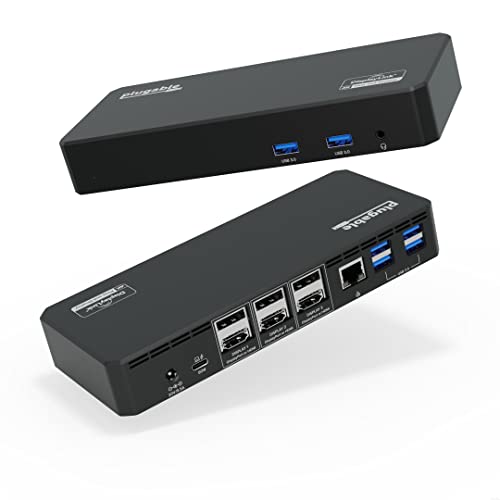 | Plugable UD-6950PDZ Triple 4K DisplayLink Dock | Display path: 1x DP Alt Mode output pair plus 2x DisplayLink output pairs Video connections: 3 output pairs, each selectable as HDMI or DisplayPort; catalog lists up to 3x 4K 60Hz, with exact modes differing by path Host charging: Up to 100W product claim; exact replacement scope and host negotiation must be checked Compatibility check: DP Alt Mode for display 1, DisplayLink software, admin permission, supported Windows, macOS, or ChromeOS Best for: Best DisplayLink triple-4K office dock | Check Price on Amazon |
 | Kensington SD5900T EQ Pro Thunderbolt 4 Hybrid Dock | Display path: Hybrid Thunderbolt 4 plus DisplayLink per Amazon catalog Video connections: 2x hybrid HDMI or DisplayPort, DisplayPort, and 2x Thunderbolt 4 per catalog Host charging: 96W certified laptop output per catalog; host negotiates the accepted level Compatibility check: Exact Windows or Mac model, native display limit, driver approval, permissions, firmware, and output combination Best for: Best premium hybrid dock for a mixed-device office | Check Price on Amazon |
 | Anker Prime DL7400 DisplayLink Dock | Display path: DisplayLink USB graphics Video connections: 1x DisplayPort 1.4 and 2x HDMI 2.1; front USB-C ports do not output video Host charging: Up to 140W only with USB PD 3.1 host and no more than one front USB-C device Compatibility check: Windows 10 or 11, or macOS 13.5+; driver, permissions, protected content, and workload Best for: Best high-power DisplayLink desk dock | Check Price on Amazon |
 | Plugable UD-3900PDZ Triple Display Dock | Display path: 1x native DP Alt Mode plus 2x DisplayLink Video connections: 1x HDMI up to 4K 30Hz; 2x HDMI up to 1080p 60Hz Host charging: Up to 100W USB Power Delivery; host must accept charging on its USB-C port Compatibility check: DP Alt Mode, DisplayLink software, admin rights, supported Windows, macOS, or ChromeOS; no Linux Best for: Best value mixed-device office dock | Check Price on Amazon |
 | j5create JCD543 USB-C Triple Display Docking Station | Display path: DP Alt Mode plus manufacturer driver path; retrieved page does not identify DisplayLink Video connections: HDMI + VGA + DisplayPort, or HDMI + VGA + HDMI Host charging: Up to 100W with a suitable USB-C power adapter and a host that accepts USB PD Compatibility check: Exact Windows or Mac driver support, admin rights, Alt Mode, monitor inputs, and VGA limit Best for: Best compact cable-managed dock | Check Price on Amazon |
Native and DisplayLink Paths at a Glance
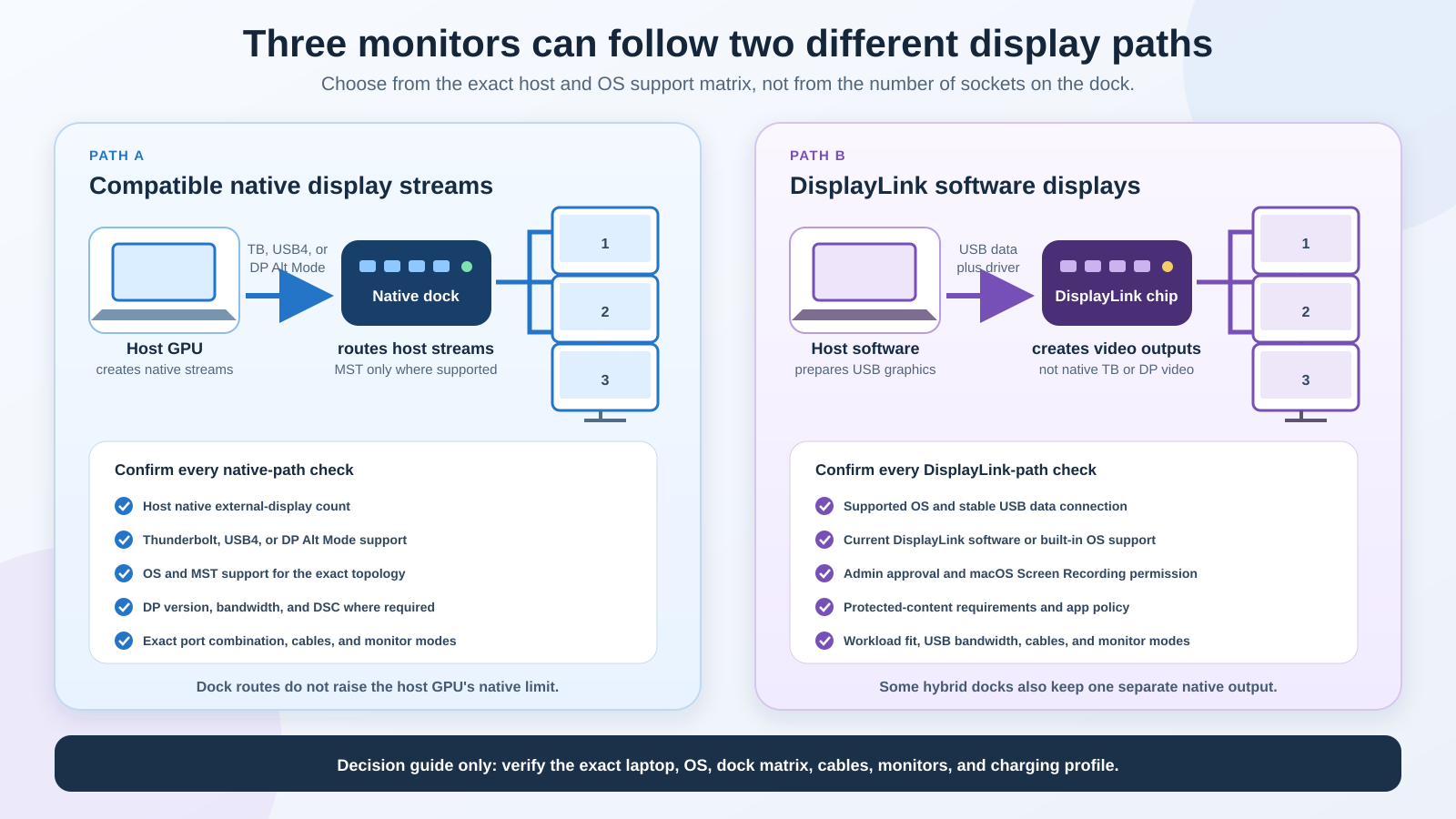
The diagram shows two common routes, not a promise for every laptop. On the native side, the laptop GPU creates the display streams; Thunderbolt, USB4, or DisplayPort Alt Mode transports them to the dock, and MST may split a compatible stream on Windows or ChromeOS when the host, dock, OS, bandwidth, and monitors allow it. The dock routes those streams; it does not invent extra native display engines.
On the DisplayLink side, software prepares display data for transport over USB to a DisplayLink chip in the dock, which then produces video outputs for those software-driven screens. Some products, including the Plugable UD-6950PDZ and UD-3900PDZ, combine a native Alt Mode output with DisplayLink outputs, so calling the whole arrangement native Thunderbolt video would be inaccurate.
Windows
Windows 11 can extend a desktop across multiple detected displays, but detection is only the last step. Native triple-display docking still requires the laptop GPU, USB-C or Thunderbolt controller, dock topology, and requested modes to fit together. MST is common in Windows docks, yet its presence does not mean every Windows laptop supplies enough DisplayPort bandwidth or streams. Display Stream Compression can raise the modes a compatible link supports, but both ends of the path must support it.
For DisplayLink docks, Windows often obtains a driver through Windows Update, though the vendor may still recommend a current package. Managed PCs can require administrator approval, application allowlisting, or an IT deployment package. Microsoft explains how to identify, arrange, detect, duplicate, and extend displays once the hardware is recognized. If Windows shows only two screens, switching the layout from Duplicate to Extend may help, but it cannot fix a missing host stream, unsupported MST path, inadequate cable, or absent driver.
ChromeOS
ChromeOS behavior depends on the Chromebook and dock. The two Plugable DisplayLink product pages list ChromeOS 100 or later and state that no separate driver download is needed. That does not make every DisplayLink dock automatic on every Chromebook, nor does it establish triple native support for an unrelated USB-C dock. The StarTech Amazon catalog describes DK31C2DHSPD as a Windows and ChromeOS native triple-display model under specific DisplayPort 1.4, HBR3, DSC, and monitor-mode conditions, but its official page blocked retrieval during this update. Confirm the exact Chromebook and dock support record before relying on that catalog ceiling.
macOS
Apple tells Mac owners to check the exact Mac’s Display Support or Video Support specification before connecting displays. That number is the starting native limit, and neither a dock nor an MST splitter raises it. Many multi-output MST docks that extend three desktops on Windows do not provide three independent native extended desktops on macOS, so a Mac buyer should never transfer a Windows display table to macOS without an explicit manufacturer matrix.
DisplayLink can add software-driven screens on supported Macs, including base Apple-silicon models with low native external-display limits. The trade is software: Plugable and Anker state that macOS requires Screen Recording permission so the driver can send display data over USB. That permission name sounds broader than the docking task, which is why an organization may require an administrator or security review before installation.
DisplayLink caveats that matter
DisplayLink is useful for email, documents, spreadsheets, dashboards, chat, and other mostly static office work. It is not the same path as a GPU sending native DisplayPort streams through Thunderbolt. Plugable states that its DisplayLink docks emulate graphics hardware and are not recommended for 2D or 3D graphics applications, full-screen video playback, video editing, or games. Those applications can expose USB bandwidth, compression, motion, and latency costs that are less noticeable in office windows.
Protected content is a separate issue. Plugable states that HDCP is not supported on the UD-6950PDZ or UD-3900PDZ and warns that protected playback can fail while the dock is connected, including on directly attached or built-in displays in the documented configurations. Anker’s Amazon catalog also warns that DRM-protected streaming can show a black screen with the DL7400. A buyer who needs reliable protected streaming should use a native, HDCP-capable route confirmed by the laptop, dock, adapter, cable, and display vendors.
Table of Contents
- Dell Pro Thunderbolt 4 Smart Dock SD25TB4: Best Overall Native Windows Dock
- HP Thunderbolt Dock 280W G4: Best for High-Power HP Workstations
- StarTech.com DK31C2DHSPD: Best Driver-Free Value Dock
- Plugable UD-6950PDZ: Best DisplayLink Triple-4K Office Dock
- Kensington SD5900T EQ Pro: Best Premium Hybrid Dock
- Anker Prime DL7400: Best High-Power DisplayLink Dock
- Plugable UD-3900PDZ: Best Value Mixed-Device Office Dock
- j5create JCD543: Best Compact Cable-Managed Dock
- How to Choose a Three-Monitor Dock
- Frequently Asked Questions
- Methodology
- What We Excluded
1. Dell Pro Thunderbolt 4 Smart Dock SD25TB4: Best Overall Native Windows Dock
The Dell Pro Thunderbolt 4 Smart Dock SD25TB4 ranks first for a compatible Windows business laptop. Its current Creators listing combines a Thunderbolt 4 host connection with two DisplayPort 1.4 outputs, HDMI 2.1, two Thunderbolt 4 ports, 2.5Gb Ethernet, and Dell-oriented management. That gives a properly supported Dell or standards-compatible Windows host several sensible ways to connect three monitors without defaulting to DisplayLink software.
The word “compatible” carries most of the recommendation. Amazon’s current catalog title says the dock can support four 4K displays, but the direct Dell product page returned HTTP 403 from the required Mac research path, so this guide does not assign an exact three-monitor resolution table to the SD25TB4. Check Dell’s support matrix for the laptop service tag, GPU, firmware, operating system, and chosen port combination before treating the catalog claim as available.
Charging is also conditional. The Amazon listing distinguishes up to 130W for supported Dell systems from up to 96W for other compatible hosts. Those are ceilings, not a promise that any USB-C laptop accepts that amount. The laptop negotiates a supported USB Power Delivery profile, and some Dell systems use vendor-specific behavior. A mobile workstation that expects more power may continue drawing its battery down under load or may need its factory adapter.
This is the best fit for managed Windows desks where native video, wired networking, and Dell fleet functions matter. It is a poor blind purchase for a Mac: Apple requires buyers to check each Mac’s native display limit, and a dock cannot turn a lower Mac limit into three native extended desktops. For a clearer overview of host and dock generations, read our Thunderbolt 3, 4, and 5 comparison.
- Native Thunderbolt 4 direction for a supported Windows host
- Several dedicated and Thunderbolt display connection choices
- 2.5Gb Ethernet and Dell commercial management positioning
- Higher catalog charging ceiling for supported Dell laptops
- Exact display table was unavailable from the blocked Dell page
- Catalog display ceiling still depends on the host and chosen ports
- Not a way around a Mac’s native display limit
2. HP Thunderbolt Dock 280W G4: Best for High-Power HP Workstations
The HP Thunderbolt Dock 280W G4 with Combo Cable has the strongest retained official display and charging documentation in this group. HP publishes separate external-monitor ceilings for DisplayPort 1.4 hosts with DSC, DisplayPort 1.3 or 1.4 hosts without the same DSC condition, and DisplayPort 1.2 hosts. That is the right way to describe a native multi-monitor dock: the host path changes the answer.
HP’s high-level summary table lists up to four 4K 60Hz displays for DP 1.4 DSC hosts and up to three 4K 60Hz displays for DP 1.3 or 1.4 hosts. The detailed topology table later in the same PDF lists lower triple-display modes for some Thunderbolt and USB-C paths, so those summary figures cannot be applied without matching the exact host link and topology. For DP 1.2, the summary drops to three FHD 60Hz displays, two QHD 60Hz displays, or one 4K 60Hz display. These are HP’s dock ceilings under stated conditions, not a promise that every HP laptop GPU and operating system can select every row. HP also notes that the lower DisplayPort output and the rear USB-C DisplayPort output are mutually exclusive.
The 280W product name needs equal care. HP lists up to 230W to supported HP platforms through the combo cable, which joins the USB-C or Thunderbolt data connection with a 4.5mm barrel-power branch, and up to 100W over USB-C. A non-HP laptop or an HP model that does not accept the barrel branch does not receive 230W merely because the power adapter is large.
The dock also has two DisplayPort 1.4 outputs, HDMI 2.0, a rear USB-C DisplayPort connection, a downstream Thunderbolt 4 port, USB-A, and 2.5Gb Ethernet. HP lists Windows, ChromeOS, macOS, and other operating systems, but warns that not every feature works everywhere. Several wake, power-button, MAC-address, network, audio, firmware, and management functions are limited by platform.
- Detailed HP display ceilings for DP 1.2, DP 1.3 or 1.4, and DP 1.4 DSC hosts
- Up to 230W for supported HP systems through the combo cable
- Multiple native video outputs plus Thunderbolt 4
- Useful fit for exact HP mobile-workstation deployments
- High-power path is specific to supported HP platforms
- Two rear display connections are mutually exclusive
- Management and device features vary by host and OS
3. StarTech.com DK31C2DHSPD: Best Driver-Free Value Dock
The StarTech.com DK31C2DHSPD USB-C Triple 4K Dock fills the driver-free native role for a compatible Windows or ChromeOS laptop. Its exact Creators listing describes two DisplayPort 1.4 outputs, one HDMI 2.0 output, USB expansion, Ethernet, and USB Power Delivery. The catalog states that triple 4K 30Hz requires a DP 1.4 HBR3 host with DSC, while dual 4K 60Hz is another supported arrangement and DP 1.2 hosts fall to lower modes.
Those claims are useful for screening, but they remain catalog scope in this package. StarTech’s direct official page returned HTTP 403 through the Mac, so the article does not elevate the Amazon text into an independently retrieved manufacturer table. Before buying, confirm the exact laptop supports DisplayPort Alt Mode, the required HBR rate, DSC, MST, and the intended three-monitor modes. If one is missing, three connected panels may run at lower modes, mirror, or leave one screen inactive.
This is not a DisplayLink dock. Its appeal is avoiding a USB graphics driver and keeping display work on the host’s native GPU path. The same fact is its limit: it cannot add a third display when the laptop supplies only one or two usable native streams. Mac buyers should be especially cautious because a Windows MST claim is not proof of three independent extended displays on macOS.
The Amazon listing says up to 100W Power Delivery, but actual charging is negotiated with the host. A laptop can accept less, refuse charging on a data-only port, or require a proprietary or higher-power adapter. Use the supplied host cable and verify its rating before substituting another. Our guide to the best USB-C cables explains why identical plugs can carry different data, video, and power capabilities.
- Native USB-C display path without a DisplayLink driver
- Two DisplayPort outputs and one HDMI output
- Catalog identifies Windows and ChromeOS as target platforms
- Clear value role when the host meets every native-display condition
- Official specification page was blocked during retrieval
- Triple-display modes require strict host bandwidth and DSC conditions
- Not a safe triple-extended-display recommendation for macOS
4. Plugable UD-6950PDZ: Best DisplayLink Triple-4K Office Dock
The Plugable UD-6950PDZ is the clearest DisplayLink recommendation because Plugable documents the path instead of hiding the driver requirement. The dock has three output pairs, each offering a choice of HDMI or DisplayPort. Plugable supports up to three 3840 x 2160 displays under its stated host, monitor, software, and cable conditions. One pair uses the host’s DisplayPort Alt Mode path, and the other two are DisplayLink controlled.
The first pair shows why even a DisplayLink triple dock can still need native USB-C video. Plugable says a DP 1.4 Alt Mode host is required for 4K 60Hz on that pair, while DP 1.2 limits it to 4K 30Hz. The other two pairs depend on DisplayLink software. A USB-C port that carries only USB data can therefore run the DisplayLink portions but may leave the native pair unavailable.
Windows 11 and Windows 10 are supported, with driver delivery often handled through Windows Update. Plugable lists macOS support with a manual DisplayLink Manager installation and Screen Recording permission, and ChromeOS 100 or later without a separate driver download. Administrative permission is required for the listed Windows and Mac software installation paths, which can rule out a locked work laptop until IT approves it.
Plugable’s performance warning is direct: it recommends this dock for office and web work, not 2D or 3D graphics applications, full-screen video, video editing, or games. It also says HDCP is unsupported and documents Mac feature limits affecting Night Shift, color calibration, rotation on older software, and HiDPI behavior. Up to 100W appears on the product page, yet its compatibility text also describes replacing supplies rated up to 65W in one scope. Treat charging as a laptop negotiation and verify the exact current kit rather than the adapter headline.
- Three output pairs with HDMI or DisplayPort choice
- Detailed Windows, macOS, and ChromeOS conditions
- Can add software displays beyond some native host limits
- Driver, Alt Mode, HDCP, and workload limits are documented
- Full operation requires DisplayLink software
- First display pair still requires DisplayPort Alt Mode
- Not recommended for games, video production, or graphics-heavy work
- Protected HDCP playback is not supported
5. Kensington SD5900T EQ Pro: Best Premium Hybrid Dock
The Kensington SD5900T EQ Pro Thunderbolt 4 Hybrid Dock with DisplayLink targets a premium mixed-device office. Its exact Amazon title names both Thunderbolt 4 and DisplayLink, an important distinction: the dock offers a native high-bandwidth host path and software display expansion, but the two should not be blended into one vague claim.
The Creators listing describes two hybrid HDMI or DisplayPort outputs, another DisplayPort output, and two Thunderbolt 4 connections. It also advertises different multi-display ceilings for different Apple-silicon families, including closed-lid conditions for some base-chip Macs. Those are catalog claims in this package: the direct Kensington product URL returned 404, so the guide does not repeat a detailed resolution matrix or promise a particular four-screen arrangement.
For three screens, this model makes the most sense when IT wants one desk dock to serve supported Windows laptops and Macs with different native limits. The DisplayLink portion requires approved software, and the native portion still follows the host GPU and Thunderbolt display rules. On macOS, Screen Recording permission and any organization security approval remain part of deployment; on Windows, native MST and DisplayLink screens can coexist, but driver and firmware support must be maintained.
Amazon lists a 100W-class power design and a 96W certified laptop output. The laptop decides what it accepts, and a large dock adapter also powers USB devices and the dock itself. Do not apply the catalog output to a workstation that needs more or to a USB-C port that does not accept charging. This is a feature-rich premium choice, not a shortcut around compatibility work.
- Hybrid Thunderbolt 4 and DisplayLink catalog identity
- Several dedicated and Thunderbolt display connectors
- Designed for mixed Windows and Mac desk use
- Can combine native and software display paths where supported
- Selected official page returned 404 during research
- Detailed Apple-silicon display claims remain catalog-only here
- DisplayLink deployment adds software and permission requirements
6. Anker Prime DL7400: Best High-Power DisplayLink Dock
The Anker Prime DL7400 DisplayLink Dock suits a modern desk that needs three software-driven displays and more laptop charging headroom than most docks advertise. Anker lists one DisplayPort 1.4 output and two HDMI 2.1 outputs, plus three front USB-C ports, three USB-A ports, 2.5Gb Ethernet, audio, and SD and microSD card slots. The front USB-C ports are for data and charging, not monitor output.
Anker’s official page identifies the dock as DisplayLink and supports Windows 10 or 11 and macOS 13.5 or later, and states that macOS screen casting requires Screen Recording permission. The current Amazon listing describes triple 4K 60Hz, but the official page’s text surface did not expose a complete three-display resolution table during retrieval. Treat triple 4K 60Hz as catalog scope and check the current Anker display table for the exact monitor and host arrangement.
The 140W host figure has unusually clear conditions. Anker says the laptop must support USB PD 3.1 and that no more than one device can be connected to the front USB-C ports to reach 140W. The laptop may negotiate less, and total accessory load changes power allocation. This is why a 160W total-output statement or a large built-in supply cannot be read as a guaranteed 140W laptop charge.
DisplayLink workload rules still apply despite the premium hardware. Moving screen data through a USB graphics path introduces compression, processing, and driver dependencies, so static office windows are the natural use. Fast games, color-critical video, protected streaming, and latency-sensitive production should use a confirmed native GPU route. The Amazon catalog specifically warns that DRM-protected streaming can produce a black screen. For a desk where the monitor itself provides ports, compare our guide to docking stations versus monitors with built-in docks.
- Three dedicated video outputs using DisplayLink
- High host-power ceiling under documented PD 3.1 conditions
- 2.5Gb Ethernet, card readers, and several fast USB ports
- Official Windows and recent macOS support scope
- Triple 4K 60Hz detail remained catalog-only in this retrieval
- 140W requires a compatible laptop and constrained front-port use
- DisplayLink is not ideal for protected or latency-sensitive video
7. Plugable UD-3900PDZ: Best Value Mixed-Device Office Dock
The Plugable UD-3900PDZ is the value pick for offices that need three useful work screens rather than three 4K panels. Plugable specifies one HDMI output up to 3840 x 2160 at 30Hz through DisplayPort Alt Mode and two HDMI outputs up to 1920 x 1080 at 60Hz through DisplayLink. That split is easy to understand and easier on bandwidth than three 4K software screens.
The dock supports Windows, macOS 11 or later with the DisplayLink driver, and ChromeOS 100 or later. Plugable says Windows installation is typically automatic, macOS installation is manual, and ChromeOS needs no separate download. Managed Windows or Mac systems may need administrator approval. Without DisplayLink, only the Alt Mode HDMI output works, and that output still requires a USB-C host port with native video.
Plugable recommends the dock for office and web work and warns against graphics applications, full-screen video, video editing, and games. It also says HDCP is unsupported. Those limits make the UD-3900PDZ a good match for documents, browser research, email, chat, and monitoring panels, not an inexpensive video-production dock. One screen at 30Hz also feels less fluid than 60Hz during scrolling, so reserve the 4K panel for mostly static work or choose a lower resolution if motion matters more.
The product page lists 100W USB-C Power Delivery, but the host must support charging on that port and will negotiate its own level. A data-only USB connection can carry the DisplayLink screens while providing no laptop power and no Alt Mode output. This separation between a dock and a simpler hub is covered in our docks versus hubs comparison.
- Clear one-native plus two-DisplayLink output design
- Works across supported Windows, macOS, and ChromeOS systems
- Appropriate modes for ordinary three-screen office work
- Six USB ports, Ethernet, audio, and host charging
- Native 4K output is limited to 30Hz
- Two software outputs stop at 1080p 60Hz
- HDCP and graphics-heavy workloads are not supported well
8. j5create JCD543: Best Compact Cable-Managed Dock
The j5create JCD543 USB-C Triple Display Docking Station is the compact choice for a hot desk or a setup where the attached host cable needs a protected storage channel. It has DisplayPort, two HDMI outputs, VGA, USB-A and USB-C data ports, Ethernet, card readers, and audio in one elevated enclosure. j5create documents two three-output combinations: HDMI plus VGA plus DisplayPort, or HDMI plus VGA plus HDMI.
The official page lists support for a 4K 30Hz Alt Mode HDMI or DisplayPort path, another HDMI up to 4K 30Hz, and VGA at 1920 x 1080. It describes extended and mirrored modes on Windows and Mac, but also refers to automatic Windows driver installation when the computer has network access and administrator rights. The retrieved page does not identify that software engine as DisplayLink. This guide therefore treats the JCD543 as a manufacturer-driver design with an Alt Mode component, not as a pure native MST dock and not as a DisplayLink product.
That classification matters on a locked work computer. A Windows user may need network access and administrator approval before all outputs operate, and a Mac user should verify the exact extended-mode table and current driver support instead of assuming the Windows arrangement transfers unchanged. VGA also sets a lower analog ceiling and is best reserved for an older projector or monitor, not a new high-density primary screen.
The dock supports up to 100W Power Delivery only with a suitable USB-C power adapter, and j5create warns that a host without Power Delivery will not charge; the product does not turn an unsupported laptop port into a charging input. Its strength is connection variety and cable storage, not the cleanest all-digital triple-monitor path. If only two monitors are needed, the best dual-monitor docking stations guide includes simpler choices.
- Two manufacturer-listed three-output combinations
- DisplayPort, HDMI, and legacy VGA choices
- Built-in cable storage for shared or mobile workspaces
- USB, Ethernet, card-reader, and audio expansion
- Retrieved page does not name the USB graphics engine
- Driver and administrator conditions require checking
- VGA is an analog, lower-resolution part of both triple-output combinations
How to Choose a Docking Station for Three Monitors
1. Start with the exact laptop, not the dock listing
Find the laptop manufacturer’s display-support table for the exact model, processor, GPU, and operating system. Similar laptop names can use different chips and port controllers. Record the maximum number of external displays, supported modes, Thunderbolt or USB4 generation, DisplayPort Alt Mode version, MST and DSC support, and whether the built-in panel counts against a limit.
Apple makes this rule explicit: check Display Support or Video Support in the Mac’s specification. A Windows laptop can also have a lower limit than its connector count suggests. USB4 explains the transport family, but implementations still differ; our USB4 explainer covers the naming without turning the badge into a display guarantee.
2. Decide between native video and DisplayLink
Choose native Thunderbolt, USB4, or DisplayPort Alt Mode when motion quality, low latency, color tools, protected playback, games, or video production matter. The GPU renders and sends native display streams, and the dock routes them. Native does not mean unlimited: you still need enough streams and bandwidth for three outputs.
Choose DisplayLink when office-screen count matters more than a pure native path, especially on a supported Mac with a low native external-display limit or a mixed fleet. Budget time for driver installation, operating-system updates, Screen Recording permission on macOS, and IT approval. Confirm protected-content behavior and keep high-motion or color-critical work on a native output when possible.
3. Check the exact output combination
A dock with two HDMI ports, two DisplayPort connectors, and Thunderbolt can still allow only three specific outputs at once. Some sockets share a display channel. HP, for example, marks two rear G4 connections as mutually exclusive. Plugable’s paired HDMI and DisplayPort connectors are alternatives for the same output, not six displays.
Write the intended layout before buying: monitor one input and mode, monitor two input and mode, monitor three input and mode, plus whether the laptop screen remains active. Compare that layout with the manufacturer’s table. Do not add the maximum mode of each connector as if all maxima run together.
4. Treat MST and DSC as conditions, not bonus features
MST can carry several display streams over one DisplayPort link, which is common in Windows multi-output docks. The host GPU, OS, dock, and bandwidth must all support the arrangement. macOS native extended-display behavior should be checked separately and should not inherit a Windows MST table.
DSC is a visually lossless display transport compression method used by some native paths to fit higher modes within available bandwidth. It is different from DisplayLink’s USB graphics system. A dock that requires DP 1.4 HBR3 with DSC for triple 4K may still work without DSC, but at a lower count or lower modes. Only an official table can establish the fallback.
5. Add monitor, adapter, and cable limits
Each monitor input has its own maximum resolution, refresh rate, color depth, and feature support. An HDMI-to-DisplayPort adapter may be directional, and an older cable can force a lower link rate. Begin with the dock’s included host cable. When replacing it, match the required Thunderbolt, USB4, data, video, and power rating. Our best Thunderbolt 4 cables guide covers certified options for demanding native docks.
Three monitors also need a practical arrangement. Matching sizes and pixel densities reduce awkward pointer jumps, while mixed refresh rates can feel different during motion. Our guide to choosing a computer monitor covers panel and ergonomic decisions beyond the dock.
6. Calculate charging from the laptop input
The dock’s power-supply size includes power for the dock, USB devices, networking, and downstream charging. Host charging is a separate negotiated output. Compare the dock’s documented host output with the laptop’s accepted USB PD profile. Vendor-specific workstation power paths, such as the HP G4 combo cable, work only with supported systems.
If the laptop expects more than the dock can provide, it may charge slowly, hold its battery level only during light work, reduce performance, or require its original adapter. A dock can still be the correct display and data choice even when a second power cable remains necessary.
7. Plan for managed-computer restrictions
DisplayLink and other USB graphics drivers can require administrator rights. macOS Screen Recording permission may trigger a security review. Windows organizations may deploy drivers centrally and restrict user installation. Dock firmware tools can also need Windows, elevated rights, or downtime. Confirm these policies before purchasing several docks for a team.
Frequently Asked Questions
Can any USB-C docking station run three monitors?
No. A native USB-C dock needs DisplayPort Alt Mode and enough GPU streams and bandwidth from the host. An MST dock also needs host and OS support for MST. A DisplayLink dock needs a supported USB data link, operating system, driver or built-in OS support, and enough system resources. The plug shape proves none of those by itself.
Why does my triple-monitor dock show only two screens?
Common causes include a laptop native-display limit, one shared output being used with its mutually exclusive partner, Duplicate mode instead of Extend, insufficient DisplayPort bandwidth, missing DSC or MST support, an unsupported Mac arrangement, an absent DisplayLink driver, a low-capability cable, or a monitor input set to the wrong source. Identify each screen in the operating-system display settings, then compare the physical combination with the manufacturer’s table.
Does Thunderbolt 4 guarantee three external monitors?
No. Thunderbolt 4 provides a capable transport, but the laptop GPU and platform still determine native external-display support. A Thunderbolt dock cannot create a third native stream when the host exposes fewer. The requested resolution and refresh rates also consume bandwidth, and downstream adapters and monitors must support them.
Does DisplayLink bypass an Apple-silicon Mac display limit?
It can add supported software-driven displays beyond a Mac’s native external-display count, but it does not change that native count. The additional screens use DisplayLink software and dock hardware over USB. Driver installation, Screen Recording permission, OS support, HDCP limits, compression, latency, and workload suitability still apply.
Is DisplayLink good for gaming or video editing?
It is primarily an office-productivity path. Plugable warns that graphics applications, full-screen video, video editing, and games may not work as expected on its DisplayLink docks. Use a confirmed native GPU output for latency-sensitive games, protected playback, color-critical work, and high-motion production whenever possible.
Can three HDMI or DisplayPort sockets mean only two displays?
Yes. Two sockets can be alternatives for one logical output, or two physical ports can share a display resource. A dock may also reserve one connector when another is active. Count simultaneous outputs in the exact manufacturer combination, not the logos on the enclosure.
Will a 280W dock charge my laptop at 280W?
No. The HP G4 280W kit documents up to 230W to supported HP platforms through its combo cable and up to 100W over USB-C. Other docks also divide adapter capacity among the host, dock, and peripherals. The laptop negotiates an accepted profile and may receive less than the dock’s maximum.
Can ChromeOS use a DisplayLink triple-monitor dock without a driver download?
The Plugable UD-6950PDZ and UD-3900PDZ pages list ChromeOS 100 or later and state that no separate driver download is necessary. That is model-specific support, not a rule for every DisplayLink dock or Chromebook. Confirm the ChromeOS version and exact dock support page.
Can macOS extend three displays through an MST dock?
Do not assume it can. A Windows-oriented MST table does not establish three independent native extended displays on macOS. Check Apple’s native display count for the Mac and the dock manufacturer’s Mac-specific table. If the dock uses DisplayLink for extra screens, treat those as software displays with their own requirements.
Should I buy a three-monitor dock if I currently use two screens?
Only if a third screen is planned or the dock’s other ports justify it. A simpler dual-display dock can reduce compatibility variables and cost. More physical outputs are not inherently better, especially when they share the same display resources.
How We Selected These Three-Monitor Docks
The product slate was frozen after one targeted Amazon Creators candidate batch. Each retained product then passed an exact US GetItems match for identity, ASIN, active offer, and primary large image. The article and table preserve that same eight-item order, and the direct Amazon cards use the exact Creators image URLs and fixed Associates links without hardcoded prices.
Selection favored different jobs instead of near-duplicate enclosures: a current native Thunderbolt choice for compatible Windows business hosts, a high-power HP workstation dock, a driver-free USB-C value option, two clearly different Plugable DisplayLink tiers, a premium hybrid dock, a higher-power Anker DisplayLink desk dock, and a compact cable-managed j5create option.
Official model pages supplied important specifications when they returned through the required Mac path. HP, Plugable, Anker, and j5create provided usable surfaces; Dell and StarTech returned HTTP 403, while the selected Kensington URL returned 404. Those gaps are retained in the source ledger, and the affected sections label Amazon catalog scope. Unsupported modes were omitted rather than reconstructed from reseller pages.
The ranking is compatibility-first and is not based on personal testing, invented benchmarks, or price snapshots. Display counts and modes are manufacturer- or catalog-stated ceilings under stated conditions. Charging is treated as a negotiated host limit. The full decision includes the host GPU, OS, port implementation, MST and DSC support, cable, adapter, monitor inputs, and current software.
What We Excluded
The frozen candidate review excluded older or overlapping docks when a clearer current model already filled the role. Dell WD22TB4 and Lenovo’s Universal Thunderbolt 4 Dock overlapped the primary native-business position. Kensington SD4900P and Targus DOCK570USZ overlapped stronger retained DisplayLink choices. Dell UD22 did not present a clean exact standalone match in the candidate batch. An exact current HP G6 listing remained ambiguous in that batch, so the older but exact HP G4 combo-cable listing stayed.
StarTech 116N-USBC-DOCK overlapped the retained StarTech native triple-display role. Plugable UD-ULTC4K did not return as an exact current match, while UD-6950PDZ and UD-3900PDZ covered distinct higher-resolution and value roles. j5create JCD397 was a weaker availability match than the exact JCD543. These products were not replaced after the slate froze.
Availability remains dynamic. An active offer during verification is not a promise of stock on a later publication date. The direct Amazon links show current offer status without embedding a price, while the source ledger records the exact identity and evidence limitations used for this package.