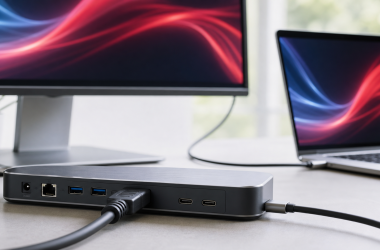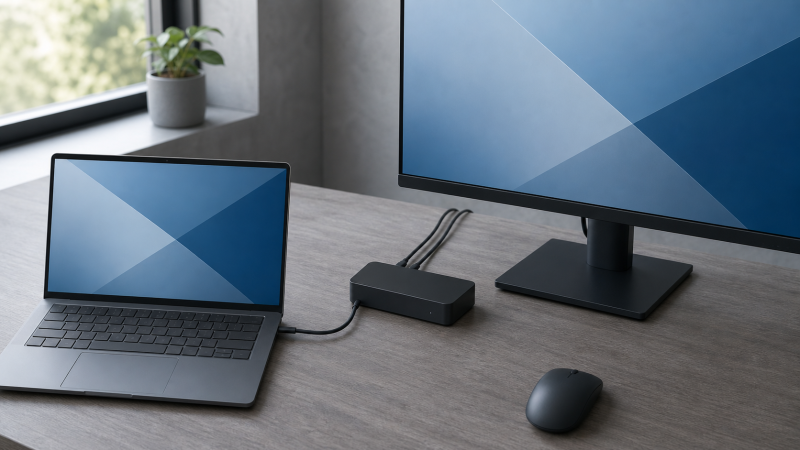
The best docking station for an HP laptop is the HP Thunderbolt 4 100W G6 Dock, as long as the laptop has Thunderbolt 4, USB4 with the needed display support, or a properly equipped USB-C port. It is the strongest general pick because HP documents both what the dock does and the conditions behind it: the required host path, up to 100W laptop charging, a broad port selection, host-dependent support for up to four external displays, and HP-focused management features.
That answer does not apply to every HP laptop. HP uses the same USB-C connector shape across systems with very different capabilities. One port may carry Thunderbolt 4, native display signals, fast data, and laptop charging. Another may offer DisplayPort Alt Mode and USB Power Delivery without Thunderbolt. A third may carry USB data only. The same cable fits all three yet produces very different results.
Start with the exact HP product number, not just a family name such as EliteBook, ProBook, Spectre, Envy, Pavilion, OMEN, Victus, or ZBook. Then check the laptop’s specifications for Thunderbolt, USB4, DisplayPort Alt Mode, USB Power Delivery, supported external-display count, and power-adapter requirement. Those facts, not the badge, decide whether a dock can drive screens, charge the laptop, or move USB data only.
This guide ranks seven materially different options rather than seven versions of the same dock. The list covers an official HP all-rounder, an HP combo-cable model for supported high-power workstations, a premium cross-brand Thunderbolt desk, a lower-cost official USB-C choice, two DisplayLink options for additional office displays, and a compact travel hub. Every recommendation is tied to a host path and a clear limitation.
No fixed prices appear, because Amazon offers change. The listed products and ASINs were exact active US Amazon Creators matches on July 15, 2026. Display counts, resolutions, and charging figures are manufacturer ceilings under stated conditions, not promises for any given HP laptop.
Recent Updates
- July 15, 2026: Created this guide from a fresh seven-product Amazon Creators slate and current official HP or manufacturer documentation.
- Added the HP Thunderbolt 4 100W G6 Dock as the best overall choice and separated it from the high-power HP G4 combo-cable model.
- Added a host-port capability diagram that distinguishes Thunderbolt or USB4, USB-C with DisplayPort Alt Mode, data-only USB-C, and DisplayLink.
- Documented when Amazon catalog language is broader than the manufacturer’s host, display, or charging conditions.
- Excluded unresolved and unavailable candidates instead of padding the ranking.
Compatibility Warning: A USB-C Plug Does Not Prove Dock Compatibility
Before buying, confirm all five items below for the exact HP product number:
- Host data path: Thunderbolt 4, USB4, USB 10Gb/s, USB 5Gb/s, or another documented USB mode.
- Native display path: Thunderbolt video or USB-C DisplayPort Alt Mode. Data-only USB-C does not provide native dock video.
- Laptop charging: USB Power Delivery support and the wattage the HP laptop accepts through that port.
- External-display limit: The laptop GPU, firmware, operating system, and port implementation can set a lower ceiling than the dock.
- Software conditions: DisplayLink docks require a supported operating system and an installed DisplayLink driver. HP management functions can also require a supported HP commercial system and HP software.
If any one of those facts is missing, treat compatibility as unconfirmed. The safest move is to find the HP specifications or maintenance guide for the exact product number printed on the laptop, then compare it against the dock manufacturer’s host matrix.
Quick Picks
- Best overall official HP dock: HP Thunderbolt 4 100W G6 Dock
- Best for a supported high-power HP workstation: HP Thunderbolt Dock 280W G4 with Combo Cable
- Best premium mixed-device dock: CalDigit TS4
- Best-value official HP USB-C dock: HP USB-C G5 Essential Dock
- Best dual-display DisplayLink dock: Plugable UD-6950PDH
- Best triple-display DisplayLink dock for Windows: Anker Prime DL7400
- Best compact HP travel hub: HP Travel USB-C Hub G3
| Image | Product | Details | Check Price |
|---|---|---|---|
 | HP Thunderbolt 4 100W G6 Dock | Required HP host path: Thunderbolt 4, suitable USB4, or USB-C with supported DP Alt Mode Display approach: Native; up to 4 only when the exact host supports it Host charging: Up to 100W over the included Thunderbolt 4 cable Key connections: 2 DisplayPort 1.4, HDMI 2.1, Thunderbolt 4, USB-C/A, RJ45 Best for: Best overall official HP dock | Check Price on Amazon |
 | HP Thunderbolt Dock 280W G4 with Combo Cable | Required HP host path: Supported HP Thunderbolt platform for full combo-cable function Display approach: Native; host DP generation and DSC determine the ceiling Host charging: Up to 230W on compatible HP via combo cable; up to 100W by USB-C Key connections: 2 DisplayPort, HDMI 2.0, Thunderbolt 4, USB-C/A, Ethernet Best for: High-power compatible HP workstations | Check Price on Amazon |
 | CalDigit TS4 | Required HP host path: Thunderbolt 4 for the published full feature set Display approach: Native; exact HP graphics and host display limits apply Host charging: Up to 98W sustained Key connections: 18 ports: Thunderbolt 4, DP 1.4, USB-C/A, cards, 2.5GbE, audio Best for: Premium mixed-device desk | Check Price on Amazon |
 | HP USB-C G5 Essential Dock | Required HP host path: USB-C with DisplayPort Alt Mode and USB Power Delivery Display approach: Native; exact modes depend on the HP host display path Host charging: Verify dock output and exact HP input requirement Key connections: USB-C dock with display, USB expansion, and network connectivity Best for: Value official HP USB-C docking | Check Price on Amazon |
 | Plugable UD-6950PDH | Required HP host path: Supported USB data connection plus DisplayLink driver Display approach: DisplayLink; up to 2 4K 60Hz displays on supported systems Host charging: Up to 100W with a compatible USB PD host Key connections: 2 HDMI, 2 DisplayPort, 5 USB, cards, 1GbE, audio Best for: Dual office displays when native paths are limited | Check Price on Amazon |
 | Anker Prime DL7400 | Required HP host path: Supported Windows laptop, USB data, and current DisplayLink driver Display approach: DisplayLink; triple 4K 60Hz only under Anker's stated conditions Host charging: Up to 140W under stated host, cable, and power conditions Key connections: 14 ports: 2 HDMI, DP, USB-C/A, cards, 2.5GbE, audio Best for: Triple-display Windows office | Check Price on Amazon |
 | HP Travel USB-C Hub G3 | Required HP host path: USB-C with DP Alt Mode for HDMI; USB PD for pass-through power Display approach: Native single HDMI path; exact 4K mode depends on host and display Host charging: Scalable pass-through PD; verify the charger and HP input requirement Key connections: 2 USB-C, 2 USB-A, HDMI Best for: Portable one-display expansion | Check Price on Amazon |
Check the HP Laptop Port Before You Buy a Dock
The decision starts inside the laptop, not in the dock’s product title. A dock can expose many display connectors and advertise a large charging number, yet it cannot create native DisplayPort bandwidth or make a laptop accept more power than the host was designed to use.
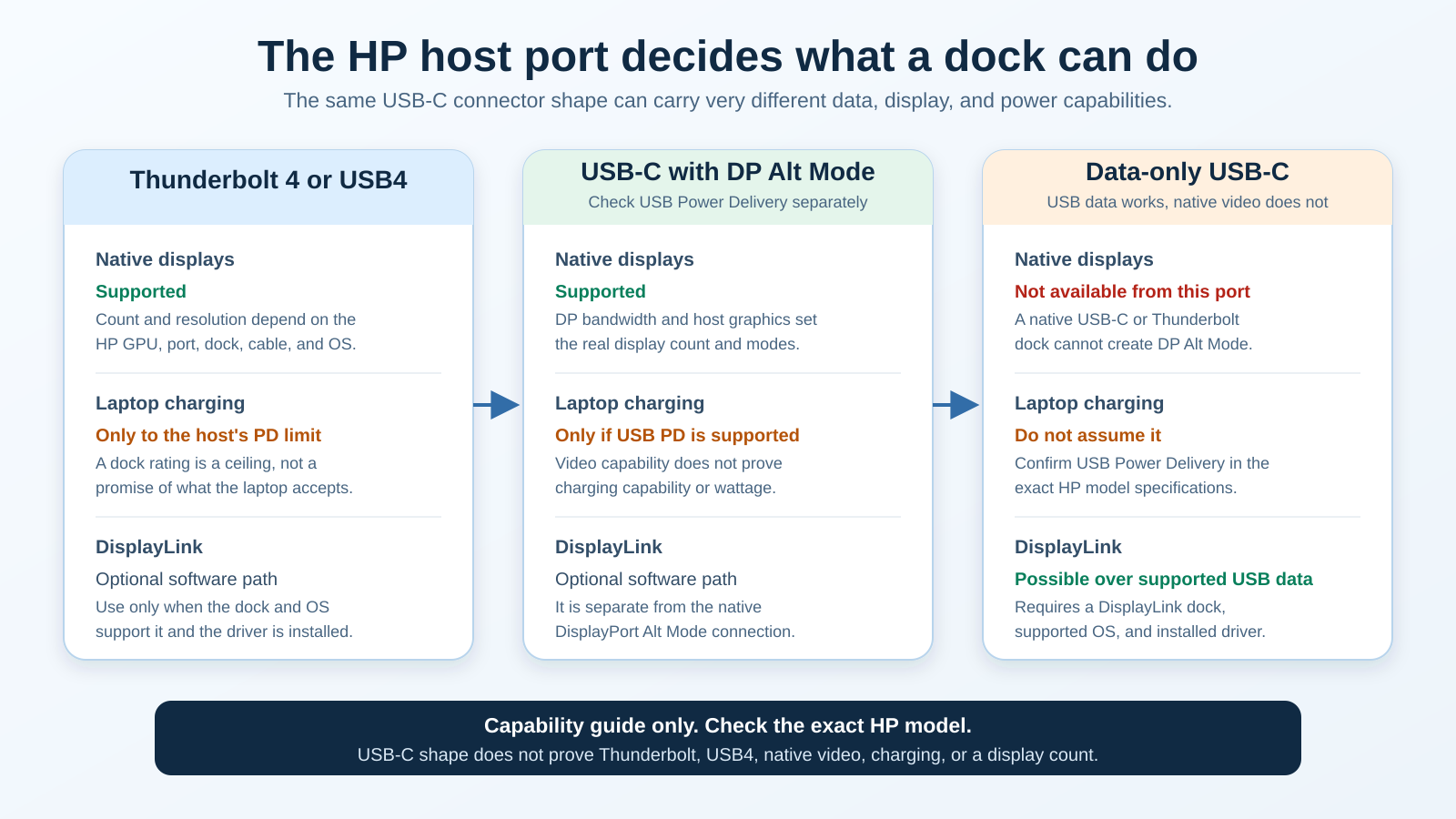
Thunderbolt 4 or USB4
Thunderbolt 4 is the clearest route to the full feature set of the HP G6, HP G4, or CalDigit TS4. It combines high-speed data with native display transport and USB Power Delivery negotiation. A suitable USB4 implementation can also support strong docking behavior, but USB4 branding alone should not replace the exact HP display specification.
Even on this path, “up to four displays” does not mean every Thunderbolt HP laptop drives four displays at the advertised resolution. The GPU’s native display engines, DisplayPort generation, Display Stream Compression support, operating system, dock topology, adapters, and monitor inputs all take part. Our guide to Thunderbolt 3, 4, and 5 explains the generational differences, while the best Thunderbolt 4 docking stations guide covers more cross-platform options.
USB-C with DisplayPort Alt Mode
DisplayPort Alt Mode lets an HP USB-C port send a native display signal to a dock. USB Power Delivery is a separate capability. An HP port may support both, one, or neither, so confirm them individually. This distinction matters most for the HP USB-C G5 Essential Dock and HP Travel USB-C Hub G3.
USB-C display bandwidth is shared with other traffic according to the host and dock design. A native USB-C dock may therefore support fewer displays, or lower display modes, than a Thunderbolt connection would. The best USB-C docking stations guide provides more choices for laptops with a confirmed DisplayPort Alt Mode path.
Data-only USB-C
A data-only USB-C port can connect storage, Ethernet, keyboards, mice, and other USB devices. It cannot send native video to a DisplayPort Alt Mode dock. Plugging in a dock does not add a missing hardware display path, and the presence of a USB-C socket does not prove that the laptop can charge through it.
DisplayLink is the relevant exception for office displays. It transfers compressed display data through a supported USB data link and reconstructs the output through a dock’s DisplayLink hardware and driver. That is how the Plugable UD-6950PDH or Anker Prime DL7400 can add screens without relying on the same native display path. It remains a software route with OS, driver, copy-protection, latency, and workload limitations.
High-power mobile workstations
Some HP mobile workstations require more power than a normal USB-C dock can provide. A dock rated for 98W or 100W may still connect displays and peripherals while the workstation charges slowly, refuses to charge, or reduces performance under sustained load. Which of those happens depends on the HP model’s power design.
The HP G4 280W kit addresses specific supported HP platforms by pairing the USB-C or Thunderbolt data connection with a 4.5 mm barrel-power branch. HP states up to 230W to compatible HP systems through that combo cable, not 280W to the laptop. Do not assume every ZBook or other HP workstation accepts the barrel branch. Unsupported high-power models may still need their factory power adapter beside the dock.
Table of Contents
- HP Thunderbolt 4 100W G6 Dock: Best Overall
- HP Thunderbolt Dock 280W G4: Best for Supported High-Power Workstations
- CalDigit TS4: Best Premium Mixed-Device Dock
- HP USB-C G5 Essential Dock: Best-Value Official HP Dock
- Plugable UD-6950PDH: Best Dual-Display DisplayLink Dock
- Anker Prime DL7400: Best Triple-Display DisplayLink Dock
- HP Travel USB-C Hub G3: Best Compact Travel Hub
- How to Choose
- Frequently Asked Questions
- Methodology
1. HP Thunderbolt 4 100W G6 Dock: Best Overall
The HP Thunderbolt 4 100W G6 Dock is the best starting point for a recent compatible HP business laptop because HP documents both the broad connection set and the conditions behind it. Its rear connections include two DisplayPort 1.4 outputs, HDMI 2.1, Thunderbolt 4, USB, and Ethernet, with additional USB ports around the enclosure. HP states that the dock can support up to four external displays, but the exact HP host determines the real count and modes.
That caveat is exactly why this dock ranks first: HP does not reduce compatibility to the connector shape. The official specification calls for a supported Thunderbolt, USB4, or USB-C display path for full data and video behavior, and USB Power Delivery support for charging. A lower-capability USB-C HP laptop may connect to the dock yet lose display bandwidth, charging, Thunderbolt functions, or several of these at once.
Laptop charging is up to 100W through the included Thunderbolt 4 cable. Amazon’s catalog title also carries “120 W,” but that is not 120W of host charging. HP’s official limit for power sent to the connected laptop is up to 100W. A high-power workstation that expects more may need the G4 combo-cable option or its original charger.
For compatible HP commercial fleets, the G6 also has a stronger management story than a generic dock. HP documents support for Poly Lens, the HP Client Management Script Library, HP WMI, and firmware and identification features, all under platform-specific conditions. Wake-on-LAN and MAC address pass-through are not supported when the dock runs with a non-HP PC. Those details matter to an IT buyer, but they do not make the dock universally compatible with every HP consumer notebook.
Best for: Supported HP business laptops that need native displays, up to 100W charging, Ethernet, USB expansion, and HP-oriented management.
Main limitation: Up to four displays is a host-dependent ceiling, not a guaranteed layout for every HP laptop.
2. HP Thunderbolt Dock 280W G4: Best for Supported High-Power Workstations
The HP Thunderbolt Dock 280W G4 with Combo Cable is the specialist recommendation for a supported high-power HP mobile workstation. Its edge over the G6 is not a newer port generation but the combo cable, which joins the Thunderbolt or USB-C data connection with an HP 4.5 mm barrel-power connector for compatible systems.
HP states up to 230W delivery to supported HP platforms through that combo cable. The “280W” in the product name describes the dock kit and power-adapter class, not 280W delivered to the laptop. Over the USB-C power path alone, HP lists up to 100W. Check this before buying, because it determines whether the dock can replace a workstation’s factory power brick.
The G4 provides two DisplayPort outputs, HDMI 2.0, Thunderbolt 4, USB-C, USB-A, and Ethernet. HP’s data sheet shows how display support changes with host DisplayPort generation and Display Stream Compression. The highest documented configurations can reach four 4K 60Hz displays, while less capable host paths have lower ceilings. Some ports also share display resources, so the number of physical connectors is not the number of screens guaranteed to work at once.
Compatibility is narrower than “any HP with USB-C.” The exact workstation must support the combo-cable power input, its Thunderbolt or USB-C port must supply the required data and native display path, and the OS and firmware must support the desired features. HP also limits parts of the power-button, security, firmware, PXE, network, and management experience to supported platforms and software. A consumer HP laptop may receive basic docking functions without the full commercial feature set.
Best for: Exact HP mobile-workstation models that HP lists for the combo cable and that need more power than ordinary USB-C charging provides.
Main limitation: The up to 230W path is HP-platform-specific; “280W” does not describe universal laptop charging.
3. CalDigit TS4: Best Premium Mixed-Device Dock
The CalDigit TS4 is the best premium choice when the desk serves an HP Thunderbolt laptop today but may also serve another Windows, Mac, or Chrome device. CalDigit builds the dock around an 18-port layout rather than HP-specific fleet management. The connection set includes three Thunderbolt 4 ports counting the host port, three USB-C 10Gb/s ports, five USB-A 10Gb/s ports, DisplayPort 1.4, 2.5GbE, UHS-II SD and microSD readers, and separate audio connections.
Host charging is up to 98W sustained, enough for many thin-and-light HP business and consumer laptops whose USB Power Delivery input falls within that ceiling. It is no substitute for a high-power mobile-workstation adapter when the HP model expects substantially more power. The TS4’s 230W power supply feeds the dock and its connected devices; it does not mean 230W reaches the laptop.
The display path is native. CalDigit publishes host-specific display tables and advertises high-end modes such as 8K 30Hz or two 6K 60Hz displays under supported conditions. Those numbers cannot be transferred to every HP laptop. An HP host with one native external-display engine, lower DisplayPort bandwidth, an unsupported adapter, or a lower GPU limit will stop below the dock’s headline ceiling.
That makes the TS4 a strong choice for a known Thunderbolt 4 HP host, especially when fast USB peripherals, card readers, wired networking, audio, and downstream Thunderbolt accessories matter more than official HP management. It also suits a desk shared by several laptop brands, because its value comes from standards-based expansion rather than an HP-only combo power connector.
Best for: A premium Thunderbolt desk with many fast peripherals and more than one laptop brand.
Main limitation: The strongest display and bandwidth claims require a suitable Thunderbolt host; 98W does not cover every HP workstation.
4. HP USB-C G5 Essential Dock: Best-Value Official HP Dock
The HP USB-C G5 Essential Dock is the practical official HP option for a laptop that has USB-C with both DisplayPort Alt Mode and USB Power Delivery but does not need a premium Thunderbolt dock. HP states those two capabilities as minimum host requirements. That is more important than the HP logo: a data-only USB-C port can still fit the cable while providing no native dock display and possibly no laptop charging.
The dock covers the normal fixed-desk tasks: native display connectivity, USB expansion, and wired networking. Do not infer laptop charging from the dock’s power supply. The retained official evidence did not establish one host-output figure clearly enough for every exact configuration covered by this listing, so check HP’s compatibility record and compare the dock output listed for your combination against the laptop’s input requirement.
Native display results also come from the HP host. DisplayPort Alt Mode must be present, and the laptop GPU, DisplayPort implementation, OS, cables, and monitor modes determine what works. This is not a DisplayLink dock, so it does not use a software driver to bypass a missing native display path. If the HP port provides USB data but no DP Alt Mode, choose a supported DisplayLink option or use a different physical display output on the laptop.
HP notes that commercial features can be conditional. Power-button behavior is tied to supported HP systems, PXE can depend on host firmware, and dock firmware updates require the applicable software and a period when the dock is unavailable. Cross-platform behavior also varies; for example, HP does not provide the same Ethernet or audio driver support on macOS. Those limits matter on shared desks, even if basic USB devices still work.
Best for: Compatible HP laptops with confirmed USB-C DisplayPort Alt Mode and USB Power Delivery.
Main limitation: It cannot create native display support on data-only USB-C, and the exact charging result must be checked for the laptop.
5. Plugable UD-6950PDH: Best Dual-Display DisplayLink Dock
The Plugable UD-6950PDH is the best dual-display choice when an HP laptop’s native display path is too limited for the intended office layout. Instead of depending only on DisplayPort Alt Mode display streams, it uses DisplayLink software to send display data over a supported USB data connection. Plugable specifies support for up to two 4K 60Hz displays on supported systems.
The dock provides two HDMI ports and two DisplayPort connectors, but only two display outputs can be active at the same time. It also includes five USB ports, SD and microSD readers, Gigabit Ethernet, audio, and up to 100W laptop charging with a compatible USB Power Delivery host. Charging and displays have different requirements: a data-only USB-C port may carry DisplayLink data while still lacking USB PD charging.
A current supported DisplayLink driver is mandatory. The dock is not driverless native video, and it does not convert the HP port into DisplayPort Alt Mode. Operating-system support, administrator permissions, USB data stability, driver updates, and security policy all matter. Managed business laptops may require IT approval before the driver can be installed.
Plugable also names workload limits worth weighing before you buy. HDCP-protected content is not supported over the DisplayLink path, and the company does not position this type of dock for gaming, 3D work, or every full-screen video and video-editing workflow. A native Thunderbolt or DP Alt Mode connection is the better route for those uses, when the HP laptop provides it.
For office applications, DisplayLink can solve a real port limitation when the laptop has USB data but too few native external-display paths. For native alternatives, see the dual-monitor docking station guide.
Best for: Supported Windows HP office laptops that need two external displays beyond the convenient native path.
Main limitation: Driver required; not intended as a native, low-latency display path for protected media, gaming, or demanding graphics work.
6. Anker Prime DL7400: Best Triple-Display DisplayLink Dock
The Anker Prime DL7400 is the specialist choice for a supported Windows HP laptop that needs a three-display office layout from one dock. The exact Amazon product is model A83B3, and its catalog identity explicitly calls for the latest DisplayLink driver. Anker advertises triple 4K 60Hz output under its supported Windows and DisplayLink conditions.
The 14-port layout includes two HDMI outputs, DisplayPort, USB-C and USB-A expansion, card readers, 2.5GbE, audio, a status display, and active cooling. Charging is advertised up to 140W under Anker’s stated host, power, and cable conditions, a negotiated ceiling. It does not prove that an HP laptop accepts 140W over USB-C, and it does not replace an HP barrel adapter on a workstation that requires one.
As with the Plugable dock, the displays use a software-assisted DisplayLink path. The HP host needs supported USB data, the current driver, a supported Windows configuration, and permission to run the software. The dock’s three physical display connections and headline resolution do not override a driver problem, an unsupported OS, a corporate installation policy, or an incompatible USB path.
The DL7400 makes sense when screen count matters more than a fully native display path. Three office screens can hold communications, documents, dashboards, and reference material without depending on three native display streams from the laptop. That benefit comes with the usual DisplayLink tradeoffs: native Thunderbolt or direct GPU outputs remain preferable for games, color-sensitive video work, protected playback, and workloads where latency or compression matters.
Best for: Supported Windows HP office setups that need three external displays and accept a DisplayLink driver.
Main limitation: Triple 4K 60Hz and up to 140W charging are conditional ceilings, not universal behavior across HP laptops.
7. HP Travel USB-C Hub G3: Best Compact Travel Hub
The HP Travel USB-C Hub G3 is the portable choice for a compatible HP laptop that needs basic expansion instead of a permanent multi-monitor desk. Product number 86T46AA has five ports: two USB-C, two USB-A, and HDMI. HP and the exact Amazon listing describe 4K display support and scalable Power Delivery, but the real display mode and charging result depend on the host, charger, cable, and connected devices.
The HDMI output needs a native display signal from the HP USB-C port. In practice, that means confirming DisplayPort Alt Mode for the exact laptop. A data-only port can still operate some USB accessories through the hub but cannot provide native HDMI video. Pass-through charging similarly requires USB Power Delivery support and a suitable charger; the hub does not make a laptop charge through a port that HP designed without USB PD input.
This is a hub rather than a full enterprise dock. It is designed around portability and a short list of common connections, not the G6’s network-management scope, the G4’s high-power combo cable, the TS4’s many fast desktop ports, or a DisplayLink dock’s additional software displays. The article on docks versus hubs explains why the distinction matters.
The compact role also makes its limits easier to accept. It is suited to a hotel monitor, presentation display, borrowed keyboard and mouse, portable storage, or wired accessories that fit the available ports. It is not the best choice for a fixed desk with several external displays, many high-bandwidth peripherals, or workstation-class charging.
The frozen evidence supports HP’s five-port layout, 4K language, and scalable Power Delivery description, but not one universal refresh rate or one pass-through wattage for all HP hosts, so those numbers are intentionally omitted. Check the exact HP specification and bring a charger that meets the laptop’s own input requirement.
Best for: Travel with one native HDMI display and a small set of USB accessories.
Main limitation: Display and pass-through charging still require the proper HP USB-C capabilities; it is not a full-size desktop dock.
How to Choose a Docking Station for an HP Laptop
Find the exact HP product number
Do not stop at the marketing family. Two laptops sold as HP Pavilion, Envy, ProBook, EliteBook, or ZBook can use different processors, graphics, ports, firmware, and power adapters. The product number narrows the lookup to the hardware actually on the desk.
Use the HP specifications or maintenance and service guide for that exact number. Record the words used for every USB-C port. Look specifically for Thunderbolt, USB4, DisplayPort Alt Mode, USB Power Delivery, supported data rate, and external-display limits. If the documentation lists more than one USB-C port, they may not have identical capabilities.
Separate the four questions hidden inside one cable
A one-cable desk is really four systems sharing a connector:
- Data: USB or Thunderbolt traffic for storage, network, audio, and accessories.
- Native video: DisplayPort streams carried through Thunderbolt, USB4, or DP Alt Mode.
- Power: USB Power Delivery negotiation, or an HP-specific combo power connection.
- Software display: DisplayLink data interpreted by a driver and dock chipset.
A laptop can support one function without the others. This is why “it has USB-C” is not a useful buying conclusion. For a deeper comparison of the two high-speed standards, see USB4 versus Thunderbolt 4 and the separate USB4 explainer.
Decide between native displays and DisplayLink
Native display output is the first choice when the HP laptop already exposes enough GPU display paths. It normally requires no DisplayLink graphics driver and is a better fit for protected video, games, 3D work, color-sensitive video editing, and other graphics-heavy tasks. The G6, G4, TS4, G5 Essential, and Travel Hub use the host’s native path for their display outputs.
DisplayLink solves a different problem. It can add supported office displays through USB data when the laptop’s native display count or DP Alt Mode route is insufficient. The Plugable UD-6950PDH and Anker DL7400 are included for this reason. Both require software and should be evaluated as software-display docks, not as proof that the HP port gained native video.
For a managed work laptop, ask whether users can install and update the driver. For a personal laptop, confirm current Windows support and read the dock vendor’s workload limitations. For a desk used mainly for documents, browsers, messaging, and dashboards, DisplayLink can be practical. For fast-motion or protected content, favor native outputs.
Match the display plan, not the connector count
Write down the number of external monitors, each resolution and refresh rate, and each available input. Then check the laptop’s supported external-display count before reading the dock’s maximum. The working ceiling is the lowest limit anywhere in the path.
For example, the G6 can expose several physical display outputs and HP can document up to four external displays, but a host with fewer native display streams will stop earlier. The G4’s results change with DisplayPort generation and Display Stream Compression. The TS4 has its own host matrix. A USB-C dock can trade display bandwidth against USB bandwidth. Adapters can introduce another limit.
Avoid counting an HDMI socket and two DisplayPort sockets as three guaranteed screens. Some docks share internal display resources, and some manufacturer tables allow only particular port combinations. If a monitor has a built-in dock, compare that simpler topology with a separate dock using our guide to monitors with built-in docking stations.
Size charging for normal use and peak demand
Dock charging has at least three numbers: the power adapter’s rating, the maximum the dock can send to the host, and the maximum the laptop will accept through that connection. Marketing often foregrounds the largest number, even when it is the adapter rating rather than host output.
In this list, the G6 sends up to 100W to the host, the TS4 up to 98W, and the Plugable up to 100W. Anker advertises up to 140W under its specified conditions. The G4 combo cable reaches up to 230W only on compatible HP platforms, while its USB-C route is up to 100W. The G5 Essential and Travel Hub require an exact compatibility check because this frozen source set does not support one safe universal output number for the article.
Too little power does not always produce a simple on-or-off result. Depending on the HP model, the laptop may warn about a low-power adapter, charge only while idle, lose battery under load, or reduce performance. Use HP’s adapter requirement as the baseline. A high-power workstation may need its original charger even while the dock handles data and monitors.
Account for operating system, drivers, and firmware
Hardware is only one layer. DisplayLink needs a current driver from the dock vendor or Synaptics. HP commercial-dock management can require HP tools, supported firmware, and a supported HP platform. Network boot, Wake-on-LAN, MAC address pass-through, power-button behavior, Ethernet, and audio can vary by host and OS.
Keep dock firmware and graphics drivers under the same change-control process as the laptop. On a corporate system, confirm that the approved software catalog includes the required DisplayLink or HP package. On a shared cross-platform desk, verify each OS separately. A dock working for basic USB on one laptop does not establish full displays, charging, and management on another.
Choose official HP management only when it matters
An official HP dock can provide useful fleet functions on supported business systems, but it should not be purchased on logo matching alone. The G6’s HP management and identification features, or the G4’s security and firmware functions, have platform and software conditions. They do not compensate for a missing display path or insufficient charging.
For an individually owned Spectre or Envy, a standards-based TS4 may provide more relevant ports. For a managed EliteBook fleet, the G6’s HP tooling may justify standardization. For a compatible high-power ZBook, the G4 combo cable may be decisive. The best choice follows the actual requirement.
Frequently Asked Questions
Will any USB-C docking station work with an HP laptop?
No. The connector may fit, but the HP port must support the functions the dock needs. Native display output requires Thunderbolt, a suitable USB4 display path, or DisplayPort Alt Mode. Laptop charging requires USB Power Delivery or a supported HP-specific power connection. Data-only USB-C can run USB devices and may carry DisplayLink data, but it cannot provide native DP Alt Mode video.
How do I know whether my HP laptop supports DisplayPort Alt Mode?
Find the exact HP product number and open its official specification or maintenance guide. Look for “DisplayPort,” “DP Alt Mode,” a Thunderbolt specification, or USB4 display language attached to the exact USB-C port. Do not rely only on a port icon, family name, retailer description, or the fact that a USB-C charger fits.
Is Thunderbolt 4 required for an HP docking station?
No. A USB-C dock can work well when the HP port supports DisplayPort Alt Mode and USB Power Delivery. Thunderbolt 4 provides a clearer high-bandwidth path for docks such as the HP G6, HP G4, and CalDigit TS4. A travel hub or G5 Essential may be the better match when the host has compatible USB-C but no Thunderbolt.
Can a dock charge every HP laptop?
No. The HP laptop must accept power through that port, and the dock must provide enough supported output. Thin-and-light systems may fit within a 98W or 100W ceiling, while some mobile workstations need more. The G4 combo cable can provide up to 230W to specific supported HP platforms. Other high-power models may still need their factory adapter.
Why does my HP dock detect USB devices but not monitors?
The most likely compatibility cause is that USB data is working while the native display path is absent or misconfigured. Confirm DP Alt Mode, Thunderbolt, or the required USB4 capability on the exact port. Then check the cable, graphics driver, dock firmware, monitor input, adapter direction, and supported display topology. For a DisplayLink dock, also confirm that the driver is installed and allowed to run.
Can DisplayLink add monitors to a data-only USB-C HP laptop?
It can on a supported host when the USB port carries suitable data, the operating system is supported, the DisplayLink dock is compatible, and the current driver is installed. This does not add native DisplayPort Alt Mode to the port. DisplayLink also has limitations for protected content, games, 3D workloads, and some video workflows, so it is best viewed as an office-display solution.
What is the difference between the HP G6 100W and G4 280W docks?
The G6 is the stronger general official HP recommendation, with up to 100W host charging and current HP management support under documented conditions. The G4 280W kit is the specialist high-power choice because its combo cable can provide up to 230W to compatible HP platforms. The 280W name does not mean 280W goes to the laptop.
Can the HP G6 really run four external monitors?
HP states support for up to four external displays, but the exact result depends on the host. The laptop GPU, DisplayPort bandwidth, Thunderbolt or USB4 implementation, Display Stream Compression, operating system, cables, adapters, and display modes can lower the count. Treat four as a documented ceiling for suitable configurations.
Is an HP dock better than a CalDigit, Plugable, or Anker dock?
It depends on the role. An HP dock can be better for supported HP commercial management or combo-cable power. The CalDigit TS4 is stronger for a premium mixed-device desk with many fast ports. Plugable and Anker provide DisplayLink options when office screen count exceeds the convenient native path. Brand matching is less important than host, display, power, OS, and driver matching.
Should I buy a dock or a USB-C hub for travel?
A hub is usually easier to carry when one display and a few USB connections are enough. A full dock makes more sense for a permanent desk, wired network, several peripherals, multiple screens, or higher charging needs. The HP Travel USB-C Hub G3 is the portable pick here, while the other six products are better suited to fixed desks.
How We Selected These HP Laptop Docks
We began with compatibility roles rather than a long retailer list. A product needed to cover a distinct use case: official HP all-rounder, supported high-power HP workstation, premium mixed-device Thunderbolt desk, value official USB-C desk, dual DisplayLink, triple DisplayLink, or travel.
Every included product required an exact US Amazon Creators SearchItems and GetItems identity, exact ASIN, active offer, and primary large image. Ambiguous variants and unresolved candidates were excluded. The product order in this article matches the comparison-table sidecar and image records exactly.
Important specifications came from official HP or manufacturer pages. Where an Amazon title used broader shorthand, the article followed the narrower official scope. The clearest examples are the G6’s 120W catalog wording versus up to 100W host charging, the G4’s 280W product name versus up to 230W to compatible HP hosts, and high display-count claims that remain host dependent.
We did not assign one USB-C capability to an entire HP family. Representative consumer, business, gaming, and workstation names appear only to warn that configurations differ. The decision point is the exact product number and port specification.
No personal testing, invented benchmark, fixed price, acoustic measurement, thermal measurement, or unsupported compatibility claim is used. Product order reflects documented role coverage and compatibility clarity, not a claim that one dock is fastest in every workload.
Products and Claims We Excluded
- Near-duplicate docks that did not add a materially different role.
- Candidates without an exact active Amazon identity, offer, or image at the research freeze.
- Products whose important specifications could not be tied to an official manufacturer source.
- Universal statements such as “all HP USB-C laptops support displays and charging.”
- A universal host-charging number for the HP G5 Essential package, because the frozen evidence did not establish one clearly enough for every covered configuration.
- A universal pass-through wattage or 4K refresh-rate promise for the HP Travel Hub G3, because the retained evidence did not support applying one number to every HP host and charger.
- Display counts based only on the number of sockets on a dock.
- The idea that DisplayLink is identical to native Thunderbolt or DisplayPort output.
- Hardcoded prices, personal-testing language, and performance claims without attributed measurements.
The final check remains simple: identify the exact HP product number, confirm the host port’s data, display, and charging capabilities, then select the dock whose documented conditions match the desk. If those facts do not line up, a familiar connector and an HP logo are not enough.