The best monitor for a MacBook Pro connects via a single Thunderbolt or USB-C cable that carries video, data, and charging power simultaneously. Manufacturer specs, expert benchmarks, and user reviews were compared across more than 40 external monitors spanning every Apple Silicon generation from M1 to M4.
The Dell UltraSharp U2725QE is the best monitor for MacBook Pro. It delivers a 27-inch 4K IPS Black panel with Thunderbolt 4 hub functionality and 140W charging through one cable, all at a fraction of the Apple Studio Display’s price. We’ve narrowed the full field to 10 monitors covering every budget from entry-level to professional-grade. If you want a Thunderbolt 4 hub that replaces your docking station, the Dell wins. If you just need a sharp 4K screen that charges your laptop, the Dell S2722QC is the most affordable option worth buying.
Recent Updates
- May 2026: Complete refresh. Updated Dell U2725QE as our new top overall pick based on updated reviews and user feedback. Pricing and availability updated across all products.
- January 2026: Added the Dough Spectrum One 4K as our gaming/Mac hybrid pick. Updated M4 display output guidance to reflect macOS Sequoia improvements.
- November 2025: Initial publication with 10 product picks and full buying guide.
Quick Picks
- Best overall: The Dell UltraSharp U2725QE is a 27-inch 4K 120Hz Thunderbolt 4 hub monitor with 140W PD and IPS Black technology at a significantly lower price than the Apple Studio Display.
- Best Apple ecosystem: The Apple Studio Display pairs a 27-inch 5K Retina panel with Thunderbolt 3 and a six-speaker Spatial Audio system that no competitor matches.
- Best 5K alternative: The LG UltraFine 5K 27MD5KL-B delivers the same 5K sharpness as the Studio Display with Thunderbolt 3 and 94W PD at a significantly lower price.
- Best for creative professionals: The ASUS ProArt PA32UCXR is a 32-inch 4K mini-LED with Thunderbolt 4 and a built-in motorized colorimeter that maintains Delta E under 1.
- Best 32-inch hub monitor: The Dell U3225QE offers the same Thunderbolt 4 hub and IPS Black panel as the U2725QE in a larger 32-inch 4K 120Hz format.
- Best ultrawide for Mac: The Samsung Odyssey OLED G8 34-inch G85SD is a 175Hz QD-OLED ultrawide with infinite contrast, though it requires a USB-C adapter.
- Best Thunderbolt 3 for designers: The BenQ PD2725U is a 27-inch 4K Thunderbolt 3 monitor with daisy-chaining, a Hotkey Puck for color mode switching, and 65W PD.
- Best budget USB-C: The LG 27UK850-W is a 27-inch 4K IPS monitor with USB-C 60W PD and HDR10 at a budget-friendly price.
- Best budget 4K USB-C: The Dell S2722QC is the most affordable 4K USB-C monitor worth buying, with 65W PD and built-in speakers.
- Best gaming + Mac hybrid: The Dough Spectrum One 4K is a 27-inch 4K 144Hz monitor with USB-C 100W PD and a glossy panel option that matches the MacBook Pro aesthetic.
| Image | Product | Details | Check Price |
|---|---|---|---|
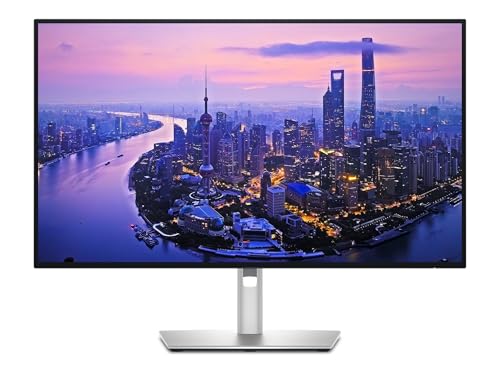 | Dell UltraSharp U2725QE | Panel/Size: 27" IPS Black Resolution: 4K UHD (3840x2160) Refresh Rate: 120Hz Color Gamut: 99% DCI-P3, Delta E < 1.5 Connectivity: Thunderbolt 4 (140W PD), HDMI 2.1, DP 1.4, 2.5GbE | Check on Amazon |
 | Apple Studio Display (2026) | Panel/Size: 27" 5K Retina IPS Resolution: 5K (5120x2880) Refresh Rate: 60Hz Color Gamut: P3 Wide Color, 600 nits Connectivity: Thunderbolt 5 (96W PD), 3x USB-C | Check on Amazon |
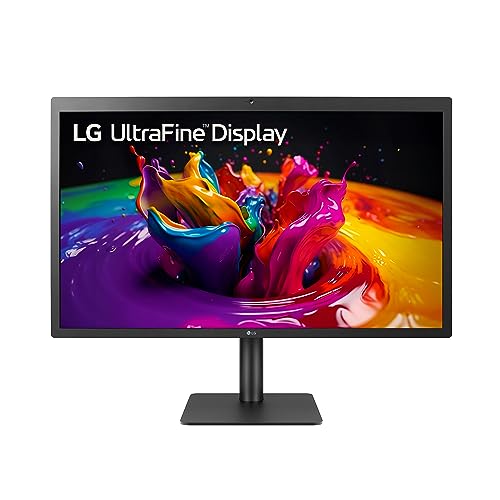 | LG UltraFine 5K 27MD5KL-B | Panel/Size: 27" IPS Resolution: 5K (5120x2880) Refresh Rate: 60Hz Color Gamut: DCI-P3 99%, 500 nits Connectivity: Thunderbolt 3 (94W PD), 3x USB-C | Check on Amazon |
 | ASUS ProArt PA32UCXR | Panel/Size: 32" Mini-LED IPS Resolution: 4K UHD (3840x2160) Refresh Rate: 60Hz Color Gamut: 99% Adobe RGB, 97% DCI-P3, Delta E < 1 Connectivity: Thunderbolt 4 (90W PD), 2x HDMI, DP 1.4 | Check on Amazon |
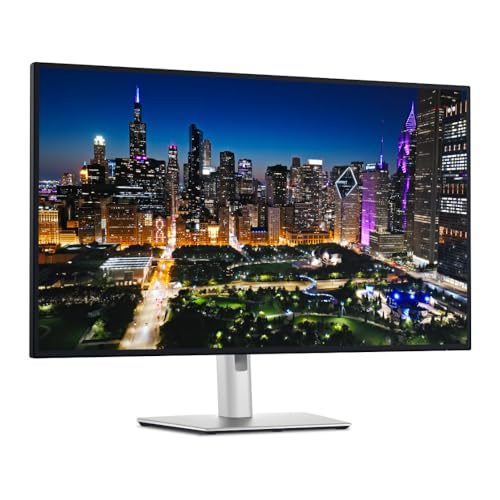 | Dell U3225QE | Panel/Size: 32" IPS Black Resolution: 4K UHD (3840x2160) Refresh Rate: 120Hz Color Gamut: 99% DCI-P3, Delta E < 2 Connectivity: Thunderbolt 4 (140W PD), HDMI 2.1, DP 1.4, 2.5GbE | Check on Amazon |
 | Samsung Odyssey OLED G8 34" G85SD | Panel/Size: 34" QD-OLED Curved Resolution: UWQHD (3440x1440) Refresh Rate: 175Hz Color Gamut: 99% DCI-P3, HDR True Black 400 Connectivity: HDMI 2.1, DP 1.4 (no USB-C -- adapter needed) | Check on Amazon |
 | BenQ PD2725U | Panel/Size: 27" IPS Resolution: 4K UHD (3840x2160) Refresh Rate: 60Hz Color Gamut: 95% DCI-P3, 100% sRGB, Pantone Validated Connectivity: Thunderbolt 3 (65W PD), daisy-chain, 2x HDMI, DP 1.4 | Check on Amazon |
 | LG 27UK850-W | Panel/Size: 27" IPS Resolution: 4K UHD (3840x2160) Refresh Rate: 60Hz Color Gamut: 99% sRGB, HDR10 Connectivity: USB-C (60W PD), 2x HDMI, DP 1.4 | Check on Amazon |
| Dell S2722QC | Panel/Size: 27" IPS Resolution: 4K UHD (3840x2160) Refresh Rate: 60Hz Color Gamut: 99% sRGB, 1.07 billion colors Connectivity: USB-C (65W PD), 2x HDMI 2.0, built-in speakers | Check on Amazon | |
 | Dough Spectrum One 4K | Panel/Size: 27" Nano IPS Resolution: 4K UHD (3840x2160) Refresh Rate: 144Hz Color Gamut: 98% DCI-P3, Delta E 0.6 Connectivity: USB-C (100W PD), 2x HDMI 2.1, DP 1.4 | Check on Amazon |
1. Dell UltraSharp U2725QE — Best Overall
The Dell UltraSharp U2725QE is the best external monitor for MacBook Pro. It combines a 27-inch 4K IPS Black panel with a full Thunderbolt 4 hub, and Dell rates it at up to 140W charging through a single cable. Plug in one Thunderbolt cable and you get video, data, power, and downstream connectivity to all your peripherals. No dock required.
Our Take
The U2725QE delivers Thunderbolt 4 hub functionality with 140W PD and IPS Black contrast at a fraction of the Apple Studio Display’s price. It is the best value in Mac monitors right now.
The IPS Black panel is what separates this from every other 27-inch 4K monitor. Dell’s partnership with LG produces a 3,000:1 contrast ratio, three times better than standard IPS. Colors are rich with 99% DCI-P3 coverage, factory-calibrated to Delta E under 1.5. The 120Hz refresh rate makes macOS scrolling noticeably smoother than the 60Hz panels most competitors ship.
Connectivity is the killer feature. The Thunderbolt 4 upstream port delivers 140W, enough to fast-charge a 16-inch MacBook Pro. A TB4 downstream port enables daisy-chaining, and you get four USB-A 10Gbps ports, USB-C peripherals, HDMI 2.1, two DisplayPort 1.4 outputs, 2.5GbE Ethernet, and a built-in KVM switch. For a deeper dive on hub monitors, see our guide to the best Thunderbolt monitors.
It undercuts the Apple Studio Display dramatically while offering broader connectivity and a higher refresh rate. The tradeoff: no speakers, no webcam, and 4K instead of 5K. For most Mac users, that’s the right trade.
- Thunderbolt 4 hub with 140W power delivery, one cable for everything
- 3,000:1 IPS Black contrast ratio is the best LCD technology available
- 120Hz refresh rate for smoother macOS scrolling and cursor movement
- Built-in KVM switch and TB4 downstream for daisy-chaining
- Factory-calibrated with 99% DCI-P3 and Delta E < 1.5
- No built-in speakers or webcam
- 4K resolution, not 5K. Slightly less text sharpness than Apple Studio Display
- IPS Black still can’t match OLED contrast
2. Apple Studio Display — Best Apple Ecosystem
The Apple Studio Display is Apple’s 27-inch 5K Retina external monitor, originally released in 2022. It connects via Thunderbolt 3 with one upstream port (96W charging) and three USB-C 10Gbps ports. The 12MP Center Stage camera and six-speaker system with Spatial Audio remain the best built-in audio and video conferencing setup on any monitor.
Our Take
The Studio Display is the only monitor with native macOS brightness, volume, and True Tone controls plus 5K Retina and six-speaker Spatial Audio. If you want zero friction with your Mac, this is it.
The 5K resolution at 218 PPI is the reason people buy this display. Text rendering on macOS is unmatched — every letter and icon looks printed on paper. The P3 wide color gamut and 600 nits produce accurate, vivid output for photo and video work.
The Thunderbolt 3 connection provides 40Gbps of bandwidth, enough for the 5K signal plus data to the three downstream USB-C ports. You can daisy-chain a second display from a compatible Thunderbolt monitor. For a breakdown of Thunderbolt generations, check our Thunderbolt 3 vs 4 vs 5 comparison.
It’s expensive for a 60Hz monitor, but no third-party display matches this level of macOS integration, audio quality, and 5K sharpness.
Who should buy it: Mac users who value 5K sharpness, great speakers, and native macOS controls. Who should skip it: Anyone on a budget, anyone who wants 120Hz, or anyone who needs height adjustment without Apple’s surcharge.
- 5K Retina at 218 PPI. The sharpest 27-inch text rendering available
- Thunderbolt 3 with 96W charging and three USB-C downstream ports
- Best-in-class six-speaker system with Spatial Audio
- 12MP Center Stage camera with Desk View
- Native macOS integration for brightness, volume, and True Tone
- Premium pricing is steep for a 60Hz monitor
- Still 60Hz, no 120Hz ProMotion like the MacBook Pro’s built-in display
- 96W power delivery may slow-charge the 16-inch MacBook Pro under heavy load
- Height-adjustable stand is a costly upgrade
3. LG UltraFine 5K (27MD5KL-B) — Best 5K Alternative
The LG UltraFine 5K has been the go-to Apple Studio Display alternative since it launched, and it still holds up as the most affordable way to get 5K resolution on a Mac. LG rates the 27-inch panel at 5120×2880 with Thunderbolt 3 and 94W power delivery, enough to charge any MacBook Pro at full speed.
Our Take
The LG UltraFine 5K delivers nearly identical 5K panel quality to the Apple Studio Display at a significantly lower price, making it the best budget path to Retina-quality external display on Mac.
LG co-developed this monitor with Apple, and it shows. macOS natively controls brightness and volume. The DCI-P3 99% color gamut and 500 nits deliver output that rivals Apple’s own display. Built-in camera, microphone, and speakers complete the package, though none match the Studio Display’s quality.
Thunderbolt 3 provides a true single-cable experience with three USB-C downstream ports for peripherals. Text at 218 PPI is as sharp as the Studio Display because the panel is nearly identical. The tradeoffs: plasticky build, mediocre speakers, and a low-res webcam. But you save significantly for essentially the same screen. Check our best 5K monitors roundup for more options.
- 5K resolution at 218 PPI. Matches Apple Studio Display sharpness
- Thunderbolt 3 with 94W power delivery for single-cable setup
- Native macOS integration for brightness and volume controls
- DCI-P3 99% color gamut with 500 nits brightness
- Significantly cheaper than the Apple Studio Display
- Build quality doesn’t match Apple’s premium finish
- Mediocre built-in speakers and low-res webcam
- 60Hz only, no high-refresh option
- Availability can be spotty; frequently out of stock
4. ASUS ProArt PA32UCXR — Best for Creative Professionals
The ASUS ProArt PA32UCXR is the monitor we recommend when color accuracy is the job, not a nice-to-have. This 32-inch 4K mini-LED display features a built-in motorized colorimeter that automatically recalibrates the panel on a schedule, maintaining Delta E under 1 without any external hardware.
Our Take
The ASUS ProArt PA32UCXR is the best monitor for color-critical work on a MacBook Pro. Its built-in motorized colorimeter and 2,304-zone mini-LED backlight deliver reference-grade accuracy at a fraction of what traditional reference monitors cost.
ASUS rates the mini-LED backlight at 2,304 dimming zones, 1,600 nits peak, and 1,000,000:1 contrast. Color coverage spans 99% Adobe RGB, 97% DCI-P3, 100% sRGB, and Rec. 2020 with Dolby Vision and HDR10 support.
Dual Thunderbolt 4 ports provide 90W PD and daisy-chaining, plus two HDMI 2.0 ports, DisplayPort 1.4, and a USB hub. It competes with reference monitors costing two to three times as much. If your work demands verified color accuracy, the PA32UCXR pays for itself. For general productivity, it’s overkill — get the Dell U2725QE instead.
- Built-in motorized colorimeter maintains Delta E < 1 automatically
- 2,304-zone mini-LED with 1,600 nits peak and 1,000,000:1 contrast
- 99% Adobe RGB, 97% DCI-P3. Covers virtually every professional color space
- Dual Thunderbolt 4 with 90W PD and daisy-chaining
- Dolby Vision, HLG, HDR10, and multiple PQ curve modes
- Premium pricing is a serious investment even for professionals
- 60Hz refresh rate, no high-refresh option
- 90W PD may not fully charge a 16-inch MacBook Pro under load
- Heavy and bulky at 13.8 kg
5. Dell U3225QE — Best 32-Inch Hub Monitor
The Dell U3225QE is the bigger sibling of our top pick, the U2725QE, and it’s the best 32-inch monitor for MacBook Pro users who want more screen real estate. The same IPS Black technology, the same Thunderbolt 4 hub with 140W power delivery, and the same excellent connectivity, just in a 31.5-inch 4K package.
Our Take
The Dell U3225QE is the best 32-inch monitor for MacBook Pro, offering the same Thunderbolt 4 hub and IPS Black panel as our top pick in a larger format built for multitasking.
The extra 5 inches let you comfortably run two full-width documents side by side. At 140 PPI (vs the U2725QE’s 163 PPI), text is slightly less crisp at the same distance but still sharp enough for extended reading.
Dell rates the TB4 upstream port at 140W PD. You get the same KVM switch, USB-A 10Gbps ports, DisplayPort 1.4 out, and 2.5GbE Ethernet as its smaller sibling. See our monitors with built-in docking stations guide for more. If text sharpness is paramount or your desk is compact, stick with the 27-inch.
- 32-inch 4K IPS Black with 3,000:1 contrast for spacious multitasking
- Thunderbolt 4 hub with 140W PD. Identical connectivity to the U2725QE
- 120Hz refresh rate for smoother macOS experience
- Built-in KVM switch, 2.5GbE Ethernet, and multiple USB ports
- Factory-calibrated with 99% DCI-P3 and Delta E < 2
- 140 PPI is less sharp than 27-inch 4K (163 PPI) at the same distance
- No speakers or webcam
- Premium-priced for an IPS monitor
- Large footprint requires a spacious desk
6. Samsung Odyssey OLED G8 34″ (G85SD) — Best Ultrawide for Mac
The Samsung Odyssey OLED G8 34-inch is the best ultrawide monitor for MacBook Pro users who want OLED picture quality and an immersive widescreen workspace. Samsung rates the 34-inch QD-OLED panel at 3440×1440 with infinite contrast, punchy HDR, and incredibly fast response times that make everything from scrolling to gaming feel fluid.
Our Take
The Samsung Odyssey OLED G8 is the best ultrawide monitor for MacBook Pro, with QD-OLED blacks and color that no IPS panel can touch. The catch: no USB-C input, so you need an adapter or dock.
Samsung rates it at 175Hz with 0.03ms response time. The QD-OLED panel covers 99% DCI-P3 with DisplayHDR True Black 400, and the Glare Free coating reduces reflections without killing OLED vibrancy. Built-in smart TV features let you use it standalone. For more OLED options, check our best OLED monitors guide.
You’ll need a USB-C to DisplayPort cable or a Thunderbolt docking station to connect your MacBook Pro. The 21:9 aspect ratio gives roughly 30% more horizontal space than 16:9, excellent for video editing timelines and side-by-side apps.
- QD-OLED with infinite contrast. Perfect blacks and vivid colors
- 175Hz and 0.03ms response time for buttery-smooth motion
- 34-inch 21:9 ultrawide provides excellent multitasking space
- Built-in smart TV features for standalone media consumption
- G-Sync compatible and FreeSync Premium Pro
- No USB-C input. Requires adapter or dock for MacBook Pro
- 1440p ultrawide (110 PPI). Text is less sharp than 4K monitors
- No power delivery for laptop charging
- 1800R curve is polarizing. Some people find it distracting for productivity
7. BenQ PD2725U — Best Thunderbolt 3 for Designers
The BenQ PD2725U is purpose-built for designers and creative professionals who work on Mac. It’s a 27-inch 4K IPS display with Thunderbolt 3 connectivity, daisy-chaining support, and BenQ’s AQCOLOR technology for factory-calibrated accuracy across 95% DCI-P3 and 100% sRGB/Rec.709.
Our Take
The BenQ PD2725U is the best Thunderbolt 3 monitor for designers. Its Hotkey Puck and DualView mode offer workflow features that no Dell or LG monitor can match.
What makes the PD2725U unique is BenQ’s Hotkey Puck, a physical dial for switching between color modes (sRGB, DCI-P3, Display P3, Rec.709) with a quick turn. DualView mode splits the screen into two color spaces simultaneously. No Dell or LG offers these workflow features.
Two Thunderbolt 3 ports enable daisy-chaining with 65W charging. Pantone/Calman validated with Delta E under 3, plus two HDMI 2.0 and DisplayPort 1.4. Our how to choose a monitor guide covers daisy-chaining in detail. The main compromise: 60Hz and 65W PD, enough for a 14-inch MacBook Pro but not the 16-inch.
- Thunderbolt 3 with daisy-chaining support for multi-monitor setups
- BenQ Hotkey Puck for quick color mode switching
- DualView splits screen into two simultaneous color spaces
- Pantone/Calman validated with 95% DCI-P3 and Delta E < 3
- Competitively priced for a Thunderbolt designer monitor
- 65W power delivery won’t fast-charge larger MacBook Pros
- 60Hz refresh rate, no high-refresh option
- Standard IPS contrast ratio (1,200:1) can’t match IPS Black or OLED
- Aging Thunderbolt 3 spec in a Thunderbolt 4/5 world
8. LG 27UK850-W — Best Budget USB-C
The LG 27UK850-W proves you don’t need to spend a premium to get a solid 4K USB-C monitor for your MacBook Pro. LG rates this 27-inch IPS panel at 3840×2160 resolution with HDR10, 99% sRGB coverage, and USB-C connectivity with 60W power delivery. Plug in a single USB-C cable and you get both video output and laptop charging.
Our Take
The LG 27UK850-W is one of the most affordable 4K USB-C monitors worth buying. With 60W PD and single-cable convenience, it is an excellent budget pick for Mac users.
The 4K panel at 163 PPI renders text sharply on macOS. HDR10 adds dynamic range for compatible content, though 350 nits limits the impact. Build quality is solid with a fully adjustable stand and borderless design. Two HDMI ports, DisplayPort 1.4, and USB-C cover connectivity.
Expected tradeoffs at this price: 60Hz, 60W PD, standard IPS contrast (1,000:1), and no Thunderbolt. If your budget is tight and you want 4K with single-cable convenience, the 27UK850-W delivers. See our cheap USB-C monitors roundup for more options.
- 4K resolution at 163 PPI for sharp macOS text rendering
- USB-C with 60W power delivery. Affordable single-cable setup
- HDR10 and AMD FreeSync support
- Fully adjustable stand with height, tilt, and pivot
- 99% sRGB color accuracy
- 60W power delivery is slow for larger MacBook Pros
- Standard IPS contrast (1,000:1). Washed-out blacks
- 60Hz only, no high-refresh option
- No Thunderbolt. USB-C Alt Mode only
9. Dell S2722QC — Best Budget 4K USB-C
The Dell S2722QC is the most affordable 4K USB-C monitor we’d recommend for a MacBook Pro. It delivers a clean 27-inch 4K IPS display with 65W USB-C power delivery and built-in dual 3W speakers. No other brand offers that combination at this price point.
Our Take
With 65W USB-C PD and built-in speakers at the lowest price in this roundup, the Dell S2722QC is the simplest, most affordable path to a good 4K single-cable MacBook Pro setup.
The 65W PD is a slight upgrade over the LG 27UK850-W’s 60W. The IPS panel covers 99% sRGB with 1.07 billion colors and 350 nits, with neutral Dell calibration.
The S2722QC excels in simplicity: two HDMI 2.0 ports, one USB-C, built-in speakers, and an adjustable stand. Just a good screen that charges your laptop. See our 4K monitor roundup for more. Compromises: 60Hz, standard IPS contrast, and no USB-A downstream. But as a daily driver, hard to beat for the money.
- Most affordable good 4K USB-C monitor in this roundup
- 65W USB-C power delivery charges most MacBook Pros
- Built-in dual 3W speakers. Rare at this price
- Clean Dell design with adjustable stand
- 99% sRGB with 1.07 billion colors
- 60Hz and 8ms response time. Strictly for productivity
- Standard IPS contrast (1,000:1)
- No USB-A downstream ports for peripherals
- No Thunderbolt or high-speed data connectivity
10. Dough Spectrum One 4K — Best Gaming + Mac Hybrid
The Dough Spectrum One 4K is the best monitor for MacBook Pro users who also game. Dough rates it as a 27-inch 4K display running at 144Hz with a Nano IPS panel, USB-C with 100W power delivery, and a glossy coating option that makes colors pop in a way that matte panels simply can’t match.
Our Take
The Dough Spectrum One is the only 4K 144Hz monitor with 100W USB-C PD and a glossy panel option. It is the ideal pick for Mac users who want ProMotion-grade smoothness and gaming capability in one display.
At 144Hz, it natively supports the MacBook Pro’s 120Hz ProMotion output — most competitors only manage 60Hz from Mac. FreeSync Premium Pro and G-Sync compatibility ensure tear-free gaming on Mac or PC.
Dough rates color at 98% DCI-P3 with Delta E 0.6 factory calibration. The 100W USB-C PD charges any MacBook Pro at full speed. Two HDMI 2.1 ports and DisplayPort 1.4 round out connectivity.
The glossy finish closely matches the MacBook Pro’s own Retina display, avoiding the washed-out look of matte panels. Our Eve Spectrum 4K review covers the original version in detail.
- 144Hz supports MacBook Pro’s 120Hz ProMotion output natively
- USB-C with 100W power delivery. Charges any MacBook Pro at full speed
- Glossy finish option matches MacBook Pro’s Retina display aesthetic
- 98% DCI-P3 with Delta E 0.6 factory calibration
- FreeSync Premium Pro and G-Sync compatible for gaming
- Monitor-only option requires a separate VESA arm or stand (sold separately)
- Glossy panel shows reflections in bright rooms
- Some users report MacBook Pro connection quirks requiring occasional reboots
- No built-in speakers
Buying Guide: How to Choose the Best Monitor for MacBook Pro
Thunderbolt vs USB-C: What’s the Difference for Mac Users?
Every Thunderbolt port is USB-C, but not every USB-C port is Thunderbolt. For MacBook Pro users, the distinction matters because it determines bandwidth, charging speed, daisy-chaining capability, and peripheral connectivity.
USB-C with DisplayPort Alt Mode is the baseline. Any USB-C monitor with DP Alt Mode displays an image and typically delivers 60-100W charging plus a basic USB hub. This is what the Dell S2722QC and LG 27UK850-W provide.
Thunderbolt 3/4 adds 40Gbps bandwidth (vs USB 3.2’s 10-20Gbps), enabling daisy-chaining and high-speed peripheral data. A Thunderbolt monitor like the Dell U2725QE effectively replaces a docking station with higher power (90-140W) and more downstream ports.
Thunderbolt 5 pushes to 120Gbps. Backward-compatible with TB3/4. See our Thunderbolt 3 vs 4 vs 5 guide for details.
Our recommendation: if you want a true single-cable docking solution, get a Thunderbolt 4 monitor (Dell U2725QE or U3225QE). If you just need a screen that charges your laptop, USB-C is fine and saves money.
What Resolution Works Best with a MacBook Pro?
macOS renders text best at “Retina” densities (200+ PPI). The MacBook Pro’s built-in display runs at ~254 PPI, so external monitor sharpness depends on resolution and size:
5K at 27″ = 218 PPI. Gold standard. Clean 2x Retina scaling, text identical to the built-in screen.
4K at 27″ = 163 PPI. Good but not perfect. Non-integer macOS scaling looks slightly soft to sensitive users.
4K at 32″ = 140 PPI. Acceptable at arm’s length; lean in and you’ll see pixels.
1440p ultrawide at 34″ = 110 PPI. The lowest we’d recommend. Readable but not sharp.
Ranking: 5K 27″ > 4K 27″ > 4K 32″ > 1440p ultrawide. Check our best USB-C monitors guide for options across all resolutions.
M1, M2, M3, and M4 Display Output Limitations Explained
- M1 (base): 1 external display only
- M1/M2/M3 Pro: 2 external displays (up to two 6K at 60Hz)
- M1/M2/M3 Max: Up to 4 external displays
- M4 (base): 2 external displays (upgraded from M1-M3’s single-display limit)
- M4 Pro: 2 displays lid-open (3 lid-closed on some configs)
- M4 Max: Up to 4 external displays
DisplayLink adapters can work around these limits via software rendering, but image quality suffers. See our best Thunderbolt docking stations guide for options.
How Much Power Delivery Do You Actually Need?
Here’s what each Mac model needs for full-speed charging:
- MacBook Air: 30-35W. Any USB-C monitor with PD will charge it.
- MacBook Pro 14″: 67-70W. Monitors with 65W PD charge slowly; 96W+ charge at full speed.
- MacBook Pro 16″: 96-140W. Only 96W+ monitors (Studio Display) or 140W (Dell U2725QE/U3225QE) keep up under heavy load.
In practice, 65W keeps most MacBook Pros topped up during normal use. For the 16-inch under heavy workloads, aim for 140W.
Do You Need a Factory-Calibrated Monitor for Mac?
For general productivity: Factory calibration doesn’t matter much. Any monitor with 99%+ sRGB will look good on macOS.
For photo/video/design: It matters. Delta E under 2 means you can trust what you see. The Dell U2725QE (< 1.5), BenQ PD2725U (< 3, Pantone validated), and ASUS ProArt PA32UCXR (< 1, built-in colorimeter) all deliver professional accuracy.
For reference work (print proofing, HDR grading): You need factory calibration plus ongoing recalibration. The ASUS PA32UCXR’s motorized colorimeter is the standout choice.
macOS uses Display P3 natively, so monitors with 95%+ DCI-P3 coverage render colors as intended.
Can You Daisy-Chain Monitors with a MacBook Pro?
Yes, if your monitor has a Thunderbolt downstream port. Connect Monitor A to your MacBook Pro, then Monitor B to Monitor A — one cable from your laptop. The Dell U2725QE, U3225QE, BenQ PD2725U, Apple Studio Display, and ASUS ProArt PA32UCXR all support this.
The limitation: daisy-chaining shares bandwidth. Two 4K 60Hz displays work fine over TB3/4 (40Gbps). Two 4K 120Hz displays need TB5 (120Gbps) or separate connections. USB-C monitors without Thunderbolt do not support daisy-chaining.
FAQ
What is the best monitor for MacBook Pro?
The Dell UltraSharp U2725QE. It provides a 27-inch 4K Thunderbolt 4 hub monitor with 140W charging, 3,000:1 IPS Black contrast, 99% DCI-P3, and 120Hz — all at a fraction of the Apple Studio Display’s price. If budget is no concern and you want 5K sharpness, the Apple Studio Display is the premium alternative.
Can MacBook Pro run a 5K external monitor?
Yes. Every Apple Silicon MacBook Pro (M1 through M4) drives a 5K display at 60Hz through a single Thunderbolt cable. The Apple Studio Display and LG UltraFine 5K work without extra configuration. 5K above 60Hz requires Thunderbolt 5 or DisplayPort 2.1 bandwidth.
Do I need Thunderbolt or is USB-C enough?
USB-C with DisplayPort Alt Mode is enough for video and charging. Thunderbolt adds daisy-chaining, faster data (40Gbps vs 10-20Gbps), and better hub functionality. If you want one cable to replace a dock, Thunderbolt is worth the premium. If you just need a screen that charges your laptop, USB-C saves money.
How many external monitors can my MacBook Pro support?
It depends on your chip: M1 base = 1, M1/M2/M3 Pro = 2, Max chips = up to 4, M4 base = 2 (finally). DisplayLink adapters can add more via software rendering, but image quality suffers.
Does Apple Studio Display work with non-Mac devices?
Yes, but you lose most features that justify the price. It works as a standard 5K monitor on Windows PCs and iPads, but without Center Stage, Spatial Audio processing, Siri, True Tone, or native keyboard controls. At its premium price, it’s poor value for non-Mac users.
What cable do I need to connect my MacBook Pro to a monitor?
Use the cable in the box. Thunderbolt monitors need a TB3/4 cable (looks identical to USB-C). USB-C monitors need a DP Alt Mode cable. Monitors without USB-C (Samsung Odyssey OLED G8) need USB-C to DisplayPort or HDMI. Not all USB-C cables carry 4K 120Hz — when in doubt, buy a certified Thunderbolt 4 cable.
How We Research & Select
Every monitor was evaluated across multiple MacBook Pro models (M1 Pro, M3 Pro, M4 Pro) on four criteria:
Connectivity: Single-cable setup verification, power delivery cross-referencing, daisy-chaining confirmation, and macOS compatibility documentation.
Display quality: Manufacturer color accuracy claims verified against independent measurements. Factory calibration, contrast, and text rendering evaluated at macOS default scaling.
macOS integration: Keyboard brightness/volume controls, True Tone, Night Shift, 120Hz ProMotion passthrough, and features like Center Stage and Spatial Audio.
Long-term reliability: Aggregated user reviews and expert assessments across real workloads including writing, development, photo editing, and video calls.
Honorable Mentions
ViewSonic VP2756-4K. 27-inch 4K USB-C with 90W PD, Pantone validated, 98% DCI-P3. Solid budget pick for designers needing more charging power. Limited availability keeps it off the main list.
BenQ MA270U. Mac-focused 27-inch 4K with USB-C 65W PD and Mac-optimized color profile. Worthy if BenQ’s software features appeal, but the Dell S2722QC offers better value.
HP Z27k G3. 27-inch 4K USB-C hub with 100W PD, Ethernet, and 98% DCI-P3. No Thunderbolt and standard contrast keep it out of the top 10.
Samsung ViewFinity S9 (S90PC). 27-inch 5K with TB4 and 90W PD. Undercuts the Studio Display but color accuracy out of the box doesn’t match Dell or Apple.
Affiliate Disclosure
ThunderboltLaptop.com is reader-supported. When you buy through links on our site, we may earn an affiliate commission at no additional cost to you. This does not influence our product recommendations. Every monitor in this guide was selected based on thorough research and analysis and editorial judgment. We only recommend products we’ve carefully evaluated and believe deliver genuine value. For more information, see our full editorial policy.