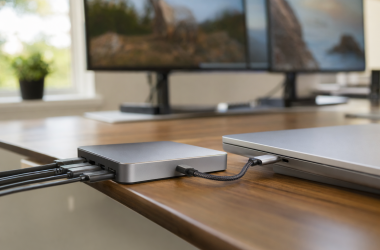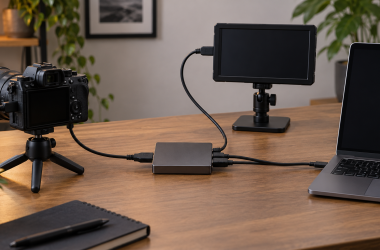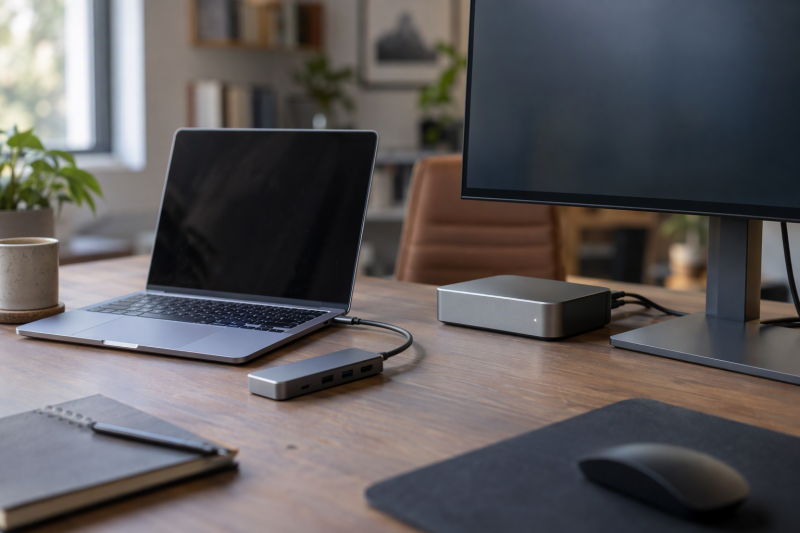
Satechi’s five hubs, adapters and docks share a USB-C label and differ in the connection each one adds. The 4-in-1 splits one port into four, the Hub Pro Slim adds HDMI and card slots for a MacBook, the 8-in-1 V3 adds Gigabit Ethernet, the USB4 Dual HDMI Adapter drives two displays without drivers, and the Thunderbolt 4 Docking Station adds Thunderbolt ports for a multi-display desk.
Satechi sells the new unit of all five on Amazon itself, and the port lists below come from Satechi’s product pages. None of the five is a charger. Satechi lists only the hub or adapter and manuals in the box for the 4-in-1, Pro Slim, V3 and USB4 Dual HDMI Adapter, while its box list for the Thunderbolt 4 Docking Station includes a power supply.
Pick by the connection you are missing: USB-C data ports, HDMI, Ethernet, two displays without drivers or four displays.Satechi Hubs and Docks Compared
| Image | Product | Details | Check Price |
|---|---|---|---|
 | Satechi 4-in-1 USB-C Hub | Best fit: Turning one USB-C port into four Ports: Four USB-C at 10Gbps Display: No video port listed Power: Up to 100W in, 75W to host, on one port Check first: Three ports carry data only | Check Price on Amazon |
 | Satechi 7-in-1 USB-C Hub Pro Slim | Best fit: MacBook desk with HDMI, USB-A and card slots Ports: USB4, two USB-A, USB-C data, SD and microSD Display: HDMI up to 4K 60Hz Power: Up to 100W through the USB4 port Check first: No dual displays on M1 or M2 | Check Price on Amazon |
 | Satechi 8-in-1 USB-C Hub V3 | Best fit: HDMI, Gigabit Ethernet and a UHS-II SD slot Ports: Four USB-C data, SD, Gigabit Ethernet Display: HDMI up to 8K 30Hz or 4K 60Hz Power: Up to 100W in, 85W to host Check first: Host must send video over USB-C | Check Price on Amazon |
 | Satechi USB4 Dual HDMI Adapter | Best fit: Two extended 4K displays without drivers Ports: Two HDMI, two USB-A, two USB-C data, one power port Display: Two HDMI 2.0 at up to 4K 60Hz Power: Up to 140W in, 125W to host Check first: Base M1 and M2 Macs get one display | Check Price on Amazon |
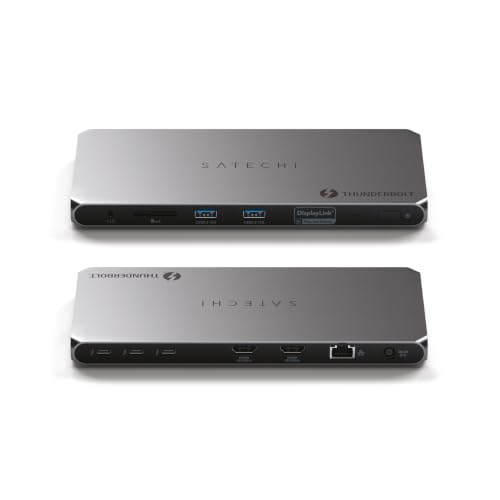 | Satechi Thunderbolt 4 Docking Station | Best fit: Dual HDMI through DisplayLink with Gigabit Ethernet Ports: Thunderbolt 4 downstream, two HDMI, two USB-A, SD slot Display: Up to four 4K 60Hz with DisplayLink Power: 96W pass-through, 180W adapter in box Check first: DisplayLink software for the HDMI ports | Check Price on Amazon |
1. Satechi 4-in-1 USB-C Hub — Best for Turning One USB-C Port Into Four
Satechi’s product page lists four USB-C 3.2 Gen 2 ports at 10Gbps on a hub that measures 2.4 by 2.4 inches and weighs 50g (1.76oz). The hub connects to the laptop through a 6.6-inch cable (16.8cm). Satechi’s FAQ says one port handles power delivery and data, with up to 100W in and 75W out to the host, and the other three carry data only, with no charging or video.
Satechi lists no HDMI, Ethernet or card slot, and its FAQ says the hub cannot be daisy-chained with another one. Satechi’s compatibility list names MacBook Air and Pro, MacBook Neo (top USB-C port), ROG Ally, Dell XPS 13 Plus and XPS 15, ThinkPad X1 Carbon Gen 12 and Surface Pro 9. For Windows and Chrome OS, Satechi asks for a Thunderbolt 3, Thunderbolt 4 or USB4 port for optimal use.
Our Take Choose the 4-in-1 for a laptop with one spare USB-C port that needs several USB-C drives and a charger connected at once. A monitor, a wired network or an SD card needs one of the larger Satechi models below.
- Satechi lists four USB-C 3.2 Gen 2 ports at 10Gbps on the 4-in-1, a fit for a laptop with one spare USB-C port and several USB-C drives.
- Satechi’s FAQ says one port takes up to 100W of input and passes up to 75W to the host, covering both power delivery and data.
- Satechi lists the 4-in-1 at 50g and 2.4 by 2.4 inches, with a 6.6-inch cable that connects it to the laptop.
- Satechi’s FAQ says the other three USB-C ports carry data only, so a device on them gets no charging or video output.
- Satechi lists no HDMI, Ethernet or card slot on the 4-in-1, and a monitor, wired network or SD card needs one of the larger models.
2. Satechi 7-in-1 USB-C Hub Pro Slim — Best for a MacBook Desk With HDMI, USB-A and Card Slots
Satechi lists a USB4 pass-through port rated for up to 100W power delivery, 6K 60Hz video and 40Gbps data. Satechi also lists an HDMI port at up to 4K 60Hz with HDR and HDCP 1.4 and 2.3 support, two USB-A ports at 10Gbps and a USB-C data port at 10Gbps. Its SD and microSD slots can read two cards at once at UHS-I speeds of up to 104MB/s.
Satechi’s compatibility list names MacBook Air and MacBook Pro models and no Windows laptops. Satechi’s page rules out dual external displays on M1 and M2 chips, and says M3 Macs run two only in clamshell mode.
Where the 100W goes: Satechi says the USB4 port passes charging and video, while the USB-C data port beside it does neither.Our Take Choose the Pro Slim for a MacBook that needs HDMI, two USB-A ports and card slots on one hub. Satechi’s list shows no Ethernet, so a wired desk should check the V3 below.
- Satechi lists a USB4 pass-through port rated for up to 100W power delivery, 6K 60Hz video and 40Gbps data, and says the port passes charging and video.
- Satechi lists an HDMI port at up to 4K 60Hz on the Pro Slim for a MacBook, with HDR and HDCP 1.4 and 2.3 support.
- Satechi lists SD and microSD slots that can read two cards at once, at UHS-I speeds of up to 104MB/s.
- Satechi lists two USB-A ports at 10Gbps on the Pro Slim, next to the HDMI port and the card slots.
- Satechi’s page says dual external displays are not supported on M1 and M2 chips, and M3 Macs run two only in clamshell mode.
- Satechi lists no Ethernet on the Pro Slim, so a wired desk should check the V3.
- Satechi’s compatibility list for the Pro Slim names MacBook models and no Windows laptops.
3. Satechi 8-in-1 USB-C Hub V3 — Best for HDMI, Gigabit Ethernet and a UHS-II SD Slot
Satechi’s page lists one HDMI port, one Gigabit Ethernet port, a UHS-II SD 4.0 slot, three USB 3.2 Gen 2 ports at 10Gbps and one USB 3.2 Gen 1 port at 5Gbps. The four data ports are USB-C, and Satechi says they carry no video and are not recommended for charging. A separate USB-C power port accepts up to 100W and sends up to 85W to the host, and Satechi marks it as carrying no video or data.
Satechi rates the HDMI port at 8K 30Hz or 4K 60Hz, with 4K at 120Hz and 144Hz reserved for Windows devices, when the host and monitor support it. Satechi says the MacBook Neo reaches 4K 60Hz at most through the V3 and must use its top USB-C port. Amazon’s bullets also name a microSD reader that Satechi’s own spec list does not show.
Read the power line: Satechi’s page says the power port accepts up to 100W and delivers up to 85W to the host, two different figures for two directions.Our Take Choose the V3 for a laptop desk with one monitor, a wired network and several USB devices. Satechi lists no port faster than 10Gbps on it, so Thunderbolt storage belongs on the Thunderbolt 4 Docking Station below.
- Satechi lists Gigabit Ethernet on the V3 for a wired network, along with a UHS-II SD 4.0 slot.
- Satechi lists HDMI at up to 8K 30Hz or 4K 60Hz, with 4K at 120Hz and 144Hz on Windows devices, when the host and monitor support it.
- Satechi lists three USB 3.2 Gen 2 ports at 10Gbps and one USB 3.2 Gen 1 port at 5Gbps, four USB-C ports for several USB devices.
- Satechi’s power port accepts up to 100W and delivers up to 85W to the host, and the delivered figure is the one to compare with a laptop charger’s rating.
- Satechi says the V3’s USB-C data ports carry no video and are not recommended for charging.
- Satechi lists a single HDMI port on the V3, and the MacBook Neo reaches 4K 60Hz at most through it.
- A drive or display cannot use the V3’s power port, because Satechi marks it as carrying no video or data.
4. Satechi USB4 Dual HDMI Adapter — Best for Two Extended 4K Displays Without Drivers
Satechi’s page for the ExtendView lists a USB4 host cable at up to 40Gbps, 7.93 inches (20.1cm) long, and two HDMI 2.0 ports at up to 4K 60Hz. It also lists two USB-A ports and two USB-C data ports at 10Gbps, a built-in cable slot, and a USB-C power port that accepts up to 140W and sends up to 125W to the host. The adapter measures 5.55 by 2.36 by 0.79 inches and weighs 168.5g (5.94oz). Satechi says the USB-C data ports and the power port carry no video, so a monitor goes on an HDMI port.
Satechi’s FAQ says the adapter is plug and play and needs no drivers or DisplayLink software. Satechi says Macs with M3, M4, M5 or M6 chips support two extended displays, and a base M3 needs the lid closed. Satechi says Macs with base M1 or M2 chips and the MacBook Neo support one display, and Windows 10 and 11 PCs support two through a USB4 port at 40Gbps or higher.
Our Take Choose the USB4 Dual HDMI Adapter for a USB4 laptop that needs two extended monitors without installing DisplayLink software. Satechi lists no Ethernet, card slot or Thunderbolt port on it, so a desk that needs those looks to the V3 or the Thunderbolt 4 Docking Station below.
- Satechi lists two HDMI 2.0 ports at up to 4K 60Hz, and its FAQ says the adapter needs no drivers or DisplayLink software.
- Satechi lists a USB-C power port that accepts up to 140W and sends up to 125W to the host.
- Satechi lists two USB-A ports and two USB-C data ports at 10Gbps on the adapter.
- Satechi lists the adapter at 168.5g, with a 7.93-inch host cable and a built-in cable slot.
- Satechi says Macs with base M1 or M2 chips and the MacBook Neo support only one external display on the adapter, and a base M3 needs the lid closed for two.
- Satechi says the USB-C data ports and the power port carry no video, so monitors go on the HDMI ports.
- Satechi lists no Ethernet or card slot on the USB4 Dual HDMI Adapter.
5. Satechi Thunderbolt 4 Docking Station — Best for Dual HDMI Through DisplayLink With Gigabit Ethernet
Satechi’s page lists one Thunderbolt 4 host port, Thunderbolt 4 downstream ports at 40Gbps and 15W, and two HDMI 2.0 ports at 4K 60Hz that run through DisplayLink software. It also lists two USB-A 3.2 ports at 10Gbps, a UHS-II SD 4.0 slot at up to 312MB/s, a 3.5mm audio port and Gigabit Ethernet. Amazon’s bullets count three downstream Thunderbolt 4 ports. Satechi lists 96W pass-through power from a 180W supply in the box, and the box also holds a 0.8m Thunderbolt 4 cable. The dock measures 213.7 by 95.2 by 18.3mm and weighs 490g.
Satechi’s page says the dock supports up to four extended displays at 4K 60Hz, two through Thunderbolt 4 ports and two through HDMI, and the HDMI ports need DisplayLink software installed first. Satechi lists three displays at most on M1 and M2 Macs, and says base M1 and M2 MacBooks and the M3 MacBook Pro get one display through Thunderbolt. For a single display, Satechi lists up to 8K 30Hz on Windows and 6K 60Hz on a Mac.
Our Take Choose the Thunderbolt 4 Docking Station for a desk with several monitors, a wired network and Thunderbolt storage on one cable. Satechi lists up to four displays, with three at most on M1 and M2 Macs. A desk with one or two monitors can check the smaller Satechi models first.
- Satechi lists two HDMI 2.0 ports at 4K 60Hz through DisplayLink, plus Thunderbolt 4 downstream ports that can carry displays.
- Satechi lists Gigabit Ethernet on the dock for a wired network, along with a UHS-II SD 4.0 slot.
- Satechi lists Thunderbolt 4 downstream ports at 40Gbps and 15W on the dock, for Thunderbolt storage.
- The box holds a 180W power supply and a 0.8m Thunderbolt 4 cable, according to Satechi.
- Satechi says the HDMI ports need DisplayLink software installed before use.
- Satechi lists three displays at most on M1 and M2 Macs.
- Satechi lists 96W pass-through, below the 100W in Amazon’s title.
Buying Guide
1. Count the displays before the ports
Satechi lists one HDMI port at up to 4K 60Hz on the Pro Slim and one at 8K 30Hz or 4K 60Hz on the V3. For the USB4 Dual HDMI Adapter, Satechi lists two HDMI 2.0 ports at up to 4K 60Hz. For the Thunderbolt 4 Docking Station, Satechi lists two HDMI 2.0 ports through DisplayLink plus Thunderbolt 4 downstream ports, for up to four 4K 60Hz displays.
Satechi’s pages treat Macs separately. Base M1 and M2 MacBooks get one external display on the Pro Slim and the USB4 Dual HDMI Adapter, and Satechi lists three on the Docking Station through DisplayLink. Satechi says M3 Macs run two only in clamshell mode on the Pro Slim, and a base M3 needs the lid closed on the USB4 Dual HDMI Adapter. For other docks, see the Thunderbolt 4 docking station guide.
2. Read power as input, output and box contents
Satechi states power in different ways on each page. The 4-in-1 takes up to 100W and passes up to 75W to the host, and the V3 takes up to 100W and passes up to 85W. Satechi lists a 140W input and up to 125W to the host for the USB4 Dual HDMI Adapter, and 96W pass-through for the Thunderbolt 4 Docking Station. Compare the laptop charger’s rating with the delivered figure, not the input figure.
Satechi’s box lists a power supply for the Thunderbolt 4 Docking Station, and only the hub or adapter and manuals for the 4-in-1, Pro Slim, V3 and USB4 Dual HDMI Adapter. The four products without a power supply need a charger you already own. Satechi says 140W charging needs a laptop, an Extended Power Range cable and a PD 3.1 adapter that all support it. For a separate charger, see the 100W USB-C charger guide.
3. Choose Ethernet and card slots from each product’s own port list
Satechi lists Gigabit Ethernet on the V3 and the Thunderbolt 4 Docking Station, and no Ethernet on the 4-in-1, Pro Slim or USB4 Dual HDMI Adapter. For card slots, Satechi lists a UHS-II SD slot on the V3 and the Docking Station, and SD and microSD slots at UHS-I speeds on the Pro Slim.
Satechi lists no card slot on the 4-in-1 or the USB4 Dual HDMI Adapter. Pick the V3 or the Thunderbolt 4 Docking Station when the desk needs a wired network. Hubs from other brands are covered in the USB-C hub guide.
4. Match the host port to the hub
On the 4-in-1 page, Satechi asks for a Thunderbolt 3, Thunderbolt 4 or USB4 port for optimal use, and the V3 and Docking Station pages also accept USB 3.2 Gen 2 with DisplayPort Alt Mode. Satechi says Windows PCs need a USB4 port at 40Gbps or higher for two displays on the USB4 Dual HDMI Adapter. The Pro Slim page names only MacBook Air and MacBook Pro models.
Satechi’s USB4 NVMe enclosure is a storage product rather than a hub, and the Satechi USB4 enclosure review covers it. For docks chosen for a MacBook Pro, see the MacBook Pro dock guide.
FAQ
Which Satechi model has Ethernet?
Satechi lists Gigabit Ethernet on the 8-in-1 Hub V3 and on the Thunderbolt 4 Docking Station. Both suit a desk that uses a wired network.
Satechi’s spec list shows no Ethernet on the 4-in-1, Pro Slim or USB4 Dual HDMI Adapter. A desk with a wired network should choose between the V3 and the dock.
Can the Thunderbolt 4 Docking Station drive four displays from a MacBook?
Satechi says the dock can, with DisplayLink software installed for the two HDMI ports. Satechi’s page lists up to four extended displays at 4K 60Hz, two through Thunderbolt 4 ports and two through HDMI.
Satechi lists three displays at most on M1 and M2 Macs. Satechi also says base M1 and M2 MacBooks and the M3 MacBook Pro get one display through Thunderbolt.
Does the USB4 Dual HDMI Adapter need DisplayLink software?
No. Satechi’s FAQ says the adapter is plug and play and needs no drivers or DisplayLink software.
Satechi says Windows 10 and 11 PCs need a USB4 port at 40Gbps or higher for two extended displays. Satechi says Macs with M3, M4, M5 or M6 chips support two.
Does the 4-in-1 charge through every port?
No. Satechi’s FAQ says one port takes up to 100W of input and passes up to 75W to the host, and the other three carry data only.
Satechi says the three data ports have no charging or video output. A phone or drive on those ports gets data only.
Is the Pro Slim’s USB4 port the same as Thunderbolt 4?
Satechi lists the Pro Slim’s USB4 port at up to 40Gbps, 100W and 6K 60Hz video, and lists Thunderbolt 4 downstream ports on the Thunderbolt 4 Docking Station. The Pro Slim page lists no downstream Thunderbolt port.
Choose by the ports Satechi lists, not by the connector shape. A Thunderbolt 4 dock fits a desk that connects Thunderbolt storage or displays.
Bottom Line
By Satechi’s product pages, choose the Satechi 4-in-1 for four 10Gbps USB-C ports, the Pro Slim for a MacBook that needs HDMI and card slots, and the V3 for HDMI plus Gigabit Ethernet. Choose the USB4 Dual HDMI Adapter for the two extended 4K 60Hz displays Satechi lists without drivers, and the Thunderbolt 4 Docking Station for dual HDMI through DisplayLink with Gigabit Ethernet and up to four 4K 60Hz displays.