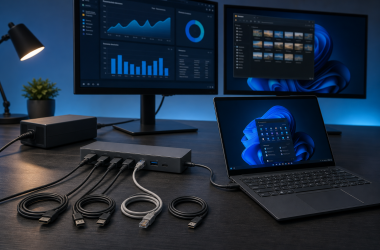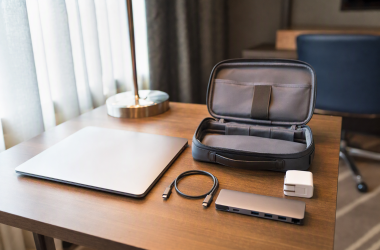
A good clicker lets a speaker leave the laptop without losing control of the next slide. The crucial purchase check is how the remote connects to the laptop. A USB-A receiver cannot plug directly into a USB-C-only machine, while Bluetooth can save a port if both devices support it. The second check is whether the slide app recognizes the remote’s exact keys.
These six active-New Amazon US remotes cover basic navigation, Bluetooth, dual-format receivers and extra volume or hyperlink controls. The red pointer is a separate feature, not a guarantee of visibility on an LCD screen or in a remote screen share. Range, app behavior and laser brightness are listing claims, not independently verified results. If the laptop also needs to drive a room display, our USB-C-to-HDMI adapter guide covers that connection separately.
Choose by laptop port and slide app first. A long range or bright laser claim does not fix an incompatible receiver or invisible pointer dot.Presentation Clickers Compared
| Image | Product | Details | Check Price |
|---|---|---|---|
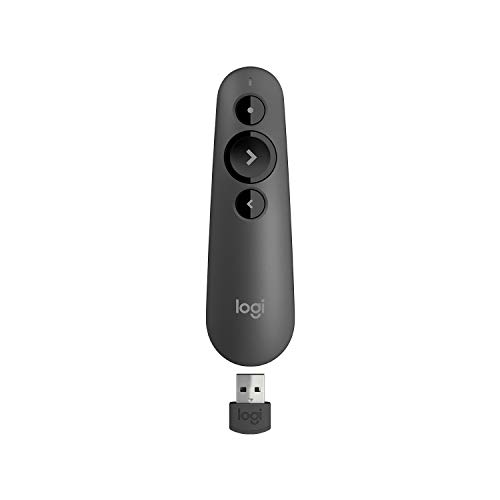 | Logitech R500s | Connection: Bluetooth LE or USB receiver Controls: Slide navigation; optional app customization Pointer: Red laser Best fit: Flexible laptop connection | Check Price on Amazon |
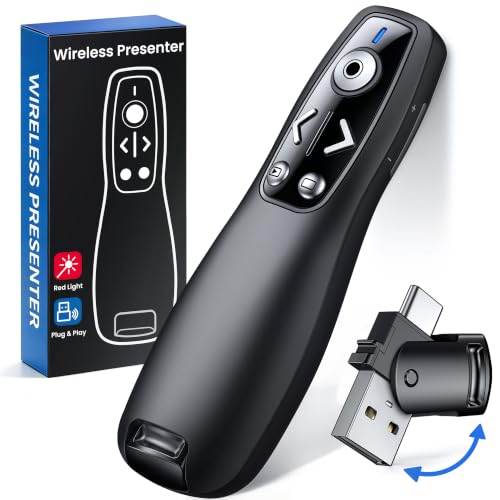 | ELISWEEN E600 | Connection: USB-A/USB-C receiver, per listing Controls: Slides, volume, screen/window Pointer: Red light Best fit: Mixed USB-port laptops | Check Price on Amazon |
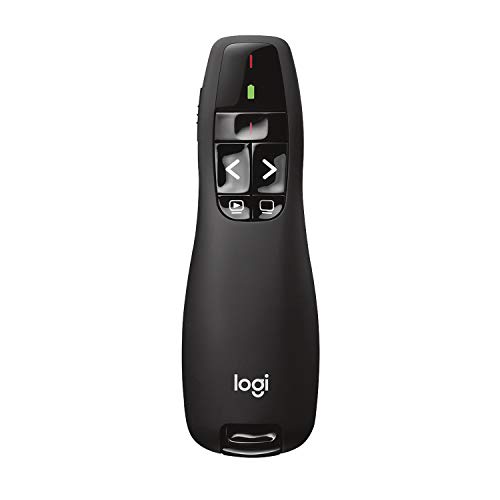 | Logitech R400 | Connection: 2.4 GHz USB-A receiver Controls: Simple slideshow keys Pointer: Class 2 red laser, per listing Best fit: Basic fixed-room presentation | Check Price on Amazon |
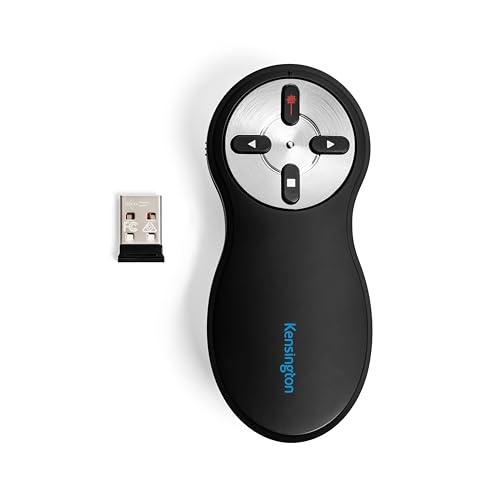 | Kensington K33272WW | Connection: 2.4 GHz USB receiver Controls: Four buttons: forward, back, hide, pointer Pointer: Red laser Best fit: Simple four-control layout | Check Price on Amazon |
 | DinoFire D05 | Connection: 2.4 GHz USB receiver Controls: Slides, volume, hyperlink, screen Pointer: Red; seller warns against LCD/LED/TV Best fit: Hyperlink-heavy decks | Check Price on Amazon |
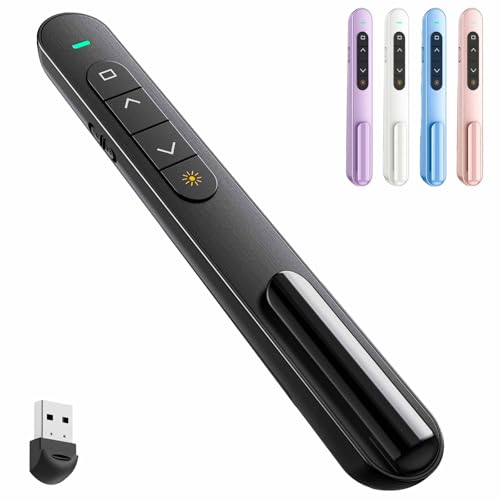 | QUI BK600 | Connection: USB receiver Controls: Slides, hyperlink, volume, screen Pointer: Red light Best fit: Media-heavy slide decks | Check Price on Amazon |
1. Logitech R500s — Best Flexible Laptop Connection
The R500s is the easiest recommendation when the laptop’s port situation changes between rooms. Its exact listing names Bluetooth Low Energy and a stored USB receiver, so a speaker can choose the supported path that fits the host. The remote handles slide navigation and a red laser pointer. Logitech also names an optional Presentation app for button customization and a timer. App features need supported software as well as a paired remote.
Logitech gives a conditional 20-meter operating range, but room layout and wireless conditions can change it. The listing’s long AAA battery-life figure is also a maker estimate. A physical laser may show on a projection surface yet be hard to see on an LCD or in an online share. Build important emphasis into the slide itself. Our portable USB-C hub guide is useful when a receiver must share a laptop with a projector adapter and other devices.
Our Take Choose R500s for a speaker who moves between laptops or wants Bluetooth without giving up a receiver. Pick the simpler R400 for a fixed USB-A room. Test the exact app and pointer surface before relying on any maker range figure.
- Bluetooth and USB-receiver options cover more host setups than receiver-only clickers.
- The receiver stores inside the remote between presentations.
- Optional Logitech software adds button and timer controls on supported hosts.
- Advanced customization depends on installing supported software.
- A red laser dot is not a reliable emphasis method for every LCD or remote audience.
2. ELISWEEN E600 — Best for USB-A and USB-C Laptops
An event room may hand you an older USB-A laptop one day and a USB-C-only Mac the next. ELISWEEN’s E600 listing names a receiver with both USB-A and USB-C connectors, plus 2.4 GHz wireless slide control. That physical detail is its reason to exist beside R500s, with no Bluetooth pairing step but still a claimed plug for either host type. Verify the current receiver shape in the product photos before packing without an adapter.
The listing names page, volume, window and black-screen controls, a red light pointer and two AAA batteries that are not included. Extra buttons help only if the slide application interprets them as expected. Its 100-foot range is a seller ceiling, not our measured performance. If the room display also connects over HDMI, a USB-C HDMI adapter with a data port may leave the receiver a clean path.
Check both receiver ends and pack the required AAA batteries before the presentation, not after the laptop is connected.Our Take Pick E600 when one receiver must fit USB-A and USB-C laptops and the extra media controls are useful. R500s is a stronger alternative when Bluetooth is available and you prefer not to depend on a receiver with two connector types.
- The exact listing names USB-A and USB-C receiver connectors.
- Page, volume and screen controls cover more than slide advancement.
- Magnetic receiver storage gives the small accessory a packing place.
- It needs two AAA batteries, which the listing says are not included.
- Long-range and broad app-compatibility claims were not independently verified.
3. Logitech R400 — Best Simple Slide Control
For a fixed room with a USB-A port, the R400 gives you next and previous slide controls plus a red laser pointer. Its listing says the 2.4 GHz receiver needs no installed software for basic operation and stows inside the remote. That simplicity is the point. A speaker who only needs to move through a linear deck does not have to learn a set of media or hyperlink buttons.
The Logitech listing gives an up-to-50-foot range and calls for AAA batteries. Treat range and pointer visibility as unverified in your room. Compared with the R500s, the R400 loses the Bluetooth path and optional app controls. It makes less sense for a USB-C-only laptop unless a verified adapter or hub is already present. Our USB-C hub roundup covers the separate port decision.
R400 is a USB-A-receiver purchase. Check the laptop’s data port before treating “plug and play” as universal.Our Take Buy R400 when a USB-A host and simple slide control are certain. Do not stretch it to cover mixed laptops or online pointing, since the listing does not establish either. R500s is the more adaptable Logitech option on this page.
- Simple tactile slide controls suit a linear deck.
- The receiver stores inside the remote for travel.
- Basic operation does not require installing software according to the listing.
- USB-A receiver use needs a matching laptop or adapter.
- No Bluetooth path is described for this exact model.
4. Kensington K33272WW — Best Four-Button Layout
Kensington’s K33272WW gives a speaker four clearly separated jobs: forward, back, hide the screen and activate the red laser pointer. A simple four-button layout can be easier to operate without looking down than a remote full of media controls. Its listing names a 2.4 GHz USB nano receiver with internal storage and no driver for basic use.
The seller gives an up-to-65-foot range and mentions AES 128-bit encryption. The range and encryption figures are product claims, not a guarantee of room performance or a security review. Kensington’s remote still depends on a receiver, so confirm the plug and host data port before choosing it for a MacBook presentation. If the room uses a portable monitor, verify pointer visibility on that panel instead of assuming projector behavior.
Our Take Choose Kensington for a minimal four-control layout when the USB receiver fits the host. QUI and DinoFire add volume and hyperlink commands, but those additions are unnecessary for a straightforward deck.
- Four named buttons make slide, hide and pointer controls easy to distinguish.
- The receiver stores inside the battery compartment.
- Basic USB-receiver use is described as driver-free.
- No Bluetooth or verified USB-C receiver path is named in the listing.
- Encryption and wireless-range statements are seller claims, not independent checks.
5. DinoFire D05 — Best for Hyperlink-Heavy Decks
A non-linear slide deck can contain links to demos, documents or appendix slides. DinoFire’s D05 listing names a hyperlink command alongside forward/back, volume, window switching and full/black-screen controls. The extra keys are useful only when the actual presentation app maps them correctly. Make a rehearsal deck with each action before trusting the remote in a meeting.
The seller states a 100-foot wireless range, a stored USB receiver and one AAA battery that is not included. It also explicitly warns that its red pointer is not recommended for LCD, LED or TV screens. That caveat is more useful than a generic claim of brightness. If the room is built around a USB-C monitor or online share, put callouts into the slide rather than relying on a laser.
Our Take Choose D05 for a deck whose hyperlink navigation you can rehearse and whose audience uses a suitable projection surface. Skip its laser as a plan for LCD screens or remote audiences. QUI offers similar extra controls without this exact seller warning, but no independent visibility proof either.
- Hyperlink, volume and window commands support a branching presentation.
- The receiver has a built-in storage position.
- The listing plainly warns about LCD, LED and TV pointer use.
- The red pointer is a poor purchase reason for flat-panel or remote presentations.
- An AAA battery is required and not included.
6. QUI BK600 — Best for Volume and Screen Controls
The QUI BK600 lists page movement, hyperlink navigation, volume, full screen and black screen from a USB-receiver remote. That combination fits a talk with embedded media, provided the slideshow app uses the same shortcuts. The listing names Mac OS and Windows and several slide programs, but compatibility can vary by software version and specific key behavior. Try the full deck, not merely the next-slide button.
QUI advertises a 328-foot range and bright red pointer. Both are seller claims. Room interference and display surface can change the result. It needs one AAA battery that is not included. Compared with DinoFire, its claimed range is larger, but that does not prove better reliability in practice. When a laptop must also feed a room screen, our USB-C-to-HDMI guide covers the display connection while the clicker handles slide commands.
Volume keys are useful only if the presentation computer sends audio through the room system you intend to control.Our Take Pick QUI when volume and screen controls belong in the speaker’s hand and a rehearsal confirms its keys. Ignore the headline range until the actual room is tested. R400 is simpler for slides alone. R500s is more flexible on connection type.
- Volume, hyperlink and screen controls suit a media-heavy deck.
- A USB receiver avoids Bluetooth pairing.
- The seller names Mac and Windows slideshow use.
- The long-range figure is not independently verified in a real venue.
- The required AAA battery is not included.
Buying Guide
1. Match the Receiver to the Laptop Before the Venue
The R400 explicitly uses a USB-A receiver. ELISWEEN lists a receiver with both USB-A and USB-C connectors. R500s lists Bluetooth or a USB receiver. Check the actual laptop and any venue computer before choosing among them. A remote with a perfectly good slide button cannot help if its receiver has nowhere to plug in.
If a single USB-C port already drives the projector, verify that the adapter has an open data port or use a compatible Bluetooth remote. Video output and receiver data are separate paths. Our USB-C hub guide and HDMI adapter guide help plan the laptop side without assuming every USB-C socket does video.
2. Rehearse the Exact Slide App and Extra Keys
Next and previous slide are the core functions. Hyperlink, black-screen, volume and window-switching keys are valuable only when the deck actually uses them. Run a full rehearsal in the target app, including embedded media and links. A seller’s PowerPoint, Keynote or Google Slides compatibility line is not a promise that every optional key behaves identically on each platform.
If the deck is linear, fewer buttons can be an advantage. Kensington and R400 keep the layout focused. If it branches or plays video, DinoFire and QUI name the extra controls. Prefer the smallest set of commands the talk needs, then test them while the projected display is attached. A portable monitor can be a useful preview surface, but it is not proof of behavior on the venue’s projector.
3. Treat Red Laser and Wireless Range Separately
A red laser is a physical light on the room display, not a software annotation carried in a video-call screen share. Logitech has documented poor laser visibility on LCD displays, and DinoFire specifically warns against LCD, LED and TV use. Build essential emphasis into the slide so everyone can see it. Never aim a laser at people or reflective surfaces.
Range is another condition to test, not a number to copy from a box. Walk the actual room with the laptop and receiver in their final positions, then run a deck from the farthest speaking point. Check navigation from the actual stage position before the audience arrives. Our home-office monitor guide covers flat-panel choices when the room display itself is still undecided.
FAQ
Will a laser dot appear for people watching a screen share?
No, not by default. A physical red laser points at a room surface. It is not a digital highlight inside the shared slide image. Remote viewers need an on-slide annotation or compatible digital-pointer feature, neither of which is established for these six laser-based models.
Even in the room, LCD visibility can differ from a projection screen. Test the exact display and keep crucial arrows or labels inside the slide so the meaning does not depend on a fleeting dot.
Can a USB-C-only laptop use a presentation clicker?
Yes, with a compatible receiver, adapter or Bluetooth path. ELISWEEN says its receiver includes USB-C, while R500s lists Bluetooth. R400’s USB-A receiver needs a matching data port or a suitable adapter. A charging-only connection is not enough.
Check the room’s video connection at the same time. If an HDMI adapter takes the only USB-C port, plan a hub with data support or use the R500s Bluetooth route. Our USB-C docking guide covers larger rooms with several attached devices.
Are these remotes guaranteed to work with Google Slides or Keynote?
No. Several listings name those apps, but the exact key mapping and browser focus still need a rehearsal. Basic next and previous may work while hyperlink or volume controls behave differently across a web browser, macOS and Windows.
Run the full deck with the intended host, browser or app version, display connection and audio route. Bring a working keyboard fallback. A seller’s app list is a starting point, not a substitute for the venue test.
Bottom Line
R500s has the most flexible connection plan here. ELISWEEN earns its place for a listed USB-A/USB-C receiver, while R400 remains simple when USB-A and a linear deck are certain. Buy extra controls only for a rehearsed need, and put important highlights on the slide rather than trusting a red laser on every display.