A separate trackpad can give a Windows desktop workstation gesture control without replacing the keyboard. The practical choice is whether you need a wired USB connection, Bluetooth, a 2.4GHz receiver, or a model that can change between those paths.
Windows gesture support can vary by device and driver. Check the listed Windows version and connection mode first, then test the trackpad with the exact applications and shortcuts used at the desk.
Do not assume macOS gestures or app behavior carries over to Windows. Pair or connect the trackpad to the intended Windows machine before making it the main pointing device.Windows Trackpads Compared
| Image | Product | Details | Check Price |
|---|---|---|---|
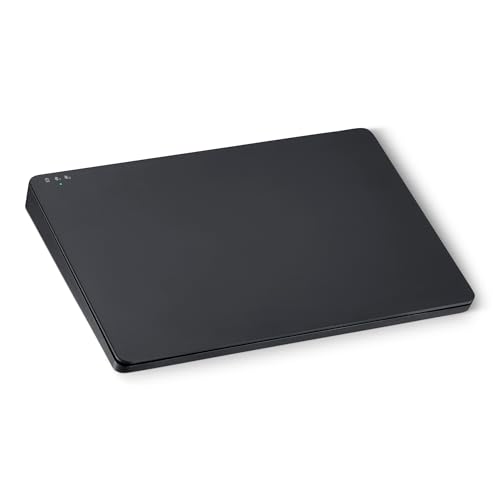 | Amazon Basics Multi-Touch Trackpad | Best fit: Dual-device Windows Surface: 6.4-inch Connection: Wireless Support: Windows, not macOS | Check Price on Amazon |
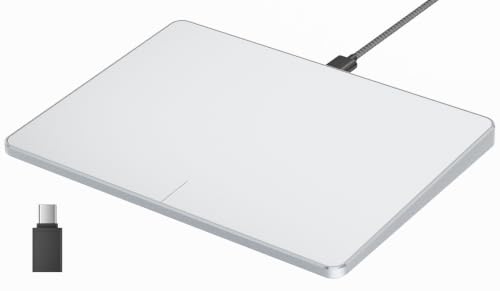 | ProtoArc Wired USB Trackpad | Best fit: Fixed-desk USB-C Connection: Wired USB Support: Windows 10 and 11 Surface: Large | Check Price on Amazon |
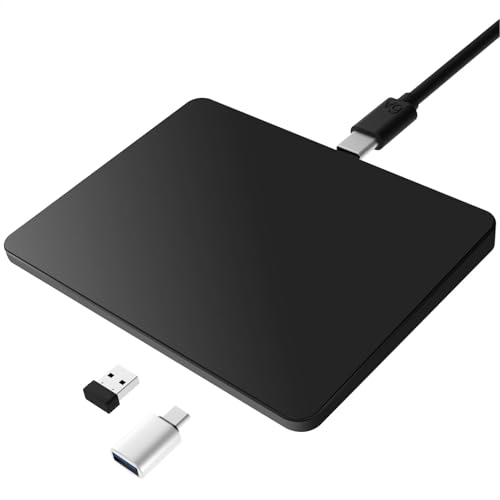 | MICROPACK Tri-Mode Trackpad | Best fit: Connection flexibility Connection: Bluetooth, 2.4GHz, wired Power: Rechargeable Platforms: Windows, macOS, iPadOS | Check Price on Amazon |
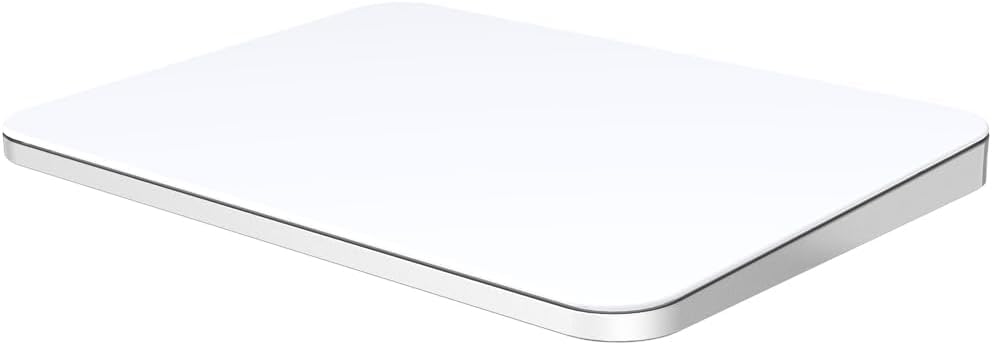 | Polarmeta Glass Trackpad | Best fit: Large glass surface Surface: 7.5-inch glass Connection: 2.4GHz USB Platforms: Mac and Windows | Check Price on Amazon |
 | Zexxivop Bluetooth Touchpad | Best fit: Basic Bluetooth Connection: Bluetooth Power: Rechargeable Control: Multi-function gestures | Check Price on Amazon |
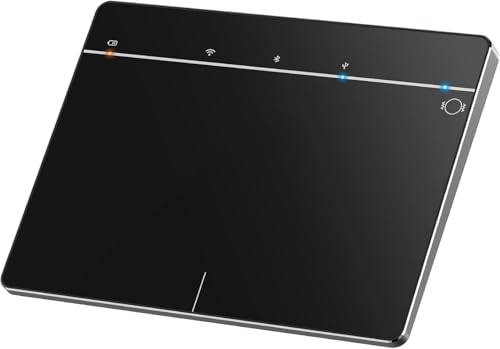 | LuolaProject MG3 | Best fit: Portable Windows Bluetooth Connection: Bluetooth Support: Windows 10 and 11 Control: Multi-touch | Check Price on Amazon |
1. Amazon Basics Multi-Touch Trackpad — Best Dual-Device Windows Pick
Amazon Basics lists a 6.4-inch rechargeable multi-touch trackpad with dual-device control for Windows PCs. It explicitly says it does not support macOS, so it is a clear Windows-focused choice for a desktop workstation.
Dual-device control can help when a desk has two Windows systems, but check the pairing routine before relying on it. The Windows-only limit is an advantage only if the desk does not need to move to a Mac.
Our Take Buy the Amazon Basics trackpad if the desk is Windows-only and benefits from its listed dual-device control.
- Windows-specific listing.
- Dual-device control listed.
- No macOS support listed.
- Check gesture behavior.
2. ProtoArc Wired USB Trackpad — Best Fixed-Desk USB-C Pick
ProtoArc lists a wired USB trackpad for Windows 10 and 11 with a large high-precision surface and multi-gesture control. It fits a fixed desktop where cable reliability is more important than moving between computers.
The portable aluminium form does not remove the cable requirement. Plan the USB-C connection route and make sure the workstation has the right port or a compatible adapter.
Our Take Buy the ProtoArc if a Windows desk needs a direct wired trackpad with no Bluetooth pairing.
- Windows 10 and 11 listed.
- Wired USB connection.
- Cable route required.
- Check port compatibility.
3. MICROPACK Tri-Mode Trackpad — Best Connection Flexibility
MICROPACK lists Bluetooth, 2.4GHz USB and wired modes in one rechargeable tri-mode trackpad. It suits a workstation that changes between a desktop, laptop and tablet.
Several modes are helpful only when the switching process is reliable for the actual devices. Test each connection method before choosing it for a production desk.
Our Take Buy the MICROPACK if connection flexibility counts for more than the simplicity of a single wired path.
- Bluetooth, 2.4GHz and wired listed.
- Rechargeable design.
- More setup choices.
- Check device switching.
4. Polarmeta Glass Trackpad — Best Large Glass Surface
Polarmeta lists a 7.5-inch glass-surface trackpad for Mac and Windows with a 2.4GHz USB connection. It suits a desktop user who wants a larger touch area and does not need the simpler fixed cable of the ProtoArc.
The larger surface needs room beside the keyboard. Measure the pointing-device area before swapping a mouse for a wide trackpad.
Our Take Buy the Polarmeta if you want a larger listed glass surface and the workstation has enough desk space.
- 7.5-inch glass surface listed.
- Windows and Mac listed.
- Needs desk space.
- 2.4GHz receiver path.
5. Zexxivop Bluetooth Touchpad — Best Basic Bluetooth Pick
Zexxivop lists a rechargeable Bluetooth touchpad with multi-function gestures for Windows, OSX, laptops and PCs. It suits a Windows user who wants a basic Bluetooth pointing surface without a cable.
The broad compatibility wording does not establish every gesture on every Windows application. Connect it to the desktop and test the workflows you use before retiring the mouse.
Our Take Buy the Zexxivop if a small, simple Bluetooth trackpad is enough.
- Bluetooth connection listed.
- Rechargeable design.
- Test gestures on Windows.
- Check connection stability.
6. LuolaProject MG3 — Best Portable Windows Bluetooth Option
LuolaProject lists the MG3 as a wireless multi-touch Bluetooth trackpad for Windows 10 and 11 desktops, laptops and notebooks. It suits a workstation that occasionally moves to another desk but still needs Windows-specific navigation.
Bluetooth means less cable clutter, but you take on charging and pairing. Keep a mouse available until the trackpad is proven with the workstation’s gestures and software.
Our Take Buy the LuolaProject if you want a compact Windows Bluetooth trackpad and portability counts for more than a dedicated receiver.
- Windows 10 and 11 listed.
- Bluetooth multi-touch title.
- Pairing and charging needed.
- Test software gestures.
Buying Guide
Choose the connection before the surface
Wired USB is the simplest fixed-desk connection. It avoids pairing and charging but needs a clear cable route. A wired trackpad is often the predictable choice when the workstation does not move.
Bluetooth and 2.4GHz make different tradeoffs. With Bluetooth you can leave ports free, while a receiver gives you a dedicated wireless path. Pick the connection that matches the available laptop or desktop ports and desk routine.
Tri-mode hardware is useful only when you switch between devices during work. More modes mean more flexibility and more setup. Test each path before selecting a trackpad as the primary pointing device.
Check Windows support and gestures directly
Windows version support should be stated by the product. A trackpad marketed for Windows 10 and 11 is a clearer starting point than one with a generic compatibility list. Keep driver and system updates in mind.
Gesture labels do not guarantee identical behavior. Scrolling, zooming and multi-finger actions can depend on the device driver and application. Test the apps used for editing, spreadsheets or browser work.
macOS support is separate from Windows support. A cross-platform product may work on both, while its gestures can still differ. Do not infer a Mac gesture workflow from a Windows listing or vice versa.
Arrange the desk around the pointing device
A larger glass surface needs space beside the keyboard. It can feel more natural for broad gestures, but it may push the keyboard or mouse into an awkward position. Measure the available desk area first.
A keyboard tray can change the layout, not the trackpad’s compatibility. Use it to make room only after the chosen Windows connection and gestures are verified.
Keep a mouse for the first week of use. A trackpad can become the main device after your normal tasks work as expected. A mouse on hand means a new gesture or pairing issue does not interrupt a work session.
Test the daily workflow, not only the cursor
Start with the applications used every day. A trackpad may feel fine in a browser yet reveal a gesture conflict in a video editor, spreadsheet or remote-desktop tool. Test scrolling, selection, dragging and zooming on normal tasks before moving the mouse away.
Pointer speed and touch sensitivity need a deliberate setup. A large surface can make broad movement comfortable, while a small surface may need a different Windows setting. Use the operating-system controls first rather than assuming every model should feel identical out of the box.
Keep keyboard shortcuts alongside gesture control. A trackpad can complement a keyboard without replacing fast commands. A compact wireless keyboard can help keep the workstation input area tidy while the pointing-device decision remains separate.
Separate portability from desktop permanence
A portable Bluetooth trackpad is easy to move between desks. The portability is useful for a laptop owner, but you take on charging and pairing as part of the routine. Choose portability only when the trackpad actually needs to travel.
A wired trackpad is easier to leave in one place. The cable can be routed under a monitor or keyboard tray so the trackpad stays where you expect it. A wired trackpad is often the simpler option for a permanent Windows desktop.
A receiver-based device needs one available USB port. It can give you a dedicated wireless connection, although you should keep the receiver with the trackpad if the desk changes. Plan the port layout before connecting storage, cameras and other peripherals.
Frequently Asked Questions
Do USB-C trackpads work on Windows desktops?
They can when the product lists the relevant Windows version and the desktop has a compatible port or adapter. A wired USB model is the clearest option for a fixed setup.
Check the connection and gestures separately. A trackpad can connect while a particular gesture or application workflow behaves differently than expected. Test the actual desktop work before replacing a mouse.
USB-C is the connector, not a promise of every feature. The usable experience depends on the product’s Windows support and driver behavior. Follow the maker’s setup instructions for the selected model.
Is Bluetooth or wired better for a Windows trackpad?
Wired is simpler for a permanent desktop, while Bluetooth can reduce cable clutter and help a trackpad move between devices. Neither is automatically better without considering the desk and connection routine.
A 2.4GHz receiver is another option. It occupies a USB port but may suit a dedicated workstation. Choose the path that is easy to reconnect and troubleshoot.
Keep a backup mouse initially. A backup mouse makes it easier to finish work if a gesture, connection or charging problem appears. Build confidence through normal daily use rather than one short test.
Bottom Line
Choose ProtoArc for a wired Windows desk, Amazon Basics for listed dual-device Windows control or MICROPACK for three connection paths. Verify Windows gesture behavior before making any one model the primary pointing device.