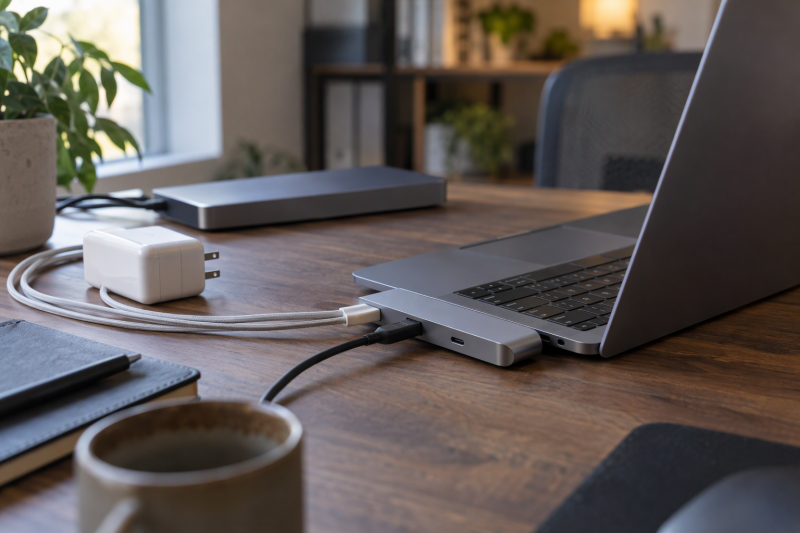
A MacBook accessory has to match the Mac’s ports before anything else. Apple lists the MacBook Neo with one USB 3 USB-C port and one USB 2 USB-C port, and only the USB 3 port carries DisplayPort, so a hub that suits a MacBook Air or Pro can be the wrong choice for a Neo. The list covers three hubs, a driver-based dock and Apple’s 140W charger, and says for each what its maker or Amazon listing states about Neo, Air and Pro.
MacBook Accessories Compared
| Image | Product | Details | Check Price |
|---|---|---|---|
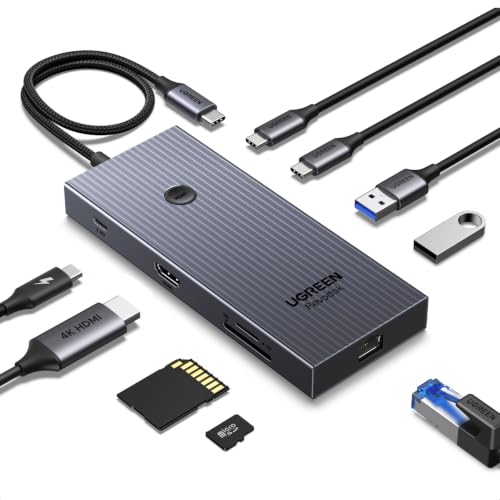 | UGREEN Revodok Pro 9-in-1 | Best fit: MacBook expansion with Ethernet Ports: 4K60 HDMI, Gigabit Ethernet, USB-A/C, SD/TF Charging: 100W input, up to 85W passthrough Data: Up to 10Gbps Limit: USB-C charging port has no data or video | Check Price on Amazon |
 | Plugable UD-6950PDH | Best fit: Two 4K Mac displays with DisplayLink Ports: HDMI, DisplayPort, Ethernet, USB, SD/microSD Charging: 100W Data: 5Gbps USB, DisplayLink driver required Limit: HDCP unsupported | Check Price on Amazon |
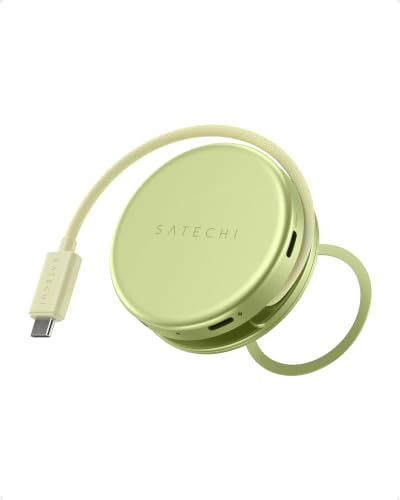 | Satechi OntheGo 5-in-1 | Best fit: Compact MacBook Neo travel hub Ports: 4K60 HDMI, USB-A/C, SD Charging: 60W passthrough Data: 5Gbps USB, UHS-I SD Limit: One external display | Check Price on Amazon |
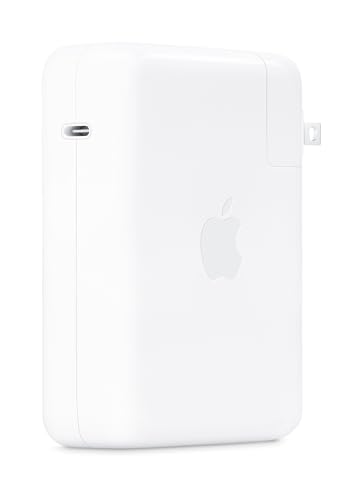 | Apple 140W USB-C Power Adapter | Best fit: 16-inch MacBook Pro charging Ports: USB-C power output Charging: 140W Data: Not applicable (power adapter) Limit: Cable sold separately | Check Price on Amazon |
 | Anker 547 7-in-2 Hub | Best fit: MacBook Air and Pro with two USB-C ports Ports: HDMI, USB-C, 2x USB-A, SD, microSD Charging: Up to 100W Data: Up to 40Gbps Limit: Not compatible with MacBook Neo | Check Price on Amazon |
1. UGREEN Revodok Pro 9-in-1 — Best for MacBook Expansion With Ethernet
UGREEN’s listing says the Revodok Pro turns one USB-C port into nine, with 4K60 HDMI, Gigabit Ethernet, USB-A and USB-C data ports, SD and TF card readers and 100W power delivery. The listing title names MacBook Neo, Air and Pro with M1 through M5 chips, and the listing bullets give the data speed as up to 10Gbps. UGREEN’s own product page confirms the 4K60 display output and 100W power delivery, and states a two-year warranty.
The USB-C power socket is for charging only. The listing says up to 85W passes through to the laptop while 15W stays with the hub, and that this port carries no data or video. On a MacBook Neo, Apple lists the USB 3 port at up to 10Gb/s and the USB 2 port at up to 480Mb/s, so the hub’s 10Gbps figure can be reached only on the USB 3 port.
Power port: the USB-C charging socket carries power only, with no data or video. Our Take Pick it when the missing connections are wired Ethernet, card readers and one 4K60 display.- UGREEN lists Gigabit Ethernet, 4K60 HDMI and SD and TF card readers, all through one USB-C port.
- UGREEN states data speeds up to 10Gbps, a figure a MacBook Neo can reach only on its faster USB-C port.
- UGREEN specifies up to 85W of passthrough charging, with 15W staying inside the hub.
- UGREEN says the USB-C power socket is for charging only and carries no data or video.
- UGREEN lists a single HDMI output, so the hub serves one display.
2. Plugable UD-6950PDH — Best for Two 4K Mac Displays With DisplayLink
Plugable’s UD-6950PDH is a 14-in-1 dock that uses DisplayLink to run two 4K60 displays through HDMI, DisplayPort or one of each. Plugable lists an aluminum body, three USB 3.0 ports plus a front USB-C and USB port, SD and microSD readers, a 3.5mm headset jack, Ethernet and 100W laptop charging. Plugable also states a two-year warranty. The Amazon listing says the second display works even on Macs and Neo models that natively support only one external display, which matches the one-display limit Apple lists for the Neo.
DisplayLink needs software on the Mac. Plugable says macOS needs a manual driver install and asks for Screen Recording permission. Plugable also says HDCP is not supported, and its page says HDCP-protected content will not play on any display, the built-in one included. Confirm that your workplace allows the driver before buying.
Software required: the second display depends on the DisplayLink driver, not on the Mac’s own display output. Our Take Choose it when a second 4K display justifies installing and maintaining the driver.- Plugable lists two 4K60 outputs through HDMI, DisplayPort or one of each, and the Amazon listing says the second display works even on Macs that natively support only one external display.
- Plugable lists Ethernet, SD and microSD readers, a headset jack and 100W laptop charging in one dock.
- Plugable states a two-year warranty on the dock.
- Plugable says macOS needs a manual driver install, and the second display depends on that driver.
- Plugable says HDCP is not supported, and its page says HDCP-protected content will not play on any display, the built-in one included.
3. Satechi OntheGo 5-in-1 — Best for Small MacBook Neo Travel Hub
Satechi’s listing calls the OntheGo 5-in-1 optimized for MacBook Neo and also names MacBook Air, MacBook Pro, iPad and USB-C Windows laptops. It adds 4K60 HDMI, 60W pass-through charging, a USB-A and a USB-C data port at 5Gbps and a UHS-I SD reader that Satechi says all run at the same time. The SD reader is listed at up to 104MB/s, and the 5Gbps data ports are slower than the 10Gb/s Apple lists for the Neo’s USB 3 port.
Satechi lists a body of 65 by 65 by 22mm with an integrated braided cable of 6.5 inches. Satechi says the magnetic base snaps to an iPhone or mounts on the Neo’s lid with an included 3M ring, but does not support magnetic or wireless charging. Satechi also lists support for one external display, the same number Apple lists for the Neo.
- Satechi lists 4K60 HDMI with 60W pass-through power, so one hub handles a display and charging.
- Satechi specifies 5Gbps USB-A and USB-C data ports, and says they run at the same time as the HDMI output and SD reader.
- Satechi lists a UHS-I SD reader at up to 104MB/s for offloading cards.
- Satechi lists support for one external display, so the hub does not suit a second monitor.
- Satechi says the magnetic base does not support magnetic or wireless charging, even though it snaps to an iPhone.
4. Apple 140W USB-C Power Adapter — Best for 16-Inch MacBook Pro Charging
Apple’s 140W USB-C Power Adapter is a charger, not a hub. Its listing says Apple recommends it for a 16-inch MacBook Pro from 2021 or later, paired with a USB-C to MagSafe 3 Cable or a USB-C Charge Cable, and quotes a charge from 0 to 50 percent in around 30 minutes. The cable is sold separately, and the listing calls the adapter compatible with numerous USB-C charging cables.
Apple’s support page lists this adapter for the 16-inch MacBook Pro and no other model. The page also lists a 20W adapter for the MacBook Neo and 30W to 70W adapters for the newer MacBook Air, and says any USB PD adapter can charge a USB-C Mac.
Power only: a charger for the 16-inch MacBook Pro, with the cable sold separately. Our Take Pick it for a 16-inch MacBook Pro that charges through a USB-C or MagSafe 3 cable.- Apple states 140W USB-C charging for the 16-inch MacBook Pro, the only model its support page lists for this adapter.
- Apple’s listing quotes a charge from 0 to 50 percent in around 30 minutes with a recommended cable.
- Apple’s listing says the charging cable is sold separately from the adapter.
- Apple’s support page lists the adapter for the 16-inch MacBook Pro only and gives the Neo and Air lower-wattage adapters.
5. Anker 547 7-in-2 Hub — Best for MacBook Air and Pro With Two USB-C Ports
Anker’s 547 turns two of the MacBook’s USB-C ports into HDMI, a multifunction USB-C port, a USB-C data port, two USB-A ports and SD and microSD readers. The multifunction port takes up to 100W of power, and Anker’s page lists HDMI 2.0 at up to 4K60 and the multifunction port at up to 5K60. Anker’s page rates the USB-C and USB-A data ports at 5Gbps and gives 40Gbps as the hub’s maximum transfer, while the Amazon listing assigns 40Gbps to the multifunction port.
Anker’s listing says the hub is not compatible with MacBook Neo, which Apple lists with one USB 3 and one USB 2 USB-C port. The listing also says M1, M2 and M3 MacBooks do not support dual external displays through the hub. The Amazon title names MacBook Air M4 and M5 and MacBook Pro, while Anker’s page lists MacBook Pro 13 Inch and MacBook Air M1 / M2, so check your exact model against both.
- Anker lists HDMI, USB-A, USB-C, SD and microSD ports on a hub that connects through two of the MacBook’s USB-C ports.
- Anker lists a multifunction port that takes up to 100W of power.
- Anker’s page lists 4K60 over HDMI and up to 5K60 over the multifunction port.
- Anker says the hub is not compatible with MacBook Neo, so it is not an option for a Neo owner.
- Anker says M1, M2 and M3 MacBooks do not support dual external displays through the hub, a limit for anyone planning two monitors.
Buying Guide
1. Choose a hub by the port you need
Choose the UGREEN for Ethernet, card readers and one 4K60 display, and the Plugable dock for two 4K displays if a DisplayLink driver is acceptable. The Satechi suits one-display travel, and the Anker suits an Air or Pro with two free USB-C ports. For Air buyers choosing among more hubs, see the USB-C hubs for MacBook Air M4 and M5 guide, and for full desk docks see the MacBook Pro dock guide or the MacBook Air dock guide.
Apple lists the MacBook Neo with one USB 3 port and one USB 2 port, and puts DisplayPort and 10Gb/s data on the USB 3 port alone, so a hub that outputs video needs that port. Counting USB-C ports is not enough. The UGREEN power socket carries no data or video, and the Anker multifunction port has its own charging, display and speed listings.
2. Separate charging from expansion
A hub’s power input is not the wattage the MacBook receives. UGREEN says 15W of its 100W stays with the hub, and Satechi lists 60W pass-through. Apple recommends a 20W adapter for the Neo and 30W to 70W adapters for the newer MacBook Air, and lists the 140W adapter for the 16-inch MacBook Pro.
Check the charger, cable and hub together. Apple pairs the 140W adapter with a USB-C to MagSafe 3 Cable or USB-C Charge Cable, and the adapter’s listing says the cable is sold separately. For adapters by wattage, see the MacBook Air chargers and MacBook Pro chargers guides.
FAQ
Can a hub give every MacBook two external displays?
No. Apple lists the MacBook Neo with support for one external display. The Plugable listing says its two-display result comes from DisplayLink and needs a driver, and the Anker listing says M1, M2 and M3 MacBooks do not support dual external displays through the hub.
Check the Mac’s own display limit and any software a dock needs before counting video ports.
Is the Apple 140W adapter a hub?
No. It is a USB-C power adapter, and Apple’s listing says the charging cable is sold separately. Apple lists it for the 16-inch MacBook Pro.
Use it for charging, and add a hub if you also need ports.
Bottom Line
Pick the UGREEN for single-display expansion with Ethernet, or the Plugable for two displays through DisplayLink. Pick the Satechi for a one-display Neo travel hub, the Apple adapter for a 16-inch MacBook Pro and the Anker for an Air or Pro with two free USB-C ports.