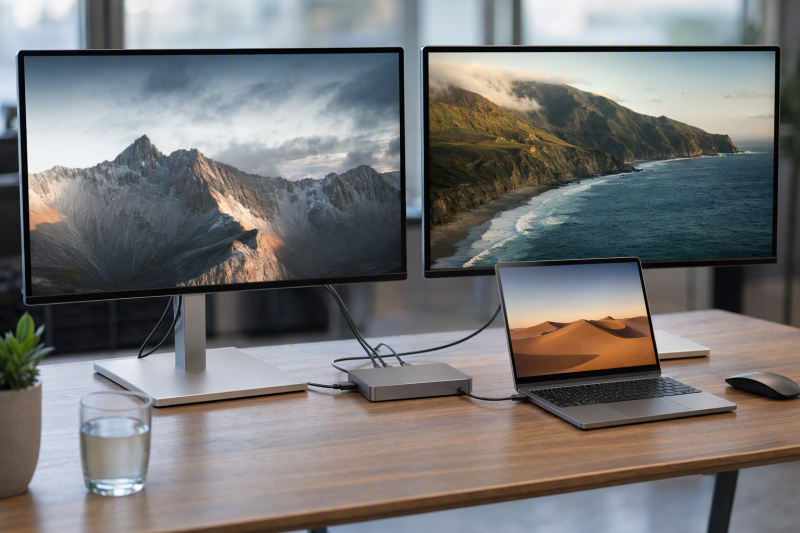
The Plugable TBT-UDH2 is the best native HDMI choice if your Mac chip and operating system are explicitly covered by Plugable’s dual 6K matrix. Its two HDMI 2.1 outputs keep adapters out of a two-monitor HDMI setup. A Thunderbolt 5 logo alone does not guarantee dual 6K. Your laptop GPU or Apple chip, operating system, native display streams, cables or adapters, and both monitor inputs must support the same path.
Every resolution below is a manufacturer ceiling, not a promised result.
Dual 6K host and connection matrix
| Product | Exact dual 6K connection path | Host, chip, and OS boundary | Decisive limitation |
|---|---|---|---|
| Plugable TBT-UDH2 | Two native HDMI 2.1 outputs, or one HDMI output plus one downstream Thunderbolt or USB-C display path | Use only a Mac chip and OS path covered by Plugable’s dual 6K matrix; Windows has a different ceiling | Only two displays can be active, and the host must supply both streams |
| Plugable TBT-UDT3 | Two downstream Thunderbolt or USB-C paths; HDMI or DisplayPort monitors need compatible adapters | Plugable lists dual 6K60 for any M4, base M5, and prior Pro or Max chips; base M1 and M2 are limited to one display, while base M3 has a clamshell branch | No native HDMI or DisplayPort; Thunderbolt 3 is unsupported; generic two-display copy conflicts with the wider M5 Pro and Max matrix |
| OWC Thunderbolt 5 Dock | Two downstream Thunderbolt or USB-C paths, direct or through suitable adapters | OWC advertises dual 6K as a Mac ceiling, subject to host capability | Apple currently limits the native path to two displays per connected Mac Thunderbolt host port; no native HDMI or DisplayPort |
| iVANKY FusionDock Max 2 | Two 6K60 displays through Thunderbolt | Compatible Apple Silicon Mac only | PCs and Intel Macs are incompatible; the separate HDMI 2.0 route is limited to the documented 4K60 display path |
| UGREEN Revodok Max 2131 / U715 | Two downstream Thunderbolt or USB-C paths, direct or through suitable adapters | UGREEN lists a dual 6K60 ceiling with macOS 15+ or Windows 11+ | No native HDMI or DisplayPort; the complete host, cable, adapter, and monitor chain controls the result |
| Anker Prime A83B5 | Two downstream Thunderbolt 5 paths | Anker’s current FAQ states dual 6K60 for M5 Pro and Max; use macOS 15+ as the floor | HDMI and DisplayPort cannot work together, front USB-C ports do not carry video, and the dual 6K branch does not cover other hosts |
| CalDigit TS5 | Two spare downstream Thunderbolt paths, direct or through suitable adapters | CalDigit’s matrix shows dual 6K120 only on a qualified M5 Max path; use macOS 15+ or Windows 11+ for supported host paths | No native HDMI or DisplayPort; exact host, OS, DSC support, cable or adapter, and monitor control the result |
Quick picks
- Plugable TBT-UDH2: Native HDMI for a covered Mac.
- Plugable TBT-UDT3: Downstream Thunderbolt routing.
- OWC Thunderbolt 5 Dock: Balanced Mac peripheral mix.
- iVANKY FusionDock Max 2: Apple Silicon specialist.
- UGREEN U715: Explicit dual 6K60 ceiling.
- Anker Prime A83B5: Selectable HDMI or DisplayPort.
- CalDigit TS5: Peripheral-heavy M5 Max path.
| Image | Product | Details | Check Price |
|---|---|---|---|
 | Plugable TBT-UDH2 | Display connection path: Two native HDMI 2.1 outputs, or one HDMI plus one downstream Thunderbolt/USB-C display path; only two displays at once Host / OS boundary: Dual 6K60 is a Plugable ceiling only on documented Mac chip/OS paths; Windows has a different ceiling; match the exact host to Plugable's matrix Downstream Thunderbolt: 1 Host charging: Up to 140W; the host must negotiate and accept the profile Ethernet: 2.5GbE Best for: A qualified dual-6K Mac desk that needs native HDMI without display adapters | Check Price on Amazon |
 | Plugable TBT-UDT3 | Display connection path: Two downstream Thunderbolt/USB-C display paths; HDMI or DisplayPort monitors need compatible adapters Host / OS boundary: Dual 6K60 is documented for any M4, base M5, and prior Pro/Max chips; base M1/M2 is single-display; Thunderbolt 3 is unsupported Downstream Thunderbolt: 3 Host charging: Up to 140W on PD 3.1; up to 100W on PD 3.0 Ethernet: 2.5GbE Best for: USB-C/Thunderbolt monitors and adapter-based display routing | Check Price on Amazon |
 | OWC Thunderbolt 5 Dock | Display connection path: Two downstream Thunderbolt/USB-C display paths, directly or through suitable adapters; no native HDMI or DisplayPort Host / OS boundary: Dual 6K is OWC's Mac ceiling; host capability controls, and Apple currently limits the native path to two displays per connected host port Downstream Thunderbolt: 3 Host charging: Up to 140W; the host must accept the negotiated USB PD profile Ethernet: 2.5GbE Best for: A balanced Mac dual-6K desk with Thunderbolt-input displays or known adapters | Check Price on Amazon |
 | iVANKY FusionDock Max 2 | Display connection path: Two 6K60 displays through Thunderbolt; the separate native HDMI 2.0 path is the documented 4K60 route Host / OS boundary: Compatible Apple Silicon Mac only; incompatible with PCs and Intel Macs; does not bypass Apple's display limits Downstream Thunderbolt: 3 Host charging: Up to 140W Ethernet: 2.5GbE Best for: An Apple Silicon buyer who wants an explicit two-6K Thunderbolt path | Check Price on Amazon |
 | UGREEN Revodok Max 2131 / U715 | Display connection path: Two downstream Thunderbolt/USB-C display paths or suitable adapters; no native HDMI or DisplayPort in the port evidence Host / OS boundary: UGREEN lists a dual-6K60 ceiling with macOS 15+ or Windows 11+; host, GPU, OS, cable, adapter, and monitor control the result Downstream Thunderbolt: 3 Host charging: Up to 140W; attached high-power devices can reduce host charging Ethernet: 2.5GbE Best for: A buyer who wants an explicit dual-6K60 manufacturer ceiling and can verify the complete chain | Check Price on Amazon |
 | Anker Prime A83B5 | Display connection path: Two downstream Thunderbolt 5 display paths for dual 6K; one native HDMI 2.1 or DisplayPort 2.1 output is selectable, not simultaneous Host / OS boundary: The current gate names dual 6K60 for M5 Pro/Max; use macOS 15+ as the conservative floor and do not generalize to other hosts Downstream Thunderbolt: 2 Host charging: Up to 140W PD 3.1; the host must negotiate and accept it Ethernet: 2.5GbE Best for: A qualified M5 Pro/Max desk that also values selectable HDMI or DisplayPort | Check Price on Amazon |
 | CalDigit TS5 | Display connection path: Two spare downstream Thunderbolt paths, directly to USB-C/Thunderbolt displays or through suitable adapters; no native HDMI or DisplayPort Host / OS boundary: CalDigit's current matrix/comparison documents dual 6K120 only on a qualified M5 Max path; exact host, OS, DSC, cable/adapter, and monitor matter Downstream Thunderbolt: 3 in the main port map; a current FAQ line says 2 at 15W Host charging: Up to 140W; the host must accept the negotiated profile Ethernet: 2.5GbE Best for: A peripheral-heavy qualified M5 Max dual-6K desk | Check Price on Amazon |
1. Plugable TBT-UDH2 – Best native-HDMI choice
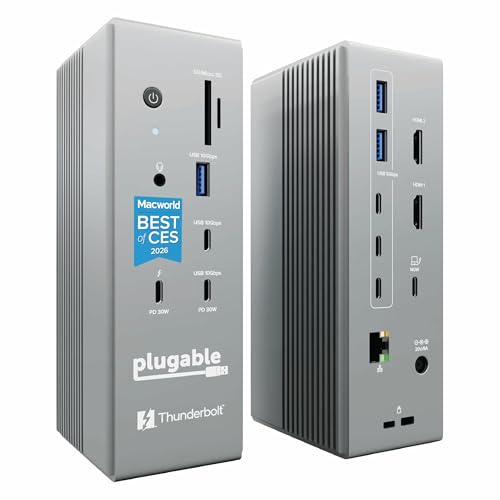
Buy the TBT-UDH2 when both 6K monitors accept HDMI and your Mac appears in Plugable’s chip and OS matrix. Plugable documents dual 6K60 as a ceiling for named Mac paths, while Windows has a different ceiling. The host must supply both display streams.
Connect one monitor to each HDMI 2.1 output. You can instead use one HDMI output and one downstream Thunderbolt or USB-C display path. Only two displays can be active. Plugable rates host charging up to 140W, subject to the laptop’s negotiated USB Power Delivery profile.
Our Take
The TBT-UDH2 is the cleanest choice for a covered Mac and two HDMI monitors. Skip it if your Mac is absent from Plugable’s matrix.
- Two native HDMI 2.1 outputs
- Alternate HDMI plus downstream Thunderbolt display path
- Plugable rates host charging up to 140W
- Dual 6K requires a Mac path named in Plugable’s matrix
- Only two displays can be active at once
- Windows has a different display ceiling
2. Plugable TBT-UDT3 – Best downstream-Thunderbolt topology

Buy the TBT-UDT3 for USB-C or Thunderbolt monitors, or compatible video adapters. Both displays use downstream Thunderbolt ports because the dock has no native HDMI or DisplayPort.
Plugable lists up to two 6K60 displays for any M4, base M5, and prior Pro or Max chips. Base M1 and M2 support one display, while base M3 has a clamshell path. Thunderbolt 3 is unsupported. Generic copy says two displays, but the named M5 Pro and Max matrix has a triple 6K60 branch. Do not apply that wider branch to other hosts.
Our Take
Choose the TBT-UDT3 after matching the exact Mac branch. Skip it when you need built-in HDMI or DisplayPort.
- Three downstream Thunderbolt 5 ports
- Direct path for USB-C or Thunderbolt monitors
- Plugable lists up to 140W with PD 3.1 and up to 100W with PD 3.0
- No native HDMI or DisplayPort
- Base M1 and M2 support only one display
- Thunderbolt 3 is unsupported
3. OWC Thunderbolt 5 Dock – Best balanced Mac dual-6K choice
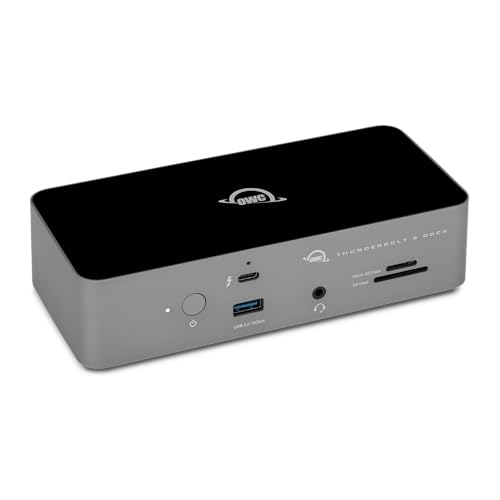
Buy the OWC dock for a Mac desk that needs a balanced peripheral mix. Connect both monitors to downstream Thunderbolt ports, directly or through suitable adapters. There is no native HDMI or DisplayPort.
OWC advertises dual 6K as a Mac ceiling, subject to host capability. Apple currently limits the native route to two displays per connected Mac Thunderbolt host port. OWC lists three downstream Thunderbolt 5 ports, up to 140W host charging, and 2.5GbE.
Our Take
The OWC dock is the balanced Mac choice for downstream display routing. Confirm the Mac’s native display support first.
- Three downstream Thunderbolt 5 ports
- OWC advertises a dual 6K Mac ceiling
- OWC lists up to 140W host charging and 2.5GbE
- No native HDMI or DisplayPort
- Host capability controls the display result
- Suitable adapters are required for conventional monitor inputs
4. iVANKY FusionDock Max 2 – Best Apple Silicon specialist
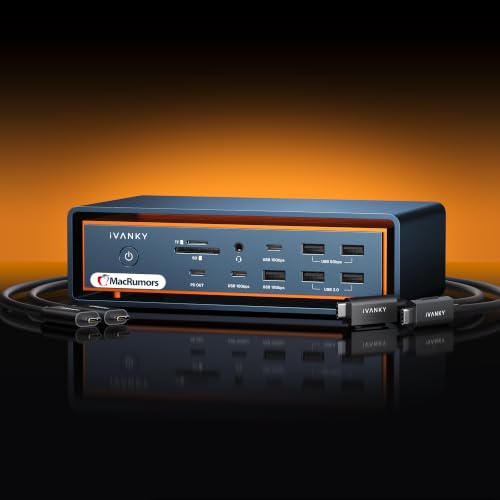
Buy the FusionDock Max 2 only for a compatible Apple Silicon Mac. iVANKY documents two 6K60 displays through Thunderbolt, so connect both 6K monitors through those paths. Native HDMI 2.0 is the separate 4K60 route.
The dock is incompatible with PCs and Intel Macs. It cannot bypass Apple’s display limits, and display count varies by Mac model and chip. iVANKY lists three downstream Thunderbolt ports, up to 140W host charging, and 2.5GbE.
Our Take
Choose the FusionDock Max 2 for its documented Apple Silicon two-6K path. It is unsuitable for a shared Mac and PC desk.
- iVANKY documents two 6K60 displays through Thunderbolt
- Three downstream Thunderbolt ports
- Native HDMI 2.0 remains available for the separate 4K60 route
- Incompatible with PCs and Intel Macs
- HDMI 2.0 is not a 6K display path
- Cannot bypass the Mac’s display limits
5. UGREEN Revodok Max 2131 / U715 – Best explicit dual-6K60 support path
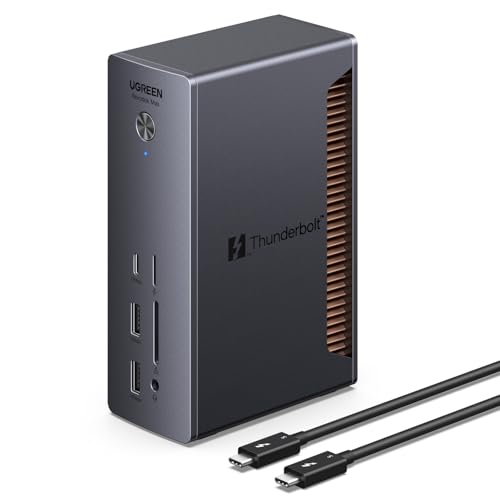
Buy the U715 when your full display chain matches UGREEN’s dual 6K60 ceiling. Connect both displays through downstream Thunderbolt or USB-C, directly or with suitable adapters. There is no native HDMI or DisplayPort.
UGREEN lists this ceiling with macOS 15+ or Windows 11+. The host GPU, OS, cable, adapter, and monitors control the result. Because its public product page is image-led, UGREEN’s official support API and manual control these technical details. UGREEN lists three downstream Thunderbolt outputs, 2.5GbE, and up to 140W charging. High-power devices can reduce host charging.
Our Take
Choose the U715 when you can validate the full path. Do not buy it from the resolution line alone.
- UGREEN lists a dual 6K60 ceiling
- Three downstream Thunderbolt outputs
- UGREEN lists 2.5GbE and up to 140W host charging
- No native HDMI or DisplayPort
- Dual 6K depends on the complete connection chain
- High-power devices can reduce host charging
6. Anker Prime A83B5 – Best HDMI/DisplayPort flexibility on a qualified host

Buy the A83B5 for an M5 Pro or Max Mac that needs two downstream Thunderbolt display paths and a selectable video output. Anker’s FAQ states a dual 6K60 ceiling for those chips. Connect both 6K monitors through downstream Thunderbolt 5 and use macOS 15+.
HDMI 2.1 and DisplayPort 2.1 are mutually exclusive, and the front USB-C ports do not carry video. Do not apply this dual 6K branch to another host. Anker rates PD 3.1 host charging up to 140W, subject to host negotiation.
Our Take
The A83B5 fits a qualified M5 Pro or Max desk that also needs selectable HDMI or DisplayPort. Those outputs cannot work together.
- Two downstream Thunderbolt 5 display paths
- Selectable HDMI 2.1 or DisplayPort 2.1 output
- Anker rates host charging up to 140W with PD 3.1
- Dual 6K60 is limited to the named M5 Pro and Max branch
- HDMI and DisplayPort cannot work together
- Front USB-C ports do not carry video
7. CalDigit TS5 – Best peripheral-heavy qualified dual-6K path
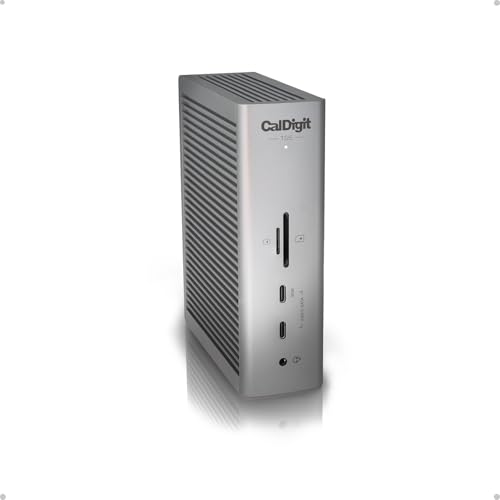
Buy the TS5 for a qualified M5 Max desk that also needs many peripheral ports. Connect both 6K displays to spare downstream Thunderbolt ports, directly or through suitable adapters. There is no native HDMI or DisplayPort.
CalDigit’s matrix shows dual 6K120 only as a ceiling for a qualified M5 Max path. The host, OS, DSC support, cable or adapter, and monitors must support that mode. CalDigit uses macOS 15+ and Windows 11+. Its main port map lists three downstream Thunderbolt ports, while a FAQ line says two at 15W. Use the three-port topology for routing, but check the product diagram before assigning peripherals.
Our Take
The TS5 suits a peripheral-heavy, qualified M5 Max setup. Its display ceiling still requires exact host and monitor checks.
- CalDigit shows a qualified M5 Max dual 6K120 ceiling
- Main port map lists three downstream Thunderbolt ports
- CalDigit lists up to 140W host charging and 2.5GbE
- No native HDMI or DisplayPort
- Dual 6K120 is limited to a qualified M5 Max path
- Published downstream-port counts are inconsistent
What to check before buying
Start with the laptop model and its GPU or Apple chip. Match it to the dock maker’s OS matrix, then confirm how many native display streams the host port exposes. A dock or adapter cannot create another stream.
Trace each display separately. Check whether it accepts HDMI, USB-C, or Thunderbolt and whether you need an active cable or adapter. Confirm the input, resolution, refresh rate, and DSC mode.
Native HDMI 2.1 can remove adapters for HDMI monitors. Downstream Thunderbolt supports direct Thunderbolt or USB-C displays and suitable adapters. Choose the path supported by the host and both monitors.
Check charging last. A 140W ceiling does not mean every laptop accepts that profile. Compare the dock’s USB Power Delivery output with the laptop’s requirement, and keep the original adapter when needed.
Dual 6K dock FAQ
Does Thunderbolt 5 guarantee two 6K monitors?
No. Thunderbolt 5 describes the connection, but the host GPU or Apple chip and operating system decide how many native display streams are available. The dock topology, cables or adapters, and monitors must also support the selected resolution and refresh rate.
Do two 6K monitors require HDMI 2.1?
No. The TBT-UDH2 offers a native HDMI 2.1 path, while the other docks here route the two 6K displays through downstream Thunderbolt or USB-C connections. HDMI and DisplayPort monitors can use suitable adapters when the dock maker supports that path. The monitor input and complete connection chain decide which route works.
Can a base Apple chip run two 6K displays through one dock?
It depends on the exact chip, operating system, and dock matrix. Plugable lists base M1 and M2 as single-display hosts for the TBT-UDT3, gives base M3 a narrower clamshell branch, and lists dual 6K60 for any M4 and base M5. Do not transfer one dock’s matrix to another dock.
Can an adapter turn an unsupported host into a dual 6K host?
No. An adapter can change the connector used by a display path, but it cannot add a native display stream that the host GPU and operating system do not expose. Verify host support before choosing the adapter.
Related reading
Use our Thunderbolt 5 docks guide for a broad category comparison. The dual-monitor docking guide covers ordinary two-screen setups, while the Thunderbolt monitor guide helps when direct Thunderbolt display input is part of the purchase.