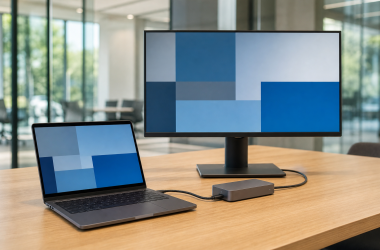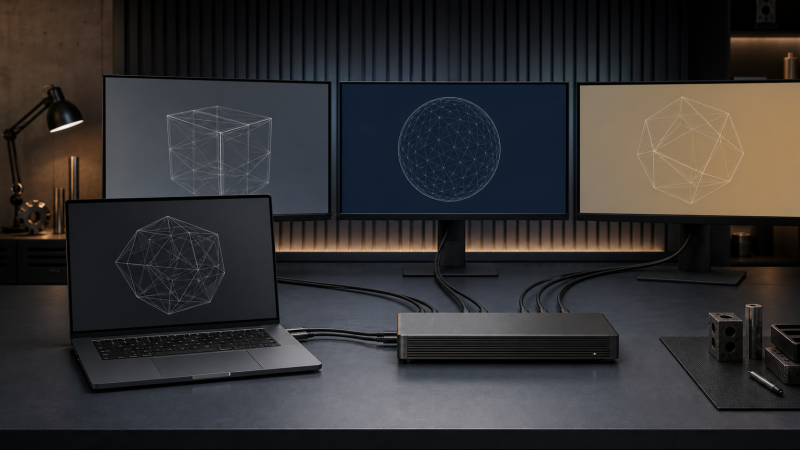
The Dell Pro Thunderbolt 5 Smart Dock SD25TB5 is the best branch for a Precision mobile workstation, but only when Dell lists your exact model, host ports, cable route, and high-power behavior as compatible. Where a Precision explicitly supports the dual-USB-C dock path, the Dell Performance Dock WD19DCS is the better specialist choice. Every other configuration comes down to three checks: the exact adapter requirement, the GPU and display route, and Dell’s compatibility record. A dock can handle monitors, Ethernet, and peripherals perfectly well while the original laptop adapter remains necessary under sustained load. What does not work is choosing by the Precision family name, by a high wattage headline, or by two USB-C sockets sitting next to each other. Each of those can hide a different electrical and display topology.
Quick Picks
- Best verified high-power Thunderbolt 5 branch: Dell SD25TB5
- Best exact dual-C Precision branch: Dell WD19DCS
- Best managed Thunderbolt 4 alternative: Dell SD25TB4
- Best modular Thunderbolt 4 alternative: Dell WD22TB4
- Best native USB-C I/O path with separate power: Dell WD19S
| Image | Product | Details | Check Price |
|---|---|---|---|
 | Dell Pro Thunderbolt 5 Smart Dock SD25TB5 | Exact compatibility branch: Dell-listed Precision and supported high-power cable path Host connection: Thunderbolt 5 Published Dell power: Up to 300W through an exact supported Dell path Display path: DP 2.1, HDMI 2.1, USB-C DP 2.1, downstream TB5 Best for: Verified high-power TB5 workstation | Check Price on Amazon |
 | Dell Performance Dock WD19DCS | Exact compatibility branch: Explicitly supported Precision dual-C host Host connection: Dual USB-C only on the supported Precision path Published Dell power: No separate laptop wattage claim stated Display path: 2x DP 1.4 plus multifunction USB-C DP/HDMI Best for: Exact dual-C Precision | Check Price on Amazon |
 | Dell Pro Thunderbolt 4 Smart Dock SD25TB4 | Exact compatibility branch: Supported Thunderbolt 4 Precision Host connection: Thunderbolt 4 Published Dell power: Up to 130W on supported Dell systems Display path: DP 1.4, HDMI 2.1, USB-C DP, downstream TB4 Best for: Managed TB4 alternative | Check Price on Amazon |
 | Dell Thunderbolt Dock WD22TB4 | Exact compatibility branch: Supported Thunderbolt 4 Precision Host connection: Thunderbolt 4 Published Dell power: Host-dependent 130W Dell path Display path: Dell host table controls DP/HDMI/TB topology Best for: Modular TB4 alternative | Check Price on Amazon |
 | Dell Dock WD19S | Exact compatibility branch: Precision with confirmed USB-C DP Alt Mode Host connection: USB-C DP Alt Mode Published Dell power: Host-specific Dell USB-C power behavior Display path: 2x DP 1.4, HDMI 2.0, multifunction USB-C display Best for: Native I/O with separate power | Check Price on Amazon |
 | Dell Pro Dock WD25 | Exact compatibility branch: Precision with confirmed USB-C DP Alt Mode Host connection: USB-C DP Alt Mode Published Dell power: Up to 100W on supported Dell systems Display path: DP 1.4, HDMI 2.1, multifunction USB-C DP Best for: Current native USB-C office I/O | Check Price on Amazon |
1. Dell Pro Thunderbolt 5 Smart Dock SD25TB5 — Best Current High-Power Branch
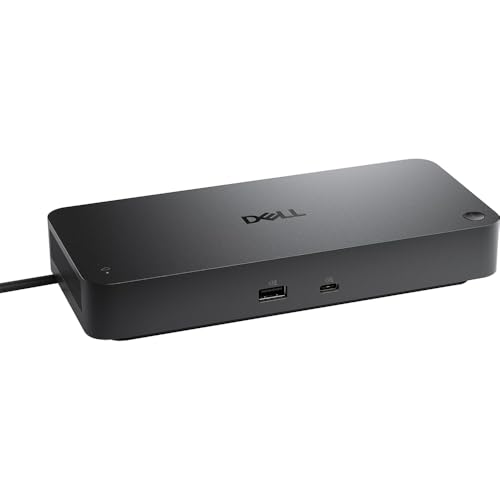
One condition governs the SD25TB5: Dell has to confirm your exact Precision on both its Thunderbolt 5 and its power path. Meet it and you get the strongest Dell I/O branch in this roundup. Dell documents two DisplayPort 2.1 outputs, HDMI 2.1, a multifunction USB-C DisplayPort 2.1 route, two downstream Thunderbolt 5 ports, and 2.5GbE.
Dell publishes ceilings up to 300W for Dell systems and 240W for non-Dell systems, though the compatible host and cable route control the actual result. A Precision with Thunderbolt-shaped ports is not automatically on that path. Monitor support answers to the exact GPU, the display topology, and Dell’s listing.
Our Take If Dell documentation names your Precision and the required high-power cable route, the SD25TB5 is the buy. If it does not, keep the original adapter and choose a dock for verified I/O rather than chasing the largest published number.
- Dell lists Thunderbolt 5 and DisplayPort 2.1 routes
- Dell lists 2.5GbE and two downstream Thunderbolt 5 ports
- 300W is limited to an exact supported Dell and cable path
- Display support remains host and GPU dependent
2. Dell Performance Dock WD19DCS — Best Exact Dual-C Precision Branch

The WD19DCS is a specialist, and the specialty is a Precision that Dell explicitly supports on the dock’s dual-USB-C host connection. On the correct Precision, both host connectors participate in the intended performance-dock route. Dell documents two DisplayPort 1.4 outputs, a multifunction USB-C DisplayPort 1.4 or HDMI 2.0 path, and Gigabit Ethernet.
Do not read the second connector as a universal way to double a USB-C dock. Dell states that on an unsupported host only one cable functions as the dock connection, while the other can supply up to 15W to a device. Two physical USB-C ports beside each other establish nothing about dual-C compatibility.
Our Take Wait for Dell’s exact compatibility listing to confirm the Precision dual-C branch, then buy. As a blind purchase for a workstation that merely looks as though both connectors should fit, the WD19DCS is poor.
- Dell-designed dual-C path for explicitly supported Precision hosts
- Dell lists native DP, USB-C display, and Gigabit Ethernet routes
- Second host cable is not a full dock path on unsupported systems
- Requires exact Dell dual-C qualification
3. Dell Pro Thunderbolt 4 Smart Dock SD25TB4 — Best Managed Thunderbolt 4 Alternative
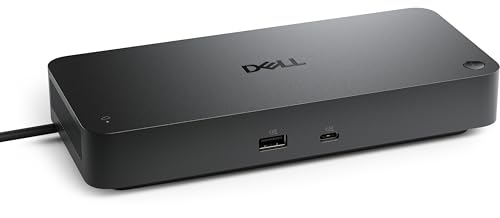
When the Precision does not sit on the SD25TB5 high-power branch, the SD25TB4 becomes the Thunderbolt 4 alternative. Dell specifies two DisplayPort 1.4 connections, HDMI 2.1, a multifunction USB-C DisplayPort 1.4 output, two downstream Thunderbolt 4 ports, and 2.5GbE. That covers native GPU display routes and 2.5GbE network connectivity.
Dell publishes up to 130W on supported Dell systems and 96W on non-Dell systems. Plenty of Precision configurations need a stricter power check than that headline can answer. Retain the original adapter whenever the exact dock-host combination does not establish full operating power, and check host DP and DSC support for displays.
Our Take For a verified Thunderbolt 4 Precision, the SD25TB4 is a capable I/O and display dock. Read 130W as a Dell compatibility branch, not as permission to remove a higher-power workstation adapter.
- Dell documents 2.5GbE and downstream Thunderbolt 4
- Several native display routes
- 130W may not cover the exact workstation requirement
- Host DP and DSC path controls display ceilings
4. Dell Thunderbolt Dock WD22TB4 — Best Modular Thunderbolt 4 Alternative
Two conditions point to the WD22TB4: the Precision host appears in Dell’s supported table, and the modular platform is already part of the desk. This is the established modular Thunderbolt 4 route. Dell documents two DisplayPort 1.4 outputs, HDMI 2.0, a multifunction USB-C DisplayPort 1.4 connection, two downstream Thunderbolt 4 ports, and Gigabit Ethernet.
Every multi-monitor ceiling comes from Dell’s host display matrix. The 130W Dell charging path is host dependent too, and it can remain below a workstation’s original adapter requirement. The modular design says nothing about upgradeable power or universal Precision support, so do not let one imply the other.
Our Take Documented exact Precision plus a desk that suits an established modular Dell dock, and the WD22TB4 earns the slot. Run workstation power and display validation as two separate checks.
- Dell publishes a modular Thunderbolt 4 design
- Two downstream Thunderbolt 4 ports
- Dell’s host table controls monitor support
- Gigabit Ethernet rather than 2.5GbE
5. Dell Dock WD19S — Best Native USB-C I/O Path with Separate Power

Some desks have already settled power, because the original workstation adapter is staying connected. That is where the WD19S works as a practical I/O dock, provided the exact USB-C port on the Precision supports DisplayPort Alt Mode. Dell documents two DisplayPort 1.4 outputs, HDMI 2.0, a multifunction USB-C display route, and Gigabit Ethernet, with video on the native DP Alt Mode path.
There is no Thunderbolt expansion here, and a plain USB-C data port without DP Alt Mode will not produce native video. Dell-specific power behavior remains host dependent. Nobody should buy this for a one-cable power headline. Buy it when native displays and peripherals are the real job.
Our Take Confirmed DP Alt Mode and a separately powered Precision are the two conditions, and the WD19S meets them without pretense. It keeps the docking decision honest when the workstation’s charger already solves power better than the dock.
- Dell documents native USB-C DP Alt Mode video
- Straightforward display, USB, and Gigabit Ethernet path
- No Thunderbolt expansion
- Separate workstation power may remain necessary
6. Dell Pro Dock WD25 — Best Current Native USB-C Office Path

An office-focused desk running a Precision has its native USB-C option in the WD25. Dell lists two DisplayPort 1.4 outputs, HDMI 2.1, a multifunction USB-C DisplayPort 1.4 connection, 2.5GbE, and management behavior that remains host specific. Confirmed DP Alt Mode is required, and Thunderbolt expansion is not part of the package.
Dell publishes up to 100W for supported Dell systems and 96W for non-Dell systems. Those figures are unlikely to answer every high-power Precision requirement, so preserve the original adapter unless Dell documents a sufficient exact path. DSC-dependent displays require host validation as well.
Our Take Where the Precision has confirmed DP Alt Mode and the desk wants 2.5GbE with Dell USB-C I/O, the WD25 is the fit. Plan on separate power whenever the documented evidence does not establish full workstation charging.
- Dell lists 2.5GbE and the stated native display connections
- Useful office I/O without DisplayLink
- Dell publishes a 100W supported-system ceiling
- No Thunderbolt expansion
How to Choose a Precision Workstation Dock
Prove the host connection
Start at the Service Tag, which gives the exact port layout and the Dell dock compatibility record. From there, separate Thunderbolt 5, Thunderbolt 4, USB-C DP Alt Mode, and the specialist WD19DCS dual-C route. Two USB-C sockets are not enough to establish the dual-C branch, and a USB-C shape does not prove native video.
Keep power separate from I/O
Write down the original Dell adapter requirement, then compare it against the manufacturer-published dock path for that exact laptop. Keep the adapter if the evidence does not establish full operating power. That does not disqualify the dock from handling monitors, network, storage, and other peripherals.
The SD25TB5’s 300W Dell ceiling and the WD19DCS dual-C design are conditional results, not interchangeable ways to power every Precision. On other models the correct solution may be a Thunderbolt or USB-C dock plus the original charger.
Validate the complete display topology
Record the workstation GPU, the host DP and DSC capability, every monitor’s resolution and refresh rate, the dock output group, and any adapter in the chain. Actual combinations come from Dell’s detailed host tables. A dock’s socket count and product-level maximum are no substitute for that matrix.
Frequently Asked Questions
Does the WD19DCS use both USB-C cables on every Precision?
No. Dell limits the full dual-C dock path to explicitly supported Precision hosts. On an unsupported system, Dell states that a single cable functions as the dock connection and the second can supply up to 15W to a device.
Does the SD25TB5 deliver 300W to every Dell workstation?
No. That published Dell ceiling depends on an exact compatible Dell system and cable path. Confirm the Service Tag and Dell listing before treating it as the laptop’s charging result.
Is it acceptable to use the original Precision charger with a dock?
Yes, whenever the dock is the right verified I/O and display path but its documented charging route does not establish full workstation power. Keep every connection within the manufacturer’s supported setup.