If your USB-C monitor shows a stable Windows 11 desktop but its built-in speakers are silent, prove that the exact monitor has speakers before you change anything in Windows. Then select the monitor’s audio output, check Windows mute and volume, and check the monitor’s own audio controls. Keep the picture working while you change one audio setting or one part of the route.
Windows lists every place it can send sound under Settings > System > Sound > Output, and the entry for your monitor is its audio endpoint. A working picture does not prove that the monitor includes speakers, that Windows picked its endpoint, or that the monitor volume is turned up. The image, the Windows endpoint, the monitor input, and the physical speakers are four separate checks.
The steps below cover sound from speakers built into a USB-C monitor. If the monitor has no picture, use the USB-C monitor connection guide first. Dock audio-jack silence, crackling, hum, Bluetooth, and microphone problems belong to different paths.
Match the exact audio state
| What you see | What it proves | Next check |
|---|---|---|
| The picture works, but no monitor audio endpoint appears | Windows has a video path but reports no usable monitor audio endpoint | Confirm the exact input, route, monitor model, and graphics or dock documentation |
| The endpoint appears and its level meter moves | Windows is sending a playback stream to that endpoint | Check Windows volume, monitor mute, monitor volume, and the speaker output |
| The endpoint appears, but its level meter does not move | The app or the Windows playback choice may be sending sound elsewhere | Play a known local file and select the monitor endpoint for it |
| Sound works on a direct USB-C route but not through the dock | The monitor and speakers work on one route | Keep the monitor fixed and inspect the dock output, host link, and reported endpoint |
| Headphones work from the monitor, but built-in speakers do not | The digital audio route reaches the monitor | Check the model’s speaker selection, mute, and service guidance |
| The monitor manual lists no speakers | Silence from the panel is expected | Use another output device or a documented monitor headphone output |
Do not uninstall every audio or display device, edit the registry, or run a driver scanner. Each one changes several layers before you know which part of the route is at fault.
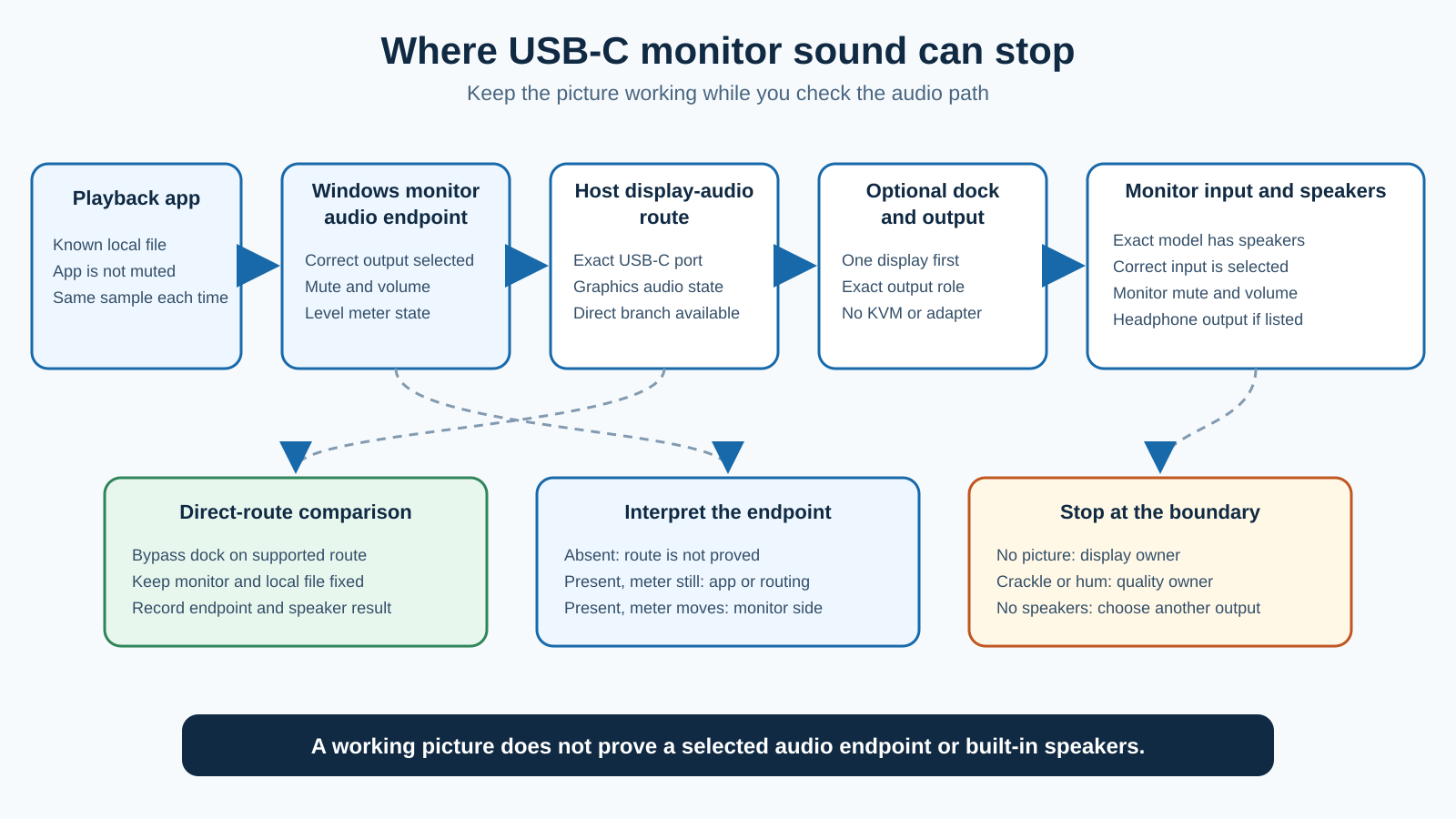
Use the shortest safe sequence
- Record the monitor’s full model, selected input, connection route, and Windows endpoint name.
- Read the exact monitor manual and confirm that the model has built-in speakers.
- Keep the working picture and play one known local audio file.
- Select the monitor under Settings > System > Sound > Output.
- Check Windows mute, output volume, and the endpoint level meter.
- Check the monitor’s own mute, volume, and speaker setting.
- Compare a documented direct USB-C route with the docked route, if both are available.
- Use Windows Update and exact maker support only after the changed layer is clear.
- Replace a cable, dock, or monitor only after a repeated comparison isolates it.
Prove that the monitor has built-in speakers
Start with the full model number from the label or the monitor menu. A family name is not enough, because one size or regional variant can have speakers while another does not.
Open the official specification page or user manual and look for a speaker rating, an audio section, or a clear statement that speakers are built in. A 3.5 mm port marked headphone out or audio out does not prove that the monitor has internal speakers. The port may only send audio to headphones or powered speakers.
LG tells owners to verify that the monitor has speakers, and notes that input and speaker availability differ by model. Apply the same check to every brand, using the exact model manual for its controls.
If the monitor has no speakers, stop trying to make the panel produce sound and select the laptop speakers, a USB audio device, or another supported output instead. If you are choosing a replacement after proving that built-in sound is required, compare exact audio specifications in the USB-C monitor guide or the 4K monitor guide.
Record the active connection route
Write the route in one line. Common examples are:
laptop USB-C port -> USB-C cable -> monitor USB-C inputlaptop USB-C port -> dock host cable -> dock DisplayPort output -> monitor DisplayPort inputdesktop DisplayPort output -> monitor DisplayPort input, plus a separate USB upstream cable
The connection decides which device Windows can list as the playback endpoint. A direct USB-C display can use the graphics path for display audio. A dock output can expose a different endpoint name. A separate monitor USB hub does not automatically carry DisplayPort or HDMI audio.
Record the selected monitor input and the Windows display number, and do not move the cable while you collect the baseline. If the input is wrong or the picture is absent, audio settings are not the next step.
When the USB-C port’s display role is uncertain, use the DisplayPort Alt Mode check to identify the video path. The picture proves only that a video route works. The exact route decides which maker documents apply.
Select the monitor endpoint in Windows
Open Settings > System > Sound. Under Output, select the entry for the monitor, graphics output, dock, or digital display route. The name can use the monitor model, the graphics maker, or a digital-audio label. Do not guess when several displays are connected.
Keep one local audio file playing at a moderate volume. A local file rules out a browser tab, meeting account, network stream, and per-site mute in the first test.
After selecting the endpoint:
- Make sure Windows is not muted.
- Set the output volume to an audible but safe level.
- Watch the level meter for the selected endpoint.
- Open the volume mixer and confirm that the playback app is not muted or routed elsewhere.
Microsoft’s current no-sound guidance starts with the same output, mute, volume, and default-device checks. The Windows controls can route sound to a working monitor endpoint. They cannot add speakers to a model that lacks them.
A moving meter means Windows is sending a stream to that endpoint, so the next checks are inside the monitor or after its audio output. A still meter means you should confirm the app is playing, select the endpoint again, and test the local file in another simple Windows playback app.
Check the monitor’s own audio controls
Open the monitor’s on-screen menu with its physical buttons or joystick, and use the exact manual because menu names differ.
Look for:
- speaker volume
- mute
- audio source or input selection
- speaker versus headphone output
- an input-specific audio option
- a physical volume control
Set the monitor volume to a moderate level and clear mute. If headphones or powered speakers are plugged into a monitor audio-out port, remove them for the built-in-speaker test unless the manual says both outputs play together.
Some monitors silence their internal speakers automatically when a headphone plug is present. Others let you choose an output in the monitor menu. Do not assume either behavior without the model manual.
LG documents input audio over HDMI, DisplayPort, and USB-C on equipped models, but that does not mean every input carries audio on every monitor. Keep the input name attached to the result. Sound through HDMI does not prove sound through a separate USB-C input.
Separate an absent endpoint from a silent endpoint
The two states point at different parts of the path.
The monitor endpoint is absent
Open Device Manager and expand Sound, video and game controllers and Audio inputs and outputs. Record the names before and after reconnecting only the monitor route once. Do not remove a device.
An absent endpoint while the picture stays visible can have several causes: the selected input, graphics audio support, a dock output, a cable or adapter route, or exact device software. Compare the official computer, graphics, dock, and monitor pages. Windows failing to expose an endpoint is not proof that the panel speakers failed.
If a dock is present, reduce the setup to one display on one documented output and remove KVMs, receivers, capture devices, converters, and second displays. A USB-C cable chosen after that comparison should match the documented route. The USB-C cable guide is a buying handoff only after the cable is isolated.
The monitor endpoint is present but silent
Keep it selected and watch the meter. If the meter moves, check the monitor menu and physical outputs again. If the monitor has a documented headphone output, connect known-working headphones at a safe volume.
Headphone sound with silent built-in speakers proves that audio reached the monitor. It does not tell you whether the speaker setting, the speaker hardware, or a model-specific control is responsible. Save the endpoint name, input, monitor menu values, and headphone result for support.
If neither the built-in speakers nor the documented headphone output works while the Windows meter moves, repeat the same local file through a supported direct route before you call the monitor faulty.
Compare direct and docked paths
Use the comparison only when the computer and monitor have a documented direct connection.
- Save the working picture and current audio state.
- Disconnect the dock from the display route.
- Connect the same monitor to a supported computer output.
- Select the same monitor input when possible.
- Select the reported monitor endpoint in Windows.
- Play the same local file at the same safe volume.
If sound works directly, reconnect the dock with one monitor and no other accessory. The changed layers are the dock host link, dock display path, dock output, and any added cable or adapter. Check the exact dock output table and support page.
If both routes stay silent while Windows exposes the endpoint and its meter moves, the fault is more likely in the monitor controls or hardware. Limit that conclusion to the monitor and the inputs you tested.
If you use an adapter between the dock and monitor, keep its direction and audio support tied to the exact product page. The USB-C to DisplayPort adapter guide is relevant only after the adapter route is isolated.
Apply updates after the route is known
Use Settings > Windows Update and install current updates that match the computer. Then visit official support for the exact:
- computer model
- graphics device
- dock model and revision, when present
- monitor model
Read the release notes before installing a package. An update that names another dock, graphics family, or operating system is not evidence for this setup.
Do not uninstall every audio or graphics device as a first repair, and do not install a generic driver package from a download site. If the endpoint appeared after one official update, or disappeared after one documented change, record both versions for the maker.
Interpret the result before replacing anything
| Repeated result | What it supports | Next action |
|---|---|---|
| The manual lists no speakers | The monitor cannot produce sound by itself | Choose another output or external speakers |
| The endpoint appears and the meter moves, but monitor and headphone outputs are silent | Windows sends audio toward the monitor | Check exact monitor controls and contact monitor support |
| Direct USB-C audio works, but docked audio does not | The docked display-audio route changes the result | Contact the dock or adapter maker with the exact route |
| One dock output has audio and another does not | Output choice changes the route | Compare the exact output table and support notes |
| The endpoint never appears on direct or docked routes | The monitor speakers are not yet isolated | Check computer, graphics, input, and monitor documentation |
| Sound returns when a KVM or adapter is removed | The added route changes the state | Keep the working baseline and contact that device’s maker |
If a monitor replacement is justified, decide whether you need speakers alone or a larger integrated desk setup. A monitor with built-in docking can combine display, USB, charging, and audio, but each exact model still needs a supported host. A monitor with a KVM is a later handoff, for when two computers need the same screen and peripherals.
For a lower-cost USB-C display, check the exact speaker field rather than the category name. The budget USB-C monitor guide includes models with different audio hardware.
Frequently asked questions
Why does my USB-C monitor show video but have no sound?
Video proves that the display path carries a picture. It does not prove that the monitor has speakers, that Windows selected the monitor endpoint, or that monitor volume is audible. Confirm the exact model, select the endpoint, and check both Windows and monitor mute.
Why is the monitor missing from Windows sound output?
Windows has not exposed a usable audio endpoint for the active route. Record the input, the direct or docked connection, the graphics or dock endpoint names, and the Device Manager state. Compare one supported direct route before you change drivers or replace the monitor.
Why does the monitor endpoint appear but stay silent?
Play a known local file, keep the endpoint selected, and watch its level meter. A moving meter points toward monitor mute, monitor volume, headphone-output behavior, or monitor hardware. A still meter points back toward the app or the Windows playback choice.
Does every USB-C monitor have speakers?
No. Confirm the exact model’s speaker specification. A USB-C input, a headphone jack, or an audio menu entry does not by itself prove that internal speakers are installed.
Can a dock remove monitor audio while video keeps working?
A dock can change the display-audio route and the endpoint Windows reports. Compare the same monitor on a documented direct connection, then rebuild the docked path with one display and one output.
Should I reset the monitor?
Not as the first step. Record the current input, picture settings, audio values, and any work profile. Use a reset only when the exact manual or maker support calls for it, and only if you accept that it erases saved settings.
When should I replace the monitor?
Replace or service it after the exact model is confirmed to have speakers, Windows sends audio to its endpoint, a supported direct route gives the same silent result, monitor mute and volume are correct, and maker support cannot restore or explain the state.
Sources and Methodology
Current official sources were checked on July 28, 2026. Microsoft documents output selection, mute, volume, default playback, and endpoint enhancements and USB or HDMI default-output handling. LG documents model-specific monitor sound checks and monitor volume controls.
No monitor, dock, cable, computer, or speaker was tested. The method preserves the working picture, proves speaker hardware, compares endpoint states, and changes one route layer at a time.