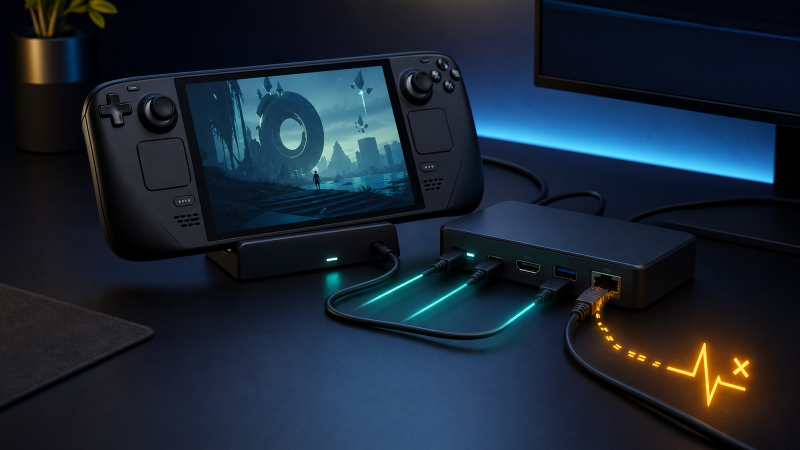
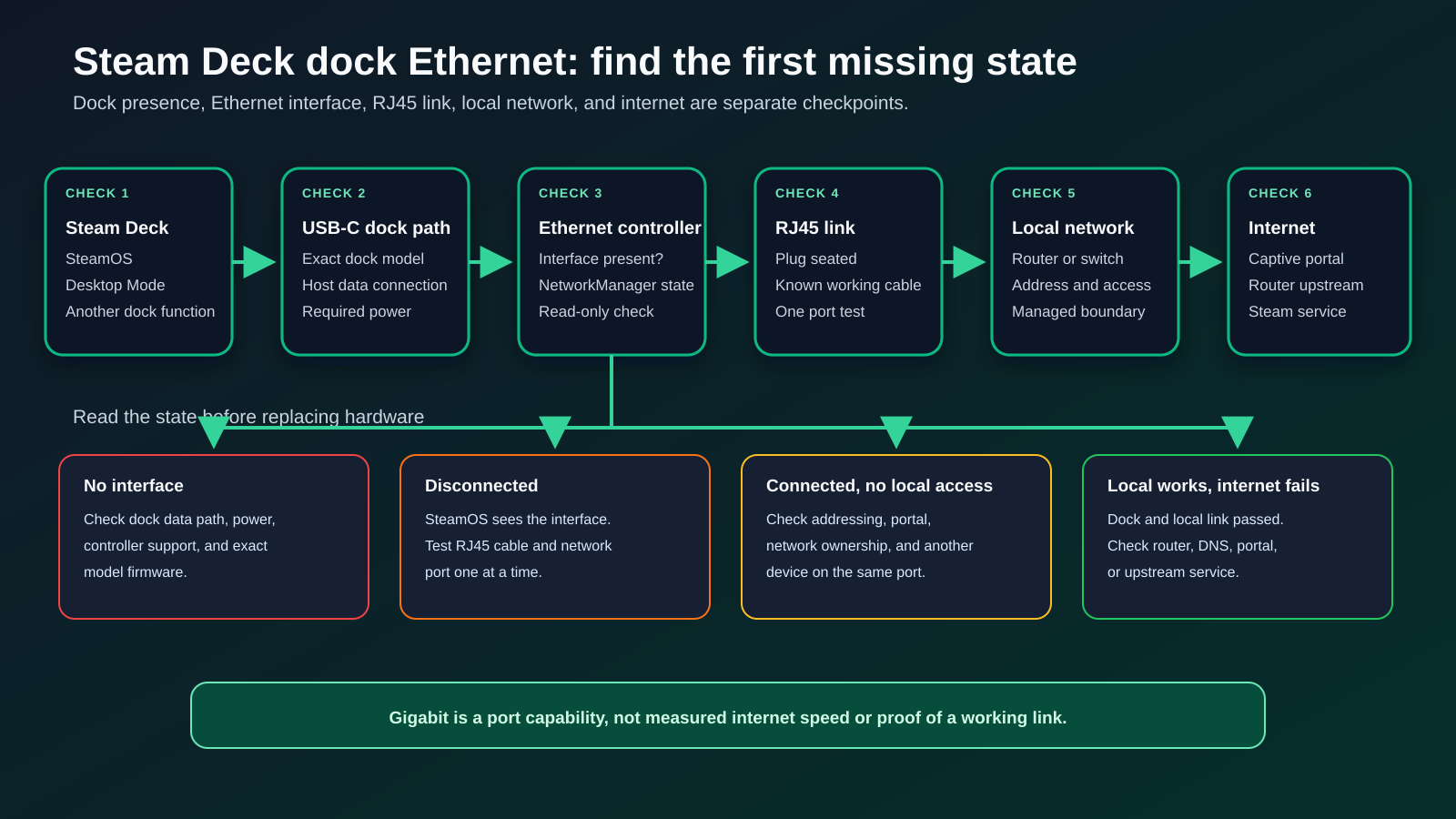
If Ethernet fails through a Steam Deck dock while another dock function works, split the wired path into five states: dock connection, Ethernet interface, RJ45 link, local network, and internet access. A working monitor or USB device proves some dock connection, not that SteamOS sees its Ethernet controller.
Switch to Desktop Mode and inspect the wired connection. No Ethernet interface points to the Deck-to-dock data path, dock power, or controller support. An interface that stays disconnected points to the cable and network port. One that connects without internet points to the local network, not the dock.
“No Ethernet interface,” “disconnected,” and “connected without internet” are different failures.
Start with the exact wired state
| What you can observe | What it means | Check next |
|---|---|---|
| Another dock function works, but no wired interface appears | The dock is partly present, but SteamOS has not exposed the Ethernet branch | Exact dock model, host data path, dock power, and controller support |
| Wired interface appears as disconnected | SteamOS sees an interface, but it has no active network link | RJ45 seating, Ethernet cable, and router or switch port |
| Wired interface connects, but no address or local access appears | The physical route may exist, but network configuration is incomplete | Another known working network port and network owner |
| Local network works, but Steam or websites do not | Dock enumeration and local Ethernet are no longer the first problem | Router, DNS, captive portal, or upstream internet boundary |
| Ethernet returns after official Valve dock power isolation | Rebuilding the official dock path changed the result | Record the state and check Valve firmware support |
| Same cable and network work through another adapter | Cable and network can work in that comparison | Original dock Ethernet branch |
| No dock display, USB, charging, or Ethernet function works | Failure is broader than Ethernet | Whole-dock connection and exact dock support |
Do not format, reimage, reset, or enter developer mode for any row in this table.
The shortest safe sequence
- Confirm that a monitor, USB peripheral, or another dock function works.
- Record the Steam Deck model, SteamOS version, dock model, power supply, Ethernet cable, and network port.
- Reseat the RJ45 plug at the dock and router or switch.
- Switch to Desktop Mode and open the network control.
- Record whether a wired interface is absent, disconnected, connecting, or connected.
- Optionally run
nmcli device statusin Konsole as a read-only state check. - Test one other known working Ethernet cable.
- Test one other known working router or switch port.
- If you own Valve’s Docking Station, use Valve’s exact power and firmware sequence.
- Compare one other supported dock or USB Ethernet adapter while keeping the Deck and network fixed.
Change only the cable, network port, or dock in each comparison.
Confirm that this is Ethernet-only
Before opening network settings, check one independent dock function:
- one USB keyboard or mouse;
- an external display;
- another documented dock data function;
- charging, used only as a power clue.
If another function works, the Dock or hub has some connection to the Deck. The Ethernet controller can still be absent, unsupported, unpowered, or disconnected.
If nothing works, leave this narrow owner. Check the dock’s power supply, upstream USB-C cable, exact Steam Deck compatibility, and full dock support.
Do not apply a Windows dock Ethernet article to SteamOS. Windows Device Manager, network reset, and driver packages do not describe the Steam Deck path.
Record the exact dock and network route
Write down:
- Steam Deck LCD or OLED;
- SteamOS version;
- official Valve Docking Station or exact third-party dock;
- dock power supply;
- built-in Ethernet port or separate USB Ethernet adapter;
- Ethernet cable;
- router, switch, wall jack, or USB network device at the far end;
- whether a link or activity indicator is present;
- wired state in Desktop Mode;
- whether local devices or only the internet are unreachable.
Valve’s Dock technical specifications list Gigabit Ethernet on the official Docking Station. Gigabit is a port capability, not measured internet speed and not proof that the current cable or network link is working.
A third-party dock may use another Ethernet controller, power design, or firmware path. Use its exact documentation.
Check the physical link first
Ethernet requires a complete physical path:
dock controller -> RJ45 socket -> Ethernet cable -> router or switch port
Inspect without opening hardware:
- Remove and reinsert the RJ45 plug until the connector latches.
- Check both plugs for a damaged latch or loose fit.
- Confirm that the far-end port is powered and intended for a client device.
- Read the dock and network-device manuals before interpreting LEDs.
- Keep the Deck and dock fixed, then replace only the Ethernet cable.
- Return the first cable and test only another router or switch port.
LED colors and blink patterns are not universal. An illuminated indicator is evidence that some physical signaling exists, not proof of an IP address or internet access.
Valve’s network troubleshooting guidance recommends a direct wired comparison when possible. Use that principle to remove wall adapters, small switches, or other intermediate hardware for one test.
Do not change router security, VLANs, authentication, or managed switch settings unless you own the network and understand the configuration.
Read the wired state in Desktop Mode
SteamOS Desktop Mode uses KDE Plasma networking controls. KDE documents NetworkManager as the networking backend exposed through the desktop’s network interface.
Switch to Desktop Mode, then open the network control in the system tray. Look for a wired connection.
Record one of these states:
- no wired device;
- wired device present but unavailable;
- disconnected;
- connecting;
- connected;
- connected locally but no internet.
The exact labels can change with SteamOS and Plasma versions. Record what your Deck shows.
Optional read-only terminal check
Open Konsole and run:
nmcli device statusThe NetworkManager reference says this command shows the status of all network devices.
Look for an Ethernet-type interface and its state. Interface names vary, so do not copy a name from another computer.
The command does not create, delete, or modify a connection. Do not continue into community commands that change NetworkManager profiles, kernel modules, or system files.
Branch 1: no Ethernet interface appears
If Desktop Mode and nmcli device status show no Ethernet device, the problem is before network addressing.
Keep the RJ45 cable connected and check:
- Does another dock data function work?
- Is the dock connected directly to the Deck rather than through another hub?
- Is dock power connected as the exact manual requires?
- Does the dock maker document Steam Deck, SteamOS, or Linux support?
- Does the maker require exact firmware for the dock?
- Does the same dock expose Ethernet on another documented supported host?
- Does another supported Ethernet adapter appear on the same Deck?
Do not install a random Linux driver package. Do not disable SteamOS protections or enter developer mode to force an unverified controller.
If a third-party dock page lists only Windows or macOS support, contact the maker before assuming SteamOS compatibility.
Branch 2: interface appears as disconnected
SteamOS sees an Ethernet interface, but the physical link has not become active.
Keep the dock and Deck fixed:
- Reseat both RJ45 plugs.
- Replace only the Ethernet cable.
- Test only another router or switch port.
- Remove an intermediate wall adapter or small switch for one direct comparison.
- Return to Desktop Mode and read the state after each test.
A different cable that works in the same dock and port isolates the original cable. A different network port that works with the same dock and cable moves the next check to that port.
Do not replace the dock while the same cable and network port have not been compared with another Ethernet device.
Branch 3: interface connects but local access fails
A connected interface is a later state than missing hardware. Stop reinstalling dock software.
Compare:
- another device on the same cable and network port;
- the Deck on another simple network you control;
- local router access, if you are authorized to use it;
- whether the network requires a captive portal, certificate, static settings, or registration.
On a school, hotel, office, or managed network, contact the network owner. Do not bypass access controls or install a certificate from an unofficial source.
If another device also fails on the same cable and port, the dock is not isolated. The local network path owns the next test.
Branch 4: local network works but internet does not
When the Deck can reach local network resources but cannot reach websites or Steam, the Ethernet controller, RJ45 cable, and local link have passed more of the path.
Check:
- whether another device on the same network has internet access;
- whether a captive portal is waiting;
- whether the router reports an upstream connection;
- whether the problem affects Steam only or every destination;
- whether the network owner has DNS, proxy, or policy requirements.
Do not promise that replacing the dock will fix an upstream service or account problem.
Use Valve’s exact Docking Station sequence
Use this section only for Valve’s official Docking Station.
Valve’s Docking the Steam Deck page controls the current sequence.
Power-isolate the official Docking Station
- Save work and put the Deck in a stable state.
- Disconnect the Deck from the Docking Station.
- Disconnect the Docking Station power supply.
- Disconnect the Ethernet cable.
- Reconnect the Ethernet cable.
- Reconnect Docking Station power.
- Reconnect the Deck.
- Check the wired state in Desktop Mode.
Disconnecting only the Docking Station power supply is not a full isolation while the Deck remains attached, because the Dock can still receive power through the Deck connection.
The power isolation is not a SteamOS reset and does not erase games or settings.
Use the official firmware path
Valve documents firmware through the connected Steam Deck and Docking Station power supply:
- Connect the Docking Station power supply and Deck.
- Restart the Deck.
- Disconnect both the Deck and power supply from the Docking Station.
- Wait 10 seconds.
- Reconnect power and the Deck.
- Follow any on-screen update prompt.
Valve also documents connecting the Deck and power supply, then unplugging Docking Station power if the update does not start.
Follow the current Valve page. Do not install a generic dock firmware file or apply Valve’s sequence to a third-party dock.
Third-party dock boundary
For another dock, use the maker’s exact model page.
Confirm:
- Steam Deck, SteamOS, or Linux support;
- whether external power is required;
- Ethernet controller and link rate;
- included or required upstream cable;
- firmware and update host;
- warranty and support route.
Valve notes that many USB-C-compliant hubs and docks may work, but that is not an exact compatibility promise for every Ethernet controller or firmware build.
If the dock’s data path is unclear, the USB-C dock guide compares models once the dock is isolated. The gaming-laptop dock guide is a desk-topology reference, not proof of Steam Deck support.
One-variable isolation matrix
| Test | Keep fixed | Change | What a successful comparison proves |
|---|---|---|---|
| Ethernet cable | Deck, dock, network port | One known working cable | The replacement cable can link in this route |
| Network port | Deck, dock, cable | One known working router or switch port | The replacement network port can link |
| Another Ethernet device | Cable, network port | Dock and Deck | Cable and network can work in that comparison |
| Another supported dock or adapter | Deck, cable, network | Ethernet hardware | Original dock branch is isolated if only the replacement works |
| Another supported host | Dock, cable, network | Deck | Original Deck or SteamOS path is isolated if only the second host works |
A successful comparison is narrow and does not prove advertised throughput or every network feature.
Escalation matrix
| Final state | Escalate to | Evidence to provide |
|---|---|---|
| Official Docking Station Ethernet interface is absent after Valve sequence | Valve Support | Deck model, SteamOS version, Docking Station state, power sequence result |
| Third-party dock Ethernet is absent but other dock functions work | Dock maker | Exact model, support page, power, host path, nmcli state |
| Interface appears but never links across known working cables and network ports | Dock maker | Cables, network ports, indicator observations, comparison device |
| Same dock works on another supported host but not the Deck | Valve and dock maker | Both hosts, software versions, exact route |
| Wired link works locally but internet fails | Network owner | Network type, captive portal, other-device result, local connectivity |
| Managed network requires policy or authentication | Network administrator | Device identity and approved connection requirements |
Send facts, not a conclusion:
- Deck and dock models;
- SteamOS version;
- dock power;
nmcli device statusoutput if used;- cable and network port tests;
- other dock functions;
- official power and firmware sequence result;
- another-device or another-dock comparison.
Replacement boundary
Replace the Ethernet cable when another cable links with the same Deck, dock, and network port.
Service or replace the dock when:
- another dock or Ethernet adapter appears and connects on the same Deck;
- the original dock’s Ethernet remains absent across known working cables and ports;
- the exact maker confirms SteamOS support;
- the official model-specific power and firmware path does not change the result;
- another supported host shows the same dock failure.
If you need built-in multi-gig networking, the 2.5GbE hub and dock guide is a handoff once compatibility is checked. The Thunderbolt and USB4 10GbE adapter guide covers a different category and implies no Steam Deck support.
If the upstream USB-C cable is isolated, use the USB-C cable guide and cable-speed test guide with the dock maker’s requirements.
If the official Docking Station lacks stable power, compare the exact input requirements before using the USB-C charger guide. Do not assume that a charger’s headline wattage proves Docking Station compatibility.
The Thunderbolt hub guide is not a default Steam Deck recommendation. Steam Deck does not gain Thunderbolt support from a hub.
Frequently asked questions
Why does my Steam Deck dock monitor work but Ethernet does not?
Display and Ethernet are separate dock branches. The working monitor proves a display route, not that SteamOS enumerated the dock’s Ethernet controller or established an RJ45 link.
Where do I check Ethernet in SteamOS?
Switch to Desktop Mode and inspect the network control. For a read-only terminal view, nmcli device status lists network devices and their states.
Should I install a Linux Ethernet driver?
Not from a generic guide. Confirm the exact dock’s SteamOS or Linux support. Use Valve or the dock maker’s supported path, and do not enter developer mode or weaken SteamOS protections to force an unverified package.
Does the Valve Docking Station have Gigabit Ethernet?
Valve lists Gigabit Ethernet for the official Docking Station. The label describes hardware capability, not measured internet speed.
Why does Ethernet show connected but Steam is offline?
The local Ethernet link can work while the router, captive portal, DNS, internet service, or Steam connection is unavailable. Test another device on the same network before replacing dock hardware.
Should I reset SteamOS?
No. The Ethernet-only sequence does not require a reimage, developer mode, bootloader work, or destructive reset. Isolate the interface, cable, network port, and exact dock support first.
Can I use any USB-C dock with Steam Deck?
Valve says many USB-C-compliant hubs and docks may work, but exact Ethernet controller, power, firmware, and SteamOS support remain product-specific.
Sources and methodology
The procedure uses Valve’s current Docking Station support, technical specifications, product page, and general network troubleshooting, plus the current NetworkManager nmcli reference and KDE network-management documentation. Sources were checked on July 28, 2026.
No Steam Deck, dock, cable, switch, router, or network was tested. Link labels are ceilings, not measured performance. The sequence uses read-only checks and one-variable comparisons, and excludes reset rituals, Windows procedures, and destructive changes.