If Windows detects part of your Thunderbolt eGPU enclosure but not the installed GPU, diagnose the parent enclosure and graphics card as separate devices. Record the enclosure component that appears. Then check whether the GPU is absent, listed under another Device Manager class, or present with an exact status code.
The safest order is identity, Windows state, exact compatibility, card seating, auxiliary power, host path, and only then the official GPU driver. Power down and disconnect AC before opening a user-serviceable enclosure. Follow the exact enclosure manual. Never reseat a card while the enclosure is powered.
A visible enclosure bridge or USB hub proves that Windows reached one part of the box. It does not prove that the inner PCIe graphics card initialized.
This article starts only after an enclosure or bridge component appears. If no enclosure device appears, use the Thunderbolt not detected in Windows 11 guide. If the GPU appears normally but an application uses another GPU, that is an application-selection problem, not a missing-GPU state.
Start with the exact Windows state
Open Device Manager and expand Display adapters, System devices, Universal Serial Bus controllers, and Universal Serial Bus devices. Do not uninstall anything. Record names, warning symbols, and the Device status text.
| Observed state | What it proves | Next checkpoint |
|---|---|---|
| No enclosure, bridge, hub, or Thunderbolt device changes when connected | Windows has not reached the enclosure | Whole-device Thunderbolt and cable path |
| Enclosure component appears, but no new GPU appears anywhere | Parent path exists, inner GPU has not enumerated as a usable device | Compatibility, seating, auxiliary power, PCIe slot |
| GPU appears under Other devices or with a generic name | Windows sees a child device but lacks a normal graphics state | Hardware ID, exact status, official driver |
| GPU appears under Display adapters with a warning | GPU enumerated, but Windows reports an exact device problem | Record the status code and follow its specific owner path |
| GPU appears normally, but enclosure video output is black | GPU detection succeeded | Display cable, GPU output, monitor input, and graphics configuration |
| GPU appears normally, but an application uses the internal GPU | Detection succeeded | Windows or application graphics selection |
Do not label every warning Code 43. Open Properties > General, then copy the exact Device status text, because Microsoft’s Device Manager error codes treat each one separately.
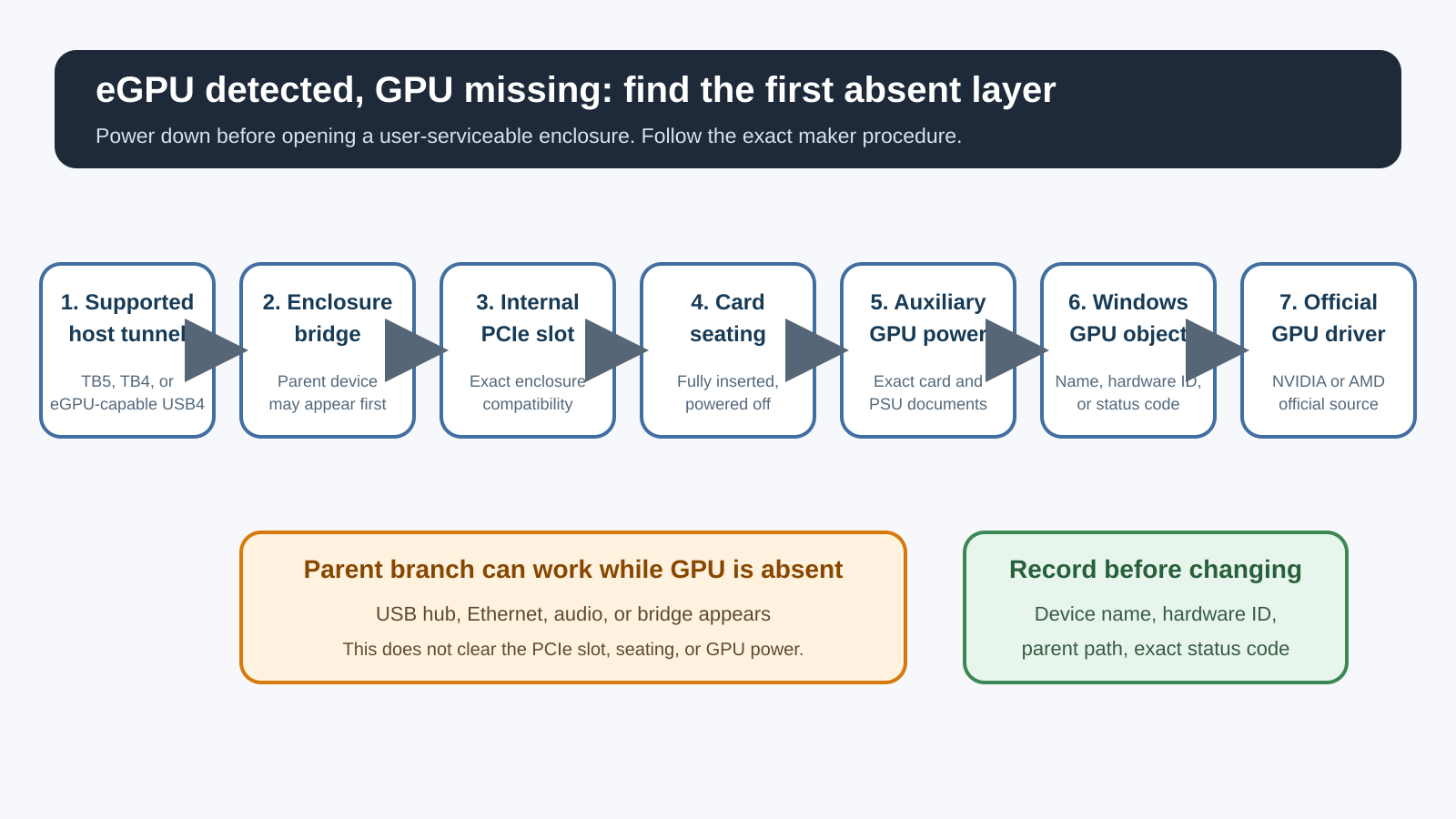
Use this one-variable sequence
- Record the host, port, cable, enclosure, GPU, and power-supply identities.
- Prove which enclosure components appear in Windows.
- Search all Plug and Play classes for the installed GPU and record its exact state.
- Check the enclosure’s current GPU, physical-fit, power, and host-support documentation.
- Shut down and disconnect power before opening, only if the exact enclosure is user-serviceable.
- Check card seating and every required auxiliary power connector under the maker’s instructions.
- Confirm the enclosure power supply and connector budget against the exact GPU manual.
- Return to a direct supported host port with the specified cable.
- Install the official NVIDIA or AMD driver only after Windows exposes the GPU or a related hardware ID.
- Substitute one known-compatible part only when the manuals and data-safety boundary permit it.
Keep a written result after each step. Do not change the host port, cable, GPU power leads, driver, and enclosure firmware together.
Step 1: record the complete hardware chain
Write down:
- laptop or desktop model;
- exact host port and whether the maker documents eGPU support;
- Thunderbolt or USB4 cable model and length;
- enclosure product and revision;
- installed GPU’s full board model, not only its chip family;
- enclosure power-supply model and rating;
- each auxiliary GPU power connector in use;
- Windows build;
- names that appear and disappear in Device Manager when the enclosure connects.
The full board model matters. An NVIDIA or AMD GPU family can include compact and oversized partner cards with different slot widths, lengths, connectors, and power requirements.
The enclosure model matters too. Plugable’s TBT5-AI includes its own power supply and connector set. Razer’s Core X V2 requires the user to provide a compatible standard ATX power supply. Sonnet’s Breakaway Box 850T5 has its own physical and power limits. Do not copy a wattage or connector plan from one enclosure to another. The Thunderbolt 3, 4, and 5 comparison can clarify protocol generations, but the exact enclosure guide controls the installed hardware.
If you are still choosing an enclosure, use the Thunderbolt 5 eGPU enclosure guide. This guide does not rank products or assume that buying new hardware is the answer.
Step 2: prove which parent device Windows sees
With Device Manager open, connect the powered enclosure directly to the supported host port. Wait for the device list to settle. Note exactly which entries appear.
Possible parent evidence includes:
- the enclosure’s named Thunderbolt device;
- a PCI Express bridge or controller named by the enclosure maker;
- the enclosure’s USB hub, Ethernet controller, or audio device;
- another exact accessory named in the enclosure manual.
Now disconnect the enclosure using the maker’s supported procedure and note which entries disappear. Reconnect it once and repeat.
The connect and disconnect comparison establishes a parent path. It does not prove that the GPU’s PCIe function initialized. An enclosure can expose a USB hub through one internal branch while its PCIe slot, card, or power path remains unavailable.
If no identifiable enclosure component changes, stop. The starting state is whole-device absence. Follow the Thunderbolt device-detection guide and the exact host and enclosure manuals.
Do not approve unknown Thunderbolt devices blindly on an administered computer. Follow the organization’s policy and the exact host’s connection workflow.
Step 3: search for the GPU without changing it
In Device Manager, select View > Devices by connection, which can show whether a child device sits under the enclosure path. Also check Display adapters and Other devices.
Right-click a possible GPU entry, choose Properties, and record:
- device name;
- Device status text and number;
- Details > Hardware Ids;
- driver provider and version, if present;
- parent or location path, if shown.
You can also run a read-only PowerShell inventory:
Get-PnpDevice -PresentOnly |
  Sort-Object Class,FriendlyName |
  Format-Table Status,Class,FriendlyName,InstanceId -AutoSize
Microsoft documents Get-PnpDevice as a way to retrieve Plug and Play devices. The command lists state and does not enable, disable, remove, or repair anything.
Compare the output with the enclosure disconnected and connected. Search for the GPU vendor name and any new error-state device. Keep these outcomes separate:
- No child GPU or unknown PCIe device appears: focus on compatibility, seating, slot, and auxiliary power.
- A child hardware ID appears under Other devices: the card reached Windows at some level; identify the hardware and use the official driver route.
- GPU appears with a code: use the exact Microsoft code description and the hardware maker’s support procedure.
- GPU appears normally: this article’s detection gate has passed.
Do not run a third-party driver scanner or uninstall every display adapter. Both erase useful state without proving the card is seated or powered.
Step 4: verify exact enclosure and GPU compatibility
Open the current compatibility and technical pages for your exact enclosure. Check all of these:
- supported host protocol;
- supported operating system;
- supported GPU vendors and generations;
- maximum card length, height, thickness, and slot count;
- maximum GPU power or supplied power budget;
- available auxiliary connector types and quantities;
- any exclusion for a specific board or cooler design;
- required enclosure firmware or host support.
Do not treat a GPU chip name as a physical-fit result. Razer’s Core X V2 compatibility page lists supported GPU families and also publishes physical and power boundaries. A board-partner version can differ from a reference card.
Do not assume an enclosure that fits the card can power it. Plugable documents the exact TBT5-AI and its included power supply. Razer tells Core X V2 buyers to provide an ATX supply with enough margin for the selected card. Sonnet publishes an exact compatibility and power boundary for each Breakaway Box.
If the GPU or board model is absent from a current compatibility list, ask the enclosure maker before forcing installation or buying adapters. Unlisted does not automatically mean incompatible, but it is not proof of support.
The USB4 eGPU compatibility guide explains why some USB4 hosts can support eGPU tunneling and others cannot. The USB4 explainer provides the broader protocol context. The exact host manual controls your computer.
Step 5: inspect seating only under the exact manual
Follow the exact installation sequence for your enclosure. In a typical user-installable design, the checkpoints are:
- the GPU is fully inserted into the enclosure’s PCIe slot;
- the slot retention mechanism is engaged as documented;
- the rear bracket sits flat and is secured without forcing the card;
- the cooler and backplate do not contact the enclosure;
- every auxiliary GPU power receptacle required by the card is connected;
- the power cable is fully inserted at both ends;
- no cable is pinched against a fan.
Those checkpoints are categories, not permission to improvise. Plugable’s TBT5-AI page tells users to ensure the card is fully seated and all required GPU power connections are attached, and Sonnet’s Windows eGPU guide also requires the card’s auxiliary power. Razer’s Core X V2 has its own chassis and power-supply procedure.
Do not use a CPU power cable in a GPU socket. Do not combine modular power-supply cables from different PSU models. Do not bend, trim, or force a connector. The PSU and GPU manuals control.
NVIDIA’s RTX 5080 Founders Edition quick-start guide is a useful exact example. It specifies its own included adapter, multiple dedicated PCIe power cables, full insertion, and a flush connector. Those instructions apply to that Founders Edition card, not every RTX 5080 partner board and not an AMD card.
After reseating, close the enclosure as directed before reconnecting power. Repeat the same Device Manager observation. If the GPU now appears, the changed seating or power state mattered, but you still should confirm that the card and enclosure are supported.
Step 6: prove the auxiliary power path
An enclosure fan or status light does not prove that the graphics card has every required power connection. The enclosure can power its controller while the GPU remains unavailable.
Compare three documents:
- enclosure power-supply specification;
- enclosure GPU-power connector list;
- exact graphics-card installation guide.
Make a small table for your hardware:
| Item | Required by exact document | Present in your setup |
|---|---|---|
| PSU capacity | Enclosure and GPU limits | Record model and rating |
| GPU connector type | Exact card manual | Record each plug |
| Number of dedicated leads | Exact card and PSU guidance | Record without adapters hidden |
| Physical card clearance | Enclosure and board drawing | Confirm lid closes without force |
| Cooling clearance | Exact enclosure guidance | Confirm fans are unobstructed |
Do not add marketing wattages or invent a universal power margin. Enclosures allocate power differently. A Core X V2 with a user-provided PSU is not the same power system as a TBT5-AI or Breakaway Box 850T5.
If the power supply lacks the correct native connectors or documented capacity, stop. An improvised splitter is not a safe diagnostic tool. Ask the enclosure, PSU, or GPU maker for an approved configuration.
Step 7: return to a direct supported host path
Even though part of the enclosure is visible, the host connection still matters. A USB branch can enumerate without proving a usable PCIe tunnel to the GPU.
Connect the enclosure directly to the host port documented for Thunderbolt eGPU or eGPU-capable USB4. Use the cable supplied by the enclosure maker or one the exact manual specifies.
Remove:
- USB-C extensions;
- a second dock;
- a monitor’s downstream USB-C path;
- KVMs;
- front-panel adapters;
- an unverified long cable.
Plugable’s TBT5-AI procedure calls for a direct supported Thunderbolt 5, Thunderbolt 4, or eGPU-capable USB4 connection. Sonnet’s guide calls for the included Thunderbolt cable on its covered models. Razer supplies its own Core X V2 host requirements.
If another host port is also documented for the same function, test it while keeping the enclosure, GPU, power, and cable unchanged. A difference between ports is host evidence. It does not prove that every port of that connector shape supports eGPU.
For cable context after a cable boundary is demonstrated, use the Thunderbolt 5 cable guide or the USB-C cable guide. Match the enclosure’s protocol rather than buying from the connector shape.
Step 8: install the exact GPU driver at the right point
Install a graphics driver only after one of these is true:
- the GPU appears under Display adapters;
- a hardware ID identifies the installed NVIDIA or AMD GPU;
- the exact enclosure procedure explicitly reaches the driver step after connection.
Use the official NVIDIA driver page or AMD’s official support page. Select the actual desktop GPU and Windows version. The graphics card in an enclosure is still a desktop board; use the exact GPU maker’s supported package, not a generic scanner.
Sonnet and Plugable both place the official GPU driver after physical installation and enclosure connection. A driver cannot supply missing auxiliary power or seat a card in a PCIe slot.
If the GPU has a Device Manager code, follow the code-specific Microsoft description and the GPU or enclosure maker’s instructions. Do not assume:
- Code 43 always means a bad GPU;
- Code 12 always means a BIOS toggle;
- Code 31 always means reinstall every graphics package.
Record the code, Windows build, driver version, enclosure, host, and whether the card appears in another supported setup. That evidence lets the right owner distinguish software, resource, and hardware states.
Step 9: isolate one replaceable layer
Substitution is useful only when the comparison is supported and safe.
Possible comparisons:
- same enclosure and host with another GPU explicitly supported by the enclosure;
- same GPU in another supported enclosure or desktop;
- same enclosure, GPU, and cable on another host explicitly documented for eGPU;
- same full setup with another specified Thunderbolt cable.
Change only one part. Power down before every internal change. Do not use a valuable or irreplaceable card as a test part in an uncertain power system.
| Result | Narrow conclusion |
|---|---|
| Supported GPU B appears in the same enclosure | Enclosure and host can enumerate a GPU; GPU A compatibility, seating, power, or hardware remains |
| GPU A appears in another supported system | GPU A can enumerate there; original enclosure, power, or host remains |
| Same setup works on another documented host | Original host port, firmware, or eGPU support remains |
| Specified cable B changes the state | Original cable path is isolated |
| No supported combination enumerates a GPU | Enclosure slot, PSU, or host tunnel needs maker diagnostics |
A successful comparison does not certify the setup for every load. It only locates the detection boundary.
Escalation matrix
| Confirmed state | Escalate to | Evidence to provide |
|---|---|---|
| No enclosure component appears | Host or enclosure support | Host model, port, cable, enclosure power |
| Parent enclosure appears, no GPU after supported seating and power checks | Enclosure maker | Enclosure revision, GPU board, PSU, connectors, Device Manager tree |
| GPU appears under Other devices | GPU or enclosure maker | Hardware IDs, parent path, Windows build |
| GPU appears with exact status code | Code-specific owner plus hardware maker | Full status text, driver, enclosure, host, repeat condition |
| Alternate supported GPU works | Original GPU maker | Exact A/B result and power compatibility |
| Original GPU works in another supported system | Enclosure maker | Exact A/B result, enclosure power and slot evidence |
| GPU appears normally but display is black | Display-output troubleshooting | GPU output, monitor input, cable, Windows display state |
Avoid a vague ticket. Write: TBT5-AI bridge and USB hub appear, RTX board is absent from all PnP classes, card is on Plugable's supported list, fully seated, and every documented power connector is attached.
Replacement boundary
Do not replace the GPU because only a hub appears, a generic driver tool found nothing, or an unverified cable was used. Do not replace the enclosure because an unsupported card does not fit or its power connectors are unavailable.
Replacement or service becomes reasonable when:
- the exact host supports the enclosure’s eGPU path;
- enclosure, GPU, card dimensions, and power are documented as compatible;
- the card is seated and powered under the exact manual;
- the supplied or specified cable is connected directly;
- Windows records the same missing or error state repeatedly;
- a controlled supported substitution isolates the GPU, enclosure, PSU, cable, or host;
- the responsible maker confirms the boundary.
If the enclosure cannot fit or power the card you need, move to the eGPU enclosure shopping owner. If you need a laptop with an established external-graphics path, use the laptops for eGPU guide. Diagnose first, shop second.
Frequently asked questions
Why does Windows see the eGPU enclosure but not the graphics card?
The enclosure can expose a bridge, hub, Ethernet adapter, or other component before the inner PCIe GPU initializes. Check exact compatibility, card seating, auxiliary power, host tunneling, and the GPU’s Windows state separately.
Should the GPU appear in Device Manager before I install its driver?
Windows may show it as a display adapter, generic device, or hardware ID before the full vendor driver is installed. Record that state. Use the official GPU driver only after hardware identity is available or the exact enclosure procedure reaches that step.
Can I reseat the GPU while the enclosure is on?
No. Shut down, switch off the enclosure, disconnect AC and host cables, and follow the exact user-serviceable enclosure instructions. Never open or reseat a powered enclosure.
Does a spinning GPU fan prove that the card is detected?
No. Fan behavior does not prove Windows enumerated the GPU. Check Device Manager or the read-only Plug and Play list.
Is Code 43 always a failed GPU?
No. It is an exact Windows device state, not a universal hardware verdict. Record the full status and follow Microsoft’s code-specific guidance plus the enclosure and GPU maker’s support.
Can any USB4 port run an eGPU?
No. The exact host must support the required eGPU or PCIe tunneling path. Use the host maker’s specifications and the USB4 eGPU guide.
Should I buy a more powerful PSU first?
Only after the exact enclosure and GPU documents prove the current PSU or connector set is insufficient. Do not guess a universal wattage or use improvised adapters.
Sources and methodology
This article uses Microsoft’s Device Manager error codes and Get-PnpDevice documentation, Sonnet’s Windows eGPU guide, Plugable’s TBT5-AI installation and power documentation, Razer’s Core X V2 compatibility page, and NVIDIA’s RTX 5080 Founders Edition quick-start guide as a scoped power and seating example.
No enclosure, GPU, power supply, host, or cable was physically tested. Exact enclosure, GPU board, PSU, and host documentation controls. The method records one state and changes one supported variable at a time; it cannot guarantee repair.