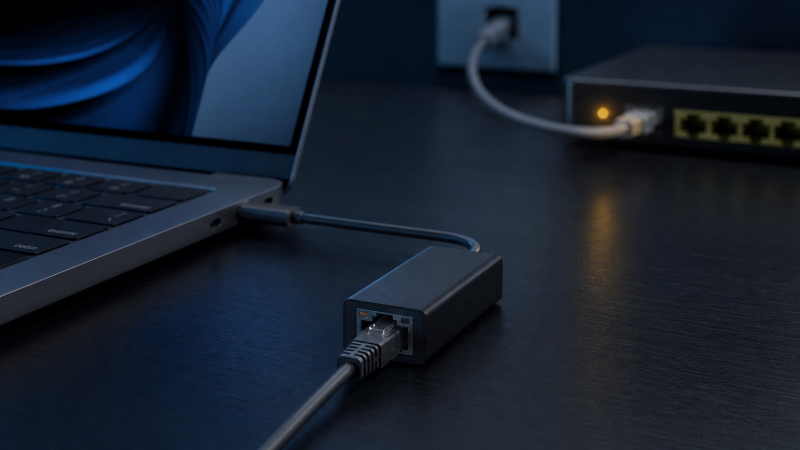
A USB-C Ethernet adapter that will not work almost always shows you one specific thing in Windows, and that detail is most of the diagnosis. The adapter is missing from the network list, or the connection reads Media disconnected, or you get an address that starts with 169.254, or you have a perfectly normal address and still no website loads. Each of those is a different problem with a different fix, so the quickest way in is to name the one you can actually see before you change anything.
| What Windows shows | What it points to | Read this section |
|---|---|---|
| No Ethernet adapter in the network list at all | Windows never saw the USB device | The adapter is missing from Windows |
The adapter is listed, but it reads Media disconnected or shows no link light |
The device is seen, the cable link is not forming | No link, and no Media light |
An address starting 169.254, or a normal address with no gateway |
Link is up, but nothing handed out a usable address | A link, but no address you can use |
| A normal address and gateway, yet names or sites fail | Addressing is fine, routing or DNS is not | The address works, names and sites do not |
If the Ethernet is built into a USB-C dock rather than a standalone adapter, the USB-C dock Ethernet guide is the right one, and if the whole Thunderbolt or USB4 device is missing from Windows, start with the Thunderbolt detection checklist.
First, keep the adapter plugged straight into the computer
Every reading below assumes the adapter is the only thing in the path. Remove a dock, hub, monitor passthrough, KVM, USB-C extension, and coupler, and plug the adapter directly into a USB-C or Thunderbolt port the maker names for it. Note which port you use. If it works directly and fails only through a dock or hub, the intermediate device is the problem, not the adapter. Use the adapter’s attached cable as designed; if the cable is removable, use the supplied one or a cable the maker documents for the required USB data path, because charging wattage does not establish data capability. The USB-C cable guide helps once you know the host requirement, and the cable speed test guide shows how to observe a data route without guessing from the connector. Try a second USB-C port only when the maker documents it for USB data, keeping the Ethernet cable and network port fixed. Some adapters include a removable USB-C-to-USB-A piece or a second host connector; treat that piece as its own link, test the native connection first, then add the documented converter, and do not add an unapproved converter to an adapter documented for one connector only. Throughout, never open with Network reset, a generic Realtek or ASIX package, a third-party driver updater, or removal of every network and USB controller, because Microsoft lists Network reset as a last step that removes installed adapters and resets settings, which can mean rebuilding VPN clients and virtual switches.
The adapter is missing from Windows
Open Settings > Network & internet > Advanced network settings and look for an Ethernet adapter that appears when you connect the device. Then open Device Manager, expand Network adapters, connect and disconnect the adapter while watching the list, and note the adapter name, the interface description, whether it appears consistently, any warning icon, the complete Device status text and code, and any Unknown USB Device that appears at the same moment. An adapter may appear under its controller maker rather than the brand on its case, so match the hardware through the maker’s product page rather than the name alone.
A blank here is a USB problem, not a network one. If Device Manager shows a code, use Microsoft’s resolution for that exact code, because Code 10, Code 28, Code 31, and Code 43 are not interchangeable labels for “bad driver.” If the adapter never appears on two documented computer ports, test it on a second compatible computer with the adapter and cable fixed; a repeatable absence gives the adapter maker a far better case than a driver-utility guess. Only once the adapter enumerates should you touch drivers: run Windows Update, then use the adapter maker’s own page, matching the model, revision, controller, Windows version, and architecture. Plugable, for example, maps its Realtek driver families to specific products and says supported Windows adapters should normally get drivers through Windows Update, and that mapping does not apply to an unnamed adapter. Never search for a Realtek or ASIX package until the maker proves the controller, and never remove every network adapter, USB controller, or hidden device, because that breaks Wi-Fi, VPNs, and virtual switches and erases the tree you need.
No link, and no Media light
When Windows sees the adapter but no connection forms, check the link indicators on the adapter and on the router or switch, using both manuals because LED colors and blinking vary. For no link, disconnect the current Ethernet cable, use one cable already known to form link on this network, connect to one known-good enabled LAN port, remove a wall coupler or intermediate switch where practical, and reseat the USB-C adapter without changing the new Ethernet path. Never connect the cable to the router’s WAN or Internet port when you mean to use a LAN port, a distinction Microsoft makes in its current Ethernet troubleshooting.
A failure here is physical, so the fix is not software. If link appears with the substitute cable or port, restore one removed item at a time. If link stays absent while Windows still sees the adapter, the remaining scope is the adapter jack, the link partner, the adapter state, and model documentation. Never run ipconfig /flushdns for a no-link state, because DNS cannot create a physical Ethernet negotiation.
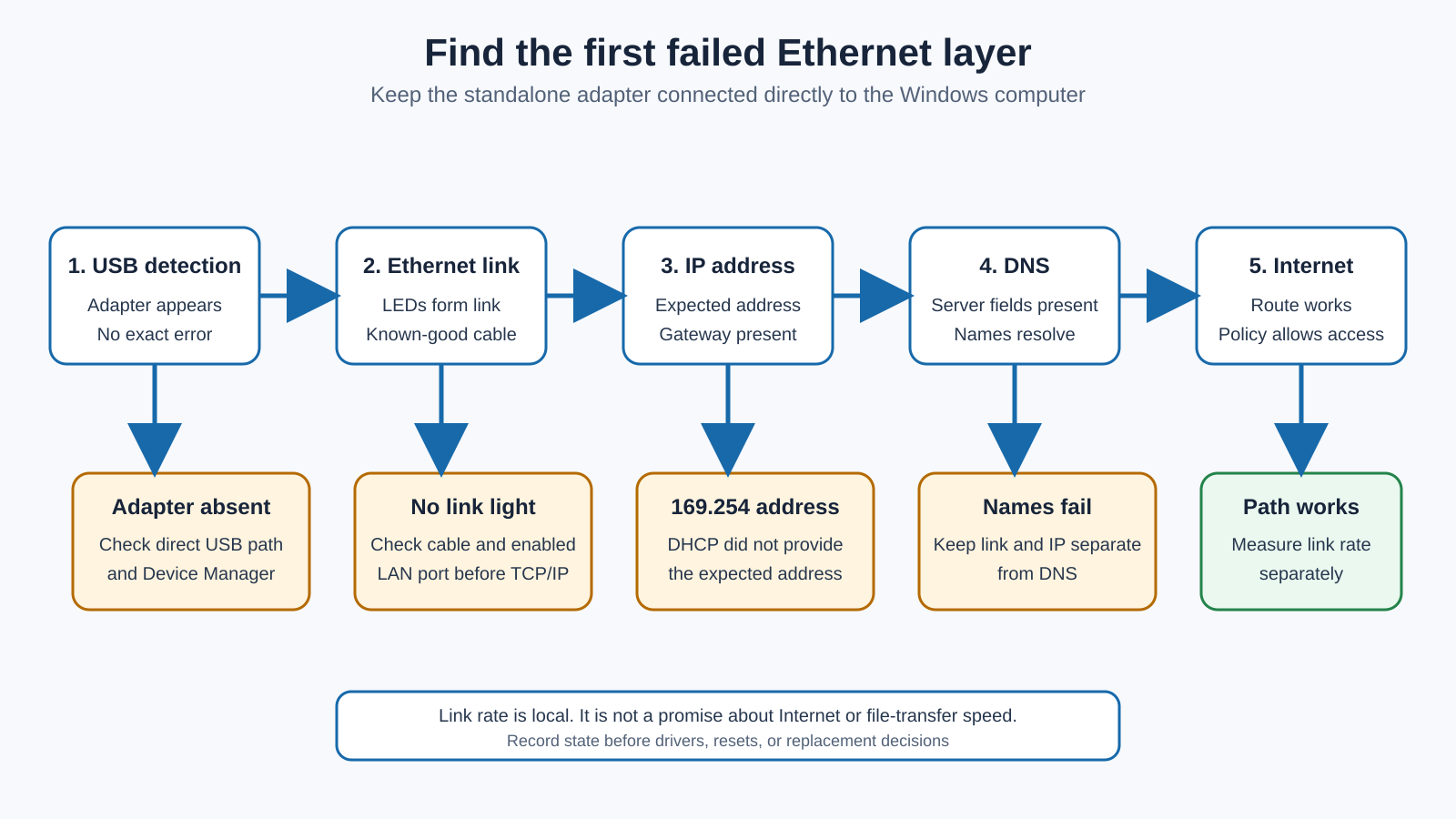
A link, but no address you can use
With link established, read the state without changing it. Open PowerShell or Windows Terminal:
Get-NetAdapter
Get-NetIPConfiguration
ipconfig /all
Get-NetAdapter lists visible adapters and their basic properties, and Get-NetAdapter -Physical limits the result to physical adapters; match the interface name to the USB-C adapter. Get-NetIPConfiguration shows usable interfaces, IP addresses, and DNS servers, and ipconfig /all adds DHCP, gateway, and other TCP/IP fields. Save the output or a screenshot before changing anything, and avoid posting it publicly without review, because it can contain local addresses, adapter identifiers, and DNS servers.
Read the common states: Disconnected or Media disconnected sends you back to the no-link section above; an IPv4 address beginning 169.254 means Windows assigned an automatic private address after it did not receive the expected DHCP address, which records a DHCP-failure state rather than naming the adapter as the cause; a normal private address with no default gateway means the interface may lack a route beyond the local segment; and an address, gateway, and DNS servers show configuration progressed but do not prove DNS, Internet, or application performance. If link exists but there is no normal address, the network around the adapter is what to check: a managed Ethernet port may require authentication or a particular VLAN, a home router may have a DHCP or upstream problem, and a static network may need settings Windows cannot invent. Do not run release and renew commands until you know the interface is meant to use DHCP, because both request an address change and neither installs an adapter or creates a link.
The address works, names and sites do not
When the adapter has a normal address and gateway, what is left is routing and name resolution. Compare, in order, whether the computer can reach the local gateway, reach a known endpoint by address, resolve a known hostname through the configured DNS servers, and whether a VPN, proxy, captive portal, or managed security policy changes the route. Then check whether another computer on the same cable and port reaches the same destination.
Read the results in the same order. If the gateway does not answer, the fault sits between the computer and the local router, so recheck the address and the local segment before anything upstream. If the gateway answers but a known address on the wider Internet does not, the local network is fine and the problem is routing or the ISP. If addresses work but a hostname does not resolve, the DNS servers or a higher policy are at fault. A captive portal on a guest or hotel network can also hold traffic until you sign in through a browser, which looks like a broken adapter but is a network gate.
That comparison points to the cause. A DNS failure is a DNS or network-configuration problem, and an ISP outage does not become an adapter fault just because the adapter is external. A missing name lookup with a working address points at DNS or higher network policy, not the USB-C hardware.
The link is slower than you expected
A negotiated rate below the label is a capability question, not a “not working” state. Get-NetAdapter shows the local link rate, which the adapter and its immediate link partner negotiate as a shared mode that both endpoints and the cable path must carry. That shown rate is not your Internet-plan speed, a guaranteed file-transfer rate, the router’s WAN capacity, a promise about a VPN or remote server, proof of the USB host mode, or a storage benchmark. Plugable’s USBC-E2500 page shows the right kind of limitation: it documents the controller and host connections, calls for compatible 2.5GbE equipment, and says actual speed depends on the ISP, network, cable, and host, all of which belong to that model, so read your adapter’s own page before interpreting its shown rate. If the adapter forms link and the Internet works but the rate is low, compare the adapter, switch port, cable path, and computer USB mode one at a time rather than replacing hardware. When the need is a genuinely faster adapter, compare current Thunderbolt and USB4 Ethernet adapters by host and network requirements. When you want that Ethernet alongside displays and peripherals in one device, USB-C hubs and docks with 2.5GbE are the combined category. Choosing between an integrated dock and a hub for that job is what the dock versus hub guide covers. Replace the adapter only when the fault follows it across supported ports or a second computer with a known-good cable and network port.
The adapter keeps dropping
An adapter that drops in use gives you the failure live, so watch the moment it happens. Keep the computer port, adapter, Ethernet cable, and switch port fixed, and note what Windows shows right then: whether the Ethernet LEDs go dark, whether Get-NetAdapter changes state, whether the adapter vanishes from Device Manager, whether the address or gateway changes, whether the drop follows sleep or resume, and whether nudging the USB-C plug brings it back. An adapter that disappears from Windows dropped at the USB level, so the host route and the adapter are where it went. One that stays listed but loses link dropped at the cable, the jack, or the link partner. One that keeps its link and address while names stop resolving dropped at DNS or a higher network policy, nowhere near the hardware. The LEDs, the Get-NetAdapter state, the Device Manager entry, and the address, all read at the instant the connection fails, place the drop at the USB level, the link, or the name resolution, and none of it points to the network and USB power settings Microsoft and the maker never tied to this symptom.
Frequently asked questions
Why does Wi-Fi work while the USB-C Ethernet adapter does not?
Wi-Fi and Ethernet are separate adapters with separate physical paths and network settings. Working Wi-Fi proves that one route can reach the network. It does not prove USB enumeration, Ethernet link, DHCP, or DNS on the wired adapter.
What does a 169.254 address mean?
Windows assigned an automatic private address because it did not receive the expected DHCP address. Check physical link, DHCP, network authentication, VLAN requirements, router state, and comparison devices. The address does not name the failed component.
Should I uninstall the adapter?
Not as the first step. Record the exact Device status and code, use Windows Update, and follow the exact adapter maker’s support. Do not remove every network or USB controller.
Does a link light prove the Internet should work?
No. A link light shows physical negotiation between the adapter and link partner. IP addressing, gateway routing, DNS, VPN or proxy policy, ISP service, and the destination remain separate.
Why does a 2.5GbE adapter show a 1Gbps link?
The adapter and link partner negotiate a shared rate. A 1GbE switch port, cable path, USB host mode, manual network setting, or endpoint limit can hold the link lower. Use the exact adapter and switch documentation.
Can I use any Realtek driver?
No. Different adapters use different controllers and validated packages. Start with Windows Update and the exact adapter support page. Use a controller maker’s package only when the product maker identifies the controller and route.
Sources
The Media disconnected and 169.254 link states are named in Microsoft’s Ethernet troubleshooting, while Get-NetAdapter, Get-NetIPConfiguration, and ipconfig are what read the interface, IP, gateway, and DNS. The connector is Microsoft’s USB-C troubleshooting, and a warning device its Device Manager error-code guidance. Plugable’s USBC-E2500 and driver pages supply exact-model examples only, and every rate, cable requirement, and controller mapping there belongs to that model rather than to every adapter.