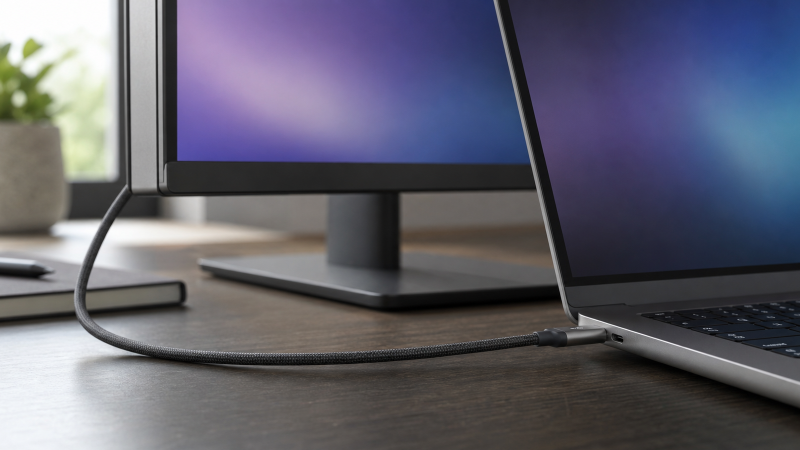
A USB-C port can charge a laptop, move files, connect a dock, or drive a monitor, and a given port might do only some of those. The receptacle looks the same in every case. That is why the port’s shape alone cannot tell you whether it supports DisplayPort Alt Mode.
The reliable answer comes from a chain of evidence: the specification for your exact computer model, the port map for the exact receptacle, a cable that carries video, and a direct test with a known-good display. A battery icon, a lightning-like symbol, or a Windows setting can help only when its meaning is defined for your device.
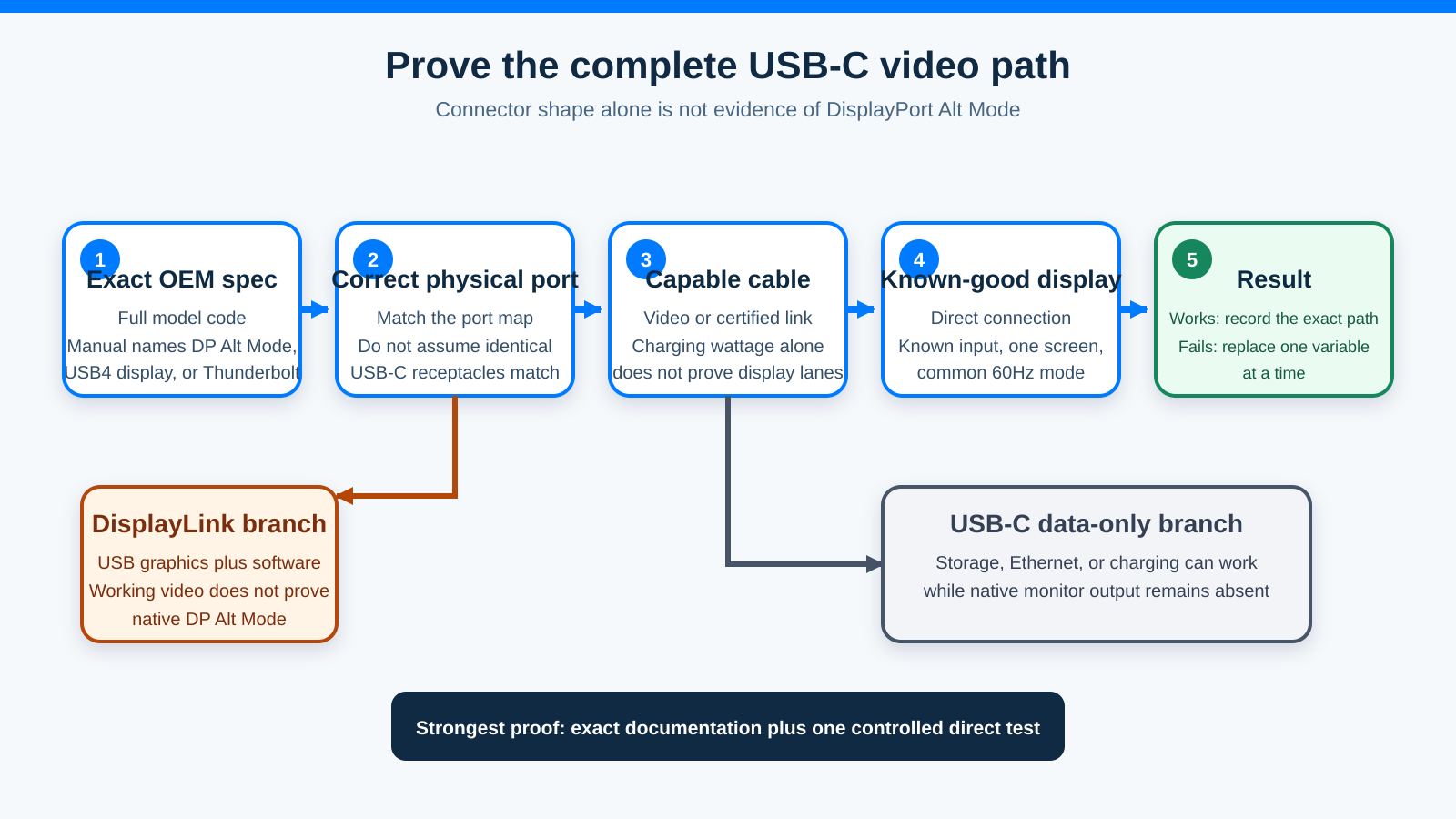
The short answer
Start with the support page or manual for the full model number printed on the computer. Look for one of these phrases beside the USB-C port:
- DisplayPort over USB-C
- DisplayPort Alt Mode
- DP Alt Mode
- USB-C with DisplayPort
- Thunderbolt 3, 4, or 5
- USB4 with explicit display support
Then match that entry to the maker’s port diagram. A laptop can have two identical-looking USB-C ports with different capabilities. If the manual confirms video on that specific port, use a USB-C cable whose maker explicitly documents video support and connect directly to a known-good monitor.
If the manual says only USB data or charging, do not assume video. If the manual is silent, treat support as unproven until the maker confirms it or a controlled direct test succeeds.
First, identify which display technology you are checking
Several display paths use the same connector, but one is never proof of another.
DisplayPort Alt Mode is native display output
VESA says DisplayPort over USB-C uses an Alternate Mode extension of the USB Type-C interface. In a compatible system, the port assigns high-speed lanes to a native DisplayPort signal. The monitor or a passive USB-C-to-DisplayPort adapter receives that signal without a USB graphics chip.
This is the path most people mean when they ask whether a USB-C port supports video. It is also the path used by many USB-C monitors that combine display input, laptop charging, and a USB hub.
Thunderbolt and USB4 are broader host paths
Thunderbolt also uses the USB-C connector. Intel states that Thunderbolt 4 carries data, video, and power, and that its certified connectors are marked with the Thunderbolt symbol and the number 4. A documented Thunderbolt port is therefore strong display evidence for the functions required by that Thunderbolt generation.
USB4 can transport display traffic too, but the exact host implementation still matters. Do not turn the word USB4 into a promise about an unnamed port, display count, or resolution. Check the computer’s own specification. If you need a dock after confirming the host, compare the ports and display limits in the existing USB4 hubs and docks guide or use a certified Thunderbolt monitor when that is the documented path.
DisplayLink is USB graphics
DisplayLink is different. Synaptics describes DisplayLink products as USB graphics solutions. A DisplayLink dock or adapter sends display data through ordinary USB and relies on a DisplayLink chip plus host software.
That makes DisplayLink useful when a computer lacks a native display lane or needs another supported display path. It does not make the host port support DisplayPort Alt Mode. If a DisplayLink dock works while a passive USB-C-to-DisplayPort adapter does not, the two results are consistent. The DisplayLink docking-station guide covers that alternative.
USB data only is still a valid USB-C port
A USB-C port may carry USB data and power without native display output. A mouse, SSD, Ethernet adapter, or USB hub working through that port proves a data connection. It does not prove that the port can send a DisplayPort signal.
This distinction matters because many failed display checks begin with good USB data. The hub lights up, the laptop charges, and a keyboard works, yet the monitor stays blank. Those observations prove only the functions that worked.
The five-step evidence ladder
Use these steps in order. Each one removes a different source of ambiguity.
1. Find the exact OEM specification or manual
Get the complete model number, not just the product family. A name such as “IdeaPad 5,” “Inspiron 14,” or “Galaxy Tab” can cover several generations and regional configurations. The full code may be on the bottom label, in the firmware information page, or in the operating system’s device information.
Open the maker’s support page for that exact code. Check the technical specification, user guide, setup guide, and port description. Search the document for DisplayPort, DP Alt Mode, USB-C, Thunderbolt, and USB4.
Strong wording names both the port and its display function. Examples include “USB-C 3.2 Gen 2 with DisplayPort 1.4” or “Thunderbolt 4 with DisplayPort.” A line that says only “USB-C 10Gbps” proves a data rate, not display output. A line that says “USB-C Power Delivery” proves a power function, not video.
If the manufacturer offers a machine-readable specification and a PDF manual, compare them. Keep the narrower statement if they disagree. Contact the manufacturer with the serial number when a configurable model has several port options.
2. Match the specification to the correct physical port
Next, use the manual’s port map. Do not assume identical-looking receptacles are interchangeable.
One USB-C port may be connected to the discrete or integrated graphics path while another handles only charging and USB data. A dock can have one host-facing USB-C port, several data-only downstream ports, and one display-capable downstream Thunderbolt port.
Orient the computer the same way as the drawing. Match nearby ports, ventilation slots, and side labels. If the manual numbers the receptacles, use that number in your notes. This avoids a common false negative: testing a capable computer through the wrong USB-C port.
3. Use markings only inside their documented scope
A port symbol can shorten the search, but it is not a universal language.
Intel says Thunderbolt 4 connectors carry the Thunderbolt symbol and the number 4. That is useful when the system is documented as Thunderbolt 4. Other lightning-like symbols may indicate charging, a high-power port, or a maker-specific function. A battery icon usually points toward charging, but charging support does not establish a native video lane.
The safe rule is simple: find the symbol in the exact device manual’s legend. If the maker defines it as DisplayPort or Thunderbolt for that model, it supports the paper trail. If the manual does not define it, the symbol stays ambiguous.
DisplayPort’s DP mark beside USB-C can be good evidence when the OEM uses it correctly, but it still does not tell you the maximum resolution, refresh rate, lane count, or number of displays. Those limits remain model-specific.
4. Treat Windows evidence as a clue
Windows can help after a connection attempt. Microsoft documents messages such as Display connection might be limited and tells users to check the PC, external display, cable, correct USB-C port, and required Alternate Mode.
That message is useful because it points to a capability mismatch in the path. It does not, on its own, identify which component failed. The host might lack Alt Mode, the adapter might request a mode the port does not support, or the cable might not carry the required lanes.
The absence of a warning is not proof. Device Manager listing a USB controller is not proof either. A USB controller can support data on a port that has no display output. Windows display settings can detect a monitor only after the hardware path is working, so they report a result rather than a pre-connection capability check.
Open Settings > System > Display. If Windows does not list the monitor, choose Detect. If the monitor is listed but blank, confirm it is enabled for Duplicate or Extend and check the monitor’s selected input. Also review the graphics driver from the computer maker. Keep these as troubleshooting steps after the OEM capability check.
5. Run one controlled known-good test
Testing belongs last because a failed connection has several possible causes. Make the path as simple as possible:
- Shut down any dock, KVM, hub, extension cable, or adapter chain that is not required.
- Use the exact display-capable computer port identified in the manual.
- Use a cable whose maker explicitly documents USB-C video, DisplayPort Alt Mode, USB4, or the required Thunderbolt generation.
- Connect directly to a monitor input known to work from another native video source.
- Select that input on the monitor.
- Power the monitor normally. Do not depend on uncertain bus power for the first check.
- Start with one external display at a common mode such as 1920 x 1080 at 60Hz.
- On Windows, open Display settings and choose Detect if needed.
A successful direct connection confirms that this tested host port, cable, and monitor path can carry video in that configuration. It does not prove every USB-C port on the computer or every cable in the drawer.
A failed test does not erase a clear OEM specification. Replace one variable at a time: known-good cable, known-good monitor input, then another documented display-capable port. This is why a properly labeled cable matters. The USB-C cable guide can help separate video and data capability from charging wattage.
Symptom-to-next-step table
| Symptom | What it proves | Best next step |
|---|---|---|
| The laptop charges, but the monitor is blank | Power Delivery works somewhere in the path | Check the exact port specification and replace the cable with one documented for video |
| USB devices work through the monitor, but video does not | USB data works | Confirm DisplayPort Alt Mode or Thunderbolt on the host-facing port |
| A DisplayLink dock works, but a passive video adapter does not | USB graphics works | Do not count it as Alt Mode proof; check the OEM manual |
| Windows says the display connection might be limited | Windows detected a capability problem | Check host, correct port, cable, adapter, and monitor input in that order |
| One USB-C port works and another does not | The ports may have different functions | Match each receptacle to the OEM port map |
| The display appears at a lower resolution or refresh rate | A video path exists, but bandwidth or configuration may be limited | Test one display directly, reduce USB load, and check maker-stated limits |
| The monitor is not detected through a dock | The dock path is still unproven | Bypass the dock and test the host port directly |
| The monitor mirrors when two screens should extend | The host or chain may not support the requested topology | Check operating-system and GPU display-count rules |
Cable capability is a separate question
USB-C cables are not all wired or certified for the same functions. A charging cable may carry USB 2.0 data and power but not the high-speed lanes required by the intended display path. A cable that drives one modest display may not meet the bandwidth or certification requirement for a demanding Thunderbolt chain.
Use the cable supplied with the monitor when the manual specifically assigns it to the host connection. Otherwise, choose a cable whose specification names the required video or Thunderbolt function. Do not select by connector shape or charging wattage alone.
Cable length can also matter at high link rates. Follow the cable and device maker’s limit rather than assuming that a longer passive cable preserves the same mode. For a first test, remove extensions and couplers.
Model and configuration ambiguity
Retail listings often shorten model names. Operating-system tools can report a family name rather than the exact regional code. Configurable business laptops may ship with different displays, processors, or port controllers under one marketing page.
When the evidence conflicts, use this order:
- Serial-number-specific support page
- Exact machine type or regional model manual
- Exact model technical specification
- Family page that explicitly lists the matching configuration
- A controlled direct test
Do not transfer a capability from a review of a similar suffix. One letter can mark a different generation or port layout.
The same rule applies to docks and monitors. A monitor with a USB-C input does not automatically have a downstream display output. If you want the display to replace a dock, verify its exact port map and then compare monitors with built-in docking stations with a separate dock in the dock-versus-monitor-dock guide.
Phones and tablets need the same exact-model check
USB-C on a phone or tablet can mean charging, data, USB host access, native display output, or a maker-specific desktop mode. These features vary between generations and sometimes between base and premium models.
Look for the exact device’s technical specification and user guide. Search for external display, DisplayPort, video output, screen mirroring, and desktop mode. Do not infer support from another device in the same series.
Also separate output mode from connection mode. A phone may mirror its screen but not offer an independent desktop. An app may send video wirelessly without proving wired Alt Mode. A DisplayLink accessory may create USB graphics without changing the phone’s native port capability.
If the maker documents wired video, follow its cable, adapter, power, and resolution requirements. If it documents only data and charging, a passive USB-C-to-HDMI cable is not a fix.
What to do after you confirm the port
Once the host path is proven, choose the next device around that path rather than around the connector shape.
For one display and laptop charging, start with a monitor whose exact specification names the needed USB-C input and Power Delivery. For a certified Thunderbolt host, a Thunderbolt display can provide a wider downstream path. For several ordinary displays on Windows, verify the GPU display count and MST topology before shopping. If you would rather centralize Ethernet, storage, and display outputs in a dock, check the exact host limits before using the dual-monitor docking-station guide.
If native output is absent, DisplayLink may be the right separate technology. Keep its driver and workload tradeoffs separate from native Alt Mode.
FAQ
Does every USB-C 3.2 port support DisplayPort Alt Mode?
No. A USB data generation and DisplayPort Alt Mode are separate capabilities. The exact OEM specification must name display support.
Does a charging symbol mean the port supports a monitor?
No. It can identify a charging function. Use the manual’s legend to learn what that symbol means on the exact device.
Does Thunderbolt 4 guarantee display output?
Intel defines Thunderbolt 4 as a certified path that includes video support and uses a marked USB-C connector. Confirm that the exact port is documented as Thunderbolt 4 and follow the host’s display-count and resolution limits.
Can software enable DisplayPort Alt Mode on a data-only port?
No. Software cannot add missing native display hardware to a data-only port. Alt Mode requires the necessary host hardware, firmware, port routing, and cable path. A DisplayLink adapter can add USB graphics, but that is a different technology.
Can I check Alt Mode in Device Manager?
Device Manager may show USB, graphics, or Thunderbolt controllers, but it is not a universal port-capability map. Use the exact OEM document first.
Why does my dock charge the laptop but not show video?
Charging proves the power path. Check whether the host port supports the dock’s display technology, whether the dock is connected through its host port, and whether the cable carries the required video or Thunderbolt mode.
Why does USB-C video work only at a lower refresh rate?
The host, lane allocation, cable, adapter, dock, and monitor share the path’s limits. Test one monitor directly and compare the result with every maker’s documented mode.
Is a successful monitor connection final proof?
It proves that the tested combination works in that configuration. Record the host model, physical port, cable, adapter if any, monitor input, resolution, and refresh rate so the result remains useful.
Sources and methodology
This guide uses USB-IF for the USB Type-C connector scope, VESA for DisplayPort Alt Mode, Intel for Thunderbolt 4 behavior and marking, Microsoft for Windows USB-C diagnostics, Synaptics for the DisplayLink distinction, and an exact monitor manual as an example of host-plus-cable requirements. No connector icon or family-level product claim was treated as standalone proof.
The method intentionally puts documentation before testing. A direct test then checks the complete path without pretending that one failed component answers a different capability question.