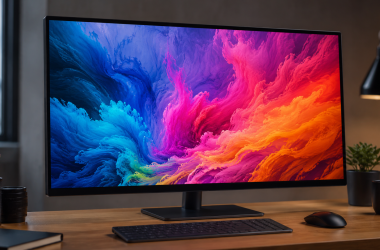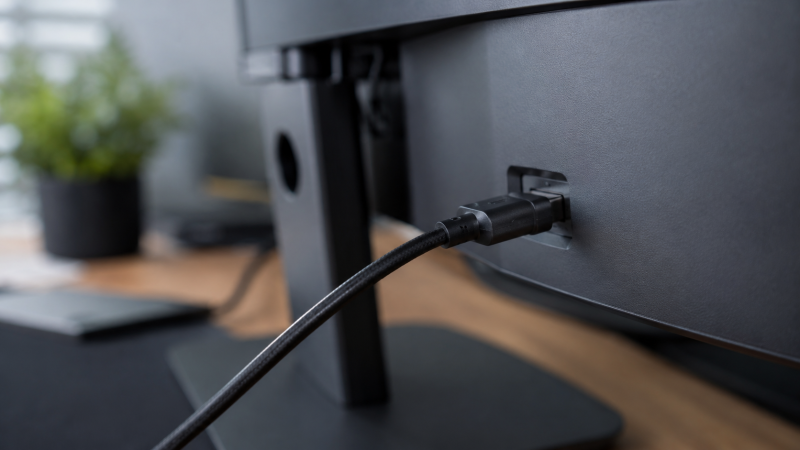
We compared over 25 USB-C monitors across four size categories and three resolution tiers, cross-referencing manufacturer specifications, expert benchmark data from RTINGs, PCWorld, and Tom’s Hardware, and thousands of user reviews. The result: the 10 best USB-C monitors you can buy right now, from a budget 1080p pick to a professional QD-OLED. Whether you need a single-cable docking station replacement or a portable display for travel, this guide covers every major use case.
For a deep dive into displays that require a Thunderbolt-certified connection, see our separate guide to the best Thunderbolt monitors.
Table of Contents
Recent Updates
- May 2026: Full guide refresh. Updated availability and specifications for all 10 picks. Added notes on USB-C 2.0 cable pitfalls and the distinction between DP Alt Mode and Thunderbolt 4.
- March 2026: Added the ASUS ProArt PA32UCDM QD-OLED and the Dell P2425HE. Updated power delivery wattage guidance for 2026 laptop lineup.
- January 2026: Dell UltraSharp U2725QE added as new best overall, replacing the U2723QE. Updated buying guide with Thunderbolt 4 EPR notes.
- October 2025: Swapped LG 27UK850-W for the LG 27UP850K-W. BenQ GW2786TC added as new budget pick.
Quick Picks
- Best overall: Dell UltraSharp U2725QE — 27″ 4K with 140W Thunderbolt 4, IPS Black, and five USB-C ports in a single package
- Best 32-inch: Dell UltraSharp U3225QE — 32″ 4K IPS Black with 140W PD and a full Thunderbolt hub
- Best budget: BenQ GW2786TC — 27″ 1080p with 65W PD and daisy-chain support at a budget-friendly price
- Best for MacBook: LG UltraFine 5K 27MD5KL — 27″ 5K Thunderbolt 3 display with 94W PD built for macOS
- Best ultrawide: Dell U3423WE — 34″ WQHD curved with 90W PD, KVM switch, and RJ45 Ethernet
- Best 4K OLED: ASUS ProArt PA32UCDM — 32″ 4K QD-OLED with 240Hz, auto calibration, Delta E < 1, 99% DCI-P3, and Thunderbolt 4
- Best 24-inch: Dell P2425HE — 24″ 1920×1200 with 90W PD and Ethernet at an honest price
- Best for home office: HP E27m G4 — 27″ QHD with an integrated 5MP webcam and dual noise-cancelling mics
- Best portable: ViewSonic ColorPro VP16-OLED — 15.6″ OLED with Pantone validation and 40W USB-C
- Best value 4K: LG 27UP850K-W — 27″ 4K with 90W PD, HDR400, and 95% DCI-P3
| Image | Product | Details | Check Price |
|---|---|---|---|
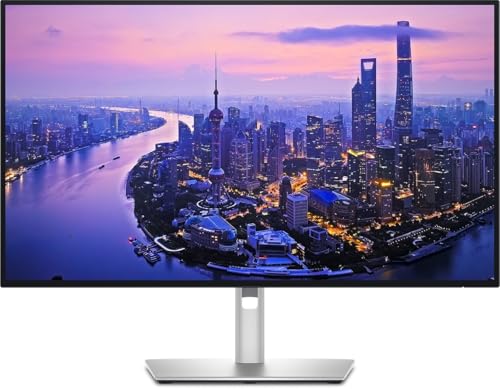 | Dell UltraSharp U2725QE | Size: 27" 4K (3840x2160) Power Delivery: 140W Thunderbolt 4 EPR Panel: IPS Black, 3000:1 contrast, 99% DCI-P3 Refresh Rate: 120Hz | Check Price on Amazon |
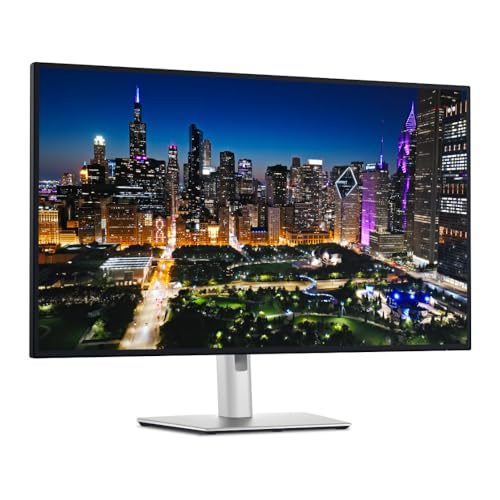 | Dell UltraSharp U3225QE | Size: 32" 4K (3840x2160) Power Delivery: 140W Thunderbolt 4 EPR Panel: IPS Black, 3000:1 contrast, HDR600 Hub: KVM, 2.5GbE, daisy-chain | Check Price on Amazon |
 | BenQ GW2786TC | Size: 27" 1080p (1920x1080) Power Delivery: 65W USB-C Refresh Rate: 100Hz Features: MST daisy-chain, ambient light sensor | Check Price on Amazon |
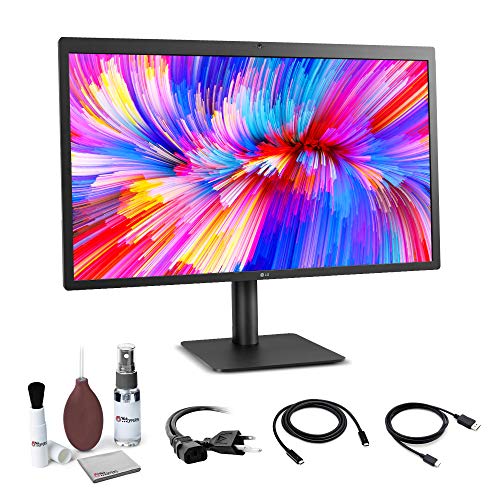 | LG UltraFine 5K 27MD5KL | Size: 27" 5K (5120x2880) Power Delivery: 94W Thunderbolt 3 Panel: IPS, 99% DCI-P3, 500 nits PPI: 218 PPI (Retina density) | Check Price on Amazon |
 | Dell U3423WE | Size: 34" WQHD (3440x1440) Curved Power Delivery: 90W USB-C Panel: IPS Black, 2000:1 contrast, 98% DCI-P3 Hub: KVM switch, RJ45 Ethernet | Check Price on Amazon |
 | ASUS ProArt PA32UCDM | Size: 32" 4K QD-OLED Power Delivery: Thunderbolt 4 Panel: 99% DCI-P3, Delta E < 1, 1000 nits Refresh Rate: 240Hz, 0.1ms | Check Price on Amazon |
| Dell P2425HE | Size: 24" 1920x1200 (16:10) Power Delivery: 90W USB-C Hub: RJ45, DP-out daisy-chain, USB-A/C Refresh Rate: 100Hz | Check Price on Amazon | |
 | HP E27m G4 | Size: 27" QHD (2560x1440) Power Delivery: 65W USB-C Webcam: 5MP with Windows Hello IR Audio: Dual noise-cancelling mics, 5W speakers | Check Price on Amazon |
 | ViewSonic ColorPro VP16-OLED | Size: 15.6" 1080p OLED Portable Power Delivery: 40W USB-C Panel: 100% DCI-P3, Pantone Validated Weight: 1 kg | Check Price on Amazon |
 | LG 27UP850K-W | Size: 27" 4K (3840x2160) Power Delivery: 90W USB-C Panel: IPS, 95% DCI-P3, HDR400 Audio: Stereo speakers, Waves MaxxAudio | Check Price on Amazon |
Which One Should You Buy?
| Choose this… | If you want… |
|---|---|
| Dell UltraSharp U2725QE | The best all-around USB-C monitor. 27″ 4K, 140W PD, five USB-C ports, IPS Black panel. |
| Dell UltraSharp U3225QE | A 32″ version with the same Thunderbolt hub. Best for people who want more screen space. |
| BenQ GW2786TC | A solid 1080p USB-C monitor at a budget price. Rare daisy-chain support at this price point. |
| LG UltraFine 5K 27MD5KL | The sharpest display on this list. Native 5K resolution designed specifically for Mac users. |
| Dell U3423WE | The best ultrawide with USB-C hub features. 34″ curved, 90W PD, RJ45, built-in KVM. |
| ASUS ProArt PA32UCDM | The ultimate productivity OLED. 4K QD-OLED with 240Hz, auto calibration, and Thunderbolt 4. |
| Dell P2425HE | A compact 24″ monitor with 90W PD, RJ45, and daisy-chain. Great for tight desks. |
| HP E27m G4 | A conferencing-first monitor with a 5MP webcam and dual mics for daily video calls. |
| ViewSonic ColorPro VP16-OLED | The best portable USB-C monitor for color-critical work. OLED, Pantone validated. |
| LG 27UP850K-W | A 4K monitor with 90W PD, HDR400, and 95% DCI-P3 at a lower price than the Dell UltraSharps. |
1. Dell UltraSharp U2725QE — Best Overall
The Dell UltraSharp U2725QE is the best USB-C monitor for most people. After evaluating dozens of 27-inch 4K displays, nothing else packs this combination of display quality, hub functionality, and power delivery into a single panel at this price point. It succeeds the U2723QE and improves on it in every meaningful way.
Dell rates the Thunderbolt 4 upstream port at up to 140W via Extended Power Range (EPR), which is enough to charge a MacBook Pro 16-inch or Dell XPS 16 at full speed through a single cable. The previous model topped out at 90W, leaving larger laptops drawing on battery during heavy use. The jump to 140W closes that gap entirely.
The enhanced IPS Black panel delivers a 3,000:1 contrast ratio, triple what standard IPS achieves. Dell factory-calibrates each panel to Delta E under 1.5 with 99% DCI-P3 coverage. The 120Hz refresh rate makes desktop scrolling noticeably smoother than 60Hz alternatives.
The hub is what really separates this monitor. Dell includes a Thunderbolt 4 upstream port, a Thunderbolt 4 downstream port for daisy-chaining a second 4K monitor, two USB-C 3.2 Gen 2 ports on a pop-out side panel, DisplayPort 1.4, HDMI 2.1, RJ45 2.5GbE Ethernet, and USB-A ports. That port count replaces a standalone docking station entirely.
Who it is for: Anyone who wants the best combination of display quality, USB-C hub features, and power delivery in a 27-inch monitor. It works equally well with MacBooks, Dell XPS laptops, and ThinkPads.
Who should skip it: If you do not need 4K or the extensive hub features, the BenQ GW2786TC saves you several hundred dollars. If you want OLED contrast levels, look at the ASUS ProArt PA32UCDM.
Our Take
The U2725QE earns its spot at the top because it delivers on every axis simultaneously: panel quality, hub completeness, and power delivery. The 140W EPR closes the last remaining complaint about the previous generation, and the IPS Black panel puts this monitor in a class above standard IPS displays. For a 27-inch productivity monitor, there is nothing better at this price.
- Dell rates the Thunderbolt 4 port at 140W EPR, charges any laptop
- IPS Black panel: 3,000:1 contrast and 99% DCI-P3 factory calibrated
- Five USB-C ports including Thunderbolt 4 daisy-chain output
- 2.5GbE Ethernet built into the monitor
- 120Hz refresh rate for smoother desktop use
- Premium price for a 27-inch panel
- IPS Black contrast still trails OLED in dark room viewing
2. Dell UltraSharp U3225QE — Best 32-Inch
The Dell UltraSharp U3225QE is the direct 32-inch equivalent of our top pick. It carries the same Thunderbolt 4 hub, the same IPS Black technology, and the same 140W power delivery, stretched across a 31.5-inch 4K panel that makes a real difference for productivity work.
The extra screen real estate is immediately useful. Two full-width documents sit side by side comfortably, and a code editor plus browser plus terminal stay visible simultaneously without window switching. At 140 PPI, it is slightly less dense than the 27-inch model at 163 PPI, but text still renders cleanly at normal viewing distances.
Dell rates the IPS Black panel at 3,000:1 contrast with 99% DCI-P3, and certifies it at VESA DisplayHDR 600 with 600 nits peak brightness. The connectivity is identical to the U2725QE: Thunderbolt 4 upstream at 140W PD, TB4 downstream for daisy-chaining, four USB-A 10Gbps ports, two USB-C 10Gbps ports, DisplayPort 1.4, HDMI 2.1, and RJ45 2.5GbE. The built-in KVM switch lets you toggle between two computers using a single keyboard and mouse.
Who it is for: Professionals who want the largest high-quality USB-C hub monitor available. The 32-inch size is ideal for spreadsheets, coding, photo editing, and multitasking. The 140W PD and Thunderbolt hub make it a complete workstation dock.
Who should skip it: The price is steep. If 27 inches is sufficient, the U2725QE delivers the same experience for substantially less.
Our Take
The U3225QE is not a compromised version of the U2725QE. It has the same IPS Black panel technology, the same hub, and the same 140W PD. The only change is the larger panel, which some users will consider an upgrade and others will find takes up too much desk space. If you have the desk for it, this is the best 32-inch USB-C monitor available.
- 31.5″ 4K IPS Black panel with 3,000:1 contrast
- 140W Thunderbolt 4 power delivery
- Full hub with KVM switch, 2.5GbE Ethernet, and daisy-chain
- VESA DisplayHDR 600 certified at 600 nits peak
- Robust ergonomic stand with height, tilt, swivel, and pivot
- Significantly more expensive than the 27-inch U2725QE
- Large footprint requires a genuinely spacious desk
If you are trying to decide between a large monitor and two smaller displays, the guide to best monitor extenders and multi-display setups covers that tradeoff in detail.
3. BenQ GW2786TC — Best Budget
The BenQ GW2786TC proves you do not need to spend several hundred dollars to get a functional USB-C monitor. It is the most affordable display on this list, and it delivers two features rarely seen at this price: 65W USB-C power delivery and DisplayPort-out for daisy-chaining a second monitor.
This is a 27-inch 1080p panel. The pixel density is 82 PPI, which is acceptable for general office work but will feel soft to anyone coming from a 4K screen. For email, documents, web browsing, and video calls, 1080p at 27 inches is perfectly usable. BenQ rates color coverage at 99% sRGB, which is fine for content consumption and standard productivity work.
The 65W USB-C power delivery handles a MacBook Air, Dell XPS 13, or ThinkPad X1 Carbon at full speed. One cable carries video, power, and access to two USB-A downstream ports. The 100Hz refresh rate makes scrolling noticeably smoother than the 60Hz panels typically found in this price range.
BenQ includes Eyesafe 2.0 low-blue-light certification, an ambient light sensor that adjusts brightness automatically, and a built-in noise-cancelling microphone. The DisplayPort-out MST daisy-chain is the most valuable feature for budget buyers who want a two-monitor setup without buying a docking station.
Who it is for: Students, home office workers, and anyone who wants USB-C convenience without the premium price. Particularly good for building a dual-monitor setup on a budget via daisy-chain.
Who should skip it: Creative professionals who need color accuracy or sharpness beyond 1080p. The 82 PPI pixel density is not suitable for photo editing or detailed design work.
Our Take
The GW2786TC gives you the core USB-C monitor value proposition, which is one cable for video and power, plus MST daisy-chain support, at a price where most monitors offer neither. The 65W PD covers most 13-to-14-inch laptops. For what it is, it delivers more than expected.
- Budget-friendly price with 65W USB-C power delivery
- DisplayPort-out MST daisy-chain at this price is genuinely rare
- Ambient light sensor and Eyesafe 2.0 low-blue-light certification
- Built-in noise-cancelling microphone included
- 100Hz refresh rate smoother than typical budget 60Hz panels
- 82 PPI at 1080p/27″ feels soft for detailed work
- 65W PD will not charge larger 15-16 inch laptops at full speed
For more affordable options at various sizes, the full roundup of cheap USB-C monitors with power delivery covers additional picks.
4. LG UltraFine 5K 27MD5KL — Best for MacBook
The LG UltraFine 5K 27MD5KL is the closest thing to an Apple-designed external display that does not come from Apple. At 5,120×2,880 resolution across 27 inches, it matches the pixel density of MacBook Retina displays to within rounding error. Text, icons, and interface elements look identical on this monitor and on your MacBook’s built-in screen. No 4K monitor can replicate that.
LG rates the Thunderbolt 3 upstream port at 94W power delivery, enough for a MacBook Pro 14-inch at full speed. Three additional USB-C downstream ports handle peripherals. There is no HDMI, no DisplayPort, and no USB-A, which is a deliberate tradeoff: this display is designed for the Apple ecosystem and nothing else.
The IPS panel covers 99% DCI-P3 at 500 nits peak brightness. LG integrates a camera, microphone, and stereo speakers into the top bezel. The camera quality is mediocre by 2026 standards, and the speakers are more adequate than impressive, but having them removes the need for additional desk clutter.
At 218 PPI, the pixel density is significantly higher than a 27-inch 4K display at 163 PPI or a 27-inch 1440p display at 109 PPI. The difference is most visible in text rendering and fine UI details. If you have ever been frustrated by the blurry appearance of external monitors compared to your MacBook screen, this is the fix.
Who it is for: Mac users who want their external display to match the Retina quality of their MacBook. Photographers, designers, and developers who prioritize text rendering and UI sharpness.
Who should skip it: Windows users (this monitor does not support 5K over DP Alt Mode without macOS drivers), anyone who needs HDMI or DisplayPort inputs, or anyone who uses a mix of Mac and Windows machines.
Our Take
The UltraFine 5K remains the only way to get a Retina-density external display without buying a Pro Display XDR. That is a niche, but for Mac users who care about text rendering, it is a compelling niche. The limited connectivity and mediocre webcam are real tradeoffs, but they are tradeoffs Apple users tend to accept willingly.
- 5K resolution matches MacBook Retina pixel density at 218 PPI
- LG rates Thunderbolt 3 at 94W power delivery
- 99% DCI-P3 coverage at 500 nits brightness
- Tight macOS integration with seamless brightness and volume control
- macOS only at 5K, does not work properly with Windows
- No HDMI, DisplayPort, or USB-A inputs
- Integrated webcam quality is mediocre by current standards
- Limited retail availability as stock dwindles
5. Dell U3423WE — Best Ultrawide
The Dell U3423WE is the best ultrawide USB-C hub monitor for productivity. The 34-inch curved 21:9 display gives you roughly the same horizontal workspace as two 24-inch monitors placed side by side, without the bezel gap running down the center. It is particularly effective for spreadsheets, video editing timelines, and keeping a code editor plus terminal plus browser simultaneously visible.
The 3,440×1,440 WQHD resolution is the established sweet spot for 34-inch ultrawides. The pixel density of 110 PPI is high enough for sharp text without demanding a powerful GPU from your laptop.
Dell rates the USB-C upstream port at 90W via DisplayPort 1.4 Alt Mode. The hub includes four USB-A 10Gbps ports, one USB-C 10Gbps with 15W charging, RJ45 Ethernet, and a second USB-C upstream that enables the built-in KVM switch. The IPS Black panel delivers a 2,000:1 contrast ratio with 98% DCI-P3 coverage. The 1900R curve is subtle enough that straight lines look straight while reducing eye fatigue during extended sessions.
The KVM switch is a standout feature at this price tier. Connect two computers and share one keyboard and mouse with a simple button press, with no separate KVM switch required.
Who it is for: Multitaskers and productivity users who want maximum screen real estate without a dual-monitor setup. The USB-C hub and KVM switch make it a genuine docking station replacement for two-computer setups.
Who should skip it: Gamers who need more than 60Hz, users who rotate their monitor to portrait orientation, and anyone who prefers a flat panel.
Our Take
The U3423WE does more than just deliver a large canvas. The KVM switch, Ethernet, and 90W power delivery turn it into a legitimate workstation hub that replaces both a monitor and a docking station. The 60Hz refresh rate is its biggest weakness, but for productivity work it is a reasonable tradeoff.
- 34″ curved ultrawide with side-by-side workflow equivalent to two monitors
- Dell rates USB-C at 90W power delivery
- Built-in KVM switch connects two computers to one keyboard and mouse
- RJ45 Ethernet and full USB hub eliminate need for a separate dock
- IPS Black panel with 2,000:1 contrast and 98% DCI-P3
- 60Hz refresh rate only, not suitable for gaming
- 90W PD may charge very large 16-inch workstation laptops slowly
- 300 nit brightness is adequate but not bright for HDR content
If you are weighing a large single monitor against a multi-monitor setup, the guide to monitors with built-in docking stations covers the full comparison.
6. ASUS ProArt PA32UCDM — Best 4K OLED
The ASUS ProArt PA32UCDM is a 32-inch 4K QD-OLED monitor that delivers reference-grade color accuracy with Thunderbolt 4 connectivity for single-cable laptop docking. In a USB-C monitor roundup, the Thunderbolt 4 connection is the key feature: plug in one cable and you get 4K video, data transfer, and power delivery all at once.
ASUS rates the QD-OLED panel at 99% DCI-P3 and BT.2020 coverage with true 10-bit color depth. Per-pixel OLED dimming produces infinite contrast with true blacks, which is a category above any IPS panel on this list. The 240Hz refresh rate and 0.1ms GTG response time mean smooth motion whether you are scrolling through code, scrubbing a timeline, or gaming after hours.
ASUS includes auto calibration technology that maintains Delta E below 1 without external hardware, writing color profiles directly to the monitor so accuracy stays consistent across every machine you connect via Thunderbolt 4 or USB-C. This is a major convenience for professionals who switch between a desktop and laptop throughout the day.
HDR support covers Dolby Vision, HLG, and HDR10, with ASUS rating peak brightness at 1,000 nits and VESA DisplayHDR True Black 400 certification. The ultra-slim design keeps desk presence minimal compared to bulkier hub monitors.
Who it is for: Creative professionals and power users who want the best possible display quality combined with Thunderbolt 4 single-cable docking. Photographers, video editors, colorists, and designers who need both OLED contrast and accurate color.
Who should skip it: Budget-conscious buyers who can achieve 90% of the functionality with the Dell U3225QE IPS Black at a significantly lower price. Anyone worried about OLED burn-in with heavy static content like code editors or spreadsheets displayed for extended periods.
Our Take
The PA32UCDM is the best OLED option for USB-C laptop users who want a single-cable workflow. The Thunderbolt 4 connection, auto calibration, and 240Hz QD-OLED panel form a combination that no other monitor matches. It costs a premium, but for professionals who need both connectivity and display quality, nothing else delivers both without compromise.
- QD-OLED with 99% DCI-P3, true 10-bit, and infinite contrast ratio
- Thunderbolt 4 for single-cable laptop docking with power delivery
- Auto calibration maintains Delta E < 1 without external hardware
- 240Hz and 0.1ms response time handles both creative work and gaming
- Dolby Vision, HLG, and HDR10 with 1,000-nit peaks
- Premium pricing compared to IPS Black alternatives
- OLED burn-in risk with static productivity content over time
- Ultra-slim design limits built-in speaker and hub port options
7. Dell P2425HE — Best 24-Inch
The Dell P2425HE is the monitor to recommend when someone needs a reliable USB-C hub display without spending a fortune on features they will not use. It is a 24-inch 1920×1200 display with 90W USB-C power delivery, RJ45 Ethernet, and a full USB hub at a price point where competing monitors usually offer only one of those features.
Dell rates the USB-C upstream port at 90W via DisplayPort 1.4 Alt Mode. This is notably more than the 65W common in budget monitors, and it charges a Dell XPS 15, ThinkPad T14, or MacBook Air at full speed. The 16:10 aspect ratio adds extra vertical space compared to 16:9 alternatives, which reduces scrolling in long documents and code files.
The IPS panel covers 99% sRGB with a 100Hz refresh rate. Wide-gamut coverage is absent, which makes this unsuitable for photo editing but irrelevant for typical office work. The full hub includes the USB-C upstream with 90W PD and DP 1.4 Alt Mode, a USB-C downstream port at 15W, USB-A ports, HDMI, DisplayPort 1.4, DisplayPort-out for daisy-chaining, and RJ45 Ethernet. The stand includes height, tilt, swivel, and pivot adjustment.
Who it is for: Office workers, students, and anyone who needs a reliable USB-C hub monitor with genuine power delivery and Ethernet without paying for resolution or features they do not need.
Who should skip it: Anyone who needs more than 1080p resolution. At 24 inches, 1080p at 94 PPI is workable, but the pixel grid is visible for detailed work.
Our Take
The P2425HE delivers what most people actually want from a USB-C monitor: one cable, power, Ethernet, and a useful hub at an honest price. The 90W PD is the key differentiator over cheaper monitors that cap at 65W. For smaller desks and multi-monitor setups, this is the sensible choice.
- 90W USB-C power delivery at a budget price point
- RJ45 Ethernet included in the monitor hub
- 16:10 aspect ratio provides additional vertical workspace
- Full ergonomic stand with height, tilt, swivel, and pivot
- DisplayPort-out daisy-chain for connecting a second monitor
- 1920×1200 resolution limits detail for fine work at close distances
- 99% sRGB only, no wide-gamut DCI-P3 coverage
8. HP E27m G4 — Best for Home Office
The HP E27m G4 is the best monitor for anyone who spends significant time in video calls. HP integrates a 5MP webcam with IR sensor for Windows Hello, dual noise-cancelling microphones, and front-firing 5W speakers into the top bezel. If you rely on a laptop webcam that is average at best, or a separate webcam balanced on top of your monitor, this eliminates both problems.
HP rates the 5MP webcam with independent tilt adjustment and Windows Hello IR authentication support. A physical privacy shutter covers the lens when not in use. The dual noise-cancelling microphones handle Teams and Zoom calls effectively, filtering keyboard clatter and room noise. The 2x 5W speakers provide adequate audio for a home office. Dedicated hotkeys on the bezel control mic mute, speaker mute, and volume without requiring software.
The 27-inch QHD (2,560×1,440) IPS panel delivers 109 PPI, which is the practical sweet spot for productivity work: substantially more desktop space than 1080p without requiring display scaling. HP rates color coverage at 99% sRGB at 300 nits.
HP rates the USB-C upstream port at 65W, sufficient for a MacBook Air or most 13-to-14-inch ultrabooks. Four USB-A downstream ports handle standard peripherals. There is no Ethernet port, which is the most notable omission for a display positioned as a home office hub.
Who it is for: Remote workers and hybrid employees who spend multiple hours per day in video conferences. The integrated webcam, microphones, and speakers reduce the number of peripherals on your desk and the number of cables to manage.
Who should skip it: Users who need more than 65W power delivery, gamers (the panel runs at 75Hz only), or anyone who already has a high-quality external webcam and headset.
Our Take
The E27m G4 makes a specific trade: it prioritizes conferencing features over raw hub functionality. There is no Ethernet, and 65W PD limits laptop compatibility. But for remote workers who care more about looking and sounding good on calls than about wired Ethernet speeds, it covers every base with one monitor.
- HP rates the integrated 5MP webcam with Windows Hello IR authentication
- Dual noise-cancelling microphones with dedicated bezel hotkeys
- QHD resolution at 27 inches is the productivity sweet spot
- Zoom Certified for reliable conferencing performance
- 65W PD charges larger 15-16 inch laptops slowly
- No RJ45 Ethernet port
- 75Hz refresh rate only
9. ViewSonic ColorPro VP16-OLED — Best Portable
The ViewSonic ColorPro VP16-OLED is the best portable USB-C monitor available for color-critical work. Most portable monitors cut corners on panel quality to keep weight and price down. The VP16-OLED does not: it is a Pantone Validated, factory-calibrated OLED display that weighs 1 kg and fits in a laptop bag alongside a 16-inch MacBook Pro.
ViewSonic rates the OLED panel at 100,000:1 contrast with 100% DCI-P3 color coverage, factory calibrated. Two USB-C ports each support DisplayPort Alternate Mode and 40W power delivery, so the monitor can draw power from your laptop or from an independent source. A micro-HDMI port handles devices without USB-C output.
The built-in stand folds out from the rear of the panel with multiple tilt angles. The protective cover that comes in the box doubles as a color-grading hood for precise color evaluation. ViewSonic also includes a standard tripod mount thread in the base.
The resolution is 1,920×1,080 at 15.6 inches, which works out to 141 PPI. At this screen size, that pixel density is serviceable for a portable display. OLED panel quality delivers more visible benefit at this size than higher pixel count would on a non-OLED screen.
Who it is for: Photographers, designers, and creative professionals who need color-accurate OLED quality in a portable format. Also effective as a secondary travel display.
Who should skip it: Anyone who prioritizes resolution above panel quality in a portable format, or anyone who does not need professional color accuracy and can use a cheaper portable monitor.
Our Take
The VP16-OLED occupies a real niche: the only portable monitor worth recommending for professional color work. The OLED panel, Pantone Validation, and factory calibration are genuine differentiators. The price is steep for a portable display, but it is commensurate with what you get.
- OLED panel with 100,000:1 contrast and 100% DCI-P3, Pantone Validated
- Weighs 1 kg and fits in a laptop bag
- Dual USB-C ports with 40W PD each and DP Alt Mode
- Protective cover doubles as a color-grading hood
- Built-in tripod mount thread
- 1080p resolution at 15.6 inches is functional but not sharp
- 60Hz refresh rate
- Expensive for a portable display category
For a broader look at portable displays, including non-OLED options at lower prices, see the roundup of best portable monitors.
10. LG 27UP850K-W — Best Value 4K
The LG 27UP850K-W is the 4K USB-C monitor for buyers who want the Dell U2725QE experience without the Dell U2725QE price. At a competitive mid-range price, it delivers 27-inch UHD 4K (3840×2160) resolution with 90W USB-C power delivery, VESA DisplayHDR 400 certification, and LG rates color coverage at up to 95% DCI-P3.
The IPS panel delivers accurate color reproduction that LG positions for both creative work and everyday productivity. The 90W USB-C power delivery covers most 14-to-15-inch laptops at full speed. One cable carries 4K video and power. LG equips the 27UP850K-W with HDMI, DisplayPort, USB Type-C, and two USB 3.0 downstream ports, plus a headphone jack.
Built-in stereo speakers with Waves MaxxAudio provide serviceable audio without external speakers, a useful addition for video calls and casual media consumption. LG also includes Black Stabilizer and Dynamic Action Sync features for users who game on this monitor, plus the Switch app for managing split-screen layouts and multitasking.
Where the LG trades off against the Dell is hub completeness. There is no Ethernet, Thunderbolt, or KVM switch. This is a USB-C monitor with solid power delivery, not a docking station replacement. The 60Hz refresh rate and 5ms response time are the other notable limitations compared to the Dell’s 120Hz.
Who it is for: Budget-conscious professionals who want 4K, accurate colors, and 90W USB-C power delivery without paying Dell UltraSharp prices. Photographers and designers who want wide color gamut coverage at a reasonable entry point.
Who should skip it: Users who need a full USB hub with Ethernet (the Dell U2725QE is the correct choice). Anyone for whom 120Hz desktop smoothness is a priority.
Our Take
The 27UP850K-W delivers where it counts: 4K panel, 90W power delivery, and LG-rated 95% DCI-P3 color coverage at a price that undercuts the Dell significantly. The limited hub is the real tradeoff, and if you need Ethernet or a full peripheral hub, you need to step up to the Dell. For a clean one-cable 4K connection, the LG holds its own.
- 27″ 4K IPS with LG-rated 95% DCI-P3 at a competitive price
- LG rates USB-C at 90W power delivery
- VESA DisplayHDR 400 certified
- Built-in stereo speakers with Waves MaxxAudio
- Ergonomic stand with height, tilt, and pivot adjustment
- 60Hz only, no 120Hz option
- Limited hub: no Ethernet, only two USB downstream ports
- 5ms response time — not ideal for fast gaming
USB-C Monitor Buying Guide
What Is a USB-C Monitor and How Does It Work?
A USB-C monitor accepts a video signal through its USB-C port using DisplayPort Alternate Mode (DP Alt Mode). The same cable simultaneously carries the display signal, delivers power to your laptop via USB Power Delivery, and passes data to the monitor’s built-in USB hub. The result: one cable replaces separate video, charging, and hub cables.
Your laptop’s USB-C port repurposes some of its data lanes to transmit a DisplayPort signal. Most modern laptops support this, but not all. Check your laptop’s specifications for “DisplayPort Alt Mode” or “DP Alt Mode.” All Thunderbolt 3, 4, and 5 ports support DP Alt Mode natively. Standard USB-C ports may or may not, depending on the laptop model.
The practical benefit is significant for laptop users. You dock and undock with one cable, your laptop stays charged, your peripherals stay connected, and your monitor stays lit. There are no separate power bricks, separate hub devices, or extra cables to manage. For a comparison of how this differs from a traditional docking station, the guide to docking stations vs monitors with built-in docks covers the tradeoffs in detail.
How Much Power Delivery Wattage Do You Need?
Power Delivery wattage determines how fast your monitor charges your laptop through the USB-C cable. Getting this wrong means your laptop charges slowly or drains its battery during heavy use even while plugged in.
45W is sufficient for small ultrabooks and Chromebooks only. Anything larger charges slowly at 45W.
65W covers most 13-to-14-inch laptops at full speed, including the MacBook Air, Dell XPS 13, and ThinkPad X1 Carbon. This is the minimum worth buying for general laptop use.
90W covers most 15-inch laptops and charges the MacBook Pro 14-inch at full speed. This is the practical minimum for heavier laptops.
100-140W charges everything, including 16-inch workstation laptops that draw 120W or more under load.
The safe rule: match the PD wattage to your laptop’s included charger or exceed it. Your laptop draws only what it needs, so there is no harm in connecting a 140W monitor to a laptop that draws 60W. Getting too little PD wattage means your laptop discharges slowly during heavy tasks even while connected to the monitor.
USB-C vs Thunderbolt Monitors: What Is the Difference?
All Thunderbolt monitors use the USB-C connector, but not all USB-C monitors are Thunderbolt. The distinction matters for hub functionality and bandwidth.
Standard USB-C with DP Alt Mode carries a DisplayPort signal over the USB-C connector alongside USB data. This supports one 4K display at 60Hz with USB data in parallel, which covers the majority of use cases.
Thunderbolt 3 and 4 use the same USB-C connector but guarantee 40Gbps total bandwidth. This enables 4K at 120Hz, daisy-chaining two 4K monitors from a single cable, and PCIe tunneling for features like 2.5GbE Ethernet that do not compete with display bandwidth. Thunderbolt monitors require a Thunderbolt port on your laptop for full capabilities, though they function at reduced specification with standard USB-C.
Thunderbolt 5 increases bandwidth to 80Gbps (or 120Gbps with Bandwidth Boost) for even higher display bandwidth and faster external storage.
For most productivity users, standard USB-C is sufficient. Thunderbolt is worth specifying when you need daisy-chaining, multiple simultaneous 4K displays, or the fastest possible hub throughput. See the full guide to best Thunderbolt 4 monitors for displays that require the Thunderbolt protocol.
What to Look For in a USB-C Monitor Hub
The built-in hub separates a useful USB-C monitor from one that simply accepts USB-C video. Here is what to evaluate in the hub specification:
USB downstream ports. Count the USB-A and USB-C ports and check their speed rating. USB 3.2 Gen 2 at 10Gbps is fast enough for external SSDs. Avoid monitors with only Gen 1 (5Gbps) ports for storage use.
Power Delivery wattage. Already covered above, but the upstream port’s PD wattage is the most important single spec to match to your laptop.
Ethernet. A built-in RJ45 port eliminates a USB-Ethernet adapter entirely. 2.5GbE is faster than 1GbE and worth prioritizing on monitors that include it.
KVM switch. Lets you connect two computers to one monitor and share one keyboard and mouse. Essential for users who switch between a personal and a work laptop throughout the day.
DisplayPort-out daisy-chain. Lets you connect a second monitor downstream and drive both from one cable to your laptop. Requires MST support on the monitor and your laptop.
Downstream charging ports. Some downstream USB-C ports offer 15-27W for charging phones and tablets. Check whether downstream ports are data-only or include power delivery.
Can Any USB-C Cable Work with a USB-C Monitor?
No, and this is the most common setup problem with USB-C monitors. A USB-C cable must support DisplayPort Alternate Mode to carry video. Many USB-C cables are rated for charging only and will not produce a display signal.
For standard USB-C monitors, use a cable explicitly rated for video output or DP Alt Mode. The cable included with your monitor is always safe. For third-party cables, look for “full-featured” or “DP Alt Mode” labeling.
For Thunderbolt monitors, use a cable with the Thunderbolt lightning bolt logo. Regular USB-C cables connected to a Thunderbolt monitor will fall back to USB speeds, losing daisy-chain support and reducing hub throughput.
Cable length also matters: USB-C DP Alt Mode works reliably at 2 meters or shorter. Thunderbolt passive cables max out at 0.8 meters; active Thunderbolt cables extend to 2 meters. Longer runs require fiber-optic cables, which are available but expensive. See the guide to the best Thunderbolt 4 cables for specific cable recommendations.
What Panel Type Is Best for a USB-C Monitor?
The monitors on this list use two main panel technologies: IPS and OLED. Understanding the difference helps set the right expectations.
Standard IPS delivers good color accuracy, wide viewing angles, and consistent brightness, typically at 1,000:1 contrast. Most monitors in the budget-to-mid-range bracket use standard IPS.
IPS Black is an enhanced version of IPS that Dell and LG use in their premium productivity monitors. The improved cell structure delivers 2,000-3,000:1 contrast while retaining IPS characteristics. This is a meaningful improvement in everyday use and is visible in applications with dark UI elements.
QD-OLED uses organic light-emitting diodes with a quantum dot color filter. Each pixel is individually illuminated and can be turned off completely, delivering effectively infinite contrast. Colors are vivid and accuracy is excellent. The tradeoff is burn-in risk with static content and a higher price.
For the panel technology comparison in more depth, see the guide to LCD panel types explained.
Frequently Asked Questions
Do any monitors use USB-C?
Yes, and the selection has grown substantially. Virtually every monitor from Dell, LG, HP, Lenovo, BenQ, and Asus released in the past two years includes at least one USB-C port. Budget models typically offer 15-65W power delivery over USB-C. Premium models deliver 90-140W via Thunderbolt 4. The price range spans from budget-friendly options to premium professional OLED models.
What is the best monitor with USB-C power delivery?
The Dell UltraSharp U2725QE delivers the highest combination of display quality and power delivery at a practical price. Dell rates its Thunderbolt 4 port at 140W via EPR, which charges any current laptop including the MacBook Pro 16-inch and Dell XPS 16. The Dell U3225QE delivers the same 140W in a 32-inch panel. For buyers who cannot justify either price, the Dell P2425HE offers 90W at a more affordable price point.
Why use a USB-C monitor instead of a regular monitor?
Cable simplification is the primary reason. A USB-C monitor with a built-in hub replaces your video cable, your USB hub, your Ethernet adapter, and your laptop charger with a single connection. Arrive at your desk, plug in one cable, and you have a fully powered workstation with all peripherals connected. Unplug it and the laptop is ready to go. For laptop users who move between locations, the difference is noticeable immediately.
Can I charge my laptop through a USB-C monitor?
Yes, provided your laptop and monitor both support USB Power Delivery. Most USB-C monitors deliver 45-140W through the same cable that carries the video signal. Your laptop needs a USB-C port that supports charging, which most business and premium laptops from 2020 onward have. Check your laptop’s original charger wattage and match or exceed that PD spec in the monitor you choose.
What is the difference between USB-C and Thunderbolt in monitors?
USB-C is the physical connector shape. Thunderbolt is a higher-bandwidth protocol that uses the same physical connector. Standard USB-C monitors use DP Alt Mode for one 4K display at up to 60Hz with USB data in parallel. Thunderbolt 3 and 4 monitors use 40Gbps bandwidth, enabling 4K at 120Hz, daisy-chaining, and PCIe tunneling for features like 2.5GbE Ethernet. Thunderbolt monitors connected to a non-Thunderbolt laptop fall back to standard USB-C functionality. The Thunderbolt 3 vs 4 vs 5 comparison covers the protocol differences in full detail.
Do I need a special cable for a USB-C monitor?
You need a cable rated for video output, not just charging. Many USB-C cables carry power only and will not transmit a display signal. Use the cable included with your monitor. If you need a different length or a replacement, purchase a cable explicitly labeled as “full-featured USB-C” or “DP Alt Mode.” For Thunderbolt monitors, use a cable with the Thunderbolt logo to maintain full 40Gbps bandwidth and hub functionality.
How We Research and Select USB-C Monitors
Our selection process combines manufacturer specification analysis, benchmark data aggregation from trusted sources, and cross-referencing of long-term user reviews. We do not accept payment for placement, and all products are evaluated against the same set of criteria regardless of brand.
Display quality. We compare panel specifications including contrast ratio, color gamut coverage, factory calibration data, peak brightness, and uniformity ratings against manufacturer claims and independent measurements published by RTINGs, EIZO, and professional display publications.
USB-C and power delivery. Power delivery wattage is verified against independent measurement data from reviewers who use power meters. We check for EPR support where claimed, and we note the distinction between Thunderbolt 4 and standard DP Alt Mode on every monitor.
Hub completeness. We evaluate the full port count, speed ratings for USB downstream ports, Ethernet presence and speed (1GbE vs 2.5GbE), KVM switch availability, and daisy-chain capability. Hub reliability is cross-referenced against user reports of hub disconnections, PD interruptions, and sleep-wake issues.
Build quality and ergonomics. Stand adjustability range, cable management channels, and build material quality are noted. We compare stated stand pivot, tilt, swivel, and height ranges and flag monitors that limit ergonomic positioning.
Compatibility. We note any macOS or Windows-specific limitations, EPR laptop requirements for high PD wattage, and known compatibility issues with specific laptop models.
Only monitors with consistent positive long-term reliability reports are recommended. Displays with documented hub disconnection issues, PD negotiation failures, or panel uniformity problems are excluded regardless of their specification sheet.
Honorable Mentions
These monitors did not make the top 10 but are worth considering for specific use cases.
Lenovo ThinkVision T27hv-40 delivers 27-inch QHD with 100W USB-C power delivery and a built-in IR webcam. The 100W PD is notably higher than the HP E27m G4’s 65W, making it a better fit for larger laptops. The webcam is slightly lower resolution than HP’s 5MP sensor, but the PD advantage is meaningful for ThinkPad users.
ASUS ProArt PA279CRV targets creative professionals with a 27-inch 4K panel, USB-C 96W PD, and Calman Verified factory calibration. Color accuracy matches the Dell UltraSharps, but the hub functionality is less comprehensive. Worth considering for color-critical work where hub features are less important.
Samsung ViewFinity S8 S80UD is Samsung’s 27-inch 4K USB-C entry with 90W PD and a built-in 4K webcam. The integrated camera is a differentiator over Dell’s equivalent. Hub functionality trails Dell and LG, but the camera quality is the best among monitors with integrated webcams.
Dell UltraSharp U2424HE is the compact alternative to the P2425HE with a 24-inch 1920×1200 panel, 90W USB-C PD, and RJ45 Ethernet in a slightly different port layout. Worth checking against the P2425HE for current pricing, as both models are regularly discounted.
LG UltraFine Ergo 32UN880 pairs a 32-inch 4K panel with an ergo arm stand that clamps directly to your desk. The integrated arm eliminates the monitor base entirely and provides a full range of height, depth, and angle adjustment. LG rates USB-C at 60W PD, which is lower than most monitors in this size range. Best for users who want a monitor arm setup without the additional purchase.
Best Thunderbolt Monitors | Cheap USB-C Monitors with Power Delivery | Monitors with Built-in Docking Stations | How to Choose a Computer Monitor