The Short Version
A Wi-Fi 7 USB adapter can add tri-band wireless networking to an older Windows laptop without opening its chassis. The largest BE6500 figure should not decide the purchase. Confirm the operating system, the USB port, the antenna placement, and whether your router can supply a 6 GHz Wi-Fi 7 connection.
Choose the NETGEAR Nighthawk A9000 for a Windows 11 laptop that benefits from an adjustable antenna on a USB cradle. Choose the ASUS ROG USB-BE92 when the laptop may need either Type-A or Type-C. The BrosTrend BE6500 is the direct Windows 10/11 choice, and its 6 GHz limitation is clearly stated.
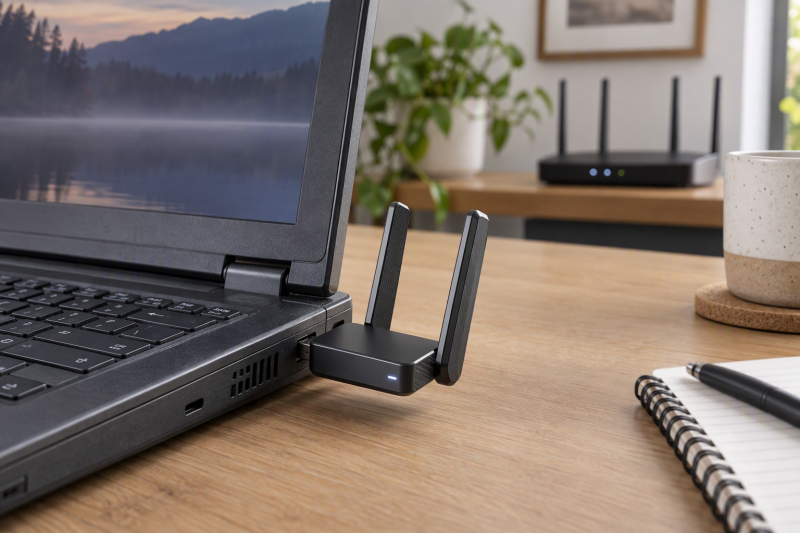
Every pick here is a tri-band Wi-Fi 7 USB adapter whose listing states 6 GHz capability. They are not Wi-Fi routers, extenders, Bluetooth dongles, or internal PCIe cards. A new adapter can connect to existing networks, but its listed Wi-Fi 7 features work best with a compatible router and a supported Windows configuration.
Quick Picks
- Best adjustable laptop setup: NETGEAR Nighthawk A9000 for a USB cradle and adjustable antenna.
- Best Windows 10 fallback: BrosTrend BE6500 because its listing distinguishes Windows 10 bands from Windows 11 6 GHz access.
- Best MLO-ready option: MSI BE6500 for listed Multi-Link Operation and a two-antenna cradle.
- Best USB connector flexibility: ASUS ROG USB-BE92 for stated Type-A and Type-C support.
How We Picked
Each product identifies itself as a USB Wi-Fi 7 client adapter and states tri-band or 6 GHz support. The useful distinctions are operating-system support, the listed USB connection, external antenna arrangement, and whether the listing names MLO or WPA3. Check these four details to see whether an adapter suits a mobile laptop, a fixed desk, or an older Windows installation.
A USB wireless adapter is a narrow upgrade category. A Wi-Fi access point creates or extends the wireless network, while these adapters connect one computer to it. If the laptop only has a USB-C port, a USB-C dock can affect which port remains available for an external adapter and its antenna placement.
Wi-Fi 7 USB Adapters Compared
| Image | Product | Details | Check Price |
|---|---|---|---|
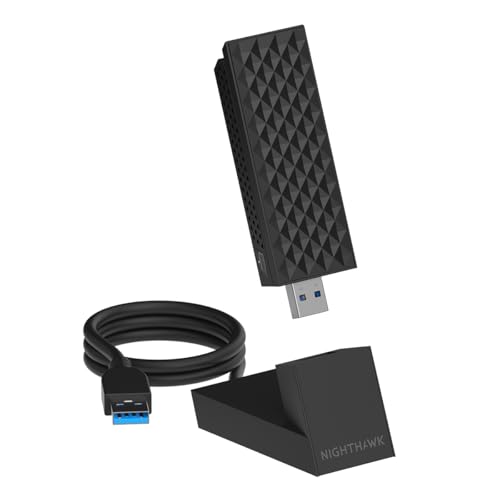 | NETGEAR Nighthawk A9000 | Best fit: Windows 11 laptop with an adjustable antenna Wi-Fi: Wi-Fi 7 tri-band, up to 6.5 Gbps Bands: 2.4, 5, and 6 GHz Connection: USB 3.0 cradle OS: Windows 11 and above | Check Price on Amazon |
 | BrosTrend BE6500 | Best fit: Windows 10 or 11 long-range setup Wi-Fi: Wi-Fi 7 tri-band, up to 6.5 Gbps Bands: 2.4, 5, and 6 GHz Antennas: Two external high-gain antennas OS: Windows 10/11; 6 GHz needs Windows 11 | Check Price on Amazon |
 | MSI BE6500 | Best fit: MLO-ready desktop or laptop upgrade Wi-Fi: Wi-Fi 7 tri-band, 2880 Mbps listed Bands: 2.4, 5, and 6 GHz Antennas: Two high-gain antennas and cradle Security: WPA3 | Check Price on Amazon |
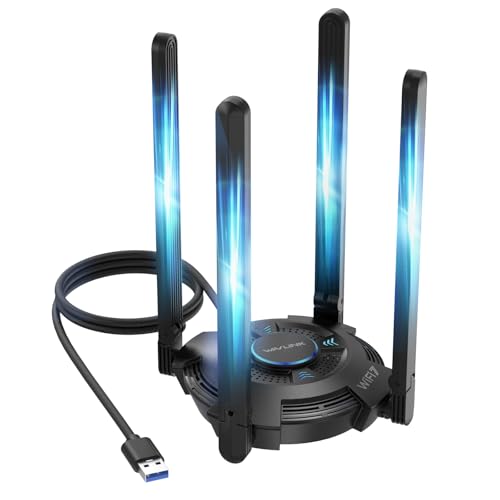 | WAVLINK WN695BE2 | Best fit: Windows desktop with four adjustable antennas Wi-Fi: Wi-Fi 7 tri-band, up to 6.5 Gbps Bands: 2.4, 5, and 6 GHz Antennas: Four foldable 5 dBi antennas Connection: USB 3.0 | Check Price on Amazon |
 | ASUS ROG USB-BE92 | Best fit: Laptop needing either USB-A or USB-C Wi-Fi: Wi-Fi 7 BE6500 Bands: 2.4, 5, and 6 GHz Connection: Type-A and Type-C support Security: WPA3 | Check Price on Amazon |
 | TP-Link TBE400U Plus | Best fit: Windows laptop with a flexible antenna Wi-Fi: Wi-Fi 7 BE6500 Bands: 2.4, 5, and 6 GHz Antenna: High-gain flexible antenna Connection: USB-A 3.0 | Check Price on Amazon |
1. NETGEAR Nighthawk A9000 — Best for a Windows 11 Laptop with Adjustable Antenna
A laptop that sits on a desk rather than moving between rooms all day gets the most from the A9000’s USB cradle and adjustable antenna. NETGEAR lists it as a Windows 11 and above Wi-Fi 7 USB 3.0 adapter with tri-band operation and speeds up to 6.5 Gbps.
The listing says Wi-Fi 7 features and 6 GHz require Windows 11, and it excludes Windows 10, older Windows releases, and Mac. Choose it when the operating-system condition is already met and you want better antenna placement more than an ultra-compact dongle.
Pros
- The adjustable antenna and USB cradle let Windows 11 laptop users position reception away from metal chassis.
- Listed 6.5 Gbps tri-band capability is a substantial advertised rating for a laptop on a compatible Wi-Fi 7 network.
- The stated 2.4, 5, and 6 GHz bands give users in crowded homes more connection choices.
Cons
- Windows 11 and above is mandatory, excluding Windows 10 laptops without an operating-system change.
- The separate cradle and antenna take more desk space than a small plug-in adapter.
2. BrosTrend BE6500 — Best for Windows 10 or 11 Long-Range Use
BrosTrend lists a BE6500 tri-band adapter with two external high-gain antennas, WPA3, and up to 6.5 Gbps across 2.4, 5, and 6 GHz. The listing supports Windows 11 and Windows 10, and it states that 6 GHz access requires Windows 11.
The listing’s operating-system split makes it a practical option for an older laptop that must stay on Windows 10 for now, as long as you accept 5 GHz and 2.4 GHz there. The external antennas suit a stationary desk better than a pocketable travel kit.
Pros
- Two external high-gain antennas give a fixed desktop or laptop setup stated flexibility in signal positioning.
- Windows 10 and 11 compatibility supports an upgrade path without immediately replacing an older system.
- Listed 6.5 Gbps tri-band speeds suit a buyer pairing it with high-bandwidth wireless equipment.
- WPA3 support is a stated modern security option for compatible routers and operating systems.
Cons
- 6 GHz access needs Windows 11, so Windows 10 cannot use every listed band.
- The listing says MLO is not supported, so that Wi-Fi 7 feature is limited.
- Dual external antennas are less convenient when a laptop frequently travels in a bag.
3. MSI BE6500 — Best for MLO-Ready Desktops and Laptops
Choose this model when MLO is part of the desired upgrade and the laptop can keep a small cradle on the desk. The listed antennas and beamforming make it a better desk adapter than a bare, tiny USB stick.
MSI lists Wi-Fi 7 tri-band operation with 2880 Mbps on each 6 GHz and 5 GHz band, plus 688 Mbps on 2.4 GHz. It also explicitly names Multi-Link Operation, MU-MIMO, beamforming, WPA3, two high-gain antennas, and an included cradle.
Pros
- Listed Multi-Link Operation suits buyers who specifically want that Wi-Fi 7 feature for managing connections.
- Two high-gain antennas and a cradle make placement easier for a fixed desk computer.
- 2880 Mbps listed on both 5 GHz and 6 GHz supports tri-band planning.
Cons
- The antennas and cradle add parts beside the laptop during everyday portable use.
- Its 2880 Mbps per-band figures do not establish throughput in every room.
4. WAVLINK WN695BE2 — Best for a Fixed Desktop with Four Antennas
WAVLINK lists the WN695BE2 as a Windows 10/11 Wi-Fi 7 USB 3.0 adapter with tri-band operation, MLO, and four foldable 5 dBi antennas. It also says 6 GHz use needs Windows 11 version 21H2 or later, so that operating-system version belongs in the purchase check.
The four antennas suit a desktop, or a laptop that normally stays at one workstation. They suit a minimal travel bag much less, even though they fold for storage.
Pros
- Four foldable 5 dBi antennas offer the most stated flexibility in antenna positioning in this group.
- The Windows 11 version 21H2 or later condition clearly identifies the 6 GHz requirement.
- Listed MLO and USB 3.0 support suit a fixed workstation upgrade for buyers who want those features.
Cons
- Four external antennas make the adapter visually and physically larger beside a traveling laptop.
- The 6 GHz feature requires a specified Windows 11 version, not merely any Windows installation.
5. ASUS ROG USB-BE92 — Best for USB-A or USB-C Laptops
The ROG USB-BE92 answers a simple but important question about laptop ports, because ASUS lists simultaneous support for Type-A and Type-C. ASUS also lists it as a BE6500 tri-band Wi-Fi 7 adapter with 6 GHz, 160 MHz channels, MLO, 4K-QAM, and WPA3.
Use it when a newer laptop relies on USB-C but an older desktop or dock still has USB-A. Connector flexibility counts for more than a raw bandwidth figure when one adapter must work across several machines.
Pros
- Stated Type-A and Type-C support lets one adapter move between old and newer computer ports.
- The BE6500 listing names 2882 Mbps on both 5 GHz and 6 GHz bands.
- Listed MLO, MU-MIMO, and WPA3 provide clear feature checks for a Wi-Fi 7 setup.
Cons
- The listing does not make a specific Windows-version claim as explicit as NETGEAR or WAVLINK.
- Buyers still need a compatible 6 GHz network before that band becomes a useful purchase advantage.
- Taking up a USB-C port can be a concern on laptops with few high-speed connections.
6. TP-Link TBE400U Plus — Best for a Flexible-Antenna Windows Upgrade
TP-Link lists the TBE400U Plus as a BE6500 tri-band Wi-Fi 7 adapter for Windows 10 and 11, using USB-A 3.0 and a flexible high-gain antenna. Its listed per-band figures are 2882 Mbps on 6 GHz and 5 GHz, plus 688 Mbps on 2.4 GHz.
The TBE400U Plus is the straightforward option for a Windows laptop that has USB-A and gains from angling one antenna toward the router. The listing also names MLO, Multi-RU, 4K-QAM, WPA3, OFDMA, and MU-MIMO for a buyer comparing stated Wi-Fi 7 features.
Pros
- The flexible high-gain antenna helps a USB-A 3.0 laptop adjust reception without a separate cradle.
- Windows 10 and 11 support offers a direct path for many older laptop installations.
- Listed 2882 Mbps 5 GHz and 6 GHz figures describe its intended BE6500 tri-band class.
- MLO, Multi-RU, OFDMA, and MU-MIMO give buyers who compare features several comparison points from the listing.
Cons
- A USB-A 3.0 connection does not directly suit a USB-C-only laptop without another adapter.
- The flexible antenna still protrudes from the laptop, which can be awkward during travel.
Buying Guide: Choosing a Wi-Fi 7 USB Adapter for an Older Laptop
Confirm the Windows version before buying for 6 GHz
Your Windows version is a bigger limit than the connector. NETGEAR requires Windows 11 and above and says Windows 10 is unsupported. BrosTrend supports Windows 10 and 11 but explicitly reserves 6 GHz for Windows 11. WAVLINK sets a tighter condition for 6 GHz use, Windows 11 version 21H2 or later.
Treat 6 GHz support as a decision about the whole system, not a label on the retail box. If the older laptop must stay on Windows 10, BrosTrend and TP-Link both state Windows 10 compatibility, but confirm that the useful 5 GHz and 2.4 GHz bands meet your network plan.
Match the physical antenna arrangement to the computer’s home
An adapter that stays beside a desktop can use bigger antenna hardware. WAVLINK has four foldable 5 dBi antennas, BrosTrend and MSI use two external antennas, and NETGEAR includes a cradle with an adjustable antenna. TP-Link uses one flexible high-gain antenna.
For a laptop that travels, antenna bulk is a tradeoff. A larger design may help position reception on a desk, but it also adds something to pack, protect, and keep from snagging. Choose a fixed-location model only when that physical arrangement suits the laptop’s routine.
Check the port before selecting Type-A, Type-C, or a cradle
NETGEAR and WAVLINK list USB 3.0, while TP-Link specifically lists USB-A 3.0. ASUS is the unusual choice because its listing supports both Type-A and Type-C. Supporting both connectors can make it useful when one adapter needs to serve multiple laptops or a mix of direct and docked setups.
Do not rely on a port’s shape alone. Port availability is a second check, because a USB-C-only machine may need its only high-speed connector for charging or a display dock. An adapter with a cradle can improve antenna placement, but it also uses desk space and a cable path.
Separate Wi-Fi 7 features from the router and network that enable them
MSI, WAVLINK, ASUS, and TP-Link list MLO, while BrosTrend explicitly says MLO is not supported. Each adapter can join a network, but a named Wi-Fi 7 feature has limited buyer value unless the router, band availability, and operating system are also compatible.
Start with the network already installed. 6 GHz and MLO should be reasons to choose an adapter only when the router supports them and the laptop has the required Windows setup. Otherwise, antenna placement, stable 5 GHz use, and a sensible connector are more immediate buying criteria.
Use the advertised bandwidth figures as class markers, not guarantees
NETGEAR and BrosTrend list up to 6.5 Gbps, while MSI, ASUS, and TP-Link list 2882 Mbps for both 5 GHz and 6 GHz plus 688 Mbps on 2.4 GHz. The figures place the adapters in the same BE6500 class, but they are not a promised speed for an older laptop in a particular room.
Compare per-band figures with your network layout and connection type. Walls, distance, router capability, and the laptop’s available USB port all affect the result. A clear fit on operating system and antenna is usually safer than choosing solely by the largest aggregate number.
Keep security and setup expectations grounded in the listing
NETGEAR, BrosTrend, MSI, ASUS, and TP-Link list WPA3, while BrosTrend and TP-Link mention preloaded or internal drivers. WAVLINK says its driver runs after connection and gives an alternate route for manual installation. The driver notes are useful setup details, but they do not replace checking the operating system.
Use WPA3 and driver support as compatibility questions. The adapter, router, and Windows release must all support the desired security mode. A preloaded driver can simplify first setup, but the laptop still needs a compatible operating system and enough access to complete installation.
Frequently Asked Questions
Can an older laptop use a Wi-Fi 7 USB adapter?
Yes, if the adapter’s listed operating-system and port requirements match the laptop. BrosTrend and TP-Link list Windows 10 and 11 support, while NETGEAR specifies Windows 11 and above. ASUS supports both Type-A and Type-C connections, which can simplify hardware matching.
The main limitation is 6 GHz access. BrosTrend says that band needs Windows 11, and WAVLINK requires Windows 11 version 21H2 or later. Check the exact laptop system before treating a Wi-Fi 7 label as a complete compatibility answer.
Do I need a Wi-Fi 7 router to use one of these adapters?
No, you don’t need one to join a network. The adapter can connect to standard Wi-Fi networks, but a Wi-Fi 7 router is relevant when you want the listed Wi-Fi 7 features. WAVLINK notes that performance is limited with a Wi-Fi 6 or 6E router, and its MLO description assumes a Wi-Fi 7 router.
Match the purchase to the existing router first. If the network is still 5 GHz Wi-Fi 6, connector fit and antenna placement can be more useful today than MLO or a 6 GHz figure. The adapter can remain part of a later router upgrade.
Is USB 3.0 important for a Wi-Fi 7 adapter?
The USB version is a listed connection detail on the NETGEAR, WAVLINK, and TP-Link models. USB 3.0 is the intended host connection for their wireless hardware, while the ASUS option offers connector flexibility by listing both Type-A and Type-C support.
Check which port is free when the laptop is used normally. A dock, external drive, charger, or display may already occupy the best connector. Choosing an adapter around the port arrangement you actually have avoids needing extra accessories.
Are external antennas better for a laptop?
They can be helpful when the laptop stays at a desk and the antenna can be positioned deliberately. NETGEAR includes an adjustable antenna and cradle. MSI includes two high-gain antennas and a cradle. WAVLINK lists four foldable 5 dBi antennas.
For travel, physical size changes the answer. An external antenna can project from the machine or add a separate cradle. TP-Link’s flexible single antenna is a middle ground, while the ASUS model prioritizes Type-A and Type-C connection flexibility in its listing.
What does BE6500 mean on these adapters?
BE6500 is the speed class named by several listings, not a promise that a single connection reaches that number. NETGEAR and BrosTrend describe up to 6.5 Gbps, while MSI, ASUS, and TP-Link split their stated figures across 6 GHz, 5 GHz, and 2.4 GHz.
Use band-by-band figures to compare products. The laptop’s Windows version, router, distance, available band, and antenna position determine which part of that class can be relevant in an actual installation.
Bottom Line
Choose the NETGEAR Nighthawk A9000 for a Windows 11 desk setup with an adjustable antenna, the ASUS ROG USB-BE92 when Type-A and Type-C support is decisive, or the BrosTrend BE6500 when Windows 10 support is necessary.