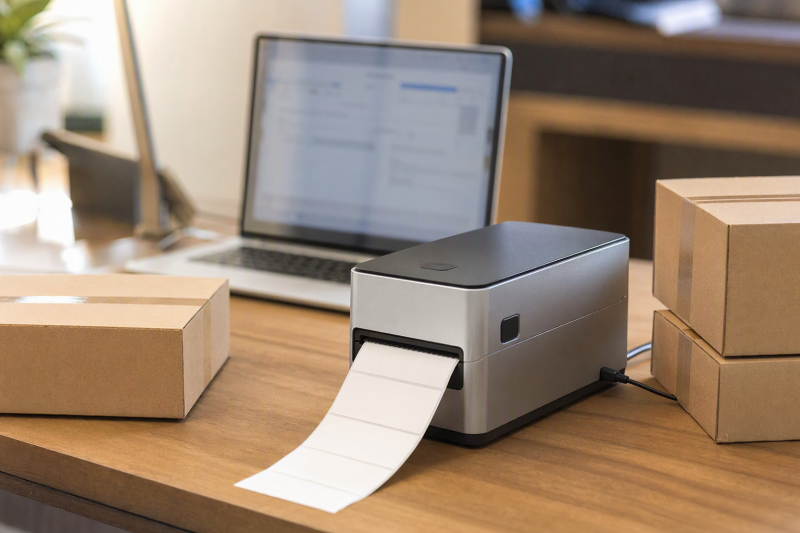
A shipping printer should turn a laptop’s 4×6 carrier PDF into a readable parcel label. Start with the desktop print path. Supported USB and drivers count for more than Bluetooth marketing for phones.
These six active-New Amazon US printers describe 4×6 shipping use. Carrier scans, speed and drivers are not independently verified. Check your OS and shipping platform before ordering. For too few ports, see our USB-C hub guide.
Verify one real 4×6 label PDF, the laptop driver and the matching paper feed. Bluetooth convenience does not replace a working desktop print test.Thermal Shipping-Label Printers Compared
| Image | Product | Details | Check Price |
|---|---|---|---|
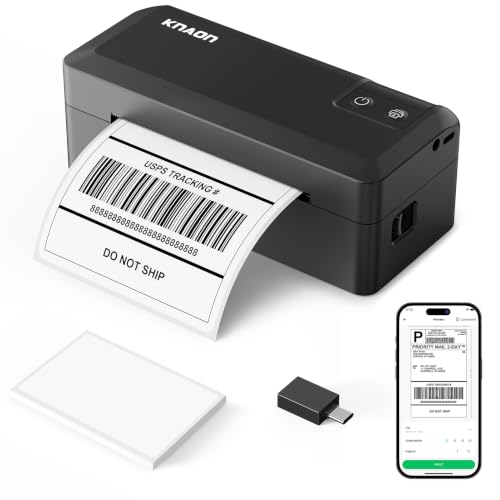 | KNAON Y41BT | Format: 4x6 shipping labels Laptop path: USB; driver/extension by OS Phone path: FlashLabel Pro app Best fit: Mixed laptop operating systems | Check Price on Amazon |
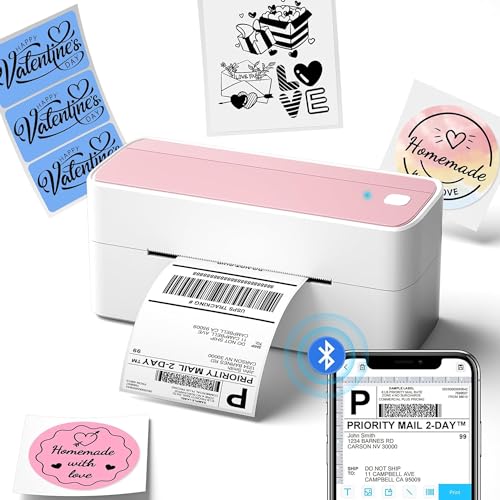 | Phomemo 241BT | Format: Up to 4.6-inch media, per listing Laptop path: USB plus OS driver Phone path: Labelife app Best fit: Wide media and explicit PC setup | Check Price on Amazon |
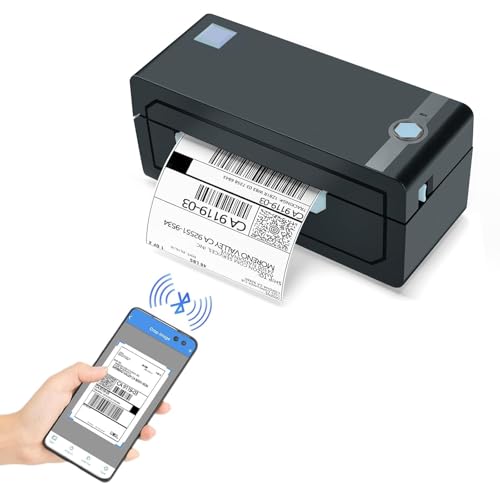 | JADENS JD268BT-CA | Format: Up to 4.1-inch width, per listing Laptop path: USB; Bluetooth also listed Phone path: Jadens printer app Best fit: Roll or fanfold stock | Check Price on Amazon |
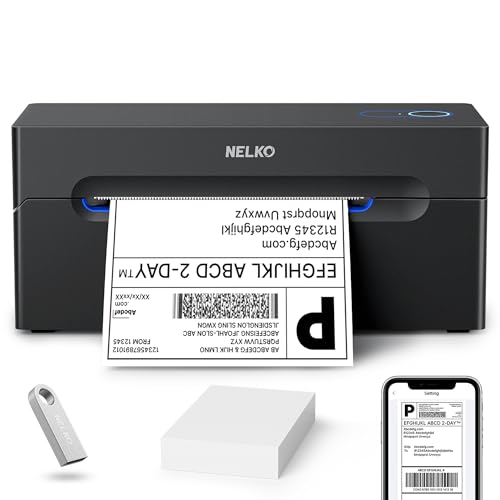 | Nelko PL70e-BT | Format: Up to 4.1-inch width, per listing Laptop path: USB for Mac; USB/Bluetooth claims for Windows Phone path: NELKO app Best fit: Small desk with PDF import workflow | Check Price on Amazon |
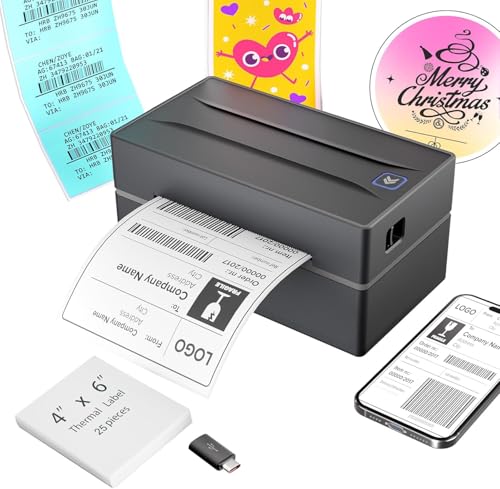 | NULLTONEX Y813 | Format: 4x6 and 1.57-4.3-inch widths, per listing Laptop path: USB claimed Phone path: FlashLabel Pro app Best fit: Starter setup with 25 test labels | Check Price on Amazon |
 | Jiose N43BT | Format: 4x6 shipping labels Laptop path: USB with driver Phone path: HereLabel app Best fit: Basic phone-and-laptop print paths | Check Price on Amazon |
1. KNAON Y41BT — Best Documented Mixed-OS Setup
KNAON’s Y41BT gives a small business a fairly explicit connection map. Its listing says USB can serve macOS, Windows, ChromeOS and Linux, with drivers or an extension needed according to the host. For phone printing, it names the FlashLabel Pro app. It also warns that Bluetooth is not a direct system-level pairing shortcut. Use the specified app or supported driver path. The pairing warning counts for more than the listed top speed if the business changes laptops.
The seller describes a 4-by-6-inch printer accepting widths from 1.38 to 4.41 inches and includes 20 test sheets. Print an actual carrier PDF at the intended page size before committing to a carton of stock. The listing says platform PDFs may need importing into FlashLabel Pro, so do not assume a one-click shipment workflow. For a desk shared by several machines, our hot-desk dock guide covers host and port planning.
Our Take Choose Y41BT when the desk may change among Windows, Mac, ChromeOS or Linux and you can test the documented setup path. It is not a promise that every shipping site prints directly. The PDF-to-app step may be part of the workflow.
- The listing names USB routes for several laptop operating systems.
- It describes the app and driver dependencies instead of implying generic Bluetooth printing.
- Twenty test sheets help verify a real 4×6 label before buying more media.
- Phone printing requires FlashLabel Pro rather than simple Bluetooth pairing.
- Some shipping platforms may require a PDF import step.
2. Phomemo 241BT — Best for Explicit PC Setup
The 241BT listing gives unusually specific laptop instructions: download the correct driver, connect its USB data cable, then choose the printer from the computer’s print list. The steps are a better starting point than a vague “wireless” label for a business where the shipping PDF originates on a laptop. It names Windows, Mac, ChromeOS and Linux paths, with a Chrome extension for ChromeOS, and Labelife for phone use. Confirm the current driver package for your exact OS before purchase.
Phomemo claims support for label widths from one to 4.6 inches and includes 20 labels with this exact package. Its seller speed figure is not an observed throughput. The listing recommends its own paper for best output, which makes replacement stock part of the cost and compatibility check. Our USB-C docking guide covers the port decision if USB printing must coexist with a monitor and scanner.
On a laptop, install the correct 241BT driver and test a carrier PDF over USB before spending time on the phone app.Our Take Pick 241BT when an explicit USB laptop setup and a wider stated media range are more valuable than a simple Bluetooth headline. Verify driver availability and paper fit first. A seller’s platform list is not proof of your exact workflow.
- The listing gives step-by-step laptop USB and driver setup.
- It names a ChromeOS extension and a separate phone app path.
- Twenty test labels are included in this exact listing.
- Desktop printing depends on a matching driver or extension.
- The long-term media choice needs a separate compatibility check.
3. JADENS JD268BT-CA — Best for Roll or Fanfold Stock
A packing desk may feed labels from a roll, while another uses a stack of fanfold stock behind the printer. JADENS explicitly lists both feed styles and a label-width range of 1.57 to 4.1 inches. It also names USB printing on Windows 7 and newer and macOS 10.9 and newer. Bluetooth for desktop and the separate Jadens phone app have their own setup path. Choose on the stock you can actually buy, not the listed maximum print speed.
The seller says to calibrate after changing label sizes by holding the feed button. Calibration is a workflow step when a shop alternates 4×6 parcel labels with smaller shelf or barcode labels. A driver supplied on a U-Disk is mentioned, but check the current official download before installing software on a managed laptop. If several people share the same desk, our DisplayLink hot-desk guide covers the surrounding USB and host plan.
Changing media size may require a feed-button calibration before the next batch. Test that with your actual roll or stack.Our Take Choose JADENS when roll and fanfold options count and the shop can maintain the driver and calibration steps. For a single 4×6 stock on one laptop, Phomemo’s explicit USB instructions may be easier to evaluate.
- Both roll and fanfold feed styles are listed.
- USB paths are named for Windows and Mac laptops.
- Feed-button calibration is explained for media changes.
- Desktop software and phone-app paths must be handled separately.
- Frequent size changes add a calibration task to the packing flow.
4. Nelko PL70e-BT — Best Small-Desk PDF Workflow
Nelko’s PL70e-BT listing describes a compact 4×6 printer that accepts roll or fanfold labels from roughly 1.54 to 4.1 inches wide. The listed workflow asks users to save a shipping label as a PDF, then import it into the NELKO editor app for wireless printing. USB desktop printing is named for Windows, Mac and ChromeOS. This workflow can work for a small laptop desk, but PDF import is an extra handling step, not automatic integration with every seller platform.
The listing contradicts itself on Mac Bluetooth. One bullet mentions an app path for some M-series Macs while another says Mac works only over USB. We take the safer USB route until the exact current driver and model are verified. Do not buy it for Mac Bluetooth on the strength of the conflicting copy. Our MacBook Air monitor guide covers the rest of a compact Mac desk where ports need planning.
Our Take Pick PL70e-BT if a compact unit, roll/fanfold flexibility and PDF import fit your process. Skip it if Mac Bluetooth is a requirement you cannot verify before purchase. KNAON has a clearer written mixed-OS setup matrix.
- Roll and fanfold stock are both named in the listing.
- USB desktop printing is listed for Windows, Mac and ChromeOS.
- The compact body is aimed at a small packing surface.
- Mac Bluetooth claims conflict within the exact listing.
- PDF-to-app import may slow a high-volume packing run.
5. NULLTONEX Y813 — Best Starter Label Bundle
The Y813 listing includes a power cord, USB cable and 25 sheets of 4×6 thermal labels, so a buyer can test the physical print path before ordering a large media supply. It also describes Bluetooth through FlashLabel Pro and a USB route to a laptop. The stated 1.57- to 4.3-inch width range permits some smaller labels in addition to parcels, though the actual feed and cutter behavior should be tested with the exact stock.
Seller claims about 203 DPI, speed and carrier compatibility are useful questions for a trial, not a guarantee that a shipping barcode will scan on every carrier’s equipment. Print a sample from your actual platform and inspect the barcode, margins and address. A desk with a monitor and scanner may need a USB-C dock to keep the printer plugged in.
Our Take Choose Y813 when a starter desk needs included test media and a stated USB laptop route. Do not buy it on the printed speed or “works with every platform” language alone. The carrier PDF and driver still need a test.
- Twenty-five 4×6 test labels, USB cable and power cord are listed.
- USB laptop and app-led phone paths offer two ways to print.
- The listed width range includes smaller labels as well as 4×6 stock.
- Exact desktop driver requirements are less explicit than KNAON’s or Phomemo’s.
- Claimed print speed and carrier compatibility were not independently verified.
6. Jiose N43BT — Best Basic App and USB Split
Jiose’s N43BT listing makes the split simple: use the HereLabel app for phone Bluetooth printing, or connect a Windows or Mac laptop through USB. Its listed media width is 1.57 to 4.25 inches, including standard 4×6 shipping labels. Confirm the exact driver and label stock before making it the packing desk’s only printer.
The listing names Windows and Mac USB paths, but that is not proof that a managed work laptop will permit the driver. Do not treat its broad carrier-platform list or claimed print speed as independent test results. Try a normal carrier PDF, the app path if needed, and the exact replacement stock. Our USB-C hub guide covers a laptop with no spare USB-A data port.
The listed width range covers 4×6 stock, but verify the feed style and replacement labels before stocking a packing desk.Our Take Choose N43BT if its driver works on your laptop and the HereLabel phone path would be useful too. Its listing gives a specific media-width range, but test the actual label feed before relying on it for orders.
- The listing distinguishes phone app printing from laptop USB use.
- It specifies a 1.57- to 4.25-inch label-width range including 4×6 stock.
- Driver installation must be checked on the actual laptop.
- Carrier and speed claims are seller claims, not verified results.
Buying Guide
1. Start With a Real 4×6 Carrier PDF
The printer must accept your shipping platform’s label at actual size, with a readable address and barcode. Export one carrier test PDF, check page size, then follow the printer’s supported laptop path. A platform logo in a listing is not proof that every account, browser or label template can print directly. If the normal route is PDF import into an app, count that extra step in your daily packing workflow.
After the first print, inspect orientation, margins and the adhesive edge. A correct-looking preview is not the same as a scannable parcel label. Carrier acceptance is not verified for these units. The printer belongs among the desk’s other attached hardware. Our USB-C docking guide helps plan a stable laptop connection for it.
2. Separate Laptop USB, Desktop Bluetooth and Phone Apps
All six market themselves as Bluetooth devices, but the connection rules differ. KNAON says its Bluetooth path goes through FlashLabel Pro. Phomemo names a laptop driver and phone Labelife app. Jiose distinguishes HereLabel phone printing from laptop USB printing. Check your exact operating system and the current driver download before buying, especially on managed work laptops where installs are restricted.
USB is often the least ambiguous route for a fixed laptop desk, but it still needs a matching data port, cable and supported driver. Do not assume Bluetooth bypasses a desktop driver. Nelko’s Mac wording even conflicts within the same listing. Take its documented USB route unless the maker resolves the Bluetooth question. Our shared-desk dock guide covers a computer fleet with different ports.
3. Plan Replacement Labels and Feed Changes
Most of these printers say they can handle 4×6 parcels plus smaller labels, but the exact supported width and feed style differ. JADENS and Nelko explicitly name roll and fanfold stock. KNAON and Phomemo publish wider width ranges. Check whether a smaller label needs a calibration step. JADENS says to recalibrate after changing sizes.
Direct thermal printing avoids ink cartridges, but it still depends on compatible coated label stock and suitable storage. Test the replacement media you intend to buy, not only the sample pack. A small home-office monitor can make the shipping dashboard easier to read, but it will not correct a driver or paper-size mismatch.
FAQ
Can I print directly from a MacBook to these Bluetooth printers?
Not always. The Bluetooth paths in these listings can require a vendor app or driver, and Nelko’s exact listing contradicts itself on Mac Bluetooth. Use a verified USB-and-driver route first for a fixed Mac laptop desk unless current maker instructions confirm wireless printing for your exact OS and chip.
Test with the shipping service’s own PDF. A successful phone-app sticker is not proof that the laptop can print the same label directly from a browser. Keep the first setup documented for anyone who shares the packing desk.
Do all 4×6 printers accept any thermal label roll?
No such universal claim is established here. The printer’s width range, gap or mark sensing, roll versus fanfold feed and label coating all affect compatibility. Match a specific replacement stock to the exact model before buying a large case of labels.
Run a small trial with the same paper source you plan to use. JADENS calls for calibration when changing sizes. If the barcode is clipped or the feed skips, stop and correct the setup before putting a parcel into the carrier stream.
Is thermal printing cheaper than using an office inkjet?
The listings say direct thermal printing uses no ink or toner, but total cost still includes compatible labels, printer and setup time. Current prices and long-term maintenance were not compared for these exact models. A high-speed claim alone does not calculate your cost per usable parcel label.
Estimate your actual monthly label count, stock price and reprint rate. If you ship only occasionally, test whether the dedicated printer saves enough handling to justify another device on the laptop desk.
Bottom Line
Choose a printer by the laptop path you can verify, then the stock you can reorder. KNAON gives the clearest multi-OS setup wording, Phomemo has explicit PC driver steps, and JADENS names both roll and fanfold media. Print a carrier PDF before treating any platform or speed claim as proven.