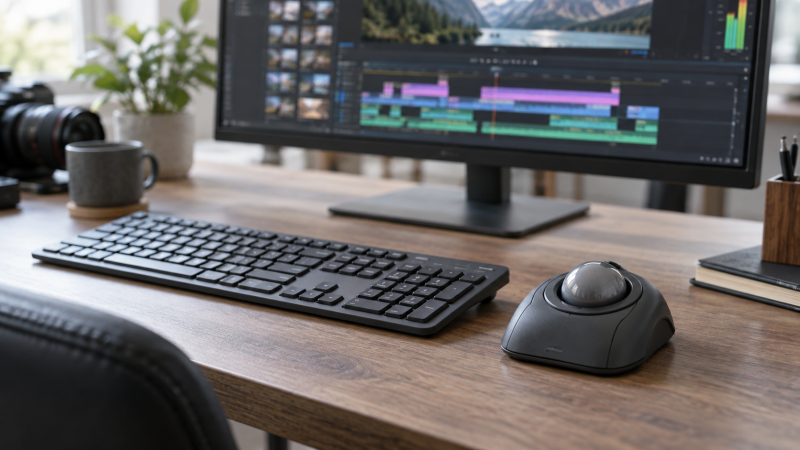
A finger-operated trackball stays on the desk while your fingers move the ball. The fixed position can help when a keyboard, control surface and display leave little room to sweep a mouse. It does not guarantee better edits or comfort.
The five active-New models here take different approaches. Kensington’s Expert Wireless centers a large ball and scroll ring in an ambidextrous shell. ELECOM’s HUGE gives a right-handed palm platform more buttons, while its DEFT PRO trades size for three connection methods. A wired Orbit keeps the setup simple, and the Nulea M512 adds a second large-ball ambidextrous route.
Choose where your fingers, buttons and scroll control actually land before comparing DPI numbers.Finger-Operated Trackballs Compared
| Image | Product | Details | Check Price |
|---|---|---|---|
 | Kensington Expert Wireless | Ball: 55 mm, listing-stated Hand layout: Ambidextrous Connection: Bluetooth LE or 2.4 GHz receiver Controls: Scroll ring, four buttons | Check Price on Amazon |
 | ELECOM HUGE Wireless | Ball: 52 mm, listing-stated Hand layout: Right-hand palm platform Connection: 2.4 GHz USB receiver Controls: Eight buttons, tilting scroll wheel | Check Price on Amazon |
 | ELECOM DEFT PRO | Ball: 44 mm, maker-stated Hand layout: Sculpted finger-ball Connection: Bluetooth, receiver or wired USB Controls: Eight buttons, tilting wheel | Check Price on Amazon |
 | Kensington Orbit with Scroll Ring | Ball: Not verified in exact listing Hand layout: Ambidextrous Connection: Wired USB, maker-stated Controls: Scroll ring, two buttons | Check Price on Amazon |
 | Nulea M512 | Ball: 55 mm, seller-stated Hand layout: Ambidextrous Connection: Bluetooth or 2.4 GHz receiver Controls: Four buttons, up to three devices | Check Price on Amazon |
1. Kensington Expert Wireless — Best Large Ambidextrous Ball
A central ball makes sense when more than one person uses the editing station, or when the operator sometimes changes hands. The Expert Wireless listing specifies a 55 mm ball, an ambidextrous layout, a scroll ring, four customizable buttons and a detachable wrist rest. Its Bluetooth LE and 2.4 GHz USB-receiver paths give a desk two listed ways to connect without a data cable.
The large ball and surrounding controls require room of their own. Stationary does not mean tiny. Try where the rest and ring sit next to the keyboard before buying. Compared with the Kensington Orbit, this model adds a larger stated ball, more buttons and wireless connections. Neither listing proves that one will make timeline cuts more accurate. For a shared desk built around one docking station, our hot-desk dock guide covers a separate connection decision.
Our Take Choose the Expert Wireless when a large finger ball and left-or-right-hand access come before a small footprint. The ring and button layout give a clear control plan, but verify its software and receiver route fit the actual computer before assigning editing shortcuts.
- The ambidextrous central-ball shape can serve either hand at a shared station.
- A surrounding scroll ring keeps document or timeline scrolling off the keyboard.
- Bluetooth and a USB receiver give two listed connection paths for a fixed computer.
- The large shell and optional wrist rest still need clear desk depth beside the keyboard.
- Four buttons leave fewer on-device shortcut positions than the ELECOM HUGE’s listed eight.
2. ELECOM HUGE Wireless — Best Right-Handed Palm Rest
If the hand stays at the same workstation all day, the shape under the palm may come before the wireless receiver. The HUGE listing describes an index-finger-operated 52 mm ball, a large soft palm rest, eight physical buttons and a tilting scroll wheel. It connects by a 2.4 GHz USB receiver and uses one AA battery. ELECOM states three switchable DPI positions, but those are cursor-speed settings, not measured editing precision.
The right-hand sculpt and wide rest make this a different fit question from the ambidextrous Expert Wireless. Place a cardboard outline beside the keyboard if the desk is shallow. ELECOM lists a body around 4.5 by 7.2 inches before considering the surrounding work area. Check shortcut-software support before mapping trim or playback controls.
Put the receiver on a reliable USB path and test your editing shortcuts before replacing familiar keyboard actions.Our Take Pick the HUGE if you are right-handed and want a broad palm platform with many physical commands in reach. Its 52 mm finger ball and eight buttons make a distinct layout, but the listing’s comfort and accuracy language is not an independent ergonomic or editing-performance test.
- Eight physical buttons leave room for several app-specific commands without a separate keypad.
- The 52 mm ball and palm-rest shape suit a hand that stays at one station.
- A removable ball gives the owner a documented way to clean the bearings.
- The right-hand shape is not the best shared-desk choice when users switch hands.
- The listed body is deep, so a crowded keyboard shelf may not leave the wrist position you expect.
3. ELECOM DEFT PRO — Best for Three Connection Modes
A desktop editor may want a receiver-free laptop connection but still prefer a wire when charging or batteries are inconvenient. The DEFT PRO’s exact listing names Bluetooth, 2.4 GHz USB wireless and wired USB modes, plus eight physical buttons and a tilting scroll wheel. ELECOM’s own product page identifies the M-DPT1MRXBK model and a 44 mm ball. The multiple modes are the point here, not a claim that one mode changes tracking quality.
Connection flexibility brings setup work. Check the operating system and the app-specific button tool before relying on a custom command. ELECOM’s US page describes Mouse Assistant customization as Windows-only even though the device has broader host compatibility. Compared with the HUGE, the DEFT PRO is the more flexible connection choice, while the HUGE offers a larger listed ball and broader palm platform. Our USB-C dock guide helps if the receiver or wired path competes with other desk peripherals for ports.
Device compatibility does not automatically mean its shortcut-mapping software works on that device.Our Take Choose the DEFT PRO when your fixed editing desk changes between a docked computer and another host, and a wired fallback justifies the extra setup. Verify software support for the exact OS before counting its buttons as editing shortcuts.
- Bluetooth, receiver and wired USB offer three documented host paths.
- Eight physical buttons provide room for commands if the mapping tool supports the host.
- Wired mode can run without depending on wireless battery power, according to ELECOM.
- Windows-only customization on ELECOM’s US page limits the button plan for a Mac editing station.
- Multiple connection choices create another setting to check when a cursor stops responding.
4. Kensington Orbit with Scroll Ring — Best Wired Compact Layout
Not every fixed desk needs another battery or paired Bluetooth device. Kensington identifies this K75327WW Orbit variant as a wired USB trackball with a scroll ring, ambidextrous shape, two configurable buttons and a detachable wrist rest. Its layout keeps the ball and scrolling gesture in one place. The exact listing does not establish a tested speed benefit for editing software, so judge it by where your hand lands.
The Orbit sacrifices button count compared with the Expert Wireless and the two ELECOM models. The trade is acceptable when most cuts still happen on keyboard shortcuts and the trackball’s job is pointer movement plus scrolling. The wired USB lead removes receiver pairing but takes a port and a clean route behind the keyboard. If a display and dock already crowd the desk, our docking monitor comparison covers the broader port layout.
Our Take Buy the Orbit when a wired, ambidextrous finger trackball with a scroll ring is enough. It is the simpler fixed-desk route here. Choose another model only when the extra connection modes or buttons solve a specific job.
- Wired USB removes battery replacement and wireless pairing from a fixed station.
- The scroll ring and central-ball layout work from either side of a shared desk.
- The detachable wrist rest lets the operator try two hand positions.
- Only two configurable buttons leave most editing commands on the keyboard.
- The cable needs a port and a route that does not cross the main work area.
5. Nulea M512 — Best Ambidextrous Multi-Device Desk
A shared desk may keep a work computer, personal laptop and tablet within reach. Nulea’s exact Amazon listing describes the M512 as an ambidextrous central-ball trackball with a 55 mm ball, four buttons and Bluetooth or 2.4 GHz receiver connections for up to three devices. Its seller also claims a mode switch remaps the button roles for left- or right-handed use. Treat the switch as a listed feature to verify on the actual host, not an independently tested usability result.
The large-ball, multi-device plan is different from the Orbit‘s one wired desktop path. It is closer to the Expert Wireless in shape, but Nulea emphasizes switching between hosts. Confirm whether the receiver and Bluetooth modes serve the computers you intend, then try the click positions before building an editing shortcut map. A docked laptop may already have an occupied USB-A port. Our USB-C dock comparison covers that separate I/O decision.
Our Take Choose the M512 when one finger-operated pointer must alternate among several desk devices and either hand may use it. The listing supports that role, but do not rely on its comfort or precision claims without checking the actual button layout and host-switch behavior.
- Up to three listed host connections can reduce pointer swaps at a shared desk.
- The 55 mm central ball and symmetric layout are available to either hand.
- Four buttons give more direct actions than the Orbit’s listed two.
- The hand-switching button behavior is a seller claim that should be checked on your host.
- A second large-ball shell still consumes fixed desk space beside the keyboard.
Buying Guide
1. Start with the hand and the space beside the keyboard
A stationary trackball saves the sweep area of a conventional mouse, but the device itself has a footprint. Measure the keyboard-to-edge gap and where your forearm rests before choosing the shell. The ELECOM HUGE is a wide right-hand platform. Kensington’s Expert and Orbit place the ball centrally for either hand. A narrow shelf can make a smaller device more useful than a larger ball.
If several editors share one setup, test the click and scroll positions with both hands. Ambidextrous shape does not guarantee identical button feel after a hand swap. The Nulea seller describes a hand-switch mode, while Kensington lists a symmetric layout. Each layout requires a host test before you map commands. Our editing monitor guide covers the display side of the same desk.
2. Decide whether the ring, wheel or buttons do the scrolling
Scrubbing a timeline, zooming and scrolling a long bin are separate operations in editing software. Identify the gesture you use most often before treating a button count as the only measure of control. The Expert and Orbit use scroll rings, while the ELECOM models have a tilting wheel. A ring may feel more direct to one operator, but no listing establishes an editing-speed advantage.
For app shortcuts, confirm the mapping tool runs on your operating system. ELECOM’s US DEFT PRO page notes Windows-only Mouse Assistant customization. Other Kensington functions depend on their own software and host support. Keep a keyboard route for critical commands until a mapped button works reliably in the target app. For a setup with many peripherals, see our shared-desk dock guide.
3. Choose one connection route you can troubleshoot
On a fixed computer, a wired USB path removes battery and pairing questions. The Orbit takes that route. Wireless can clear a cable from the desk, but the receiver needs a suitable USB port and Bluetooth needs a supported host path. The Expert Wireless offers both wireless routes. The DEFT PRO adds wired USB as a third option.
If the pointer stops moving, check the selected mode, battery and receiver before changing the trackball. Multi-device switching on the Nulea and multi-mode selection on ELECOM create useful choices but also possible mismatches. Do not assume a dock exposes every peripheral identically on every host. Our USB-C docking-station guide helps assess the wider desk connection plan.
4. Treat sensitivity as a setting, not an accuracy ranking
DPI positions change how far the cursor travels for a given ball movement. They do not prove precise edits. Start with a moderate cursor speed and test small targets in the software you actually use. ELECOM lists switchable 500/1000/1500 settings for the HUGE and DEFT PRO. Nulea lists four steps. The settings are seller or maker specifications, not a comparable measured tracking test.
Give yourself a short adjustment period, and keep the keyboard shortcut for actions that must be repeatable. Try selection, trim handles and scrolling before deciding whether a custom button saves effort. If the edit workstation also needs more screen area, our dual-display dock guide addresses a separate workspace constraint.
FAQ
Is a finger-operated trackball better than a thumb trackball for editing?
Neither type is universally better. A finger ball changes which digits move the cursor and where clicks and scrolling fall, and the choice depends on the operator’s hand, workflow and available desk space. These listings do not provide a controlled editing test between the two layouts.
Try a central-ball model such as the Orbit or Expert if you need ambidextrous use, and compare it with a right-hand palm-supported model such as the HUGE. Keep the rest of the workstation unchanged while learning the new control, so a software or desk-layout change does not confuse the comparison.
Do more buttons make timeline editing faster?
Not automatically. Eight listed buttons on the ELECOM models give more mapping positions, but only useful app commands on a supported host can make them useful. A two-button Orbit may be enough when most actions already have reliable keyboard shortcuts.
Map one frequent, low-risk command first. If it works for a full editing session, consider another. Do not move every critical cut command to a new device at once. Host software support, especially on macOS, belongs in the decision.
Will a trackball eliminate wrist or arm discomfort?
No product listing can promise that. A stationary pointer reduces the need to move the device across a surface, but hand position, reach, breaks and the existing setup still count. Treat ergonomic language in seller bullets as a design claim, not a medical outcome.
Place the device where the hand can reach it without twisting around the keyboard, then try it for ordinary tasks. If discomfort persists, change the setup or seek appropriate professional advice rather than buying another model based on a comfort slogan.
Bottom Line
Start with the Expert Wireless when a large ambidextrous ball and ring suit the desk. The HUGE is a different right-hand, many-button choice. The DEFT PRO earns its place through three connection modes. Choose the wired Orbit for a simpler fixed station, or the Nulea M512 when one large-ball pointer must switch among several devices. Fit, software support and port routing should decide the final pick, not a DPI headline.