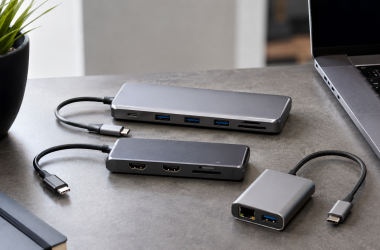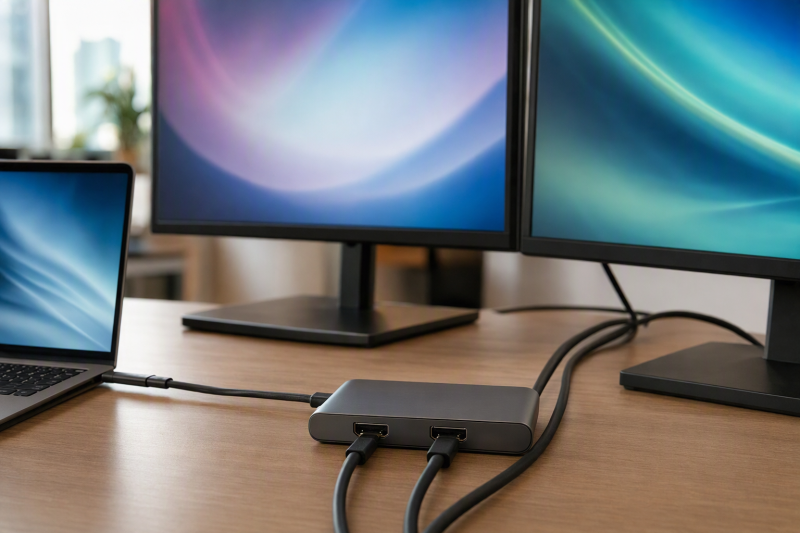
For a compatible Windows or ChromeOS desk, the Plugable UD-MSTHDC is the best USB-C hub with dual HDMI outputs. It puts two physical HDMI routes inside a native MST design and backs them with a detailed host DisplayPort matrix, Chromebook certification, and Plugable-rated 60W host charging. Targus DOCK423TT is the portable two-HDMI alternative, Kensington SD5760T is the direct dual-4K60 Thunderbolt 4 choice, Plugable TBT4-UDZ adds far more display and USB expansion, and StarTech 155NA-USB4-DOCK offers two HDMI 2.1 outputs for qualified Windows or ChromeOS hosts.
Two HDMI sockets do not guarantee two extended desktops. These products use different native MST, Thunderbolt/USB4 multi-stream, and host display paths. macOS turns no ordinary MST split into two extended displays, and Windows and ChromeOS still need the required GPU, DisplayPort resources, cable, and monitor inputs. Where two independent displays are the whole buying goal, also compare the broader dual-monitor docking-station guide.
Quick picks
- Plugable UD-MSTHDC: Best overall for qualified Windows and ChromeOS hosts.
- Targus DOCK423TT: Best portable dual-HDMI hub.
- Kensington SD5760T K34110NA: Best straightforward Thunderbolt 4 dual-4K60 dock.
- Plugable TBT4-UDZ: Best for extensive Windows display and USB expansion.
- StarTech 155NA-USB4-DOCK: Best dual-HDMI-2.1 Windows/ChromeOS choice.
Compare USB-C hubs with dual HDMI outputs
| Image | Product | Details | Check Price |
|---|---|---|---|
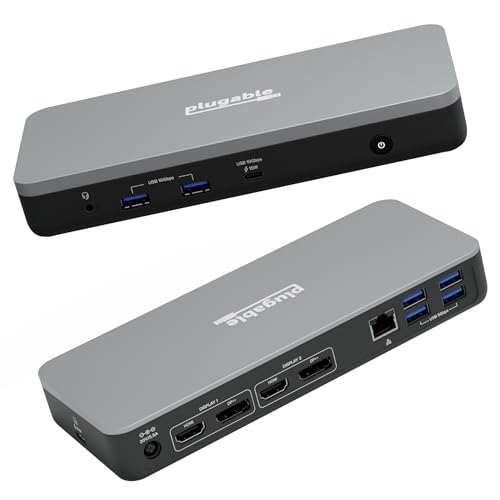 | Plugable UD-MSTHDC | HDMI layout: Two selectable HDMI output groups Display path: Native MST; DP 1.4 up to dual 4K60 Host boundary: Windows/ChromeOS; not dual-extended Mac MST Power: 60W host charging from included supply Buyer check: Only one connector per output group is active | Check Price on Amazon |
 | Targus DOCK423TT | HDMI layout: Two HDMI 2.0 outputs Display path: Native DP Alt Mode/MST; up to dual 4K60 Host boundary: Qualified Windows/ChromeOS path Power: Up to 100W pass-through; adapter excluded Buyer check: Host must supply required DP Alt Mode resources | Check Price on Amazon |
 | Kensington SD5760T K34110NA | HDMI layout: Two HDMI outputs Display path: Qualified Thunderbolt 4 dual 4K60 Host boundary: Exact active-display count still controls Power: 96W host charging Buyer check: Match exact K34110NA revision | Check Price on Amazon |
 | Plugable TBT4-UDZ | HDMI layout: Two HDMI plus two DisplayPort groups Display path: Windows TB4/USB4 up to four 4K60 Host boundary: Mac and USB-C-only paths are lower Power: 98W host charging Buyer check: Six USB-A ports have different roles | Check Price on Amazon |
 | StarTech 155NA-USB4-DOCK | HDMI layout: Two HDMI 2.1 outputs Display path: Dual 4K60 4:4:4 or 4K120 4:2:2 Host boundary: Qualified Windows/ChromeOS; no macOS Power: Up to 100W host charging Buyer check: Keep chroma and DSC beside each mode | Check Price on Amazon |
1. Plugable UD-MSTHDC — best overall
Plugable documents UD-MSTHDC as a Works With Chromebook certified USB-C desk dock with native DisplayPort MST and no added graphics driver. Each of its two output groups lets you select HDMI or DisplayPort, with only one connector usable per group. It qualifies for this page because two physical HDMI outputs are available across those groups.
The detailed display matrix carries more weight than the socket count. With a DP 1.4 host, Plugable lists up to two 4K60 displays, while its detailed DP 1.2 row lists two 1080p60 screens. Windows and ChromeOS can take the native MST path once the host provides the required DisplayPort Alt Mode resources. Ordinary macOS MST creates no two extended desktops, so this is the wrong dual-HDMI promise for a Mac.
Plugable also documents 60W host charging, a 110W supply, Gigabit Ethernet, six USB-A ports, one front USB-C data port, and audio. That 60W figure is the dock’s host offer rather than proof that every laptop accepts the draw.
Our Take
Choose UD-MSTHDC for a qualified Windows or ChromeOS desk where a detailed native MST matrix earns its keep. Where the purchase requires two extended Mac displays, avoid it.
- Two selectable HDMI output routes
- Detailed DP 1.4 and DP 1.2 display matrix
- Chromebook certification and 60W host charging
- One connector per output group can be active
- Ordinary MST does not provide two extended Mac displays
2. Targus DOCK423TT — best portable dual-HDMI hub

Targus documents DOCK423TT as a compact native USB-C DisplayPort Alt Mode dock with two HDMI 2.0 outputs, using MST for two independent screens on Windows and ChromeOS without an added driver. Targus publishes a ceiling up to two 4K60 displays once the host supplies the required DP Alt Mode resources.
The host condition decides everything. A USB-C connector carrying only data or charging drives no displays. A Mac’s ordinary MST behavior matches neither the Windows nor the ChromeOS two-desktop route, and Thunderbolt 3 compatibility removes no part of the display matrix.
According to Targus, the attached host cable is seven inches. Other retained ports include two 5Gbps USB-A connections, a USB-C pass-through/data port, Gigabit Ethernet, and SD and microSD slots. Targus lists up to 100W PD pass-through, and the USB-C power adapter is not included. Supply rating, cable, dock overhead, and laptop negotiation together determine delivered power.
Our Take
Pick DOCK423TT when a travel-friendly two-HDMI Windows or ChromeOS adapter is what you need. Pack a suitable charger where laptop power has to pass through the hub.
- Compact dual-HDMI 2.0 design
- Native Windows and ChromeOS MST path
- Ethernet plus dual card readers
- Power adapter is not included
- Not a two-extended-display macOS solution
3. Kensington SD5760T K34110NA — best Thunderbolt 4 dual-4K60 choice

Kensington’s exact K34110NA revision is a Thunderbolt 4 dock with two HDMI outputs and a manufacturer-qualified dual-4K60 route. The revision matters because nearby SD5760T listings and regional variants should never be assumed to share the same ports, power package, or host matrix.
Thunderbolt 4 gives this dock a different upstream architecture from the plain USB-C MST picks, and it still creates no display engines the computer lacks. Whether the dual-4K60 ceiling applies comes down to the host GPU, operating system, active internal display, cable, and monitors. A physical pair of HDMI sockets is no evidence on its own.
The retained record also states 96W host charging and 1GbE. Ninety-six watts is the dock’s first-party ceiling, while the laptop accepts a negotiated profile. The frozen packet authorizes no HDR, VRR, HDCP, chroma, color-depth, or gaming claims for the dual-display route.
Our Take
Choose exact revision K34110NA when a powered Thunderbolt 4 desk dock with two direct HDMI connections and a qualified dual-4K60 branch suits the host.
- Two direct HDMI outputs
- Qualified Thunderbolt 4 dual-4K60 route
- 96W host charging and 1GbE
- Exact K34110NA revision must match
- Host active-display count remains controlling
4. Plugable TBT4-UDZ — best extensive expansion
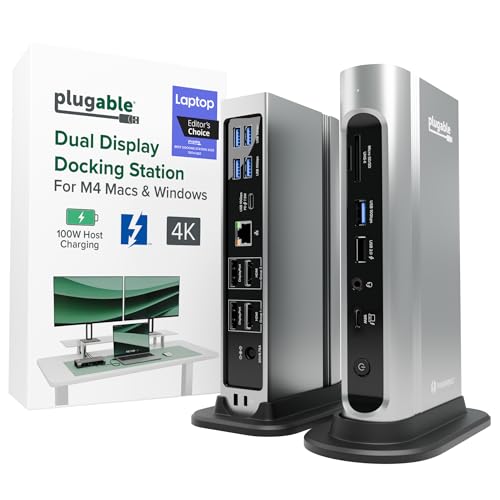
Plugable documents TBT4-UDZ with two HDMI and two DisplayPort output groups, six USB-A ports, USB-C, 2.5GbE, UHS-II SD and microSD, audio, and 98W charging from a 135W supply. This is a large powered desktop dock rather than a compact hub, and it earns its position where two HDMI sockets form part of a much wider peripheral setup.
The detailed display matrix is strict. Plugable lists up to four 4K60 displays on qualifying Windows Thunderbolt 4 or USB4 hosts through MST. Thunderbolt 3 and supported Mac paths reach lower display counts, and the retained matrix limits base M1, M2, and M3 Macs to one 4K60 display. Linux and ChromeOS go unsupported in that detailed matrix.
Four physical video sockets do not guarantee four monitors on every host, and two HDMI sockets erase none of the operating-system split. Six USB-A ports also carry different speed and charging roles rather than six identical dedicated lanes.
Our Take
Choose TBT4-UDZ for a qualified Windows workstation needing two HDMI options plus extensive USB and network expansion. Read Plugable’s exact Mac matrix before pairing it with Apple silicon.
- Two HDMI plus two DisplayPort groups
- Six USB-A ports and 2.5GbE
- 98W host charging
- Large powered desktop dock
- Mac and USB-C-only host paths have lower limits
5. StarTech 155NA-USB4-DOCK — best dual HDMI 2.1 Windows/ChromeOS route
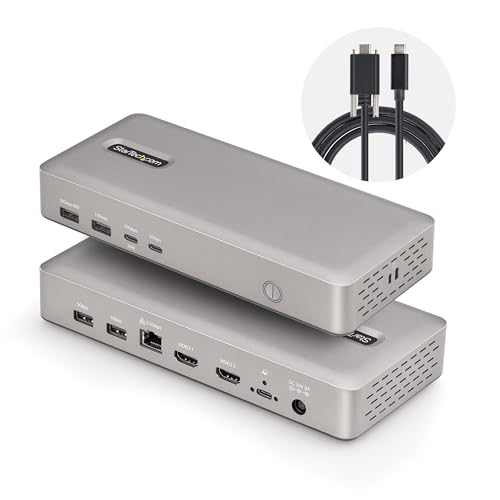
StarTech documents 155NA-USB4-DOCK with a 40Gbps USB4 upstream link and two HDMI 2.1 outputs. Its qualified Windows and ChromeOS matrix includes dual 4K60 at 4:4:4 or dual 4K120 at 4:2:2. Keep those chroma and DSC conditions beside the display number, because the two modes are not equivalent.
StarTech states that this exact dock does not support macOS. Treat that as a hard buying boundary rather than a limitation to soften. Windows and ChromeOS hosts still need the required graphics, USB4 path, DSC behavior, cable, and monitor inputs, since the HDMI 2.1 labels alone do not prove the published mode.
The retained record also lists up to 100W charging and 2.5GbE. Power stays negotiated, and USB4’s 40Gbps link is a protocol ceiling shared across the dock rather than measured simultaneous throughput for displays, network, and storage.
Our Take
Pick the StarTech when two HDMI 2.1 sockets and an exact Windows or ChromeOS mode table are the requirement. Never buy this model for a Mac.
- Two HDMI 2.1 outputs
- Qualified dual-4K60 and dual-4K120 branches
- Up to 100W charging and 2.5GbE
- No macOS support
- Higher mode carries exact chroma and DSC conditions
How to choose a dual-HDMI hub or dock
Identify the display technology
UD-MSTHDC and DOCK423TT rely on native MST for Windows and ChromeOS, Kensington and Plugable use Thunderbolt/USB4 host paths with their own matrices, and StarTech uses USB4 with an explicit OS boundary. None of these is interchangeable with DisplayLink software graphics. Our DisplayLink dock guide covers the driver-based path where native host display count falls short.
Count active displays, not sockets
Some docks expose groups where HDMI and DisplayPort are alternatives, and others expose more connectors than the host can activate. Write down the host’s native external-display count first, then match the maker’s exact output group and resolution row. A base Apple chip with one native external-display path stays constrained.
Compare power after dock overhead
Targus requires a separate charger and lists pass-through input, while Plugable UD-MSTHDC includes a supply and offers 60W. Kensington offers 96W, TBT4-UDZ 98W, and StarTech up to 100W. Whichever figure appears, the laptop’s accepted USB PD profile keeps control, and a dock ceiling is not measured battery input.
Keep mode details beside the resolution
Dual 4K60 can hinge on DP 1.4 instead of DP 1.2, and StarTech’s dual 4K120 and 4K60 rows carry different chroma conditions. HDMI generation proves no HDR, VRR, HDCP, color depth, DSC, or game behavior. Work from the monitor’s exact input mode and a cable rated for the chosen path.
Frequently asked questions
Will two HDMI ports always show two extended desktops?
No. The host GPU, OS, MST or Thunderbolt/USB4 topology, output grouping, cable, and monitor inputs all have to support two active displays. Sockets alone prove nothing beyond physical connection choices.
Which picks support two extended displays on macOS?
Work from the exact Kensington or Plugable Thunderbolt matrix for your Mac model. The ordinary MST path on UD-MSTHDC or DOCK423TT creates no two extended Mac desktops, and StarTech 155NA explicitly does not support macOS.
Can one charger power these docks and any laptop?
No. Some docks include a supply while others use pass-through. The dock reserves power, the cable carries a limit, and the laptop accepts a negotiated profile. Gaming and workstation laptops may still need their main adapter.
Final recommendation
Plugable UD-MSTHDC is the best overall pick for a qualified Windows or ChromeOS desk because its dual-output groups, detailed MST matrix, certification, and included power system are all clearly defined. After that, one requirement selects each alternative: Targus for portability, Kensington for a direct Thunderbolt 4 dual-4K60 branch, Plugable TBT4-UDZ for extensive Windows expansion, StarTech for dual HDMI 2.1 on Windows or ChromeOS. Whichever you buy, qualify active-display count, topology, OS, output group, cable, monitor input, and charging separately.