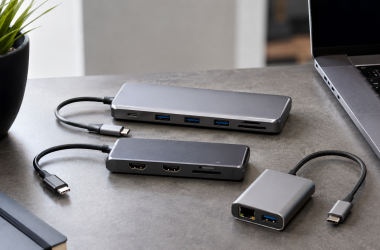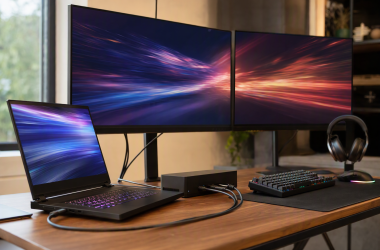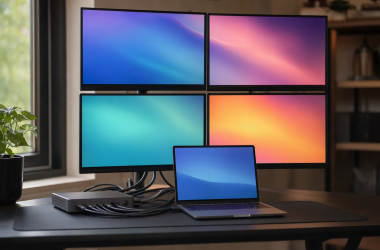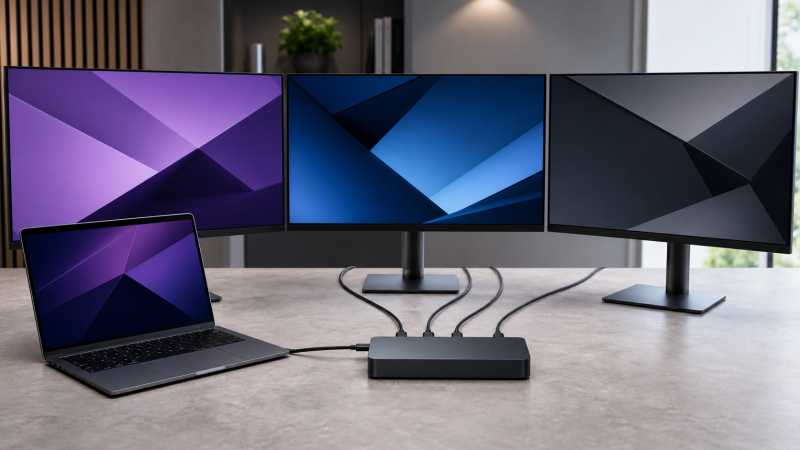
The Plugable UD-6950PDZ is the clearest triple-4K office choice, because its maker documents the full hybrid path: one native DP Alt Mode group and two DisplayLink groups, reaching three 4K 60Hz displays when the native group receives DisplayPort 1.4. The other picks arrive at triple 4K by different roads, whether native Windows multi-stream paths, four-output DisplayLink headroom, or a mixed 60Hz/30Hz layout. Not one of them is a universal three-screen promise. Check the host, OS, driver, DSC support, connector group, and refresh before buying. See our main USB-C docking station guide if three 4K panels are not mandatory.
Quick picks
- Plugable UD-6950PDZ: Three 4K 60Hz office displays through one native and two DisplayLink groups.
- Targus DOCK570USZ: DisplayLink headroom for up to four active outputs, with connector-specific refresh limits.
- Lenovo ThinkPad USB4 Dock 5000: Native triple-4K60 route inside a qualified four-4K60 ceiling.
- StarTech 116N-USBC-DOCK: Two 4K60 DisplayLink screens plus one native 4K30 screen.
Compare the best triple-4K USB-C docks
| Image | Product | Details | Check Price |
|---|---|---|---|
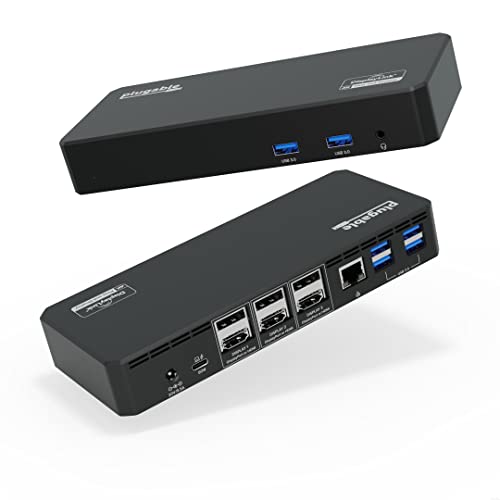 | Plugable UD-6950PDZ | Three-display topology: One native DP Alt Mode plus two DisplayLink groups Maximum cited mode: 4K60 + 4K60 + 4K60 with DP 1.4 native path Driver: DisplayLink required for two groups Host boundary: DP 1.2 lowers native group to 4K30 Best for: Triple-screen office work | Check Price on Amazon |
 | Dell Universal Dock UD22 | Three-display topology: Hybrid native DP Alt Mode and DisplayLink Maximum cited mode: Exact Dell host/output matrix required Driver: Synaptics DisplayLink required Host boundary: Host DP/DSC, grouping, and workload control result Best for: Validated Dell hybrid desk | Check Price on Amazon |
 | Targus QV4K DOCK570USZ | Three-display topology: DisplayLink; up to four active outputs Maximum cited mode: DP up to 4K60; all-HDMI conservatively 4K50 Driver: DisplayLink required Host boundary: USB-C charges; USB-A does not Best for: Four-output office headroom | Check Price on Amazon |
 | Dell Pro Thunderbolt 4 Smart Dock SD25TB4 | Three-display topology: Native Thunderbolt 4; multiple output groups Maximum cited mode: Up to four displays; exact triple refresh host-specific Driver: Native GPU path Host boundary: Dell GPU/DP/DSC display table controls Best for: Qualified native Thunderbolt desk | Check Price on Amazon |
 | Lenovo ThinkPad USB4 Dock 5000 | Three-display topology: Native USB4 multi-stream path Maximum cited mode: Within maker's qualified four-4K60 ceiling Driver: Native GPU path Host boundary: GPU, DP tunneling, DSC, OS, and ports control Best for: Qualified native USB4 workstation | Check Price on Amazon |
 | StarTech 116N-USBC-DOCK | Three-display topology: Two DisplayLink groups plus one native group Maximum cited mode: 4K60 + 4K60 + 4K30 Driver: DisplayLink required for two groups Host boundary: DP Alt Mode required for native third screen Best for: Two main screens plus reference display | Check Price on Amazon |
1. Plugable UD-6950PDZ — best hybrid triple-4K office route

Three labeled groups is what Plugable provides, and that makes this the most explicit three-screen topology in the list. Display group 1 uses the host’s native DP Alt Mode stream. Groups 2 and 3 use DisplayLink DL-6950 and require DisplayLink software. Each group lets you choose its HDMI or DisplayPort socket, though you cannot treat both connectors in one group as separate screens.
Plugable documents up to three 4K 60Hz displays when the host, software, cables, and monitors meet its conditions. The native group requires DisplayPort 1.4 for 60Hz, and a DisplayPort 1.2 host drops that screen to 4K 30Hz while the two DisplayLink groups stay on 60Hz. macOS needs Screen Recording permission. Plugable positions this class for office and web work, not gaming, graphics applications, full-screen video, or video editing.
Our Take
When three productivity screens matter more than a fully native GPU path, this is the buy. The honest configuration is one native 4K60 stream plus two software-rendered 4K60 streams.
- Maker documents a complete triple-4K60 branch
- HDMI or DisplayPort choice in each group
- Broad documented desktop OS scope
- Two screens use DisplayLink software
- Native screen drops to 4K30 on a DP 1.2 host
2. Dell Universal Dock UD22 — best Dell hybrid route

A Dell-centered multi-monitor desk does not need every screen to come from native host streams, and that is the argument for the UD22. Dell combines Synaptics DisplayLink outputs with a native USB-C DP Alt Mode path, and its documentation lists two DisplayPort 1.2 outputs and HDMI 2.0 on the hybrid dock, plus USB-C DisplayPort 1.4 Alt Mode.
This pick needs the most careful pre-purchase matrix check of the six. Dell makes the exact triple-display result dependent on the DisplayLink driver, host DP and DSC capability, chosen output group, and workload. Our sources do not establish one universal three-screen 4K refresh, and we will not invent one. Treat the UD22 as a qualified Dell route only when Dell’s table for your exact laptop shows three 4K outputs and the refresh you need. Dell lists up to 96W before adaptive dock loading.
Our Take
Where Dell’s exact host documentation validates your three-monitor mode, the UD22 works. If you need a fixed triple-4K60 promise without a model check, this is not it.
- Hybrid Dell display architecture
- Native DP Alt Mode route remains available
- Managed-desk fit
- No universal triple-4K refresh in our sources
- Driver, DSC, and output-group checks are mandatory
3. Targus DOCK570USZ — best four-output DisplayLink headroom
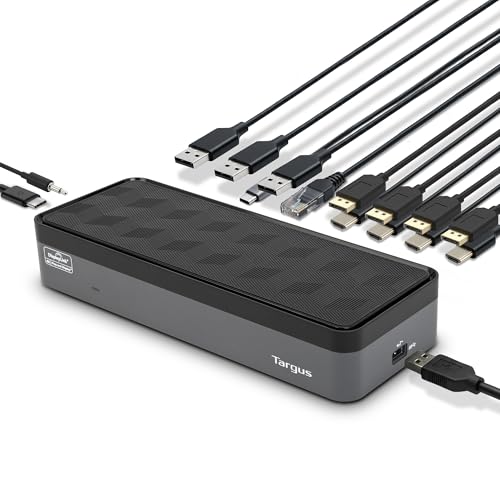
Eight sockets, four active outputs: that arithmetic is the first thing to fix in your head. Targus builds the DOCK570USZ around two DisplayLink DL-6910 chips and allows up to four active outputs. It provides four DisplayPort and four HDMI sockets, but those eight sockets are connector choices rather than eight independent desktops. For a triple-4K desk, the Targus specification supports four DisplayPort screens at 3840 x 2160 60Hz. Targus gives a more conservative 3840 x 2160 50Hz ceiling for four HDMI screens.
The reason that HDMI limit matters is that another part of Targus’s page says all four HDMI or DisplayPort displays can reach 4K 60Hz. Until the maker resolves the conflict, we keep 50Hz for the all-HDMI branch. Either a USB-C or a USB-A host connection carries the DisplayLink graphics, and USB-A cannot charge the laptop. A compatible USB-C host may negotiate up to 100W.
Our Take
For an office wall of displays, this is the headroom pick. Favor DisplayPort for the documented 60Hz route, and do not confuse the eight sockets with eight active outputs.
- Up to four active DisplayLink outputs
- Documented four-DisplayPort 4K60 branch
- USB-C and USB-A host connection
- Targus HDMI refresh claims conflict
- USB-A host path provides no laptop charging
4. Dell Pro Thunderbolt 4 Smart Dock SD25TB4 — best qualified native Thunderbolt route
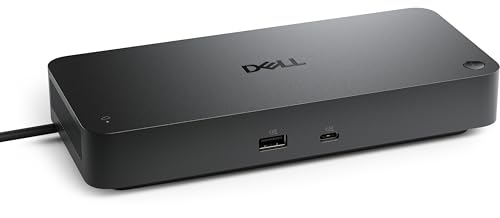
Motion, protected playback, and color-managed work all want the native path, and the SD25TB4 keeps displays on a native Thunderbolt and GPU route. Dell documents two DisplayPort 1.4 sockets, HDMI 2.1, multifunction USB-C DisplayPort 1.4, and downstream Thunderbolt display routes, with a ceiling of up to four external displays. That architecture is the right one when the exact host supports the required streams.
Our Dell sources do not establish a universal refresh for three 4K displays. The laptop GPU, DP generation, DSC support, OS, output group, cable, and monitor inputs control the usable mode. Buy only after Dell’s display table confirms three 4K screens at your required refresh. Dell’s higher 130W charging branch is for supported Dell systems, and Dell lists up to 96W for non-Dell hosts.
Our Take
Treat the SD25TB4 as our native-path choice rather than a shortcut around compatibility. A confirmed Dell host table makes it strong; an unverified USB-C or Thunderbolt logo does not.
- Native GPU display route
- Several documented output options
- Up to four-display manufacturer ceiling
- Our sources have no universal triple-4K refresh
- Dell-specific high-power branch
5. Lenovo ThinkPad USB4 Dock 5000 — best qualified native USB4 route
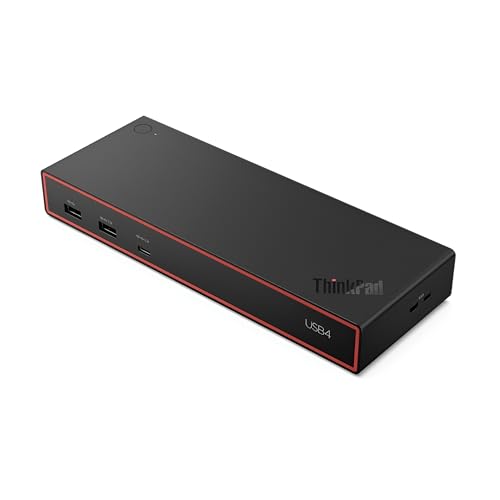
A triple-screen native setup sits comfortably under this dock’s ceiling, which is what makes it the qualified native answer. Lenovo documents a native USB4 40Gbps upstream connection, two DisplayPort 1.4 sockets, HDMI 2.1, and a full-function USB-C DisplayPort 1.4 output, with a manufacturer ceiling of four 4K displays at 60Hz that places a triple-4K60 setup inside the qualified Windows-style native topology. Lenovo also cites a two-display 4K144 ceiling, but that separate branch does not prove three high-refresh screens.
That four-4K60 figure still depends on the laptop’s USB4 router, GPU, DP tunneling, DSC, OS, cable, monitors, and selected outputs. On a Mac, the exact Apple processor’s native external-display limit remains decisive. According to Lenovo, the dock supplies 65W from its bundled 100W adapter, or up to 100W with the optional 135W adapter.
Our Take
Reserve it for a validated USB4 Windows workstation that needs three native 4K60 desktops. It cannot create native streams the laptop does not support.
- Native USB4 path
- Four-4K60 qualified ceiling
- Several DP 1.4 display connectors
- Host and DSC conditions control the result
- Higher charging needs an optional supply
6. StarTech 116N-USBC-DOCK — best two-DisplayLink-plus-native route
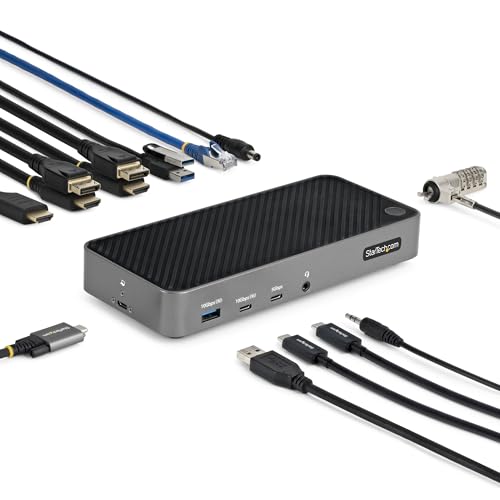
The uneven numbers on this hybrid dock are stated plainly rather than averaged away. Two DisplayLink DL-6950 output groups each support either HDMI 2.0 or DisplayPort 1.2 at up to 4096 x 2160 60Hz, and StarTech gives the third display a native DP Alt Mode HDMI output reaching up to 4096 x 2160 30Hz. Its triple-4K mode is therefore 60Hz, 60Hz, and 30Hz, not three identical 60Hz screens.
Full functionality requires a USB-C host with DP Alt Mode and USB Power Delivery. The DisplayLink software must be supported and approved on the OS, and the native group depends on the host video path. StarTech lists 100W charging under normal host negotiation and includes the power adapter.
Our Take
Take this one when the third screen is for static reference material and 30Hz is acceptable. The two main office screens get the faster DisplayLink groups.
- Exact per-group refresh is documented
- HDMI or DisplayPort choice for two screens
- Broad documented OS scope
- Third 4K screen tops out at 30Hz
- Mixed graphics path requires both driver and DP Alt Mode
How to choose a triple-4K topology
Decide whether all three screens must be native
A native triple-display setup needs the laptop to expose enough DisplayPort streams, or a supported MST/DSC branch through USB4 or Thunderbolt. That is normally a Windows-host decision. macOS does not support ordinary MST extended-desktop splitting, and each Apple processor has its own native external-display limit. Four connectors on a dock override neither OS nor GPU behavior.
DisplayLink moves pixels through USB and can create additional software desktops. It is practical for documents, dashboards, browser windows, and other office work, though product-specific driver, permission, HDCP, color, and high-motion limits remain. Our broader three-monitor docking guide includes lower-resolution and mixed-monitor desks.
Put refresh beside every screen
“Triple 4K” is incomplete without three refresh values and the connector group. The picks above include a 60/60/60 hybrid branch, a 60/60/30 hybrid branch, a DisplayPort 60Hz route with a conservative HDMI 50Hz conflict, and native products whose exact host matrices control the result. Confirm the cable and monitor input as part of the mode, especially when DSC or chroma conditions appear.
Decide whether all three screens need the same refresh. A 30Hz reference panel can be acceptable for email, a calendar, or static documentation, which makes the StarTech hybrid route more practical than its uneven numbers first suggest. Mouse movement, scrolling, and video look less consistent once that slower screen becomes the main workspace. If you want any monitor to serve as the primary display, choose a documented 60/60/60 branch and verify that the mode applies to the exact three outputs you will connect.
Charging is a separate branch. A dock may negotiate less power than its adapter label, reserve power for peripherals, or offer a vendor-specific higher mode. Match the dock’s delivered host power to the laptop instead of assuming that display capability and charging scale together.