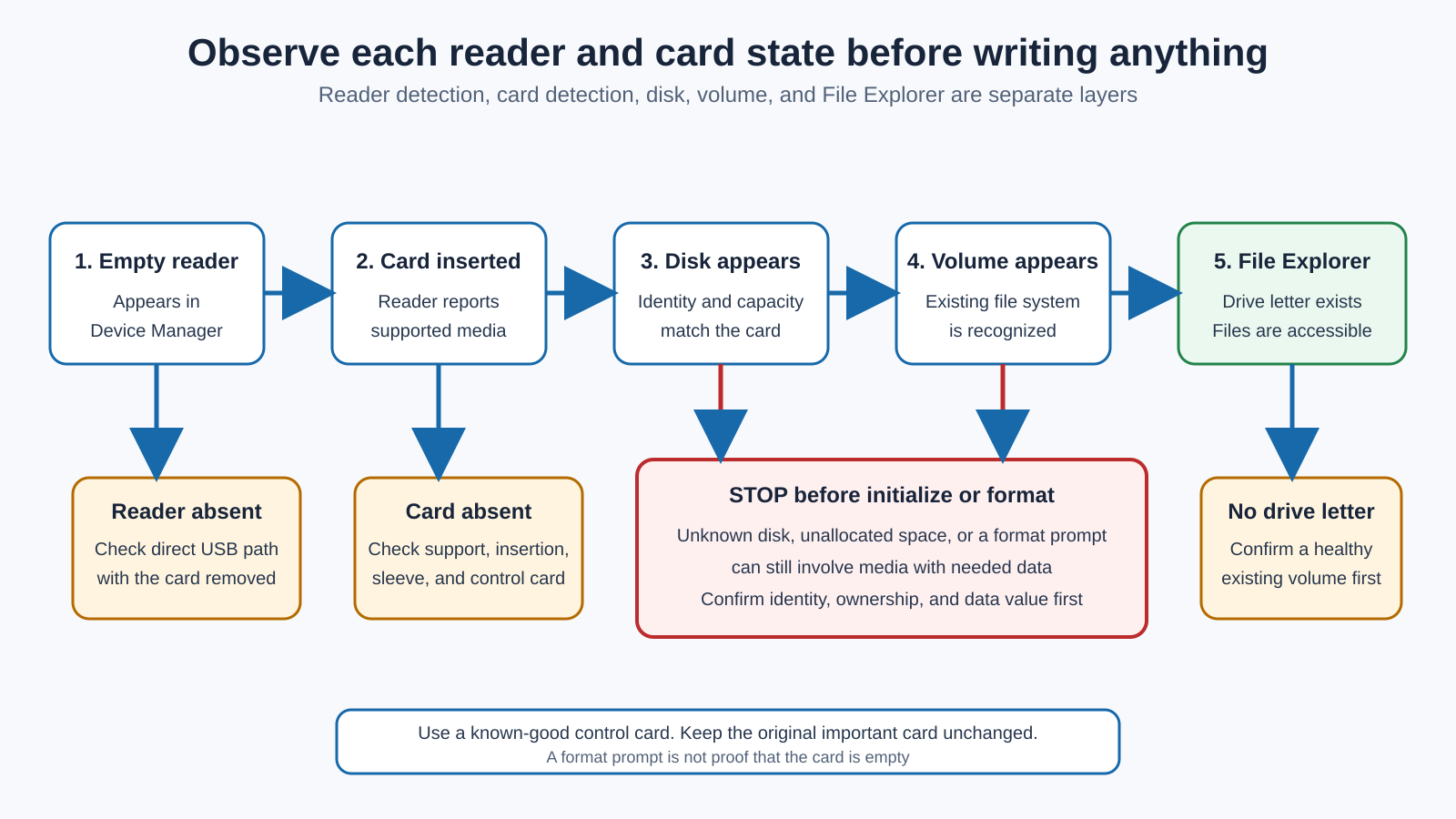
This is the one guide where a wrong click can cost you the photos, so it pays to learn the card’s path through Windows before touching anything. Windows brings a card up in a fixed order, and each stage shows up somewhere you already know. The reader appears in Device Manager, the card registers there once you insert it, a disk appears in Disk Management, and only then does a drive you can open show up in File Explorer. Find the first stage that is missing, and you have found the problem, usually without any command that writes to the card.
First, protect the card and keep the reader direct
Before you test anything, decide whether the card holds the only copy of photos, video, documents, or project files. If it does, stop using it as the test card, because repeated insertion, removal, repair attempts, and interrupted writes can add risk to an already uncertain state. Note the card brand, type, and stated capacity, whether it is full-size SD or microSD or another format, any microSD-to-SD adapter sleeve, the reader model and the card types it supports, where the card was last used, whether another device can still read it, and whether the data exists anywhere else. If the files are valuable and the card is unreadable everywhere, this is the wrong tool, and data recovery is a separate risk decision for a specialist.
Then remove everything between the reader and the computer. Take out a dock, hub, monitor passthrough, extension, coupler, and KVM, and connect the reader straight to a documented USB-C data port, keeping the reader’s own cable unchanged and using the supplied cable or a maker-approved replacement when the cable is removable. Every stage below assumes that direct connection, and a known-good spare card you can risk is the right thing to test with while the card that matters stays out of the reader.
In Device Manager: does the reader show up?
Remove the card, connect the empty reader directly, open Device Manager, choose View > Devices by connection, and watch the tree while you disconnect and reconnect the reader. Look under Universal Serial Bus controllers, Universal Serial Bus devices, Disk drives, Storage controllers, Memory technology devices, and Other devices, because the exact category varies by reader. Record any entry that appears with the empty reader, including a generic USB storage or card-reader name.
A blank here is a USB problem, not a card one, so keep the card out until the reader itself shows up. If the empty reader never appears on two USB ports, the reader, its cable, the computer port, and the reader’s product page are what to check, and the card cannot explain an absence you can reproduce with no card inserted. If an entry appears with a warning icon, open its Properties and copy the complete Device status and exact error code, because Microsoft publishes different resolutions for different codes and “reinstall the card reader” is not one of them. The code describes a device state without naming whether the reader, cable, or computer port caused it. The Windows USB version guide helps identify what Windows enumerated, though a shown USB mode does not prove card readiness or data integrity. If a removable USB-C cable is the isolated layer, identify its required data function before choosing from the USB-C cable guide, and the cable speed test guide can confirm a stable data route with noncritical storage, but do not benchmark the important card over an unstable connection.
Does the reader register the card?
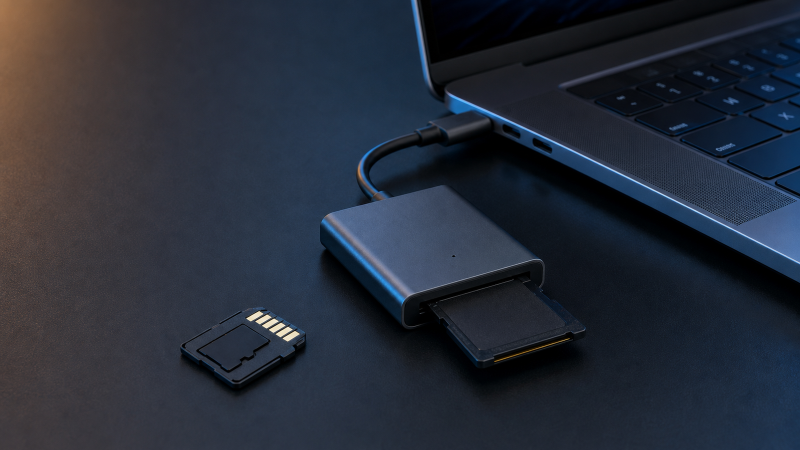
Once the empty reader is present, insert the card and watch for a second change in Device Manager. If nothing changes, the reader is there but the card is not, and that is a physical and compatibility question, not a driver one. Open the reader’s manual and confirm the exact card families and capacities it accepts, because SD, SDHC, SDXC, microSD, and other labels describe different media families or capacities, and a card fitting through an adapter sleeve does not mean the slot accepts it. Insert the card gently in the orientation the exact reader documents. StarTech’s DKT30CSDHPD manual gives one scoped example, label side in the documented direction, with no forcing, and your reader can use another orientation. If the full-size card or adapter sleeve has a lock switch, confirm its position: ASUS includes the switch in its current card-reader checks, and the switch controls write protection on supported media without explaining every case where the card is absent. Treat a microSD-to-SD sleeve as its own step, keeping the microSD card fixed and substituting only a second known-good compatible sleeve.
Change one physical variable at a time to read this stage. Insert a known-good supported card that holds no irreplaceable data. If it appears, the reader can detect at least one supported card, so focus on the original card, its condition, and the adapter sleeve. If it does not appear while the empty reader stays listed, focus on the card slot, the reader itself, and the exact reader package. If the reader disappears the moment any card is inserted, record that exact change, stop repeated insertion, and give that evidence to the reader maker. Then test the original card in another compatible device without accepting a format prompt, such as a camera or a second documented reader, holding the card fixed while you change only the reader, then holding the reader fixed while you change only the card. If the reader works directly but fails only through a larger device, the added connection is what to check, because a reader built into a separate dock sits on that dock’s downstream USB path, so compare USB-C hubs or USB-C docking stations only after the intermediate connection is isolated. Run Windows Update after the physical comparison, then use the reader maker’s own page, matching model, hardware revision, Windows version, and any named controller package, and do not copy a package or BIOS setting from another computer, because ASUS documents BIOS card-reader settings for specific ASUS machines with built-in readers that are not meant for a standalone USB-C reader.
In Disk Management: does a disk appear?
With the reader and card both present in Device Manager, open Disk Management to see whether a disk identity exists. Right-click Start, open Disk Management, and identify the card by comparing its stated capacity and whether an entry appears the moment you insert it, not by position, because Windows can reorder devices. Disconnect other removable storage when it is safe to do so, then compare the list before and after insertion.
Before you read the states, hold to one rule: do not initialize, format, clean, or delete a partition on an unknown card to make it usable, because each of those writes to the disk and none of them is a detection test. With that fixed, the states divide the work. No new disk while the reader stays visible sends you back to the card stage, insertion, adapter sleeve, and the test with another card. A disk that appears as offline, a disk with an existing healthy volume, a healthy volume with no drive letter, unallocated space, an unknown or unreadable file system, or an initialize-or-format prompt each mean something different, and none of them establishes that the card is blank. A format prompt in particular can mean new media, an unsupported file system, damaged metadata, or something else, so cancel it whenever the card may hold data. Where the state is only a healthy existing volume without a drive letter, confirm the card identity and data value first, then use Disk Management’s drive-letter function for that existing volume without creating or formatting a new one.
In File Explorer: can you open the volume?
A reader and card can enumerate, and a disk can appear, while File Explorer still cannot open the volume. At that point the failure has passed detection and moved into the volume and file system. Ask where the card was formatted and which device last wrote it, because a camera, recorder, game system, industrial device, or another operating system can use a file system or partition arrangement that Windows does not present normally. Do not reformat the card merely to make it compatible. Copy needed data from a device that can still read it before making any future format decision, and if no device can read it and the files have value, stop before repair tools and use an appropriate recovery path. If the card is new, empty, and yours to prepare, follow the card and device maker’s instructions for the target device, because a camera may need to format its own card, and preparing blank media is a setup decision that sits outside a detection guide for a card whose contents are unknown.
Once Windows recognizes the volume and no transfer is running, remove the card through the supported eject or Safely Remove Hardware path when the reader or maker requires it. StarTech warns for its exact reader that removing the card before the operating system says it is safe can lead to lost or corrupted data, so do not pull the reader or card during a write. If the reader disconnects by itself during a transfer, stop using important data on that path, reproduce enumeration with a noncritical control card, and isolate the reader, cable, port, and power before another write.
When the reader itself is the problem
The card fails in every reader, or a healthy volume just needs a drive letter, or a camera wrote the files in a format Windows will not open, and none of that is the reader’s fault. So protect the data first: if the card holds anything you cannot lose, copy it off from a device that can still read it, and if nothing can read it and the files have value, stop before any format or repair tool and hand the card to a recovery specialist.
The reader earns replacement only on specific evidence: it will not enumerate on a second computer, or two known-good supported cards fail in it while those same cards work in another reader. Once that evidence is in, a Thunderbolt or USB-C card reader is matched by its card handling and host connection. Until it is, a card Windows could not read stays a data-safety question for a recovery specialist, and no new reader brings back what the old one could not.
Frequently asked questions
Why does the reader appear but the SD card does not?
The USB reader has enumerated, but the card layer has not. Check card handling, insertion, lock switch, adapter sleeve, and a known-good supported card. Then test the original card in another compatible device without formatting it.
Should I initialize the card in Disk Management?
Not until you know that the card is new, empty, yours to prepare, and correctly identified. Initializing an unknown card can change storage metadata and is not a detection test.
Why does Windows ask me to format the card?
Windows cannot use the current volume as presented. The card might be new, use an unsupported file system, or have damaged metadata. Cancel if the card may contain data. A format prompt does not prove the card is empty.
Can the lock switch hide the card?
The switch controls write protection on supported cards. Check it, but never treat it as the universal cause of a missing reader or disk.
Should I update the BIOS for an external reader?
Not as a generic step. Use Windows Update and the exact reader and computer support pages. BIOS card-reader settings documented for built-in readers do not automatically apply to a standalone USB-C reader.
Why does the card work in my camera but not Windows?
The camera shows it can read the card through its own hardware and file-system path. Keep the card unchanged and compare reader support, adapter sleeve, USB connection, and Windows volume state.
Sources
Data safety comes before detection here: formatting destroys the data on a volume, which Microsoft’s Disk Management page states, so a format prompt on a card that may hold files is cancelled, not obeyed. Its Device Manager error-code guidance reads a warning entry, and USB-C troubleshooting is the connector reference. ASUS’s current card-reader troubleshooting supplies the lock-switch and built-in-reader BIOS notes, StarTech’s DKT30CSDHPD manual supplies an exact external-reader orientation and safe-removal example, and Western Digital’s current format-prompt page supports the data-risk warning. Every model-specific detail belongs to that product rather than to every reader.