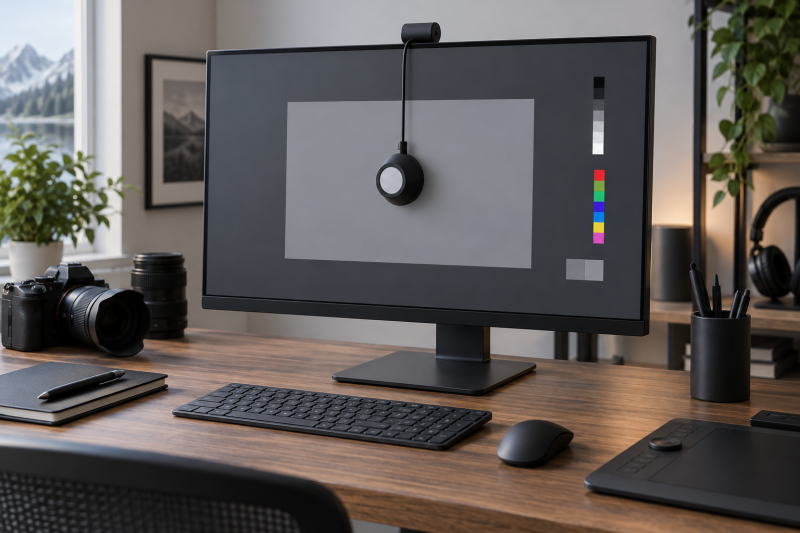
A display colorimeter is a sensor that measures how a monitor produces color, brightness, white point, and tone response. Calibration software then uses those measurements to create a more reliable viewing result. For photographers, video editors, and designers, the right tool depends on display technology, brightness range, number of monitors, software controls, and whether the workflow needs basic profiling or deeper analysis.
These five products cover an approachable dual-display tool, a current advanced calibrator, two older Spyder4 options, and a creator controller with integrated calibration. Hardware is only half of the decision. Confirm current operating-system and software support before buying, especially for legacy models with scarce new inventory.
Choose a colorimeter by display technology, brightness range, software support, and workflow depth, then recalibrate on a repeatable schedule under stable room lighting.Top 5 Display Colorimeters Compared
| Image | Product | Details | Check Price |
|---|---|---|---|
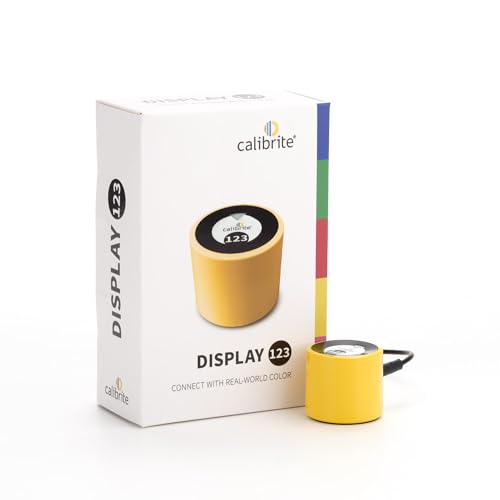 | Calibrite Display 123 | Displays: Up to 2 Connection: USB-C Workflow: Guided Easy 1 2 3 Controls: Native or Photo brightness target | Check Price on Amazon |
 | Datacolor SpyderPro SP2024PRO | Displays: Unlimited within computer capability Brightness: Up to 12,000 nits Panels: LED, OLED, QD-OLED, Mini LED Connection: USB-C with USB-A adapter | Check Price on Amazon |
 | Datacolor Spyder4Pro S4P100 | Sensor: Full-spectrum color sensor Displays: Multiple displays stated Calibration: Automated color and brightness Maintenance: ReCAL assistant | Check Price on Amazon |
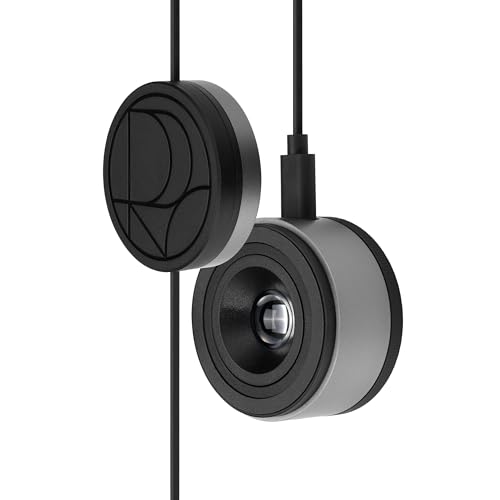 | ASUS ProArt CaliContrO MCA02 | Brightness: Up to 10,000 nits Panels: LED, OLED, Mini LED Calibration: Hardware and software Connection: USB-C | Check Price on Amazon |
 | Datacolor Spyder4Elite S4EL100 | Sensor: Full-spectrum color sensor Displays: LED, OLED, LCD, CRT, laptops, projectors Calibration: Automated color and brightness Maintenance: ReCAL assistant | Check Price on Amazon |
1. Calibrite Display 123 — Best for Simple Creator Calibration
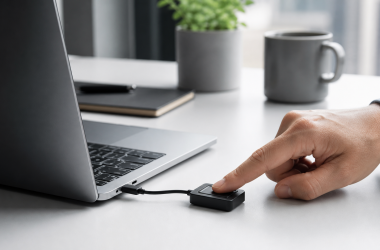
The Calibrite Display 123 is the approachable choice for a creator who wants guided calibration without a long list of advanced settings. Calibrite states the software uses an Easy 1 2 3 workflow, offers Native or Photo brightness targets, and includes a before-and-after view. The before-and-after view makes it easier to see the practical change after a profile is created.
The manufacturer specifies support for up to two displays, which fits a common laptop-plus-monitor desk or a two-monitor editing setup. An adjustable counterweight positions the sensor against the screen, while the native USB-C connection plugs into current laptops without requiring an adapter. Calibrite lists the body as compact at approximately 34 mm high and 37 mm in diameter.
The main limit is scope. The supplied record does not name projector calibration, display analysis, custom video standards, very high HDR brightness measurement, or unlimited monitor support. The Calibrite is the direct option for a straightforward creator desk, not the strongest fit for a studio that needs detailed validation or LUT export.
Choose the Display 123 when a guided USB-C workflow and support for two monitors matter more than advanced analysis and custom calibration controls. Our TakeBuy the Calibrite Display 123 if you want a simple first colorimeter for one or two creator monitors. Its guided workflow, brightness target choices, counterweight, USB-C connection, and before-and-after check cover the core calibration process without unnecessary complexity. Move to SpyderPro when you need broader display analysis or advanced video features.
- Guided Easy 1 2 3 software workflow.
- Supports calibration of up to two displays.
- Native USB-C and adjustable counterweight.
- Limited to two displays in the stated feature set.
- No projector calibration or 3D LUT export is stated.
2. Datacolor SpyderPro SP2024PRO — Best Overall for Advanced Calibration
The SpyderPro is the most capable general-purpose colorimeter in this five-product group. Its stated display support includes Wide LED, Standard LED, OLED, QD-OLED, Apple Liquid Retina XDR, and Mini LED, with brightness measurement up to 12,000 nits. Standard Calibration is stated to take 90 seconds, while Deeper Calibration measures more grayscale points for an average accuracy improvement of more than 30 percent, depending on the display.
SpyderPro supports unlimited displays within the computer’s capabilities and uses StudioMatch and SpyderTune for multi-monitor consistency. Native USB-C connects to modern computers, and an included USB-A adapter covers older ports. The supplied record also states compatibility with modern Windows and macOS releases, though buyers should still confirm the exact supported versions at purchase time.
Its analysis features do more than create a basic profile. Display Analysis and MQA can check uniformity, brightness, contrast, gamut, tone response, and white point, while CheckCal provides a quicker verification. Projector calibration is included, and compatible video workflows can export 3D LUTs in the .cube format with support for Rec.709, Rec.2020, and DCI-P3.
Ambient-light reading can work with automatic room-light switching, including integration with the Datacolor LightColor Meter. This feature is useful only when the room-light workflow is intentional. Changing profiles constantly in an uncontrolled room is not a substitute for stable editing conditions. For most serious multi-display creator desks, SpyderPro offers the best balance of display coverage, analysis, and workflow flexibility.
SpyderPro is the strongest all-around option, but its deep controls are worthwhile only if the workflow will use analysis, matching, projector support, or 3D LUT export. Our TakeBuy the Datacolor SpyderPro SP2024PRO for an advanced photo, design, or video desk with modern HDR displays, several monitors, projector work, or a need for display analysis. It has the broadest stated support for modern display technologies and the richest software features here. The simpler Calibrite is enough when the goal is guided calibration of only one or two standard creator monitors.
- Supports OLED, QD-OLED, Mini LED, and brightness up to 12,000 nits.
- Unlimited displays within computer capability.
- Display analysis, projector calibration, and .cube 3D LUT export.
- More software depth than a basic two-monitor setup needs.
- Advanced results still depend on correct targets and controlled lighting.
3. Datacolor Spyder4Pro S4P100 — Best Legacy Pro Option
The Spyder4Pro is an older full-spectrum colorimeter with automated color and brightness calibration. Datacolor’s supplied listing says one sensor can calibrate multiple displays. Its fourth-generation sensor uses double-shielded color filters intended to provide a closer match to CIE color standards and better long-term stability than the preceding generation.
The listing states an average accuracy improvement of 26 percent and a 19 percent improvement in consistency between Spyder units, but those comparisons refer to the product’s generation claims rather than a comparison with today’s SpyderPro. ReCAL provides a faster recalibration path to compensate for display change over time, which is a useful feature for a repeatable maintenance schedule.
The important uncertainty is software support. The supplied record does not name current Windows or macOS compatibility, connection type, supported backlight categories, HDR brightness limits, or current application versions. A scarce active-new offer does not make legacy software current. Buy it only after confirming that the required Datacolor software works with the exact computer and operating system.
Buy the Spyder4Pro only for a known-compatible legacy workstation or replacement workflow where its software and connection have already been verified. It offers multi-display calibration, automated brightness and color work, and quick ReCAL. For a new creator setup, the current SpyderPro provides much clearer modern display and operating-system support.
- Automated color and brightness calibration.
- One sensor is stated to calibrate multiple displays.
- ReCAL supports faster repeat calibration.
- Current OS and software compatibility are not stated.
- No modern HDR or display-technology limits are supplied.
4. ASUS ProArt CaliContrO MCA02 — Best for HDR and ProArt Workflows
The ASUS ProArt CaliContrO MCA02 combines three roles: colorimeter, monitor on-screen-display controller, and ASUS Dial input device. It supports both hardware and software monitor calibration through ASUS software. For a compatible ProArt-centered desk, that integration can reduce the number of separate control devices near the keyboard.
Its sensor is stated to measure displays up to 10,000 nits and work with LED, OLED, and Mini LED technologies. That high brightness range is suited to HDR creator monitors, though the actual calibration path depends on the target display and ASUS software compatibility. The reversible USB-C connection provides the main computer link, and the box includes a USB-C cable with a counterweight.
A five-way navigator and shortcut button provide direct display OSD control. The integrated ASUS Dial can assign precise shortcuts in creator software, including Adobe applications according to the product title. These control features are separate from measurement accuracy, but they can make the MCA02 more useful throughout an editing session instead of only during periodic calibration.
The supplied record does not state unlimited multi-display support, projector calibration, 3D LUT export formats, or support details for non-ASUS display controls. Buyers should confirm that the exact monitor and creative applications support the desired hardware-calibration, OSD, and dial functions rather than assuming all three roles work universally.
Buy the ASUS ProArt CaliContrO MCA02 when a compatible ProArt or HDR workflow can use its integrated calibration, display controls, and ASUS Dial shortcuts. Its 10,000-nit stated range and OLED or Mini LED support suit bright modern creator displays. Confirm exact monitor and software compatibility if you plan to use it outside an ASUS-centered setup.
- Measures stated brightness up to 10,000 nits.
- Supports hardware and software calibration through ASUS software.
- Integrated OSD navigation and customizable ASUS Dial.
- Exact non-ASUS workflow compatibility is not stated.
- No projector calibration or 3D LUT export is named.
5. Datacolor Spyder4Elite S4EL100 — Best Legacy Multi-Display Option
The Spyder4Elite is another fourth-generation full-spectrum colorimeter, positioned in its listing for a wider legacy display set. It is stated to calibrate LED, OLED, LCD, and CRT displays, laptops, and front projectors. Automated color and brightness calibration handles the main profiling process, while ReCAL speeds up later maintenance.
Like the Spyder4Pro, it uses double-shielded color filters. The listing repeats the fourth-generation claims of 26 percent higher average accuracy and 19 percent better unit-to-unit consistency, which should be understood as generation-specific marketing comparisons rather than evidence that it outperforms current devices.
The Elite’s stated support for projectors, CRTs, and several display categories makes it the more flexible of the two legacy Spyder4 listings. However, the supplied record does not specify current OS support, connection type, maximum luminance, downloadable software availability, or compatibility with current OLED variants and HDR workflows.
The Spyder4Elite is therefore a specialist replacement or a legacy lab purchase, not the default recommendation for a new editing desk. Confirm installation media, license requirements, operating system, and the exact display type before buying a scarce active-new unit.
Spyder4Elite has the broadest stated legacy device list, but software availability and current operating-system compatibility must be verified before purchase. Our TakeBuy the Spyder4Elite only when a verified legacy workflow needs its stated support for LED, OLED, LCD, CRT, laptop, or front-projector calibration. It is more broadly specified than Spyder4Pro, but both lack current compatibility details in the supplied record. A current SpyderPro is the safer choice for a new workstation.
- States support for LED, OLED, LCD, CRT, laptops, and projectors.
- Automated color and brightness calibration.
- ReCAL assists repeat calibration.
- Current OS and software availability are not stated.
- No current HDR brightness specification is supplied.
Buying Guide
1. Match the sensor to the display technology
Modern creator desks may use Standard LED, Wide LED, OLED, QD-OLED, Mini LED, or a laptop-specific panel system. The colorimeter and software need a correction path appropriate to the display technology. SpyderPro explicitly names all of those categories, while ASUS names LED, OLED, and Mini LED.
Do not assume an older sensor has validated support for a display introduced years later. Legacy listings can name OLED without documenting current OLED variants or HDR workflows. Confirm the exact hardware and software compatibility before choosing either Spyder4 model for a modern OLED monitor.
2. Separate calibration depth from ease of use
Calibrite Display 123 focuses on guided targets and a before-and-after check. A simple workflow is valuable when it encourages regular, repeatable calibration. It fits creators who need reliable profiles without detailed display diagnostics.
SpyderPro adds custom gamma, white point, brightness settings, deeper grayscale measurement, analysis, and CheckCal verification. Advanced controls are useful only when the user understands the output target and can keep the environment stable. A monitor for photo editing still needs appropriate panel capability before profiling can help.
3. Check HDR brightness range
Bright HDR monitors can exceed the useful measurement range of older or basic calibration tools. SpyderPro states support up to 12,000 nits and ASUS states up to 10,000 nits. Those two figures make SpyderPro and the ASUS the clearer fit for current bright-display work than the products with no supplied luminance limit.
Peak capability is not the same as the calibration target used for everyday editing. Choose targets for the delivery standard and viewing environment, not simply the highest number the monitor or sensor can report. Our HDR monitor guide explains the display side of that decision.
4. Plan multi-monitor matching
A laptop and external monitor rarely match perfectly out of the box. Display 123 supports up to two displays, while SpyderPro supports unlimited displays within computer capability. SpyderPro also includes StudioMatch and SpyderTune tools aimed at multi-monitor consistency.
Different panel technologies may remain visually different even after profiling. Calibration can align targets without making unlike displays physically identical. Start with similar brightness, white point, and room conditions, then use the most suitable screen for final judgments in a dual-monitor editing setup.
5. Confirm software and operating-system support
A colorimeter depends on its software to take measurements and create usable profiles. Current driver, application, and OS support are purchase requirements rather than optional extras. SpyderPro explicitly states current Windows and macOS compatibility, while the supplied Spyder4 records do not.
Before buying legacy inventory, confirm download access, license activation, connection type, and support for the exact OS version. An unopened new sensor can still be unusable if its required software no longer runs. Native USB-C on Display 123, SpyderPro, and ASUS also reduces adapter complexity on current laptops.
6. Control the room and recalibrate
A calibration describes the display as it was when you measured it. The display changes as it ages and as settings move. Use consistent room lighting and repeat the process on a regular schedule. ReCAL on the Spyder4 products and CheckCal on SpyderPro are designed to make follow-up work quicker.
Avoid direct light on the panel and allow the monitor to reach a stable operating state. A monitor hood can reduce side and overhead light but cannot replace measurement. Our guides to monitor hoods and monitor light bars cover two separate ways to manage the physical desk environment.
FAQ
Do I need a colorimeter for photo and video editing?
Yes, if you need repeatable color and tone decisions from a creator monitor. A colorimeter measures the actual display instead of relying on visual adjustment alone, because visual adjustment is affected by room light and human adaptation.
A colorimeter cannot make a limited-gamut panel produce colors it does not support. Calibration improves the use of the display you have, while monitor capability sets the underlying ceiling.
How often should I recalibrate a monitor?
Recalibrate on a regular schedule and whenever the display, room lighting, or critical settings change. The right interval depends on the monitor’s stability and the consequence of color drift.
Use quick verification tools when the software provides them. SpyderPro includes CheckCal, while both Spyder4 listings name ReCAL for faster follow-up work.
Can one colorimeter calibrate two monitors?
Yes, several products here support more than one display. Calibrite Display 123 supports up to two, Spyder4Pro states multiple-display calibration, and SpyderPro supports unlimited displays within computer capability.
Calibrate each screen separately under the same room conditions. Two profiles can improve consistency without erasing physical differences between the panels.
Can a colorimeter calibrate an OLED monitor?
Yes, when the device and software explicitly support the OLED type in use. SpyderPro names OLED and QD-OLED, while ASUS names OLED, so both have a clearer modern compatibility claim.
Spyder4Elite also lists OLED, but its current software support is not stated. Verify the exact OLED technology and application version before using legacy hardware.
Is hardware calibration better than software calibration?
Hardware calibration can adjust supported monitor hardware directly, while software calibration commonly relies on a profile and graphics-pipeline adjustments. The better path depends on what the exact monitor and calibration application support.
ASUS states both hardware and software calibration through its software tool. Do not assume every monitor accepts hardware calibration merely because the colorimeter can measure it.
Can I use an old Spyder4 on a current computer?
Possibly, but only after confirming current software, driver, license, connector, and operating-system compatibility. The supplied Spyder4 records do not confirm current Windows or macOS support.
Do that verification before buying scarce new inventory. The current SpyderPro is the safer documented option for a new computer and modern display set.
Bottom Line
The Calibrite Display 123 is the simplest choice for one or two creator monitors. The current Datacolor SpyderPro is the best all-around tool for modern display types, multi-monitor matching, analysis, projectors, and video LUT workflows. Choose ASUS ProArt CaliContrO MCA02 for a compatible HDR and creator-control setup. Treat Spyder4Pro and Spyder4Elite as legacy purchases that require confirmed software and OS compatibility before ordering.