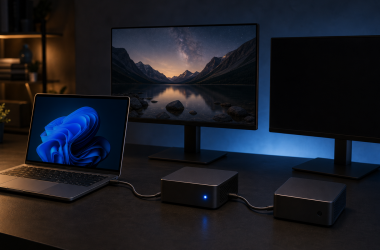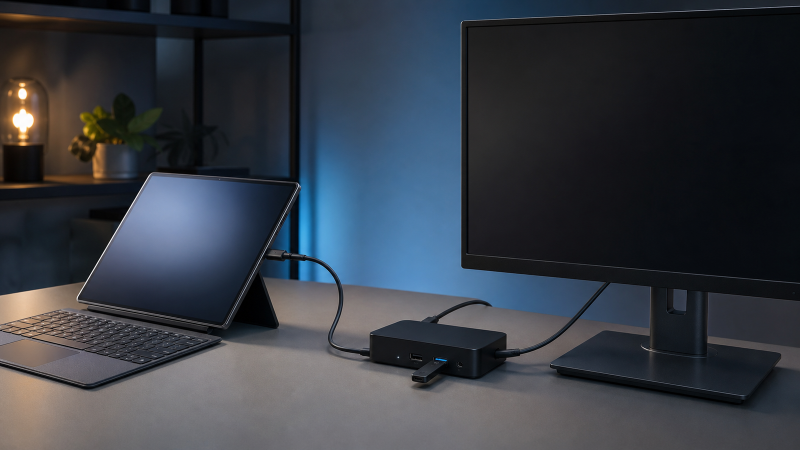
If a monitor on your Surface Thunderbolt 4 Dock is not working, confirm the exact accessory name first. Surface Dock 2 instructions do not apply. Microsoft identifies the front USB-C port and both rear USB-C ports on this dock as video-enabled. Test one monitor on one of those ports with a direct, supported cable or adapter.
Then identify the host mode. A computer with USB4 or Thunderbolt 4 can expose a different display path from a computer using USB-C fallback. Microsoft limits its display figures with the condition that the device and display must support them.
Exact accessory, exact host mode, one video-enabled port, one cable, and one monitor: prove that path before changing software.
This article does not cover Surface Dock 2, the original Surface Dock, Surface USB4 Dock, Surface USB-C Travel Hub, or a third-party USB-C dock. Use the generic USB-C monitor guide for an unidentified dock. Use the Thunderbolt detection guide when the entire dock is absent.
Confirm the exact accessory and connection mode
Look for the full name Surface Thunderbolt 4 Dock on the product or in the Surface app. Similar Microsoft docks have different connectors, port roles, firmware tools, and display limits.
| What you have | Display path | Correct next document |
|---|---|---|
| Surface Thunderbolt 4 Dock on a USB4 or Thunderbolt 4 host | Full USB4 or Thunderbolt dock path | Surface Thunderbolt 4 Dock overview |
| Surface Thunderbolt 4 Dock on a supported USB-C host | USB-C fallback path | Microsoft compatibility note plus exact host specifications |
| Surface Dock 2 | Surface Connect and Dock 2 port map | Surface Dock 2 guide |
| Surface USB4 Dock | Different Microsoft accessory | Surface USB4 Dock guide |
| Third-party dock | Vendor-specific USB-C, Thunderbolt, or DisplayLink path | Exact third-party guide |
| One external display works, second is absent | Multi-display topology | Missing-second-display owner |
Microsoft’s Surface Thunderbolt 4 Dock overview documents one front USB-C and two rear USB-C ports as video-enabled. The dock has no HDMI or DisplayPort socket, so a monitor normally connects by USB-C video or through a suitable USB-C display adapter.
Do not connect a monitor to USB-A. Do not assume a USB-C charging cable supports video. The USB-C video-capability guide explains the general boundary, while Microsoft’s exact dock page controls the port roles.
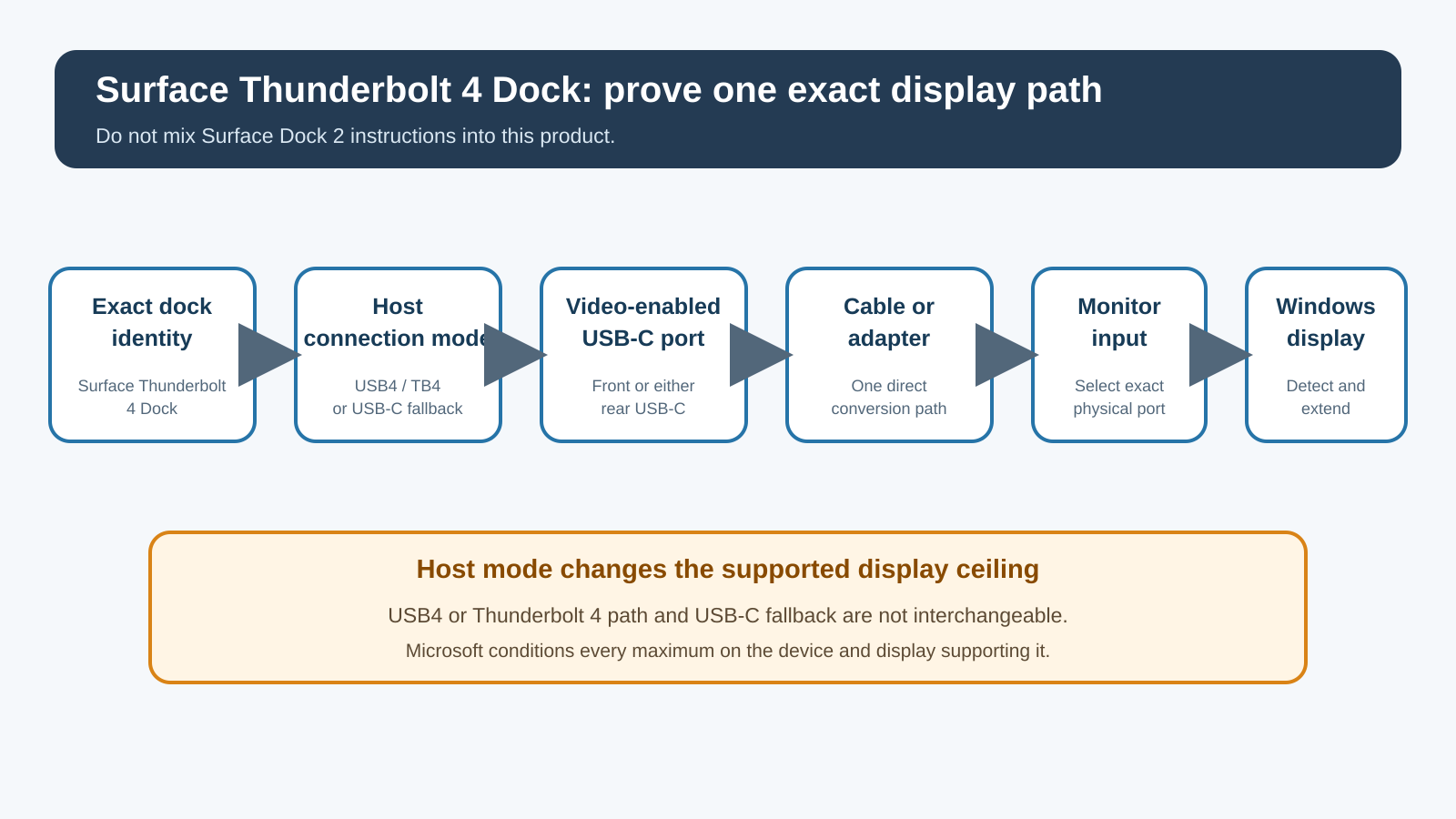
Use this diagnostic order
- Confirm the product is Surface Thunderbolt 4 Dock.
- Record the computer model, processor, and port used.
- Determine whether the host connection is USB4, Thunderbolt 4, or supported USB-C fallback.
- Disconnect every display except one.
- Connect that monitor to one video-enabled dock USB-C port.
- Select the matching physical input on the monitor.
- Prove the cable or adapter with one controlled comparison.
- Check Windows projection and Display settings.
- Test one other video-enabled dock port without changing the monitor or cable.
- Check exact dock firmware through Microsoft’s Surface workflow.
- Add a second screen only after comparing the complete host and display support.
Do not combine several steps. If you move the monitor, replace the adapter, update firmware, and change resolution at once, a later success does not identify the failed layer.
Step 1: identify the host’s real display path
Record the full computer model and processor. If it is a Surface, use the Surface app or System Information to resolve the exact model. If it is another Windows PC, use the computer maker’s model and port documentation.
Microsoft says the Surface Thunderbolt 4 Dock is optimized for USB4 and Thunderbolt 4 hosts. It also lists supported Surface devices that connect through USB-C. Those modes do not have the same display ceiling:
- On a supported USB4 or Thunderbolt 4 device, Microsoft documents support for up to two 4K external displays at 60 Hz when the device and displays support that arrangement.
- On a supported USB-C path, Microsoft documents one external display up to 4K at 60 Hz when the device and display support it.
Both figures are conditional ceilings rather than a promise for every computer, adapter, cable, monitor, or timing. Check Microsoft’s current list and its supported external-display resolutions for the exact host.
If a non-Surface PC has a USB4 or Thunderbolt 4 port, Microsoft says the dock can work with that host, but Surface-only management features can differ. Use the PC maker’s graphics and port documentation for its display limit.
Do not rely on charging to decide the mode. The laptop can accept power even when its video path, cable, or adapter is wrong.
Step 2: build one direct display path
Disconnect all external monitors, storage devices, and unnecessary adapters from the dock. Leave the dock power and upstream cable connected.
Choose one of the three video-enabled dock USB-C ports. Connect one monitor by:
- a direct USB-C video cable when the monitor accepts USB-C DisplayPort input; or
- one USB-C to DisplayPort or USB-C to HDMI adapter that explicitly supports the desired path.
For the first test, remove KVMs, MST hubs, daisy chains, and adapter stacks. Set the monitor to a conservative resolution and refresh rate it supports. The aim is to establish enumeration, not the maximum timing.
If one monitor appears, the dock’s basic display path works. Do not keep treating it as a universal no-video failure. Rebuild the intended arrangement later, one screen at a time.
If you are choosing an adapter rather than diagnosing one you own, the Thunderbolt to HDMI adapter guide is the commercial owner. Buy only after the conversion boundary is identified.
Step 3: select the monitor input and test the conversion layer
Use the monitor’s controls to select its connected USB-C, DisplayPort, or HDMI input. Disconnect another active source if auto-selection keeps returning to it.
Reseat the dock, adapter, and monitor connections. Inspect for a loose plug or a USB-C cable connected to a non-video monitor port.
Check adapter direction before replacing it. A USB-C to HDMI or USB-C to DisplayPort adapter converts from a USB-C video source toward the named display connector. A product intended to capture or convert the reverse direction is not interchangeable. Confirm the input and output labels in the adapter maker’s documentation.
Now change one item:
| Test | Result | Meaning |
|---|---|---|
| Same monitor and cable work directly from another supported source | Picture appears | Monitor and cable can pass that source’s signal; dock path remains |
| Same monitor and adapter fail on another supported source | No picture | Adapter, cable, monitor input, or timing remains before the dock |
| Same setup works on another video-enabled port of this dock | Picture appears | Record the first port as the narrow failed path |
| Different known monitor works on the original dock port | Picture appears | First monitor, input, adapter, or requested timing needs comparison |
| No known display works on any of the three video-enabled ports | No picture | Host mode, upstream connection, firmware, or dock hardware remains |
One failed adapter does not prove a bad dock port. A direct USB-C display path or a different documented conversion path can remove that adapter from the test.
For cable selection after a failure is proved, use the USB-C cable guide. A new cable is not a diagnostic substitute for the comparison.
Step 4: check Windows projection and enumeration
Press Windows + P and choose Extend or Duplicate. Then open Settings > System > Display, expand Multiple displays, and select Detect. Microsoft’s multiple-monitor guidance covers those controls, and its Surface external-display troubleshooting covers the physical checks.
Use Identify when multiple display rectangles appear. Confirm that Windows did not place the external screen in an unexpected position. Select the external display and choose a supported resolution and refresh rate.
Interpret the state:
- No external rectangle: Windows has no usable endpoint from the current path. Test another video-enabled dock port with the rest unchanged.
- Rectangle exists but display is disabled: enable it through projection or Multiple displays.
- Rectangle exists but screen stays black: verify monitor input, adapter direction, and selected timing.
- Picture appears at a lower timing: compare the exact host, adapter, cable, and display limit before raising one setting at a time.
- One screen works and a second is absent: stop the single-monitor sequence and check the multi-display ceiling.
Windows Detect cannot create a USB4, Thunderbolt, or DisplayPort path that the host and accessories do not support. It only works with an endpoint available to Windows.
Microsoft also documents Windows + Ctrl + Shift + B to restart the graphics driver. If you use it, treat it as one observation and change nothing else. Do not install generic driver utilities or remove security controls.
Step 5: move the same path to another dock port
Keep the host, upstream connection, monitor, adapter, cable, and Windows settings unchanged. Move only the display connection to one other video-enabled USB-C port on the dock.
Microsoft identifies one front and two rear ports as video-enabled, so this is an exact product comparison. A repeated difference between ports gives Microsoft support useful evidence.
If the monitor works on one port:
- repeat the comparison once;
- photograph or label the two ports;
- check for debris or physical damage without inserting tools;
- continue to exact firmware status;
- report the A/B result if the fault remains.
If no port works, return to host mode and adapter evidence. If the same host and monitor work directly without the dock, that narrows the dock path but does not distinguish firmware from dock hardware.
Step 6: check the exact Surface dock firmware
Microsoft’s dock update page gives a product-specific workflow:
- Install current Windows updates.
- With the dock connected, open the Surface app.
- Select Surface Thunderbolt 4 Dock from connected accessories.
- Expand Firmware Update and record the installed status.
- If needed, use Microsoft’s offered update or the exact Surface Thunderbolt 4 Dock MSI package.
Surface Dock 2 appears in a separate section on the same support page. Do not download its package for this dock.
Record the firmware state before changing it. Apply the official update once and follow Microsoft’s restart or reconnect instruction. Then repeat the same one-monitor test. Firmware currency removes one variable; it does not prove that firmware was the original cause.
Do not reset BIOS defaults, remove Thunderbolt security, or install an unofficial dock firmware tool.
Step 7: rebuild a supported two-display setup
Only add a second screen after one direct display works. Keep the first path unchanged and connect the second monitor to another video-enabled USB-C port.
Before expecting two displays, confirm:
- the host has a USB4 or Thunderbolt 4 path supported by Microsoft;
- the exact Surface model and processor support the requested display count;
- both displays support the requested timing;
- each adapter and cable supports its role;
- the laptop’s internal display state is included in the plan.
A USB-C fallback host can have a lower external-display ceiling. Do not advertise two displays from the dock merely because three dock ports are video-enabled.
The Surface dock buying guide and dual-monitor docking guide are shopping routes after the topology is known.
Escalation matrix
| Confirmed state | Escalate to | Evidence to provide |
|---|---|---|
| Dock completely absent | Host or Microsoft support | Host model, port, dock power, upstream connection |
| Dock USB works, no display on any of three video-enabled ports | Microsoft support | Host mode, one-monitor test, cable or adapter comparison, firmware |
| Same display works on one dock port only | Microsoft support | Exact front or rear port A/B result |
| Adapter and monitor fail on another source | Adapter or monitor maker | Exact models, inputs, second-source result |
| Direct host display works, dock path does not | Microsoft support | Direct and dock comparison with same monitor and cable |
| One display works, second fails | Host display-topology support | Surface model, processor, connection mode, timings |
| Firmware is current and exact supported path repeatedly fails | Microsoft hardware support | Serial or purchase record, firmware state, reproducible sequence |
Replacement boundary
Do not replace the dock because the monitor was on the wrong input, Windows was set to PC screen only, the host was on USB-C fallback, or one unverified adapter failed.
Replacement becomes reasonable after:
- the exact accessory is confirmed;
- the host and requested one-monitor path are supported;
- one known monitor and conversion path work on another source;
- the same monitor fails on more than one video-enabled dock port;
- exact Surface Thunderbolt 4 Dock firmware is current;
- Microsoft support confirms the hardware boundary.
Replace an adapter or cable only when its controlled comparison changes the state. Service the monitor if it also fails on another source. Choose different dock hardware if the actual host mode cannot support the display arrangement you require.
If that is the confirmed limit, compare only docks that match the host mode and display count you proved. The Thunderbolt 4 dock guide is the appropriate next route for a supported Thunderbolt host.
Frequently asked questions
Which Surface Thunderbolt 4 Dock ports support monitors?
Microsoft identifies the front USB-C port and both rear USB-C ports as video-enabled. The USB-A ports are not monitor outputs.
Is Surface Dock 2 the same product?
No. Surface Dock 2 has a different connection and port map and a separate firmware section. Use this guide only for Surface Thunderbolt 4 Dock.
Can a USB-C laptop use the dock?
Some supported USB-C hosts can, but Microsoft documents a lower display ceiling than the full USB4 or Thunderbolt 4 path. Check the exact host and display support.
Why does the dock charge but not show a monitor?
Power delivery and display transport are separate functions. Prove the host mode, one video-enabled dock port, cable or adapter, monitor input, and Windows endpoint.
Should I install Surface Dock 2 firmware?
No. Use the Surface app entry or MSI package named for Surface Thunderbolt 4 Dock.
Does three video-enabled ports mean three monitors?
No. Port capability is not the same as the host’s supported simultaneous display count. Microsoft conditions its display figures on the device and displays.
Sources and methodology
This article uses Microsoft’s Surface Thunderbolt 4 Dock overview updated July 14, 2026, the exact dock-firmware workflow, Microsoft’s Surface external-display troubleshooting and supported resolutions, Windows multiple-monitor guidance, and VESA connector context.
No dock, Surface, adapter, cable, or monitor was physically tested. Microsoft’s current compatibility list, the exact host specifications, and the monitor and adapter documentation remain controlling.