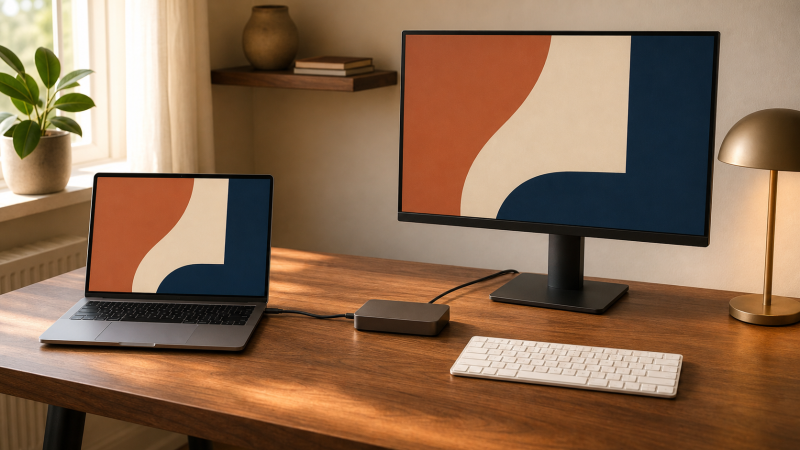
The Dell Pro Dock WD25 is our best overall home-office dock when your laptop has USB-C DP Alt Mode and its display table matches your monitor layout. It combines a native GPU path, useful display outputs, Dell-provided 2.5GbE, and practical laptop charging without making you pay for Thunderbolt expansion you may not use. Where a tidy permanent desk matters more, the OWC Thunderbolt Go Dock is the cleaner premium choice because its power supply is built in, and the Plugable USBC-6950PDZ is the compact DisplayLink fallback for a laptop that cannot drive two native screens. Our full USB-C docking station guide covers more specialized desks.
Quick picks
- Dell WD25: Native USB-C choice for a capable everyday laptop and one or more verified displays.
- Plugable TBT4-UDZ: Thunderbolt/USB4 choice when the desk mixes HDMI and DisplayPort monitors.
- OWC Thunderbolt Go Dock: Built-in power supply for a cleaner fixed desk.
- Targus DOCK425GLZ: Portable USB4 choice that can run bus powered or accept pass-through power.
- Plugable USBC-6950PDZ: DisplayLink fallback for dual 4K60 office screens.
Compare the best home-office USB-C docks
| Image | Product | Details | Check Price |
|---|---|---|---|
 | Dell Pro Dock WD25 | Required host port: USB-C with DP Alt Mode Monitor route: Native DP Alt Mode; host/DSC dependent Laptop charging: Up to 100W Dell; 96W non-Dell Desk advantage: 2.5GbE and several native display outputs Best for: Balanced everyday home desk | Check Price on Amazon |
 | Plugable TBT4-UDZ | Required host port: Thunderbolt 4 or qualified USB4 Monitor route: Native HDMI/DisplayPort groups Laptop charging: 98W Desk advantage: Mixed connectors and 2.5GbE Best for: Changing monitor mix | Check Price on Amazon |
 | CalDigit TS4 | Required host port: Thunderbolt 4 Monitor route: DP 1.4 plus downstream Thunderbolt Laptop charging: 98W Desk advantage: 2.5GbE, UHS-II readers, peripheral I/O Best for: Peripheral-heavy premium desk | Check Price on Amazon |
 | OWC Thunderbolt Go Dock | Required host port: Thunderbolt 4 Monitor route: HDMI 2.1 plus downstream Thunderbolt Laptop charging: 90W Desk advantage: Built-in power supply and 2.5GbE Best for: Clean fixed desk | Check Price on Amazon |
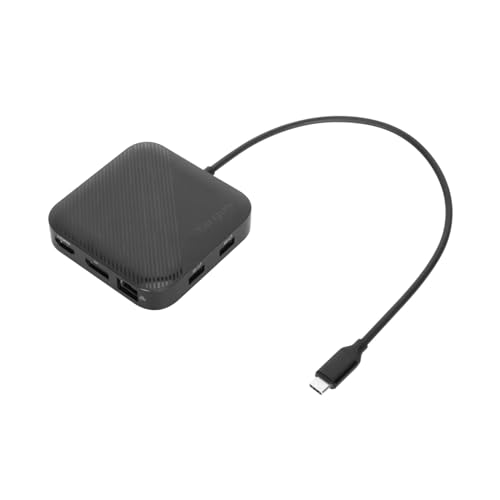 | Targus DOCK425GLZ | Required host port: Qualified USB4 Monitor route: DP 1.4 plus HDMI 2.1; up to dual 4K60 Laptop charging: Up to 85W pass-through; charger excluded Desk advantage: Bus-powered travel option Best for: Work/home hybrid | Check Price on Amazon |
 | Microsoft Surface USB4 Dock | Required host port: USB4/TB4 for dual display; plain USB-C for one Monitor route: Two video USB-C ports plus HDMI 2.1 Laptop charging: Up to 65W Desk advantage: Simple compact USB4 display split Best for: Modest-power USB4 desk | Check Price on Amazon |
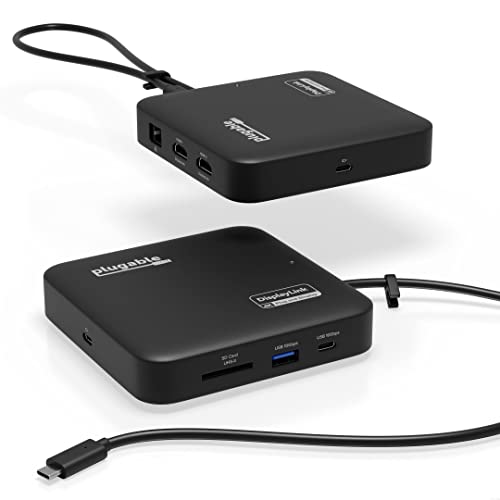 | Plugable USBC-6950PDZ | Required host port: Supported USB-C, USB4, or Thunderbolt host Monitor route: Dual DisplayLink HDMI up to 4K60 Laptop charging: Up to 82W; charger excluded Desk advantage: Captive cable, UHS-II SD, Gigabit Ethernet Best for: Compact dual-monitor fallback | Check Price on Amazon |
1. Dell Pro Dock WD25 — best overall native USB-C home desk

Most home desks do not need Thunderbolt, and the WD25 covers the ordinary one without it. Dell documents a native USB-C DP Alt Mode path, two DisplayPort 1.4 outputs, HDMI 2.1, multifunction USB-C DisplayPort 1.4, and 2.5GbE. That is a sensible mix for wired internet, one-cable peripherals, and a monitor layout already supported by the laptop’s native GPU.
The laptop port is the gate. It has to expose DP Alt Mode, and multi-monitor resolution then depends on the host’s DP lanes, GPU, DSC support, OS, output group, cables, and monitors. A Mac remains subject to its processor’s native-display count and lack of ordinary MST extended desktops. Dell documents up to 100W for supported Dell systems and up to 96W for non-Dell systems.
Our Take
With a confirmed native USB-C display path on the home laptop, the WD25 is the buy. It is the balanced pick, but it cannot add a second native stream the host does not provide.
- Native USB-C graphics path
- Two DP plus HDMI and USB-C display options
- 2.5GbE and practical charging ceiling
- Requires DP Alt Mode
- Multi-monitor result remains host and DSC dependent
2. Plugable TBT4-UDZ — best mixed-monitor connector flexibility
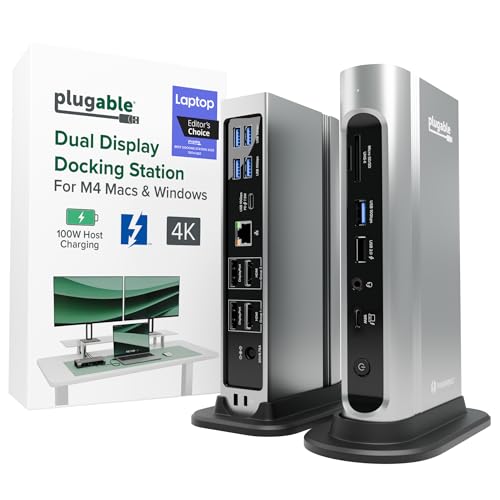
Monitors from different generations, or one panel you expect to replace later, are the reason to look here. Plugable equips the TBT4-UDZ with two HDMI and two DisplayPort groups on a Thunderbolt 4 and USB4 path. The manufacturer documents up to four 4K60 displays on qualified Windows hosts and separate dual-display Mac branches.
Four sockets do not promise four screens on every laptop. Control sits with the exact host GPU, Thunderbolt or USB4 implementation, OS, output group, cables, and monitors. Mac buyers need Plugable’s exact branch and the Apple processor’s native display limit. Plugable also documents 2.5GbE and 98W host charging, which makes this a capable fixed desk for a laptop that can use its native display streams.
Our Take
Where connector flexibility matters and the host has a qualified Thunderbolt or USB4 display path, the TBT4-UDZ earns its place. Do not buy it merely because four video sockets are visible.
- HDMI and DisplayPort monitor choices
- Native Thunderbolt 4/USB4 route
- 2.5GbE and 98W charging
- Host controls active output count
- Mac branch differs from qualified Windows ceiling
3. CalDigit TS4 — best peripheral-heavy premium desk
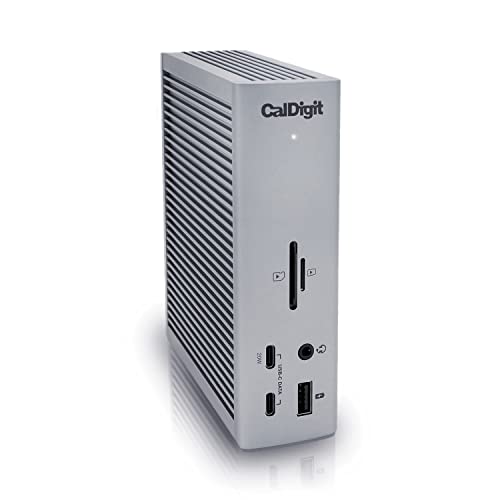
Storage, card media, audio, and wired networking living permanently around the laptop is the setup the TS4 suits. The maker documents Thunderbolt 4, DisplayPort 1.4 plus downstream Thunderbolt display routes, 2.5GbE, UHS-II card readers, and 98W host charging. CalDigit cites dual 4K60 on supported Windows hosts and dual 6K60 on qualified Mac paths.
There is no HDMI output in CalDigit’s specification. HDMI monitors need an appropriate adapter or another pick, and every dual-display ceiling still depends on the exact host, GPU, OS, downstream route, adapter, cable, and monitor. A base Mac model with a lower native display limit does not gain another native stream from the dock.
Our Take
When daily peripheral I/O matters as much as display connection, the TS4 is worth it. It earns its desk space for a busy setup, not for someone who only needs one HDMI screen and charging.
- Peripheral-rich Thunderbolt 4 design
- 2.5GbE and UHS-II readers
- 98W host charging
- No HDMI output
- Dual-display ceiling remains host dependent
4. OWC Thunderbolt Go Dock — best built-in-power clean desk
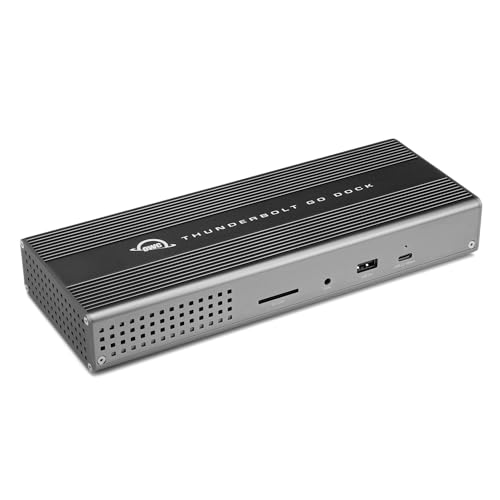
One fewer brick on the floor or in the cable tray is a real advantage on a small home desk, and OWC builds the power supply into the Thunderbolt Go Dock to deliver it. OWC documents HDMI 2.1, a downstream Thunderbolt display route, 2.5GbE, 90W host charging, and a dual 4K60 ceiling subject to the host.
The integrated supply does not make the dock small enough for every travel bag, and the two-display result still depends on the laptop’s native streams, OS, Apple processor limit, cables or adapters, and monitor inputs. Treat it as a fixed-desk cleanliness choice rather than a way to bypass an unsupported second native display.
Our Take
Fewer power components and a tidy permanent setup are what the Go Dock buys you. Its HDMI plus downstream Thunderbolt route works best after you confirm the exact two-monitor branch.
- Built-in power supply
- HDMI 2.1 plus downstream Thunderbolt display route
- 2.5GbE and 90W charging
- Native dual-display limit still comes from the host
- Fixed-desk design is less minimal than a bus-powered hub
5. Targus DOCK425GLZ — best portable work/home hybrid
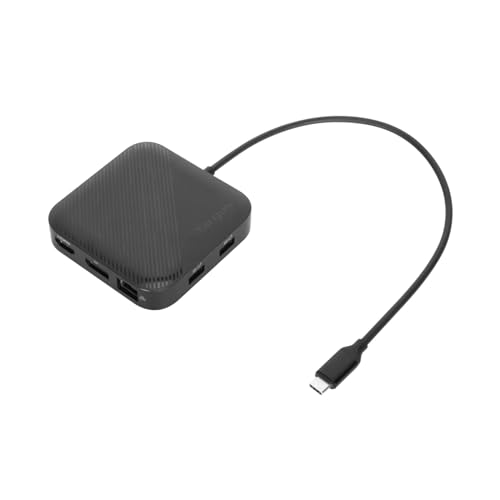
This is the pick that travels and then settles at the home desk. Targus documents USB4 40Gbps, DisplayPort 1.4, and HDMI 2.1 in a dock that can run bus powered. With a suitable separately supplied USB-C charger, it passes up to 85W to the laptop. That lets you carry the dock alone for data and displays, or connect one charger at the home desk.
The maker cites up to one 8K30 display or two 4K60 displays, subject to the host and OS. Those are alternative ceilings, and neither proves every mixed HDMI/DisplayPort combination. No charger is included, so the home setup needs a compatible supply sized for both the dock overhead and the laptop. Mac native-display limits still apply.
Our Take
Portability and pass-through choice, in exchange for an included power system, is the DOCK425GLZ trade. Take it when one dock must move between home and another workspace.
- Bus-powered option
- HDMI 2.1 and DP 1.4
- Qualified dual 4K60 ceiling
- Charger is not included
- Host and OS control the monitor result
6. Microsoft Surface USB4 Dock — best simple compact USB4 desk
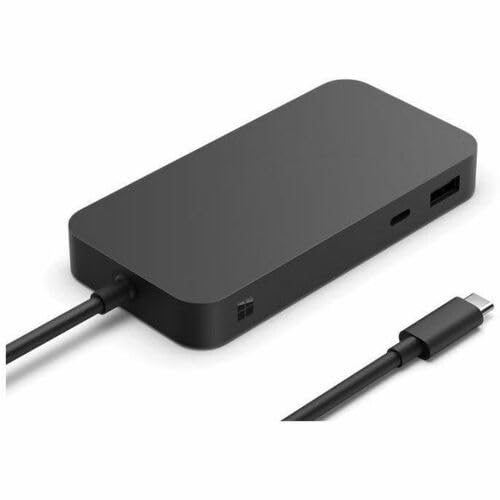
Few makers state the weaker-host outcome this plainly, which makes the two-monitor question easy to settle. Microsoft gives the Surface USB4 Dock a USB4 40Gbps upstream connection, two downstream video-capable USB4 Gen 3 and Thunderbolt 4-compatible USB-C ports, plus HDMI 2.1. Microsoft documents dual 4K60 on a capable USB4 or Thunderbolt 4 host and one 4K60 display on a plain USB-C host.
Microsoft rates the dock to supply up to 65W to the host, which suits many thin-and-light work laptops but may not cover a larger mobile workstation. Our sources do not establish every daily port or wired-network feature, so buyers who require a particular Ethernet or peripheral connection should confirm Microsoft’s exact port list before ordering.
Our Take
Reserve it for a simple USB4 desk with modest charging needs and USB-C-connected peripherals. A plain USB-C host gets the documented one-display branch, not the dual-4K60 result.
- Clear USB4 versus plain USB-C display split
- Two video-capable downstream USB-C ports
- HDMI 2.1 connection
- 65W may be insufficient for larger laptops
- Required daily ports need an exact port-list check
7. Plugable USBC-6950PDZ — best compact DisplayLink dual-monitor fallback

When the laptop simply cannot expose two native streams, software displays become the practical route. Plugable documents two HDMI 2.0 outputs using DisplayLink DL-6950, each reaching up to 4K60, which can add two office desktops. The captive 0.5 m host cable, UHS-II SD reader, 10Gbps USB-A and USB-C data, and Gigabit Ethernet cover a compact work/home desk.
According to Plugable, the dock accepts a separately supplied 45W to 100W USB-C charger and passes up to 82W to the host, and no charger is included. DisplayLink software is required, macOS needs Screen Recording permission, and Plugable says this exact model is not compatible with HDCP-protected playback, gaming, or 3D rendering.
Our Take
Two productivity screens matter and the native host path is the blocker: that is this dock’s case. Use a native dock for protected video, gaming, or graphics-heavy work.
- Two maker-documented 4K60 office displays
- Captive host cable and card reader
- Gigabit Ethernet
- Driver and workload limits apply
- Charger is not included
How to choose a home-office dock
Match the laptop port before counting ports
A plain USB-C data port, USB-C DP Alt Mode, USB4, and Thunderbolt are different host paths. Native multi-monitor docks need the laptop to expose the required display streams, while DisplayLink can add software desktops, though it brings a driver, OS permissions, and workload limits. Our dual-monitor dock guide helps when two screens are the main decision.
Size charging for the actual laptop
Compare delivered host power rather than the adapter name. The 65W rating specified by Microsoft for the Surface dock, the 90W rating specified by OWC, the pass-through limits stated by Plugable, and the vendor-specific branches documented by Dell serve different laptops. A dock may run monitors and peripherals while the original laptop charger is still necessary under sustained load.
Plan the physical desk
On a permanent setup, built-in power can remove a brick, and a larger port-rich dock can keep card readers and storage attached. For a shared work/home bag, bus power, a captive cable, and a separately chosen charger may be more useful. Wired networking also differs: confirm whether you need Gigabit or 2.5GbE and whether the exact pick includes it.
Choose native or DisplayLink for the workload
Prefer native GPU video for protected playback, high-motion work, color-managed applications, and gaming. DisplayLink earns its place for documents, browsers, dashboards, and communication apps when host display count is limited. It does not increase a Mac’s native-display count; it creates a separate software path.