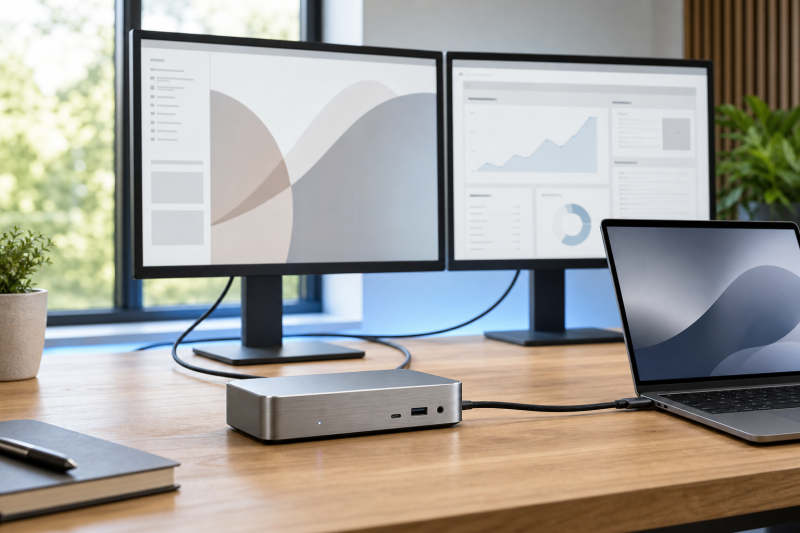
For two 4K 60Hz monitors, the CalDigit TS4 is our best balanced Thunderbolt 4 dock. CalDigit documents a dual 4K60 ceiling on supported Windows hosts, and the combination of a DisplayPort 1.4 output, 98W host charging, and 2.5GbE covers a broad desk setup. Go with the Plugable TBT4-UDZ instead if dedicated HDMI and DisplayPort connections matter more to you than an all-around port mix.
Two 4K60 streams still depend on the laptop GPU or chip, operating system, host-port implementation, dock topology, cables or adapters, and both monitor inputs, so the dock is only one link in that chain. Every display figure below is a manufacturer-rated ceiling, not a promise that any Thunderbolt 4 laptop will reach it. Our broader Thunderbolt 4 dock guide covers other buying priorities.
Quick picks
- CalDigit TS4: Best balanced choice for DisplayPort-based desks.
- Plugable TBT4-UDZ: Best dedicated-output choice.
- Dell SD25TB4: Best fit for a managed Dell desk.
- OWC Thunderbolt Go Dock: Best dock with a built-in power supply.
- UGREEN Revodok Max 208: Best compact downstream-Thunderbolt route.
- Kensington SD5760T K34110NA: Best dual-HDMI alternative.
- Sonnet Echo 20: Best choice when internal NVMe storage matters.
| Image | Product | Details | Check Price |
|---|---|---|---|
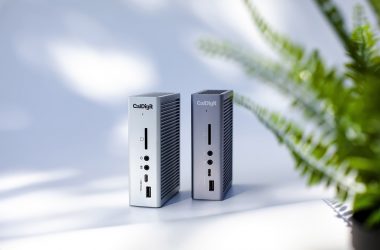
 | CalDigit TS4 | Display path: DisplayPort 1.4 plus a manufacturer-supported second display path; no native HDMI Host boundary: CalDigit documents dual 4K60 on supported Windows hosts; exact GPU or chip, OS, topology, cables or adapters, and monitors control the result Charging: 98W host charging Ethernet: 2.5GbE Best for: A balanced qualified dual-4K60 desk with at least one DisplayPort monitor | Check Price on Amazon |
 | Plugable TBT4-UDZ | Display path: Two HDMI plus two DisplayPort output groups Host boundary: Up to four 4K60 on qualified Windows hosts; Mac uses separate dual-display branches; socket count alone does not prove display count Charging: Plugable-rated 98W host charging Ethernet: 2.5GbE Best for: Two monitors that need dedicated HDMI or DisplayPort connections | Check Price on Amazon |
 | Dell Pro Thunderbolt 4 Smart Dock SD25TB4 | Display path: Two DisplayPort 1.4, one HDMI 2.1, and two downstream Thunderbolt 4 paths Host boundary: Dell lists up to four external displays; the exact host and selected output combination control the dual-4K60 result Charging: 130W on supported Dell systems; 96W on non-Dell systems Ethernet: 2.5GbE Best for: A managed desk built around a supported Dell laptop | Check Price on Amazon |
 | OWC Thunderbolt Go Dock | Display path: Native HDMI 2.1 is documented; the second route must follow OWC's supported topology Host boundary: OWC documents a dual 4K60 ceiling; the host, connection path, cables or adapters, and monitors must qualify Charging: 90W host charging; built-in power supply Ethernet: 2.5GbE Best for: A dual-4K60 desk that benefits from an integrated power supply | Check Price on Amazon |
 | UGREEN Revodok Max 208 | Display path: Three Thunderbolt 4 ports for downstream display routing; no native HDMI or DisplayPort Host boundary: Dual 4K60 is documented only on qualified Windows, Intel Mac, and Pro or Max Mac paths Charging: 85W host charging Ethernet: No 2.5GbE in the frozen record Best for: A compact setup using downstream Thunderbolt or compatible USB-C display routes | Check Price on Amazon |
 | Kensington SD5760T K34110NA | Display path: Two native HDMI outputs Host boundary: Kensington documents dual 4K60 on qualified hosts; use exact revision K34110NA Charging: 96W first-party charging ceiling Ethernet: 1GbE Best for: Two HDMI monitors on a qualified host | Check Price on Amazon |
 | Sonnet Echo 20 Thunderbolt 4 SuperDock | Display path: HDMI 2.1 plus two downstream Thunderbolt 4 ports; exact pairing must follow the supported topology Host boundary: The dual-display ceiling is controlled by the host and complete display chain Charging: Up to 100W host charging Ethernet: 2.5GbE Best for: A dual-monitor creative desk that also needs an internal M.2 NVMe slot | Check Price on Amazon |
1. CalDigit TS4 – Best balanced choice
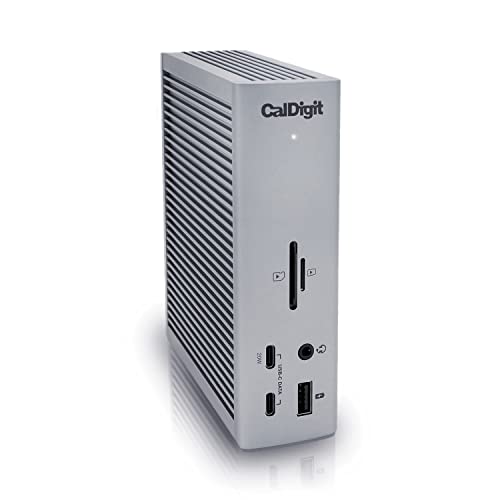
The TS4 suits you if you want a balanced dock and at least one monitor can use DisplayPort. CalDigit documents a dual 4K60 ceiling on supported Windows hosts and a dual 6K60 ceiling on qualified Macs. Those are separate host paths, so match your exact laptop and operating system against CalDigit’s matrix before buying.
There is DisplayPort 1.4 here but no HDMI. Whatever route the second display takes has to be one the dock topology, host, and monitor all support, using a suitable cable or adapter where required. CalDigit rates host charging at 98W and includes 2.5GbE.
Our Take
For a qualified dual-4K60 desk, nothing here beats the TS4 overall. Skip it if both monitors require native HDMI connections.
- CalDigit documents a dual 4K60 Windows ceiling
- DisplayPort 1.4 for a conventional monitor connection
- 98W host charging and 2.5GbE
- No native HDMI
- Exact host and second-display path still need checking
- Manufacturer ceiling is not a universal result
2. Plugable TBT4-UDZ – Best dedicated-output choice
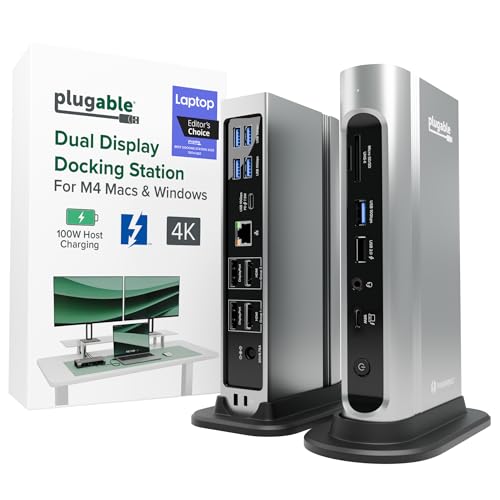
Want your monitor cables running straight into the dock? That is the TBT4-UDZ. Plugable provides two HDMI and two DisplayPort output groups, which makes it the clearest choice here for a desk built around conventional monitor inputs. Plugable lists up to four 4K60 displays on qualified Windows hosts, so this two-display decision sits comfortably inside that figure when the complete host path qualifies.
Mac support follows separate dual-display branches. Do not carry the Windows ceiling across to macOS, and do not read four physical outputs as four guaranteed extended desktops. Plugable documents 2.5GbE and 98W host charging.
Our Take
For two HDMI or DisplayPort monitors, the TBT4-UDZ is the practical pick. Its display count still comes from the host, not the number of sockets.
- Two HDMI plus two DisplayPort output groups
- Plugable lists up to four 4K60 displays on qualified Windows hosts
- 2.5GbE
- Windows and Mac display branches differ
- 98W is below a rigid 100W requirement
- Socket count does not prove host display support
3. Dell Pro Thunderbolt 4 Smart Dock SD25TB4 – Best managed Dell desk
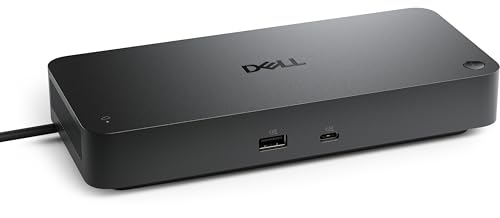
The SD25TB4 belongs on a Dell-centered desk that needs several documented display routes. Dell lists two DisplayPort 1.4 outputs, HDMI 2.1, and two downstream Thunderbolt 4 ports, with a ceiling of up to four external displays. For two 4K60 monitors, pick two paths that the exact Dell host matrix supports rather than treating every connector combination as interchangeable.
Power is where the Dell tie shows up as both the advantage and the limitation. Dell documents up to 130W on supported Dell systems but 96W on non-Dell systems, and that 130W branch is not universal USB Power Delivery. The dock also includes 2.5GbE.
Our Take
Beside a supported Dell laptop is where the SD25TB4 makes the most sense. Other hosts lose the vendor-specific charging branch and still need a topology check.
- Two DisplayPort 1.4, HDMI 2.1, and two downstream Thunderbolt 4 paths
- Dell lists up to four external displays
- 2.5GbE
- 130W charging is limited to supported Dell systems
- Non-Dell charging ceiling is 96W
- Exact display combination depends on the host
4. OWC Thunderbolt Go Dock – Best built-in-power choice
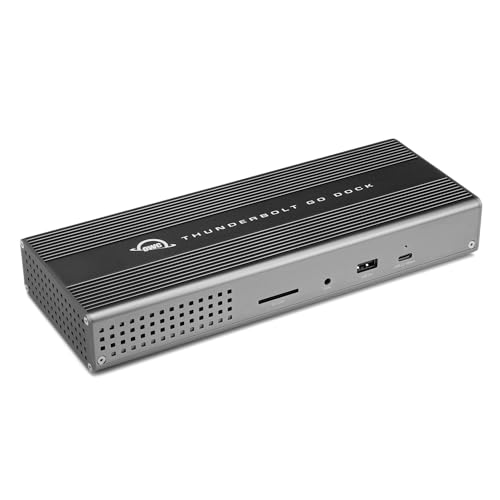
The Go Dock is for anyone who wants the power supply inside the dock instead of trailing behind it as a separate brick. OWC documents a dual 4K60 ceiling and includes HDMI 2.1, so one monitor gets a direct conventional-video connection. For the second monitor, follow OWC’s support topology, because OWC’s cited documentation does not enumerate every valid two-port combination.
OWC rates host charging at 90W and includes 2.5GbE. That integrated supply is what sets this one apart for travel or a shared desk, but the display result remains subject to the laptop and full connection chain.
Our Take
The built-in supply and the documented dual-4K60 ceiling are the reasons to choose the Go Dock. The HDMI 2.1 label on its own is not one of them.
- Built-in power supply
- OWC documents a dual 4K60 ceiling
- HDMI 2.1, 90W host charging, and 2.5GbE
- Exact second-display route must follow OWC’s topology
- 90W may not replace every laptop adapter
- Host controls the final display result
5. UGREEN Revodok Max 208 – Best compact downstream-Thunderbolt path

The Revodok Max 208 works when both monitors can use downstream Thunderbolt or compatible USB-C display routes. UGREEN documents three Thunderbolt 4 ports and a dual 4K60 ceiling on qualified Windows, Intel Mac, and Pro or Max Mac paths. That wording stops short of covering every laptop in those families, so verify the exact host branch.
UGREEN’s documented specifications list no native HDMI, DisplayPort, card reader, or 2.5GbE, and UGREEN rates host charging at 85W. Read this as a focused choice for a compatible downstream-display setup, not as a cable-for-cable replacement for a dual-HDMI dock.
Our Take
As a downstream-Thunderbolt option, the Revodok Max 208 is clean and uncomplicated. It is a poor fit the moment your monitors need direct HDMI or DisplayPort connections.
- Three Thunderbolt 4 ports
- UGREEN documents qualified dual 4K60 host paths
- 85W host charging
- No native HDMI or DisplayPort
- UGREEN does not list a card reader or 2.5GbE
- Exact host branch must qualify
6. Kensington SD5760T K34110NA – Best dual-HDMI alternative

Two 4K monitors that both accept HDMI point straight at the SD5760T and its pair of native HDMI connections. Kensington documents dual 4K60 on qualified hosts, which keeps display adapters out of the picture when the monitors and laptop match that route. Keep the exact revision K34110NA in the buying check, because the cited manufacturer documentation applies to that model.
Kensington documents a 96W first-party charging ceiling and 1GbE. Both figures trail some docks here, but neither one touches the core reason to choose it: a direct dual-HDMI layout with a documented dual-4K60 ceiling.
Our Take
The K34110NA is the no-fuss dual-HDMI alternative. Confirm the exact revision and host before ordering.
- Two native HDMI outputs
- Kensington documents dual 4K60 on qualified hosts
- 96W host charging
- Exact K34110NA revision is required
- 1GbE rather than 2.5GbE
- Host qualification still controls the result
7. Sonnet Echo 20 Thunderbolt 4 SuperDock – Best creative-storage choice
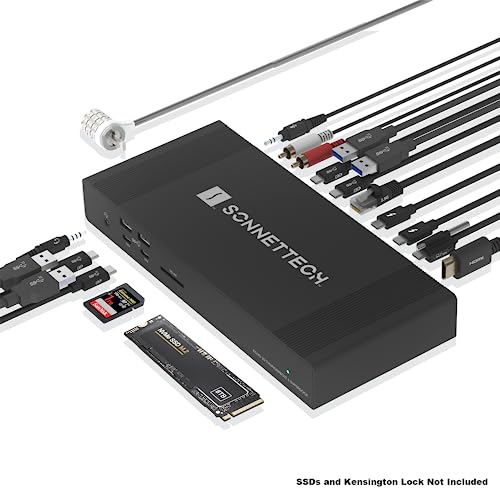
The Echo 20 answers one specific need: the same dock also has to hold an M.2 NVMe drive. Sonnet includes HDMI 2.1 and two downstream Thunderbolt 4 ports, which gives you a conventional monitor output alongside downstream display-routing options. Sonnet’s dual-display ceiling is controlled by the host, so confirm the supported pair of connections before choosing cables.
Sonnet rates host charging up to 100W and includes 2.5GbE. The storage slot is the deciding feature, but it should not pull attention away from the laptop’s native display limit.
Our Take
A dual-monitor creative desk that also needs internal NVMe storage is where the Echo 20 earns its place. It is more dock than you need if storage is irrelevant.
- HDMI 2.1 plus two downstream Thunderbolt 4 ports
- Built-in M.2 NVMe slot
- Up to 100W host charging and 2.5GbE
- Host controls the dual-display ceiling
- Exact display pairing must be checked
- Storage feature adds little for buyers who already use external drives
How to choose a dual-4K60 Thunderbolt 4 dock
Start with the laptop, not the dock. Confirm that its GPU or chip and operating system expose two supported display streams through the chosen Thunderbolt port. No dock invents a second stream the host does not provide, however many video sockets it carries. Our dual-monitor docking guide covers the broader two-screen decision when Thunderbolt 4 is not required.
Next, trace each monitor back from the dock to its actual input. The Plugable TBT4-UDZ and Kensington K34110NA reduce adapter questions for HDMI or DisplayPort monitors, while the UGREEN Max 208 expects downstream Thunderbolt-style routing. The rest mix dedicated outputs with downstream paths, so check the manufacturer’s topology instead of assuming any two ports can work together.
Treat resolution and refresh as one mode rather than two separate numbers. A manufacturer may document two displays but require a lower refresh rate or different connection on a particular host. Confirm 3840 by 2160 at 60Hz for both paths, plus any DSC requirement, cable or adapter capability, and monitor-input limit.
Then compare charging and networking. Dell specifies that its 130W path is limited to supported Dell systems. Against a rigid 100W requirement, CalDigit rates the TS4 at 98W and Kensington rates the SD5760T at 96W, while Sonnet documents up to 100W. Charging remains a negotiated ceiling. For networking, 2.5GbE matters only when the rest of the network can use it.
Still choosing the displays themselves? Our Thunderbolt monitor guide helps separate direct Thunderbolt input from HDMI or DisplayPort adapter routes.
Dual 4K60 dock FAQ
Does Thunderbolt 4 guarantee two 4K 60Hz monitors?
No. The laptop GPU or chip, operating system, host-port implementation, dock topology, cables or adapters, and both monitor inputs all have to support the same two-display mode. The manufacturer figures in this guide are ceilings for qualified paths.
Is dual HDMI better than downstream Thunderbolt?
Only when it matches your monitors and host. Dual HDMI can simplify cabling for HDMI monitors. Downstream Thunderbolt can connect compatible USB-C or Thunderbolt displays directly, or reach conventional inputs through suitable adapters. Neither route adds display streams that the laptop does not expose.