A CUDA laptop is a portable place to compile kernels, debug device code and run a representative workload while the main workstation is elsewhere. The first buying decision is not the screen refresh rate. Check the exact NVIDIA laptop GPU, its VRAM and the software versions your project supports. A desktop GPU with the same number in its name can have a different memory capacity and power envelope.
These five configurations were selected from Amazon US listings with active New offers; availability can change. Three use an RTX 5090 Laptop GPU with 24 GB of dedicated memory, and two use an RTX 5080 Laptop GPU with 16 GB. The memory capacities are NVIDIA laptop-GPU figures, not a promise that any particular model, dataset or framework will fit. We did not run CUDA benchmarks or independently measure sustained clocks, fan noise or battery runtime.
Choose the VRAM and software path your project needs, then decide how much plugged-in compute you are willing to carry.CUDA Development Laptops Compared
| Image | Product | Details | Check Price |
|---|---|---|---|
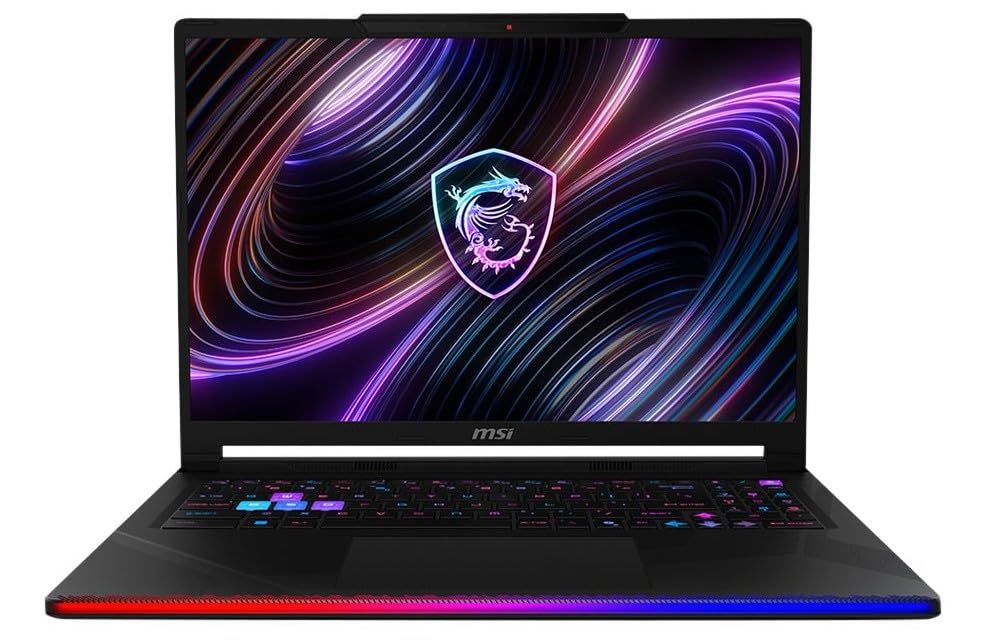 | MSI Raider 16 Max HX | NVIDIA GPU: RTX 5090 Laptop GPU memory: 24 GB GDDR7 System RAM: 32 GB DDR5 listed Buyer fit: Plugged-in 16-inch CUDA lab | Check Price on Amazon |
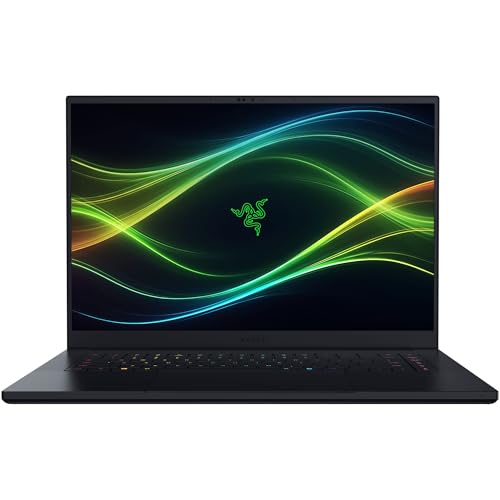 | Razer Blade 16 (2026) | NVIDIA GPU: RTX 5080 Laptop GPU memory: 16 GB GDDR7 System RAM: 64 GB LPDDR5X, fixed Buyer fit: Thin travel setup | Check Price on Amazon |
 | Lenovo Legion 9i Gen 10 | NVIDIA GPU: RTX 5090 Laptop GPU memory: 24 GB GDDR7 System RAM: 64 GB DDR5 listed Buyer fit: 18-inch mobile lab | Check Price on Amazon |
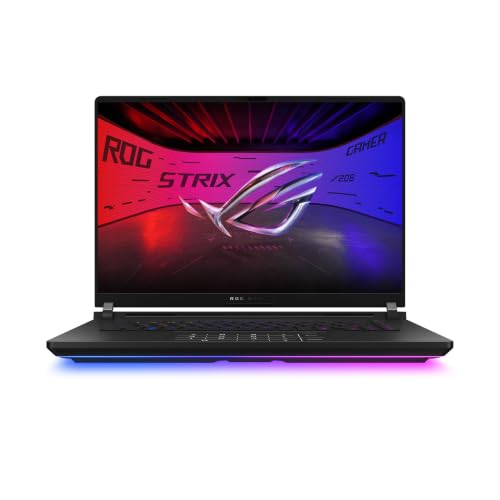 | ASUS ROG Strix SCAR 16 (2025) | NVIDIA GPU: RTX 5090 Laptop GPU memory: 24 GB GDDR7 System RAM: 32 GB DDR5 listed Buyer fit: Serviceable 16-inch setup | Check Price on Amazon |
 | MSI Vector 16 HX AI | NVIDIA GPU: RTX 5080 Laptop GPU memory: 16 GB GDDR7 System RAM: 32 GB DDR5 listed Buyer fit: 2 TB local project storage | Check Price on Amazon |
1. MSI Raider 16 Max HX — Best for a Plugged-In CUDA Lab
The exact Raider 16 Max HX offer pairs an RTX 5090 Laptop GPU with 24 GB of GDDR7 and an Intel Core Ultra 9 290HX Plus. MSI’s Raider 16 Max HX page names a 175W GPU configuration and up to 300W combined CPU/GPU power under supported conditions. The power figure is useful for a developer who spends long sessions on the same machine, plugged in, rather than running brief demos between meetings. Its listed 32 GB of DDR5 system RAM is separate from the GPU’s 24 GB.
Compare your project’s device-memory use against 24 GB, leaving room for the driver, framework and other GPU allocations. A workload that cannot fit 24 GB does not become viable because the laptop has 32 GB of system RAM. Conversely, a small kernel test does not need a 5090 merely to use CUDA. Write down the memory and wall-power requirements of a representative sample run before paying for this class of machine.
The Raider’s cooling is not proof of a quiet or light travel experience. Plan where the power brick will sit, how long you will profile away from a desk and whether heavy work can move to a remote machine when unplugged.
Our Take Raider 16 Max HX is a strong portable development station when the job needs 24 GB of GPU memory and there is reliable wall power. It is more machine than a travel-only code editor needs.
- RTX 5090 Laptop GPU with 24 GB VRAM.
- Manufacturer describes a high-power design.
- 16-inch chassis is smaller than 18-inch alternatives.
- Heavy sustained work calls for wall power.
- 32 GB listed system RAM may need separate capacity planning.
2. Razer Blade 16 (2026) — Best Thin RTX 5080 Travel Machine
This exact 2026 Blade 16 offer lists an RTX 5080 Laptop GPU with 16 GB of GDDR7, 64 GB of LPDDR5X system memory and a 1 TB SSD. Its seller describes a 14.9 mm aluminum chassis and a 165W GPU ceiling for the configuration. The appeal is carrying a capable local CUDA environment to a client site, lab or second office without taking an 18-inch machine. The VRAM limit is 16 GB even though the system has 64 GB of RAM.
Razer says the 64 GB system RAM is fixed in this listing. Buy the capacity needed over the machine’s life because it is not a later SO-DIMM upgrade. Slim dimensions are not evidence of sustained GPU speed under your workload. Profile a representative kernel or small training run on the delivered machine before treating a short synthetic boost result as an all-day figure.
For travel work, set up the exact driver, toolkit and development environment on a reliable connection. Cache dependencies and datasets before leaving, then run a basic GPU test offline. A USB4 external SSD can carry files, but will not make a device-memory allocation fit.
The 64 GB in this Blade listing is system RAM. The RTX 5080 Laptop GPU has 16 GB of dedicated VRAM.Our Take Blade 16 is the pick for frequent travel when 16 GB VRAM is enough and 64 GB fixed system RAM is already the right configuration. Check sustained behavior rather than assuming a thin chassis matches a large plugged-in one.
- 16 GB RTX 5080 Laptop GPU for local CUDA tests.
- 64 GB configured system RAM.
- Thin 16-inch form factor.
- System RAM is fixed in this offer.
- 16 GB VRAM is a hard planning boundary.
- Sustained performance needs a representative workload test.
3. Lenovo Legion 9i Gen 10 — Best for an 18-Inch Mobile Lab
The exact Legion 9i Gen 10 offer combines an 18-inch display, RTX 5090 Laptop GPU with 24 GB of GDDR7, and 64 GB DDR5 system RAM. Lenovo’s model-family documentation lists a 175W GPU design for this generation. The Legion is a large machine you move between desks, not a light commuter notebook. It can be a comfortable second development station when code, logs, a debugger and performance graphs must remain visible together without an external monitor.
The large screen and 64 GB RAM help host-side development and data preparation, not the GPU’s separate 24 GB. If device memory is tight, reduce the test size or use a larger remote GPU. The exact offer lists one 1 TB SSD, so check dataset and build-cache space.
An 18-inch laptop still requires space, power and safe transport. Lenovo’s GPU wattage is a configuration statement, not a measured CUDA result. Verify the supplied adapter and cooling mode when the machine arrives.
Our Take Legion 9i is the 24 GB option for developers who move between fixed desks and value an expansive built-in screen. A smaller configuration is the better fit for frequent light travel.
- 24 GB RTX 5090 Laptop GPU.
- 64 GB listed system RAM.
- Large display for multi-pane development.
- 18-inch size is awkward for tight travel spaces.
- 1 TB listed SSD may be small for local datasets.
4. ASUS ROG Strix SCAR 16 (2025) — Best for Tool-Free Access
The exact G635LX-DS96 listing names an RTX 5090 Laptop GPU, Core Ultra 9 275HX and 32 GB DDR5 RAM. ASUS’s configuration page specifies 24 GB GDDR7 and up to 175W for the GPU. The useful distinction for a developer is the manufacturer’s tool-free access design for RAM and SSD work. Compare this machine when the local toolchain and project files may grow after purchase.
Tool-free access does not mean every component can be replaced or that every upgrade is supported. Check ASUS’s service documentation, compatible memory specification and warranty terms before opening the delivered unit. The GPU and its 24 GB VRAM are not a later swap. If the codebase needs more host memory, an approved system-RAM upgrade can help the host side of the workflow. A system-RAM upgrade does not add GPU VRAM.
The screen’s high refresh rate and lighting are gaming features, not CUDA test results. Treat ASUS’s 175W claim as a configuration ceiling, then measure a representative compile and kernel run on wall power.
Our Take SCAR 16 is the 16-inch pick for high VRAM when you need access to replaceable system memory and storage. Verify the exact upgrade path and power behavior before planning around it.
- 24 GB RTX 5090 Laptop GPU documented.
- Tool-free RAM and SSD access described.
- 16-inch alternative to an 18-inch machine.
- GPU memory remains fixed.
- 32 GB system RAM listing may need a later upgrade.
5. MSI Vector 16 HX AI — Best for More Included Storage
The exact A2XWIG-058US offer lists an RTX 5080 Laptop GPU, 32 GB DDR5 and a 2 TB NVMe SSD. NVIDIA lists 16 GB of dedicated memory for the RTX 5080 Laptop GPU class. A developer gets more included project and dataset storage from this Vector than from the 1 TB configurations above, without moving to an 18-inch screen. Its title also names Thunderbolt 5, but check the port and dock requirements before assuming any particular external setup.
Two terabytes can mean less dataset shuffling, but the 16 GB VRAM ceiling stays the same. Budget space for the source checkout, build artifacts, environments and backups. Benchmark any external SSD with actual files.
Sustained CUDA throughput, keyboard comfort and charger behavior under a long compile are not stated in the Amazon listing. A shop demo or review of another Vector GPU configuration cannot stand in for the delivered A2XWIG-058US. Confirm the exact ports, power adapter and driver support before an off-site project. The Vector is a practical 16 GB GPU-memory option for developers whose working set fits and whose local files occupy more space.
A 2 TB SSD holds more project data. The RTX 5080 Laptop GPU still has 16 GB of separate device memory.Our Take Vector 16 is the pick for a CUDA workflow that fits within 16 GB VRAM but needs more local storage out of the box. Sustained performance is something to test on the delivered unit.
- RTX 5080 Laptop GPU with 16 GB class VRAM.
- 2 TB NVMe storage in the exact offer.
- Thunderbolt 5 named in the title.
- 16 GB VRAM limits larger device workloads.
- No independent sustained CUDA result for this SKU.
Buying Guide
1. Size the GPU memory from a real task
Record peak device-memory use, not just model or dataset size. CUDA allocations include inputs, outputs, intermediate buffers and the framework’s own overhead. A project that approaches 16 GB on a desktop may have little margin on a 16 GB laptop GPU. The RTX 5090 Laptop configurations here list 24 GB, and the RTX 5080 models list 16 GB. Neither number is a universal workload guarantee.
Keep host RAM and GPU VRAM separate in the budget. System RAM can support development tools, containers and data preparation, while GPU memory holds device-side working data. Moving data through managed or host memory can be useful for some code paths, but it is not equivalent to buying more dedicated VRAM. Test the actual project with the desired driver and toolkit, then choose margin for future test cases.
2. Treat power and cooling as part of portability
A mobile RTX GPU’s name is not a sustained wattage rating. The seller and manufacturer pages show different chassis, power claims and cooling designs. A 24 GB GPU in a thin notebook can be a different field experience from one in a large 18-inch system. Benchmark the exact workload on wall power, noting whether the machine maintains usable performance and temperatures for the duration you need.
Define what “away from a desktop” means in practice. The Raider, Legion or SCAR class fits moving between two offices with wall outlets. A thinner Blade is the better fit for carrying a laptop through meetings, even if 16 GB VRAM is the limit. Battery-only coding is different from hours of GPU compute. Verify the power adapter, bag fit, permitted outlet access and noise limits where the work will happen.
3. Reproduce the development environment
Check the project’s supported operating system, driver and toolkit combination before purchase. An NVIDIA GPU is a CUDA hardware path, not a guarantee of compatibility with every prebuilt package or older binary. Pin the build environment, run a small device test, and record the driver and compiler versions that pass. Keep a remote fallback if a project needs a GPU-memory size or software stack the laptop cannot provide.
Budget storage and ports around the actual repository. Code, containers, datasets and outputs can be much larger than the package install. The 2 TB Vector may reduce external-drive dependence. The 1 TB listings may need an archive plan. An external SSD is storage for files, not CUDA memory.
FAQ
Is an RTX 5090 laptop the same as an RTX 5090 desktop GPU?
No. NVIDIA lists 24 GB of GDDR7 for the RTX 5090 Laptop GPU. Do not import the desktop card’s memory figure or throughput claims into a laptop purchase. The laptop’s cooling and power settings also affect sustained behavior, and those differ by chassis and configuration.
Use the exact laptop GPU name and its listed device-memory capacity when checking a project. Then run the relevant workload on the delivered laptop. A shared number in the product name is not a benchmark that applies to both a laptop and a desktop.
Can I develop CUDA code on battery power?
You can write, compile and test small tasks wherever the installed software runs, but do not assume sustained GPU compute will match plugged-in operation. Power policies may reduce available CPU or GPU power on battery, and a long run can end before the work does.
For travel, carry a known-good development environment and test a short representative job unplugged. Plan wall power or a remote GPU for longer profiling, training or memory-heavy validation. Check the site’s electrical and network rules in advance.
Does more system RAM compensate for too little GPU VRAM?
Not as a simple one-for-one replacement. CUDA has host and device memory spaces, and their placement and access costs differ. The Blade’s 64 GB LPDDR5X can help the host side while its RTX 5080 still has 16 GB of dedicated GPU memory. The Legion’s 64 GB host RAM likewise does not raise its 24 GB GPU limit.
Profile the project’s peak device allocation and test its data-transfer pattern. If the job is too large, adjust batch or problem size, choose a 24 GB laptop configuration, or run the demanding step on a suitable remote machine.
Bottom Line
MSI Raider 16 Max HX, Lenovo Legion 9i and ASUS SCAR 16 give 24 GB RTX 5090 Laptop options with different size and service tradeoffs. Razer Blade 16 and MSI Vector 16 are 16 GB RTX 5080 paths for projects that fit that limit. Buy for a measured device-memory need and a realistic power setup.