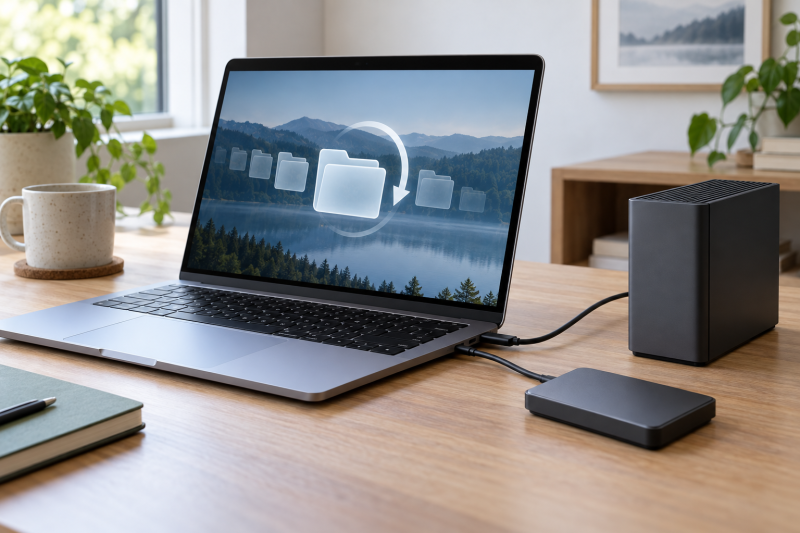
Time Machine is Apple’s backup feature for the Mac, and Apple’s support page says it works with a USB drive or other external storage. Apple recommends a backup disk with at least twice the storage capacity of your Mac. Each of the five hard drives below has an Amazon listing that states a USB-C connection or an included USB-C cable.
All five listings also state a Mac or macOS fit. Apple says your Mac might ask to erase a drive when you set it up for Time Machine, so copy off any files you want to keep before you add a drive.
Choose portable or desktop first, check the USB-C connection or cable in the listing, then set the drive up in System Settings as a Time Machine disk.| Image | Product | Details | Check Price |
|---|---|---|---|
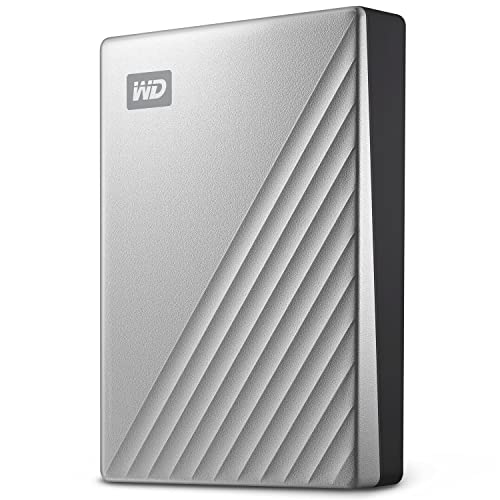 | WD My Passport Ultra for Mac 5TB | Best fit: Portable drive formatted for Mac Drive type: Portable hard drive Capacity: 5TB USB-C: USB-C and USB 3.1 Mac: Formatted for Mac | Check Price on Amazon |
 | Toshiba Canvio Flex 1TB | Best fit: Cross-device portable drive with both cables Drive type: Portable hard drive Capacity: 1TB USB-C: USB-C ready; USB-C and USB-A cables included Mac: Designed for PC, Mac and tablet; exFAT | Check Price on Amazon |
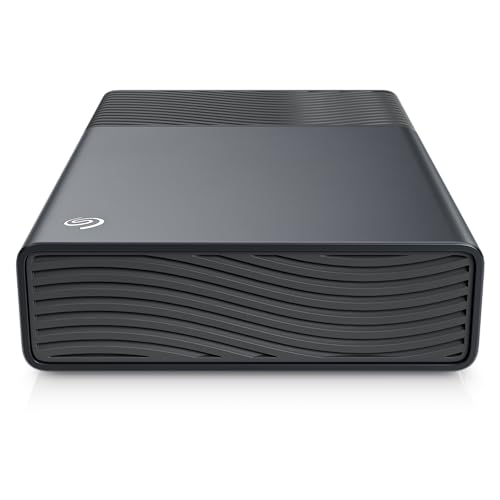 | Seagate One Touch 8TB Desktop | Best fit: Bus-powered desktop drive Drive type: Desktop hard drive Capacity: 8TB USB-C: Bus-powered USB-C Mac: Compatible with most Windows and macOS | Check Price on Amazon |
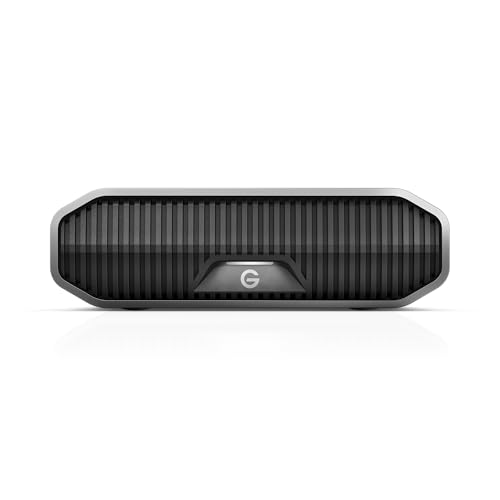 | G-DRIVE 8TB Desktop | Best fit: Desktop drive with 7200RPM Ultrastar inside Drive type: Desktop hard drive Capacity: 8TB USB-C: USB-C (10Gbps) Mac: Mac-Ready | Check Price on Amazon |
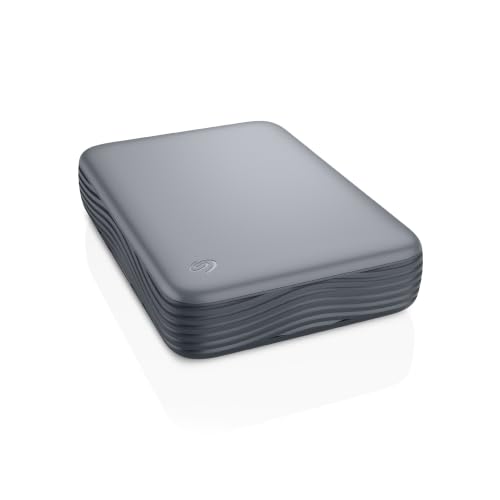 | Seagate Expansion 8TB Desktop | Best fit: Desktop drive for backup and archive Drive type: Desktop hard drive Capacity: 8TB USB-C: MicroB to USB-C Mac: Windows and macOS compatible | Check Price on Amazon |
1. WD My Passport Ultra for Mac 5TB — Best Portable Mac-Formatted Backup Drive
WD’s Amazon listing calls the My Passport Ultra for Mac a 5TB portable external hard drive with USB-C and USB 3.1, and it says the drive is formatted for Mac. The title also mentions backup software with defense against ransomware.
The listing adds password protection with 256-bit AES hardware encryption and a refined metal cover. WD’s listing does not state a recovery service.Our Take Choose the My Passport Ultra when you want a 5TB portable drive that its listing says is USB-C and formatted for Mac.
- WD’s listing names both USB-C and USB 3.1 for this 5TB portable drive.
- WD’s listing says the drive is formatted for Mac, and the product name says for Mac as well.
- WD’s listing names password protection with 256-bit AES hardware encryption, and the title mentions password protection too.
- At 5TB, WD’s drive holds less than the three 8TB desktop drives on this page.
- WD’s listing does not state a recovery service.
2. Toshiba Canvio Flex 1TB — Best Cross-Device Portable Backup
Toshiba’s Amazon listing calls the Canvio Flex a 1TB portable external hard drive for PC, Mac, and tablet. It says the drive is USB-C ready and USB 3.0 compatible, and that USB-C and USB-A cables are included. The listing also tells buyers to check compatibility at Toshiba’s Consumer HDD website.
Toshiba lists the exFAT format for cross-device compatibility. Apple says to use a Time Machine backup disk only for Time Machine backups, so decide whether this drive is shared between devices or dedicated to the Mac before you set it up.
Our Take Choose Toshiba for a 1TB portable drive that includes both USB-C and USB-A cables and is listed for PC, Mac, and tablet.
- Toshiba’s listing says the drive includes both USB-C and USB-A cables.
- Toshiba’s listing says the drive is designed for PC, Mac, and tablet, with a note to check compatibility at Toshiba’s Consumer HDD website.
- Toshiba lists the exFAT format for cross-device compatibility, and the same listing names PC, Mac, and tablet.
- At 1TB, Toshiba’s drive holds the least of the five drives on this page.
- Toshiba’s listing does not state a recovery service.
3. Seagate One Touch 8TB Desktop — Best Bus-Powered Desktop Backup
Seagate’s Amazon listing calls the One Touch an 8TB external desktop HDD that is USB-C compatible with most Windows and macOS. One bullet says it is bus-powered USB-C with no wall outlet required, and another says one port, one cord.
As a desktop drive it suits a fixed spot beside the Mac. Seagate lists a two-year limited warranty and Rescue Data Recovery Services.Our Take Pick One Touch for an 8TB desktop drive that Seagate states is bus-powered over USB-C.
- Seagate’s listing states bus-powered USB-C and says no wall outlet is required.
- Seagate’s listing describes the connection as one port, one cord.
- Seagate lists a two-year limited warranty along with Rescue Data Recovery Services.
4. G-DRIVE 8TB Desktop — Best Mac-Ready 7200RPM Desktop Drive
G-DRIVE’s Amazon listing calls the 8TB model an external desktop hard drive with USB-C (10Gbps) and a Mac-Ready label. The title says an enterprise-class 7200RPM Ultrastar hard drive is inside and gives up to 260MB/s read and 260MB/s write. A feature bullet gives up to 280MB/s for the 22TB and 24TB capacities, so use the 260MB/s figure for the 8TB model.
The bullets also list an anodized aluminum enclosure, anchor points for a DIT cart or mounting plate, and a 3-year limited warranty. G-DRIVE’s listing does not say whether the drive is bus-powered.Our Take Choose G-DRIVE for an 8TB desktop drive with USB-C (10Gbps), a Mac-Ready label, and a 7200RPM Ultrastar inside.
- G-DRIVE’s listing states USB-C (10Gbps) and labels the drive Mac-Ready.
- G-DRIVE’s title states an enterprise-class 7200RPM Ultrastar drive inside and gives up to 260MB/s read and write.
- G-DRIVE’s bullets list a 3-year limited warranty.
- G-DRIVE’s listing does not say whether the drive is bus-powered.
- G-DRIVE’s feature bullet gives 280MB/s for the 22TB and 24TB capacities and does not apply it to the 8TB model.
5. Seagate Expansion 8TB Desktop — Best Archive-Focused USB-C Desktop Drive
Seagate’s Amazon listing calls the Expansion an 8TB desktop hard drive with a MicroB to USB-C connection, and says it is Windows and macOS compatible. The title positions it for backup and archive, one bullet says USB-C connectivity, and another calls it ideal for desk-based workflows.
The title lists a 1-year warranty plus 1-year Rescue, and a bullet says Rescue Data Recovery Services are included. The one-year warranty is shorter than the two-year term on One Touch and the three-year term on G-DRIVE.Our Take Choose Expansion for an 8TB desktop drive that Seagate positions for backup and archive over a MicroB to USB-C connection.
- Seagate’s title says the drive is Windows and macOS compatible.
- Seagate’s title positions the drive for backup and archive, and one bullet calls it ideal for desk-based workflows.
- Seagate’s listing says Rescue Data Recovery Services are included.
Buying Guide
1. Decide between portable and desktop storage
Portable drives fit a MacBook that moves, and desktop drives fit a fixed spot. Amazon lists WD and Toshiba as portable external hard drives, and One Touch, G-DRIVE, and Expansion as desktop drives. Decide where the disk will sit before you compare smaller differences.
Compare capacity with your Mac’s storage. Apple recommends a backup disk with at least twice the storage capacity of your Mac, and says the Mac will tell you if Time Machine needs more space. The drives run from Toshiba’s 1TB to three 8TB desktop models.
2. Require a USB-C connection
Each of the five listings states USB-C or an included USB-C cable. WD names USB-C and USB 3.1, Toshiba includes USB-C and USB-A cables, One Touch states bus-powered USB-C, G-DRIVE lists USB-C (10Gbps), and Expansion lists MicroB to USB-C.
A USB-C label does not give the speed standard. WD says USB 3.1, Toshiba says USB 3.0, and G-DRIVE says 10Gbps, while One Touch and Expansion state none, so read the connection line before you buy.
3. Set up Time Machine in macOS
Apple’s Time Machine setup starts in System Settings. In macOS Ventura 13 or later, connect the drive, open System Settings, choose General, then Time Machine, click Add Backup Disk, select the drive, and click Set Up Disk.
Your Mac might ask to erase the drive so it can be used for Time Machine. None of the five listings mentions Time Machine, so the formats they list, such as WD‘s Mac format and Toshiba‘s exFAT, are starting points. Apple also says to use a Time Machine backup disk only for Time Machine backups, not for other files.
4. Compare warranty and recovery terms
The listings give different warranty terms. G-DRIVE lists a 3-year limited warranty, One Touch lists two years, and Expansion lists one year in its title.
Rescue Data Recovery Services appear on two listings. One Touch and Expansion list them, and WD, Toshiba, and G-DRIVE do not. A single backup disk is one copy, so keep a second copy of files you cannot replace.
5. Hard drive or SSD
The five picks are all hard drives. Their capacities run from 1TB to 8TB. For hard drives built around Thunderbolt, see the Thunderbolt external hard drives guide.
For flash storage, see the external SSD for Mac guide. It lists solid-state drives for Mac, so you can compare them with the hard drives here.
FAQ
Can I use these drives with a Mac?
All five listings state a Mac or macOS fit. WD says formatted for Mac, Toshiba says designed for PC, Mac, and tablet, One Touch says compatible with most Windows and macOS, Expansion says Windows and macOS compatible, and G-DRIVE says Mac-Ready.
Confirm the drive’s format in macOS before you set it up in Time Machine, since the Mac might ask to erase it.
Which drives have a USB-C connection or cable?
All five. Toshiba is the only listing that says USB-C and USB-A cables are both included, and the others state USB-C, bus-powered USB-C, USB-C (10Gbps), or MicroB to USB-C.
Toshiba‘s listing says which cables are included and Expansion‘s title names a MicroB to USB-C connection, so read those lines before you buy a replacement cable.
Is an 8TB desktop HDD better than a portable drive?
The desktop drives hold more. One Touch, G-DRIVE, and Expansion are 8TB desktop drives, against 5TB for WD and 1TB for Toshiba.
A portable drive fits a MacBook that travels. Compare capacity with your Mac’s storage, since Apple recommends at least twice that amount, rather than assuming the largest drive is the right one.
Does Mac-compatible mean the drive is already a Time Machine disk?
No. None of the five listings mentions Time Machine. WD says formatted for Mac and Toshiba says exFAT for cross-device compatibility, and Apple says your Mac might ask to erase a drive during Time Machine setup.
Set the drive up in System Settings under General, then Time Machine. Apple says to use a Time Machine backup disk only for Time Machine backups.
Which drives are bus-powered?
Only One Touch‘s listing says so. It states bus-powered USB-C with no wall outlet required. The listings for WD, Toshiba, G-DRIVE, and Expansion do not state a power source.
G-DRIVE and Expansion are desktop drives, so read the listing’s package details for a power adapter before you buy.
Bottom Line
The WD My Passport Ultra for Mac is the portable pick whose listing says formatted for Mac. Choose Toshiba Canvio Flex for both USB-C and USB-A cables, Seagate One Touch for 8TB with bus-powered USB-C, G-DRIVE for USB-C (10Gbps) and a 7200RPM Ultrastar, or Seagate Expansion for a desktop drive positioned for backup and archive.