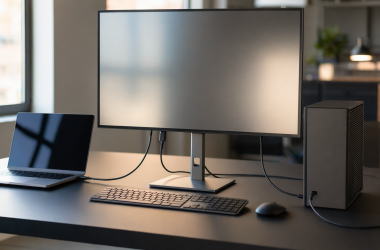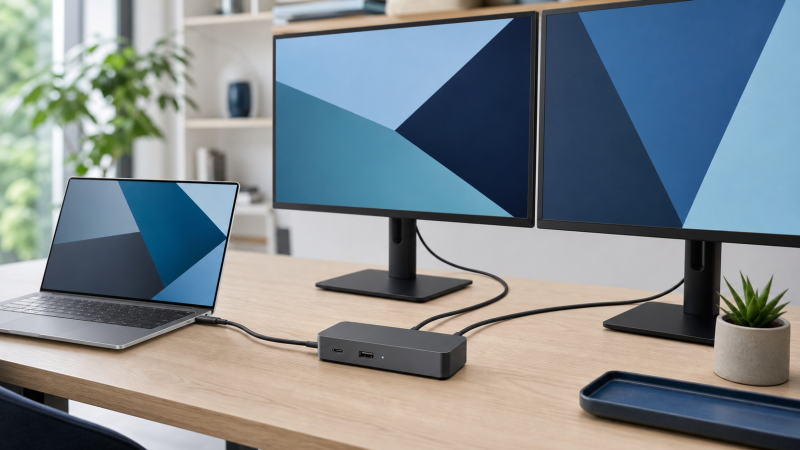
For an XPS 13 with Thunderbolt 4, start with the Dell Pro Thunderbolt 4 Smart Dock SD25TB4. It keeps the connection native, gives you several Dell-documented display routes, and Dell rates it to provide up to 130W on supported Dell systems. None of that is universal. XPS 13 generations differ, and the same dock can expose fewer displays or different charging behavior on another model. Check the Service Tag and manual for your exact laptop before choosing anything. If your XPS 13 has USB-C with DisplayPort Alt Mode but no Thunderbolt, a native USB-C dock may be the cleaner fit; if it lacks the needed native video mode, a driver-based DisplayLink dock is a separate fallback.
Quick Picks
- Best overall for a Thunderbolt 4 XPS 13: Dell SD25TB4
- Best established modular Dell option: Dell WD22TB4
- Best for a confirmed USB-C DP Alt Mode model: Dell WD25
- Best peripheral-heavy desk: CalDigit TS5
- Best driver-based fallback: StarTech 102B-USBC-MULTIPORT
| Image | Product | Details | Check Price |
|---|---|---|---|
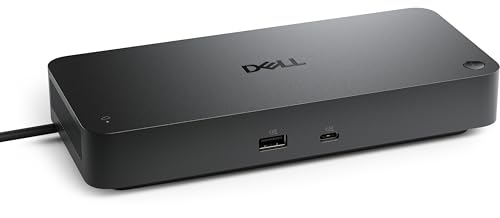 | Dell Pro Thunderbolt 4 Smart Dock SD25TB4 | Host requirement: Thunderbolt 4 on the exact XPS 13 Display path: Native DP/HDMI/TB; host DP and DSC limits apply Laptop charging: Dell publishes up to 130W on supported Dell systems Desk advantage: 2.5GbE and downstream Thunderbolt 4 Best for: Dell Thunderbolt setup | Check Price on Amazon |
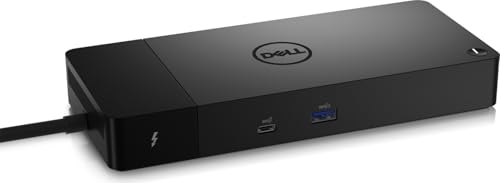 | Dell Thunderbolt Dock WD22TB4 | Host requirement: Thunderbolt 4 on the exact XPS 13 Display path: Native DP/HDMI/TB; Dell host table controls ceiling Laptop charging: Host-dependent Dell 130W path Desk advantage: Modular Dell design Best for: Established Dell Thunderbolt desk | Check Price on Amazon |
 | Dell Pro Dock WD25 | Host requirement: USB-C with confirmed DP Alt Mode Display path: Native DP Alt Mode; host DSC limits apply Laptop charging: Dell publishes up to 100W on supported Dell systems Desk advantage: 2.5GbE without a DisplayLink layer Best for: Native USB-C XPS 13 | Check Price on Amazon |
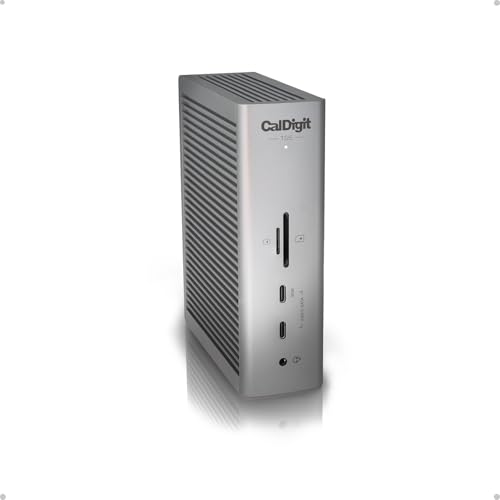 | CalDigit TS5 | Host requirement: Thunderbolt 4, USB4, USB4 v2, or USB-C; TB5/USB4 v2 for full function Display path: Thunderbolt or USB-C display route; no DisplayPort socket Laptop charging: Up to 140W on TS5 host port Desk advantage: Three downstream TB5 ports, 2.5GbE, UHS-II readers Best for: Peripheral-heavy desk | Check Price on Amazon |
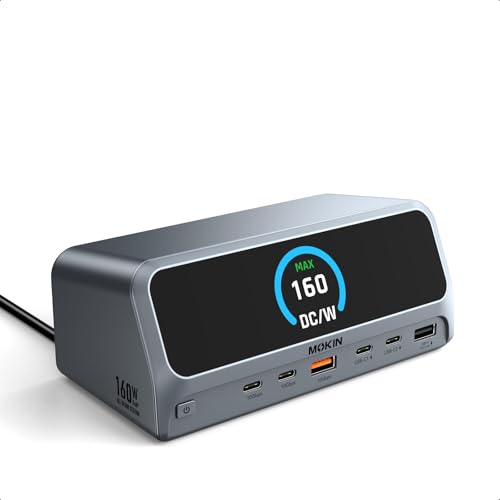 | MOKiN Docking Station Dual Monitor with 2 HDMI/Built in 160W Power | USB-C Dock, LCD Work Status & Privacy Button, Built-in Power (No Brick), Dual HDMI 4K, Windows Extend, MOKiN LumiNext DD01 | Host requirement: USB-C, USB4, or Thunderbolt with DP Alt Mode and Power Delivery Display path: Two HDMI outputs; Windows extends, macOS mirrors Laptop charging: Up to 160W total output shared across USB-C and USB-A ports Desk advantage: Built-in AC power supply and status display Best for: Built-in-power USB-C desk or travel setup | Check Price on Amazon |
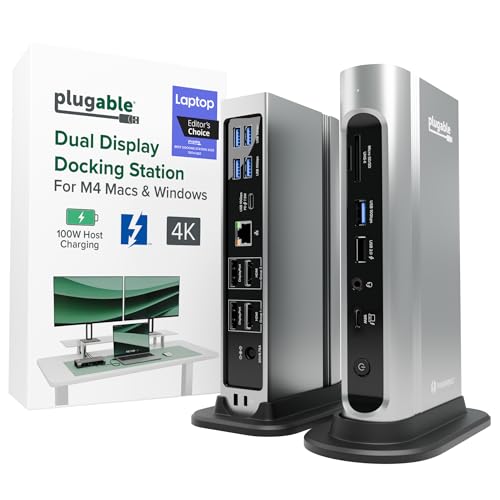 | Plugable TBT4-UDZ | Host requirement: Thunderbolt 4 or USB4 Display path: HDMI and DP groups; host controls display count Laptop charging: Negotiated below a rigid 100W guarantee Desk advantage: Choice of HDMI or DisplayPort cabling Best for: Mixed monitor connectors | Check Price on Amazon |
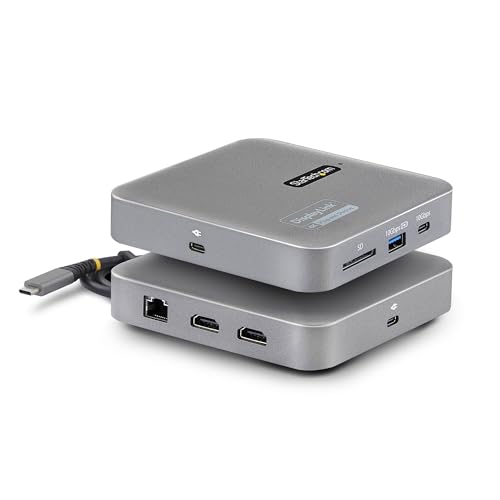 | StarTech 102B-USBC-MULTIPORT | Host requirement: USB-C, USB4, or Thunderbolt 3/4 laptop Display path: Two HDMI outputs through DisplayLink Laptop charging: Up to 82W with external USB-C PD adapter Desk advantage: Portable 10Gbps USB hub, SD reader, and Gigabit Ethernet Best for: Driver-based display fallback | Check Price on Amazon |
1. Dell Pro Thunderbolt 4 Smart Dock SD25TB4 — Best Overall Dell Choice
Confirm Thunderbolt 4 on the exact XPS 13 and the SD25TB4 becomes the most balanced first choice. Dell documents two DisplayPort 1.4 outputs, HDMI 2.1, a multifunction USB-C DisplayPort 1.4 route, two downstream Thunderbolt 4 ports, and 2.5GbE. That mix connects modern desk displays without putting a third-party adapter at the center of the setup.
Dell publishes up to 130W charging for supported Dell systems and 96W for non-Dell systems. Read the Dell number as a compatibility result, not a family-wide promise. The XPS model, firmware, host DisplayPort capability, and DSC support still determine the charging and display result.
Our Take If your manual confirms Thunderbolt and you want a current Dell dock with native display paths, the SD25TB4 is the one. Ignore its headline display ceiling until Dell’s host-specific support material confirms what your XPS 13 can actually drive.
- Dell documents several native display routes
- Dell publishes 2.5GbE and downstream Thunderbolt 4
- Display ceilings depend on the exact host DP and DSC path
- 130W charging is limited to supported Dell combinations
2. Dell Thunderbolt Dock WD22TB4 — Best Established Modular Dell Choice
XPS 13 owners who want Dell’s modular Thunderbolt 4 platform end up at the WD22TB4. Dell lists two DisplayPort 1.4 connections, HDMI 2.0, a multifunction USB-C DisplayPort 1.4 connection, two downstream Thunderbolt 4 ports, and Gigabit Ethernet. It is a practical match for a desk that mixes conventional display cables with Thunderbolt peripherals.
Its limitation is easy to miss: the sockets do not define the simultaneous display ceiling. Dell’s host display table does. Dell also describes a host-dependent 130W charging path, so you still need the exact XPS entry rather than assuming every Thunderbolt-equipped XPS 13 receives the same result.
Our Take Take the WD22TB4 when you prefer a mature Dell Thunderbolt design and its documented host table covers your XPS 13. The SD25TB4 remains the stronger default, and this model makes sense when the established modular platform matters more.
- Dell-documented modular Thunderbolt 4 design
- Two downstream Thunderbolt 4 ports
- Dell’s host table controls multi-monitor support
- Ethernet is Gigabit rather than 2.5GbE
3. Dell Pro Dock WD25 — Best Native USB-C Choice
Two conditions send you to the WD25: the exact XPS 13 manual confirms USB-C DisplayPort Alt Mode, and Thunderbolt expansion is not required. Dell documents two DisplayPort 1.4 outputs, HDMI 2.1, a multifunction USB-C DisplayPort 1.4 path, and 2.5GbE. The video route is native DP Alt Mode, so it avoids the software graphics layer required by DisplayLink docks.
Dell publishes up to 100W for supported Dell systems and 96W for non-Dell systems. Those figures do not prove that a particular XPS accepts that amount, and Dell’s DSC-dependent display ceilings stay host specific. A USB-C connector without DP Alt Mode is not enough for the WD25’s native video outputs.
Our Take For a confirmed DP Alt Mode XPS 13 that does not need downstream Thunderbolt, the WD25 is a primary Dell USB-C answer. It is the wrong fix for a USB-C port that carries data but no native video.
- Native USB-C DisplayPort Alt Mode route
- Dell lists 2.5GbE and several display connectors
- No Thunderbolt expansion
- Requires confirmed DP Alt Mode for native video
4. CalDigit TS5 — Best Port-Rich Third-Party Desk
The CalDigit TS5 suits an XPS 13 desk built around storage, networking, memory cards, and other peripherals. CalDigit specifies 15 ports, one Thunderbolt 5 host port, three downstream Thunderbolt 5 ports, 2.5GbE, and UHS-II SD and microSD readers. The draw is that peripheral mix, not Dell-specific management behavior.
CalDigit lists compatibility with Thunderbolt 5, Thunderbolt 4, USB4, USB4 v2, and USB-C Macs and PCs, and recommends a Thunderbolt 5 or USB4 v2 host for maximum functionality. CalDigit explicitly excludes Thunderbolt 3 Windows PCs, and its port list has no DisplayPort socket.
Our Take Card readers, 2.5GbE, and a broad Thunderbolt peripheral layout are the case for the TS5. Confirm the display route and host compatibility before choosing it for an exact XPS 13 setup.
- CalDigit specifies 2.5GbE and UHS-II card readers
- CalDigit lists three downstream Thunderbolt 5 ports
- CalDigit’s port list has no DisplayPort socket
- CalDigit recommends a Thunderbolt 5 or USB4 v2 host for maximum functionality
5. MOKiN 13-in-1 Dock — Best Built-In-Power Hybrid
MOKiN lists two HDMI outputs, two USB-C ports, a 10Gbps USB-A port, USB-A 2.0, Gigabit Ethernet, an AC port, and a status display. The maker rates total output at up to 160W across three USB-C ports, including the host connection, plus one USB-A PD port.
The maker says the dock supports USB-C, USB4, and Thunderbolt connections where the laptop provides DisplayPort Alt Mode and Power Delivery. It says Windows supports extended external displays, while macOS mirrors the external displays and the dock is not compatible with Linux. The maker also lists built-in power and no external power brick.
Our Take Pick this dock for a desk setup where an integrated power supply and two HDMI outputs fit a DP Alt Mode XPS 13. Choose a native Thunderbolt dock when downstream Thunderbolt expansion is more important.
- The maker lists built-in power and no external power brick
- MOKiN lists two HDMI outputs and Gigabit Ethernet
- MOKiN says the laptop must provide DP Alt Mode and Power Delivery
- MOKiN says macOS mirrors the external displays and the dock is not compatible with Linux
6. Plugable TBT4-UDZ — Best HDMI and DisplayPort Flexibility
Connector flexibility is the whole argument for the TBT4-UDZ on a Thunderbolt 4 or USB4 XPS 13. Plugable documents two HDMI and two DisplayPort groups plus 2.5GbE. That gives you a direct route to desks where the available monitor cables vary, without assuming that all four video sockets operate at once.
Plugable does not turn the four sockets into a four-display promise for every host. The exact XPS GPU and display path still control how many displays work and at what modes. Charging is negotiated below a rigid 100W guarantee, so the laptop and dock must be considered together.
Our Take Buy it when matching existing HDMI and DisplayPort cabling is the main job. It is the weaker choice if you want Dell-specific management, or if your plan depends on reading connector count as display count.
- Plugable provides both HDMI and DisplayPort groups
- Plugable lists 2.5GbE
- Four video sockets are not a universal four-display promise
- Charging depends on negotiation with the host
7. StarTech 102B-USBC-MULTIPORT — Best Driver-Based Fallback
StarTech identifies the 102B-USBC-MULTIPORT as a portable USB-C dock with two HDMI 2.0 outputs, a two-port 10Gbps USB hub, an SD 4.0 reader, Gigabit Ethernet, and DisplayLink certification. It accepts USB-C, USB4, and Thunderbolt 3 or 4 laptop connections.
DisplayLink is software USB graphics, not the native GPU path. StarTech specifies up to 100W PD pass-through when an external USB-C power adapter is attached, with up to 82W available for laptop charging because the dock reserves part of the power. The driver, host capability, output grouping, and workload all affect the result.
Our Take Choose this StarTech dock when your exact XPS setup needs compact DisplayLink flexibility and the workload fits software graphics limits. Stay native, on Thunderbolt or DP Alt Mode, when the laptop already supports the displays you need that way.
- StarTech lists two HDMI outputs and DisplayLink certification
- StarTech identifies a 10Gbps USB hub, SD reader, and Gigabit Ethernet
- DisplayLink output uses software USB graphics instead of the native GPU path
- Laptop charging gets less power than the external adapter supplies because StarTech reserves part of it
How to Choose a Dock for Your Exact XPS 13
Start with the Service Tag, not the family name
Enter the Service Tag on Dell’s support site and open the manual for your exact model. Confirm whether its USB-C-shaped port supports Thunderbolt, USB-C DisplayPort Alt Mode, charging input, and the display mode you want. Those are separate capabilities. A cable fitting the socket proves only physical compatibility.
If the manual confirms Thunderbolt 4, start with the SD25TB4 or WD22TB4. A third-party Thunderbolt dock can also make sense when its peripheral layout is the priority. If the manual confirms DP Alt Mode without Thunderbolt, the WD25 is the native branch. The StarTech dock sits apart from both, because its displays rely on a driver and USB graphics.
Match the display route, not the socket count
Write down each monitor’s resolution, refresh rate, and input. Then map those monitors to the dock outputs and the host’s documented limits. Dell’s WD22TB4 table shows exactly why a product-level maximum is not enough: the host DP and DSC path changes what the dock can expose. Adapters add another condition.
Treat charging as its own decision
Compare the laptop’s original adapter requirement with the manufacturer’s published dock output and the exact Dell compatibility listing. More published dock wattage does not guarantee that the laptop accepts it. For an XPS 13, the practical question is whether the confirmed dock-host combination covers your normal load without a second charger on the desk.
Frequently Asked Questions
Will every Thunderbolt dock run two monitors on an XPS 13?
No. Thunderbolt connectivity does not erase the laptop GPU, DisplayPort, DSC, operating-system, adapter, and monitor limits. Check the exact Dell model documentation and the dock maker’s supported topology before you buy around two displays.
Can DisplayLink fix an XPS 13 port without native video?
A supported DisplayLink dock can create software USB graphics when its driver and USB data path work, but it does not add native DP Alt Mode to the laptop. It also does not change whether the USB-C port accepts charging. Use it for a compatible office-display workload, not as proof of native video support.
Should I keep the XPS charger connected?
Keep it available until the exact dock and XPS combination is documented to supply the power your laptop expects and you have confirmed the resulting behavior. A dock can handle displays and peripherals perfectly well while its charging path is still not the right full-power match.