A USB-C-shaped socket on a Dell Inspiron may carry no native video output, no charging input, and no Thunderbolt. Check the Service Tag and the exact manual before buying any dock. Where a supported USB data path and a managed DisplayLink driver are both acceptable, the Dell Universal Dock UD22 is the best overall fallback, though it is not a universal Inspiron fix. Three branches split the decision: native USB-C DisplayPort Alt Mode, Thunderbolt or USB4, and DisplayLink software graphics. DisplayLink can add office displays over supported USB data, yet it does not repair a missing charging-input feature and it is not the native GPU path. For an Inspiron with confirmed DP Alt Mode or Thunderbolt, take the matching native route unless a driver-based topology solves a specific display need.
Quick Picks
- Best Dell hybrid and DisplayLink-assisted choice: Dell UD22
- Best three-display office topology: Plugable UD-6950PDZ
- Best high-power DisplayLink desk branch: Anker Prime DL7400
- Best compact two-display fallback: Plugable USBC-6950PDZ
- Best native USB-C branch: Dell WD25
| Image | Product | Details | Check Price |
|---|---|---|---|
 | Dell Universal Dock UD22 | Required laptop port: Supported USB-C data path; native group also needs DP Alt Mode Graphics path: Hybrid native DP Alt Mode and DisplayLink Driver required: Yes, for DisplayLink outputs Charging condition: Up to 96W before loading; host must accept USB-C power Best for: Dell hybrid office displays | Check Price on Amazon |
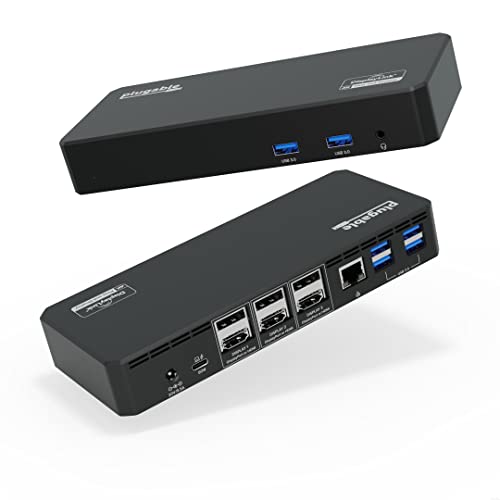 | Plugable UD-6950PDZ | Required laptop port: Supported USB-C data and host-video path Graphics path: One native DP Alt Mode plus two DisplayLink groups Driver required: Yes Charging condition: Negotiated up to 100W; host input support required Best for: Three-display office topology | Check Price on Amazon |
 | Anker Prime DL7400 A83B3 | Required laptop port: Supported USB data path Graphics path: DisplayLink software graphics Driver required: Yes Charging condition: Conditional up to 140W; exact host path required Best for: High-power DisplayLink desk branch | Check Price on Amazon |
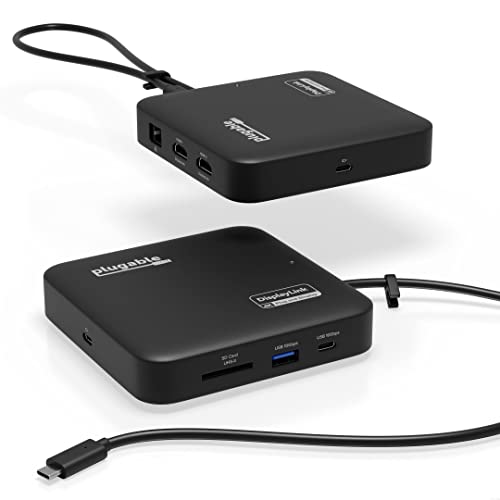 | Plugable USBC-6950PDZ | Required laptop port: Supported USB-C data path Graphics path: Two-display DisplayLink DL-6950 Driver required: Yes Charging condition: Supply not included; up to 82W pass-through Best for: Compact two-HDMI office fallback | Check Price on Amazon |
 | Dell Pro Dock WD25 | Required laptop port: USB-C with confirmed DP Alt Mode Graphics path: Native GPU through DP Alt Mode Driver required: No DisplayLink driver Charging condition: Up to 100W supported Dell; charging-input support required Best for: Current native USB-C Inspiron | Check Price on Amazon |
 | Dell Dock WD19S | Required laptop port: USB-C with confirmed DP Alt Mode Graphics path: Native GPU through DP Alt Mode Driver required: No DisplayLink driver Charging condition: Dell-host-specific; keep original charger if needed Best for: Established native USB-C Dell path | Check Price on Amazon |
 | Plugable TBT4-UDZ | Required laptop port: Confirmed Thunderbolt 4 or USB4 Graphics path: Native high-bandwidth host display path Driver required: No DisplayLink driver Charging condition: Negotiated below a rigid 100W guarantee Best for: Thunderbolt or USB4 Inspiron | Check Price on Amazon |
1. Dell Universal Dock UD22 — Best Dell Hybrid Choice

A supported Inspiron that needs a hybrid of native and driver-based display routes should start with the UD22. Dell describes a USB-C 10Gbps dock with two DisplayPort 1.2 outputs, HDMI 2.0, a USB-C DisplayPort 1.4 Alt Mode route, Gigabit Ethernet, and a required Synaptics DisplayLink driver. Dell publishes up to 96W before adaptive dock loading.
What you actually get depends on the exact driver, the host DP and DSC path, the output grouping, and the workload. DisplayLink is software USB graphics, so do not promise it for gaming, protected playback, color-critical work, or high-motion use. Nor can it make a non-charging Inspiron port accept laptop power.
Our Take Two conditions make the UD22 right for office displays: the exact Inspiron supports the required USB data path, and you accept driver ownership. Use its native DP Alt Mode group where supported and treat DisplayLink as a separate compatibility branch.
- Dell documents hybrid native and DisplayLink display groups
- Dell lists Gigabit Ethernet and up to 96W before loading
- Synaptics DisplayLink driver is required
- Does not add a missing charging-input feature
2. Plugable UD-6950PDZ — Best Three-Display Office Topology

Three display groups, and an office topology that genuinely calls for them, is the whole argument for the UD-6950PDZ. Plugable documents one native DP Alt Mode group and two DisplayLink DL-6950 groups, plus six USB-A ports, Gigabit Ethernet, and negotiated charging up to 100W. That split matters, because the displays are not all using one graphics path.
Plugable requires the DisplayLink driver and a compatible host-video route. The documented limitations include HDCP restrictions and an office-workload boundary, which rules this out as a gaming or protected-video recommendation. Charging still depends on what the Inspiron port accepts, and the dock cannot create charging input on a data-only port.
Our Take If three office displays justify a mixed native-plus-DisplayLink setup, the UD-6950PDZ is the buy. Skip it when the goal is one native GPU path or when protected playback and high-motion work are central.
- Plugable documents one native and two DisplayLink groups
- Six USB-A ports and Gigabit Ethernet
- DisplayLink driver and host-video support are required
- HDCP and office-workload limits apply
3. Anker Prime DL7400 A83B3 — Best High-Power DisplayLink Desk Branch
Desks that value current monitor connectors, 2.5GbE, and card readers have their DisplayLink option in the Anker Prime DL7400. Anker documents one DisplayPort 1.4 output, two HDMI 2.1 outputs, 2.5GbE, card readers, a required driver, and conditional host charging up to 140W.
The word conditional carries the buying decision. Anker’s documented simultaneous topology must not be expanded into a broader display promise, and the Inspiron must accept the negotiated charging path. The dock cannot add charging input to a laptop port that lacks it. Its DisplayLink outputs remain software graphics rather than a native GPU route.
Our Take Where the documented topology fits an office desk and the exact Inspiron supports the charging branch, the DL7400 delivers. Do not buy it from the 140W headline or three sockets without checking both conditions.
- Anker lists 2.5GbE and card readers
- DisplayPort 1.4 and two HDMI 2.1 connections
- Driver is required
- Up-to-140W charging and display topology are conditional
4. Plugable USBC-6950PDZ — Best Compact Two-Display Fallback

Two HDMI office displays over DisplayLink DL-6950, and nothing more ambitious, is the focused job of the USBC-6950PDZ. Plugable documents up to two 4K60 office displays, a captive USB-C host cable, a UHS-II SD reader, and Gigabit Ethernet. A smaller connection plan is easier to understand than a dock with several alternate video groups.
Plan for a charger, because none is included. Plugable states that the dock accepts a 45W to 100W USB-C supply and passes up to 82W to the host, subject to negotiation and the Inspiron’s charging-input support. Plugable also excludes HDCP, gaming, and 3D promises. Installing the DisplayLink driver is part of the setup.
Our Take Supply the right charger, accept DisplayLink’s limits, and this dock handles a compact two-HDMI office arrangement well. It is not a native graphics or gaming dock.
- Plugable documents up to two 4K60 office displays
- UHS-II SD and Gigabit Ethernet
- No charger is included
- No HDCP, gaming, or 3D promise
5. Dell Pro Dock WD25 — Best Native USB-C Choice

Confirm USB-C DisplayPort Alt Mode in the exact Inspiron manual and the WD25 becomes the better choice. Dell documents two DisplayPort 1.4 outputs, HDMI 2.1, a multifunction USB-C DisplayPort 1.4 route, 2.5GbE, and Dell management features that remain host specific. The displays run on the native GPU path rather than DisplayLink.
Dell publishes up to 100W for supported Dell systems and 96W for non-Dell systems. The Inspiron still has to accept charging through that port, and host DSC capability controls the higher display ceilings. A USB-C data-only port cannot drive the WD25’s native video outputs.
Our Take With DP Alt Mode confirmed and its native topology covering your screens, the WD25 beats a DisplayLink dock. It avoids a graphics driver but cannot repair a port with no video or charging input.
- Dell documents native DP Alt Mode displays
- Dell lists 2.5GbE and current display connectors
- Requires confirmed DP Alt Mode
- Charging and DSC ceilings remain host specific
6. Dell Dock WD19S — Best Established Native USB-C Dell Choice

An Inspiron with confirmed USB-C DP Alt Mode has its established Dell route in the WD19S. Dell lists two DisplayPort 1.4 outputs, HDMI 2.0, a multifunction USB-C display path, and Gigabit Ethernet. Displays stay on the laptop’s native route, with none of the DisplayLink driver work the first four picks require.
There is no Thunderbolt expansion here, and no guarantee for a USB-C port lacking DP Alt Mode. Dell-specific power behavior is host dependent, so check whether the exact Inspiron accepts charging through the selected port, and keep the original charger when that path is absent or insufficient.
Our Take When the manual confirms native video and you want an established Dell display and Ethernet dock, the WD19S is the answer. It should not be used as a test for an unknown USB-C port.
- Dell documents native USB-C DP Alt Mode
- Two DisplayPort outputs plus HDMI and Gigabit Ethernet
- No Thunderbolt expansion
- No native video through a data-only USB-C port
7. Plugable TBT4-UDZ — Best Thunderbolt or USB4 Branch
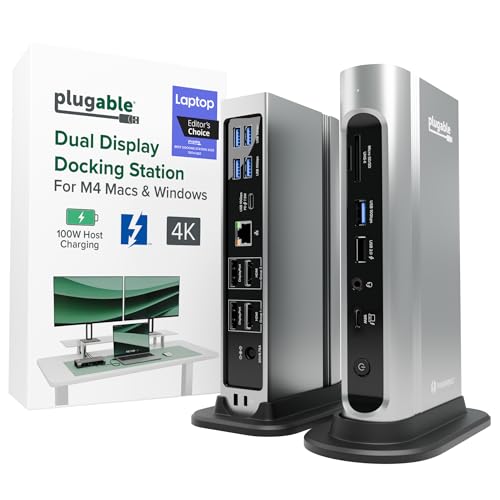
Only one Inspiron branch reaches the TBT4-UDZ, the smaller one whose exact manual confirms Thunderbolt 4 or USB4. Plugable documents two HDMI and two DisplayPort groups, 2.5GbE, and broad Windows output flexibility. Video stays on a native high-bandwidth host route instead of relying on DisplayLink.
Four physical sockets do not mean four simultaneous displays on every Inspiron, because the laptop GPU and host path control the topology. Plugable also describes negotiated charging below a rigid 100W guarantee, so verify that the Inspiron accepts power through the port and keep its charger when needed.
Our Take Reserve the TBT4-UDZ for a confirmed Thunderbolt or USB4 Inspiron whose monitor cabling benefits from both HDMI and DisplayPort. It is not a fallback for an ordinary USB-C data port.
- Plugable provides HDMI and DisplayPort groups
- Plugable lists 2.5GbE
- Requires a confirmed Thunderbolt 4 or USB4 host
- Socket count is not a display-count guarantee
Choose the Right Inspiron Port Branch
Native USB-C DisplayPort Alt Mode
If the exact manual says the USB-C port supports DisplayPort Alt Mode, the WD25 and WD19S can use the laptop’s native GPU route. Confirm charging input separately, because DP Alt Mode does not prove that the same port charges the laptop. Then match the dock outputs to the monitor inputs and the host’s DSC limits.
Thunderbolt 4 or USB4
The TBT4-UDZ becomes relevant only where Dell explicitly documents Thunderbolt 4 or USB4. Work from the manufacturer topology for the exact GPU and monitor chain. Do not infer the protocol from a lightning-like icon without checking the manual, and do not infer four active displays from four sockets.
DisplayLink over USB data
Where the laptop has a supported USB data path but lacks the native display route you need, DisplayLink can create software USB graphics. Check driver support, output grouping, workload limits, and charger requirements before committing. What DisplayLink will not add is native DP Alt Mode, Thunderbolt, or laptop charging input.
Frequently Asked Questions
Does every Dell Inspiron USB-C port support a monitor?
No. A port can carry USB data without DisplayPort Alt Mode. Use the exact Service Tag and manual to confirm native video before buying a native USB-C dock.
Can a DisplayLink dock charge an Inspiron whose USB-C port does not accept power?
No. DisplayLink concerns software USB graphics and adds no charging-input support to the laptop. Keep the original charger when the Inspiron does not accept power through that USB-C port.
Is DisplayLink the same as Thunderbolt graphics?
No. DisplayLink encodes display data through USB software and requires a driver. Thunderbolt and USB-C DP Alt Mode can carry native GPU display paths instead, subject to the exact host and topology.