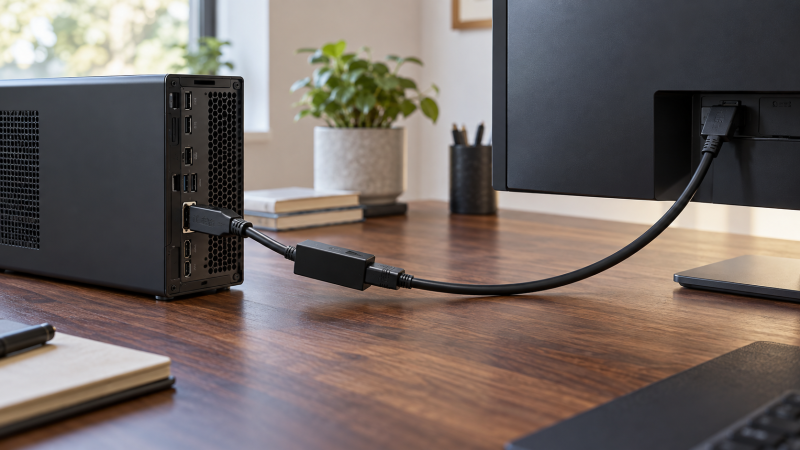
A graphics card with full-size DisplayPort outputs can drive an HDMI monitor, but the connector shapes do not make every adapter interchangeable. The first check is direction. These six adapters start at a DisplayPort source and end at an HDMI display. They are not HDMI-to-DisplayPort converters, and none creates another independent output from a port that is not already on the computer.
For a normal office screen, the difference between a 4K30 dongle and a high-refresh model may be invisible until you change the monitor setting. For a 4K120 display, that difference is the purchase decision. Match the GPU output, adapter, HDMI cable and monitor input to the same resolution and refresh rate. A seller’s maximum mode is a ceiling, not proof that every combination will reach it.
Check the source port before ordering. Full-size DisplayPort is not Mini DisplayPort, USB-C or HDMI, and these adapters work from DP source to HDMI display, not backward.DisplayPort-to-HDMI Adapters Compared
| Image | Product | Details | Check Price |
|---|---|---|---|
 | Cable Matters 8K DP to HDMI | Source: Full-size DP 1.4 HDMI mode: 8K60 / 4K120 listed Direction: DP to HDMI only Best fit: High-refresh GPU | Check Price on Amazon |
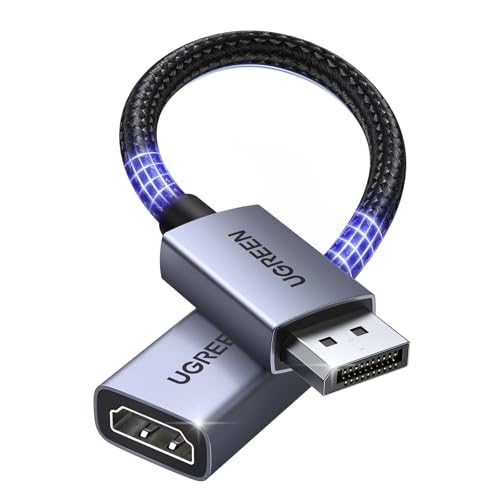 | UGREEN DP133 | Source: Full-size DP HDMI mode: 4K30 / 1080p120 Direction: DP to HDMI only Best fit: Short pigtail | Check Price on Amazon |
 | Moread DP to HDMI | Source: Full-size DP HDMI mode: 4K30 / 1440p60 Direction: DP to HDMI only Best fit: Latched spare | Check Price on Amazon |
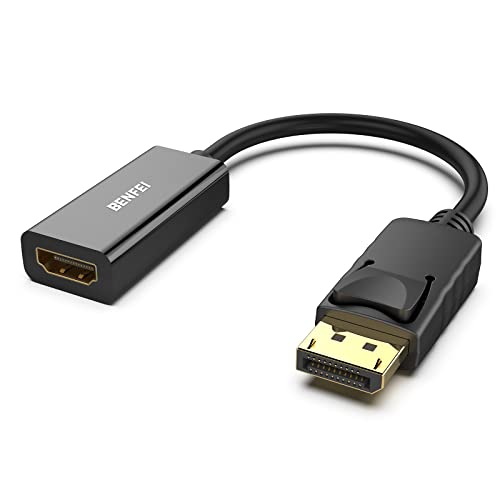 | BENFEI DP to HDMI | Source: Full-size DP HDMI mode: 4K30 / 1080p60 Direction: DP to HDMI only Best fit: Basic office screen | Check Price on Amazon |
 | Highwings DP to HDMI | Source: Full-size DP HDMI mode: 4K30 / 1440p60 Direction: DP to HDMI only Best fit: Latch-free dongle | Check Price on Amazon |
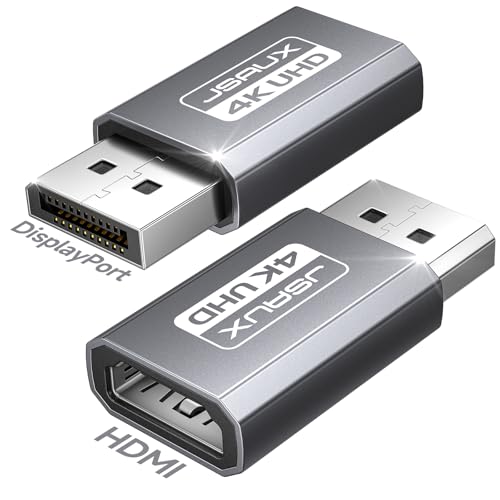 | JSAUX DP to HDMI 2-Pack | Source: Full-size DP HDMI mode: 4K30 / 1080p120 Direction: DP to HDMI only Best fit: Two similar desks | Check Price on Amazon |
1. Cable Matters 8K DP to HDMI — Best for High-Refresh Workstations
Cable Matters lists a DisplayPort 1.4 source to HDMI 2.1 display adapter with ceilings up to 8K60, 4K120 and 4K240. It is the only option here whose listing makes a 4K120-or-higher claim. For a workstation GPU with DP outputs and an HDMI-only high-refresh screen, you check whether the entire chain supports the desired mode instead of accepting 4K30. The display, GPU and cable still set limits of their own.
The same listing says VRR, G-Sync and FreeSync are not supported and calls for a suitable HDMI 2.1 cable sold separately. Do not choose it because an HDMI 2.1 label sounds like a promise of every gaming feature. It is one-way from a DP computer or graphics card to an HDMI display. A console’s HDMI output cannot use it in reverse. The seller also mentions HDR and audio, but those claims are not a measured result for your particular GPU and monitor.
Our Take Buy this Cable Matters adapter when the desk needs a listed 4K120 path from a full-size DP graphics output. Treat adaptive-sync support as absent and verify the exact cable and monitor mode before making it the only connection plan.
- Seller lists 4K120 and higher modes.
- Clear DP 1.4-to-HDMI 2.1 direction.
- Useful for an HDMI-only high-refresh display.
- VRR, G-Sync and FreeSync excluded.
- Suitable HDMI cable sold separately.
- Top modes depend on the full signal chain.
2. UGREEN DP133 — Best Short Flexible Lead
UGREEN’s DP133 puts a short 0.66-foot cable between the DisplayPort plug and HDMI socket. The flex can keep an HDMI cable’s weight off a crowded graphics-card backplate. Its listing states up to 4K30, 1440p60 or 1080p120. The three modes are separate choices, not simultaneous promises. Pick the mode the workstation and monitor both support. For a 4K screen used for text, 30 Hz may feel less fluid than a direct higher-refresh connection.
The listing identifies the adapter as DP source to HDMI display only and excludes HDMI-source devices and docking stations. The dock exclusion applies if you intend to attach it to a dock’s output rather than the desktop GPU itself. UGREEN also claims audio transfer, but the operating system and monitor still need the appropriate audio device and settings. The braided lead and aluminum housing are physical design details, not proof of a specific handshake or refresh rate.
Our Take Buy this UGREEN lead when a short flexible connection helps cable routing at a crowded workstation and 4K30 or 1080p120 is enough. Do not treat it as a 4K60 adapter or as a general dock accessory.
- Short lead reduces connector strain.
- 1080p120 is listed for a compatible screen.
- Direction is explicit.
- 4K ceiling is 30 Hz in the listing.
- Docking-station compatibility excluded.
3. Moread DP to HDMI — Best Latched Spare
Moread lists a compact, passive adapter for a full-size DP-equipped computer or graphics card. The seller gives 4K30, 1440p60 and 1080p120 as supported ceilings. It also calls out uncompressed audio pass-through, though the HDMI display or audio device must still accept the source’s output. At a fixed office workstation, the male DisplayPort plug and female HDMI socket mean you keep the existing HDMI cable instead of buying a one-piece cable of the wrong length.
The DisplayPort plug has locking latches and a release button. The latch is useful behind a desk where a cable could be tugged, but press the release before removing it from the GPU. Moread describes passive operation and says docks, hubs and KVMs need an appropriate DP dual-mode output. A physical DP socket on intermediary hardware is not enough to guarantee that this passive adapter will work through it.
Our Take Buy this Moread adapter as a latched spare for a direct workstation DP output and an ordinary HDMI display. Confirm DP++ support before using it after a dock or KVM.
- Latched DP plug resists accidental removal.
- 4K30, 1440p60 and 1080p120 listed.
- Separate HDMI cable can match desk length.
- Passive design has DP++ boundary.
- Not for reverse HDMI-to-DP conversion.
4. BENFEI DP to HDMI — Best Basic Office Adapter
BENFEI lists 3840 × 2160 at 30 Hz or 1080p at 60 Hz for its DP-source-to-HDMI-display converter. The adapter is a plain fit for a presentation projector or secondary office monitor where 4K60 is not required. It is not a way to turn a computer’s HDMI output into a DisplayPort signal, despite how often product searches mix those directions. Check the graphics card’s physical DP port and the display’s HDMI input before ordering.
Like the Moread, BENFEI uses a latched DisplayPort connector. Its listing instructs you to press the release button before unplugging, a step to plan for when the GPU is hard to reach. The seller advertises an 18-month warranty. Neither a secure latch nor warranty changes the adapter’s listed 4K30 ceiling. If smooth motion at native 4K is central to the job, choose a model with an explicitly supported higher mode instead.
Our Take Buy this BENFEI adapter for a simple 4K30 office display when a locked DP connection is useful and high refresh is not on the requirement list.
- Clear one-way connection and 4K30 ceiling.
- Latched DP plug.
- Seller lists 18-month coverage.
- No listed 4K60 mode.
- Latch needs deliberate release.
5. Highwings DP to HDMI — Best Latch-Free Dongle
Highwings lists a passive, one-way adapter with ceilings of 4K30, 1440p60 and 1080p. It specifically says the DP plug is latch-free, a small but useful difference when the back of a desktop PC is awkward to reach. You can unplug it without hunting for a release button. The HDMI end is a socket, so a separate cable is still needed and can be selected for the desk’s actual distance.
There is an important listing caveat. Highwings says this exact passive adapter does not support docking stations. Its copy also mixes in a DisplayPort Alt Mode note despite describing a full-size DP product. Treat the full-size connector and stated DP-to-HDMI direction as the relevant facts, and do not infer USB-C compatibility from that loose wording. Choose it for a direct DP computer output, not a chain of converters.
Our Take Buy this Highwings adapter for a direct GPU-to-HDMI connection when you prefer a latch-free plug. Its 4K30 and dock caveats make it an ordinary-display choice, not a universal adapter.
- Latch-free DP plug is easy to remove.
- 4K30 and 1440p60 listed.
- Passive adapter; dock support excluded.
- Listing has confusing Alt Mode wording.
- Separate HDMI cable needed.
6. JSAUX DP to HDMI 2-Pack — Best for Two Similar Desks
JSAUX sells two full-size DP-source-to-HDMI-display adapters in this exact pack. Its listing states up to 4K30, 1440p60 and 1080p120. A pair makes practical sense if two workstations both have DP graphics outputs but the available monitors or projectors take HDMI, or if a second unit is a spare in a presentation bag. The two-pack is not evidence that one GPU port can feed two screens through one adapter. Each connection still needs its own source output.
The seller warns against reverse HDMI-to-DP use and recommends a direct computer/GPU connection rather than chains involving active converters, USB-C adapters or hubs. HDMI cables are not included, so count those separately. If only one desk needs a high-refresh 4K display, buying two 4K30 adapters is not a substitute for a higher-bandwidth model.
Our Take Buy this JSAUX pair for two similar ordinary DP-to-HDMI workstation connections. Its pack count is useful only when both screens fit the listed modes.
- Two adapters for separate outputs or desks.
- 4K30 and 1080p120 listed.
- Direct-source boundary is explicit.
- HDMI cables not included.
- Not intended for converter or hub chains.
- No listed 4K60 mode.
Buying Guide: Match the Signal Path Before the Connector
Identify the source port and conversion direction
Start at the graphics card or workstation, not the monitor. These adapters accept a full-size DisplayPort output and present an HDMI connection for a display. A physically similar Mini DisplayPort plug will not fit, and a USB-C socket needs a different adapter family. If the computer has HDMI and the monitor only DP, these six products are the wrong direction. A reverse converter is a separate purchase decision. Our USB-C adapter guide addresses a different source port.
An adapter does not create another operating-system display output. It uses the DP output already provided by the workstation. If two external monitors must show independent desktops, confirm that the GPU and operating system support both outputs and connect each monitor through its own appropriate port. The JSAUX two-pack supplies two separate adapters, not a splitter. For one HDMI monitor shared by several computers, an HDMI switch guide covers a different topology.
Set the required resolution and refresh rate
A 4K30 ceiling is not a 4K60 promise. Highwings, BENFEI, UGREEN, Moread and JSAUX all list 4K30 as their 4K mode. A 4K panel may still accept that picture, but pointer motion and scrolling will not feel like a 60 Hz desktop. Moread, UGREEN and JSAUX also list 1080p120, which is a different resolution choice. Decide which mode you need before comparing housings, latches or pack count.
The Cable Matters listing is the higher-mode exception here. It advertises up to 8K60 and 4K120 or 4K240 from a DP 1.4 source to an HDMI 2.1 display, but explicitly excludes VRR, G-Sync and FreeSync. A compatible GPU, monitor input and suitable HDMI cable are all required. Do not assume the largest number on one adapter’s listing is a result you will see from a particular card or display. If possible, keep a direct fallback connection available until the intended mode is confirmed.
Check passive-adapter and cable boundaries
A passive adapter may depend on the source’s DP dual-mode behavior. Moread expressly names DP++ for certain docks, hubs and KVMs. Highwings excludes docking-station use. Direct graphics-card outputs are the simpler case, but even there the GPU, driver and display need compatible modes. Do not stack a DP-to-HDMI adapter after another USB-C or HDMI converter merely because the connector fits. An extra converter adds another compatibility question that the product listing does not resolve.
The adapter’s HDMI socket still needs a cable. Choose a length that reaches without pulling on the workstation port or monitor. UGREEN’s short lead can relieve connector strain, while BENFEI and Moread latch into the DP port and require the release button to unplug. Cable Matters calls for a suitable HDMI 2.1 cable for its advertised top modes. No cable or connector detail replaces testing the exact display setting and cable run.
Frequently Asked Questions
Can these adapters connect an HDMI computer to a DisplayPort monitor?
No. Every adapter in this list is one-way from a full-size DisplayPort source to an HDMI display. The HDMI socket is an output side for the monitor cable, not an input for a console or laptop HDMI port. Adding other adapters around it will not reverse its electronics.
If the computer supplies HDMI and the monitor accepts only DisplayPort, look for a product explicitly made for HDMI-source-to-DP-display conversion. Check its power requirement and supported mode. The words “DP to HDMI” and “HDMI to DP” describe different buying jobs.
Will a 4K30 adapter let my 4K monitor run at 60 Hz?
Not on the strength of a 4K30 listing. BENFEI, Highwings, Moread, UGREEN and JSAUX name 30 Hz as their 4K ceiling. They may offer higher refresh at a lower resolution, such as 1080p120 on certain models, but that does not make the 4K path 60 Hz. Check the mode menu after connecting rather than assuming the monitor’s own specification determines the result.
For a higher-refresh 4K HDMI monitor, choose an adapter whose exact listing states the desired mode, then verify GPU output, HDMI input and cable. Cable Matters lists 4K120 here, with explicit feature exclusions. If the GPU and monitor share a direct connection type, a direct connection may be simpler than adding an adapter.
Does a two-pack add two displays to one DP port?
No. JSAUX includes two physical adapters, each meant for a separate full-size DP source output. The adapters do not split one DP signal into independent screens. A workstation with only one usable external display path still has that limitation after buying a two-pack.
Use the second adapter on another workstation, another GPU DP port, or as a spare. For dual independent screens, check the graphics card’s output count and the computer’s display settings. For mirroring one HDMI feed to multiple displays, a splitter is a different class of device.
Bottom Line
Cable Matters 8K is the listed high-refresh choice, with an important adaptive-sync exclusion. For ordinary desks, choose UGREEN DP133 for cable relief, BENFEI for a straightforward 4K30 adapter, and JSAUX two-pack for two separate connections. Buy for the exact source direction and desired display mode, not for the largest number in a title.