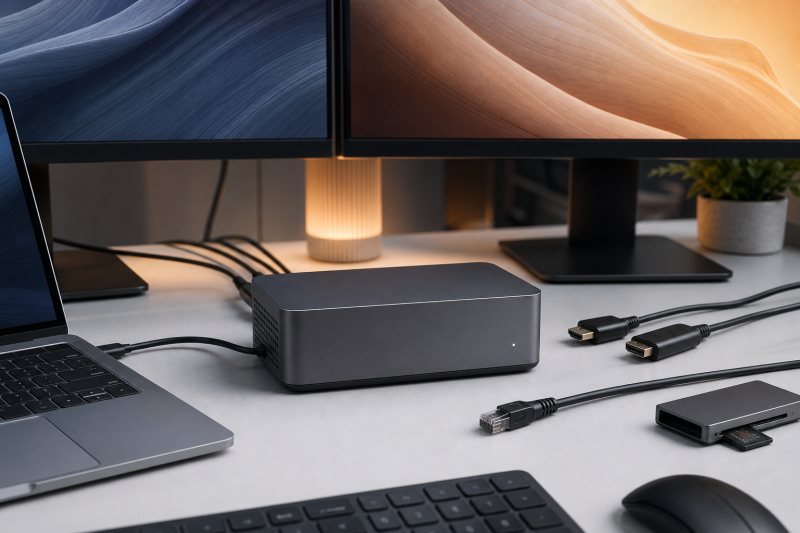
The Anker Prime TB5 Docking Station is built for a desk that needs one conventional video connector, two downstream Thunderbolt 5 ports, five 10Gb/s USB ports, card readers, 2.5GbE, audio, and up to 140W host charging. It also has an integrated AC input, so there is no separate power brick on the floor.
The video layout has a catch that should decide the purchase before any headline resolution does. The dock has HDMI 2.1 and DisplayPort 2.1 sockets, but Anker states that they cannot be used simultaneously. They are a choice, not two concurrent conventional display outputs.
This Anker Prime Thunderbolt 5 Dock review covers the exact 14-in-1 model A83B5, ASIN B0DSVVJXK5. It uses Anker’s current product page and A83B5 manual, plus a current Amazon identity and offer check. It makes no hands-on speed, display, fan-noise, temperature, or reliability claim.
The dock is strongest with a supported Thunderbolt 5 Windows laptop or a compatible Apple Silicon Mac whose chip exposes the intended display count. It is much harder to recommend for Thunderbolt 3, Intel Mac, ChromeOS, Linux, or a desk that expects the front USB-C ports to carry video.
Anker Prime TB5 Dock verdict
Buy the Anker Prime TB5 Docking Station when one native HDMI or DisplayPort connection, two downstream Thunderbolt display paths, five 10Gb/s USB data ports, and up to 140W host charging fit the desk. Skip it when HDMI and DisplayPort must work together, a fanless dock is required, or the host falls outside Anker’s unusually narrow compatibility rules.
The design works well for a mixed desk. Three USB-A ports keep existing peripherals connected, while two front USB-C ports handle data and shared charging. The two downstream Thunderbolt ports can serve displays, storage, or other Thunderbolt devices. SD and microSD, 2.5GbE, and 3.5mm audio cover common creator and office connections.
The display story is less simple. Anker markets up to dual 8K displays for a capable Thunderbolt 5 Windows laptop, but the actual result changes with the host controller, GPU, operating system, chip family, monitor, cable, adapter, resolution, and refresh rate. Triple display is an exceptional host-dependent path, not the default.
| Buyer question | Anker specification | Checkout meaning |
|---|---|---|
| Exact model | Prime TB5 Docking Station 14-in-1, model A83B5 |
Match the model and ASIN, not only the Prime name |
| Conventional video | HDMI 2.1 or DisplayPort 2.1 | Only one works at a time |
| Thunderbolt expansion | One upstream and two downstream TB5 ports | Fewer downstream ports than several direct rivals |
| USB expansion | Three USB-A and two front USB-C ports, all rated up to 10Gb/s | Front USB-C supports data and charging, not video |
| Host charging | Up to 140W through the upstream port | Requires a compatible PD 3.1 host and cable |
| Network and media | 2.5GbE, SD, microSD/TF, and 3.5mm audio | Network and card speeds remain path-dependent |
| Cooling | Active cooling | A fan is present; no independent noise or thermal result is available |
| Supported systems | Windows 10/11 and macOS 15+ in Anker’s detailed guidance | Thunderbolt generation, OS, and Mac chip must be checked |

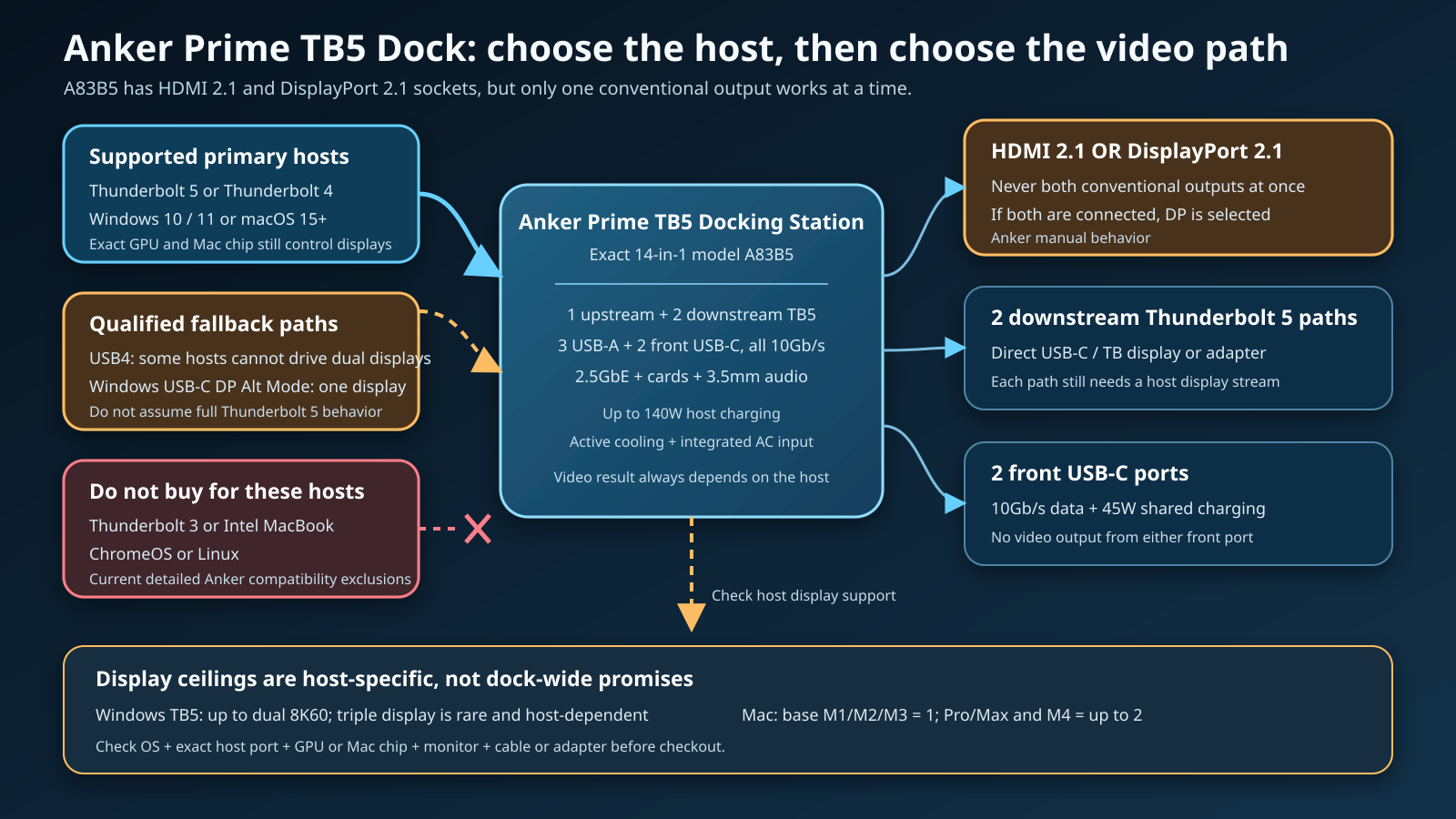
The HDMI or DisplayPort decision
Two sockets, one active conventional output
Anker lists one HDMI 2.1 or one DisplayPort 2.1 output and says to select one at a time. The A83B5 manual is even clearer: HDMI and DisplayPort cannot operate simultaneously. If both cables are connected, the manual says the DisplayPort monitor is selected.
That means the dock does not provide two independent conventional display outputs. A buyer with one HDMI monitor can use HDMI. A buyer with one DisplayPort monitor can use DisplayPort. A buyer with one of each cannot connect both and expect two active displays from those two sockets.
The restriction is not a minor setup note. It changes the value of the 14-in-1 claim for a multi-monitor desk. The two physical sockets offer connector choice, while the simultaneous conventional-video function remains one.
Additional displays use downstream Thunderbolt
The two rear downstream Thunderbolt 5 ports are the other native display paths. A USB-C or Thunderbolt monitor can connect directly when its input and cable support video. A monitor with only HDMI or DisplayPort needs a compatible USB-C video adapter from a downstream Thunderbolt port.
Anker does not guarantee every third-party adapter. Its manual tells buyers to verify adapter compatibility and says it cannot guarantee non-Anker adapters. Resolution, refresh rate, Display Stream Compression, and monitor input support still apply.
The site’s Thunderbolt monitor guide can help identify displays with direct Thunderbolt or USB-C input. A conventional monitor remains usable, but the adapter becomes another part of the qualification chain.
The front USB-C ports cannot carry video
Both front USB-C ports are rated for 10Gb/s data and share up to 45W of charging. Anker explicitly says they do not support video output.
A USB-C connector does not prove DisplayPort Alt Mode. Plug storage, a webcam, a phone, or another data device into those front ports. Do not plan a monitor around them.
For buyers who only need simpler USB-C expansion, the site’s USB-C docking station guide covers products where Thunderbolt 5 bandwidth is not the reason to buy.
Who should buy this dock?
Buy it for one native HDMI or DisplayPort monitor
The dock removes an adapter when the main monitor uses HDMI or DisplayPort. The selected output can sit beside one or two downstream Thunderbolt display paths when the computer provides the required streams.
The native output is useful for a gaming or creator laptop whose monitor does not have USB-C input. Anker’s high-resolution and high-refresh tables still make the computer the controlling variable. The dock routes a supported stream; it does not add display engines to the GPU.
The site’s gaming laptop docking guide covers the broader power, GPU, and port questions around this type of desk.
Buy it for an even USB-A and USB-C data mix
Three USB-A ports and two ordinary front USB-C ports are all rated up to 10Gb/s. This is more balanced than docks that put most ordinary USB expansion on one connector type.
The two front USB-C ports also share up to 45W. Anker’s manual says one connected device can receive up to 45W. With two devices, its stated allocation can become up to 30W on one and 15W on the other.
Those power figures are ceilings, not a promise that every phone, tablet, or peripheral accepts the maximum. USB Power Delivery negotiation and simultaneous load still decide.
Buy it when the integrated power design helps
Anker builds the AC input into the dock and supplies an AC cable. That keeps a separate power brick out of the cable path, although the dock itself is a substantial 116 by 116 by 75mm unit that Anker lists at 1,086g.
The upstream Thunderbolt port supports up to 140W through PD 3.1. That can suit compatible workstation-class notebooks and MacBook Pro models. A laptop with a proprietary input requirement or a lower USB-C charging limit may accept less or still need its original adapter.
Buy it when active cooling is acceptable
Anker uses active cooling and describes a performance-linked lighting mode. The manual says the fan changes behavior during prolonged high-speed activity, while the blue light can be toggled independently of operation.
Active cooling may be a reasonable design choice for a compact dock with an internal power supply and several high-power ports. It also means this is not a fanless product. No retained evidence establishes fan volume, surface temperature, sustained benchmark behavior, or long-term reliability.
Who should skip it?
Skip it if HDMI and DisplayPort must work together
The product cannot satisfy that requirement. Choosing a different cable, display setting, or operating system does not turn the mutually exclusive connectors into two simultaneous outputs.
A second conventional monitor must use a compatible adapter from a downstream Thunderbolt port, assuming the computer supports another display stream. Buyers who want two always-independent native video sockets should choose a different topology.
Skip it for Thunderbolt 3, Intel Mac, ChromeOS, or Linux
Anker’s current detailed compatibility block excludes Thunderbolt 3 laptops and monitors, Intel-based MacBooks, ChromeOS, and Linux. The A83B5 manual FAQ also says Thunderbolt 3 laptops are unsupported.
One manual resolution table contains a confusing Thunderbolt 3 row, but that row conflicts with the product’s controlling compatibility statements and FAQ. It is not a safe basis for purchase. This review treats Thunderbolt 3 as unsupported.
The site’s Thunderbolt 3, 4, and 5 comparison explains why a USB-C-shaped port alone does not establish compatibility.
Skip it if triple display must be guaranteed
Anker documents a three-display route using both downstream Thunderbolt ports plus either HDMI or DisplayPort. It also says very few laptops can provide that arrangement.
At the time of the retained page, Anker named only a tested Razer Blade 18 configuration with an RTX 4090 as successful. That manufacturer test does not establish support for another Razer configuration or any other laptop. Ask the laptop maker whether the exact host port and GPU expose three independent streams before buying.
Skip it if a quiet desk requires no fan
The dock has active cooling. Without a sourced noise measurement, it would be misleading to label it quiet or loud. If the requirement is specifically a fanless enclosure beside a microphone, the OWC alternative below is the clearer documented fit.
What the 14-in-1 layout actually provides
Anker groups the hardware as follows:
- One Thunderbolt 5 upstream port with up to 140W host charging
- Two downstream Thunderbolt 5 ports with up to 15W each
- Three 10Gb/s USB-A ports
- Two front 10Gb/s USB-C ports with 45W shared charging and no video
- One selectable HDMI 2.1 or DisplayPort 2.1 conventional-video function
- One 2.5GbE port
- One 3.5mm audio combo connection
- One SD reader and one microSD/TF reader
- One AC input for the integrated power supply
Anker’s own short specification writes the video group as 1 x HDMI 2.1 or 1 x DP 2.1 and its FAQ calls it one HDMI/DP among the 14 distinct ports. The useful interpretation is functional. Both sockets are present, but only one conventional video output can be active.
The two downstream Thunderbolt ports are the scarce resource. They can serve displays, fast storage, or other Thunderbolt devices. A second conventional monitor consumes one through an adapter. A desk with several Thunderbolt peripherals should map every connection before checkout.
The broader Thunderbolt 5 dock roundup shows how competing docks allocate downstream Thunderbolt, USB-C, USB-A, cards, video, and network differently.
Windows host and display limits
Anker lists Windows 10 and Windows 11 support. A separate compatibility note recommends Windows version 23H2 for optimal compatibility. Keep the operating system current and verify the exact Thunderbolt controller and firmware on the laptop maker’s support page.
Thunderbolt 5 Windows
Anker’s headline ceiling is up to two 8K displays. Its manual lists dual 8K at 60Hz for a Thunderbolt 5 Windows host across two downstream Thunderbolt paths, or one downstream path plus the selected HDMI or DisplayPort output.
That is a maximum documented mode. The GPU, port implementation, Display Stream Compression support, monitors, cables, adapters, and chosen refresh rates must all match. Anker’s separate triple-display route remains rare and host-specific.
The site’s Thunderbolt 5 specification guide explains why a protocol bandwidth headline and an available GPU display stream are different checks.
Thunderbolt 4 and USB4 Windows
The manual documents Thunderbolt 4 and USB4 Windows paths with lower dual-display ceilings than Thunderbolt 5. It also warns that some USB4 laptops cannot support dual monitors through the dock.
Do not treat the word USB4 as a complete feature list. Optional display behavior and host implementation can differ. The site’s USB4 versus Thunderbolt 4 guide covers that distinction.
USB-C DisplayPort Alt Mode Windows
Anker documents one external display for a Windows laptop connected through USB-C DisplayPort Alt Mode. That is a fallback path, not full Thunderbolt operation, and the front USB-C ports on the dock remain non-video ports.
The USB4 explainer is useful before assuming that a USB-C label, USB4 label, and Thunderbolt certification are interchangeable.
Mac compatibility requires the exact chip and macOS
Use macOS 15 or later as the buying floor. Anker’s short compatibility field still says macOS 14.5 or later, but its detailed page, restrictions, manual specifications, and troubleshooting instructions repeatedly require macOS 15. The stricter repeated requirement is the safer checkout rule.
Anker’s current chip guidance separates Macs this way:
- Base M1, M2, and M3 MacBooks support one external display through the dock.
- M1, M2, and M3 Pro or Max MacBooks support up to two.
- M4 Standard, Pro, and Max models support up to two in Anker’s matrix.
- Anker specifically says an M4 MacBook with Thunderbolt 5 does not support three displays over one Thunderbolt 5 connection.
- Anker’s current FAQ names M5 Pro and M5 Max compatibility and describes dual displays through the two downstream ports. It does not justify generalizing the same claim to an unnamed base M5 configuration.
The exact Mac display mode also changes with the chosen output. Anker’s tables distinguish downstream Thunderbolt, HDMI, and DisplayPort paths, and distinguish high-resolution from high-refresh settings. Check the exact Mac, monitor, and cable combination rather than carrying a ceiling from one row to another.
Intel MacBooks are excluded on the current detailed page. Apple Silicon Macs also do not support external GPUs, which Anker correctly labels as a system-level limitation rather than a dock feature.
A broad list of Thunderbolt laptops can narrow candidates, but the computer manufacturer’s exact port and display documentation must make the final call.
Charging, storage, network, cards, audio, and cooling
Host and peripheral charging
The upstream port is rated up to 140W through PD 3.1. The laptop controls what it accepts. Anker’s manual notes a more restrictive case for some gaming laptops: under the documented PD 3.0 path, it says the dock can provide a maximum of 98W and recommends the original adapter when required.
Each downstream Thunderbolt port is rated up to 15W. The two front USB-C ports share up to 45W. These ceilings do not add up to a promise under every simultaneous workload, and they do not override a device’s charging protocol.
USB data and Anker’s 120Gb/s headline
All five ordinary USB ports are rated up to 10Gb/s. That gives fast storage and capture devices several connection choices without consuming both downstream Thunderbolt ports.
Anker markets up to 120Gb/s and labels the manual’s data-transfer maximum the same way. No independent benchmark was collected for this package, and the documentation does not prove that one drive receives that figure. Treat it as Anker’s top platform headline, with actual transfer controlled by the host, device, enclosure, cable, protocol, and simultaneous traffic.
2.5GbE
The Ethernet port is rated at up to 2.5Gb/s. Anker says observed internet speed depends on the service path. Its manual recommends Cat5e or Cat6/Cat6a cabling shorter than 328 feet for the documented 2.5Gb/s path.
The router, switch, NAS, storage, cable, host driver, and workload can each become the next limit. A 2.5GbE label does not guarantee a 2.5Gb/s internet or file-copy result.
SD and microSD
Anker’s short port specification labels the card group UHS-I. The manual states up to 104MB/s and lists compatibility with both UHS-II and UHS-I media.
Those statements do not prove UHS-II reader throughput. A UHS-II card can be accepted while the reader operates at a lower ceiling. This review therefore uses Anker’s 104MB/s figure and does not relabel the slots as UHS-II-speed readers.
Audio, fan, and lighting
The 3.5mm combo connection covers a headset or analog audio path. No retained source establishes audio quality.
The active fan and ambient light are design facts. Anker says the light can be toggled and that a high-activity animation accompanies cooling behavior. No retained evidence supports a noise rating, a temperature claim, or a reliability conclusion.
What Anker proves, and where its sources conflict
Anker’s current page and manual provide an unusually detailed decision floor. They establish the exact product, model, port topology, mutually exclusive video sockets, USB-C no-video rule, host and peripheral power ceilings, display matrices, supported systems, cable requirement, network path, card-reader ceiling, active cooling, and physical dimensions.
They also conflict in several places:
- The short field says macOS 14.5+, while repeated detailed guidance says macOS 15+.
- Controlling compatibility sections exclude Thunderbolt 3, while a resolution table has a confusing Thunderbolt 3 label.
- The headline host list emphasizes Thunderbolt 5 and 4, while the manual conditionally includes USB4.
- The short card specification says UHS-I, while the manual lists UHS-II media compatibility but only a 104MB/s ceiling.
This review uses the stricter macOS 15 floor, treats Thunderbolt 3 as unsupported, treats USB4 as conditional, and separates UHS-II card compatibility from reader performance. Showing the inconsistencies is more useful than hiding them.
The two unsupported 5K Thunderbolt monitor combinations in Anker’s detailed notes also deserve attention. Anker says dual 5K Thunderbolt 3 monitors and a 5K Thunderbolt 3 plus Thunderbolt 4 monitor combination are not supported in the documented screen-mirroring configuration. Owners of LG UltraFine 5K or Apple Studio Display hardware should verify the exact combination directly with Anker.
Anker Prime TB5 Dock alternatives
The alternatives solve specific reasons to skip the Anker. For a wider category view, use the site’s best Thunderbolt docking station guide.
| Product | Choose it instead when… | Main tradeoff |
|---|---|---|
| Anker Prime TB5 Dock | One native HDMI or DisplayPort choice and five 10Gb/s USB ports fit the desk | HDMI and DisplayPort cannot work together; active cooling |
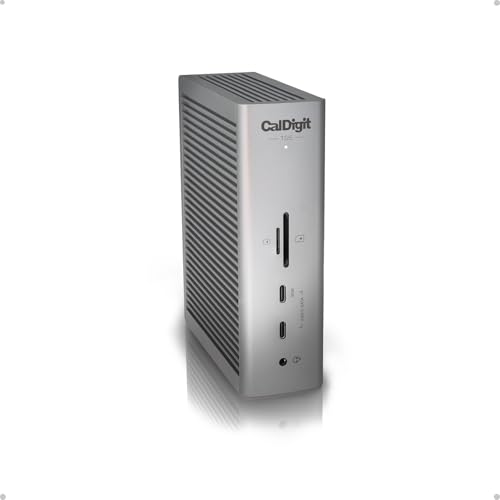
| CalDigit TS5 | Three downstream TB5 ports and three ordinary 10Gb/s USB-C ports matter more | No native HDMI or DisplayPort |
| OWC Thunderbolt 5 Dock | A fanless enclosure, three downstream TB5 ports, and three USB-A ports fit better | No native HDMI or DisplayPort; no ordinary USB-C data group |
| Plugable TBT-UDT3 | An upright footprint and three downstream TB5 ports are priorities | HDMI or DisplayPort requires an adapter |
CalDigit TS5: better for USB-C-heavy expansion
CalDigit lists three downstream Thunderbolt 5 ports and three ordinary 10Gb/s USB-C data ports. That gives a USB-C-heavy desk more direct expansion and one more downstream Thunderbolt path than Anker.
Choose Anker for the built-in HDMI-or-DisplayPort choice. Choose CalDigit when conventional video can use an adapter and the extra downstream and ordinary USB-C ports matter more.
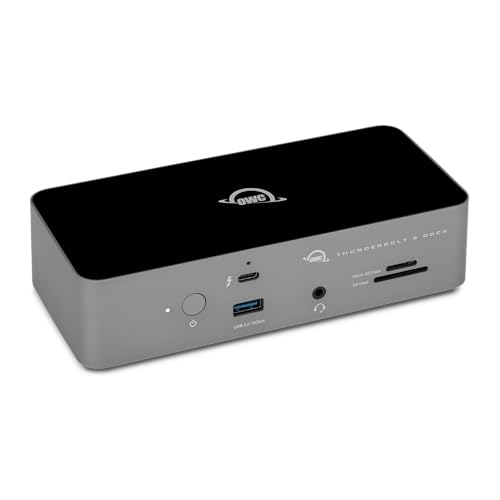
OWC Thunderbolt 5 Dock: better for a fanless USB-A desk
OWC’s 11-port model has three downstream Thunderbolt 5 ports, three USB-A ports, and a fanless aluminum enclosure. It is the clearer fit beside a microphone when the requirement is no cooling fan.
Choose Anker for two ordinary USB-C data ports and one native conventional video choice. Choose OWC for fanless construction, another downstream Thunderbolt port, or a USB-A-heavy peripheral set.
Plugable TBT-UDT3: better for an upright footprint
Plugable’s TBT-UDT3 uses an upright 11-in-1 body and provides three downstream Thunderbolt 5 ports. It can fit a narrow strip beside a monitor stand while keeping the downstream group available for displays and devices.
Choose Anker when a native HDMI or DisplayPort socket avoids an adapter. Choose Plugable when the upright shape and third downstream Thunderbolt port are more important.

Frequently asked questions
Can the Anker Prime TB5 Dock use HDMI and DisplayPort together?
No. Anker says HDMI 2.1 and DisplayPort 2.1 cannot operate simultaneously. If both are connected, its manual says DisplayPort is selected.
A second display can use a downstream Thunderbolt port when the host provides another display stream and the monitor or adapter supports the intended mode.
Can the front USB-C ports connect monitors?
No. Anker specifies the two front USB-C ports for up to 10Gb/s data and 45W shared charging, not video.
Use one of the two rear downstream Thunderbolt ports for a USB-C or Thunderbolt display path.
Does the dock support three monitors?
Only on a very limited compatible host. Anker documents a route through both downstream Thunderbolt ports plus either HDMI or DisplayPort, but says very few laptops support it.
Do not use the triple-display possibility as a general Windows claim or any Mac claim. Confirm the exact laptop GPU and port behavior first.
Does it work with every MacBook?
No. Anker requires macOS 15 or later in its detailed guidance, excludes Intel-based MacBooks, limits base M1/M2/M3 systems to one external display, and gives selected Pro, Max, and M4 systems up to two.
The exact Mac chip matters more than the connector shape. Apple Silicon Macs also cannot use an eGPU.
Does it work with Thunderbolt 3, USB4, ChromeOS, or Linux?
Anker’s controlling compatibility blocks and manual FAQ exclude Thunderbolt 3. The current detailed page also excludes ChromeOS and Linux.
The manual conditionally supports USB4 but warns that some USB4 laptops cannot provide dual monitors. Verify the exact USB4 implementation instead of assuming Thunderbolt 5 behavior.
Will it charge every laptop at 140W?
No. Up to 140W requires a compatible PD 3.1 host that accepts that input. A lower-limit or proprietary system may draw less or still require its original adapter.
Anker’s manual specifically notes that some gaming-laptop scenarios can be limited to 98W under the documented PD 3.0 path.
Sources and Methodology
This review uses Anker’s live A83B5 product page and live A83B5 English user manual. Those sources establish exact identity, topology, display behavior, host and OS limits, charging, USB, network, cards, audio, cooling, cable guidance, and the official conflicts described above.
Amazon’s Creators API was used separately to verify exact identity and active US offer state for the primary dock and three alternatives. Marketplace data was not used for technical specifications, and no returned product price appears.
Fresh Bing CLI snapshots were used to assess standalone review intent. Keywords Everywhere supplied US Google Ads/GKP demand and CPC proxies. Those values are not Bing volume and are not summed.
No hands-on product test, measurement, or benchmark was performed for this package, and no noise, temperature, or long-term reliability score was produced. Specifications, compatibility guidance, firmware, display behavior, and marketplace offer state can change, so confirm the current Anker documentation and exact listing before purchase.