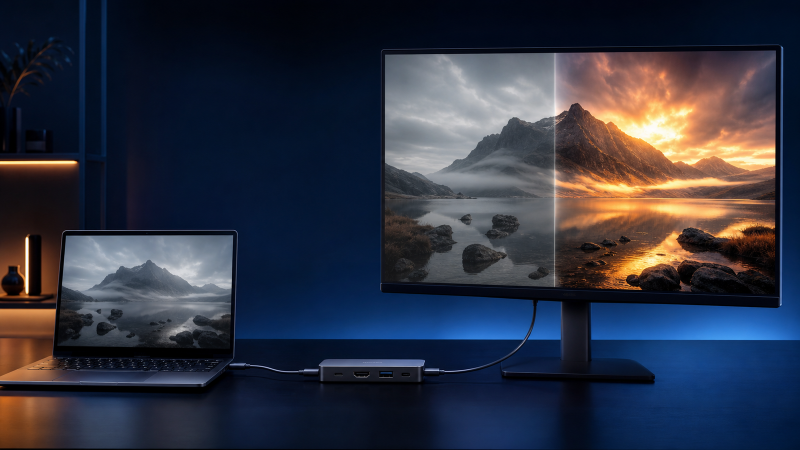
If the external monitor already shows a stable picture through your USB-C dock but Windows 11 will not offer or enable HDR, start with the selected display’s HDR status. Record the display number, projection mode, resolution, refresh rate, dock output, cable, and monitor input. Then reduce the setup to one display and compare the same monitor on a supported direct route.
HDR depends on the active Windows display state and on the full hardware route. Check the host graphics path, dock output, cable, monitor input, current mode, and monitor capability separately. A USB-C plug, an HDR monitor label, or a dock resolution claim cannot prove the complete route.
The steps below start after a stable picture exists. A missing picture, flicker, low resolution, a missing high-refresh option, HDR calibration, and a game-specific Auto HDR problem all belong elsewhere. If the monitor has no stable image, use the USB-C monitor connection guide before you check HDR.
Match the HDR state
| What Windows and the monitor show | What it proves | Next check |
|---|---|---|
| Windows reports HDR supported and the control is on | The active route reports HDR capability and Windows enabled it | Check whether the monitor also reports its HDR mode, then separate picture quality from availability |
| Windows reports HDR not supported on the docked route | The active route does not report the required HDR state | Compare projection mode, one-display topology, monitor input, and a supported direct route |
| HDR works directly but not through the dock | The host, direct output, cable route, and monitor can expose HDR together | Keep those conditions fixed and inspect the dock route |
| HDR appears after Duplicate changes to Extend | Projection mode changed the reported external-display state | Keep Extend and verify the target display and mode |
| HDR appears only after a second display is removed | The active display topology changes the result | Read the exact host and dock display matrix |
| The screen goes black briefly when HDR switches, then returns | Windows documents a temporary switch event | Record the final capability and picture state |
| The screen repeatedly blanks or loses signal after HDR is on | The fault is no longer only HDR availability | Restore the prior stable state and diagnose the unstable signal |
Do not force HDR with a registry edit, a custom EDID tool, or an undocumented mode. Forced changes hide which part of the route failed to report support.
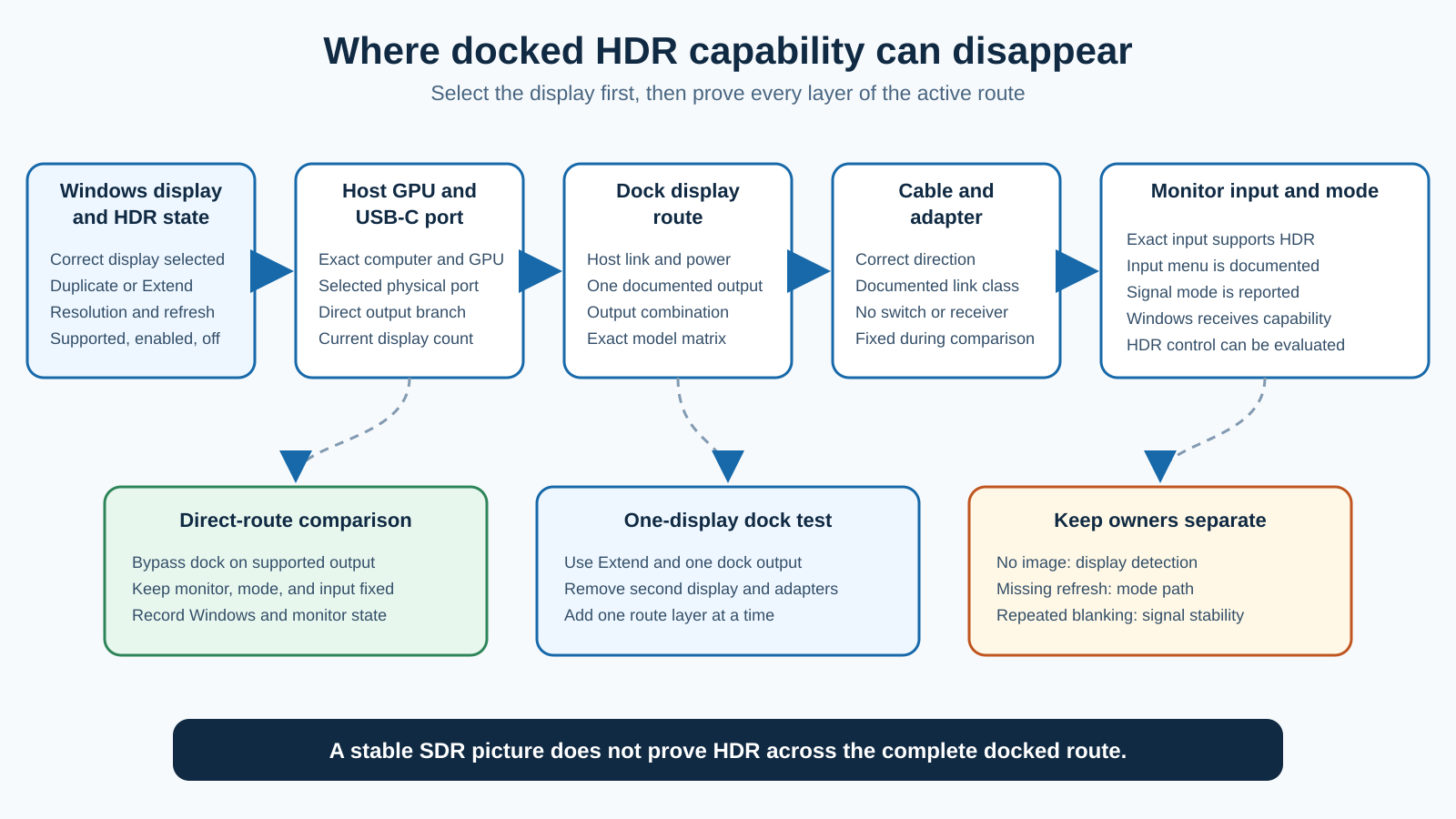
Use the shortest safe sequence
- Record the exact computer, GPU, host port, dock, dock output, cable, monitor, and monitor input.
- Confirm that the monitor shows a stable standard dynamic range picture.
- Select the target display under Settings > System > Display.
- Record projection mode, resolution, refresh rate, and the values on the HDR page.
- Change Duplicate to Extend when Windows shows the documented external HDR limitation.
- Disconnect the second display and unrelated dock devices.
- Test one monitor on one documented dock output.
- Compare the same monitor on a supported direct output.
- Rebuild the docked route one display or output at a time.
- Use exact maker updates or replacement only after the comparison identifies the boundary.
Record the complete working picture first
Do not start by changing the monitor menu or Windows color settings. Capture the stable standard dynamic range baseline first.
Record:
- full computer and GPU model
- exact USB-C or Thunderbolt host port
- dock model, revision, power supply, and host cable
- dock display output
- every adapter and detachable cable
- monitor model and selected input
- Windows display number
- Duplicate, Extend, or second-screen-only mode
- active resolution and refresh rate
- number of other active displays
- monitor menu mode before HDR is enabled
Take a screenshot of Settings > System > Display and Advanced display for the selected monitor. A missing refresh-rate option is a different question, covered by the USB-C at 4K and 144 Hz guide. Keep the two questions separate even when a refresh change affects the HDR result.
Windows and the monitor may resynchronize when a display mode changes. The stable baseline lets you restore the last working state if the screen does not come back.
Read Windows HDR evidence for the selected display
Open Settings > System > Display. When more than one display is present, select the external monitor at the top. Then open HDR.
Record:
- whether Windows shows HDR as supported
- whether the HDR control appears
- whether the control can be turned on
- whether HDR video streaming is listed separately
- whether the monitor itself reports that an HDR signal is active
Microsoft also documents a second check with the DirectX Diagnostic Tool. Run dxdiag, save the information, and open the section for the target display. Record three values:
AdvancedColorSupportedreports whether the installed display driver and the active display route support HDR10AdvancedColorEnabledreports whether HDR is currently on- the monitor-capability lines describe what Windows received from the active display path
The DirectX values describe the current route. They do not prove that the monitor panel, dock, or cable is defective when support is missing. Save the values for both the docked and the direct comparison.
If Windows reports support and enables HDR, and the picture simply looks different from what you expected, you are past this guide. Calibration, tone mapping, SDR brightness, creative accuracy, and app-specific HDR are separate questions.
Change Duplicate to Extend when needed
Microsoft documents one exact external-display limitation. When a laptop duplicates its desktop to an external HDR display, Windows can report HDR as not supported and omit the control. Microsoft tells users to extend the desktop across both displays in that state.
Press Windows key + P and choose Extend. Then return to the HDR page, select the external monitor again, and record the capability values.
If HDR now appears, projection mode was the changed condition. Do not also change the cable, refresh rate, monitor input, or dock output. Keep the clean result.
If the monitor was already extended, leave the setting alone. Do not cycle through projection modes hoping to reset the state.
Prove the monitor input and its HDR state
Find the official manual for the full monitor model and check the exact input you are using. An HDR claim for HDMI does not automatically apply to USB-C or DisplayPort, and a monitor can have input-specific menu conditions.
Record:
- whether that input accepts HDR
- any required input mode in the monitor menu
- supported resolution and refresh combinations
- any documented color depth or compression condition
- whether a firmware note applies to the exact monitor
Use only a setting the manual defines, and save the original value before you change it.
VESA states that DisplayPort Alt Mode can carry DisplayPort capabilities, including HDR, through USB-C in products that implement the standard. The statement describes a capability. It does not prove that a given USB-C host, dock, cable, or monitor input implements the combination you need.
If you still need to prove that the host port carries a native display path, use the DisplayPort Alt Mode verification guide. Do not infer display support from charging or USB data.
Reduce the dock to one display
Disconnect the second display, capture device, video switch, KVM, receiver, and other optional display hardware. Keep one monitor on one documented dock output.
Use the dock manual to identify the output. Similar-looking USB-C ports on a dock can have different roles. One can be a host input, one can be data only, and another can carry a display stream. A dock can also disable one output while another output is active.
The Dell WD22TB4 manual is one exact-model example. Its display table ties available modes to the host link, display count, output combination, DSC, EDID, and port-use rules. The table does not establish HDR, and its numbers cannot be copied to another dock. Read the full table for your exact model.
Restart the HDR evidence check on the one-display route:
- Confirm the stable picture.
- Select the correct display.
- Record Advanced display.
- Open HDR.
- Record support and control state.
- Check the monitor’s signal information.
If HDR appears, add the second display or the next device on its own. Stop at the first repeated state change.
Compare direct and docked routes
Use a direct comparison only when the computer and monitor have a documented compatible connection.
- Save the docked baseline.
- Disconnect the dock from the display route.
- Connect the same monitor to a supported host output.
- Use the same monitor input when possible.
- Select the same resolution, refresh rate, and Extend state.
- Record Windows HDR support and the monitor signal state.
If the direct route exposes HDR and the docked route does not, the docked route is the boundary. The changed layers are the dock host link, dock display engine, selected output, and any added cable or adapter.
If both routes report HDR as not supported, the dock is not isolated. Recheck the exact monitor input, host graphics documentation, current mode, cable direction, and Windows display selection.
If both routes enable HDR, the original state may have depended on projection mode, a second display, an output, or a loose connection. Rebuild one change at a time instead of applying a broad update.
Tie every result to the exact mode
HDR adds conditions to an already defined display mode, so record the active resolution, refresh rate, output, and other displays with every result.
Do not translate a link label into a guaranteed mode. DisplayPort version names, HBR labels, DSC, USB4, and Thunderbolt each describe part of a route. The DisplayPort 2.1 explainer and the HBR2 versus HBR3 guide explain those terms, but the exact host and dock tables still control the active product.
If HDR appears only at a lower refresh rate, with one display, or on another output, state the exact comparison. The result does not prove a universal cable or protocol ceiling.
A cable comparison should keep the host, dock, output, monitor input, resolution, refresh rate, and projection mode fixed. Use a cable already proven for the exact mode when you have one.
Apply updates only to the isolated route
Check Settings > Windows Update after you understand the topology. Then visit official support for the exact computer, GPU, dock, and monitor.
Read release notes and prerequisites. Install a dock firmware package only when it names the dock model and the symptom or compatibility state. Keep power stable and do not interrupt an approved firmware process.
Do not install a generic graphics package, a similar dock’s firmware, or a driver from a download site. Do not remove every display device to make Windows rediscover the route.
If HDR worked before a named update, record the last working version and the current version. Contact the exact maker before you roll back firmware or replace hardware.
Interpret the result
| Repeated result | What it supports | Next action |
|---|---|---|
| Extend exposes HDR when Duplicate did not | Projection mode controlled the reported state | Keep Extend and document the result |
| One docked display exposes HDR, but two do not | Display topology changes the result | Read the host and dock multi-display tables |
| Direct HDR works, docked HDR does not | The docked route changes capability reporting | Compare one dock output, cable, and exact support notes |
| Another monitor input exposes HDR | The selected input changes the state | Use the documented input or contact monitor support |
| Both direct and docked routes report no HDR | The dock is not isolated | Recheck host, input, mode, cable, and monitor capability |
| HDR enables, but the display repeatedly blanks | The fault includes signal stability | Restore the stable state and diagnose the flicker or blanking |
If a cable is isolated, choose one whose maker documents the needed direction and display class. Use the USB-C cable guide or the USB-C to DisplayPort adapter guide only after that proof.
If the exact dock cannot expose the documented monitor mode on the documented host, compare replacements against the host and display matrix. The USB-C docking station guide and the HDMI 2.1 dock guide are conditional handoffs, not fixes.
If the monitor input or its HDR hardware is the limit, compare exact inputs and certifications in the Thunderbolt monitor guide. A category page cannot replace the model manual.
Escalation and replacement boundary
Give support a small evidence packet:
- computer, GPU, dock, cable, and monitor models
- host port, dock output, and monitor input
- direct and docked Windows HDR values
- projection mode, resolution, refresh rate, and display count
- monitor signal information
- software and firmware versions
- the first one-variable change that alters the result
Contact the dock maker when HDR works directly but not on any documented dock output. Contact the monitor maker when one input reports HDR and another documented HDR input does not. Contact the computer or GPU maker when no supported direct route exposes the capability.
Replace hardware only after support confirms an unsupported path, or the same component fails a controlled comparison.
Frequently asked questions
Why does Windows say HDR is not supported through my dock?
Windows reports the capability of the active display route. Select the correct display, use Extend instead of Duplicate when the Microsoft limitation applies, test one monitor on one dock output, and compare a supported direct route.
Can a dock pass video but not expose HDR?
Yes. A stable standard dynamic range picture proves only that one display mode works. The HDR mode you want depends on the host, dock output, cable, monitor input, current timing, and reported capability.
Why did HDR appear after I removed the second monitor?
The active display topology changed. Record both states and read the exact host and dock display tables. Do not turn the result into a general rule for all docks.
Does an HDR monitor guarantee HDR through USB-C?
No. Confirm HDR on the exact monitor input and prove the whole route. The panel label does not establish host output, dock handling, cable support, or Windows state.
Is a short black screen normal when HDR turns on?
Microsoft notes that a display can go black temporarily when HDR turns on or off. A brief switch that returns to a stable image is different from repeated blanking or signal loss.
Should I lower the refresh rate?
Use a lower rate only as a controlled comparison, and record the exact mode before and after. If HDR appears, the changed mode is evidence about that route, not a permanent repair or a universal limit.
Should I calibrate HDR to make the control appear?
No. Calibration changes picture output after HDR is available. It cannot make an unsupported active route report HDR capability.
When should I replace the dock?
Replace or service it after the same monitor exposes HDR on a supported direct route, every documented dock output fails under a supported topology, and exact maker support confirms that the dock cannot provide or restore the required path.
Sources and Methodology
Current official sources were checked on July 28, 2026. Microsoft documents HDR capability, selected-display checks, DirectX evidence, the Duplicate limitation, and temporary switch behavior, one-monitor hardware isolation, and Windows projection states. VESA documents DisplayPort Alt Mode capability through USB-C, and USB-IF hosts the official DisplayPort Alt Mode document. Dell’s WD22TB4 display table is used only as an exact-model topology example.
No HDR display, dock, cable, GPU, or computer was tested. The method records the active Windows state, reduces the dock to one display, and compares a documented direct route without forcing unsupported modes.