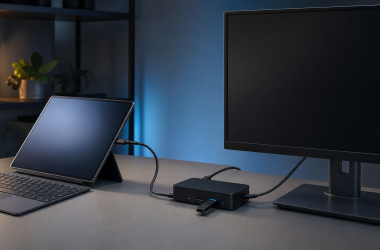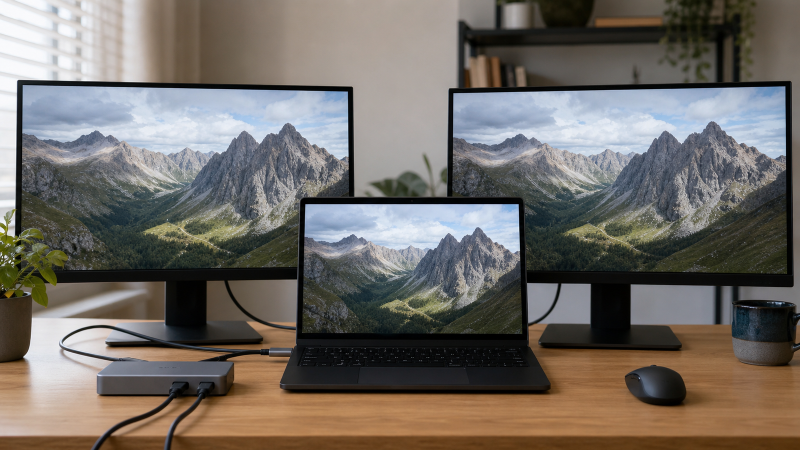
If both docked monitors show the same picture in Windows 11, first count how many external displays Windows detects. Press Windows key + P and choose Extend. Then open Settings, System, Display and select Identify.
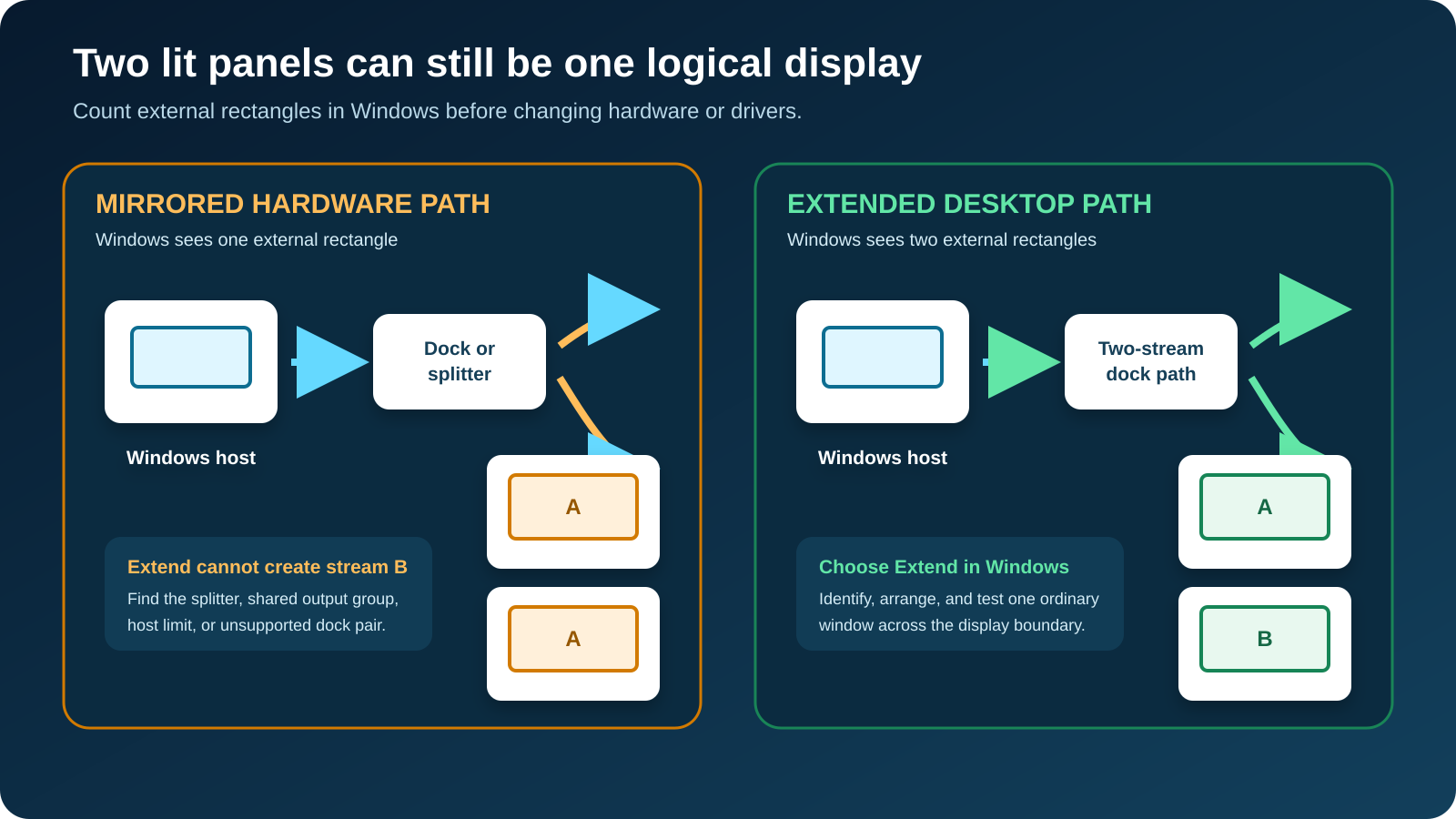
If Windows shows two separate external display rectangles, the hardware has exposed two logical screens and you can fix the layout in Windows. If Windows shows only one external rectangle while both panels display its image, the dock path is cloning one signal. Windows cannot extend a second display stream that the hardware does not expose.
Two lit panels are not proof of two display streams.
Start here: count the display rectangles
Open Settings, System, Display and select Identify. Count the rectangles in the display map, not the panels on your desk. With the built-in screen active, two independent external displays produce two external rectangles beside it. A closed-lid setup may show only the two external rectangles. Each external panel still needs its own number.
| What Windows shows | What the two panels show | Correct branch |
|---|---|---|
| Two separate external rectangles | The same desktop on both | Choose Extend and arrange the rectangles |
| One external rectangle | The same desktop on both | Find where one signal is being cloned |
| Two external rectangles, but one is marked disconnected | One or both panels may show a duplicated path | Select the disconnected display and extend onto it |
| A second rectangle appears only after one cable is moved | The output pair or dock topology changed | Read the exact dock display matrix |
| A DisplayLink screen and native screen appear as separate rectangles | Both panels may be extendable through different technologies | Keep the native and DisplayLink branches separate |
Do not install a driver, buy a cable, or replace the dock before you have this count. The count separates a layout setting from a topology limit, and the two need completely different repairs.
Branch A: Windows detects two external displays
When both external panels have their own rectangles, fix the Windows projection and arrangement first.
Press Windows key + P and choose Extend. Microsoft defines Duplicate as showing the same content on all selected displays. Extend spreads the desktop across displays so windows can move between them.
Return to Settings, System, Display and select Identify. Match each number on screen with its rectangle. Drag the rectangles so their left-to-right order and vertical position match the physical desk. Select Apply.
Select each external rectangle in turn. Under Multiple displays, confirm that Windows is extending the desktop to that display. If a screen is listed but disconnected, choose the option to extend onto it.
Move one ordinary app window across the boundary between screens. Do not use a full-screen game, protected video, or remote-desktop session as the first test because the app can add its own display behavior.
If Windows returns to Duplicate after every sign-in, note when it happens:
- immediately after you select Extend;
- only after the dock reconnects;
- only after sleep or lid close;
- only when a particular monitor or output is added;
- only after a managed work or school policy applies.
The timing narrows the branch. A setting that holds until the dock reconnects points toward display identity, dock firmware, or a changed topology. Send unavailable controls on a managed computer to the administrator. Do not bypass them with registry edits.
Use the normal Windows and exact device support paths. Update Windows through Settings, then use the computer, GPU, and dock maker’s support pages for your exact models. Do not use a generic driver-download utility.
If both logical displays remain present but an app always duplicates its own content, the Windows desktop is already extended. Troubleshoot the app or presentation mode rather than the dock.
Branch B: Windows detects one external display
If Windows shows one external rectangle while two panels light up, the screens are receiving one logical signal. Selecting Extend cannot split it into two.
Microsoft gives a direct example. A display splitter duplicates the same signal instead of creating independent signals. An HDMI splitter can be working exactly as designed while still being wrong for an extended desktop.
Trace the route from the computer to each panel:
- Record the computer model and exact host port.
- Record the dock model and hardware revision.
- Record every display output, cable, adapter, splitter, switch, and monitor input.
- Photograph the connections before moving them.
- Mark any device with one input and two matching outputs.
A useful map names the laptop port, dock upstream port, and each dock output. USB-C to two HDMI hides the part that may be cloning the signal.
Remove any external splitter for one pass. Connect one monitor to each documented independent dock output. If Windows now exposes two rectangles, the removed splitter was the clone point. Keep it for a use case that needs the same picture, or remove it from the extended-desktop route.
Some docks also contain output groups that mirror by design or that cannot be used together. Two HDMI sockets may be alternatives for one stream. An HDMI and DisplayPort socket can belong to the same output group. The physical port count is not the independent-display count.
Read the exact dock display matrix
Find the support page or manual for the exact dock model and revision. Search it for display, extended, mirror, MST, DisplayLink, output combination, host, and the names of the ports you use.
Answer these questions from the document:
- How many independent displays are supported on Windows?
- Does that number change between USB-C, USB4, and Thunderbolt hosts?
- Which physical output pairs may operate together?
- Do any outputs mirror each other or share one group?
- Does the dock require DisplayPort Alt Mode from the host?
- Does the topology use native MST, Thunderbolt display paths, DisplayLink USB graphics, or a mix?
- What host GPU, DisplayPort version, or compression support is required?
- What display modes are documented for the exact pair?
StarTech’s 132N-TB4USB4DOCK is a useful exact example, not a universal rule. Its datasheet lists four physical video outputs, says the dock uses MST for multiple displays, and gives different Windows display counts based on host capabilities. It also says display performance depends on the host computer. The example shows why counting sockets cannot replace the matrix.
If the manual documents only one independent display from your host type, the duplicate picture is a compatibility result. Windows has no hidden switch that creates another native stream. Keep your evidence and move to a compatible topology.
The USB-C DisplayPort Alt Mode check helps confirm the host’s video role. The USB-C dock guide and Thunderbolt dock guide are shopping handoffs only after the current topology is proved insufficient.
Confirm the host display limit
A dock cannot create native display resources that its design and host do not supply. Check the computer maker’s exact model page or service manual, then the exact GPU maker’s specification.
Record:
- maximum external display count for that computer configuration;
- which USB-C, USB4, or Thunderbolt ports carry display output;
- DisplayPort version or mode where the maker states it;
- whether the limit changes with the built-in display active;
- whether resolution and refresh rate reduce the supported count;
- whether the dock maker requires a feature such as Display Stream Compression.
Do not infer these details from the processor family alone. Computer makers can route ports and displays differently even when two systems use the same CPU or GPU.
Microsoft directs users to the display-adapter maker when more than one monitor may not be supported. The exact computer documentation remains important because it shows how that adapter is wired in the product.
If the host supports two native external streams but the dock manual exposes only one for the chosen connection, the dock is the topology limit. If the dock supports two but the host documentation permits one, the host is the limit. If both claim the pair, rebuild it with the documented ports and cable before opening a support case.
Keep native MST and DisplayLink separate
MST and DisplayLink can both produce multiple displays, but they are different paths.
Native MST divides a DisplayPort transport into multiple display streams. It depends on the host’s display output, the dock or monitor topology, the GPU, and the combined display load. The current USB-C monitor daisy-chain guide retains buying and capability intent for monitor chains.
DisplayLink is USB graphics technology from Synaptics. Apply DisplayLink software steps only when the exact dock, adapter, or monitor documentation confirms a DisplayLink chipset.
For a confirmed DisplayLink device:
- Record the exact dock model and DisplayLink chip or product family if published.
- Check whether Windows lists the DisplayLink display path.
- Use the dock maker’s supported Windows package first.
- Use Synaptics’ Windows download only when the maker directs you there or does not provide a different supported package.
- Reconnect the exact documented topology and return to the Windows display count.
Do not install DisplayLink software on the chance that it will add another display to a native dock. Software cannot turn a native output into DisplayLink hardware. If the diagnosis proves you need USB graphics, the DisplayLink docking station guide explains the shopping tradeoffs.
Test a conservative mode only when the pair is exposed
If Windows detects both external displays but one drops when you choose Extend, reduce display load for one controlled test.
Set each external display to a resolution and refresh rate that both its manual and the dock matrix support. Change no cable or port during this test. If the pair becomes stable, the combined requested mode changed the result.
A stable pair at the lower mode does not prove the cable is bad. It can reflect the host’s display resources, dock transport, output pairing, adapter, or monitor timing. Compare the exact requested pair against the documentation.
The high-refresh monitor cable guide is relevant after the topology is correct. Do not buy a cable to fix a one-stream splitter.
If lowering one screen makes a previously absent second display appear, stop here. The symptom has crossed into the missing-second-display boundary. Keep the mode matrix for the separate owner rather than filling this article with a second diagnosis.
Rebuild the intended route
Once you know the required topology, rebuild it from the host outward:
- Connect dock power if its manual requires it.
- Connect the maker-specified upstream cable to the documented host port.
- Connect monitor A to the first documented independent output.
- Confirm its image and Windows rectangle.
- Connect monitor B to the documented second independent output.
- Confirm that Windows adds another rectangle.
- Select Extend, then Identify and arrange the screens.
- Reapply only display modes listed for the pair.
Stop at the first step that changes the logical display count, because the connection you just made is the evidence. Do not keep moving leads after the count changes.
| Final evidence | Decision |
|---|---|
| Windows exposes two displays and Extend holds | Keep the hardware and save the layout |
| A splitter is the clone point | Remove it from the extended route |
| The dock manual shows mirrored or shared outputs | Use a documented independent pair or replace the topology |
| The host supports fewer native displays than required | Use a supported USB graphics solution or a different host |
| A confirmed DisplayLink path is missing | Repair only its supported hardware and software branch |
| Host and dock documentation both support the pair but Windows exposes one | Send the route map, model numbers, and display count to both makers |
Only after the failed layer is identified should you compare replacements. Use the dual-monitor dock owner for two screens, or the three-monitor dock owner when the real requirement is larger. Match the exact host, operating system, display count, and modes rather than the number of sockets.
If you are deciding between a dock and monitors that provide their own hub functions, the dock versus monitor-dock guide keeps that buying decision separate from this repair.
Frequently asked questions
Why does Extend do nothing when both monitors show an image?
Check the Windows display map. If it contains one external rectangle, both panels are showing one cloned logical signal. Windows cannot extend to a second stream that is not exposed.
Can an HDMI splitter extend two monitors?
Microsoft says a display splitter duplicates the same signal instead of creating independent signals. Use hardware and outputs documented for two independent displays.
Why does Windows show two screens but keep duplicating them?
Press Windows key + P and choose Extend. Then select Identify in Display settings, arrange the numbered rectangles, and confirm that each display is set to extend the desktop.
Do two HDMI ports on a dock always support two extended displays?
No. They can be alternatives in one output group, mirrored, or limited by the host. Read the exact dock display matrix and allowed output pairs.
Should I install DisplayLink to make Extend appear?
Only when the exact dock or adapter documentation confirms DisplayLink hardware. DisplayLink software cannot add that hardware to a native MST dock.
Is MST the same as DisplayLink?
No. MST carries multiple native DisplayPort streams. DisplayLink is a USB graphics path. Their host requirements and software branches differ.
Will a better cable stop mirroring?
Not when one signal is deliberately split or the dock exposes one independent stream. Check logical display count and topology first. A cable test belongs later, after the route is known to support two streams.
Sources and methodology
Official documentation was retrieved on July 28, 2026. Microsoft controls Windows Duplicate, Extend, and Identify plus splitter and display-adapter guidance. Synaptics controls DisplayLink product scope and Windows software scope. StarTech’s current 132N-TB4USB4DOCK datasheet is used only as an exact example of a Windows dock whose physical ports, MST topology, host requirements, and supported display counts must be read together.
No display setup was physically tested. VESA’s public pages returned HTTP 403 to direct plain-CLI retrieval, so they are disclosed in the source ledger and do not control a retained procedural claim.