A USB-C input does not make a monitor chain-capable. The first display also needs a documented downstream display output, and the computer, cable, operating system, and total display load must support the same path.
This list clears that higher bar. Each exact model has a manufacturer page or manual that proves both sides of the connection, and each product box uses its verified exact Amazon US ASIN. The list contains one monitor that exposes a direct DisplayPort MST output and five monitors with documented downstream Thunderbolt ports. Those paths are labeled separately because Thunderbolt daisy chaining is not the same thing as ordinary DisplayPort MST.
This post includes affiliate links, for which we may earn a commission at no extra cost to you should you make a purchase using our links. As an Amazon Associate, we can earn from qualifying purchases. Learn more.The six verified models
| Image | Product | Details | Check Price |
|---|---|---|---|
 | Dell UltraSharp U2725QE | Exact model: U2725QE Upstream connector/path: Thunderbolt 4 upstream with DisplayPort 1.4 and DSC Downstream chain connector: DisplayPort 1.4 out or Thunderbolt 4 downstream USB-C Power Delivery: Up to 140W EPR upstream; 15W downstream Maker-stated chain conditions: Two/four-lane switching; final display ceiling depends on the host and selected path Operating-system boundary: Windows DP MST; this package makes no macOS claim for Dell's DP-out path Best for: A high-power 27-inch 4K hub monitor | Check Price on Amazon |
 | Samsung ViewFinity S65TC LS34C650TANXGO | Exact model: LS34C650TANXGO Upstream connector/path: Thunderbolt 4 upstream Downstream chain connector: Thunderbolt 4 downstream USB-C Power Delivery: Up to 90W upstream; 15W downstream Maker-stated chain conditions: PC must support dual 4K 60Hz over Thunderbolt 4; use a 40Gbps certified cable Operating-system boundary: Thunderbolt chain, not ordinary DP MST; exact host display support controls Best for: An ultrawide first display with a Thunderbolt chain | Check Price on Amazon |
 | ViewSonic ColorPro VP2776T-4K | Exact model: VP2776T-4K Upstream connector/path: Thunderbolt 4 in Downstream chain connector: Thunderbolt 4 out USB-C Power Delivery: Up to 100W upstream; 15W downstream Maker-stated chain conditions: Up to two VP2776T-4K displays at 4K 60Hz; certified Thunderbolt 4 cable required Operating-system boundary: ViewSonic documents the Thunderbolt 4 chain for Windows and macOS; the laptop panel can count as one display Best for: A documented same-model dual-4K chain | Check Price on Amazon |
 | BenQ PD2725U | Exact model: PD2725U Upstream connector/path: Thunderbolt 3 upstream with DisplayPort Alt Mode Downstream chain connector: Thunderbolt 3 out USB-C Power Delivery: 65W upstream; 15W downstream Maker-stated chain conditions: Up to two 4K monitors with a certified Thunderbolt 3 or 4 cable Operating-system boundary: BenQ excludes base M1 and M2 Macs; exact Windows or Mac host limits apply Best for: A 27-inch 4K Thunderbolt 3 chain | Check Price on Amazon |
 | BenQ PD3225U | Exact model: PD3225U Upstream connector/path: Thunderbolt 3 upstream with DisplayPort Alt Mode Downstream chain connector: Thunderbolt 3 out USB-C Power Delivery: 85W upstream; 15W downstream Maker-stated chain conditions: Up to two 4K monitors with a certified Thunderbolt 3 or 4 cable Operating-system boundary: BenQ excludes base M1 and M2 Macs; exact Windows or Mac host limits apply Best for: A larger 4K creative-work chain | Check Price on Amazon |
 | BenQ PD3226G | Exact model: PD3226G Upstream connector/path: Thunderbolt 4 upstream with DisplayPort Alt Mode Downstream chain connector: Thunderbolt 4 out USB-C Power Delivery: 90W upstream; 15W downstream Maker-stated chain conditions: BenQ states dual 4K 144Hz; host, cable, and full chain must support that mode Operating-system boundary: BenQ excludes base M1 and M2 Macs; exact Windows or Mac host limits apply Best for: A high-refresh Thunderbolt 4 creative setup | Check Price on Amazon |
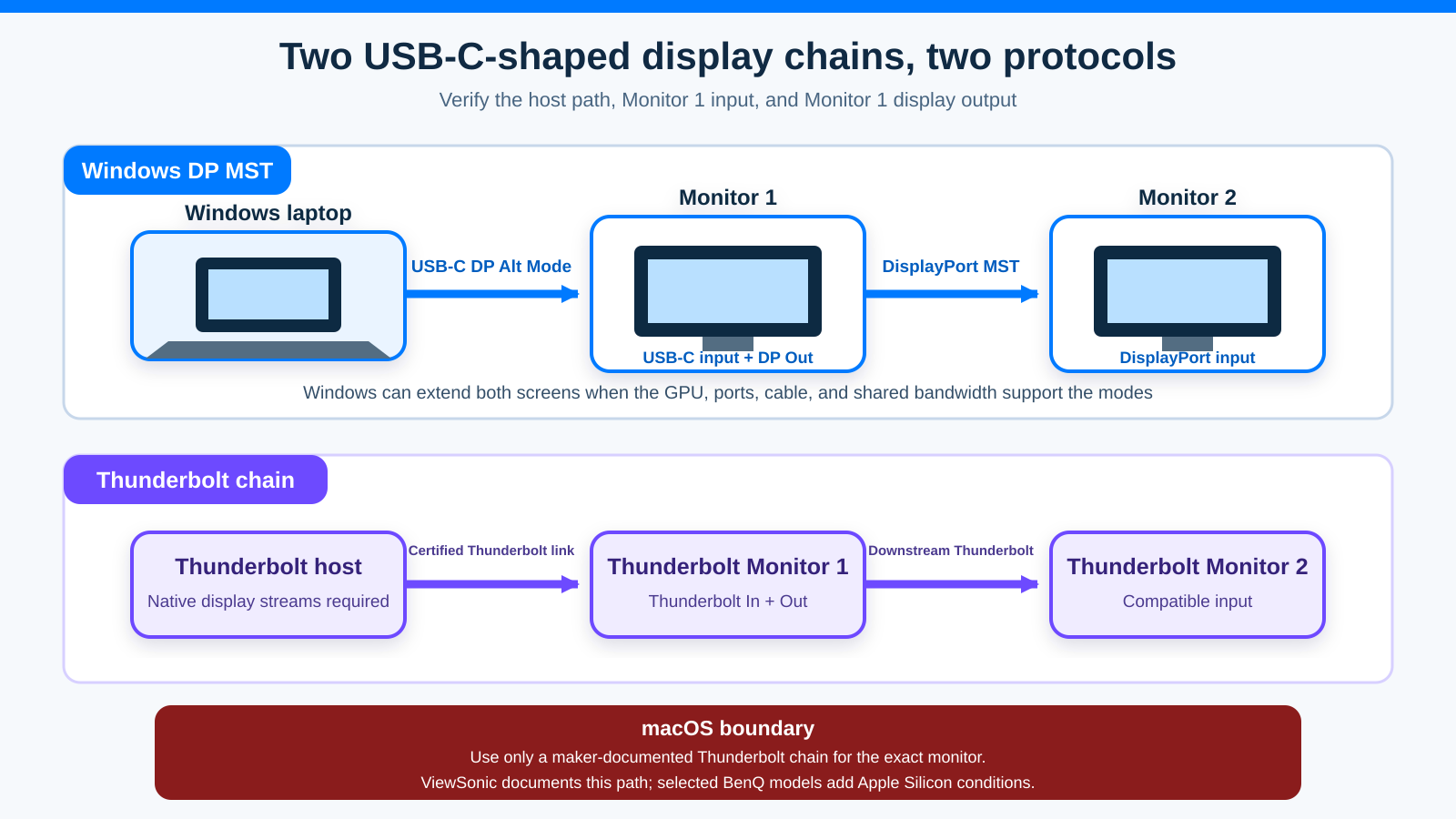
Dell’s documentation gives the UltraSharp U2725QE both a Thunderbolt 4 input and a DisplayPort 1.4 output, the most direct fit for a Windows DisplayPort MST chain. The Samsung, ViewSonic, and BenQ models use a downstream Thunderbolt connection instead. A Thunderbolt chain can be the better route for a compatible Windows PC or Mac, but the host still needs enough display support for the requested screens.
Before buying any monitor on the list, confirm that the computer port can provide the required native display path. The step-by-step USB-C DisplayPort Alt Mode check shows how to prove the host port, cable, and direct display path before relying on a monitor chain.
What counts as a verified daisy-chain monitor
A chain has an upstream side and a downstream side.
The upstream side connects the computer to Monitor 1. On a typical Windows MST setup, the computer sends DisplayPort through USB-C Alt Mode into the first monitor. On a Thunderbolt setup, the host sends tunneled display traffic through a certified Thunderbolt connection.
The downstream side connects Monitor 1 to Monitor 2. For ordinary MST, this is normally a DisplayPort output marked DP Out, MST, or daisy chain. For Thunderbolt, it is a downstream Thunderbolt port rather than an ordinary data-only USB-C port.
The exact output is the evidence gate. Many good USB-C monitors have only a host-facing USB-C input. They can charge a laptop and expose USB devices, but they cannot pass another native display signal onward. The same warning applies to a USB-C downstream port on a monitor: it may be intended only for storage, a phone, or another peripheral.
This list also keeps exact model codes. A maker can sell several monitors under one family name with different port maps. No downstream-port claim is transferred to a sibling SKU.
Windows DisplayPort MST versus a Thunderbolt display chain
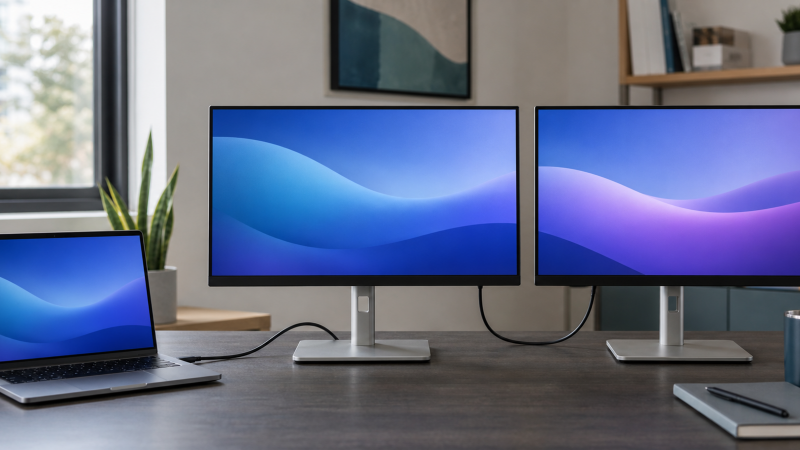
DisplayPort Multi-Stream Transport lets one DisplayPort source carry more than one display stream. In the monitor form of the chain, the laptop connects to Monitor 1, and Monitor 1 passes another stream from its DisplayPort output to Monitor 2. Windows can arrange those screens as independent extended desktops when the host GPU, driver, port, first monitor, and second link all support the requested topology.
Thunderbolt takes a different route. Intel describes Thunderbolt 4 as a 40Gbps bidirectional connection that can carry display data alongside USB and PCIe traffic. A Thunderbolt monitor with an upstream port and a downstream port can pass another Thunderbolt display or compatible device farther down the chain. The exact host still sets the external-display count.
This list keeps the operating-system scope as narrow as the selected makers do. Dell’s DisplayPort-out route is presented as a Windows MST path because Dell’s cited U2725QE page does not make a Mac claim for that output. For a Mac, use only a documented Thunderbolt route: ViewSonic calls the exact VP2776T-4K dual-4K Thunderbolt 4 chain compatible with Windows and macOS, while BenQ excludes base M1 and M2 systems from the selected models’ dual-display chains and names Pro, Max, and Ultra variants as supported classes.
If the computer needs more display outputs than its native GPU path offers, a DisplayLink dock is another technology. It uses USB graphics and software, not ordinary MST or a native Thunderbolt display chain.
Bandwidth is shared across the path
Adding a downstream display does not create a second full host link. Both display streams start at the same computer port.
With DisplayPort Alt Mode, the host and device can allocate high-speed lanes between DisplayPort and USB data. A configuration that keeps faster USB data may leave fewer lanes for native video. Resolution, refresh rate, color depth, chroma format, and display count all consume display bandwidth.
Thunderbolt carries several traffic types through the same link. Two displays, Ethernet, storage, a webcam, and downstream USB devices can all compete for the available path. Intel specifies a 40Gbps Thunderbolt link rate and does not assign that full rate to every connected device at once.
Display Stream Compression can raise the practical display ceiling when every required component supports it. It is not a safe family-wide assumption. Dell explicitly lists DSC support for the U2725QE’s DisplayPort 1.4 and Thunderbolt 4 upstream path, confirming its relevance to that exact model. This article does not transfer it to the other five monitors.
Maker-stated ceilings still need the matching host and cable. ViewSonic rates the supported same-model arrangement for two VP2776T-4K displays at 3840 x 2160 and 60Hz with certified Thunderbolt 4 cables, and its manual notes that the laptop’s internal panel can count toward the display total. That is a condition, not fine print to discard.
1. Dell UltraSharp U2725QE – Best for a Windows DisplayPort MST chain
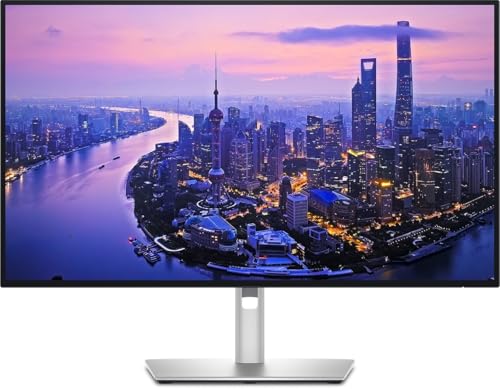
Dell’s specifications list both a DisplayPort output and a downstream Thunderbolt port on the U2725QE, so a Windows user gets two clearly different chain choices.
Dell documents a Thunderbolt 4 upstream port with DisplayPort 1.4, DSC, two/four-lane switching, and up to 140W Extended Power Range delivery to the host. Dell also specifies a DisplayPort 1.4 output plus a Thunderbolt 4 downstream port marked for daisy chain with a 15W power-delivery rating.
Use DisplayPort out when the goal is an ordinary Windows MST chain. The first cable runs from the computer’s compatible USB-C or Thunderbolt port to the U2725QE upstream port. A DisplayPort cable then runs from DP Out on the U2725QE to the DisplayPort input on Monitor 2. Enable the required MST option in the monitor menu if the manual or on-screen settings call for it.
Use the downstream Thunderbolt port for a supported Thunderbolt chain. Do not connect Monitor 2 to the separate USB-C KVM upstream port; Dell labels that as a different host-facing data path.
The exact bandwidth ceiling depends on the host, lane setting, displays, and selected output. Dell’s product documentation does not specify a universal resolution ceiling for all hardware combinations, so check the limits of the exact host and both displays. Start with both displays at 60Hz, confirm an extended desktop, and raise resolution or refresh rate within the documented limits of all three devices.
Dell rates the host power at up to 140W. Compare that rating with the laptop maker’s charging requirement before removing the laptop’s own power adapter.
Operating-system boundary: use the DisplayPort output for independent Windows MST desktops. This guide makes no Mac claim for Dell’s DP-out path; use a separately documented Thunderbolt chain for a compatible Mac.
Best fit: a 27-inch 4K hub monitor for a Windows workstation that needs a real DP-out path, strong laptop power, and the option of Thunderbolt downstream.
2. Samsung ViewFinity S65TC LS34C650TANXGO – Best ultrawide first display

Samsung’s exact US code matters here: LS34C650TANXGO. The S65TC name also appears inside a wider manual family, so the full code is the safer match for the 34-inch 3440 x 1440 model.
Samsung states that the monitor has one Thunderbolt 4 upstream port with up to 90W charging and one Thunderbolt 4 downstream port with up to 15W. The downstream port continues a Thunderbolt chain. Samsung also says it does not serve as another video input, which prevents a common wiring mistake.
The manual gives a two-monitor chain procedure and places important requirements on the host and cable. Samsung requires the computer’s Thunderbolt 4 port to support dual 4K at 60Hz and states that dual-display support depends on the computer. The manual also specifies a 40Gbps Thunderbolt 3 or Thunderbolt 4 cable.
There is a cable catch here. Samsung’s manual notes that the supplied cable supports up to 20Gbps and directs the user to obtain a separate 40Gbps cable for the documented full chain. Do not assume that an included cable clears the complete two-display path. Use a certified cable with the required rating between the components that need it. The site’s USB-C cable guide explains why charging and connector shape alone do not establish full display bandwidth.
This is a Thunderbolt chain, not a DisplayPort-out MST chain. A Windows computer with compatible Thunderbolt display support can use it for extended screens. A Mac must also support the requested number of external displays. The chain cannot add a native display stream that the computer does not provide.
Because the first display is ultrawide, its own pixel load should be part of the bandwidth plan. A conservative setup sequence starts with one display and the required cable, then adds the second display at 60Hz before either mode is raised.
Best fit: a desk that wants a 34-inch ultrawide as Monitor 1, laptop charging, and one documented Thunderbolt display output without adding a separate dock.
3. ViewSonic ColorPro VP2776T-4K – Best documented same-model dual-4K chain
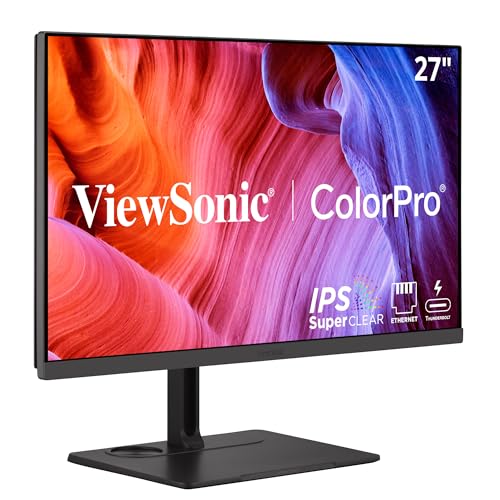
ViewSonic gives the clearest same-model chain diagram in this group. The VP2776T-4K user guide specifies a Thunderbolt In port and a Thunderbolt Out port, then rates the chain for up to two VP2776T-4K monitors at 3840 x 2160 and 60Hz.
ViewSonic’s specifications state that the upstream path can deliver up to 100W to a compatible laptop and rate the downstream Thunderbolt port at 15W. The ViewSonic guide also says the host’s actual video, data, and power functions depend on its Thunderbolt and USB-C specification.
ViewSonic’s guide sets three limitations for its published two-monitor arrangement. First, ViewSonic requires Thunderbolt 4 certified cables. Second, the graphics system must support the number and resolution of displays. Third, according to the guide, a laptop’s built-in screen can count as one display. Under that maker-stated counting rule, a laptop limited to two active displays may need its internal panel disabled before both external monitors appear.
This is a Thunderbolt topology even though the connector is USB-C shaped. Do not wire an ordinary USB-C data cable to a downstream peripheral port and expect a second native screen. Follow the labeled Thunderbolt Out port in the manual.
ViewSonic’s exact same-model ceiling makes the VP2776T-4K easier to plan than a mixed chain. A different second monitor may work, but ViewSonic’s exact published example does not prove every mixed-brand resolution and refresh combination. Treat a mixed chain as a new compatibility check.
On Windows, arrange both external displays as extended desktops after the Thunderbolt path enumerates. ViewSonic’s exact product page calls this Thunderbolt 4 dual-4K chain compatible with Windows and macOS, while its manual says the laptop panel can count toward the display total. The exact host limit still controls.
Best fit: a color-work desk that wants two identical 27-inch 4K 60Hz displays and values a manufacturer-documented same-model connection path.
4. BenQ PD2725U – Best compact Thunderbolt 3 creative chain

The PD2725U is a 27-inch 4K monitor with one Thunderbolt 3 upstream port and one Thunderbolt 3 output. BenQ’s official specifications give the upstream port DisplayPort Alt Mode and data, rate its Power Delivery at 65W, and rate the downstream port at 15W. BenQ labels the model’s daisy-chain technology as Thunderbolt.
BenQ’s documentation says the Thunderbolt 3 chain can extend the workspace across up to two 4K monitors, and the maker’s setup guidance calls for a Thunderbolt 3 or Thunderbolt 4 certified cable between the monitors. An ordinary USB-C charging cable is not a substitute.
BenQ lists a 65W host-power delivery rating, which can suit many thin laptops but is not enough for every mobile workstation under load. Compare the laptop’s stated USB-C charging requirement before expecting the display connection to replace its power adapter.
According to BenQ’s support documentation, the daisy-chain function is not supported on base Apple Silicon M1 and M2 systems; BenQ limits its stated support to Pro, Max, and Ultra variants. That does not mean every Pro, Max, or Ultra Mac accepts every two-monitor mode. The exact Mac specification still controls.
For Windows, the host needs a Thunderbolt path with enough native display streams. This is not an ordinary DP-out MST monitor. Its separate DisplayPort connector is an input, while the chain leaves through Thunderbolt Out. A computer with only basic USB-C data cannot gain Thunderbolt by connecting this monitor.
The PD2725U is useful when desk space points toward 27 inches and the chain does not need the higher power delivery of the larger BenQ entries. If a separate dock would handle Ethernet and more peripherals better, compare that layout with monitors that have built-in docking functions before choosing the display as the desk’s hub.
Best fit: a compact 4K creative setup with a certified Thunderbolt 3 or 4 host and a documented need for up to two displays.
5. BenQ PD3225U – Best larger Thunderbolt 3 creative chain

The 32-inch PD3225U follows the same broad chain type as the PD2725U but has its own exact port and power record. BenQ lists one Thunderbolt 3 upstream port with DisplayPort Alt Mode and data, rates its Power Delivery at 85W, and rates the Thunderbolt 3 output at 15W. BenQ identifies Thunderbolt as the model’s daisy-chain technology.
BenQ’s documentation states the PD3225U can extend a workspace across up to two 4K monitors through the Thunderbolt chain. Use a certified Thunderbolt 3 or 4 cable and connect the second monitor through the labeled Thunderbolt output.
BenQ’s documentation rates the smaller PD2725U at 65W, the exact PD3225U host-facing port at 85W, and the newer PD3226G at 90W. Those model-specific differences can decide whether a laptop stays charged during a long workload.
The operating-system limit matches BenQ’s published warning for this product: the maker excludes base M1 and M2 Apple Silicon systems from the dual-display chain and points to Pro, Max, and Ultra variants. Windows hosts still need sufficient Thunderbolt and GPU display support. A logo on the monitor cannot create an extra source stream.
BenQ’s documentation lists up to dual 4K for the PD3225U, but the maker does not assign this model the PD3226G’s dual-4K 144Hz statement. Keep the PD3225U at its own published scope. If mixed displays or other Thunderbolt devices share the chain, start at a modest refresh rate and add load after both screens are stable.
The larger panel makes this a better first display for timeline, CAD, photo, or layout work that benefits from more physical space. It can also reduce the appeal of a second screen for some desks. The site’s dock-versus-monitor-dock guide helps decide whether the monitor or a separate dock should own the peripheral connections.
Best fit: a 32-inch 4K creative desk that needs more host power than the PD2725U and a documented Thunderbolt output for a second display.
6. BenQ PD3226G – Best high-refresh Thunderbolt 4 chain

The Amazon record is used to bind the exact ASIN to model PD3226G. The port, power, and display-mode claims below come from BenQ’s first-party specification rather than Amazon dimension or weight metadata.
BenQ uses Thunderbolt 4 for the PD3226G chain. Its first-party specification provides a fuller port map than the Amazon listing: it names one Thunderbolt 4 upstream port with DisplayPort Alt Mode, data, and 90W Power Delivery, plus one Thunderbolt 4 output rated at 15W. BenQ names Thunderbolt as the daisy-chain technology.
BenQ makes the strongest display-mode statement in the group for this exact model. Its product page says the Thunderbolt 4 connection can reach two 4K monitors or one 8K monitor and supports a dual-4K 144Hz daisy chain.
That statement is a manufacturer ceiling, not a result to assume from the monitor alone. The host GPU and Thunderbolt implementation must supply the required streams, the cable must be certified for the path, and the second display must accept the requested mode. Other Thunderbolt traffic also shares the link. This guide does not turn the PD3226G claim into a promise for the PD3225U or PD2725U.
BenQ rates the PD3226G upstream port at 90W. Check the laptop’s power requirement and keep its own charger if the workload exceeds what the negotiated USB-C connection supplies.
BenQ repeats the Apple Silicon boundary: base M1 and M2 systems are excluded from the maker’s dual-display chain, while Pro, Max, and Ultra variants are named as supported classes. Verify the exact Mac model rather than relying on the chip-class label alone. On Windows, confirm that the Thunderbolt controller, graphics driver, and active-display limit match the requested pair.
A 144Hz panel increases the value of careful bandwidth planning. Establish both screens at 60Hz first. Then raise the first and second display modes one at a time. If the chain becomes unstable, reduce refresh rate or disconnect other high-bandwidth Thunderbolt devices before blaming the monitor.
Best fit: a design workstation that also benefits from high refresh, has a strong Thunderbolt 4 display source, and can meet the cable and display conditions behind BenQ’s dual-4K statement.
How to set up a Windows USB-C DisplayPort MST chain
This sequence applies to a monitor with a real DisplayPort output, such as the U2725QE path above.
- Confirm that the laptop’s exact USB-C port supports DisplayPort Alt Mode, USB4 display output, or Thunderbolt.
- Check the GPU’s supported active-display count. Count the laptop panel if the maker does.
- Connect the laptop to Monitor 1’s host-facing USB-C or Thunderbolt upstream port with a cable documented for the required video path.
- Connect
DisplayPort Outon Monitor 1 to the DisplayPort input on Monitor 2. - In Monitor 1’s menu, enable DisplayPort MST or daisy-chain mode if required.
- Select DisplayPort as the input on Monitor 2.
- In Windows, open
Settings > System > Display, choose Detect if needed, then select Extend these displays. - Start at 60Hz on both displays. Raise resolution, refresh rate, and USB link settings within the manufacturers’ limits.
If Monitor 1 works but Monitor 2 does not, the first display signal is proven. Focus on Monitor 1’s MST setting, DP Out cable, Monitor 2 input, GPU display count, and total bandwidth.
Some monitors offer a USB-data priority or high-resolution priority setting. The labels vary. A faster USB hub mode can consume lanes that would otherwise carry display traffic. Use the maker’s manual rather than guessing from the menu name.
How to set up a Thunderbolt monitor chain
For Samsung, ViewSonic, and the three BenQ models:
- Confirm that the computer port is Thunderbolt and supports the requested external-display count.
- Connect the computer to Monitor 1’s Thunderbolt upstream or
Inport. - Connect Monitor 1’s Thunderbolt downstream or
Outport to the compatible input on Monitor 2. - Use the cable generation and certification required by the monitor maker.
- Remove storage and other high-bandwidth devices for the first display test.
- Set both external displays to a conservative mode, then raise settings one at a time.
Do not confuse a downstream Thunderbolt port with a data-only USB-C peripheral port. The manual’s port map is the authority.
For a Mac, compare the computer’s exact external-display specification with the monitor maker’s chain notes. ViewSonic documents the VP2776T-4K Thunderbolt 4 chain for macOS; the selected BenQ pages document their own Apple Silicon exclusions. This guide makes no Mac claim for Dell’s DisplayPort-out path.
Troubleshooting a chain that detects only one monitor
Bypass the chain first
Connect each monitor directly to the computer using a known-good native display path. This checks whether both monitors and inputs work independently.
Check upstream and downstream direction
USB-C-shaped ports can be directional by role. The computer belongs on Upstream, In, or the laptop-marked port. The second monitor belongs on DP Out, Thunderbolt Out, or Downstream only when the manual defines that port for displays.
Reduce the display load
Set both screens to 1920 x 1080 at 60Hz, disconnect high-speed storage, and turn off the laptop panel if the GPU counts it as an active display. If the second monitor then appears, raise one setting at a time.
Replace the inter-monitor cable
The first cable can be correct while the second is not. Samsung’s documented supplied-cable limitation is a good example. Match the cable to the exact link between Monitor 1 and Monitor 2.
Update from the computer and monitor makers
Use the computer maker’s graphics and Thunderbolt packages, plus monitor firmware when the exact support page offers it. Avoid treating a generic driver updater as proof that the hardware supports the requested chain.
Separate MST from DisplayLink
If a DisplayLink dock adds another screen, that confirms a USB graphics route. It does not show that the native MST or Thunderbolt chain is configured correctly.
For more than two or three screens, compare the GPU limit and topology before adding adapters. The dual-monitor docking guide and triple-monitor setup guide cover those different ownership decisions.
Buying checks before choosing a chain-capable monitor
Exact port labels
Require a first-party port map that shows both host input and display output. USB-C upstream plus USB-C downstream is not enough unless the maker says the downstream port carries display traffic.
Chain protocol
Choose ordinary DP MST for a compatible Windows setup that needs a DisplayPort output. For macOS, choose only an exact Thunderbolt path documented by the monitor maker and supported by the exact Mac.
Host power
Compare maker-stated Power Delivery with the laptop’s USB-C charging requirement. BenQ rates the PD2725U path at 65W, while Dell rates the U2725QE path at up to 140W EPR. The laptop negotiates the actual amount.
Published display ceiling
Prefer an exact maker statement for the intended number, resolution, and refresh rate. ViewSonic provides a clear same-model dual-4K 60Hz example. BenQ names dual 4K for two models and dual 4K 144Hz for the PD3226G. Dell and Samsung publish different conditions, so their claims remain in their own scopes.
Cable requirement
Budget for the correct inter-monitor cable even when a cable comes in the box. Certification and link rate matter more than the connector looking right.
Dock ownership
A monitor chain can reduce desk cabling, but it may not replace a dock’s ports or flexibility. Check whether Ethernet, audio, USB bandwidth, storage, and KVM switching should live in Monitor 1 or a separate dock. The existing Thunderbolt monitor list is useful when the display itself should anchor the chain.
How to plan a mixed-monitor chain
The cleanest maker evidence in this list covers exact ports and, in ViewSonic’s case, two units of the same model. A chain with different monitors can still work, but every added model introduces another input limit.
Write the path from left to right before buying:
host port -> host cable -> Monitor 1 upstream -> Monitor 1 downstream -> chain cable -> Monitor 2 input
Beside each part, record the protocol and highest mode documented by its maker. The path fails if one link changes protocol without a supported conversion. A DisplayPort output belongs on a DisplayPort input. A downstream Thunderbolt connection belongs on a compatible Thunderbolt input. A USB-C peripheral port that provides data and charging is not an unnamed display output.
Next, make a display budget. Record the resolution, refresh rate, and color mode required on each screen. Include the laptop panel if the computer counts it as active. Then compare that request with the host’s display specification and the first monitor’s exact chain statement. Use the lowest proven ceiling across the complete path.
Mixed refresh rates can work, but they are harder to diagnose. Establish both displays at 60Hz first. If Monitor 1 is a high-refresh model, raise its rate while Monitor 2 stays at 60Hz. Then change Monitor 2. This shows which step crosses the path’s limit.
Keep peripherals out of the first test. A monitor’s Ethernet controller, USB hub, webcam, card reader, and attached storage all use part of the upstream connection. After both displays hold the intended modes, reconnect those devices one at a time. If a monitor menu offers a choice between higher USB speed and higher display resolution, select the display-priority setting for the chain test and document the result.
Finally, record firmware versions and cable identities. “USB-C cable” is not precise enough to reproduce a working chain. A short note with the cable’s certified link, Monitor 1 output, Monitor 2 input, and chosen modes is much more useful when one component is replaced later.
FAQ
Can any USB-C monitor daisy-chain a second monitor?
No. It needs a documented display output, not just USB-C input and downstream USB data ports.
Is USB-C daisy chaining the same as DisplayPort MST?
Not always. A USB-C host can feed a DisplayPort MST chain, while a Thunderbolt monitor can pass another display through downstream Thunderbolt. The connector shape does not identify the protocol.
Does Windows support two extended displays over MST?
Yes, when the GPU, driver, host port, first monitor, downstream output, cable, and total display modes all support the topology.
Which macOS display chains are documented in this list?
ViewSonic says the VP2776T-4K Thunderbolt 4 dual-4K chain is compatible with macOS. BenQ excludes base M1 and M2 systems from the selected models’ dual-display chains and names Pro, Max, and Ultra variants as supported classes. The exact Mac’s display limit still applies. This guide makes no Mac claim for Dell’s DisplayPort-out route.
Can HDMI be used between Monitor 1 and Monitor 2?
Not in the daisy-chain paths documented here. HDMI ports on these monitors are inputs. Use the exact DisplayPort output or downstream Thunderbolt port named by the maker.
Why does the second monitor mirror the first?
The host operating system may not support the requested topology, or the chain may expose only one stream. On a Mac, verify that the selected monitor maker documents the exact Thunderbolt chain and that the Mac supports the requested external-display count.
Does Power Delivery wattage affect display bandwidth?
Power and display data are negotiated functions of the same connection, but the watt figure does not establish display bandwidth. Check both specifications separately.
Can a Thunderbolt 4 monitor chain work from a USB-C Alt Mode port?
Do not assume it can. A Thunderbolt chain requires the host and downstream path documented by the monitor maker. Basic DisplayPort Alt Mode can drive Monitor 1 without providing the Thunderbolt link needed to continue the chain.
What is the safest first test?
Use one monitor directly, one certified cable, and a common 60Hz mode. Then add Monitor 2 through the labeled output. Change only one variable at a time.
Sources and maintenance method
The product gate uses exact-model manufacturer pages or manuals for topology and the Amazon Creators API for exact ASIN and New-offer eligibility. Dell, Samsung, ViewSonic, and BenQ claims stay scoped to the selected code. VESA supports the DisplayPort Alt Mode explanation, Intel supports the Thunderbolt distinction, and Microsoft supports the host-port-cable-display troubleshooting chain.
Offer state can change after the evidence cutoff, so it is not presented as a lasting stock promise. Port topology also changes between revisions. Recheck the exact manufacturer manual and exact ASIN before replacing or adding a model.