



Buying a desktop motherboard for Thunderbolt starts with one filter: look for a named Thunderbolt 4 or Thunderbolt 5 port on the rear I/O, not only a USB-C connector or an internal header. The distinction decides whether a dock, fast drive, display, or audio interface can connect without a separate card.
The six boards below are LGA1851 Z890 models with DDR5 memory. They differ on Thunderbolt generation, port count, storage layout, networking, and how video reaches a monitor. The ASUS ProArt Z890-CREATOR WIFI is the only pick here with onboard Thunderbolt 5.
Choose the port count first, then confirm the socket, case size, DisplayPort path, storage layout, and network connection for the desktop you are building.Table of Contents
Best Motherboards With Thunderbolt Compared
| Image | Product | Details | Check Price |
|---|---|---|---|
 | ASUS ProArt Z890-CREATOR WIFI | Best fit: Two Thunderbolt 5 ports Socket: LGA1851 Thunderbolt on rear I/O: 2 x Thunderbolt 5; 1 x USB4 / Thunderbolt Storage: 5 x M.2; 4 x SATA Networking: 10Gb Ethernet, 2.5Gb Ethernet, Wi-Fi 7 | Check Price on Amazon |
 | MSI MEG Z890 ACE | Best fit: Dual Thunderbolt 4 with 10Gb Ethernet Socket: LGA1851 Thunderbolt on rear I/O: 2 x Thunderbolt 4, up to 40Gbps Storage: 5 x M.2; 4 x SATA Networking: 10Gb Ethernet, Wi-Fi 7 | Check Price on Amazon |
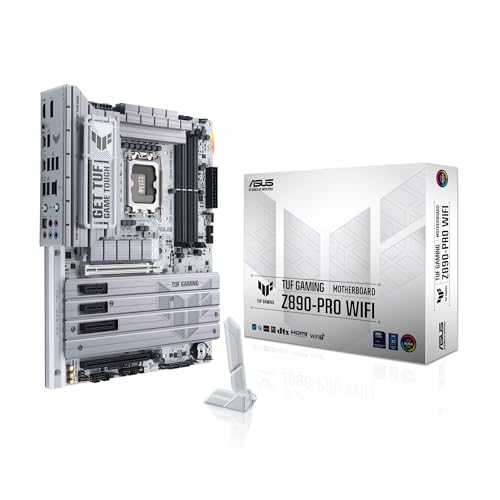 | ASUS TUF GAMING Z890-PRO WIFI | Best fit: Two Thunderbolt 4 ports, six USB-A ports Socket: LGA1851 Thunderbolt on rear I/O: 2 x Thunderbolt 4 Storage: 4 x M.2; 4 x SATA Networking: 2.5Gb Ethernet, Wi-Fi 7 | Check Price on Amazon |
 | ASUS TUF GAMING Z890-PLUS WIFI | Best fit: One Thunderbolt 4 port Socket: LGA1851 Thunderbolt on rear I/O: 1 x Thunderbolt 4 Storage: 4 x M.2; 4 x SATA Networking: 2.5Gb Ethernet, Wi-Fi 7 | Check Price on Amazon |
 | GIGABYTE Z890 AERO G | Best fit: Dual 2.5GbE, five M.2 slots Socket: LGA1851 Thunderbolt on rear I/O: 1 x Thunderbolt 4, up to 40Gbps Storage: 5 x M.2; 4 x SATA Networking: 2 x 2.5Gb Ethernet, Wi-Fi 7 | Check Price on Amazon |
 | GIGABYTE Z890 AORUS ELITE WIFI7 ICE | Best fit: Gigabyte board with a rear DisplayPort Socket: LGA1851 Thunderbolt on rear I/O: 1 x Thunderbolt 4, up to 40Gbps Storage: 4 x M.2; 4 x SATA Networking: 2.5Gb Ethernet, Wi-Fi 7 | Check Price on Amazon |
1. ASUS ProArt Z890-CREATOR WIFI — Best Board With Two Thunderbolt 5 Ports
The ProArt Z890-CREATOR WIFI is for a desktop where external storage, a Thunderbolt display, and a dock are all part of the plan. ASUS lists two Thunderbolt 5 USB-C ports and one more USB4 / Thunderbolt USB-C port on the rear I/O, so it is the only board here with Thunderbolt 5 built in. ASUS names that third port USB4 / Thunderbolt in one list and Thunderbolt 4 in its display notes.
ASUS also lists five M.2 slots, 10Gb Ethernet, 2.5Gb Ethernet, and Wi-Fi 7. The fifth M.2 slot shares bandwidth with the PCIe 4.0 x16 slot, which ASUS says is disabled while that M.2 slot is in use. The rear DisplayPort is input only, and none of the other five boards lists a DisplayPort input. With that input connected, ASUS rates the Thunderbolt ports for up to two 8K 60Hz monitors plus one 4K 60Hz monitor, against one 8K plus one 4K without it. When the Thunderbolt 5 port drives two displays from integrated graphics, ASUS says the Thunderbolt 4 port cannot output any display.
Our Take Buy the ASUS ProArt Z890-CREATOR WIFI for a workstation desktop that needs Thunderbolt 5 on the board before a dock or external drive is added. ASUS says Thunderbolt 5 on this board is supported only in Windows 11, and the board needs an LGA1851 Core Ultra Series 2 processor.
- ASUS lists two Thunderbolt 5 ports plus one USB4 / Thunderbolt port on the ProArt.
- ASUS lists five M.2 slots on the ProArt board.
- ASUS includes 10Gb Ethernet, 2.5Gb Ethernet, and Wi-Fi 7 on the ProArt.
- ASUS lists a rear DisplayPort input on the ProArt, and the other five boards list none.
- ASUS says the ProArt’s fifth M.2 slot shares bandwidth with the PCIe 4.0 x16 slot, which is disabled while that M.2 slot is in use.
- When the ProArt’s Thunderbolt 5 port drives two displays from integrated graphics, ASUS says its Thunderbolt 4 port cannot output any display.
2. MSI MEG Z890 ACE — Best Dual Thunderbolt 4 With 10Gb Ethernet
The MEG Z890 ACE suits a workstation that needs two Thunderbolt connections but not Thunderbolt 5. MSI specifies two rear Thunderbolt 4 ports with up to 40Gbps transfer support for Thunderbolt devices, so a dock and a fast external drive can each have a port, where the GIGABYTE boards and the TUF Z890-PLUS have one.
MSI pairs those ports with 10Gb Ethernet, Wi-Fi 7, five M.2 slots, and three PCIe x16 slots. The first PCIe slot runs at x8 when the second slot holds a device. MSI lists Thunderbolt 4 display output only for processors with integrated graphics, and its specification page lists no DisplayPort input.
Plan video for the MEG Z890 ACE around a processor with integrated graphics, because MSI lists Thunderbolt 4 display output only for those processors.Our Take Buy the MSI MEG Z890 ACE if dual Thunderbolt 4 and 10Gb Ethernet fit a storage-heavy workstation better than a move to Thunderbolt 5. The 10Gb Ethernet helps only on a 10Gb network.
- MSI lists two rear Thunderbolt 4 ports with up to 40Gbps transfer support for Thunderbolt devices, one for a dock and one for a fast external drive.
- MSI pairs 10Gb Ethernet with Wi-Fi 7 on the MEG Z890 ACE.
- MSI lists five M.2 slots on the MEG Z890 ACE.
- MSI lists three PCIe x16 slots on the MEG Z890 ACE.
- MSI lists Thunderbolt 4 ports on the MEG Z890 ACE and no Thunderbolt 5 port.
- MSI says the first PCIe slot runs at x8 when the second slot holds a device.
- MSI lists Thunderbolt 4 display output only for processors with integrated graphics, and lists no DisplayPort input.
3. ASUS TUF GAMING Z890-PRO WIFI — Best Two Thunderbolt 4 Ports With Six USB-A Ports
The TUF GAMING Z890-PRO WIFI is the two-port choice for a build that also needs many USB-A ports. ASUS specifies two rear Thunderbolt 4 USB-C ports, six rear 10Gbps USB Type-A ports, HDMI, and DisplayPort. The two Thunderbolt ports can serve a dock and a direct drive, and the six 10Gbps ports can serve USB accessories.
The board has four M.2 slots, four SATA ports, 2.5Gb Ethernet, and Wi-Fi 7. In Thunderbolt 4 mode, ASUS describes up to one 8K 60Hz display with DSC or two 4K 60Hz displays. ASUS also lists a Thunderbolt (USB4) header under internal connectors, separate from the two rear ports.
ASUS lists the Thunderbolt header as an internal connector, a separate thing from the two rear Thunderbolt 4 ports.Our Take Buy the ASUS TUF GAMING Z890-PRO WIFI when two onboard Thunderbolt 4 ports are the priority but 10Gb Ethernet and five M.2 slots are not. Its 2.5Gb Ethernet is a lower network speed than the MSI and ProArt boards list.
- ASUS lists two Thunderbolt 4 ports on the TUF PRO rear I/O, enough for a dock and a direct drive.
- ASUS lists six rear 10Gbps USB Type-A ports on the TUF PRO beside the Thunderbolt ports, for USB accessories.
- ASUS lists both HDMI and DisplayPort on the TUF PRO.
- ASUS lists four M.2 slots on the TUF PRO.
- ASUS lists 2.5Gb Ethernet on the TUF PRO, where the MSI and ProArt boards list 10Gb Ethernet.
4. ASUS TUF GAMING Z890-PLUS WIFI — Best for One Thunderbolt 4 Port
The TUF GAMING Z890-PLUS WIFI is for a builder who needs one rear Thunderbolt 4 port for an external drive, interface, or display and wants the rest of the build conventional. ASUS lists DisplayPort and Thunderbolt video output on that port, with a rear 20Gbps USB-C port, three 10Gbps Type-A ports, and three 5Gbps Type-A ports beside it.
The layout is close to the PRO model: four M.2 slots, four SATA ports, 2.5Gb Ethernet, and Wi-Fi 7. ASUS lists an LGA1851 socket, one PCIe 5.0 x16 slot, and a Thunderbolt (USB4) header.
Choose this TUF board when one Thunderbolt 4 port is enough, and the TUF GAMING Z890-PRO WIFI when two devices need Thunderbolt ports of their own.Our Take Buy the ASUS TUF GAMING Z890-PLUS WIFI for a straightforward LGA1851 ATX build with one onboard Thunderbolt 4 port. A dock and a fast drive that must stay connected together fit the two-port TUF GAMING Z890-PRO WIFI better.
- ASUS lists one rear Thunderbolt 4 port on the TUF PLUS with DisplayPort and Thunderbolt video output.
- ASUS lists a rear 20Gbps USB-C port on the TUF PLUS beside the Thunderbolt 4 port.
- ASUS lists four M.2 slots and four SATA ports on the TUF PLUS.
- ASUS includes Wi-Fi 7 and 2.5Gb Ethernet on the TUF PLUS.
- The TUF PLUS has one Thunderbolt 4 port, while the PRO model has two.
- ASUS lists three 10Gbps and three 5Gbps rear Type-A ports on the TUF PLUS, and only three of the six run at 10Gbps.
- ASUS lists 2.5Gb Ethernet on the TUF PLUS, a lower speed than 10Gb Ethernet.
5. GIGABYTE Z890 AERO G — Best Dual 2.5GbE Board With Five M.2 Slots
The Z890 AERO G fits a desktop that needs one Thunderbolt 4 connection and two wired network ports. GIGABYTE specifies one rear Thunderbolt 4 port with up to 40Gbps for Thunderbolt devices and two Intel 2.5GbE controllers.
GIGABYTE also specifies five M.2 slots, four SATA connectors, Wi-Fi 7, two PCIe 5.0 x16 slots, one rear HDMI port, and a front HDMI header. The second PCIe 5.0 slot runs at x8 and shares bandwidth with the first. GIGABYTE adds that the number of Thunderbolt devices that can be used depends on the number of PCI Express devices installed.
Our Take Buy the GIGABYTE Z890 AERO G if dual 2.5GbE and five M.2 slots are more useful than a second Thunderbolt port.
- GIGABYTE lists one rear Thunderbolt 4 port with up to 40Gbps for Thunderbolt devices on the AERO G.
- GIGABYTE lists two Intel 2.5GbE controllers on the AERO G.
- GIGABYTE lists five M.2 slots on the AERO G.
- GIGABYTE lists one Thunderbolt 4 port on the AERO G and no second Thunderbolt port.
- GIGABYTE says the AERO G’s first PCIe 5.0 slot runs at x8 when the second PCIe 5.0 slot is populated.
- GIGABYTE says the number of usable Thunderbolt devices depends on the number of PCI Express devices installed.
6. GIGABYTE Z890 AORUS ELITE WIFI7 ICE — Best Gigabyte Board With a Rear DisplayPort
The Z890 AORUS ELITE WIFI7 ICE gives an ATX build one rear Thunderbolt 4 port with up to 40Gbps support for Thunderbolt devices. GIGABYTE lists DisplayPort and Thunderbolt video output on the port and asks for a processor with integrated graphics to ensure full Thunderbolt functionality, so check the processor before connecting a display through it.
GIGABYTE specifies four M.2 slots, four SATA connectors, 2.5GbE, Wi-Fi 7, a rear DisplayPort, and a front HDMI header. The CPU-connected PCIe 5.0 x16 slot is joined by two PCIe 4.0 x16 slots that run at x4. GIGABYTE lists one Thunderbolt port, where the MSI and TUF PRO boards list two.
Use the rear Thunderbolt 4 port for an attached device, and install a processor with integrated graphics, which GIGABYTE asks for to ensure full Thunderbolt functionality.Our Take Buy the GIGABYTE Z890 AORUS ELITE WIFI7 ICE for an LGA1851 build that needs one native Thunderbolt 4 port and four M.2 slots. One direct Thunderbolt device fits it better than a desktop with a dock and another high-bandwidth peripheral connected together.
- GIGABYTE lists one rear Thunderbolt 4 port with up to 40Gbps support for Thunderbolt devices on the AORUS ELITE.
- GIGABYTE pairs Wi-Fi 7 with 2.5GbE on the AORUS ELITE.
- GIGABYTE lists four M.2 slots and four SATA connectors on the AORUS ELITE.
- GIGABYTE lists a rear DisplayPort on the AORUS ELITE beside its Thunderbolt 4 port.
- The AORUS ELITE has one Thunderbolt 4 port, not the two ports on the TUF PRO.
- GIGABYTE asks for a processor with integrated graphics on the AORUS ELITE to ensure full Thunderbolt functionality.
- GIGABYTE lists four M.2 slots on the AORUS ELITE.
Buying Guide
1. Buy an onboard Thunderbolt port before shopping for an add-in card
An onboard Thunderbolt 4 or Thunderbolt 5 port on the rear I/O lets a desktop connect to a dock, external SSD, interface, or display as soon as it is assembled. The ProArt Z890-CREATOR WIFI lists two Thunderbolt 5 ports, the MSI MEG Z890 ACE and TUF GAMING Z890-PRO WIFI list two Thunderbolt 4 ports, and the other three boards list one.
A Thunderbolt header is an internal connector, not a rear port. ASUS lists a Thunderbolt (USB4) header on both TUF boards, and each of them also lists its own rear Thunderbolt 4 ports. A separate card needs a free PCIe slot and the card maker’s header, power, and video-cable requirements, so check the motherboard support list before counting on one. The Thunderbolt 4 docking stations guide covers the dock side of that connection.
2. Match Thunderbolt 4 or Thunderbolt 5 to the devices you will attach
Thunderbolt 4 on the MSI and GIGABYTE boards carries up to 40Gbps for Thunderbolt devices, according to each maker. One such connection suits a dock, external drive, display, or interface when only one needs it, and two ports let a dock and a direct device each have one.
The ProArt lists Thunderbolt 5, and ASUS says DisplayPort 2.1 limits Thunderbolt 5 display bandwidth to up to 77.4Gbit/s. Pick the ProArt when the devices and displays can use Thunderbolt 5, because a Thunderbolt 4 peripheral keeps its own limit on a Thunderbolt 5 port. For cables, use a Thunderbolt 5 cable rated for the connection.
3. Choose the CPU socket before comparing port counts
Every board here uses Intel LGA1851 for Core Ultra Series 2 desktop processors and DDR5 memory. A desktop with an LGA1700 Intel CPU or an AMD Ryzen CPU needs a different motherboard, however good the I/O looks. Settle the socket, CPU support list, memory, and case size before buying.
All six boards are ATX. MSI lists 243.84mm x 304.8mm and GIGABYTE lists 30.5cm x 24.4cm. Check graphics-card and M.2 cover clearance in the case before counting on every M.2 slot.
4. Plan the DisplayPort path before using a monitor through Thunderbolt
Thunderbolt can carry video, but the video source is a separate part of the build. The ProArt lists a rear DisplayPort that is input only, and ASUS rates its Thunderbolt ports for more monitors with it connected. MSI lists Thunderbolt 4 display output only for processors with integrated graphics, and GIGABYTE lists Thunderbolt video output under integrated graphics.
For a discrete graphics card, confirm the board’s DisplayPort input before expecting a monitor to work through a Thunderbolt port, and note that only the ProArt lists one. ASUS says to connect a monitor to the rear HDMI port or a discrete graphics card while installing the operating system. Use a Thunderbolt 4 cable when a device requires Thunderbolt rather than an ordinary USB-C cable.
5. Treat storage, PCIe slots, and networking as part of the Thunderbolt decision
Five M.2 slots on the ProArt, MSI ACE, and AERO G suit a build with several internal NVMe drives, while the TUF and AORUS ELITE boards have four. The ProArt, MSI, and AERO G also list conditions where a slot or lane is shared, so read them before filling several graphics, capture, network, or storage slots.
Networking separates these boards as much as Thunderbolt generation does. The 10Gb Ethernet on the ProArt and MSI boards suits a fast wired network, while the AERO G has two 2.5GbE controllers and the TUF and AORUS boards have one 2.5GbE connection plus Wi-Fi 7. A Thunderbolt 3 docking station can add ports to an older peripheral setup, but it does not replace the motherboard’s socket, PCIe lanes, or onboard storage layout.
FAQ
Does a Thunderbolt header mean the motherboard has Thunderbolt?
No. A Thunderbolt header is an internal connector, not a rear Thunderbolt port. ASUS lists a Thunderbolt (USB4) header on the TUF GAMING Z890-PRO WIFI under internal connectors, and the same board lists two rear Thunderbolt 4 ports, so the difference shows on one board.
An add-in card needs its own checks for the board, slot, header, power, and video input.
Can a Thunderbolt motherboard send video from a discrete graphics card?
Among these six, only the ProArt Z890-CREATOR WIFI lists a DisplayPort input, and ASUS rates its Thunderbolt ports for more monitors with that input connected. The other five list no DisplayPort input, and MSI and GIGABYTE list Thunderbolt video output under integrated graphics.
Do not assume every rear USB-C port can carry a graphics card’s signal. Follow the board manual for the DisplayPort cable, installed graphics output, and monitor capability.
Is Thunderbolt 5 better than two Thunderbolt 4 ports?
Not automatically. The ports and the devices decide it. The ProArt Z890-CREATOR WIFI lists two Thunderbolt 5 ports, and the MSI MEG Z890 ACE and TUF GAMING Z890-PRO WIFI list two Thunderbolt 4 ports. Two Thunderbolt 4 ports let a dock and a direct drive each have a port.
Choose by the peripherals and display layout you will use. A Thunderbolt 4 peripheral keeps its own limit on a Thunderbolt 5 port.
Do these boards work with older Intel processors?
No. All six boards use the LGA1851 socket for Intel Core Ultra Series 2 desktop processors. An older LGA1700 Intel processor will not fit this socket, even though older Z790 boards can also have Thunderbolt 4 ports.
Match the socket and memory type to the processor before comparing port layouts. All six boards list DDR5.
How many M.2 drives can I install without affecting other slots?
The answer depends on the board’s lane map. The ProArt and MSI MEG Z890 ACE list M.2 sharing conditions. ASUS says the ProArt’s fifth M.2 slot shares bandwidth with a PCIe 4.0 x16 slot, and MSI says a PCIe Gen 5 M.2 device in its fourth M.2 slot drops the first PCIe slot to x8 and the second to x4. The GIGABYTE Z890 AERO G lists sharing between its two PCIe 5.0 slots.
The number beside M.2 is a capacity count, not a promise that every slot has its own lanes. Read the storage and expansion tables before filling every socket.
Bottom Line
The ASUS ProArt Z890-CREATOR WIFI is the clearest choice for a desktop that needs Thunderbolt 5 and 10Gb Ethernet, while the MSI MEG Z890 ACE and ASUS TUF GAMING Z890-PRO WIFI are the two answers for dual Thunderbolt 4 ports. The one-port ASUS and GIGABYTE options fit a more focused build, as long as one Thunderbolt connection is enough for the desk.


Hi Ed,
I don’t see an obvious date of creation for this posting. For me, this negates any value the posting may have otherwise had as a “…best…” recommendation.