The Short Version
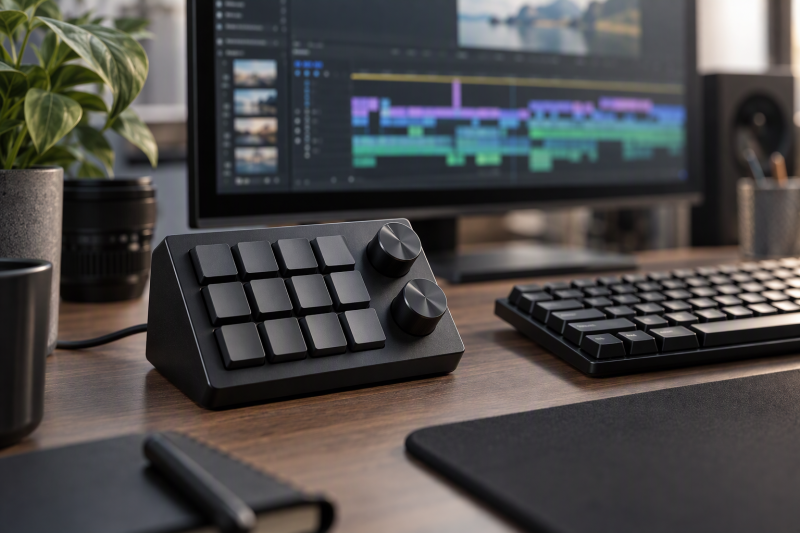
A macro keypad gives repeatable shortcuts a fixed physical location, while rotary knobs make gradual adjustments such as volume, zoom, scrolling, or timeline movement easier to assign. Key count, knob count, saved layers, connectivity, and whether the profile travels with the pad are bigger factors than RGB lighting when the goal is faster editing.
Choose the MOSHOU 12-Key Macro Pad for 12 keys, two knobs, three layers, and USB, Bluetooth, or 2.4GHz connectivity. Choose the Odorkle 16-Key 3-Knob Macro Pad when 16 keys and three knobs are more useful than wireless operation. For 16 keys, two knobs, four layers, and a display screen, pick the NLOFIN KB16 Macro Pad.
Macro pads are not guaranteed plug-and-play replacements for a keyboard. Each product uses its own configuration approach, and a useful macro layout starts by naming the few actions you repeat most often in the actual editing application.
Quick Picks
- Best tri-mode desk: MOSHOU 12-Key Macro Pad for two knobs and USB, Bluetooth, or 2.4GHz.
- Best for the most controls: Odorkle 16-Key 3-Knob Macro Pad for 16 keys and three pressable knobs.
- Best compact option: Koolertron 4-Key 1-Knob Keypad for four keys, one knob, and six layers.
- Best display-equipped pad: NLOFIN KB16 Macro Pad for 16 keys, two knobs, four layers, and a screen.
How We Picked
According to its listing, each pick has a programmable key set and at least one rotary knob. The group ranges from four to 16 keys, one to three knobs, wired USB, USB-C, Bluetooth, and 2.4GHz connections, plus stored profile layers from three through six where stated.
A knob-equipped macro pad is a different buying decision from a stream controller with LCD keys, MIDI controller, editing keyboard, mouse, or headphone DAC. It is for keyboard-command and repeated-control mappings, not media playback or audio conversion.
Macro Keypads Compared
| Image | Product | Details | Check Price |
|---|---|---|---|
 | MOSHOU 12-Key Macro Pad | Best fit: Tri-mode editing desk Keys: 12 Knobs: 2 Layers: 3 Connections: USB, Bluetooth, 2.4GHz | Check Price on Amazon |
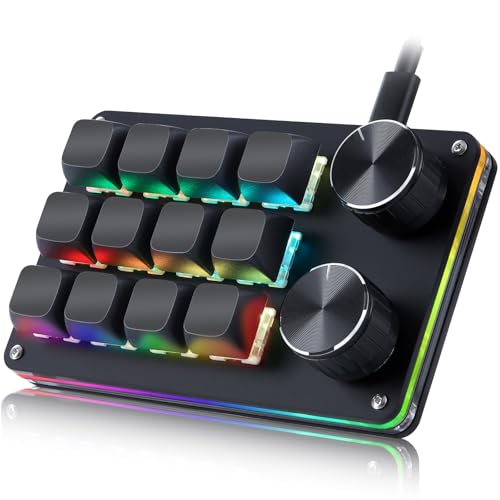 | Koolertron 12-Key 2-Knob Keypad | Best fit: Six-layer shortcut sets Keys: 12 Knobs: 2 Layers: 6 Macros: 16 | Check Price on Amazon |
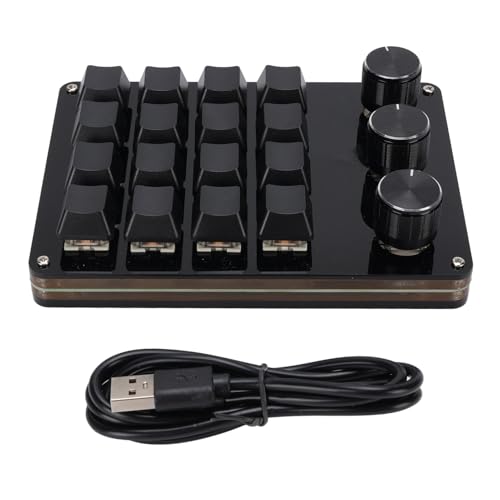 | Odorkle 16-Key 3-Knob Macro Pad | Best fit: Most physical controls Keys: 16 Knobs: 3 Connection: Wired USB Switches: Hot-swappable | Check Price on Amazon |
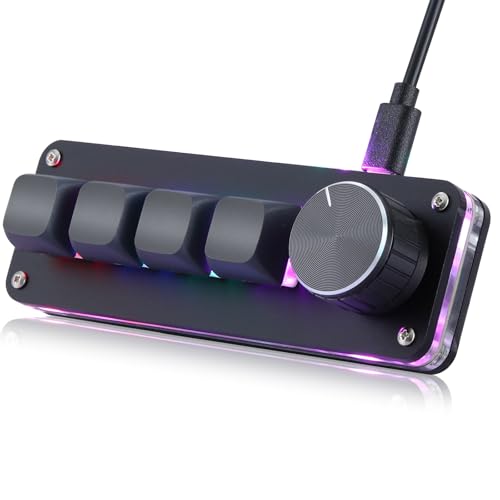 | Koolertron 4-Key 1-Knob Keypad | Best fit: Minimal editing shortcuts Keys: 4 Knobs: 1 Layers: 6 Macros: 16 | Check Price on Amazon |
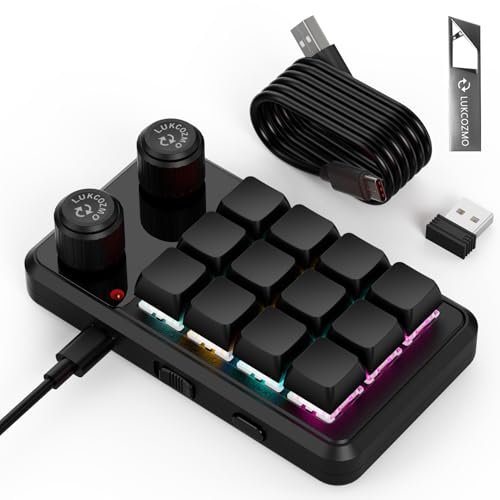 | LUKCOZMO 12-Key 2-Knob Macro Pad | Best fit: Cross-platform saved profiles Keys: 12 Knobs: 2 Connections: Wireless receiver, USB-C Memory: Onboard | Check Price on Amazon |
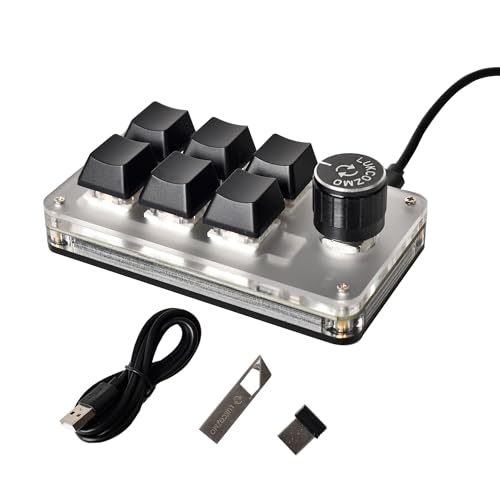 | LUKCOZMO 6-Key Wireless Knob Pad | Best fit: Portable tri-mode control Keys: 6 Knobs: 1 Connections: USB-C, Bluetooth, 2.4GHz Memory: Onboard | Check Price on Amazon |
 | NLOFIN KB16 Macro Pad | Best fit: Screen-equipped controls Keys: 16 Knobs: 2 Layers: 4 Feature: Display screen | Check Price on Amazon |
1. MOSHOU 12-Key Macro Pad — Best for a Tri-Mode Editing Desk
The MOSHOU pad suits an editing desk shared across cable and wireless setups. Its listing states 12 programmable keys, two knobs, three macro layers, hot-swappable switches, and USB, Bluetooth, and 2.4GHz operation.
Custom settings must be configured and saved in wired mode according to the listing, so it suits a buyer who can spend setup time once and then wants the choice of a cable, receiver, or Bluetooth connection.
Pros
- 12 keys and two knobs give separate space for common commands and gradual adjustments.
- USB, Bluetooth, and 2.4GHz connectivity suit a desk that moves between connection types.
- Three stated macro layers let one small pad hold several task-specific mappings.
Cons
- The listing requires wired configuration before using the wireless connections.
- Three layers provide fewer saved layouts than the six-layer Koolertron models.
2. Koolertron 12-Key 2-Knob Keypad — Best for Six-Layer Shortcut Sets
The larger Koolertron has 12 keys, two knobs, 16 macros, and six stored layers. The layer count suits someone who wants separate editing, color, audio, and general desktop layouts without moving to a screen-based controller.
Its listing describes web and software configuration for Windows and Mac, but not Linux compatibility. Choose it when you need six layers to keep your shortcuts organized and the host computer matches that stated support.
Pros
- Six stated layers let one 12-key pad retain multiple editing and desktop profiles.
- Two knobs offer physical controls beyond the 12 programmable mechanical keys.
- The listing states up to 16 macros for complex repeated commands.
Cons
- Its listing says the web and software setup is not compatible with Linux.
- A 12-key layout takes more desk space than the four-key Koolertron option.
3. Odorkle 16-Key 3-Knob Macro Pad — Best for the Most Physical Controls
The Odorkle is specified with 16 keys and three knobs. Its knobs can also be pressed, which adds assignable actions beyond a turn-only dial, so it suits a buyer who wants dedicated adjustment controls near a keyboard.
Odorkle includes a wired USB connection and hot-swappable switches. Pick it for a fixed editing desk where the higher physical control count is more important than carrying the pad between machines wirelessly.
Pros
- 16 keys and three knobs provide the largest stated physical-control count in this guide.
- Pressable knobs can be assigned as additional actions beyond left and right rotation.
- Hot-swappable switches give a stated path to changing switch feel later.
Cons
- Its wired USB connection is less flexible than the MOSHOU and the six-key LUKCOZMO.
- More controls need a labeling and profile plan so each one stays easy to remember.
4. Koolertron 4-Key 1-Knob Keypad — Best for Minimal Editing Shortcuts
The smaller Koolertron is the minimal option for a buyer who needs a few frequently used commands instead of a second keyboard. It lists four keys, one knob, 16 macros, six layers, and the same web or software configuration approach as its 12-key sibling.
A small surface works best when the assignments are obvious, such as undo, marker, cut, export, and a single knob for zoom or timeline navigation. It is not the choice for an entire editing application map.
Pros
- Four keys and one knob take little desk space beside a mouse.
- Six stated layers hold several simple profiles on a compact pad.
- Up to 16 macros can cover repeated multi-key commands without a full keypad.
Cons
- Four keys leave little room for separate editing, audio, and color shortcuts at once.
- The listing’s web and software setup does not claim Linux compatibility.
5. LUKCOZMO 12-Key 2-Knob Macro Pad — Best for Cross-Platform Saved Profiles
The LUKCOZMO 12-key model is the dual-connectivity choice when you want saved settings and broad host use. Its listing describes 12 programmable keys, two knobs, wireless receiver and USB-C connection options, HID driver-free operation, memory, and post-setup use on Linux, Mac OS, Windows, and Pi.
Configuration still begins on Windows according to the listing, so cross-platform use does not mean every computer can create profiles. Choose it when a saved profile needs to travel to different supported systems after setup.
Pros
- 12 programmable keys give a useful middle size for common editing shortcuts.
- Wireless and USB-C connection options plus onboard memory support carrying a saved profile to another compatible computer.
- The listing names Linux, Mac OS, Windows, and Pi use after Windows setup.
Cons
- Initial programming on Windows is a stated requirement despite broader later use.
- Two knobs provide fewer independent adjustment controls than the three-knob Odorkle alternative.
6. LUKCOZMO 6-Key Wireless Knob Pad — Best for Portable Tri-Mode Control
The LUKCOZMO six-key model is the compact tri-mode choice. It states six keys, one knob, Bluetooth, 2.4GHz, USB-C, onboard memory, and a small portable body, which suits a buyer who moves a shortcut set between a laptop and a fixed desk.
With six keys, the mapping should remain selective. Use it for commands that interrupt flow often, rather than trying to duplicate every editing shortcut available on a full keyboard.
Pros
- Bluetooth, 2.4GHz, and USB-C provide three stated connection methods for portable use.
- Six keys and one knob fit a smaller travel or laptop editing setup.
- Onboard memory lets saved mappings travel after configuration.
Cons
- Six keys cannot replace a larger macro layout for complex editing applications.
- Its configuration documentation begins with Windows even though later use is described more broadly.
7. NLOFIN KB16 Macro Pad — Best for Screen-Equipped Controls
The NLOFIN KB16 is the larger two-knob choice with a display screen. Its listing names 16 programmable keys, two rotary buttons, four saved layers, an aluminum casing, RGB lighting, and screen-equipped controls for a desk that benefits from more direct visual feedback.
Four layers are fewer than the Koolertron’s six, but the 16-key layout provides a larger physical map. Choose it when two knobs and many keys are more important than wireless connection choices.
Pros
- 16 keys and two knobs provide a large shortcut map without a full keyboard.
- Four stated layers can separate application profiles or task modes.
- A display screen sets this pad apart from the other products in this guide.
Cons
- Its listing does not present Bluetooth or 2.4GHz connectivity the way the six-key LUKCOZMO does.
- Four layers are fewer than the six-layer figures listed for both Koolertron pads.
Buying Guide: Choosing a Macro Keypad with Rotary Knobs
Count repeat actions before buying more keys
Start by writing down commands you use more than once per minute. A compact pad such as the four-key Koolertron suits a few recurring actions, while 12- and 16-key models fit broader editing maps.
More keys do not automatically create a faster workflow. The limit is shortcut recall, so choose a key count you can learn without looking away from the edit constantly.
Decide what every knob will adjust
One knob is enough for one continuous task such as zoom or volume. The Odorkle has three pressable knobs, while the MOSHOU and 12-key Koolertron have two, which leaves more knobs free for separate adjustments.
Assign knobs to changes that benefit from gradual rotation. Rotary controls are less useful for commands that happen once, such as opening a panel or exporting a file.
Match connection choice to the desk
Wired pads skip wireless pairing. The MOSHOU and the six-key LUKCOZMO list USB, Bluetooth, and 2.4GHz connections, while the Odorkle uses wired USB.
Choose the connection that fits how often the computer moves. Wireless convenience is useful for a laptop moved between rooms, but a fixed editing desk may value a direct cable more.
Check where profiles are configured and saved
Several listings distinguish setup from daily use. MOSHOU requires settings to be saved in wired mode, and the LUKCOZMO products describe Windows configuration before broader use.
Onboard memory changes whether a configured pad can move between systems. Check profile storage before buying for a mixed Windows, Mac, Linux, or Pi setup.
Keep layer count proportional to the task
The Koolertron models list six layers, MOSHOU lists three, and NLOFIN lists four. Layers let you organize separate workflows, but you also have to know which mode is active.
Choose layers only where applications or jobs genuinely differ. Fewer well-labeled layers are usually easier to use than a deep profile structure that has no clear purpose.
Frequently Asked Questions
Are macro keypads useful for video editing?
Yes, if you map actions you repeat constantly. Keys can trigger shortcuts while knobs can handle adjustments such as zoom, scrolling, or any supported command you assign.
A deliberate layout helps more than a high key count. A few stable assignments are usually more useful than copying every command from the keyboard.
Do rotary knobs work like a jog wheel?
They can be assigned to suitable incremental commands, but each product’s software and host application determine the final behavior. The Odorkle listing says its knobs can rotate and press.
Treat knob programming as a compatibility check, not a promise that every application receives a dedicated jog-wheel experience. Set up one test assignment before finalizing an editing layout.
Is wireless better than wired for a macro pad?
Neither is always better. USB provides a fixed direct connection, while Bluetooth and 2.4GHz help when the device moves or the desk needs fewer cables.
The MOSHOU and six-key LUKCOZMO list three connection modes. Choose wireless only if the setup and profile-saving requirements fit your computer routine.
How many keys do I need?
Four to six keys can cover a compact command set, while 12 to 16 keys fit more application-specific tasks. The key count should match the number of actions that interrupt your workflow.
If you cannot name the first four or six assignments, start smaller. You can keep the main keyboard for occasional commands and reserve the pad for repeated actions.
Can one macro keypad work across several computers?
Sometimes. The LUKCOZMO listings describe onboard memory and later use across several platforms after configuration, but the initial setup steps still apply.
Check where each pad is configured and which connections it supports before relying on one pad for every machine. A profile that saves locally is more portable than one that requires desktop software each time.
Bottom Line
Choose the MOSHOU 12-Key Macro Pad for two knobs and tri-mode connectivity, the Odorkle 16-Key 3-Knob Macro Pad for the largest stated control count, or the NLOFIN KB16 Macro Pad for 16 keys, two knobs, four layers, and a display.