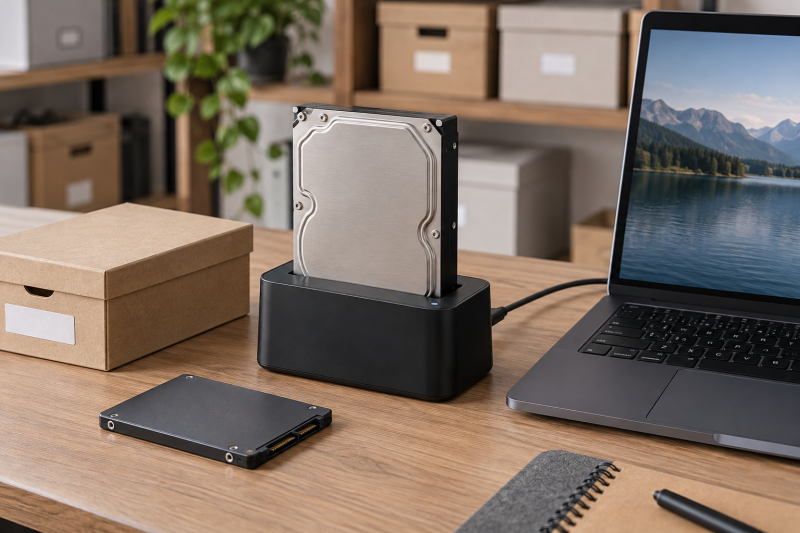
A SATA hard drive dock is the quickest way to connect a bare 2.5-inch or 3.5-inch drive without installing it in an enclosure. It suits archive checks, old-computer recovery, rotating offline drives, and temporary transfers at a desktop. USB speed is only one factor in the choice. Bay count, maximum drive capacity, host cable, independent power control, cloning, and drive-format support also determine whether a dock fits the job.
These eight docks range from simple single-bay readers to a four-bay archive station. StarTech SDOCKU313 is the best focused single-bay choice for temporary access because it supports 2.5- and 3.5-inch SATA drives of any stated capacity, 4Kn media, and OS-independent operation. OWC Drive Dock is the stronger two-drive performance option, while RSHTECH pairs dual bays with USB-C and USB-A host support.
SATA Hard Drive Dock Comparison
| Image | Product | Details | Check Price |
|---|---|---|---|
 | StarTech SDOCKU313 | Best fit: One-at-a-time desktop archive access Bays: 1 Drive support: 2.5/3.5-inch SATA HDD/SSD; 4Kn Capacity: Any capacity stated Host: USB 3.1 | Check Price on Amazon |
 | WAVLINK ST341UA | Best fit: Dual-bay access and offline cloning Bays: 2 Drive support: 2.5/3.5-inch SATA I/II/III Capacity: Up to 2 x 20 TB Host: USB 3.0 up to 5 Gbps; UASP | Check Price on Amazon |
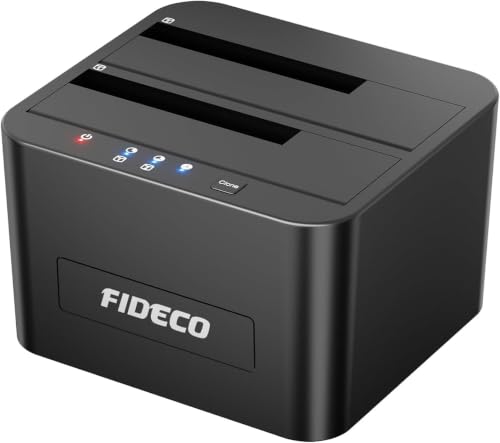 | FIDECO YPZ04-S2 | Best fit: Straightforward dual-bay SATA reading Bays: 2 Drive support: 2.5/3.5-inch SATA HDD/SSD Host: USB 3.0 up to 5 Gbps; UASP Clone: Offline | Check Price on Amazon |
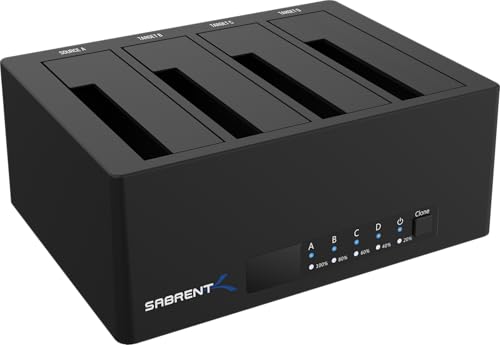 | SABRENT DS-U3B4 | Best fit: Multi-drive desktop archive station Bays: 4 Drive support: 2.5/3.5-inch SATA HDD/SSD Host: USB 3.0 up to 5 Gbps Clone: Offline with LED progress | Check Price on Amazon |
 | RSHTECH RSH-DS01C | Best fit: USB-C dual-bay archive workstation Bays: 2 Capacity: Up to 22 TB per drive Host: USB-C and USB-A; up to 5 Gbps Power: 36W 12V/3A adapter | Check Price on Amazon |
 | SSK DK102 | Best fit: Simple single-bay USB 3.0 access Bays: 1 Drive support: 2.5/3.5-inch SATA I/II/III Host: USB 3.0 up to 5 Gbps; UASP Sleep: After 10 minutes idle | Check Price on Amazon |
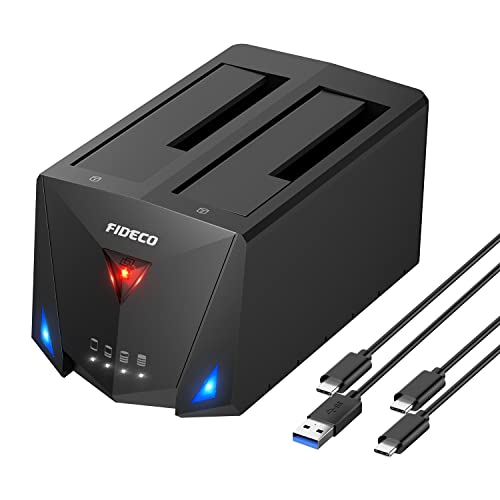 | FIDECO YPZ220C | Best fit: Switching between USB-C and USB-A hosts Bays: 2 Drive support: 2.5/3.5-inch SATA I/II/III Host: USB 3.2 Gen 1 up to 5 Gbps; UASP Cables: USB-C to C and USB-C to A | Check Price on Amazon |
 | OWC Drive Dock | Best fit: High-performance simultaneous dual-drive access Bays: 2 Drive support: 2.5/3.5-inch SATA drives Speed claim: Up to 522 MB/s Power: Internal; independent bay switches | Check Price on Amazon |
Every product here is for SATA HDDs or SSDs. An M.2 NVMe drive, bare IDE disk, SAS disk, or proprietary removable cartridge does not plug directly into a SATA dock. Confirm the drive interface before applying power, and treat offline clone controls carefully because they write from a designated source disk to a target disk.
Label every archive drive before it reaches the powered dock.
1. StarTech SDOCKU313 — Best Single-Bay Archive Dock
StarTech SDOCKU313 is a top-loading single-bay USB 3.1 dock for 2.5-inch and 3.5-inch SATA HDDs and SSDs. The listing states support for drives of any capacity and for 4Kn media, which makes it the broadest capacity statement in this group. Operation is OS-independent, so the dock itself does not impose a named desktop platform list.
The single slot keeps the workflow short. You insert one drive, connect it, work with the archive, unmount it, and swap only after the dock is ready. StarTech also names optional adapters for IDE, mSATA, and M.2 SATA, but those are sold separately and do not add NVMe support. The dock carries a two-year warranty and lifetime 24/5 multilingual technical assistance.
Our Take: Buy StarTech SDOCKU313 for quick desktop archive access when you don’t need cloning or multi-drive operation. The one-bay layout is easier to manage than a duplicator, and the stated any-capacity and 4Kn support leave less format uncertainty.
[su_box title=”PROS” style=”soft” box_color=”#2e7d32″] – Single-bay operation keeps temporary archive access simple and limits drive-selection mistakes. – Support for 2.5-inch and 3.5-inch SATA HDDs and SSDs covers common bare drives. – The listing states any-capacity and 4Kn compatibility for newer large-sector archives. – OS-independent operation avoids tying the dock to one named desktop platform. [/su_box] [su_box title=”CONS” style=”soft” box_color=”#c62828″] – One bay cannot read two drives simultaneously or perform offline cloning. – IDE, mSATA, and M.2 SATA access requires separately sold adapters. – The supplied evidence does not list independent power control for the bay. [/su_box]2. WAVLINK ST341UA — Best Dual-Bay Value for Offline Cloning
WAVLINK ST341UA accepts two 2.5-inch or 3.5-inch SATA I, II, or III drives up to 20 TB each. The fixed bezels stabilize the inserted drives and add coverage around the slots. USB 3.0 provides a stated host rate up to 5 Gbps, with UASP support when the computer and operating system support it.
Offline clone mode copies between two drives without a computer. WAVLINK instructs users to hold the clone button for about five seconds and requires the target capacity to equal or exceed the source. The package includes a Type-B-to-Type-A cable, Type-A-to-Type-C adapter, 12V/3A power supply, two bezels, and mounting screws.
Our Take: Buy ST341UA if you want dual-bay archive access plus occasional standalone duplication. Its 2 x 20 TB limit and included USB-C adapter are useful, but an adapter is less direct than a native USB-C cable.
[su_box title=”PROS” style=”soft” box_color=”#2e7d32″] – Two bays handle simultaneous access or a source-and-target cloning workflow. – The 20 TB per-drive limit covers substantial desktop archive disks. – Fixed bezels steady both 2.5-inch and 3.5-inch drives in the open slots. – UASP support can improve queue handling on a compatible host and operating system. [/su_box] [su_box title=”CONS” style=”soft” box_color=”#c62828″] – USB-C connectivity uses an included Type-A adapter rather than a native C cable. – Offline cloning can overwrite the target and requires strict source/target identification. [/su_box]3. FIDECO YPZ04-S2 — Best Straightforward Dual-Bay Reader
FIDECO YPZ04-S2 is a dual-bay USB 3.0 dock for 2.5-inch and 3.5-inch SATA HDDs and SSDs. It can connect two drives to a computer at once, with a stated transfer rate up to 5 Gbps and UASP support. The platform list includes Windows, macOS, and Linux versions.
The dock also provides offline cloning after two drives are inserted in their designated slots and the clone control is held for five seconds. New HDDs or SSDs may need initialization before the computer recognizes them. Initialization is a drive-management step, not a dock failure, and your initialization choices should preserve any data you still need.
Our Take: YPZ04-S2 suits readers who want computer access and offline clone capability without the four-bay footprint. Its evidence does not state a maximum drive capacity, so check the limit before you buy a very large disk.
[su_box title=”PROS” style=”soft” box_color=”#2e7d32″] – Dual bays expose two 2.5-inch or 3.5-inch SATA drives simultaneously. – The 5 Gbps USB 3.0 connection provides a clear host-link ceiling. – Offline cloning works without a connected computer after the stated button hold. [/su_box] [su_box title=”CONS” style=”soft” box_color=”#c62828″] – No maximum supported drive capacity appears in the refreshed evidence. – The listing identifies SATA-only compatibility, excluding SAS and NVMe drives. – New blank drives can require initialization before desktop access begins. [/su_box]4. SABRENT DS-U3B4 — Best Four-Bay Archive Station
SABRENT DS-U3B4 provides four trayless bays for 2.5-inch or 3.5-inch SATA HDDs and SSDs. It is the largest dock in this comparison and can expose several archive drives through one desktop station. USB 3.0 supplies a stated host connection up to 5 Gbps and remains backward compatible with USB 2.0 systems.
An external power adapter supports operation with multiple installed drives. Offline clone mode copies directly between drives and shows progress on LED indicators. The trayless design simplifies insertion when the dock is powered off, but a four-bay unit demands more careful drive labeling and source/target checks than a single-bay reader.
Our Take: Buy DS-U3B4 if your desk regularly rotates several bare archives and you want them in one station more than you want a compact footprint. It is unnecessary for one-drive checks, and its shared 5 Gbps host path should not be read as 5 Gbps per drive.
[su_box title=”PROS” style=”soft” box_color=”#2e7d32″] – Four trayless bays consolidate several 2.5-inch or 3.5-inch SATA archives. – An external power adapter supports the higher power demand of multiple drives. – Offline clone LEDs provide visible progress without requiring a computer. – USB 2.0 backward compatibility supports older systems at lower host speeds. – Tool-free insertion reduces setup work when the dock is powered off. [/su_box] [su_box title=”CONS” style=”soft” box_color=”#c62828″] – Four bays require more desk space and disciplined drive labeling. – The 5 Gbps USB path is shared when several drives transfer concurrently. – No per-drive capacity limit is stated in the refreshed product record. [/su_box]5. RSHTECH RSH-DS01C — Best USB-C Dual-Bay Dock
RSHTECH states the RSH-DS01C supports two SATA drives up to 22 TB each in an aluminum semi-open housing. Its detachable 3.3-foot cable includes USB-A and USB-C host connectors, covering desktops, laptops, and compatible Thunderbolt ports without a loose adapter. Port dust caps protect the unused dock interfaces.
The listing states transfers up to 5 Gbps and describes UASP support with a 6 Gbps SATA-side claim. Actual throughput remains limited by the complete drive, dock, protocol, cable, and host path. Offline cloning works without a computer, and automatic sleep activates after ten minutes of inactivity. The manufacturer includes a 36W 12V/3A supply to power the dock.
Our Take: Buy RSH-DS01C for a USB-C workstation that still needs USB-A flexibility. Its 22 TB limit, aluminum body, dual bays, and sleep behavior make it a strong desktop archive choice.
[su_box title=”PROS” style=”soft” box_color=”#2e7d32″] – The 22 TB per-drive limit is the highest explicit numeric capacity here. – One detachable cable serves native USB-C and USB-A host ports. – Aluminum and a semi-open shape support heat release around working drives. – Ten-minute automatic sleep reduces idle operation after archive work pauses. [/su_box] [su_box title=”CONS” style=”soft” box_color=”#c62828″] – Sleep behavior may be inconvenient during long idle periods in some workflows. – Offline cloning still requires correct source and target placement before activation. [/su_box]6. SSK DK102 — Best Simple Single-Bay USB 3.0 Dock
SSK DK102 is a single-bay USB 3.0 dock for 2.5-inch and 3.5-inch SATA I, II, and III drives. It states transfers up to 5 Gbps and includes UASP support on compatible systems. An LED shows status, and the open top lets users swap drives without assembling an enclosure.
The plastic case is described as shockproof and vibration-resistant, with a heat-sink design and low power consumption. Automatic sleep begins after ten minutes without operation. The package includes a USB 3.0 cable, 12V/2A power adapter, and manual. Listed systems cover Windows, older macOS versions, and Linux kernels.
Our Take: Pick DK102 for one drive at a time when StarTech’s any-capacity and 4Kn statements aren’t required. Its stated support for drives up to 24 TB, UASP, and auto-sleep keep the one-drive workflow easy to understand.
[su_box title=”PROS” style=”soft” box_color=”#2e7d32″] – A single slot keeps temporary read and transfer jobs straightforward. – USB 3.0 and UASP support provide a stated 5 Gbps host link. – The included 12V/2A adapter supplies both 2.5-inch and 3.5-inch drives. [/su_box] [su_box title=”CONS” style=”soft” box_color=”#c62828″] – One bay cannot clone drives or expose two archives simultaneously. – The stated 24 TB ceiling may not suit a buyer planning a larger archive drive. – Ten-minute sleep can interrupt tools that expect a continuously awake idle disk. [/su_box]7. FIDECO YPZ220C — Best Dual-Cable FIDECO Dock
FIDECO YPZ220C uses a USB-C dock port and includes both USB-C-to-USB-C and USB-C-to-USB-A cables. It reads 2.5-inch and 3.5-inch SATA I, II, and III HDDs and SSDs on Windows, macOS, and Linux without a driver. USB 3.2 Gen 1 supplies a stated transfer ceiling of 5 Gbps with UASP support.
Two slots also enable offline cloning. FIDECO identifies Slot 1 as the source and Slot 2 as the target, and it requires the target capacity to equal or exceed the source. The clearly named slot roles are helpful, but a user should still verify both physical labels and drive identities before starting a destructive copy.
Our Take: Pick YPZ220C if you move between modern USB-C and older USB-A computers. Choose YPZ04-S2 if cable flexibility is less important and a basic USB 3.0 dual-bay dock is sufficient.
[su_box title=”PROS” style=”soft” box_color=”#2e7d32″] – Included C-to-C and C-to-A cables support two common host-port generations. – The 5 Gbps USB 3.2 Gen 1 link and UASP support suit archive transfers. – Source Slot 1 and target Slot 2 are explicitly assigned for offline cloning. – Driver-free Windows, macOS, and Linux support covers common desktop environments. [/su_box] [su_box title=”CONS” style=”soft” box_color=”#c62828″] – No maximum drive capacity is stated in the refreshed evidence. – The target disk must be at least as large as the source for offline cloning. [/su_box]8. OWC Drive Dock — Best Dual-Bay Performance Pick
OWC Drive Dock accesses two 2.5-inch or 3.5-inch SATA drives simultaneously through USB-C. The listing states speeds up to 522 MB/s and supports both Mac and PC. Separate power switches let the user activate each bay independently instead of powering every inserted drive together.
An internal power supply reduces the number of external power bricks on the desk. The package includes USB-C-to-USB-C and USB-C-to-USB-A cables, a power cable, and a two-year limited warranty. The supplied evidence focuses on access rather than standalone cloning, so this dock suits desktop archive work better than unattended duplication.
Our Take: Buy OWC for simultaneous Mac or PC access to two drives with independent power control. Independent switches and internal power are useful desk features, though buyers who specifically need offline cloning should select another dual-bay model.
[su_box title=”PROS” style=”soft” box_color=”#2e7d32″] – The stated 522 MB/s ceiling is the clearest speed claim here. – Independent bay switches power only the drive needed for the current task. – Internal power avoids placing a separate adapter brick on the archive desk. – Included USB-C and USB-A cables support newer and older host ports. [/su_box] [su_box title=”CONS” style=”soft” box_color=”#c62828″] – The refreshed evidence lists neither an offline clone function nor a maximum drive-capacity figure for either bay. – Two-drive performance still depends on the disks, host, cables, and workload. [/su_box]Buying Guide: Choose a SATA Dock for Desktop Archives
Start with the drive interface and sector format
Every dock here accepts 2.5-inch and 3.5-inch SATA drives. The group covers SATA HDDs and SATA SSDs, but not a bare NVMe module or SAS disk. An M.2 SATA enclosure serves a different physical format, and even that must distinguish SATA from NVMe.
StarTech uniquely states 4Kn compatibility and any-capacity support. Other models either state a numeric limit or omit it. WAVLINK specifies up to 20 TB per drive and RSHTECH is rated for 22 TB. Check drive format, logical sector needs, and capacity before assuming that a visually compatible SATA connector settles every compatibility question.
Choose one, two, or four bays
A single bay is best for one-at-a-time archive checks. StarTech and SSK leave less room for source-selection mistakes and take less desk space. A 3.5-inch hard drive enclosure is better when one disk needs ongoing covered use rather than quick top-loading access.
Dual-bay docks support simultaneous reads or cloning, while SABRENT exposes four drives. More bays increase power demand, desk space, cable planning, and labeling work. For longer-term shared photo storage, a two-bay NAS enclosure provides network services that an open desktop dock does not.
Understand host speed claims
USB 3.0 and USB 3.2 Gen 1 are listed at up to 5 Gbps on most of these docks. StarTech’s title identifies a 10 Gbps USB 3.1 model, while OWC gives a practical ceiling of up to 522 MB/s. No interface label guarantees the speed of a mechanical hard drive.
UASP needs support from the dock, host, and operating system. The feature is listed for WAVLINK, both FIDECO models, RSHTECH, and SSK. A USB-C cable tester can identify some cable capabilities, but it cannot make a slow drive or host controller run faster.
Treat offline cloning as a separate job
Offline cloning writes a complete source drive to a target drive. WAVLINK and FIDECO require the target to equal or exceed source capacity, and FIDECO YPZ220C identifies Slot 1 as source and Slot 2 as target. SABRENT and RSHTECH also provide standalone clone functions.
Before starting, confirm both drive identities and disconnect unneeded storage. Read the dock’s instructions because copying is not the same as preserving several versions. An encrypted USB drive serves secure portable transfer, while a hard-drive carrying case protects a powered-down archive during transport.
Plan power, cooling, and desk placement
3.5-inch hard drives need the dock’s external or internal power system. RSHTECH includes a 36W 12V/3A adapter, WAVLINK includes 12V/3A, and SSK includes 12V/2A. OWC moves its supply inside the dock and adds independent bay switches.
Leave open drives upright on a stable, clear surface. RSHTECH uses aluminum and a semi-open design, while SSK describes a heat-sink case. Keep docks away from the edge of a rack shelf and do not stack loose objects against a spinning drive. After use, a hard-drive carrying case can protect the unpowered disk away from the desk.
Frequently Asked Questions
Can a SATA dock read both laptop and desktop hard drives?
Yes, all eight products support 2.5-inch and 3.5-inch SATA drives. The smaller format covers many laptop HDDs and SATA SSDs, while 3.5-inch bays cover common desktop hard drives. The dock’s power supply handles the larger drive’s power needs.
Physical size does not establish the drive protocol. A 2.5-inch SAS disk or M.2 module is not a direct fit simply because it came from a laptop or workstation. Check the connector and drive label first.
Is a single-bay dock safer than a cloning dock?
A single bay reduces operational complexity because there is no second slot or clone control. StarTech and SSK are well suited to one-at-a-time reading, copying, and verification at a desktop.
A dual-bay dock is not inherently unsafe, but offline cloning can overwrite the target. Label drives, confirm source and target positions, and follow the dock instructions before pressing and holding any clone button.
Will a 5 Gbps dock transfer at 5 Gbps?
The interface rating is a ceiling, not a promised file-copy result. Mechanical disk speed, file size, drive condition, USB controller, UASP support, cable, and simultaneous workloads all affect throughput. One HDD often operates far below the link rate.
OWC states up to 522 MB/s, while most USB 3.0 and USB 3.2 Gen 1 products state up to 5 Gbps. Treat those figures as different ways of describing upper performance boundaries rather than guaranteed archive-copy times.
Do new drives need to be initialized?
A new blank drive may need initialization and a filesystem before the operating system can mount it. FIDECO explicitly notes this requirement. Choose settings appropriate to the intended platform and archive workflow.
Do not initialize a drive that contains data you need to recover. If the system reports an old archive as uninitialized or unreadable, stop and determine whether the issue is format support, damage, or a connection problem before accepting a destructive prompt.
Can I leave a bare drive in the dock permanently?
A dock is designed for convenient bare-drive access, but an open disk remains exposed to bumps, dust, cable pulls, and handling. A permanent enclosure or NAS provides more physical coverage for an always-connected archive.
For temporary use, keep the dock stable, allow airflow, unmount the drive through the operating system, and follow the dock’s power-off instructions before removal. Store the powered-down disk in appropriate protective packaging when it leaves the desk.