The cable is not the whole streaming plan. A mirrorless camera may act as a USB webcam, need its maker’s webcam software, or send HDMI video to a separate capture device. The three paths have different setup and failure points. Check the exact camera model and intended app before buying a capture adapter or a new body.
Use a documented USB webcam mode when it meets your app’s needs. Add HDMI capture for a specific output requirement, not from the camera’s recording headline.First identify the camera’s USB mode
Look for UVC or a manufacturer-documented USB streaming mode in the exact camera manual. Canon states that the EOS R50 can present video to computer apps over UVC and describes a Full HD 30 fps webcam mode. Fujifilm’s X-M5 manual says to select USB WEBCAM in its connection menu before connecting the camera. Sony documents USB Streaming on the original ZV-E10 without needing Imaging Edge Webcam. The camera can have a USB-C socket and still default to file transfer instead of webcam video.
These labels are not interchangeable. Canon lists the EOS R10 as compatible with EOS Webcam Utility Pro. That route depends on software and is not the R50’s direct UVC path. On a managed work laptop where software installs are restricted, that distinction may decide the purchase. Our mirrorless camera roundup maps six exact camera listings to their stated laptop routes.
Select the camera as a video device in the app after enabling the right camera mode. Confirm the picture and audio source rather than assuming that the app has chosen the correct devices. A generic USB cable with the right plug may not carry data. Use one that meets the maker’s connection instructions. Keep a simple laptop webcam available while testing.
Decide whether HDMI capture solves a real problem
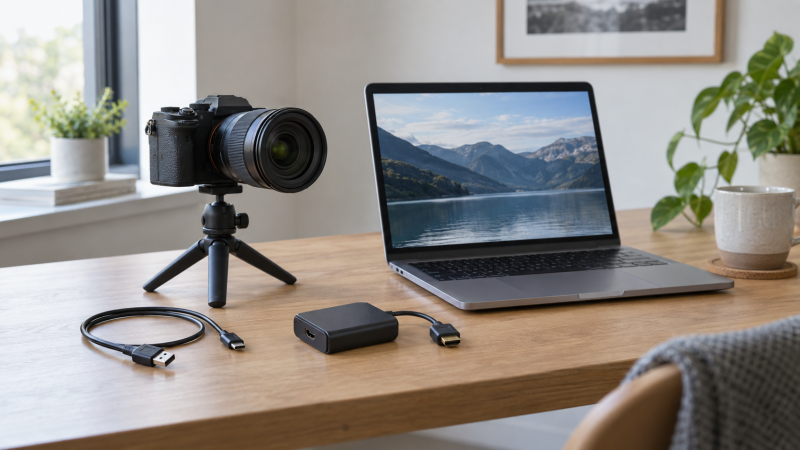
An HDMI capture chain has camera HDMI output, a compatible cable, a capture device, a laptop USB port and the streaming app. Canon lists clean HDMI output for the R50. Elgato’s Cam Link 4K setup instructions say to connect the camera to the capture device’s HDMI input and then connect the device to a USB 3.0 port. The chain is more hardware than a single USB webcam cable, but it can be useful when you need a documented HDMI signal path and a capture device that accepts it.
Check the camera’s HDMI output mode and whether it can remove focus boxes, menus and exposure overlays. Elgato names a clean HDMI output as a requirement. A camera that displays a picture on a television is not automatically ready to send an overlay-free feed to viewers. Also confirm the capture device’s supported signal format, the laptop port, and whether the camera can operate for the length of your session.
Do not assume HDMI will improve a call merely because the camera records in 4K. USB webcam output, HDMI output and internal recording can have different format limits. The app may reduce the feed again before the audience sees it. Compare the video devices inside your target software, under the same light and framing, before paying for a more complicated path.
HDMI capture is a separate system. Count its cable, capture device, USB port and power arrangement before treating it as an upgrade.Check power, audio and app behavior together
Streaming duration is a power-and-heat question for the complete setup. Confirm the maker’s instructions for power during streaming and test the intended recording length. Canon’s R50 support page lists a specific power adapter route while turned on. A capture dongle also uses a laptop USB port. Do not infer that the camera will run indefinitely from a USB cable merely because its battery icon changes.
Choose one audio route deliberately. The camera may provide an audio device over USB, but your laptop might select its built-in microphone or a separate audio interface instead. HDMI capture can carry camera audio where the camera and capture path support it. Listen to a test recording from the app, not just its input meter. For a two-person session, a dual-transmitter microphone kit adds another receiver and routing decision.
Open the app you will use and verify camera selection, frame, exposure, focus, microphone, and synchronization. Recheck after changing cables, camera mode, USB ports or app settings. Run a short rehearsal with the same laptop and network to catch configuration mistakes before a meeting or public stream.
Pick the simplest path that meets the job
For ordinary video calls or a one-camera desk stream, start with the camera’s documented direct USB mode when available. It avoids a capture box and reduces cabling. If the camera only has a supported webcam utility, decide whether the software can be installed and maintained on that laptop. Neither route guarantees picture quality without a suitable lens, stable mount and useful light.
Choose HDMI capture when a specific camera output or production workflow requires it and the exact camera/capture combination is documented. For a larger multi-camera production, the hardware switcher guide is about a different topology. A hardware encoder can remove the laptop from another workflow altogether. Do not buy those systems to solve a camera setting that could be fixed in its USB menu.
If the setup is new, prove the camera-to-app path before ordering extra pieces. Choose one camera, one cable and one laptop port for the first test. Add audio, lighting or capture gear only after the basic feed is stable. Keep a fallback camera for events that cannot pause while you troubleshoot.
Frequently Asked Questions
Does a USB-C camera automatically work as a webcam?
No. USB-C describes the connector, not the camera’s active connection mode. One camera may expose files, another may use a USB webcam mode, and another may require manufacturer software. Check the exact model manual.
Set the camera to the stated webcam or streaming mode, then select it in the target app. If the app sees storage but no video, inspect the camera mode and data cable before buying another accessory.
Do I need a capture card if my camera supports UVC?
Usually not for the basic laptop webcam job. A documented UVC mode presents the camera to compatible software over USB, so the capture box is not part of that path. Canon’s R50 is an example with a stated UVC webcam mode.
An HDMI capture device can still serve a separate output or production requirement. Verify the exact clean HDMI feed, cable, capture format and laptop port first. Do not assume the resulting call will look better by default.
Can I infer USB output from the camera’s 4K recording specification?
No. Internal movie recording and the USB webcam feed are separate camera functions. Canon states a Full HD 30 fps mode for the R50’s USB webcam path even though the camera has other movie features.
Read the manufacturer’s streaming instructions for your exact model, then check what your software receives. If the intended feed is not sufficient, investigate a documented HDMI capture path rather than guessing from the recording label.
Bottom Line
Start with the exact camera’s documented laptop video mode, not its port shape or 4K badge. Use direct USB when its output meets the job. Use maker software when the software is the supported route and the laptop permits it. Choose HDMI capture when a specific compatible output justifies the additional hardware. Test the full camera, power, audio and app setup before the first live stream.