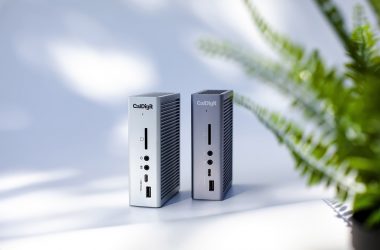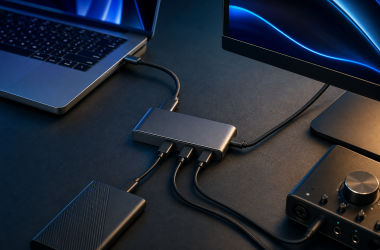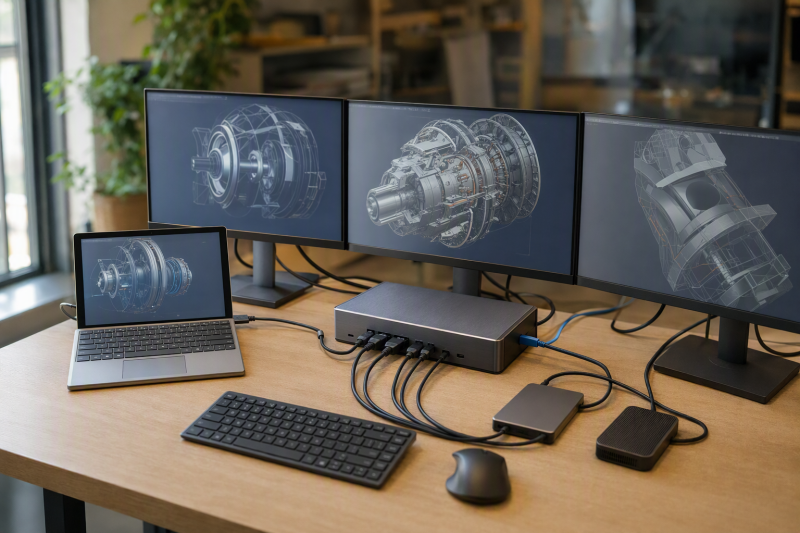
On a supported Dell workstation, Dell Pro Thunderbolt 4 Smart Dock SD25TB4 is the best dock in this frozen slate, because Dell’s documented 130W and fleet route can matter more than generic port count. The others each own a lane: Lenovo ThinkPad Thunderbolt 4 Workstation Dock is the proprietary split-cable high-power branch, Plugable TBT4-UDZ is the conventional third-party choice, StarTech 132N-TB4USB4DOCK is another vendor-neutral workstation route, and HP Thunderbolt Dock 120W G4 is the HP first-party branch.
Workstation docking starts with the exact computer. Manufacturer display modes are ceilings, not measured or universal results. GPU stream capacity, DSC, MST, Thunderbolt implementation, firmware, driver, operating system, internal panel, resolution, refresh, cable, adapter, and monitor input all affect the final topology. Vendor-specific charging and fleet behavior never transfer between Dell, Lenovo, HP, and third-party docks. Use the broad Thunderbolt 4 dock guide after identifying the workstation’s host and power requirements.
Quick picks
- Dell SD25TB4: Best supported Dell power and fleet route.
- Lenovo Workstation Dock: Best supported Lenovo split-cable power route.
- Plugable TBT4-UDZ: Best conventional third-party option.
- StarTech 132N-TB4USB4DOCK: Best alternate vendor-neutral branch.
- HP Thunderbolt Dock 120W G4: Best HP first-party branch.
Compare Thunderbolt 4 workstation docks
| Image | Product | Details | Check Price |
|---|---|---|---|
 | Dell Pro Thunderbolt 4 Smart Dock SD25TB4 | Best for: Supported Dell power and fleet path Host boundary: Exact Dell service tag and TB4 support Laptop power: Up to 130W supported Dell; up to 96W non-Dell Fleet boundary: Only documented supported-hardware functions Buyer check: GPU, DSC/MST, firmware, OS, and topology | Check Price on Amazon |
 | Lenovo ThinkPad Thunderbolt 4 Workstation Dock 40B00300US | Best for: Supported Lenovo workstation power path Host boundary: Exact split-cable ThinkPad support Laptop power: Up to 230W peak on qualified route Power boundary: Not universal USB Power Delivery Buyer check: Machine, cable, supply, and display matrix | Check Price on Amazon |
 | Plugable TBT4-UDZ | Best for: Conventional vendor-neutral desk Host boundary: Exact workstation Thunderbolt 4 path Laptop power: Retained ceiling unknown Fleet boundary: No OEM integration established Buyer check: Outputs, modes, cable, and accepted power | Check Price on Amazon |
 | StarTech 132N-TB4USB4DOCK | Best for: Alternate vendor-neutral workstation route Host boundary: Exact TB4 or documented fallback path Laptop power: Retained ceiling unknown Display boundary: Physical outputs are not monitor count Buyer check: Port groups, modes, cable, and power | Check Price on Amazon |
 | HP Thunderbolt Dock 120W G4 4J0A2AA | Best for: Supported HP first-party workstation path Host boundary: Exact HP model, firmware, and OS Power boundary: 120W name is not accepted laptop draw Fleet boundary: No Dell or Lenovo functions inherited Buyer check: HP power, GPU, DSC/MST, and display matrix | Check Price on Amazon |
1. Dell Pro Thunderbolt 4 Smart Dock SD25TB4 — best overall
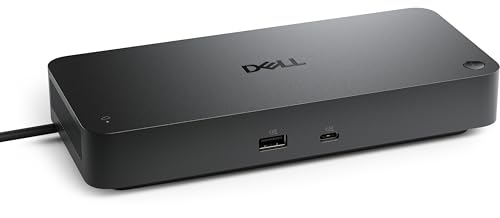
SD25TB4 leads for a supported Dell workstation because Dell documents up to 130W on qualifying Dell systems. Read that as a vendor-specific route, not an ordinary USB Power Delivery result that follows the dock to every PC. Dell also ties some power-button, MAC pass-through, Wake-on-LAN, firmware, and management behavior to supported hardware.
Use the exact service tag to verify the Thunderbolt 4 port, accepted charging, BIOS, dock firmware, operating system, GPU, and enterprise functions. The word Dell does not prove that every feature is exposed. A non-Dell workstation follows the separately documented up-to-96W ceiling rather than inheriting 130W.
Display capability remains independent of charging and fleet support. Physical connectors cannot prove the number or mode of simultaneous monitors. Map every screen through the exact GPU, DSC/MST, driver, cable, adapter, resolution, refresh, internal-panel, and monitor-input conditions.
Our Take
Choose SD25TB4 when a qualifying Dell’s 130W and fleet path are the reason to buy. Verify the exact service tag and display matrix before treating it as a universal workstation dock.
- Dell first-party power and fleet route
- Up to 130W on supported Dell systems
- Separately documented non-Dell power ceiling
- Service-tag support controls Dell-specific functions
- Display output count remains host-dependent
2. Lenovo ThinkPad Thunderbolt 4 Workstation Dock — best Lenovo high-power branch
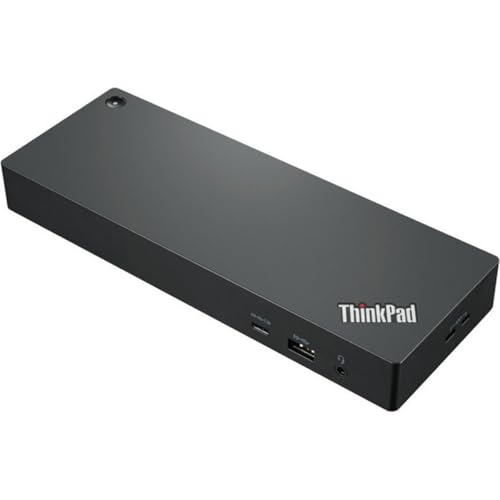
Lenovo Workstation Dock, exact model 40B00300US, is the specialist choice for a supported ThinkPad workstation. The manager gate records an advertised peak up to 230W only through Lenovo’s proprietary split-cable workstation path.
That figure is not universal USB Power Delivery. It requires the exact supported Lenovo machine, cable, power configuration, firmware, and operating system. A different Windows workstation cannot claim the route because its USB-C connector fits. Keep the computer’s direct adapter when Lenovo requires it.
The split power path also does not establish a monitor count. CPU/GPU platform, Thunderbolt implementation, DSC/MST resources, internal display, resolution, refresh, cable, adapters, and monitor inputs remain separate. The dock does not inherit Dell fleet behavior, and a Dell dock does not inherit Lenovo’s 230W path.
Our Take
Choose the Lenovo Workstation Dock only when the exact ThinkPad qualifies for the proprietary split-cable route. It is a powerful specialist branch, not a general 230W promise.
- Supported Lenovo workstation route
- Up-to-230W peak on the qualified split-cable path
- First-party fit for exact supported ThinkPads
- 230W is not universal USB PD
- Requires exact machine, cable, and power qualification
3. Plugable TBT4-UDZ — best conventional third-party choice
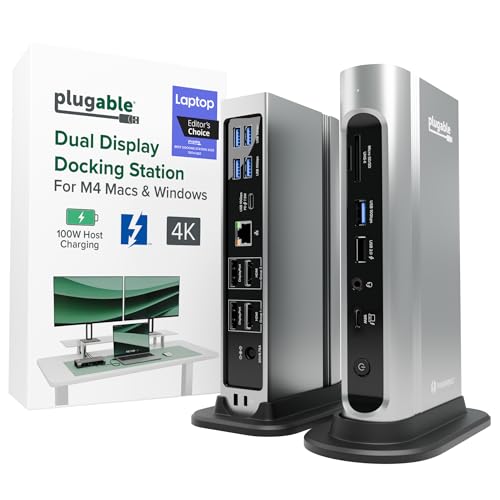
Plugable TBT4-UDZ is the conventional third-party route for a Windows workstation with a documented Thunderbolt 4 host. It suits buyers who need core docking and do not require Dell, Lenovo, or HP fleet integration or proprietary charging.
The frozen gate does not repeat Plugable’s complete port inventory, USB PD ceiling, or display matrix, so verify the exact model rather than transferring numbers from another dock. Four physical video outputs, if a dock exposes them, still do not prove four simultaneous displays.
Host GPU stream capacity, DSC/MST, driver, operating system, internal panel, resolution, refresh, cable, adapter, and monitor input remain the display checks. Plugable also cannot inherit Dell’s 130W or Lenovo’s split-cable 230W routes.
Our Take
Choose TBT4-UDZ when a vendor-neutral Thunderbolt 4 desk is more useful than OEM integration. Confirm its exact outputs, modes, power, and workstation host support before ordering.
- Conventional third-party TB4 role
- Suitable when OEM fleet features are unnecessary
- Clear vendor-neutral workstation branch
- Exact port and power matrix is not repeated in the gate
- No Dell, Lenovo, or HP integration is established
4. StarTech 132N-TB4USB4DOCK — best alternate vendor-neutral branch

StarTech 132N-TB4USB4DOCK is the alternate vendor-neutral choice in the frozen slate. It earns a place on the shortlist when an exact StarTech port arrangement or support record fits the workstation better than Plugable’s, and OEM charging and fleet behavior are not required.
The manager gate freezes the exact model and ASIN without repeating its port inventory, display ceiling, supply wattage, or USB PD ceiling. Keep each field as an exact-model check. A USB4 reference in the model name also does not prove every fallback mode or display result on every USB-C host.
As with the other docks, the GPU, DSC/MST, Thunderbolt or USB4 implementation, driver, OS, cable, adapter, resolution, refresh, and monitor inputs control. StarTech does not inherit Dell or Lenovo proprietary power and fleet functions.
Our Take
Choose StarTech when its exact documented port and support map fits the workstation. Do not buy from the model name alone; verify host mode, display topology, and laptop power.
- Alternate vendor-neutral workstation route
- Exact frozen identity 132N-TB4USB4DOCK
- Useful when the StarTech port map fits the desk
- Full retained port, display, and power details are unknown
- Model naming does not establish every host mode
5. HP Thunderbolt Dock 120W G4 — best HP first-party branch

HP Thunderbolt Dock 120W G4, model 4J0A2AA, is the HP first-party route. It makes sense when the exact HP workstation support record matters more than vendor-neutral use and the buyer wants one OEM accountable for the computer and dock combination.
The 120W in the product name must not be converted into accepted laptop power. Dock supply, dock overhead, USB PD offered to the host, vendor-specific charging, and laptop-accepted draw are different values. The frozen gate does not repeat HP’s exact host-power or display matrix.
HP compatibility also does not establish Dell or Lenovo fleet behavior. Confirm the exact HP model, Thunderbolt port, firmware, OS, GPU, DSC/MST, monitors, cables, adapters, and accepted charging before purchase.
Our Take
Choose HP Dock G4 when a supported HP workstation and OEM support route drive the decision. Verify what 120W describes and the exact host-power and display result.
- HP first-party workstation branch
- Exact model 4J0A2AA
- Single-vendor support path for qualifying HP systems
- 120W product name is not accepted laptop power
- Exact HP host and display matrix must be checked
How to choose a TB4 dock for a Windows workstation
Identify the OEM power route
Dell’s supported 130W and Lenovo’s split-cable 230W are vendor-specific. HP’s product naming needs its own power breakdown, and third-party docks use their documented USB PD paths. Keep external supply wattage, dock overhead, offered power, proprietary charging, and accepted laptop input separate.
Draw the display topology
List every monitor’s resolution, refresh, and input, plus the laptop’s internal display. Then map the requested arrangement against GPU stream capacity, DSC, MST, Thunderbolt implementation, driver, OS, cables, and adapters. Port count is not monitor count.
If one dock cannot satisfy both power and display requirements, keep direct workstation power and use the dock only for qualified data and monitor paths.
Decide whether fleet behavior matters
If power-button behavior, MAC pass-through, Wake-on-LAN, firmware management, or another OEM function is required, confirm it in the exact workstation and dock support record. Third-party docks do not inherit these features.
Confirm the host link
USB-C is only the connector, so verify Thunderbolt 4 or the exact fallback mode and cable. The USB4 versus Thunderbolt 4 guide explains the link boundary without promising displays or charging.
Frequently asked questions
Do four video outputs mean four monitors?
No. GPU streams, DSC/MST, resolution, refresh, internal panel, driver, cable, adapter, and monitor inputs control simultaneous displays.
Can Dell’s 130W or Lenovo’s 230W work on another workstation brand?
Not from the frozen evidence. Both are vendor-qualified paths with exact hardware conditions.
Does HP Dock G4 send 120W to the laptop?
The product name alone does not establish accepted host power. Check HP’s exact supply and laptop-power documentation.
Final recommendation
For a supported Dell workstation that needs its qualified power and fleet path, Dell SD25TB4 is the best overall dock here. Take Lenovo for the supported split-cable workstation route, Plugable or StarTech for vendor-neutral docking, or HP Dock G4 for an exact supported HP system.