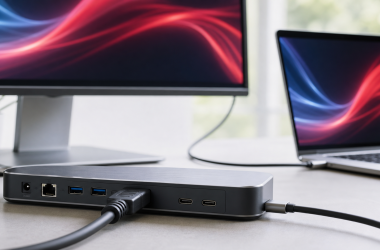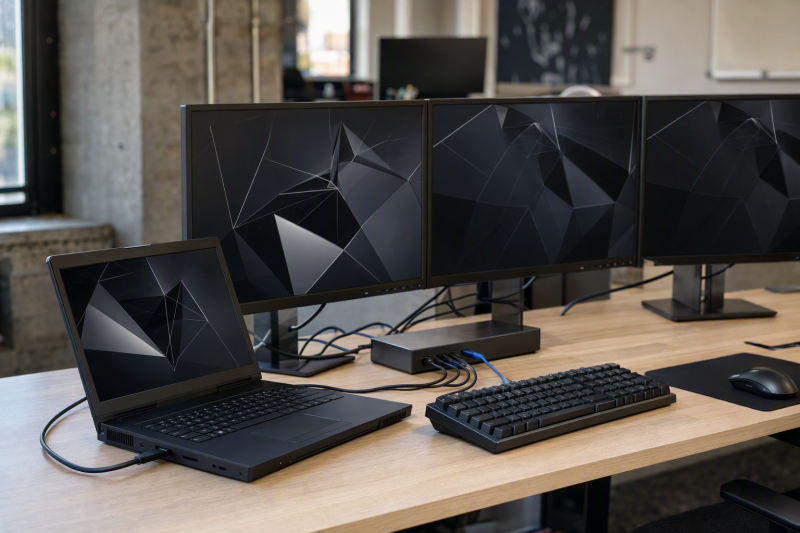
For a supported ThinkPad P-series workstation, the Lenovo ThinkPad Thunderbolt 4 Workstation Dock, model 40B00300US, is the best dock in this frozen slate. Its proprietary split cable is the only selected route Lenovo documents for up to 230W on compatible machines. Each alternative answers one different need: Lenovo’s Thunderbolt 5 Smart Dock 7500 is the high-power managed alternative for a qualifying TB5 P series, the USB4 Smart Dock 5500 fits models whose needs stay within ordinary USB Power Delivery, CalDigit TS5 Plus prioritizes high-speed ports, and Anker Prime DL7400 adds software-driven office displays.
“ThinkPad P Series” is not a port or charging specification. Find the exact machine type, generation, CPU and GPU platform, then check Lenovo PSREF/support for its Thunderbolt or USB4 mode, native display count, accepted USB-C power, required proprietary adapter, operating system, and dock firmware. A dock power-supply number cannot be transferred from one P-series generation to another. Our broader ThinkPad docking station guide covers the family context.
Quick picks
- Lenovo Thunderbolt 4 Workstation Dock: Best proprietary high-power route.
- Lenovo Thunderbolt 5 Smart Dock 7500: Best managed TB5 P-series option.
- Lenovo USB4 Smart Dock 5500: Best managed 100W-class branch.
- CalDigit TS5 Plus: Best port-dense TB5 alternative.
- Anker Prime DL7400: Best DisplayLink branch for extra office screens.
Compare ThinkPad P-series docks
| Image | Product | Details | Check Price |
|---|---|---|---|
 | Lenovo ThinkPad Thunderbolt 4 Workstation Dock 40B00300US | Best for: Supported proprietary high-power P-series path Host path: Thunderbolt 4 plus Lenovo split power cable Display routes: 2x DP 1.4, HDMI 2.1, downstream TB4 Laptop power: Up to 230W with required 300W adapter and split cable Buyer check: Exact Lenovo machine-type support | Check Price on Amazon |
 | Lenovo ThinkPad Thunderbolt 5 Smart Dock 7500 40BA0265US | Best for: Managed TB5 P series Host path: Thunderbolt 5 on qualifying workstation Display routes: 2x DP 2.1, HDMI 2.1, downstream TB5 Laptop power: Up to 180W PD 3.1 Buyer check: Older hosts do not inherit TB5 modes | Check Price on Amazon |
 | Lenovo ThinkPad USB4 Smart Dock 5500 40BC0135US | Best for: Managed 100W-class P series Host path: USB4 on qualifying machine type Display routes: 2x DP 1.4, HDMI 2.1, full-function USB-C Laptop power: Up to 100W on selected adapter configuration Buyer check: May still require proprietary power | Check Price on Amazon |
 | CalDigit TS5 Plus | Best for: Port-dense TB5 workstation desk Host path: Thunderbolt 5 for full capability Expansion: 20 ports, 10GbE, dual UHS-II readers Laptop power: Up to 140W Buyer check: Keep direct power for demanding CPU/GPU loads | Check Price on Amazon |
 | Anker Prime DL7400 A83B3 | Best for: Extra DisplayLink office screens Host path: DisplayLink software over USB Display routes: DP 1.4 and 2x HDMI 2.1 Laptop power: Up to 140W under PD 3.1 and front-port conditions Buyer check: Not the native workstation graphics path | Check Price on Amazon |
1. Lenovo ThinkPad Thunderbolt 4 Workstation Dock 40B00300US — best overall
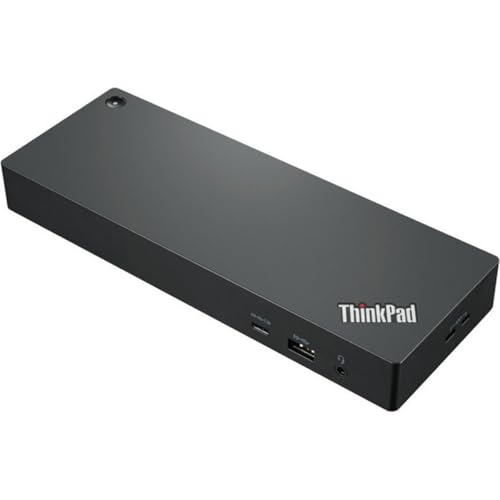
This dock leads because it addresses the problem that ordinary USB-C docks do not: supported high-power P-series charging through Lenovo’s proprietary split-cable path. Lenovo rates that path up to 230W only when a listed workstation uses the required Thunderbolt-and-power split cable with the 300W adapter.
Lenovo documents one host Thunderbolt 4 connection, one downstream Thunderbolt 4 port, two DisplayPort 1.4 outputs, HDMI 2.1, four USB-A ports, USB-C, and Gigabit Ethernet. Lenovo also publishes display ceilings for supported configurations, but the exact P-series graphics platform, internal panel, firmware, OS, cables, and monitors determine the usable topology.
The split cable is the purchase gate. A standard USB-C or Thunderbolt cable does not deliver Lenovo’s 230W route, and an unsupported P series cannot inherit it. Match the machine type in Lenovo’s accessory matrix, then verify that the selected package includes the 300W adapter and correct split cable.
Our Take
Choose the Workstation Dock only when Lenovo lists the exact P-series machine for the proprietary power path. It is the strongest supported workstation route, not a universal 230W dock.
- Official proprietary high-power workstation path
- Conventional display outputs plus downstream TB4
- Up to 230W on explicitly supported configurations
- Requires the proprietary split cable and 300W adapter
- Compatibility must be checked by exact machine type
2. Lenovo ThinkPad Thunderbolt 5 Smart Dock 7500 40BA0265US — best managed TB5 option
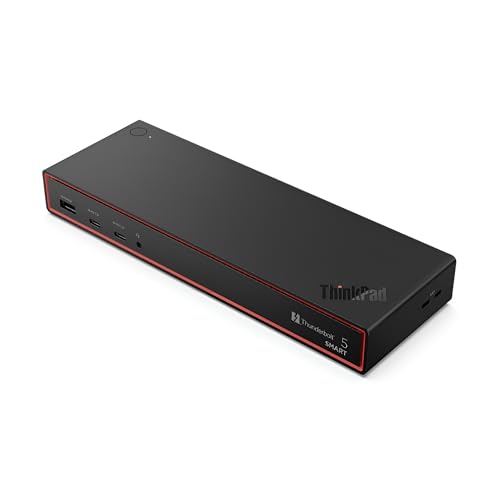
The Smart Dock 7500 is the official managed branch for a P-series model whose specification documents Thunderbolt 5 and whose charging need fits Lenovo’s USB PD 3.1 path. Lenovo supplies a 265W adapter and states host Power Delivery up to 180W on a qualifying system.
Lenovo documents two DisplayPort 2.1 outputs, HDMI 2.1, two full-function Thunderbolt 5 connections, and 2.5GbE. Its published display configurations remain ceilings. Host GPU, Thunderbolt generation, cable, operating system, active internal display, and monitor chain decide what the workstation can actually run.
A Thunderbolt 4 or USB4 P series can negotiate a compatible lower mode, but it cannot acquire TB5 display or bandwidth modes from the dock. Nor does the 180W ceiling prove that a power-hungry workstation can abandon its proprietary Lenovo adapter under CPU and GPU load.
Our Take
Choose Smart Dock 7500 for a documented TB5 P series that benefits from Lenovo management and accepts the offered power. Keep the workstation adapter when Lenovo’s machine record requires it.
- Official managed Thunderbolt 5 dock
- Up-to-180W PD 3.1 ceiling
- Conventional outputs and 2.5GbE
- Older P-series hosts cannot inherit TB5 modes
- May not replace required proprietary power
3. Lenovo ThinkPad USB4 Smart Dock 5500 40BC0135US — best 100W-class managed branch
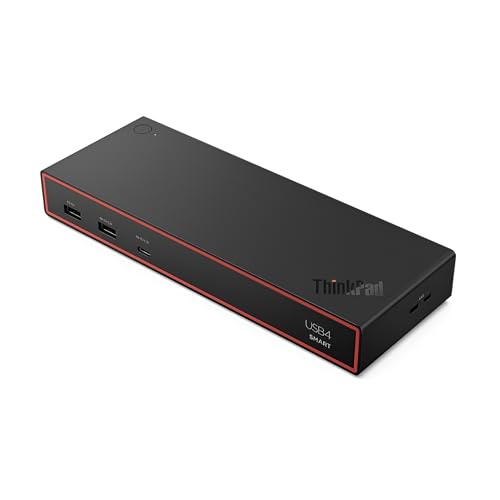
The USB4 Smart Dock 5500 fits a mobile P-series system whose exact power requirement stays within ordinary USB Power Delivery and whose USB4 display matrix qualifies. The selected 40BC0135US configuration uses a 135W adapter, with Lenovo stating host charging up to 100W.
Lenovo documents HDMI 2.1, two DisplayPort 1.4 connections, a full-function USB-C video port, six USB data ports, and Gigabit Ethernet. It also documents management functions for supported ThinkPads. Together those make it a credible fleet standard for lighter P-series configurations, but the family logo alone does not establish management, power, or display support.
Compare the laptop’s supplied adapter against its accepted USB-C input. If the machine normally needs well above 100W for CPU or GPU work, keep its Lenovo charger attached or choose the supported split-cable route. A 100W-class dock can still handle data and displays without being the workstation’s only power source.
Our Take
Choose Smart Dock 5500 for a qualifying USB4 P series that genuinely fits a 100W-class managed desk. Do not use it to generalize charging across the P family.
- Official Lenovo USB4 managed option
- Several native display routes
- Up-to-100W ceiling on selected configuration
- Insufficient as sole power for some workstations
- Display results remain exact-host dependent
4. CalDigit TS5 Plus — best port-dense TB5 alternative
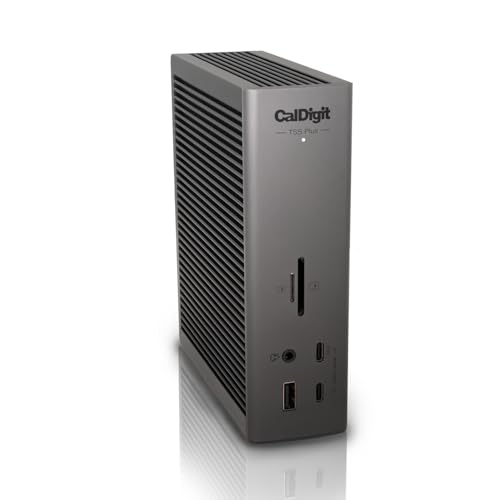
CalDigit TS5 Plus is the third-party choice for a qualifying Thunderbolt 5 P series that needs many high-speed peripherals. CalDigit documents 20 ports, ten 10Gbps USB ports, 10GbE, full-size SD and microSD UHS-II readers, DisplayPort 2.1, and host charging up to 140W.
Full capability requires a TB5 host. A TB4 or USB4 workstation negotiates within its own mode and cannot expose the entire TS5 Plus path. Display results also remain tied to the exact GPU, OS, cable, adapter, DSC support, and monitor inputs.
CalDigit directly warns that CPU- and GPU-heavy laptops may still need proprietary charging, and that is the controlling P-series limitation. Treat the dock as data, display, network, and media expansion first; use its power only where Lenovo documents that the workstation accepts an adequate negotiated input.
Our Take
Choose TS5 Plus when 10GbE, many USB ports, and dual media readers justify a TB5 dock. Keep direct Lenovo power for demanding workstations when required.
- 20-port Thunderbolt 5 design
- 10GbE and dual UHS-II readers
- Up-to-140W charging ceiling
- Full capability needs a qualifying TB5 host
- Does not universally replace proprietary charging
5. Anker Prime DL7400 A83B3 — best extra-office-screen branch
Anker DL7400 is the branch for a P-series user whose problem is office monitor count and whose environment allows DisplayLink software. Anker documents DisplayLink graphics, DisplayPort 1.4, two HDMI 2.1 outputs, 2.5GbE, USB, card readers, audio, and Windows 10/11 support.
DisplayLink sends software-processed display data over USB. That can add office screens beyond a native path, but it is not the same as direct GPU output through Thunderbolt, USB4, or DisplayPort Alt Mode. Do not use this route as a native workstation, color-critical, low-latency, or gaming promise. Administrator approval and driver support are required.
Anker rates its host charging to reach up to 140W only with a USB PD 3.1 host and no more than one device on the front USB-C ports. The complete simultaneous display matrix is not retained here, so no unsupported resolution combination is promised.
Our Take
Choose DL7400 for extra document, dashboard, and communication screens when DisplayLink is allowed. Use a native dock for primary workstation graphics and retain direct Lenovo power when needed.
- DisplayLink route for additional office screens
- 2.5GbE, USB, media, and audio
- Conditional up-to-140W host path
- DisplayLink driver and policy approval required
- Software graphics is not the native workstation path
How to choose a P-series dock
Start with machine type and Lenovo’s power design
Record the exact P-series machine type, generation, CPU, GPU, supplied adapter, and accepted USB-C power, then check Lenovo’s accessory compatibility record. If Lenovo lists the proprietary split-cable path, the Workstation Dock can address high power. If it does not, the 230W number does not apply.
Separate proprietary power from USB Power Delivery
The Workstation Dock combines Thunderbolt with a separate Lenovo power connection. Manufacturer specifications rate the Smart Dock 7500 for up to 180W PD 3.1, the TS5 Plus and DL7400 for up to 140W under their conditions, and the Smart Dock 5500 for up to 100W. Every one of those is a dock ceiling, not the laptop’s accepted draw. CPU/GPU load and system policy can require the original adapter even when a dock is connected.
Match the host generation
Thunderbolt 5 docks do not upgrade a Thunderbolt 4 or USB4 laptop. USB4 and TB4 hosts negotiate their own lower path instead. Check host, cable, firmware, OS, GPU, DSC, display inputs, and adapters before using a manufacturer display ceiling. Our Thunderbolt generation guide explains the interface boundary.
Keep native graphics and DisplayLink separate
Lenovo and CalDigit use native host display resources, while Anker uses DisplayLink software for its screen path. DisplayLink can solve an office monitor-count problem, but it adds driver, policy, and workload conditions. It is not proof of color accuracy, application performance, protected-content behavior, or low latency.
Decide whether management or ports matter more
Lenovo’s Smart docks suit managed deployments, and CalDigit favors 10GbE, USB, and media expansion. The Workstation Dock is about the proprietary high-power path, while Anker is about extra office displays. Thunderbolt 5 docks are worth comparing only after the P-series host qualifies.
Frequently asked questions
Will the Workstation Dock charge every P series at 230W?
No. Lenovo limits that route to supported machine types using the required 300W adapter and proprietary split cable.
Can a Thunderbolt 5 dock upgrade a TB4 P series?
No. The laptop is still the ceiling for link mode, display resources, and negotiated power.
Is DisplayLink suitable for primary workstation graphics?
It is best treated as an office expansion path. Native GPU output remains the safer route for color-critical, latency-sensitive, gaming, and demanding graphics work.
Final recommendation
Lenovo’s Thunderbolt 4 Workstation Dock is the best overall choice only for a P-series machine explicitly listed for its proprietary split-cable path. After that, one requirement picks each alternative: Smart Dock 7500 for a qualifying managed TB5 workstation, Smart Dock 5500 for a qualifying 100W-class USB4 model, TS5 Plus for port density, DL7400 for approved DisplayLink office expansion. Whichever you buy, exact machine type, generation, CPU/GPU, port, power, firmware, OS, and display topology remain separate gates.