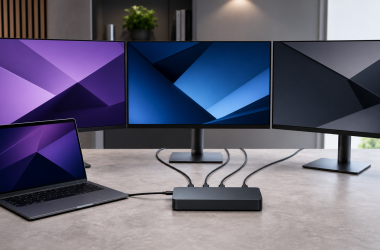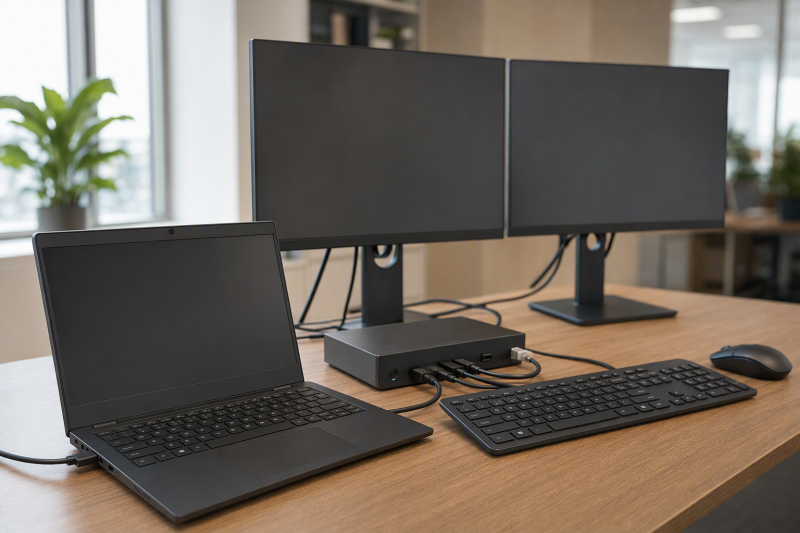
For a qualifying ThinkPad T-series laptop, the Lenovo ThinkPad USB4 Smart Dock 5500, model 40BC0135US, is the best dock in this frozen slate. It leads because an organization can use it as an official managed USB4 desk standard. Each alternative answers one different need: Lenovo’s USB4 Dock 5000 is the simpler official successor choice, Plugable UD-MSTH2 is the native dual-HDMI branch for a documented Windows DisplayPort Alt Mode host, Plugable TBT-UDM suits a higher-bandwidth Thunderbolt 4 or USB4 T series, and Lenovo’s Slim Travel Dock covers one portable display.
The T series spans generations, machine types, sizes, and CPU platforms. Those differences can change port mode, native display count, charging input, and dock behavior even when the USB-C connector looks identical. Find the exact machine type, then check Lenovo PSREF/support for DisplayPort Alt Mode, USB Power Delivery, USB4 or Thunderbolt generation, graphics limits, firmware, and supported operating system. Our broader ThinkPad docking station guide is useful only after that exact host check.
Quick picks
- Lenovo ThinkPad USB4 Smart Dock 5500: Best managed T-series office standard.
- Lenovo ThinkPad USB4 Dock 5000: Best simpler official successor option.
- Plugable UD-MSTH2: Best native dual-HDMI branch for qualifying Windows T-series hosts.
- Plugable TBT-UDM: Best driverless TB4/USB4 third-party dock.
- Lenovo USB-C Slim Travel Dock: Best one-monitor portable branch.
Compare ThinkPad T-series docks
| Image | Product | Details | Check Price |
|---|---|---|---|
 | Lenovo ThinkPad USB4 Smart Dock 5500 40BC0135US | Best for: Managed T-series fleet Host path: USB4 on qualifying machine type Display route: 2x DP 1.4, HDMI 2.1, full-function USB-C Laptop power: Up to 100W on selected adapter configuration Buyer check: Generation, CPU platform, and display matrix | Check Price on Amazon |
 | Lenovo ThinkPad USB4 Dock 5000 40BF0100US | Best for: Simpler official successor path Host path: USB4 intended; reduced USB-C fallback Display route: 2x DP 1.4, HDMI 2.1, full-function USB-C Laptop power: 65W included setup; up to 100W with optional adapter Buyer check: Match exact 40BF model | Check Price on Amazon |
 | Plugable UD-MSTH2 | Best for: Native dual-HDMI Windows desk Host path: USB-C DisplayPort Alt Mode with MST resources Display route: Two HDMI via native MST Laptop power: 65W Buyer check: macOS limited to one external display | Check Price on Amazon |
 | Plugable TBT-UDM | Best for: High-bandwidth third-party desk Host path: Thunderbolt 4 or USB4 Display route: Two HDMI; downstream Thunderbolt Laptop power: Up to 100W Buyer check: Do not transfer results to basic USB-C | Check Price on Amazon |
 | Lenovo USB-C Slim Travel Dock 4X11N40213 | Best for: One-monitor travel Host path: Video/data/power-capable USB-C Display route: One HDMI Laptop power: Up to 65W pass-through Buyer check: Integrated cable and host conditions | Check Price on Amazon |
1. Lenovo ThinkPad USB4 Smart Dock 5500 40BC0135US — best overall
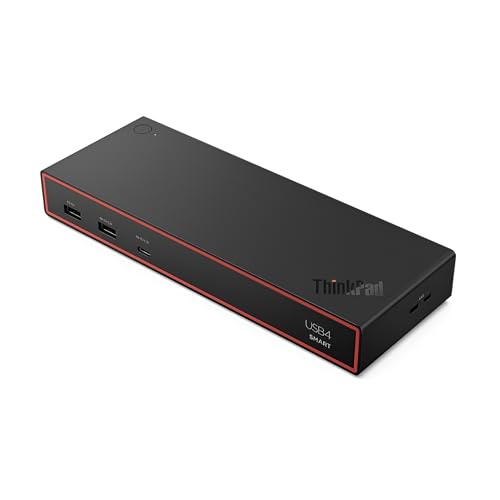
Lenovo’s USB4 Smart Dock 5500 is the first choice for a managed fleet of qualifying T-series laptops. It gives the IT team an official Lenovo USB4 dock path and Lenovo-documented management functions rather than asking one third-party dock to cover machines it has not qualified.
Lenovo documents HDMI 2.1, two DisplayPort 1.4 outputs, a full-function USB-C video port, six USB data ports, and Gigabit Ethernet. On the selected 40BC0135US configuration with a 135W adapter, Lenovo rates host charging up to 100W. The laptop decides what it accepts, and that same adapter also powers the dock and attached devices.
Published display ceilings remain conditional. Exact machine type, CPU platform, graphics engine, OS, internal-panel use, cable, adapter, and monitor chain can reduce monitor count or format. A T14, T16, or another T-series label cannot replace the exact PSREF row.
Our Take
Choose Smart Dock 5500 when a supported USB4 T-series fleet needs an official managed standard. For an unmanaged desk or a basic USB-C generation, another branch can be a better fit.
- Official Lenovo managed USB4 option
- Several native display routes
- Up-to-100W ceiling on selected configuration
- Exact T-series host controls display results
- Management features may be unnecessary for one desk
2. Lenovo ThinkPad USB4 Dock 5000 40BF0100US — best simpler official option
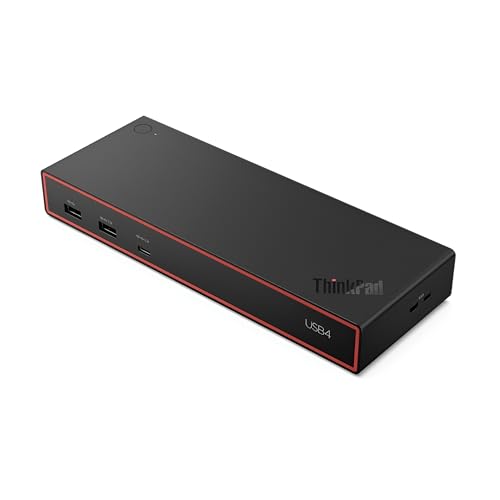
Lenovo identifies the USB4 Dock 5000 as the successor to the Universal USB-C Dock. This is the official branch for a buyer who wants Lenovo hardware without making fleet management the central reason to buy. Match model 40BF0100US, because similar Universal and USB-C dock names refer to other models.
Lenovo documents a USB4 40Gbps upstream design with two DisplayPort 1.4 outputs, HDMI 2.1, a full-function USB-C DisplayPort connection, six USB data ports, and Gigabit Ethernet. USB-C fallback is reduced, and the exact T-series graphics and port resources determine the usable display layout.
Charging needs a package check. The included 100W adapter supplies Lenovo’s documented 65W laptop configuration, while the maker’s up-to-100W path requires an optional 135W adapter and a qualifying host. Do not read a 100W dock label as proof that the selected package or laptop reaches it.
Our Take
Choose Dock 5000 for a qualifying T-series laptop when the official Universal USB-C Dock successor is more important than smart management. Decide whether 65W is enough before buying another adapter.
- Lenovo’s named Universal USB-C Dock successor
- Official USB4 desk path
- Several conventional display outputs
- Included power setup supplies 65W to the laptop
- Plain USB-C fallback reduces capability
3. Plugable UD-MSTH2 — best native dual-HDMI branch
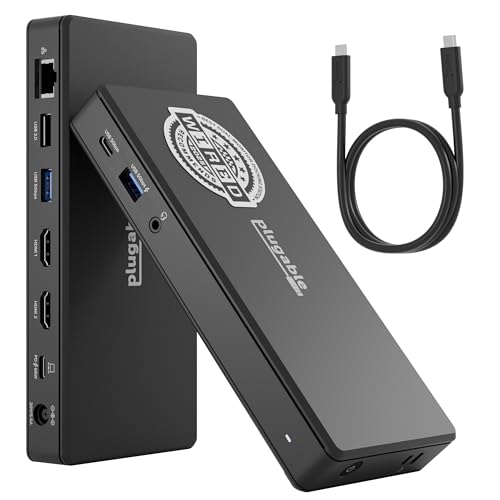
Plugable UD-MSTH2 is the focused choice for a Windows T-series laptop whose exact USB-C port provides DisplayPort Alt Mode and enough native display resources. The dock uses Multi-Stream Transport, or MST, to split the host’s DisplayPort signal rather than creating displays through DisplayLink software.
Plugable documents two HDMI outputs with a ceiling up to dual 4K60 on supported hosts, 65W laptop charging, Gigabit Ethernet, USB-C and USB-A data ports, and audio. It describes driverless operation on supported Windows and ChromeOS systems. Plugable limits macOS to one external display through this MST design.
The dual-display ceiling depends on the laptop’s DisplayPort version, Display Stream Compression support, graphics resources, OS, and active display load. Two physical HDMI ports are not proof that a given T-series generation can run both at the advertised ceiling. This native branch works best when the PSREF row proves the required display path. See our dual-monitor docking station guide for the wider category.
Our Take
Choose UD-MSTH2 for a qualifying Windows DP Alt Mode T series when two native HDMI screens and 65W charging cover the desk. Skip it if host resources or OS reduce the topology.
- Native MST rather than DisplayLink software
- Two HDMI outputs
- 65W charging plus Ethernet and USB
- Requires DisplayPort Alt Mode and adequate host resources
- Plugable limits macOS to one external display
4. Plugable TBT-UDM — best high-bandwidth third-party option

TBT-UDM is the third-party branch for a T-series generation whose specification names Thunderbolt 4 or USB4. Plugable documents driverless operation, two HDMI outputs, a downstream Thunderbolt port, SD and microSD UHS-II readers, Ethernet, audio, USB-A, USB-C, and host charging up to 100W.
The downstream Thunderbolt branch and media readers make it more capable than UD-MSTH2 for a desk with high-speed peripherals. Host qualification is the tradeoff. A basic USB-C T series cannot inherit Thunderbolt 4 bandwidth or a dual-display path simply because the cable fits.
Plugable’s display and power figures are ceilings for supported hosts. The exact CPU platform, native display engine, port implementation, OS, firmware, adapters, and screens determine the result. “Driverless” does not remove any of those constraints. Our Thunderbolt 4 docking station guide helps compare other qualified options.
Our Take
Choose TBT-UDM when the exact T-series host documents TB4 or USB4 and the desk needs downstream Thunderbolt or UHS-II readers. Use UD-MSTH2 for a simpler proven DP Alt Mode dual-HDMI job.
- Driverless TB4/USB4 design
- Downstream Thunderbolt and two HDMI outputs
- UHS-II readers and up-to-100W charging
- Basic USB-C cannot expose intended capabilities
- Display count remains host-specific
5. Lenovo USB-C Slim Travel Dock 4X11N40213 — best portable option

Lenovo’s Slim Travel Dock is the portable one-display branch. It uses an integrated host cable and provides HDMI, two USB-A ports, two 10Gbps USB-C data ports, and a separate USB-C power input. Lenovo documents driver-free operation and up-to-65W pass-through under its conditions.
Even so, this dock needs a video-capable host USB-C port. Lenovo’s single-display ceiling is up to 4K60, but the exact T-series port, graphics, OS, cable, and screen control the result. When running without an AC adapter, Lenovo also states that the host must supply 5V/3A.
The integrated cable reduces the number of travel pieces and is harder to replace than a detachable cable. This is not a portable version of the Smart Dock 5500. It is for one monitor and a small number of peripherals, not a multi-display managed office.
Our Take
Choose the Slim Travel Dock when a qualifying T-series laptop needs one HDMI display and pass-through charging away from the desk. Keep a full dock for multi-monitor office use.
- Compact official Lenovo design
- Integrated host cable
- Two 10Gbps USB-C data ports
- One external display only
- Up-to-65W pass-through depends on host and charger
How to match a dock to a ThinkPad T series
Identify the exact laptop, not just T14 or T16
Use the machine type and generation in Lenovo PSREF/support, and record the CPU platform, graphics, port wording, native display count, and accepted USB-C power. Two variants sold under a similar T-series name can expose different USB4 or Thunderbolt support. No behavior in this article transfers from one generation or processor branch to another.
Pick the native display path the host actually has
UD-MSTH2 needs a compatible Windows or ChromeOS DisplayPort Alt Mode source and enough DP resources for the chosen topology. The Lenovo USB4 docks and TBT-UDM need a qualifying higher-bandwidth host for their intended multi-device paths, and the Travel Dock needs USB-C video for one HDMI display. Count host-native displays before counting sockets on the dock.
Separate power adapter, dock output, and accepted input
The dock power supply first runs the dock and attached devices, and the remaining USB-C Power Delivery is negotiated with the laptop. Smart Dock 5500 advertises up to 100W for its selected adapter configuration. Dock 5000 provides Lenovo’s 65W included setup and needs an optional 135W adapter for an up-to-100W path. Plugable rates UD-MSTH2 at 65W and TBT-UDM up to 100W. The Travel Dock passes through up to 65W under Lenovo’s conditions. None of those figures guarantees what a particular T series accepts.
Keep OS, firmware, and topology separate
MST behavior depends on the operating system as well as the host, and Plugable explicitly limits macOS to one external display on UD-MSTH2. Dock and laptop firmware can affect negotiation, while cables, adapters, monitor inputs, and the active internal panel can change the final topology. Update from official support, then validate the exact monitor arrangement instead of transferring a result from a different T-series machine.
Decide whether management is worth paying for
Smart Dock 5500 leads for an IT-managed fleet, while Dock 5000 is the simpler official successor choice. UD-MSTH2 is a focused native dual-HDMI route for a proven Windows host, TBT-UDM adds higher-bandwidth peripherals, and the Slim Travel Dock prioritizes portability. That membership and order differ from the X1 Carbon page because T-series fleet management and native MST are stronger decision branches here.
Frequently asked questions
Does every ThinkPad T series have USB4 or Thunderbolt 4?
No. Generation, machine type, and CPU platform can change the port specification. Use the exact Lenovo PSREF row.
Is MST the same as DisplayLink?
No. MST splits native DisplayPort resources from the host, while DisplayLink creates software-driven display outputs over USB and requires its driver. UD-MSTH2 is the native MST branch in this slate.
Will two HDMI ports always run two monitors?
No. Physical outputs do not prove host support. DisplayPort version, DSC, native graphics limits, OS, internal-panel use, adapters, and monitor formats each matter.
Can a dock replace the original T-series charger?
Only if Lenovo documents that the laptop accepts enough power over the selected USB-C, USB4, or Thunderbolt port. Compare accepted input with the dock’s conditional output rather than its adapter label.
Final recommendation
Lenovo ThinkPad USB4 Smart Dock 5500 is the best overall T-series choice for a qualifying managed fleet. After that, one requirement picks each alternative: Dock 5000 for a simpler official successor path, Plugable UD-MSTH2 for a proven Windows native dual-HDMI route, TBT-UDM for a documented TB4/USB4 desk with high-speed peripherals, Lenovo’s Slim Travel Dock for one portable display. Whichever you buy, exact machine type, generation, CPU platform, port, power, firmware, OS, and display topology remain separate gates.